Ubuntu 系统配置 VS Code C++ 开发环境


测试需要在 Ubuntu 下配置 C++ 开发环境,本文记录配置过程。 Ubuntu 发行版: 20.04
基础工具安装
更新和升级系统软件
sudo apt update
sudo apt upgrade
安装 build-essential
build-essential 包含了 GNU 编辑器集合、GNU 调试器、其他编译软件所必需的开发库和工具,简单来说,安装了 build-essential 就相当于安装了 gcc、g++、make 等工具。
sudo apt install build-essential
- 查看 gcc 版本:
# gcc --version
gcc (Ubuntu 9.4.0-1ubuntu1~20.04.2) 9.4.0
Copyright (C) 2019 Free Software Foundation, Inc.
This is free software; see the source for copying conditions.  There is NO
warranty; not even for MERCHANTABILITY or FITNESS FOR A PARTICULAR PURPOSE.
- 查看 g++ 版本:
# g++ --version
g++ (Ubuntu 9.4.0-1ubuntu1~20.04.2) 9.4.0
Copyright (C) 2019 Free Software Foundation, Inc.
This is free software; see the source for copying conditions.  There is NO
warranty; not even for MERCHANTABILITY or FITNESS FOR A PARTICULAR PURPOSE.
- 查看 make 版本:
# make --version
GNU Make 4.2.1
Built for x86_64-pc-linux-gnu
Copyright (C) 1988-2016 Free Software Foundation, Inc.
License GPLv3+: GNU GPL version 3 or later <http://gnu.org/licenses/gpl.html>
This is free software: you are free to change and redistribute it.
There is NO WARRANTY, to the extent permitted by law.
安装 gdb
- 安装命令
sudo apt install gdb
- 查看 gdb 版本:
# gdb --version
GNU gdb (Ubuntu 9.2-0ubuntu1~20.04.1) 9.2
Copyright (C) 2020 Free Software Foundation, Inc.
License GPLv3+: GNU GPL version 3 or later <http://gnu.org/licenses/gpl.html>
This is free software: you are free to change and redistribute it.
There is NO WARRANTY, to the extent permitted by law.
安装 cmake
- 安装命令
sudo apt install cmake
- 查看 cmake 版本:
# cmake --version
cmake version 3.16.3

CMake suite maintained and supported by Kitware (kitware.com/cmake).
VS Code 环境配置
VS Code 安装
- 安装 VS Code
- 在 VS Code 中安装 C/C++ Extension Pack 扩展组件,其他插件会附带安装
- 我同时也安装了 C/C++,Code Runner, C/C++ Compile Run 扩展
环境配置
VS Code 与 Visual Studio或其他的大型IDE的工作机制类似,一般都是每个project有一个单独的工作空间(也就是目录),可以为每个工作空间配置定制的环境,也可以配置默认的环境。在配置C/C++开发环境时,基本会配置3个文件,tasks.json、launch.json及c_cpp_properties.json,三个文件都在 .vscode目录下。
编译 tasks.json
为当前工作目录配置编译环境,我们需要创建一个tasks.json文件来告诉VS Code如何来编译源文件,选择 Terminal --> Configure Tasks,然后点击C/C++: g++ build active file,会自动生成一个tasks.json,根据自己的需求来修改,tasks.json是为整个目录配置环境,不需要修改诸如 “${fileDirname}” 这样的变量,“type”可以改成“shell”,不能任意; “label”是task的名称,可以随意,但要与launch.json文件中的变量“preLaunchTask”设置一致; “command” 来指定编译器名,可以不带绝对路径。变量参考详见官方文档
{
    "tasks": [
        {
            "type": "cppbuild",
            "label": "C/C++: g++ build active file",
            "command": "/usr/bin/g++",
            "args": [
                "-fdiagnostics-color=always",
                "-g",
                "${file}",
                "-o",
                "${fileDirname}/${fileBasenameNoExtension}"
            ],
            "options": {
                "cwd": "${fileDirname}"
            },
            "problemMatcher": [
                "$gcc"
            ],
            "group": {
                "kind": "build",
                "isDefault": true
            },
            "detail": "Task generated by Debugger."
        }
    ],
    "version": "2.0.0"
}
调试 launch.json
创建一个launch.json文件来配置调试环境,选择Run --> Add Configuration,会自动生成一个launch.json
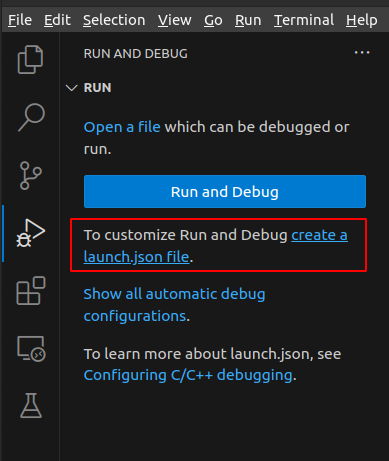
点击右下角的Add Configuration来选定要加入的配置C/C++: (gdb) Launch(VS Code版本不同,方式有些变化)

生成默认 launch.json 文件
{
    // Use IntelliSense to learn about possible attributes.
    // Hover to view descriptions of existing attributes.
    // For more information, visit: https://go.microsoft.com/fwlink/?linkid=830387
    "version": "0.2.0",
    "configurations": [

        {
            "name": "g++ - Build and debug active file",
            "type": "cppdbg",
            "request": "launch",
            "program": "${fileDirname}/${fileBasenameNoExtension}",
            "args": [],
            "stopAtEntry": false,
            "cwd": "${fileDirname}",
            "environment": [],
            "externalConsole": false,
            "MIMode": "gdb",
            "setupCommands": [
                {
                    "description": "Enable pretty-printing for gdb",
                    "text": "-enable-pretty-printing",
                    "ignoreFailures": true
                }
            ],
            "preLaunchTask": "C/C++: g++ build active file",
            "miDebuggerPath": "/usr/bin/gdb"
        }
    ]
}
“program”表示需要调试的文件,下面设置为工作目录 {fileDirname} 中的 {fileBasenameNoExtension} ,当foobar.cpp处于打开状态时,编译得到的 foobar 会被调试
"program": "${fileDirname}/${fileBasenameNoExtension}",

“stopAtEntry”默认为false, 运行调试时,debugger不会在源文件中添加断点,设置为true时,调试会在main函数入口处等待。
配置补充 c_cpp_properties.json
想要进行更多的配置,例如设置编译器路径、改变C标准等,可以创建一个c_cpp_properties.json文件,使用 ctrl+shift+P 打开命令搜索,找到并选择C/C:Edit Configurations(JSON),会自动创建一个c_cpp_properties.json文件,按自己需要修改变量即可。

{
    "configurations": [
        {
            "name": "Linux",
            "includePath": [
                "${workspaceFolder}/**"
            ],
            "defines": [],
            "compilerPath": "/usr/bin/gcc",
            "cStandard": "c17",
            "cppStandard": "gnu++14",
            "intelliSenseMode": "linux-gcc-x64",
            "configurationProvider": "ms-vscode.cmake-tools"
        }
    ],
    "version": 4
}
测试代码
#include <string>
#include <iostream>

using namespace std;


int main(){
    cout << "Hello World ! "<< endl;
    cout << "Hello World ! "<< endl;
    cout << "Hello World ! "<< endl;
    cout << "Hello World ! "<< endl;

    return 0;
}

可以单步调试并显示结果。
要加 endl ,否则会延迟输出。
参考资料
- https://blog.csdn.net/qq_42815188/article/details/128733561
- https://www.cnblogs.com/booturbo/p/17379178.html
本文参与 腾讯云自媒体同步曝光计划,分享自作者个人站点/博客。
原始发表:2023-12-13,如有侵权请联系 cloudcommunity@tencent.com 删除
目录
腾讯云开发者

Copyright © 2013 - 2026 Tencent Cloud. All Rights Reserved. 腾讯云 版权所有
深圳市腾讯计算机系统有限公司 ICP备案/许可证号:粤B2-20090059  粤公网安备44030502008569号
腾讯云计算(北京)有限责任公司 京ICP证150476号 | 京ICP备11018762号