Help & Documentation>实践教程>Cloud Object Storage>Domain Name Management Practice>Configuring a Custom CDN Domain Name to Support Gzip Compression

Configuring a Custom CDN Domain Name to Support Gzip Compression

Last updated: 2024-12-17 09:27:14

Overview

This document only describes how to configure Gzip compression in the Cloud Object Storage (COS) console. To add it in the CDN console, see the CDN Intelligent Compression Configuration document.

Directions

1. Log in to the COS console.
2. In the left sidebar, click Bucket List to go to the bucket list page.
3. Click the bucket that requires configuring Gzip compression to go to the bucket configuration page.
4. Click Domains and Transfer > Custom CDN Acceleration Domain on the left. If there is no available domain name, add one first. For specific configuration, refer to Enabling Custom CDN Acceleration Domain Name.


5. After the domain name is successfully added, the CDN intelligent compression feature is enabled for it by default, and a Gzip compression rule is created.
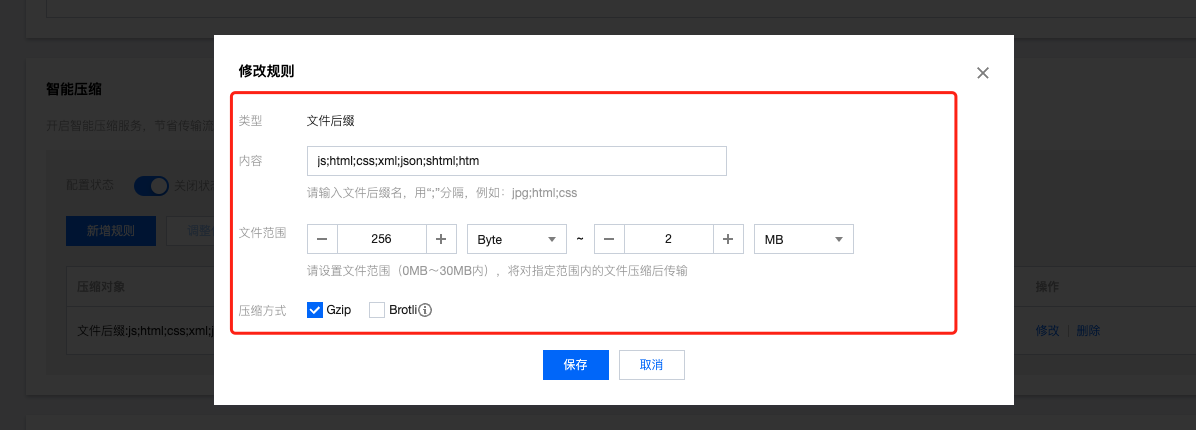
The details of the Gzip compression rule are as follows:
Type: File extension
Content: js;html;css;xml;json;shtml;htm
File Size: 256 Byte to 2 MB
Compression Method: Gzip
6. In the Personalized configuration column, CDN intelligent compression allows you to view the configuration status of Gzip compression and the configured compression method.
If "Not configured" is displayed, it means the CDN intelligent compression configuration feature is not enabled.
To reduce the size of transferred files and save costs, it is recommended to enable the CDN intelligent compression feature. You can click the

icon and click CDN Console according to the reminder to quickly jump to the CDN console for configuration. For operation instructions, see Intelligent Compression Configuration.
If "gzip" or another field is displayed, it indicates the currently configured compression method.
To add, modify, or view CDN intelligent compression rules (such as compression method, type, content, and file scope), you can click the

icon and click CDN Console according to the reminder to quickly jump to the CDN console for configuration. For operation instructions, see Intelligent Compression Configuration.
Note
For more information on intelligent compression configuration rules, such as configuration constraints and the priority of rules to take effect, see Intelligent Compression Configuration in the CDN Configuration Guide.