The content of this page has been automatically translated by AI. If you encounter any problems while reading, you can view the corresponding content in Chinese.
This document will introduce the special use cases of the access control feature of the Cloud Firewall.
Execution Order of Management Rule List
Internet boundary rules, NAT boundary rules, and Inter-VPC rules all support managing the execution order of the rule list. Next, "Internet boundary rules" will be used as an example for illustration.
Scenario 1: Perform Quick Sort on Rules Within the List
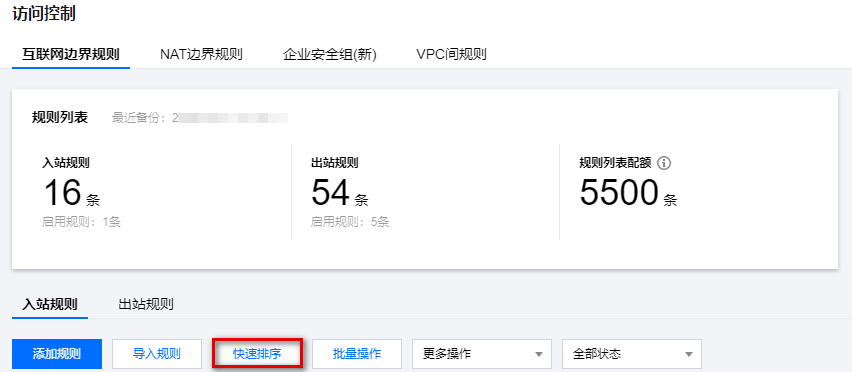
1. Log in to the CFW console. In the left sidebar, select Access Control > Internet Boundary Rules.
2. At the top of the rule list on the internet boundary rules page, click Quick Sort to enter edit mode for the list.
3. User can batch move the location and sequence of rules within the current page range and sort the rules by dragging the icon in front of the rule.
4. Once the moving is completed, click Save to take effect.
Sorting operation instructions:
Each time you release the mouse, the rule that causes the position to change is implemented, which is considered a sorting operation.
If the position does not change after you release the mouse, it is not a sorting operation.
After a sorting operation has occurred, the undo button lights up.
Click restore once, and the list returns to the state after the last sorting operation.
Click Save. Once completed, a sorting completion prompt will appear at the top of the page.
Click cancel, and the list will return to its initial status, and all sorting operations will be invalid.
Scenario 2: Move the Rule to a Specified Location by Editing
When you need to move a rule over a large range, the quick sort feature may not efficiently perform this operation. Therefore, you can use the edit feature to quickly move the current rule to a specified position. Unlike quick sort, the edit feature allows you to modify the execution order of one rule at a time.
1. Log in to the CFW console. In the left sidebar, select Access Control > Internet Boundary Rules to enter the internet boundary rules page.
2. In the rule list on the internet boundary rules page, locate the rule to be moved and determine the desired position for the movement.
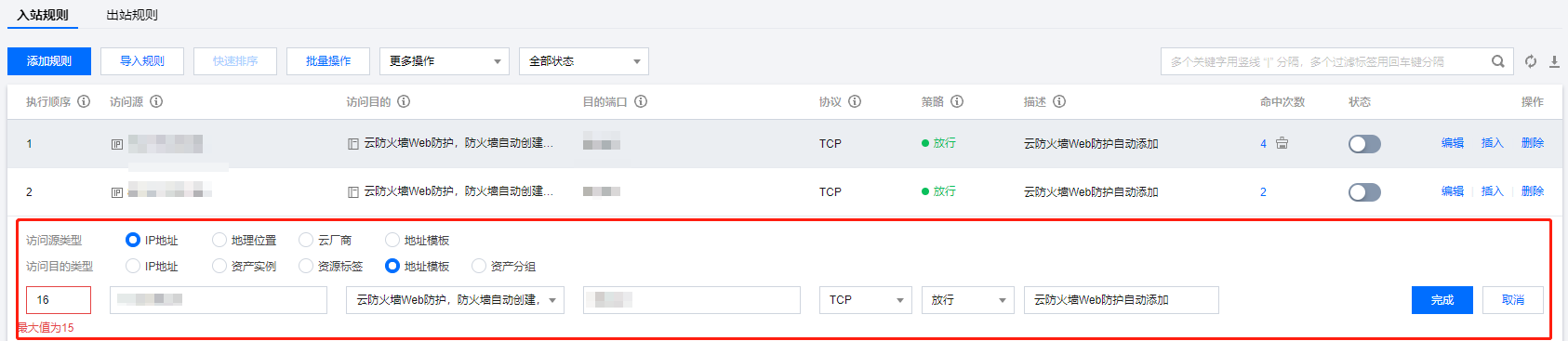
3. On the right side of the rule, click Edit to enter rule editing mode.
4. Modify the value in the execution order field to the desired position's execution order value.
Note:
Due to the principles of non-repetition and continuity of execution order, when moving a rule via editing, the minimum value for reasonable input of the execution order is 1, and the maximum value is the current quantity of rules in the list.
5. Click Complete and check whether the order of rules in the list is as expected.
Note:
By editing a rule, you can change its position in the list, thereby directly adjusting its execution order to the desired position. Automatic movement and adjustment of all other rules will also occur.
Scenario 3: Insert a Rule at a Specified Position in the Existing List
The Cloud Firewall supports inserting a rule between any two rules. The execution order of the inserted rule is the current insertion position.
Rules are inserted in a pre-insertion manner. If you need to insert a new rule between rules with execution orders "2" and "3":
1. Log in to the CFW console. In the left sidebar, select Access Control > Internet Boundary Rules to enter the internet boundary rules page.
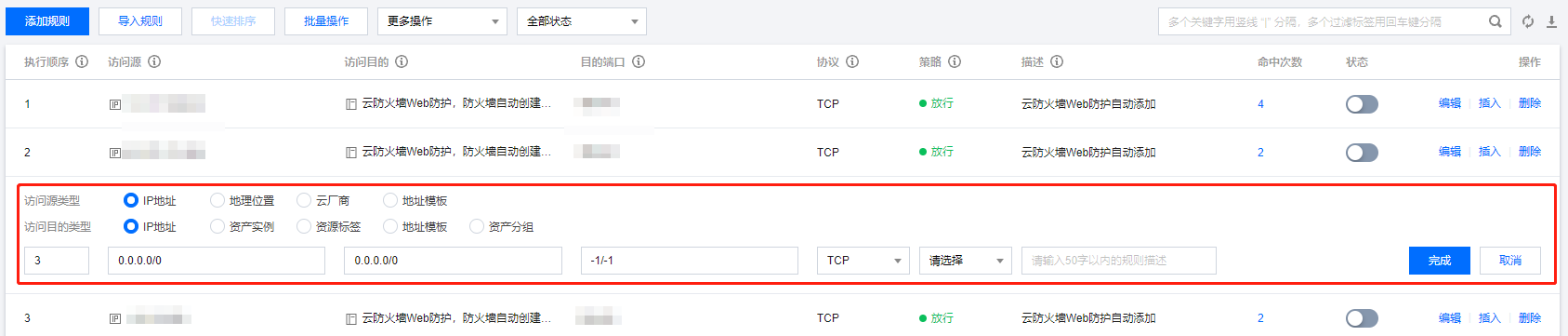
2. In the rule list on the internet boundary rules page, find the rule with an execution order of "3" and click Insert on the right side of the rule.
3. Pop up the rule editing box above the rule with an execution order of "3".
4. In the rule editing box, fill in rule fields and click Complete to complete rule insertion.
Note:
After completing the insertion operation, the execution order of the inserted rule replaces the execution order of the rule below it, and the execution orders of all rules below the inserted rule are incremented by "1".
View Whether the Rule Is Effective
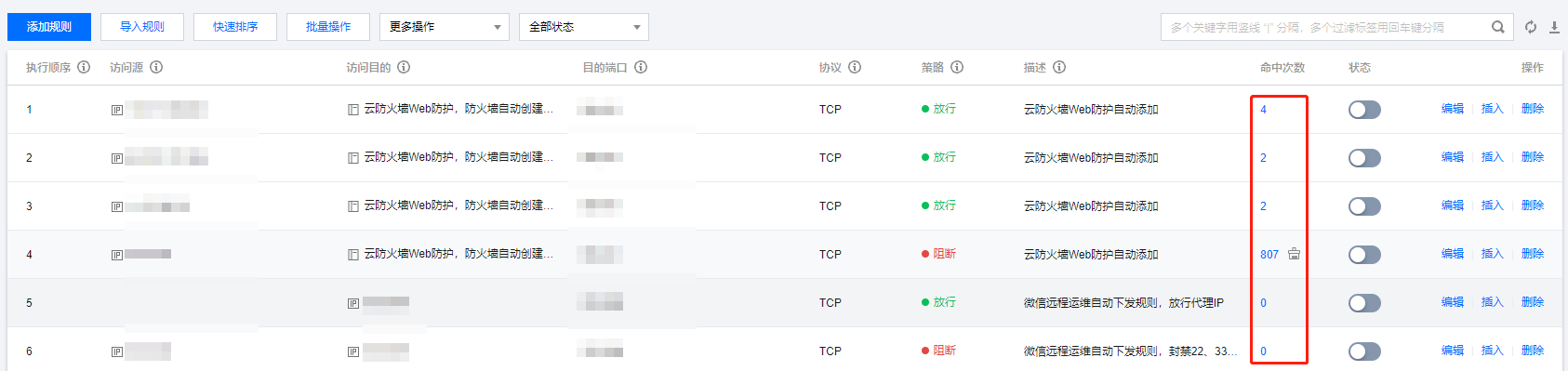
Method 1: Check the hit count in the access control list. If there is a hit count, the rule is effective.
Note:
If the number of rule hits is zero, it only indicates that the rule has not been hit yet. It can be understood as not taking effect temporarily, but does not necessarily mean that the rule is configured incorrectly.
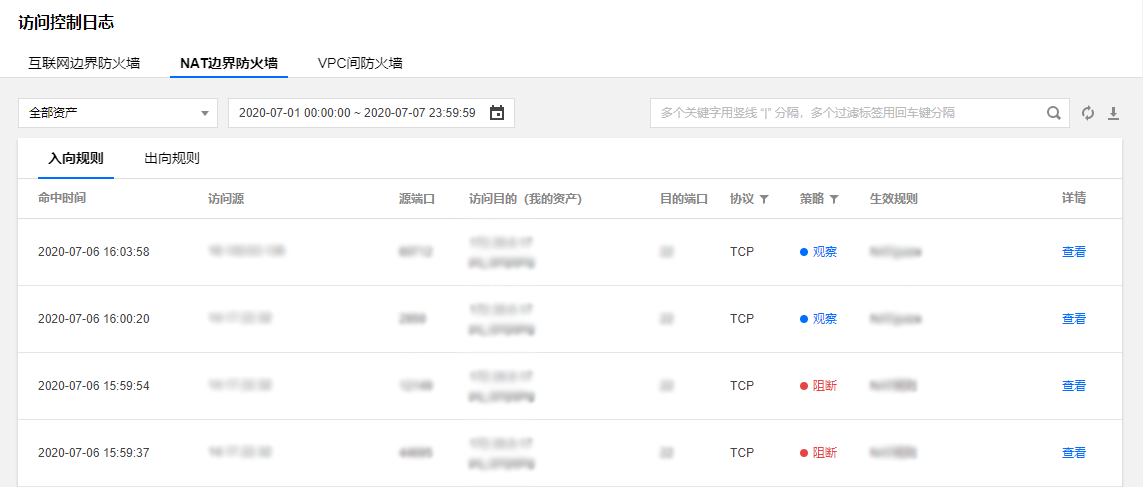
Method 2: In the left sidebar, select Log Audit > Access Control Log to view the access control log (rule hit log). If you see relevant rules in the access control log, it means that the rule is effective.
Operation Lock
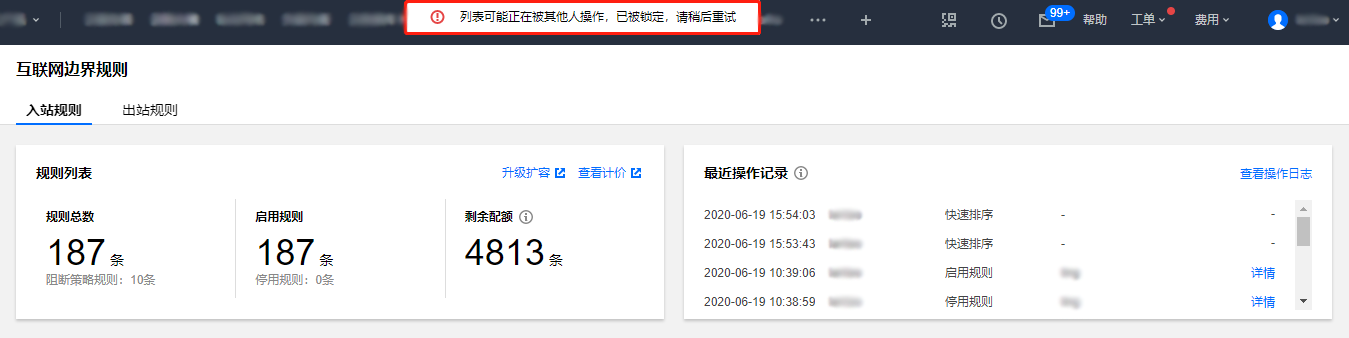
For the same access control list of the same AppID (VPC uses firewall ID to distinguish), only one user is allowed to perform any one of the following operations: Add Rules, Import Rules, Quick Sort, Edit, or Insert at the same time.
When a user sees the prompt "The list may be currently in use by someone else and is locked. Please try again later" at the top of the page while performing operations on the list, it means that another user is currently working on the same list.
Note:
The validity period of the operation lock is 5 minutes and it will be automatically released after that time.
Information Related To
If you encounter any access control-related issues, see Access Control document.