The content of this page has been automatically translated by AI. If you encounter any problems while reading, you can view the corresponding content in Chinese.
We will sync the raw data to the data warehouse in this step.
Add a New Data Source
Raw Data Source: MySQL
We have bound the data source to the project. It can be ignored here.
Target Data Source: Hive
After you bind the storage-compute engine EMR, the system will collect the Hive data source in the EMR cluster within 10 minutes. Therefore, it is not necessary for you to actively bind the Hive data source.
However, we need to create a database in the Hive data source to store the collected original data.
Creating a Database
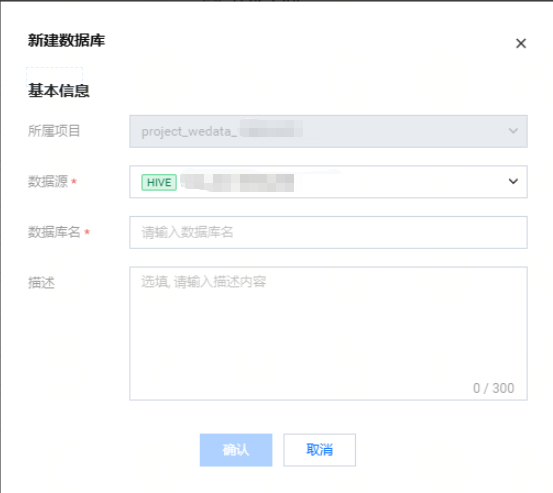
Enter Data Development > Data Management, click + to create a database, select and fill in the required content, and after completing, click OK.
Select data source type: Hive.
Data source selection: hive_emr-XXX.
Note
After you bind the storage-compute engine EMR, the system will collect the Hive data source in the EMR cluster within 10 minutes.
Offline Synchronization Task Design
We will now create an offline synchronization task to synchronize the original data in the MySQL data source to the Hive table in the EMR cluster.
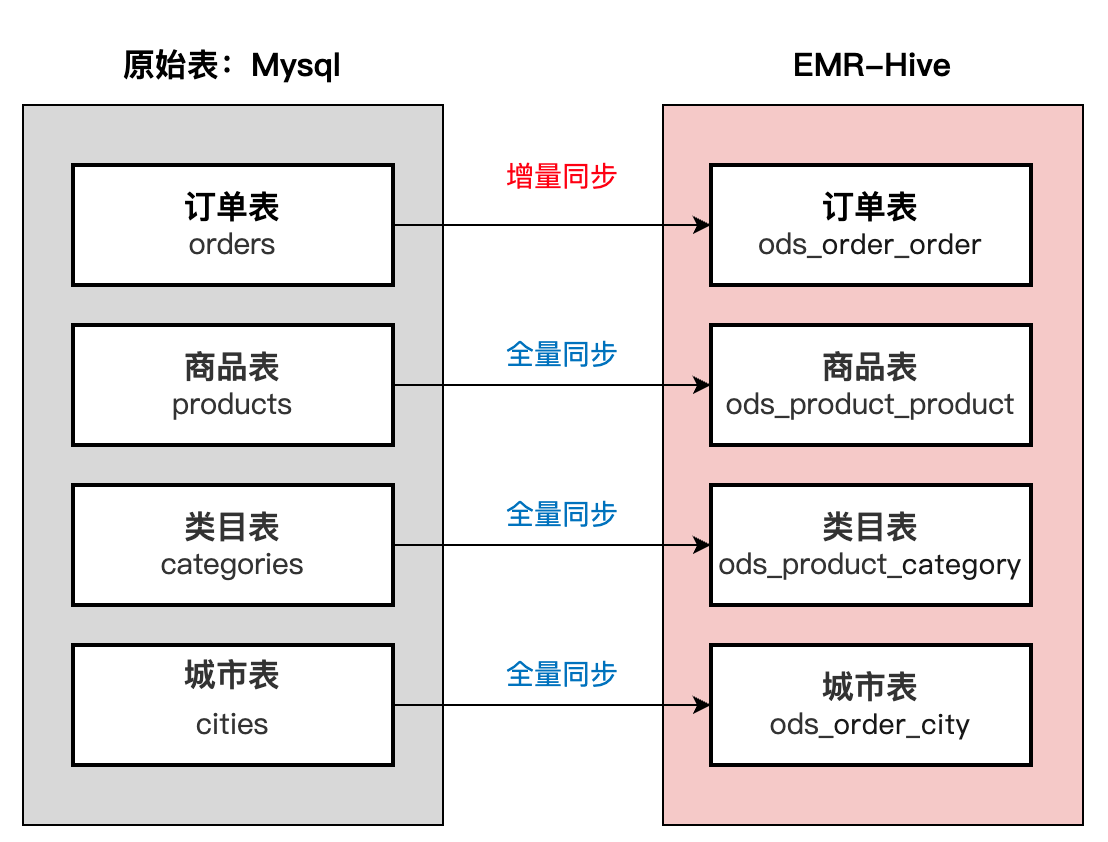
We have already known from the above operations that we need to synchronize 4 raw data tables, which are:
No.
Table Name
Raw Data Source: MySQL
<Target Data Source: Hive Table Name>
1
Order Table
orders
ods_order_order
2
Product Table
products
ods_product_product
3
Category Table
categories
ods_product_category
4
City Table
cities
ods_order_city
The task development plan is designed as follows:
Additional Notes
Difference between full synchronization and incremental synchronization:
Name
Description
Full synchronization
Definition: Full synchronization refers to the process where the system transmits all data from two databases or data warehouses during each sync operation.
Use cases: Full synchronization is usually suitable for small amounts of data or infrequent data change situations, as well as during initial sync or data migration.
Strengths:
Simple and easy to implement: No need to track data changes, just directly copy all data.
Integrity: Underwrite the integrity and consistency of data, because all data is resynchronized.
Drawbacks:
High time and resource consumption: A large amount of data needs to be transmitted, which takes a long time and occupies bandwidth.
High cost: For large data volume, more storage and computing resources may be needed.
Incremental synchronization
Definition: Incremental synchronization only synchronizes the data that has changed since the last synchronization, rather than all data.
Use cases: Suitable for environments with large volumes of data or frequent updates.
Strengths:
High efficiency: Synchronize only the changed data, saving time and bandwidth.
Low cost: Reduces the need for storage and computing resources.
Real-timeness: Can reflect the latest state of data more quickly.
Drawbacks:
High complexity: A mechanism is required to track and record data changes.
Consistency issues may exist: If problems occur during the sync process, data inconsistency may result.
Summary:
The choice of sync method depends on the specific application scenario and requirements. For small amounts of data with infrequent changes, full synchronization may be simpler and more efficient. Conversely, for large amounts of data with frequent updates, incremental synchronization can significantly improve efficiency and reduce costs. In practical applications, these two strategies are sometimes used in conjunction, for example, regularly conducting full synchronization to ensure data integrity, while using incremental synchronization in daily operations to improve efficiency.
Offline Synchronization Task Development
Creating Workflow
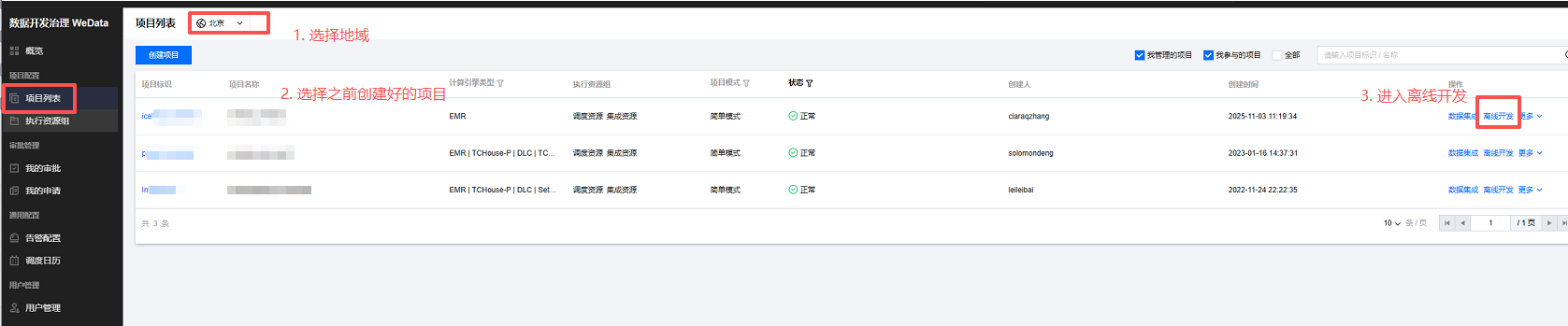
1. Enter the offline development page from the project list.
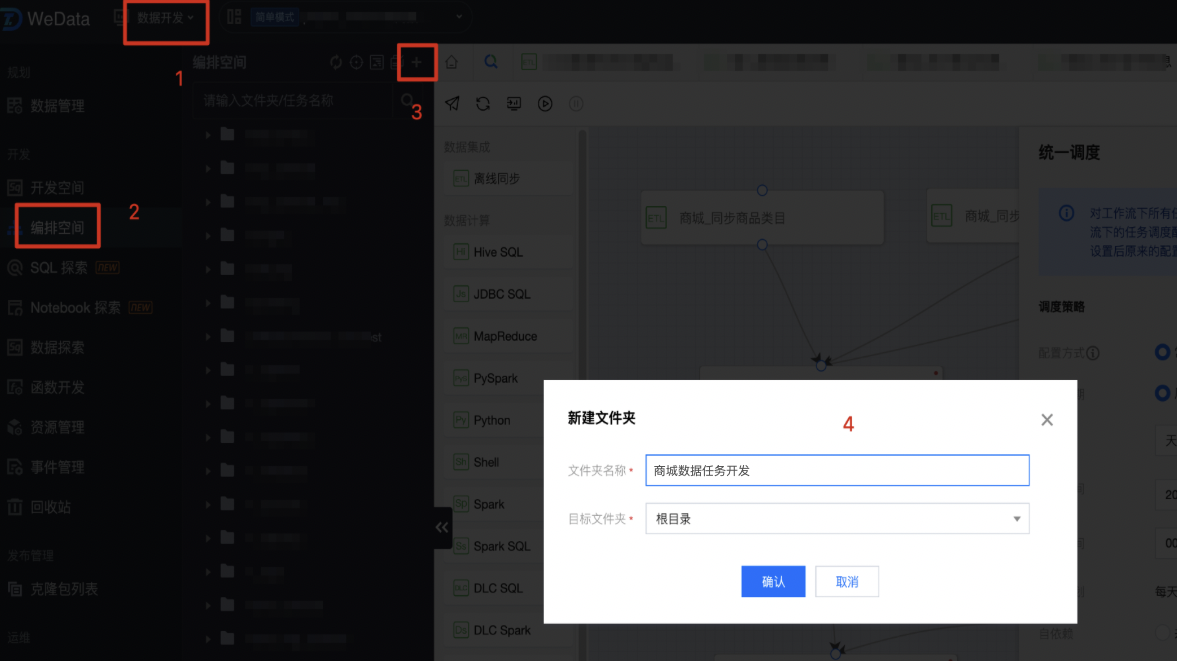
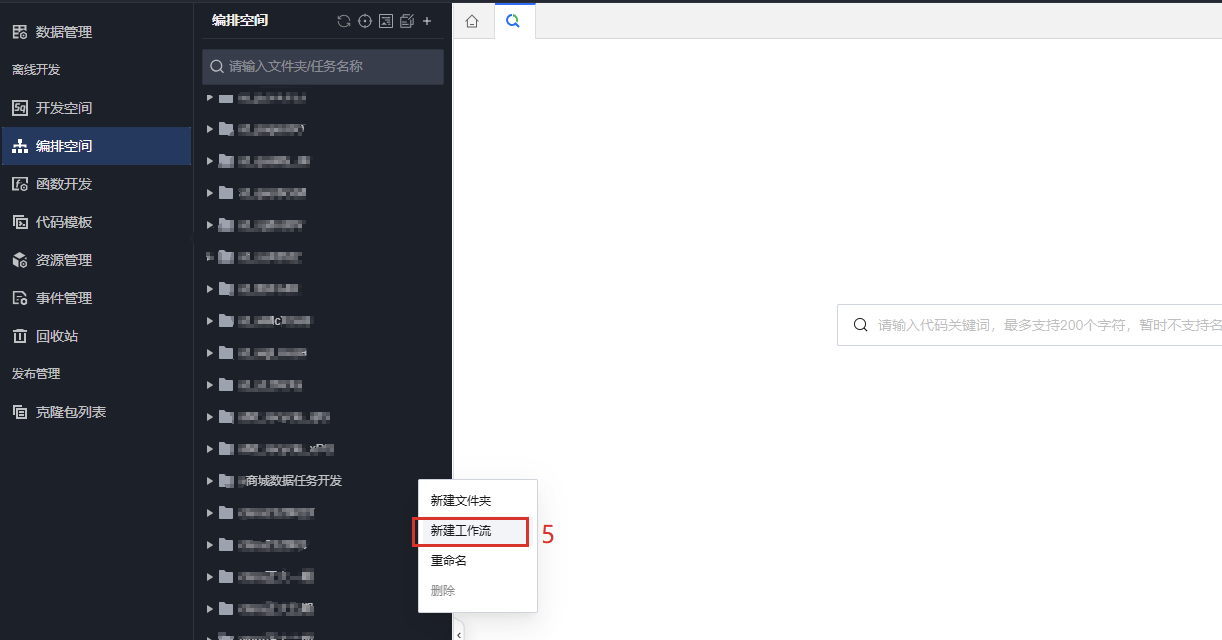
2. Select offline Data Development > Orchestration Space, click + to create a new folder (named: Mall Data Task Development), and store subsequent development tasks.
3. Find the created folder > Right-click create workflow.
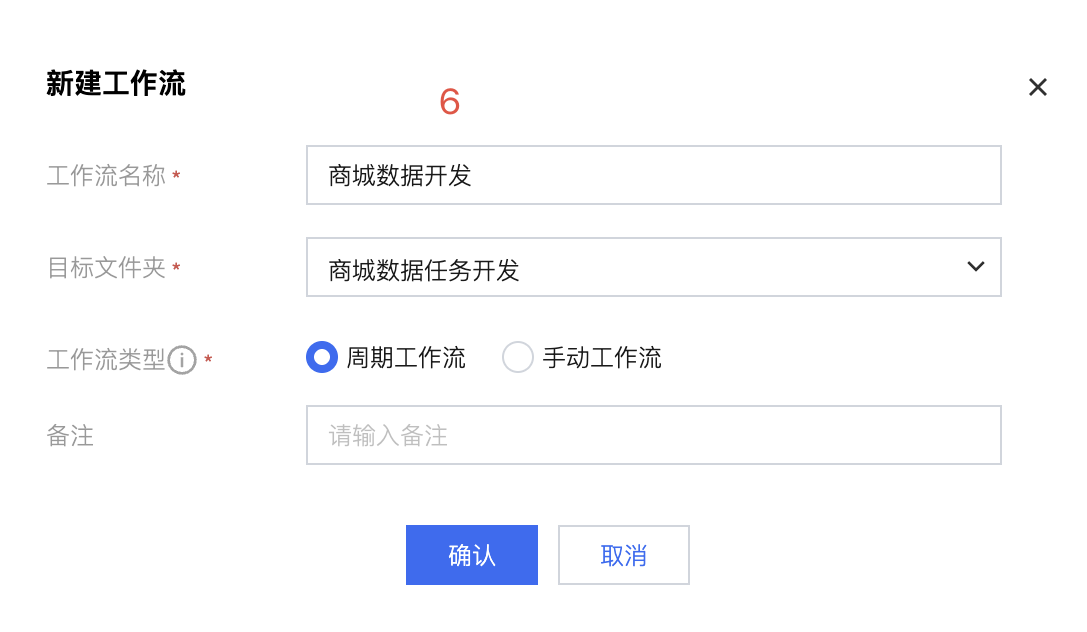
4. Create a new workflow named Mall Data Development, select the corresponding target folder, and click Confirm.
Synchronize Category Table
First, we will synchronize the category table from MySQL to the Hive table.
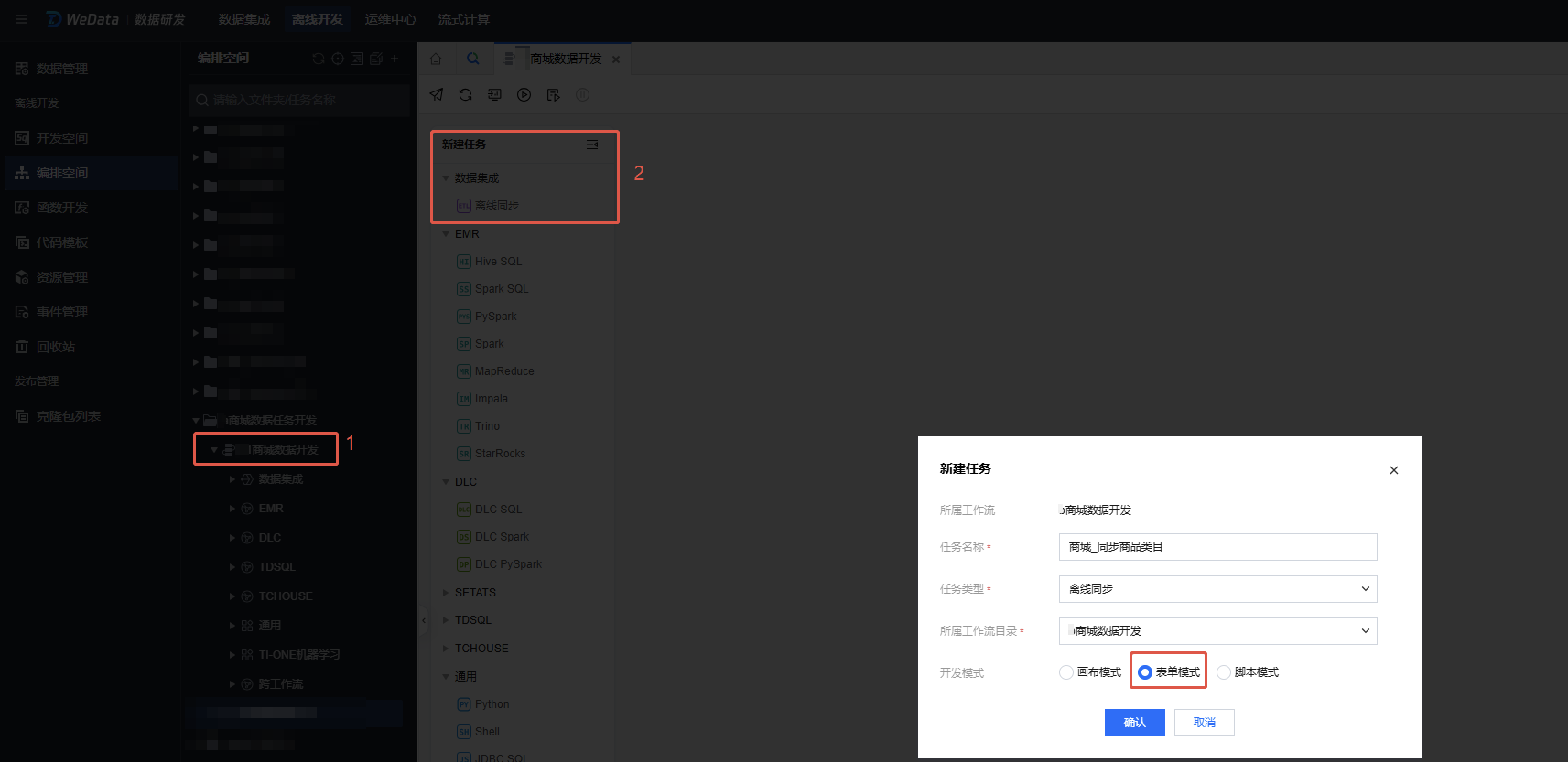
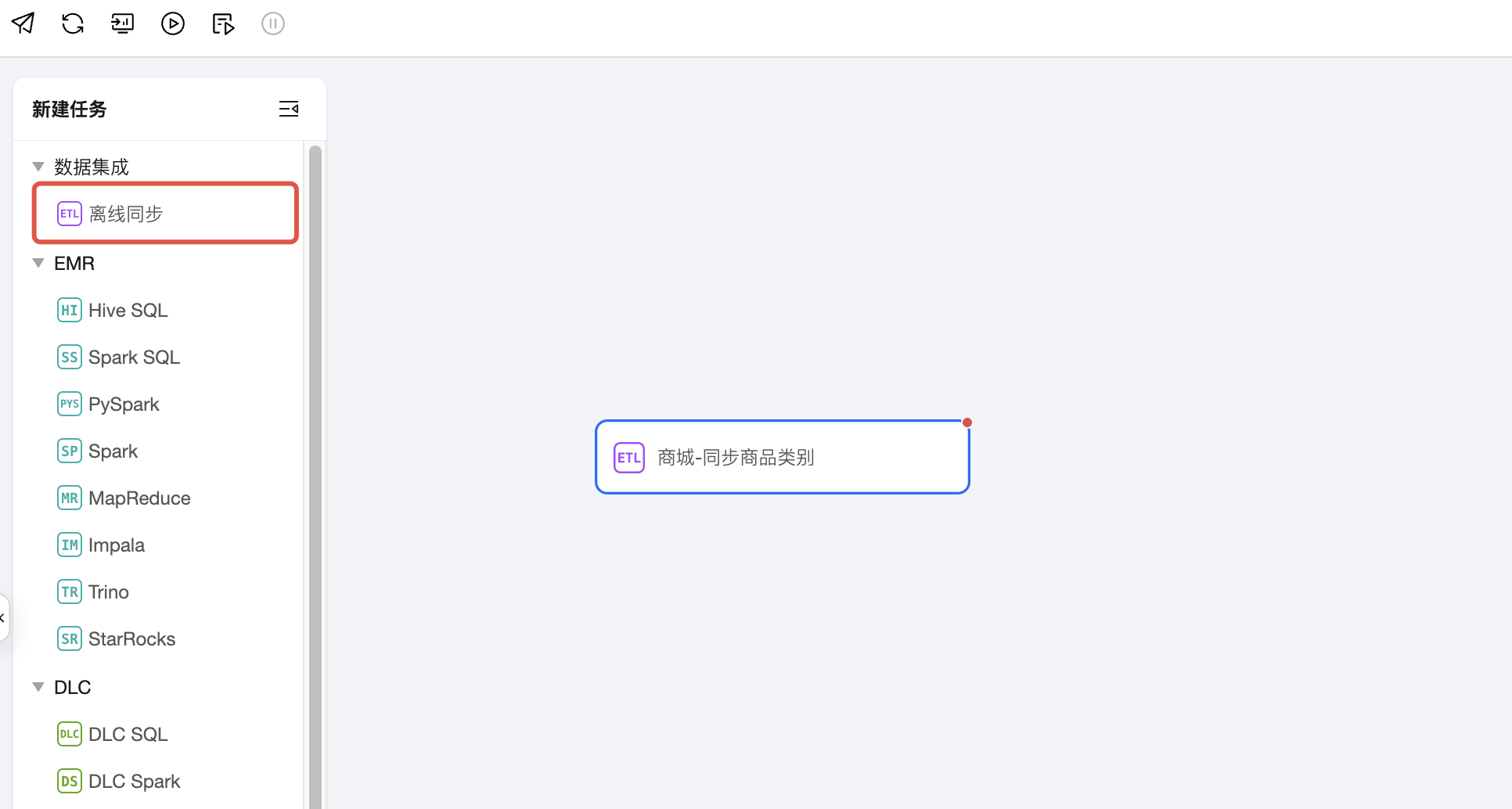
1. Find the newly created Mall Data Task Development > Mall Data Development in the Orchestration Space. Click Offline Sync. Select the configuration mode (Task Name: Mall_Synchronize Product Category, Development Mode: Select Form Mode here), and click Confirm.
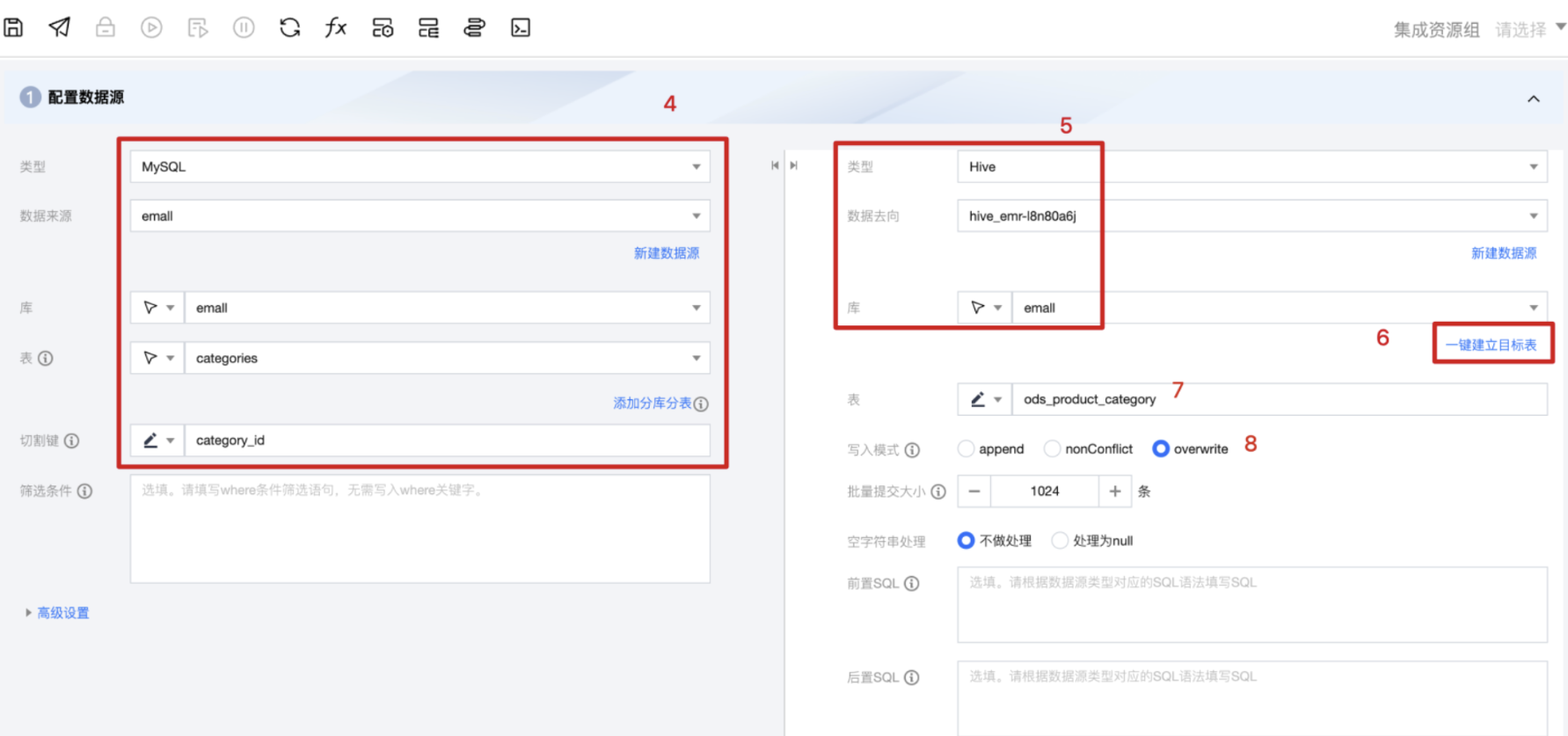
2. Configure the raw data source.
2.1 Select the database and table where the raw data table is stored. Please select the MySQL data source added in the previous step. In the following text, when we introduce order table sync, we will introduce how to achieve incremental data synchronization by setting filter conditions.
Notes:
Since the category table is basic information and the amount of data is generally small, we do not need to set filter conditions (i.e., Where statements) here.
2.2 Configure the target data source. Select the Hive table where you need to store data. Please select the Hive data source and database added in the previous step.
Type: Hive
Data destination: search hive_emr
Database: emall (the database created in the previous step)
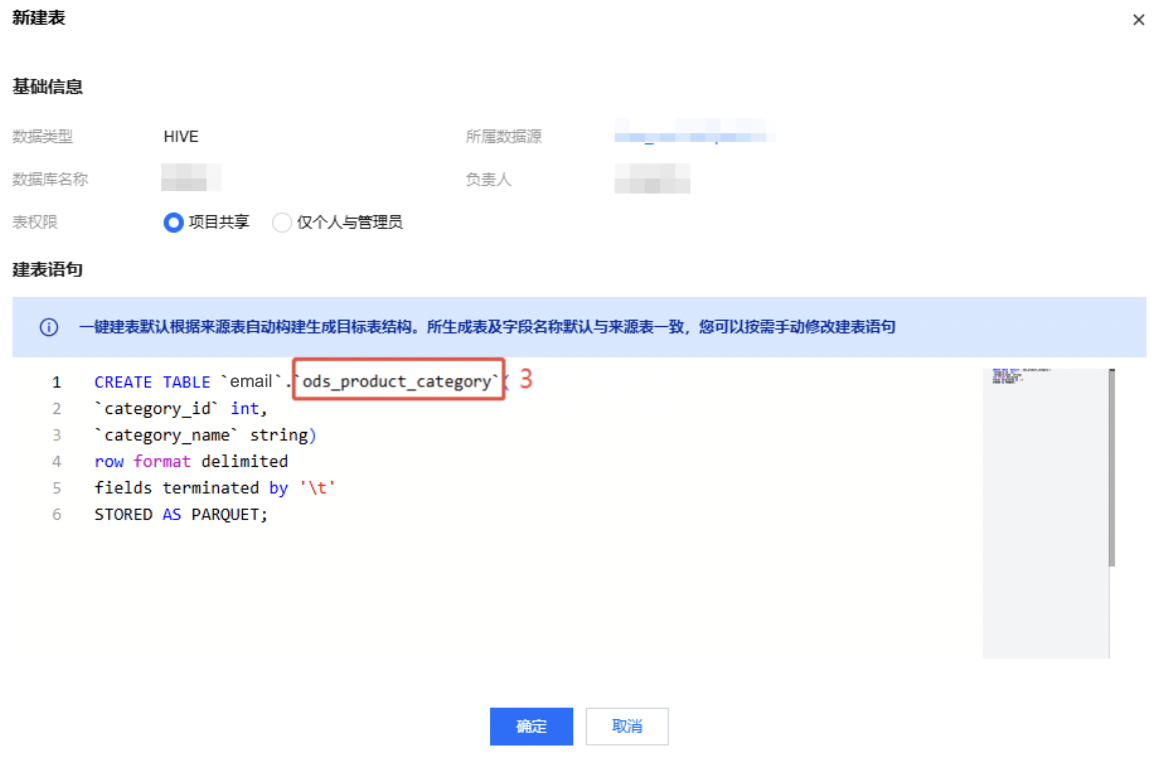
2.3 Establish a target table. Here, use create target tables with one click to replicate the MySQL Table Structure.
Notes:
Please modify the table creation statement in the pop-up box. Modify table name: ods_product_category.
2.4 Selection table: ods_product_category
2.5 Since the category table is basic information, here we select overwrite, that is, overwrite update every time.
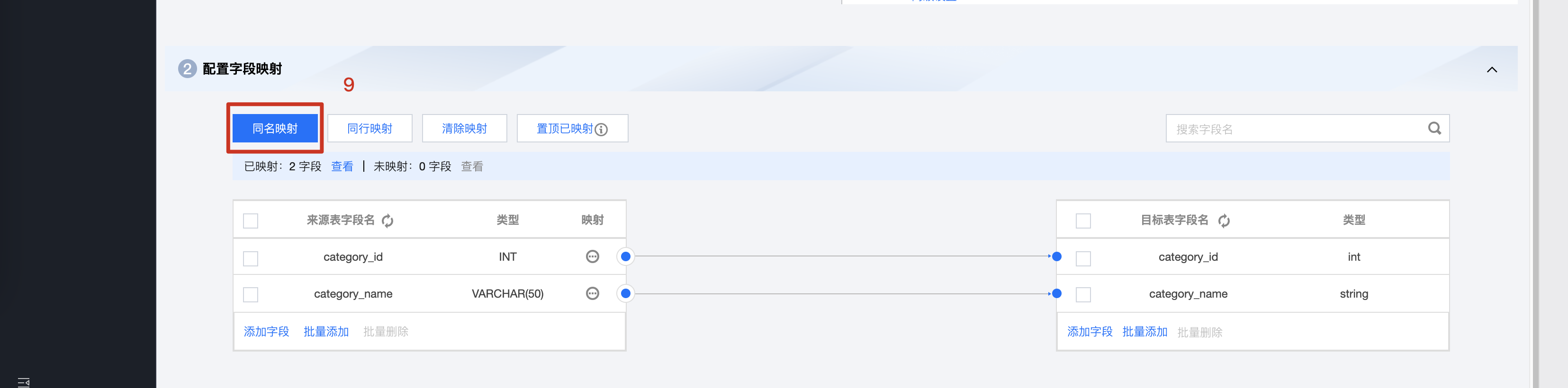
3. Configure field mappings. Here, we need to map the fields of the source table to the fields of the target table one-to-one. Since our table structures are identical, we can use same name mapping.
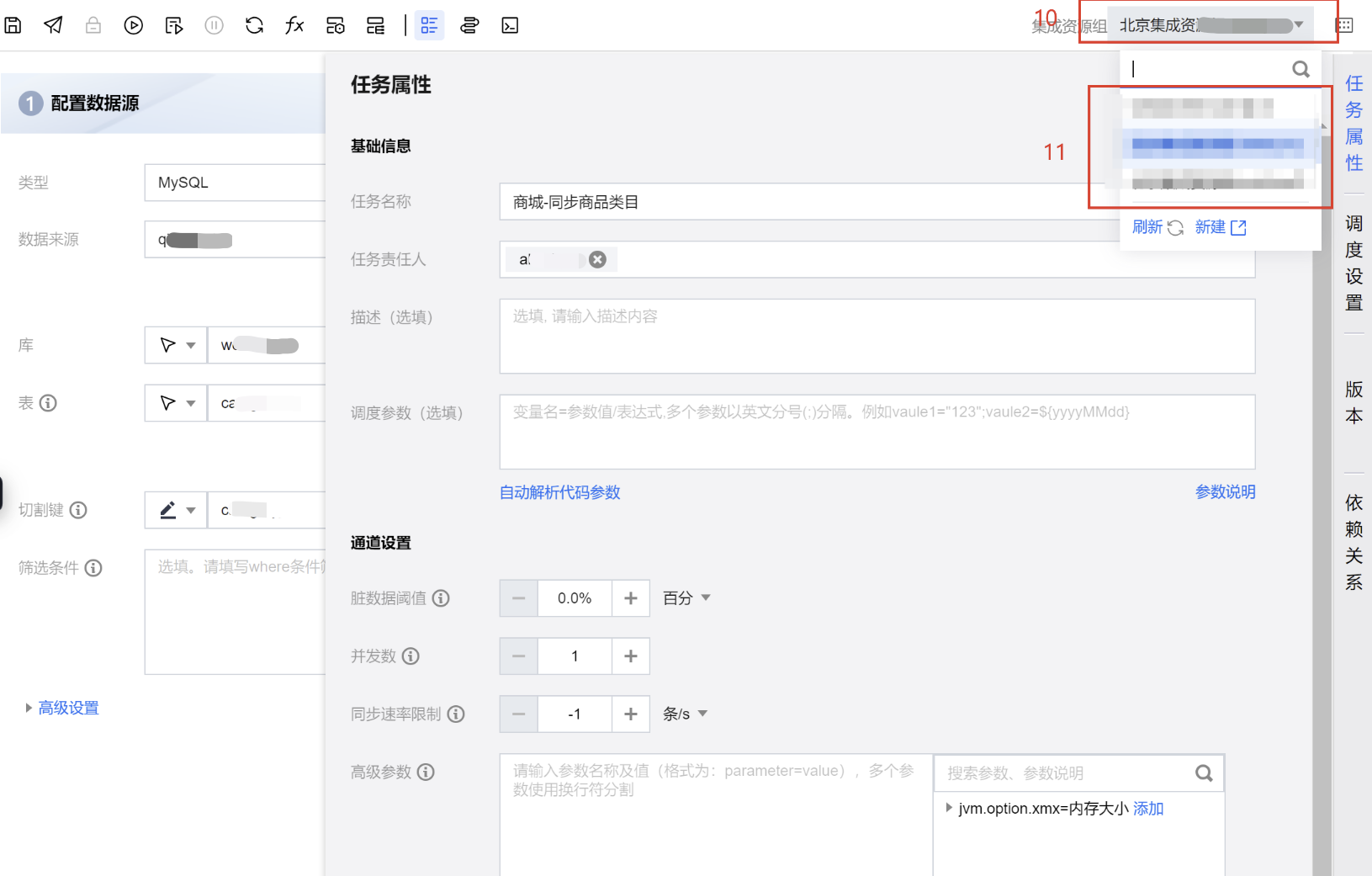
4. Set task properties. Select the integration resource group required at runtime.
Notes:
Here, it is essential to ensure network connectivity among the integration resource group, MySQL instance, and EMR cluster. Tencent Cloud resources in the same region must be purchased.
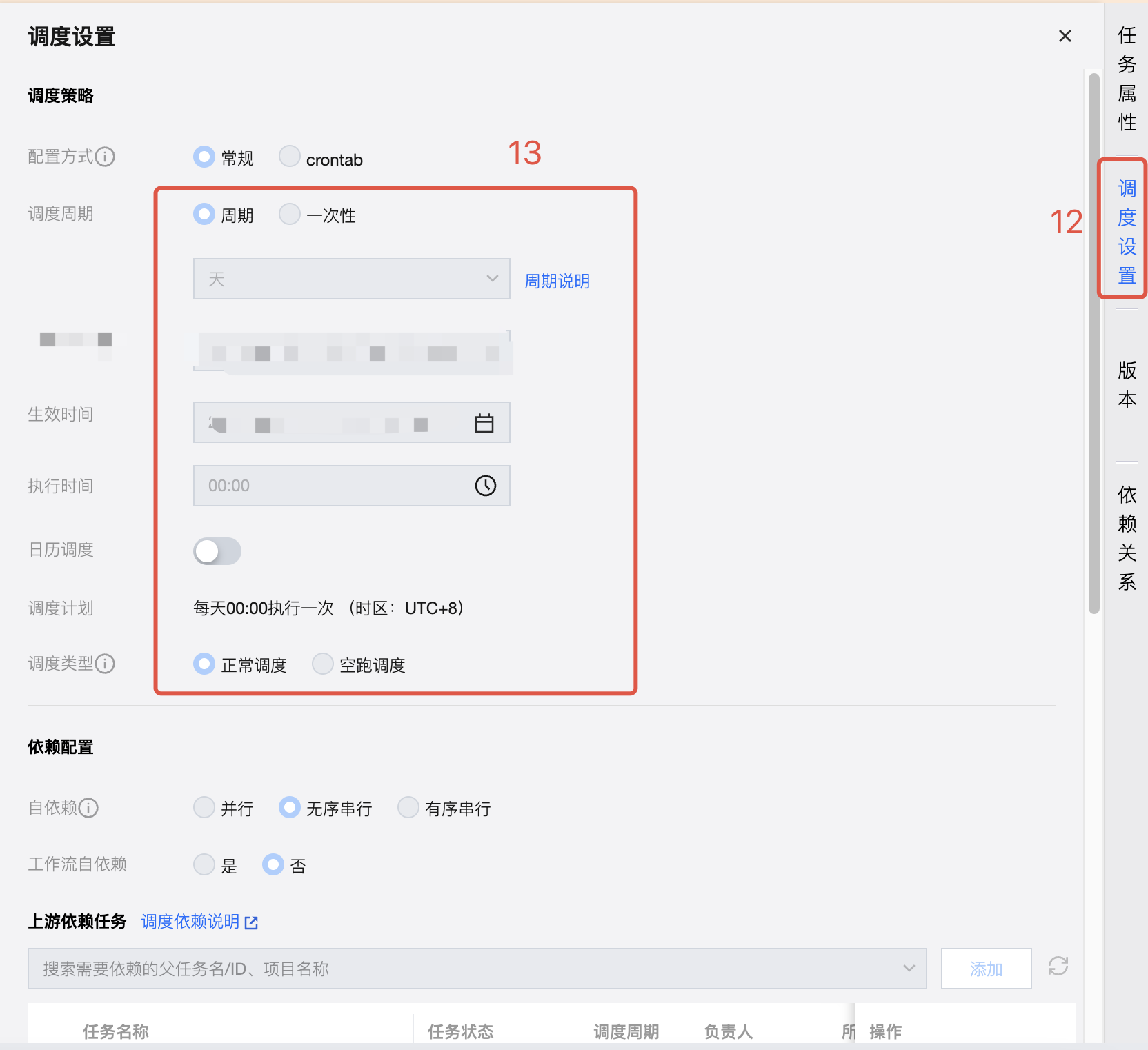
5. Set task scheduling. Here, we need to set the running strategy of the task. Since the frequency of changes in the category table is small, we set a daily sync once in the wee hours.
Scheduling method: Periodic scheduling.
Effective date: Default
Scheduling cycle: Day
Execution time: 00:00
6. Set task attributes:
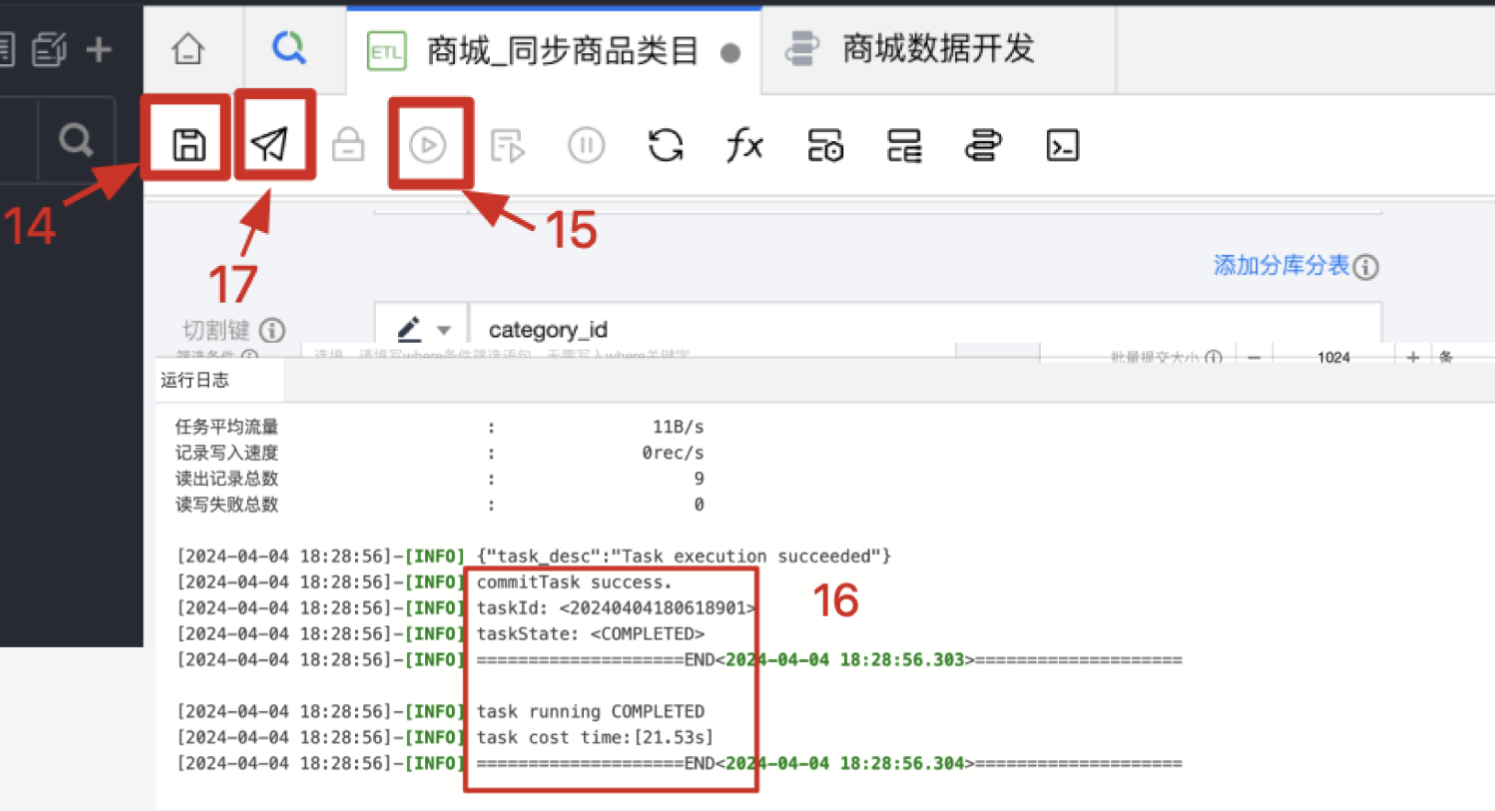
7. after the above steps are completed, please save data promptly.
8. You can perform a dry run once before the official submission. At this point, the system will also check the integrity of the configuration and network connectivity. Once the detection passes, the system will start running immediately. The running log will appear at the bottom of the page.
9. The logs and progress of the trial run can be seen at the bottom of the page. When Success or Completed appears, it indicates that the trial run is successful.
10. Submit the task to the scheduling resource server. Once the set running time is reached, the task will automatically start running. At this point, the configuration of the data integration task is completed.
Notes:
Upon submission, the system will automatically detect the integrity and network connectivity of the configuration.
If a notification about network connectivity issues appears, do not ignore it. Check immediately whether the networks of the integration resource group, MySQL instance, and EMR cluster are reachable.
By completing steps 1 - 17, you have completed synchronizing the category table from the MySQL database to the EMR cluster. And every midnight, WeData will automatically pull full data for overwrite update.
Synchronizing City Table
We will now create the second offline synchronization task to synchronize the City Table from MySQL to the Hive table.
Since you have completed a sync task of a data table, you should have a certain understanding of data synchronization. Here we add a step: develop a synchronization strategy.
The synchronization strategy generally includes:
Offline sync or real-time synchronization?
When the business has small requirements for access latency and real-timeness, we generally select offline sync.
Additional Notes
Difference between real-time synchronization and offline sync:
Method
Description
Real-time Sync
Definition: Real-time synchronization refers to data being transmitted to the target system almost immediately after a change occurs in the source system.
Use cases: Applications requiring high real-timeness of data, such as financial transactions, online collaboration tools.
Strengths:
Real-timeness: Data changes can be immediately reflected in the target system, reducing the time window of data inconsistency.
Data consistency: Due to the fast synchronization speed, problems caused by data inconsistency can be reduced.
Drawbacks:
High system resource consumption: A continuous network connection and relatively high system resources are required to maintain real-timeness.
High cost: Real-time synchronization may need more complex technical support and higher O&M costs.
Complexity: Implementing real-time synchronization requires more complex logic to handle data conflicts and synchronization status.
Offline sync
Definition: Offline sync refers to data not being transmitted immediately after a change occurs in the source system, but rather batch-transmitted at a specific time point or under certain conditions.
Use cases: Environments where data has low real-time requirement or network conditions are unstable, such as data backup on mobile devices, regular synchronization of specific enterprise data, etc.
Strengths:
Low system resource consumption: Synchronization can be arranged according to network and system resource conditions to reduce the need for real-time resources.
Low cost: Compared with real-time synchronization, offline sync has lower O&M costs and technical support requirements.
Flexibility: The time and frequency of synchronization can be arranged according to your actual needs.
Drawbacks:
Delay: There may be a delay in data sync, and the latest data changes may not be reflected immediately.
Data consistency risk: If the sync interval is relatively long, it may result in data inconsistency.
Summary:
The choice of sync method depends on business requirements, the importance of data, network conditions, and cost budget. Real-time synchronization is suitable for scenarios with extremely high requirements for data real-timeness, while offline sync is applicable to environments that can tolerate a certain amount of data delay. In some cases, these two strategies can also be used in conjunction with each other. For example, use offline sync when network conditions are poor and real-time synchronization when network conditions are good to balance real-timeness and cost.
Should incremental or full synchronization policy be selected?
In real business scenarios, incremental synchronization is generally selected. Full synchronization is only selected during data table initialization.
In this tutorial, slice fields such as date are not set in city, category, and Product Table. We depend on selecting full synchronization.
In following steps, when synchronizing the order table, we will introduce how to set up incremental synchronization.
If it is offline sync, then how often do you select for synchronization, per day or per hour?
Synchronization frequency needs to be determined according to business needs. The smaller the frequency, the larger the resource consumption.
In this tutorial, we all select to sync once every day at wee hours.
The synchronization strategy of the City Table is identical to that of the category table. Please refer to steps 1 - 17 in the category table and repeat the operation.
Notes:
The following steps are all marked with the step numbers in the diagram.
Step 3: Task name: Mall_Synchronize city information
Step 4: Selection table: cities;
Step 6, 7: The table name needs to be modified to: ods_order_city;
Steps 10 - 13: These four procedures are easy to ignore;
Step 15: Regardless of how familiar you are with the operation, remember to run it once before submission to ensure the task runs accurately.
Synchronize Product Table
Create the third offline synchronization task below, synchronizing the Product Table from MySQL to the Hive table.
Still think before reoperating.
No.
Issue
Conclusion
1
Offline sync or real-time synchronization?
Offline
2
Should incremental or full synchronization policy be selected?
Full
Note
Actually, it should be incremental. Here, we select full for teaching purposes.
3
If it is offline sync, then how often do you select for synchronization, per day or per hour?
Sync at midnight every day
Based on the above thinking, the synchronization strategies of the Product Table, category table and City Table are also identical. Please continue to refer to steps 1 - 17 in the category table and repeat the operation.
Notes:
The following steps are all marked with the step numbers in the diagram.
Step 6, 7: The table name needs to be modified to: ods_product_product.
Steps 10 - 13: These four procedures are easy to ignore.
Step 15: Regardless of how familiar you are with the operation, remember to run it once before submission to ensure the task runs accurately.
Synchronize Order Table
Create the fourth offline synchronization task below, synchronizing the order table from MySQL to the Hive table.
Still think before reoperating.
No.
Issue
Conclusion
1
Offline sync or real-time synchronization?
Offline
2
Should incremental or full synchronization policy be selected?
Incremental
Note
Since the order table often has a large data volume, it is more suitable for incremental synchronization, that is, synchronizing the order data of the previous day every day.
3
If it is offline sync, then how often do you select for synchronization, per day or per hour?
Sync at midnight every day
Through the above thinking, the synchronization strategy of the order table is different from that of the above three tables. Here we have selected incremental synchronization, which we will focus on introducing in this step.
Incremental sync logic:
There is a special field in the original data order table: order_time, which will change as time goes by.
Therefore, we can use the order creation time as a partition and ensure the pulling of real-time incremental data daily based on order_time.
To dynamically compare task running time (represented as ${yyyy-MM-dd}) with order_time during scheduling
For example: When the running time is 2024-04-01 00:10, then ${yyyy-MM-dd} = 2024-04-01, and meanwhile ${yyyy-MM-dd-1d} = 2024-03-31
Therefore, we can use date(order_time) = '${yyyy-MM-dd-1d}' to represent the data of yesterday.
Create offline synchronization task
First, please continue to refer to steps 1 - 13 in the category table and repeat the operation.
Notes:
The following serial numbers are all marked with the step numbers in the diagram.
Step 4: Selection table: orders;
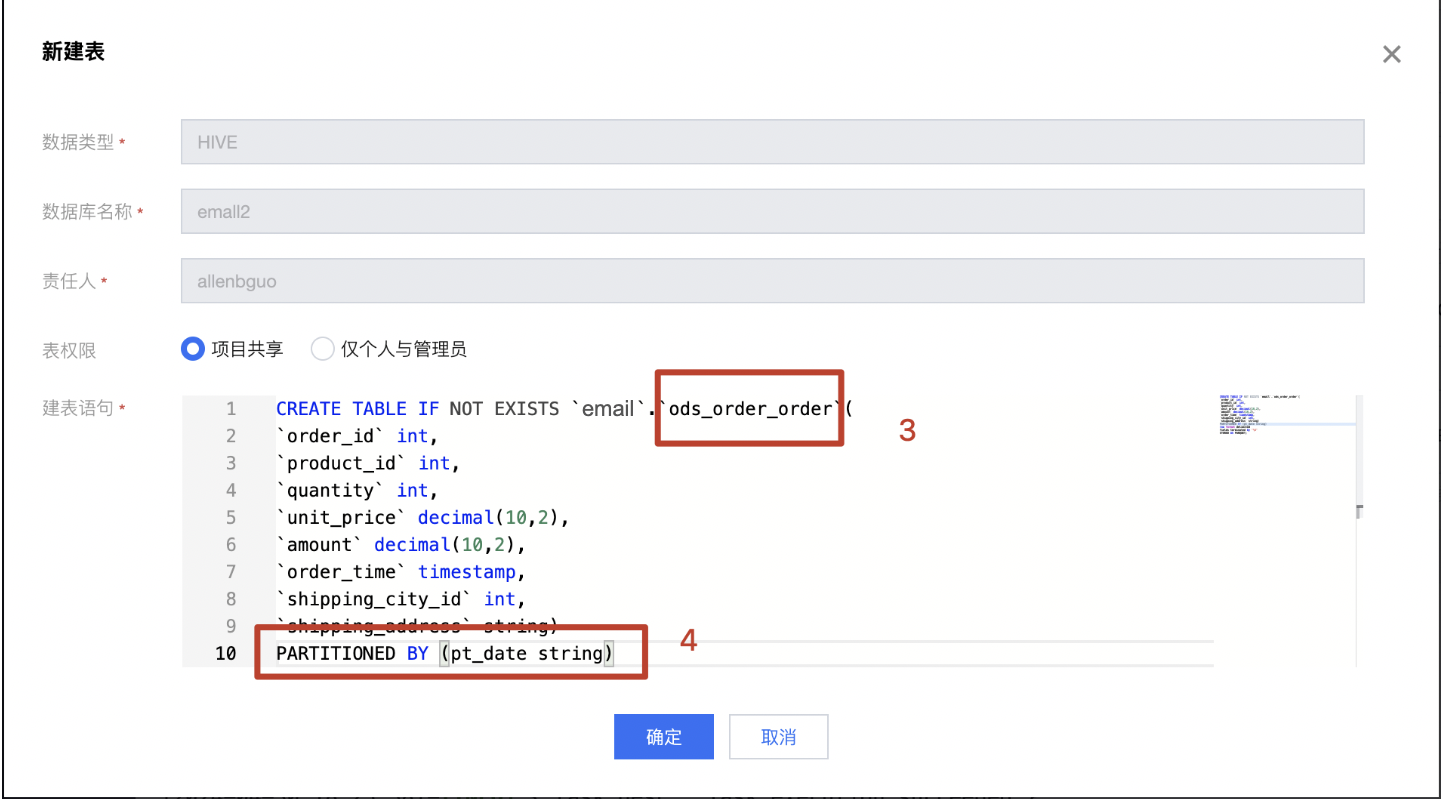
Step 6, 7: The table name needs to be modified to: ods_order_order;
Do not perform operation steps 14 - 17 (do not submit). We need to modify the following configuration.
Operation Demonstration Screenshot:
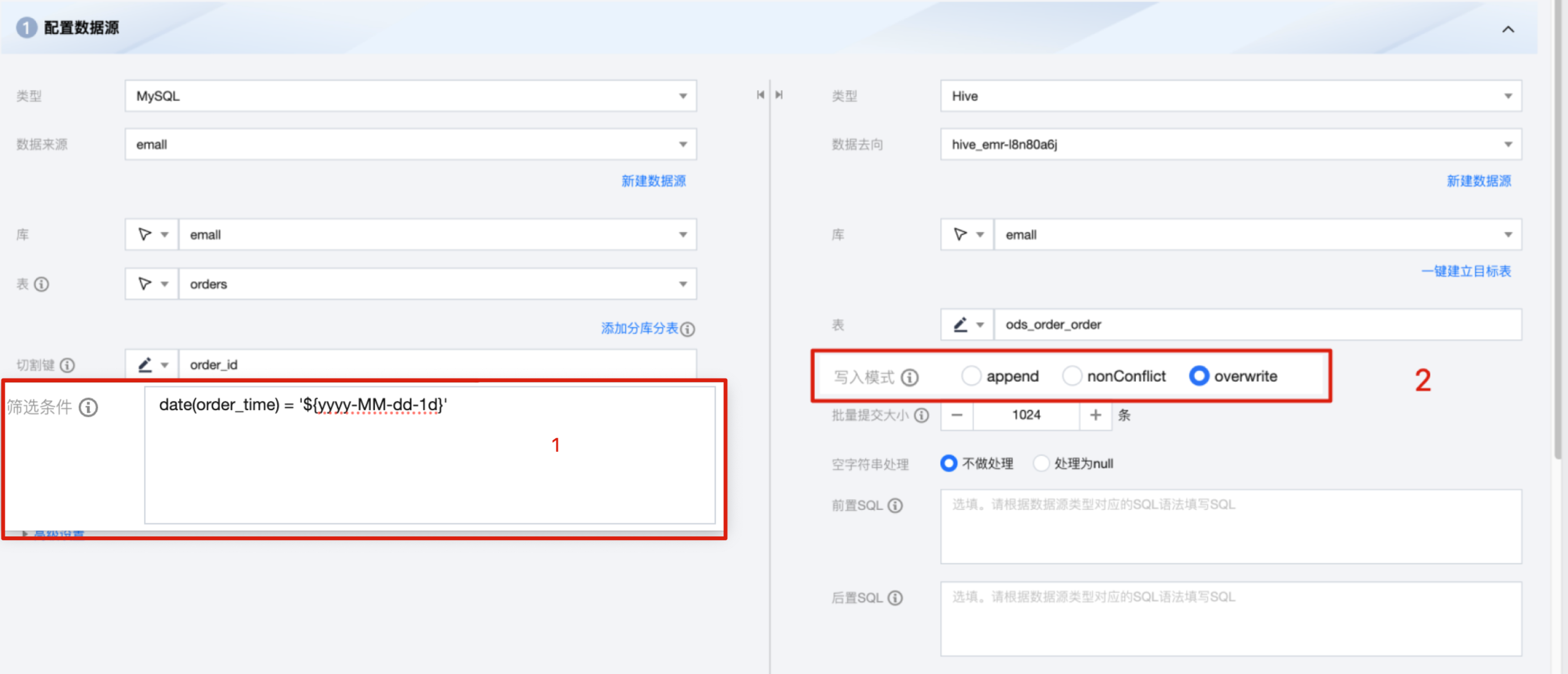
1. Open the Configure Data Source page. Fill in the filter conditions on the left. Select write mode on the right as overwrite.
Filter conditions: Fill in the corresponding filter statement according to the data type. This statement will serve as the filter conditions for the data to be synchronized.
Write mode
1.1 Append: Retain original data and append new rows.
1.2 nonConflict: Error reported on data conflict.
1.3 Overwrite: Delete the original data and rewrite it.
2. Open the Create Table page, modify the table name to ods_order_order, and add the partition field PARTITIONED BY (pt_date date) at the same time.
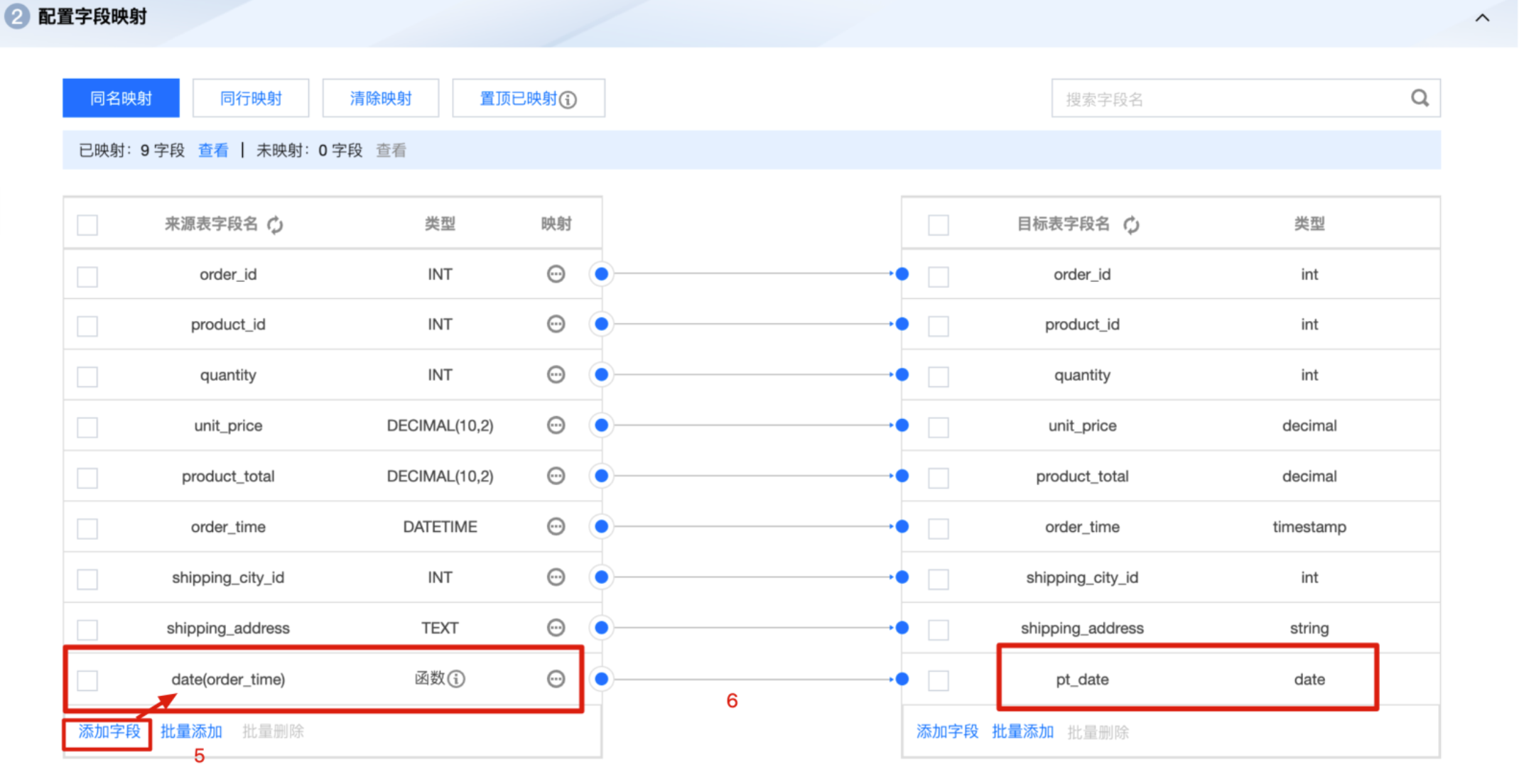
3. On the Configure Field Mappings page, click Add Fields. The field name is date(order_time) and the type is function. Click on the small circle on the right. Drag and drop with the mouse to the target field pt_date on the right to establish mapping relationship.
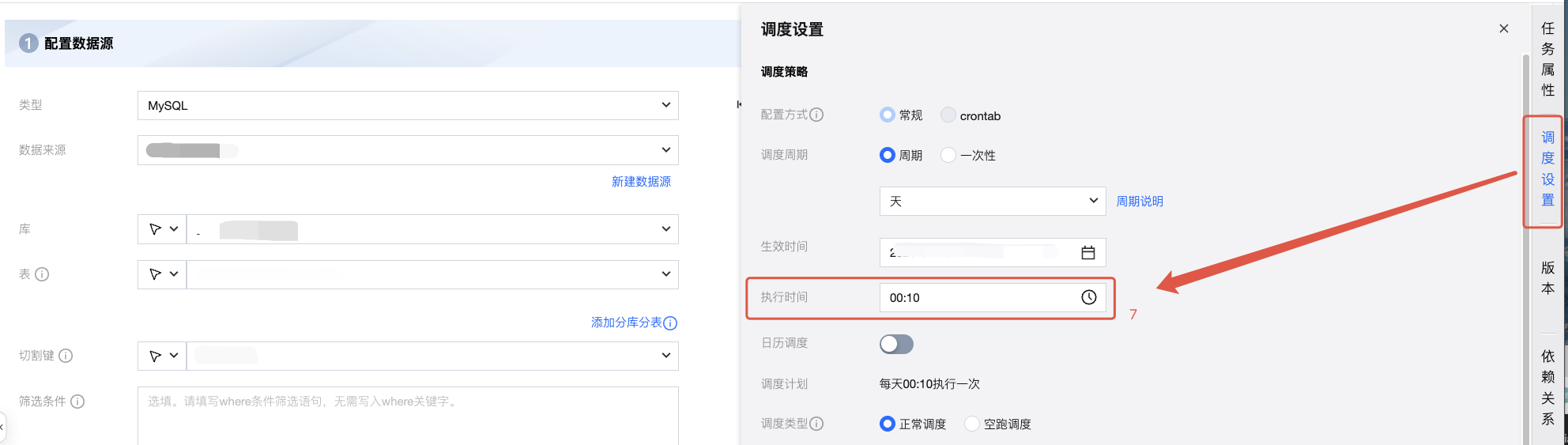
4. Click on the Task Scheduling button on the right task bar. Find Execution Time on the Task Scheduling page and modify the execution time to: 00:10.
Create an order table SQL:
--One-click creation of order table
CREATETABLEIFNOTEXISTS`emall`.`ods_order_order`(`order_id`int,`product_id`int,`quantity`int,`unit_price`decimal(10,2),`amount`decimal(10,2),`order_time`timestamp,`shipping_city_id`int,`shipping_address` string)
PARTITIONED BY(pt_date date)row format delimited
fieldsterminatedby'\t'
STORED AS PARQUET;
So far, we have completed all offline synchronization tasks from raw data tables to Hive tables. And every midnight, WeData will automatically conduct full/incremental data synchronization.
Summary
Now you have completed the study of the Data Integration part. Now summarize:
No.
Step Name
1
Confirm the original data table and the data target table
Base Table: Read: Data Source
Target Table: Write: Data Destination
2
Confirm offline sync or real-time synchronization
According to business needs, if not necessary, offline sync is available to reduce resource consumption.
3
Confirm incremental synchronization or full synchronization
Generally, full synchronization is required during data initialization, and incremental synchronization is used for periodic synchronization.
During incremental synchronization, it is required to set filter conditions to ensure no overlap when pulling data.
4
Confirm network environment interoperability
Three environments are involved in the sync process:
1. original database instance
2. Integration Resource Group
3. EMR cluster
Notes:
Must ensure that the integration resource group can access the original database instance and EMR cluster.
Below we will learn part of offline development, that is, performing data processing in the Hive table of the EMR cluster.