The content of this page has been automatically translated by AI. If you encounter any problems while reading, you can view the corresponding content in Chinese.
The data service module is a non-essential step in the data development process. If your business does not involve this aspect, you can skip this module.
If you need to experience this module's tutorial, please contact the enterprise administrator to complete the environment preparation.
According to the initial scheme design of the tutorial, the business side expects to understand the sales performance of different categories in different regions every day.
In Chapter Five, we have created a Mall summary table, which records product sales quantity and total sales amount by day, city, and category.
Regarding the data application of the Shopping Mall Detail Table, there are multiple ways:
1. Using SQL to perform direct data extraction and view daily sales performance is quite simple and will not be covered in this tutorial.
2. Displaying data report views using BI software (e.g., BI). For relevant documentation, please refer to the BI official website. This tutorial will not cover this method.
3. Using WeData data service features to produce API services for external systems to call. This part will be the focus of this tutorial.
Next, we will introduce how to use WeData data service features to produce API services for external systems to call.
Before developing the data service interface, we need to understand some technical information.
Note
Hive's feature is big data processing. It is mainly used for handling large-scale structured data, especially in data warehouse and big data analysis scenarios. However, its query speed is relatively slow, making it unsuitable for APIs that require rapid response. Therefore, it is generally not used as backend data storage for APIs. The summarized data computed from big data must be imported into an engine with better query performance before providing API queries.
MySQL can be used for applications that require rapid response and transaction support. It has fast query speed and supports complex queries and transaction processing.
Therefore, we use MySQL as the underlying data storage for the API.
Next, we need to transfer the computed data to the MySQL database.
Environment preparations
Role: Enterprise Administrator.
Note
The following operations (environment and resource preparation) involve resource purchase and paid content, which need to be performed by the Enterprise Administrator.
Purchase Data Service Resources
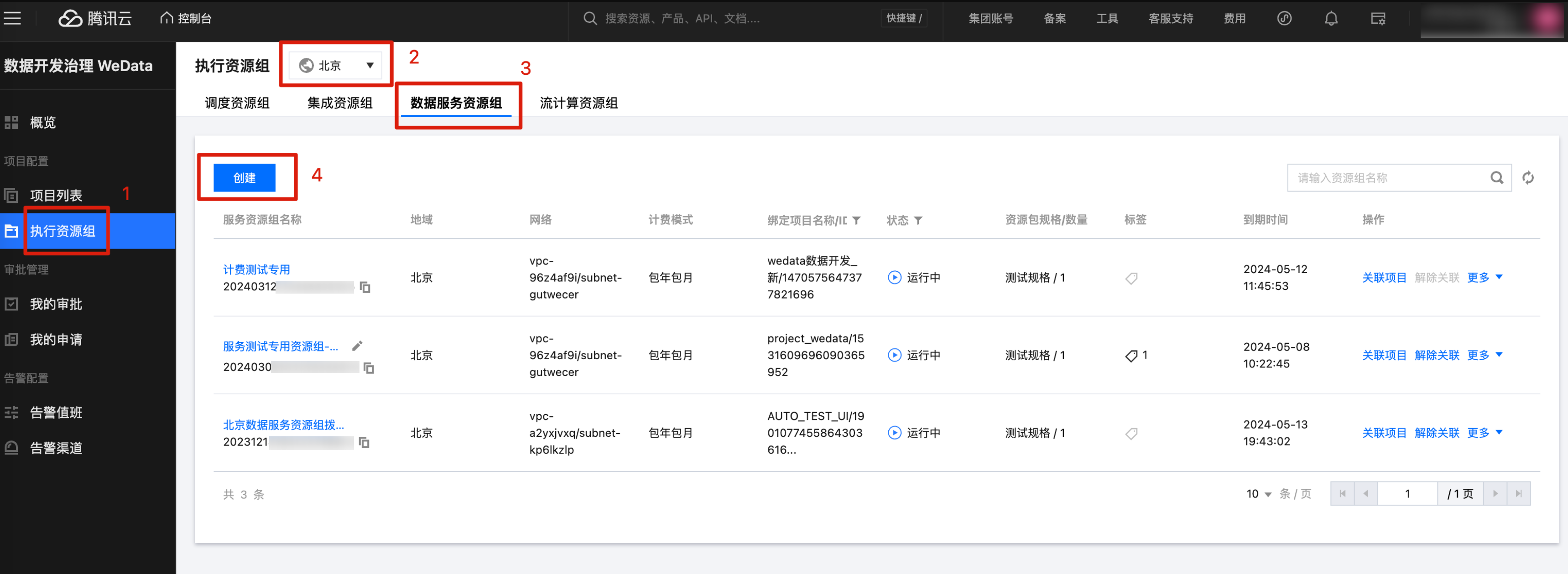
1. Go to the WeData Console and enter the Execution Resource Group page, select the region as Beijing, click Data Service Resource Group to enter the page, then click the Create button.
Region: In this tutorial, select resources in the Beijing region.
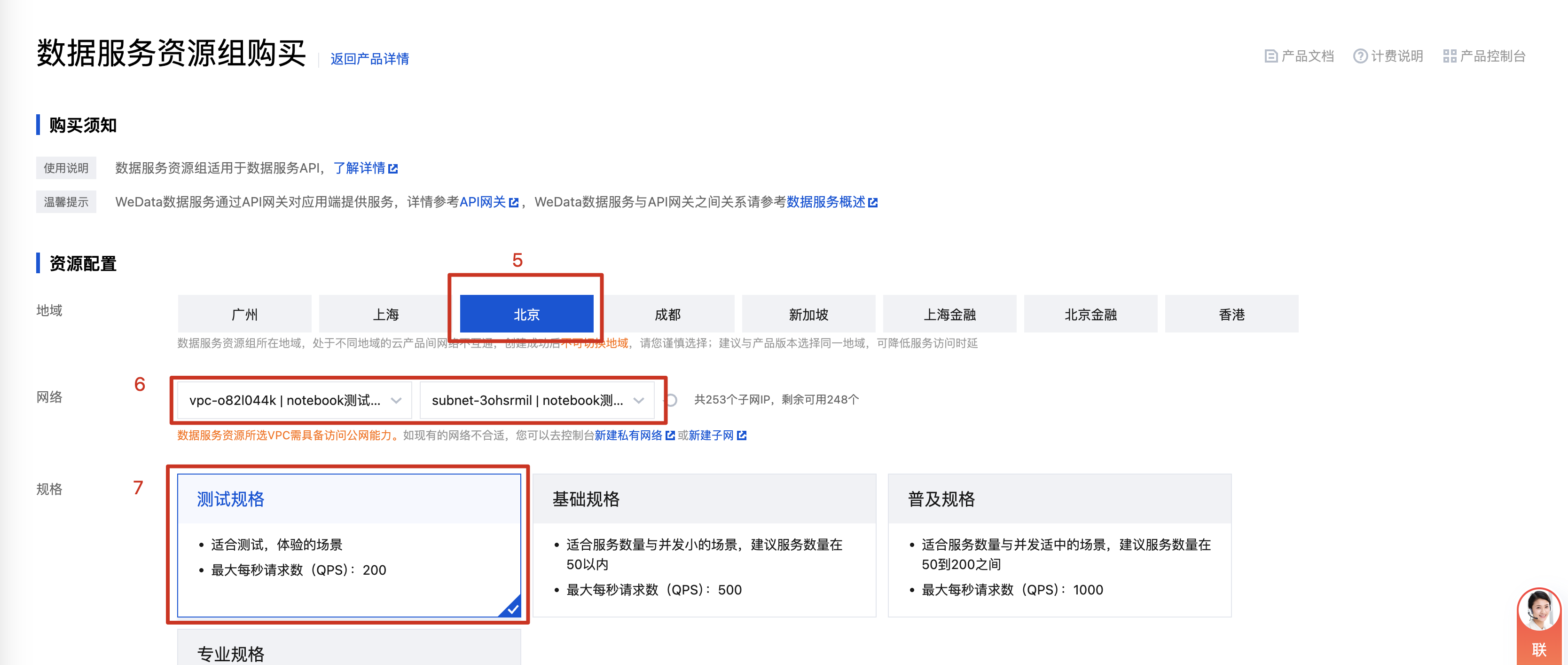
2. After clicking the Create button, you will enter the Data Service Resource Group Purchase page. In Resource Configuration, select the region as Beijing, select the Network as the VPC created in step Create a New VPC, and select the specifications as Test Specifications.
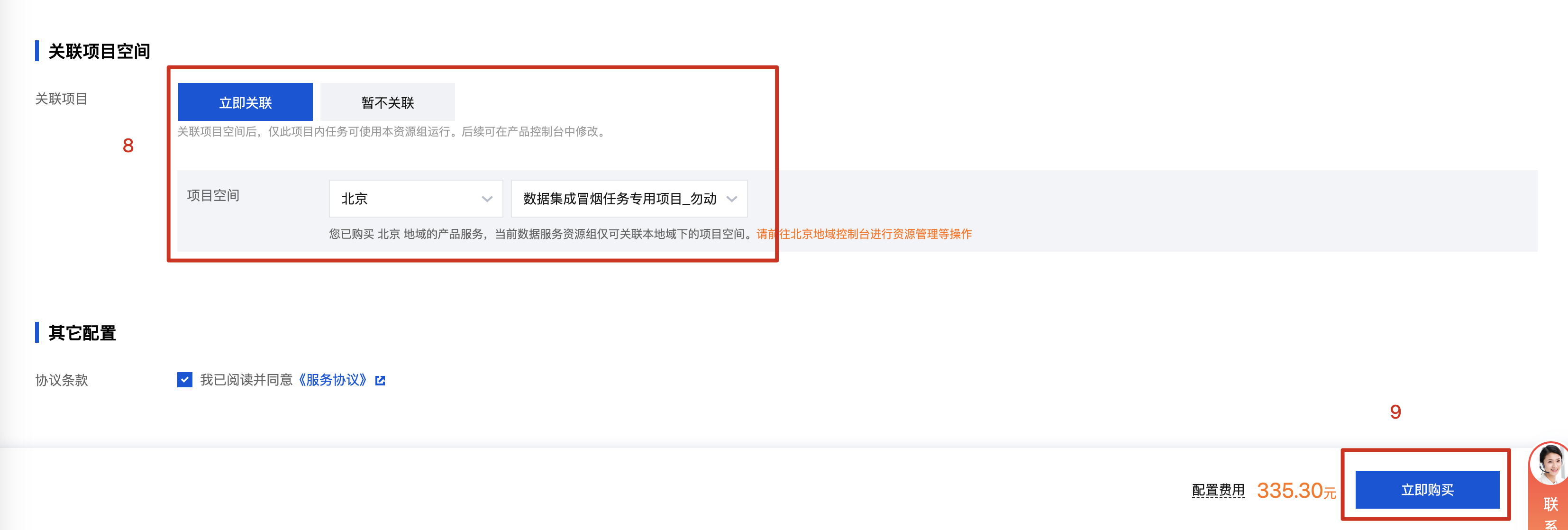
3. In Associated Project Space, select Associate Project as Immediate Association, associate with the project created in step Create a Project in WeData, and click the Purchase Now button.
Purchase API Gateway Resources
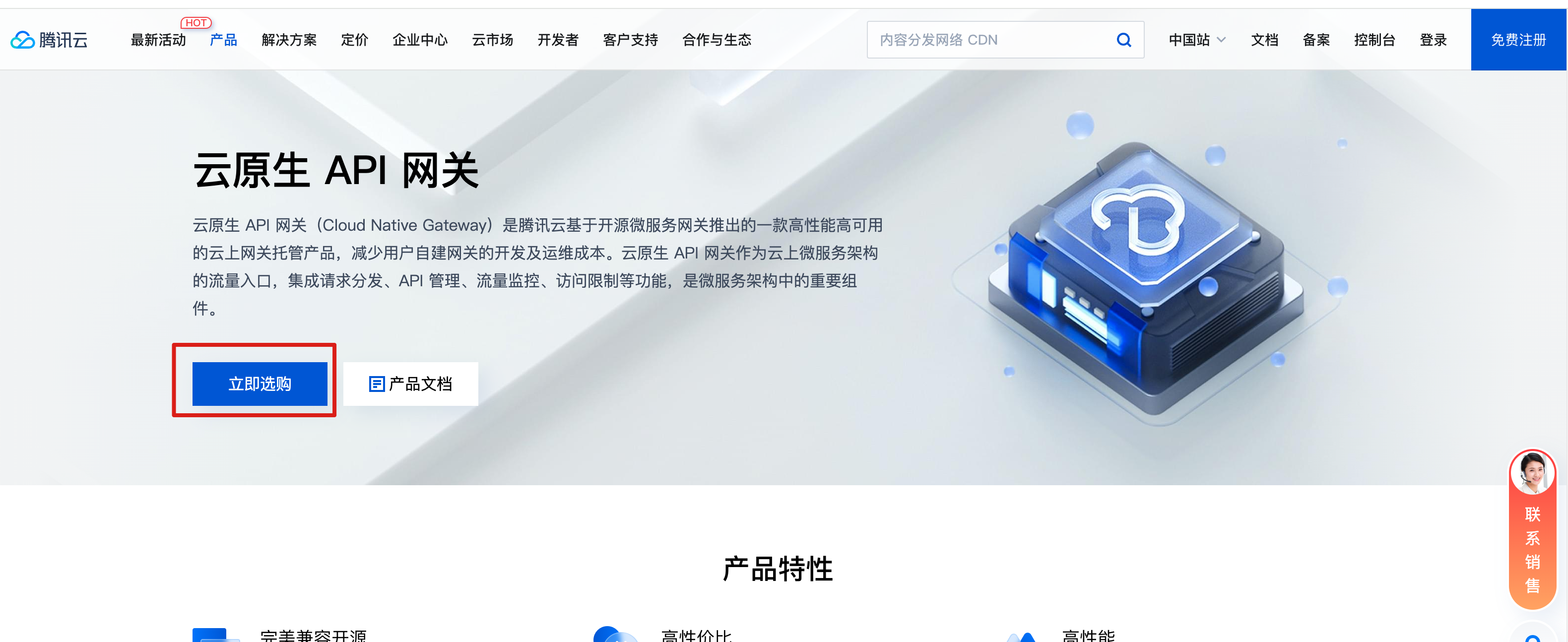
1. Go to the Tencent Cloud Official Website > Cloud Native Gateway. If you are using it for the first time, you will need to enable permissions by clicking the Use Now button.
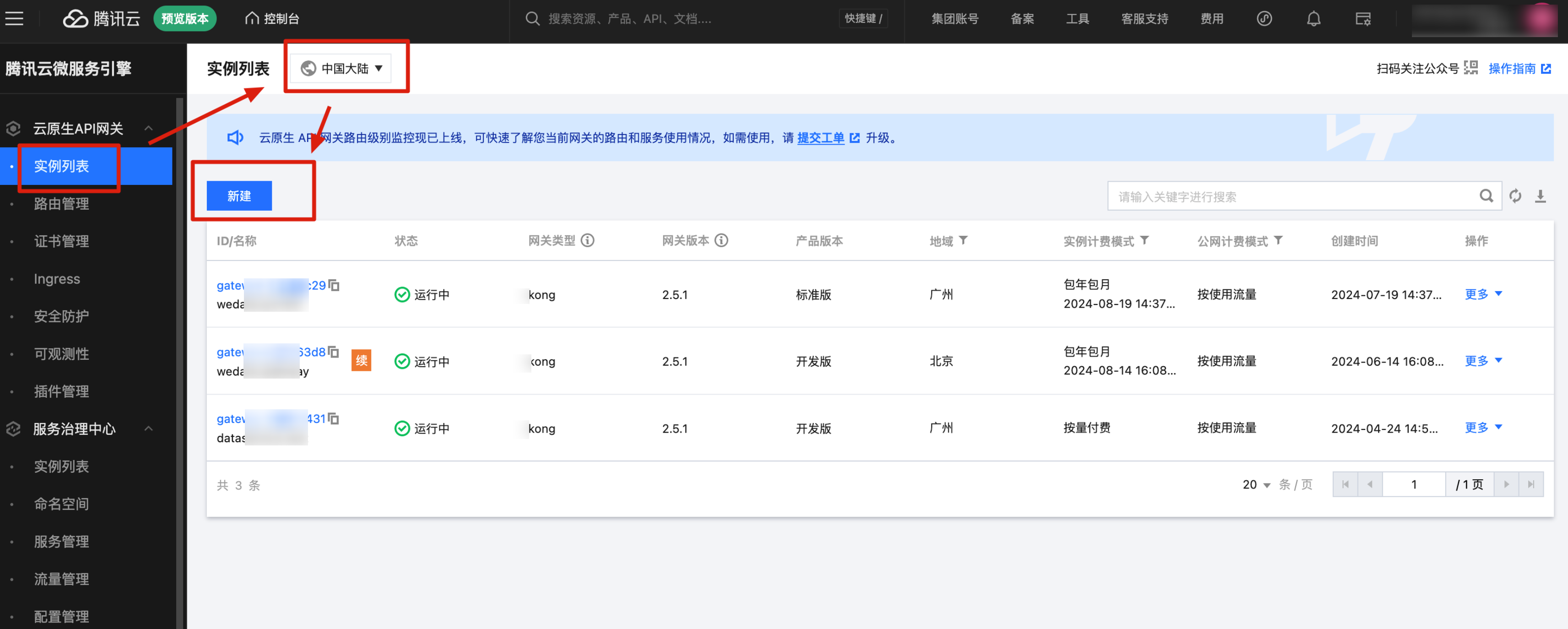
2. Log in to the Tencent Cloud Console > Instance List, go to the Gateway Instance list, select the region as Beijing, and click the Create button.
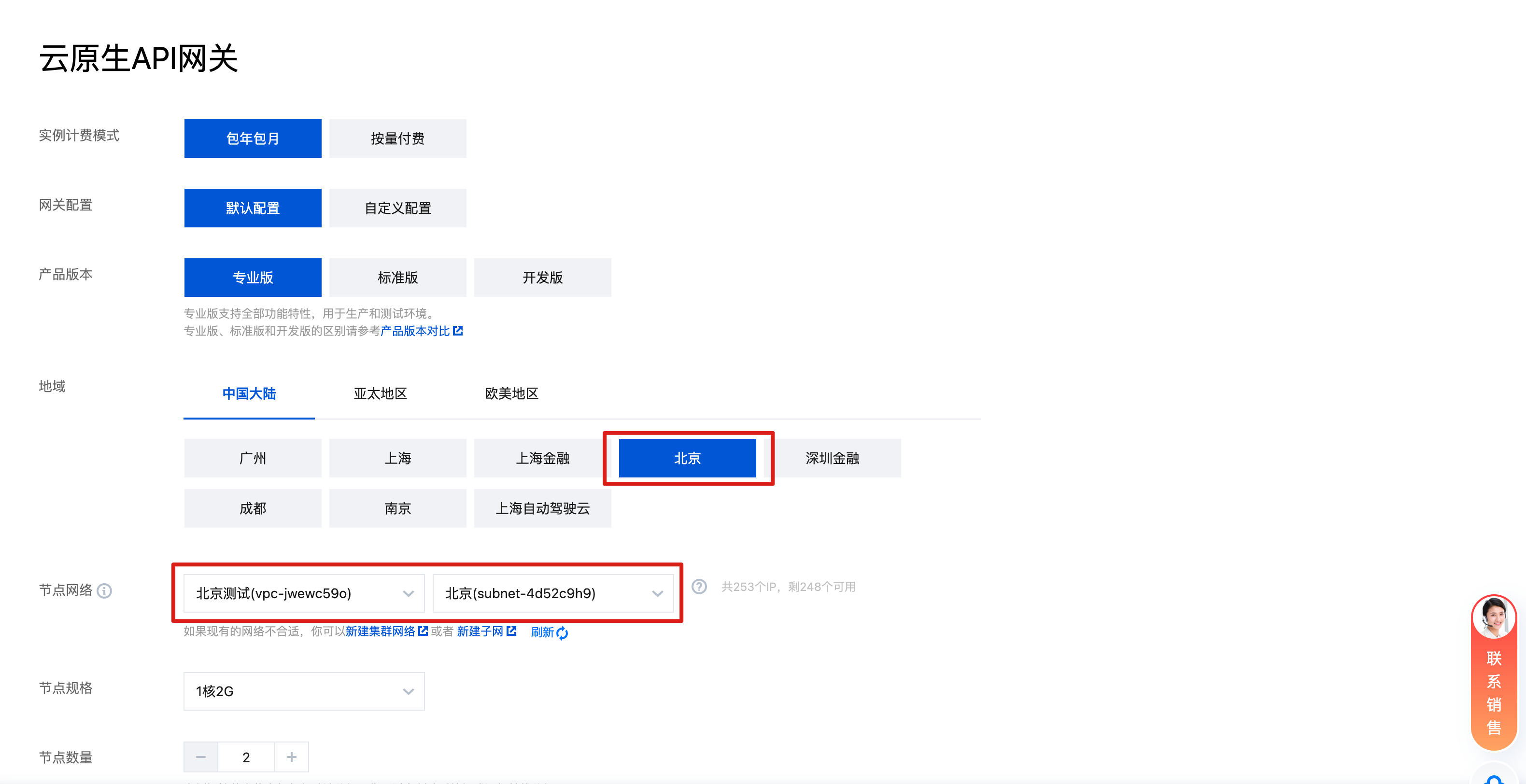
3. In the configuration selection, select the region as Beijing, select the instance specification as Basic Edition, and select the network as the VPC created in step Create a New VPC.
Availability Zone: The availability zone where the subnet in the VPC is located.
Create Summary Table
Create a data summary table in Tencent Cloud MySQL. For specific steps, see Summary Table Development.
First, we need to sync the data from the Hive mall summary table to the MySQL summary table.
Step 1: Create a data synchronization task
Note
In the WeData > Data Development > Mall Development workflow, add an offline synchronization node. For detailed steps, refer to Offline Synchronization Task Development.
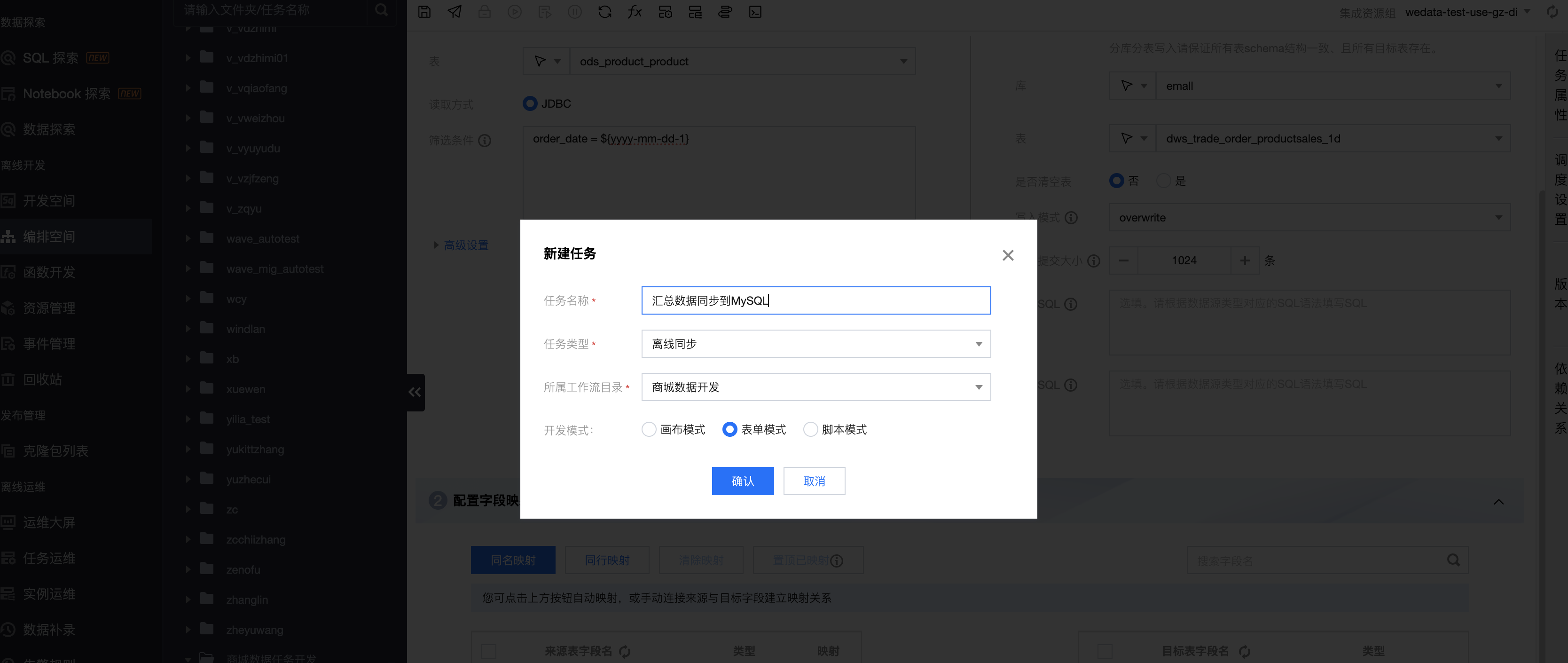
1. In the orchestration space, find the created Mall Data Task Development > Mall Data Development > click Offline Synchronization, select configuration mode, click Confirm.
Task Name: Sync summary data to MySQL.
Development Mode: Choose Form Mode.
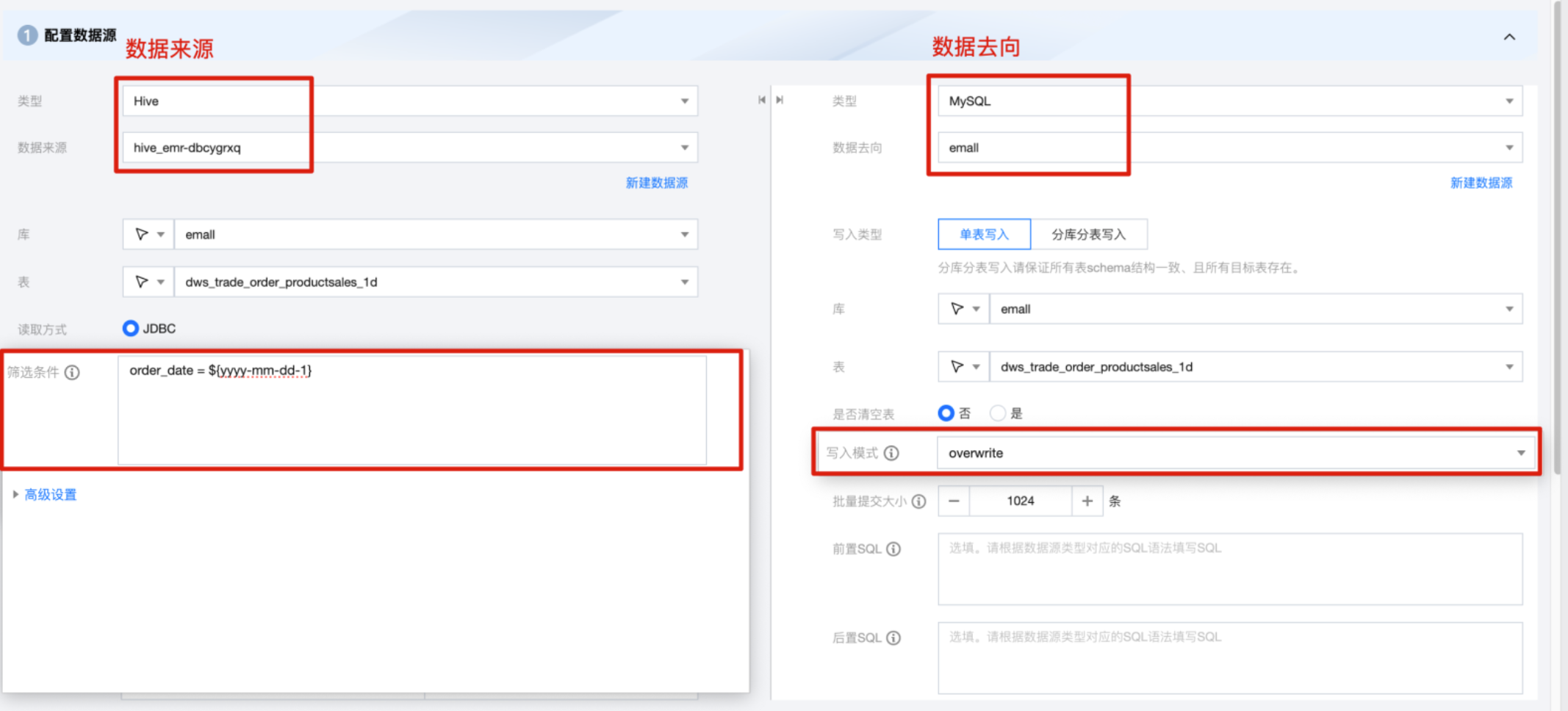
2. Configure Data Source and Data Destination in order.
Note:
Data Flow Direction: Hive → MySQL.
It is not possible to create MySQL tables in one click in WeData, so you need to create the data table in MySQL first.
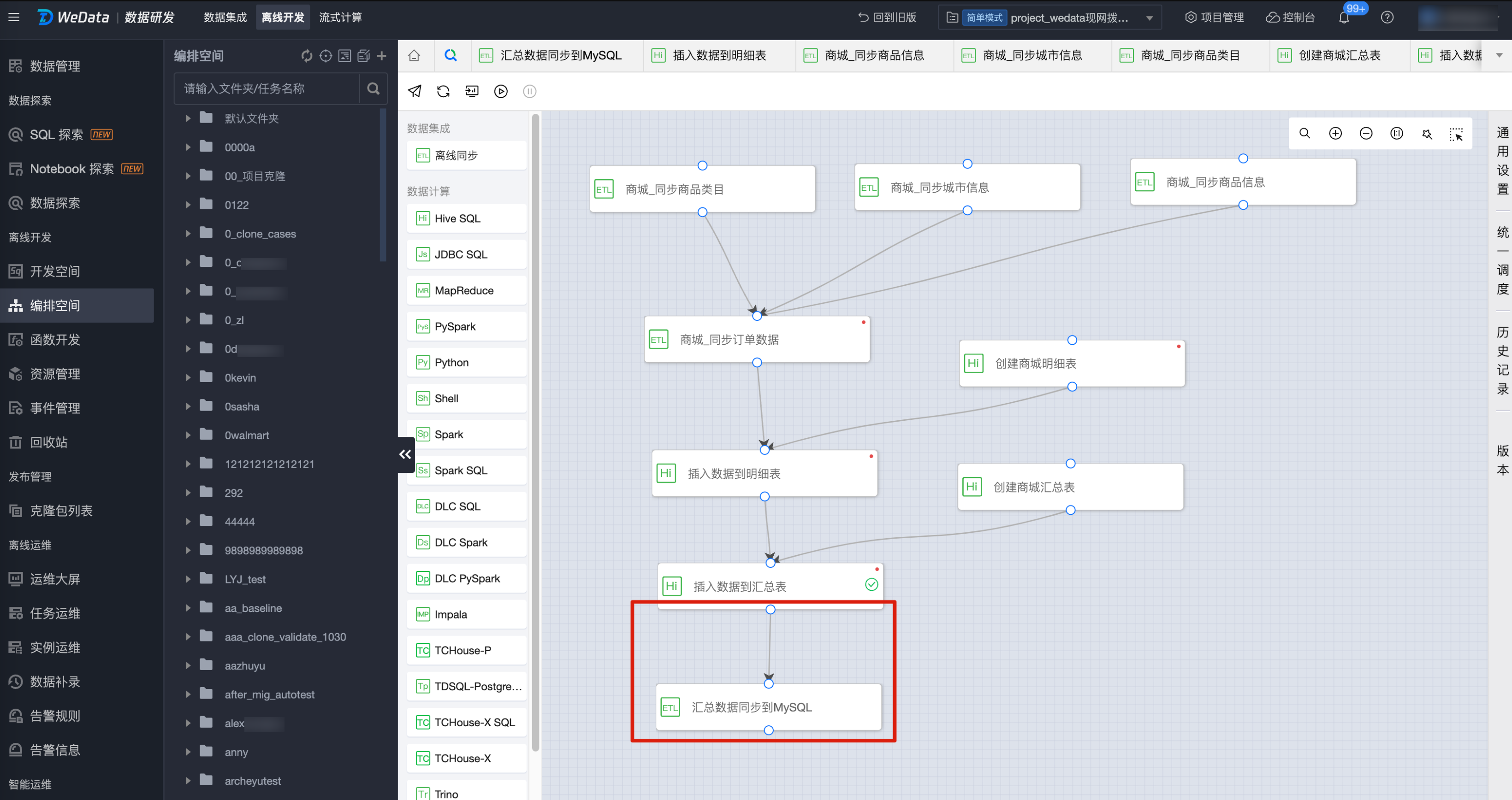
Establish an association with the upstream task for the data synchronization task just created. For specific operations, please refer to Establish Dependencies and Submit.
The suggested task dependency relationship after association is as shown below:
Upon completing the above steps, the data will automatically sync from the Hive table to MySQL.
Create Interface Service
Step 1: Create a Service
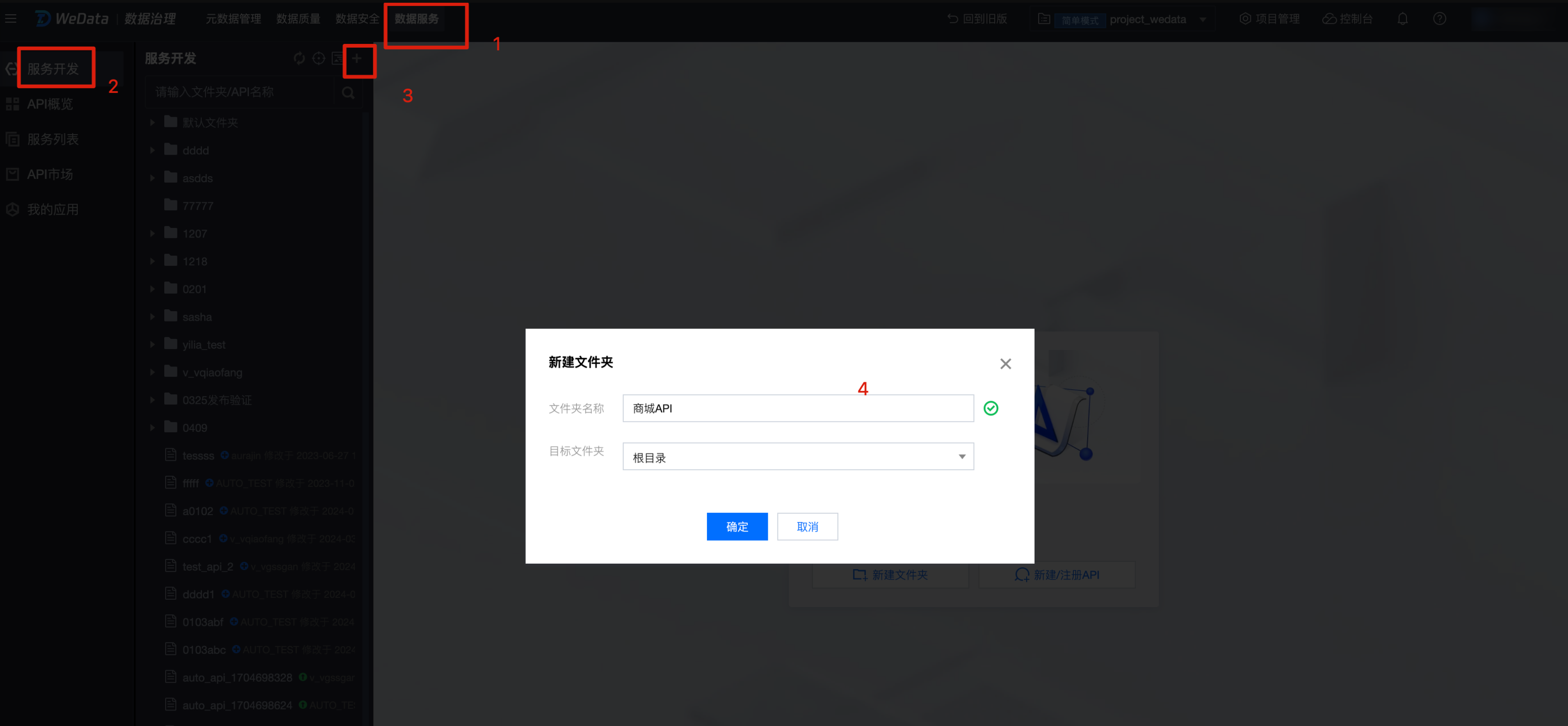
1. Enter the Data Service > Service Development page, click the Create New Folder button. Configure the folder name as Shopping Mall API. Select the target folder as the root directory. Click the OK button.
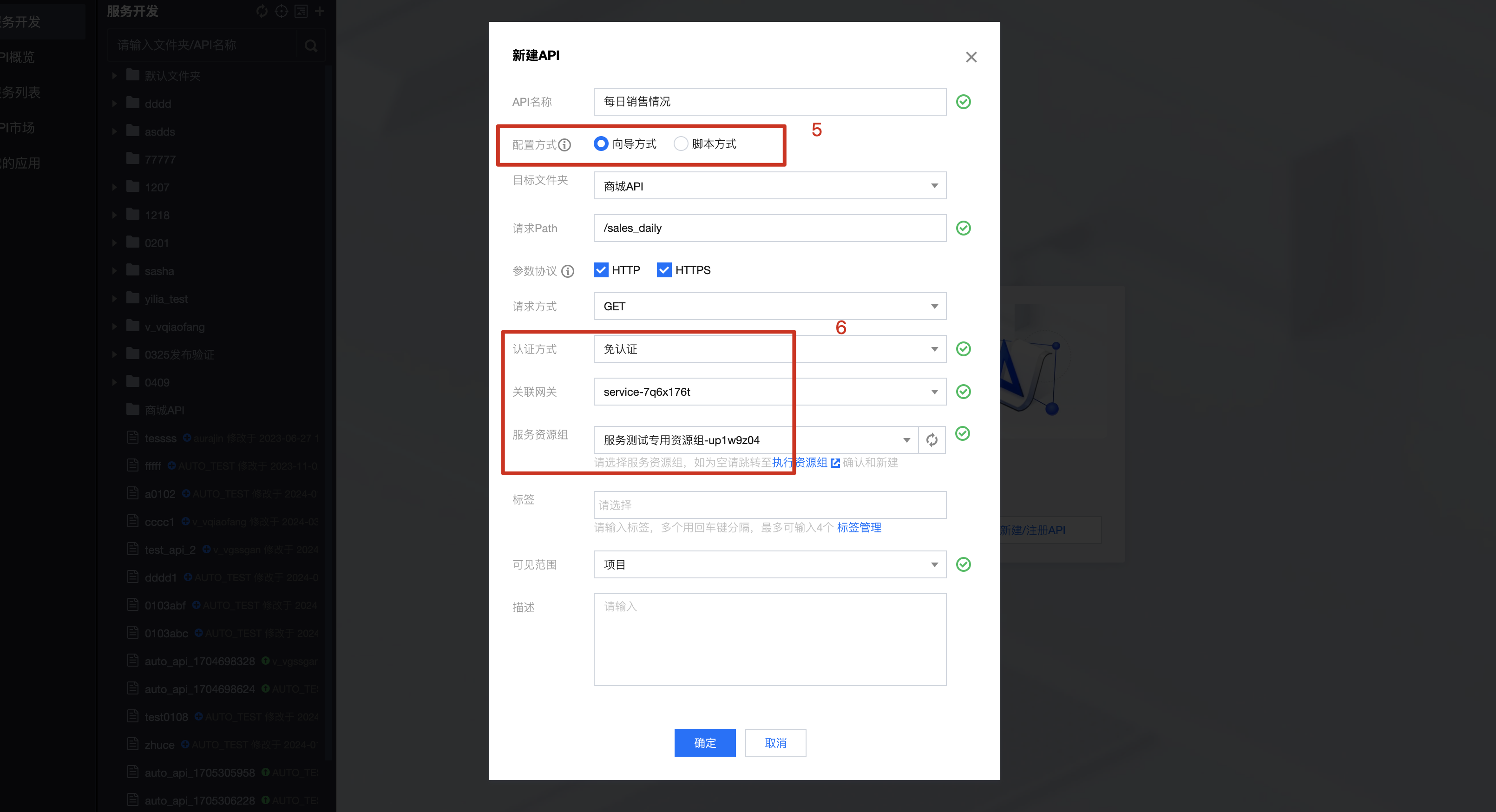
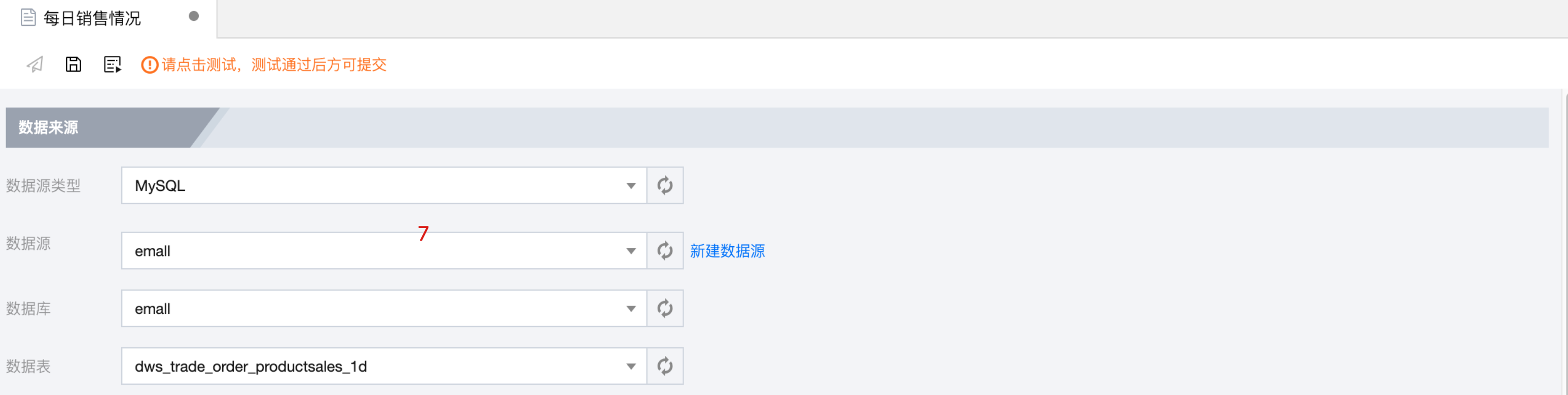
2. Then click + sign, choose Create New API and click to enter the Create New API page. Select the configuration method as Wizard Mode, then configure Authentication Method, Associated Gateway and Service Resource Group sequentially. Click the OK button.
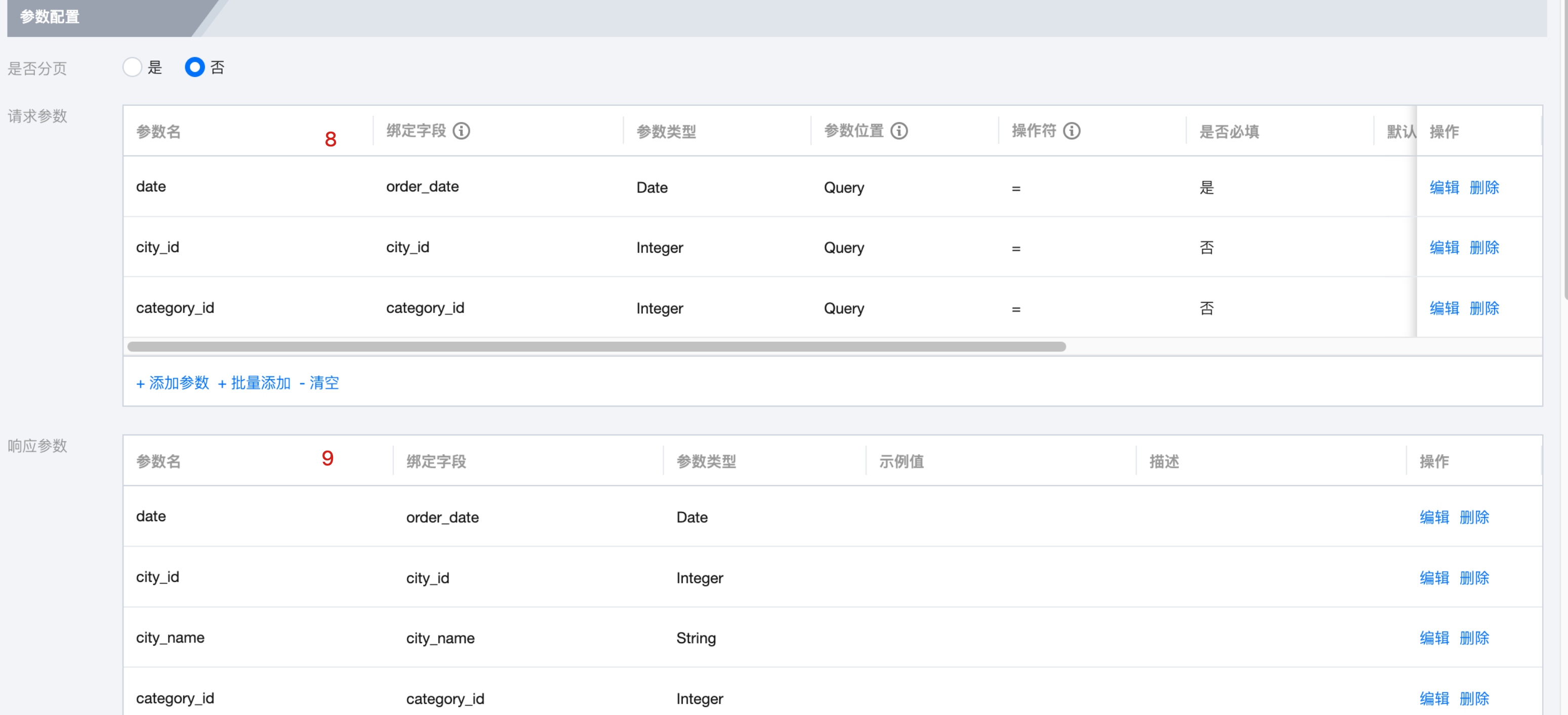
Keep date as the required field, others as not required.
Response parameters:
Set all fields in the table as output fields.
Quick operation: After selecting the bound field, the parameter name will be automatically brought out.
Adjust the parameter types.
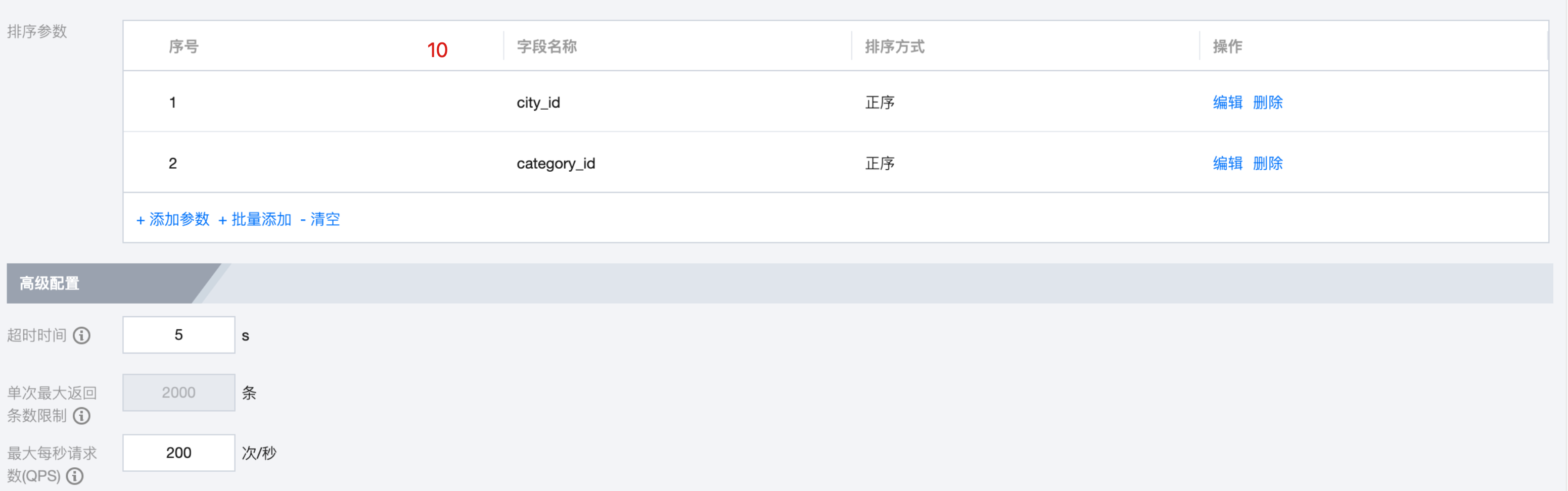
2. Configure Sorting Parameters.
Sorting parameters: Set city_id, category_id to ascending sort.
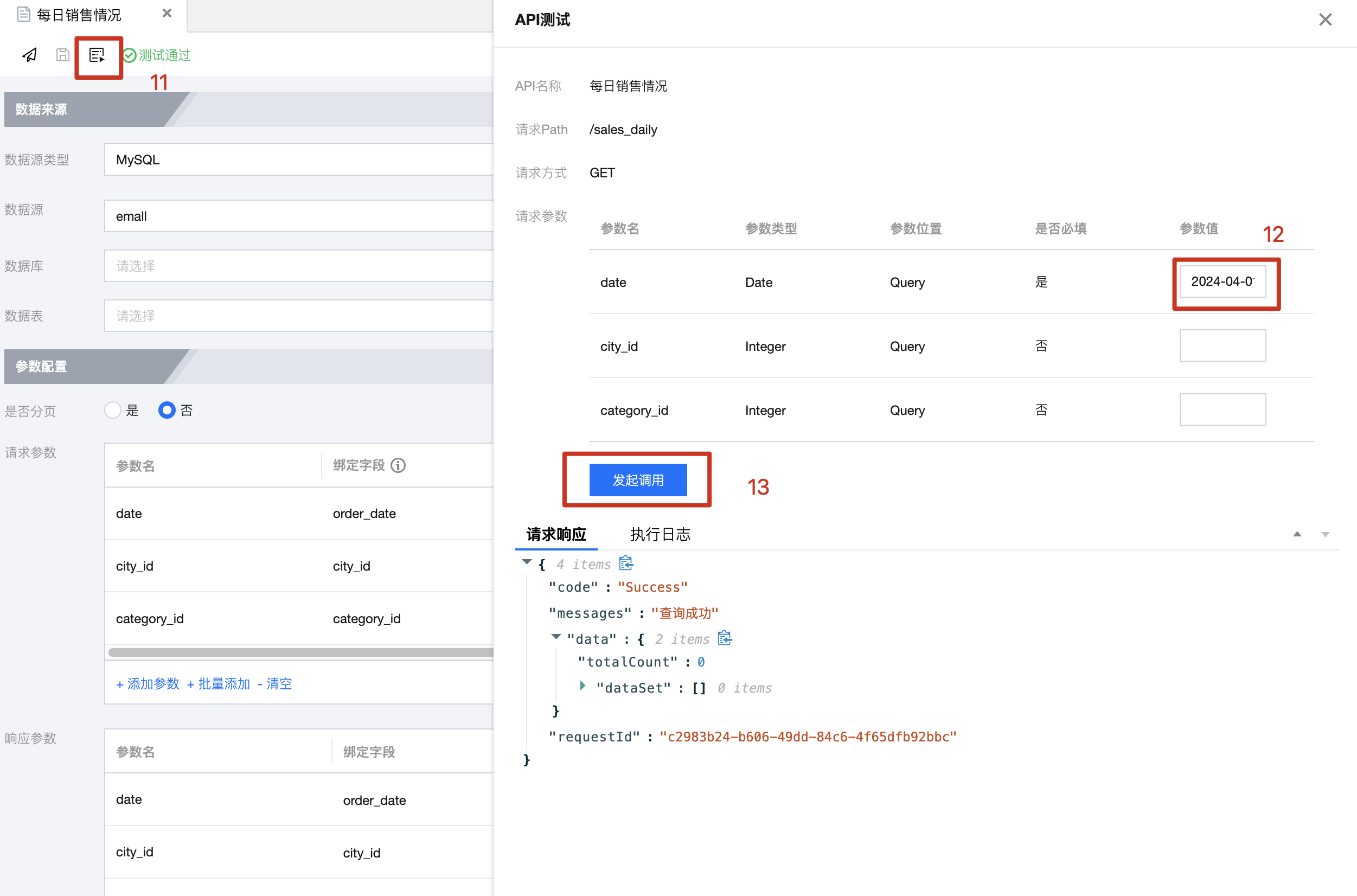
Step 4: API Testing
1. Click the Test button, in the pop-up test window, fill in the mandatory parameter date, e.g., 2024-04-01, then click the Initiate a call button, wait for the response, and check the output result.
Step 5: Submit
1. After passing the test, click the Submit button. After submission, the interface is available.
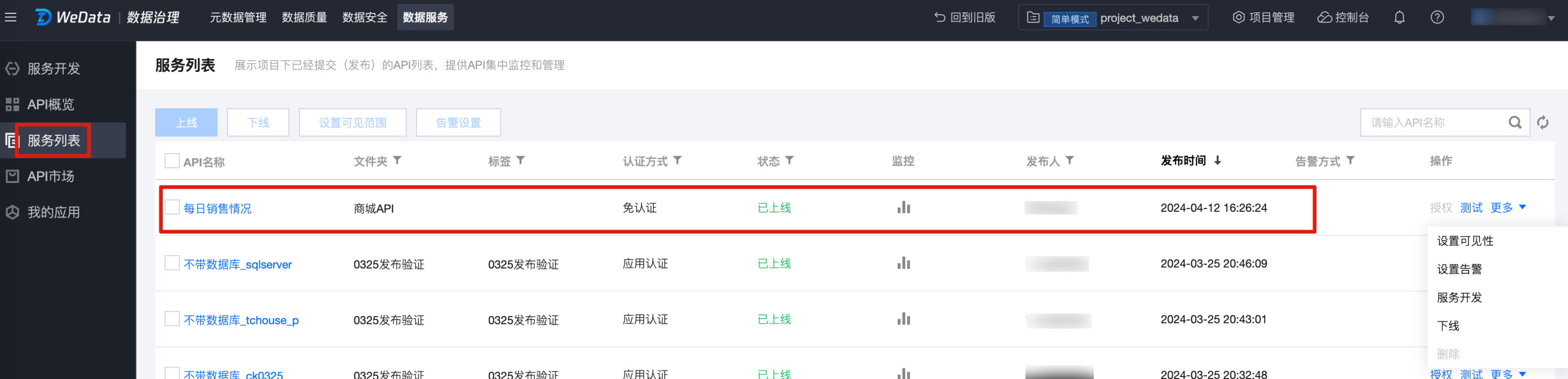
View the Data Service Interface
After the Data Service API is submitted, you can view this service in the service list. In this list, you can manage the API, such as setting visibility, setting alarms, decommissioning, and other operations.