The content of this page has been automatically translated by AI. If you encounter any problems while reading, you can view the corresponding content in Chinese.
This document describes how to disable and. delete authentication sources in the IDSEC console.
Note:
Disabling an authentication source affects how applications use it. Proceed with caution.
After an authentication source is deleted, all data cannot be recovered. Proceed with caution.
Disabling Authentication Source
1. Log in to the IDSEC console, and choose Authentication Management > General Authentication Sources in the left sidebar.
2. On the General Authentication Source webpage, select the authentication source and click
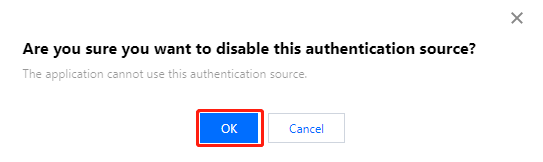
to pop up the "Confirm Closure" pop-up.
3. In the "Confirm Closure" pop-up window, click OK to disable the authentication source.
Note:
If an authentication source is set as the primary source in an application's login flow, the system will prompt that it cannot be disabled. To proceed with disabling it, first unbind it from the application flow and then disable the authentication source.
If an authentication source is set as an associated source in an application's login flow, the system will prompt that disabling it will affect how the application uses the source.
Deleting an Authentication Source
1. Log in to the IDSEC console, and choose Authentication Management > General Authentication Sources in the left sidebar.
2. On the General Authentication Source webpage, select the authentication source and click Delete to pop up the "Confirm Deletion" pop-up.
Note:
If an authentication source is set as the primary source in an application's login flow, the system will prompt that it cannot be disabled. To proceed with disabling it, first unbind it from the application flow and then disable the authentication source.
3. In the "Confirm Deletion" pop-up window, click OK to delete the authentication source.