集成遇到异常怎么办?

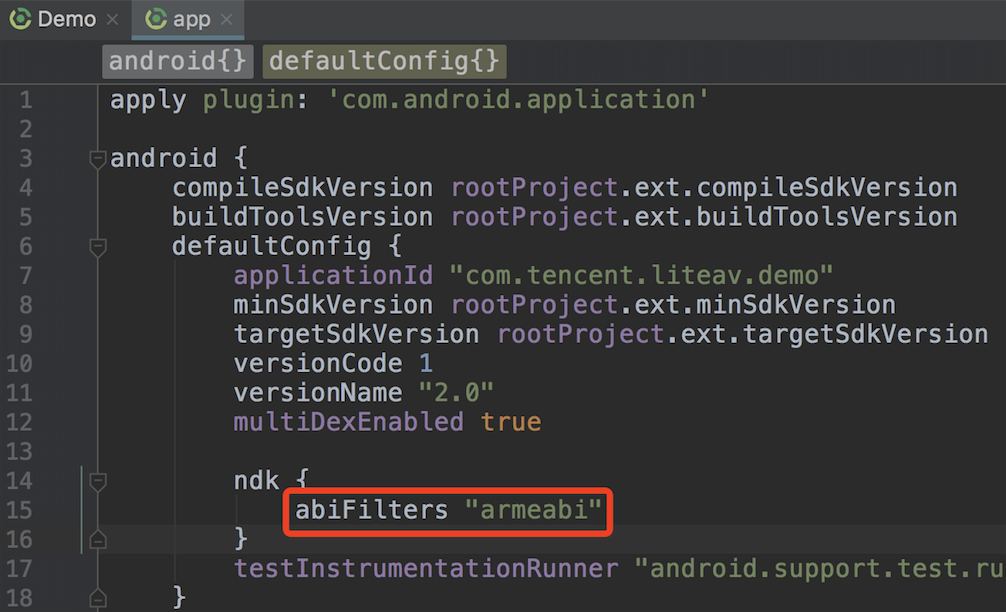
app的 build.gradle 中指定 abiFilters 为“armeabi”。功能模块升级后,短视频 SDK 的功能不能使用?
1. 如果使用的是 androidstudio,在替换新的 aar 后,请修改
app的 build.gradle 中的 aar 引用,是否与您放入工程下 /libs 目录下的 aar 文件名称是否一致。然后重新 clean 并且 build 一下您的工程。2. 确认功能模块类型,短视频 SDK 功能模块分两种授权类型:基础版和精简版,包含的功能不同,区别在于特效的有无。
目前短视频 SDK 录制生成的分辨率支持自定义吗?有哪些可定制化的输出?
短视频 SDK 录制可定制参数包括 FPS(每秒钟有多少帧画面),GOP(多少秒编出一个关键I帧)大小,视频码率(每秒钟编码器产生的音视频数据的多少),录制最大/最小时长,录制的分辨率以常量方式提供了四种分辨率供您选择:360×640、540×960、720×1280、1080 × 1920。
录制为什么以常量方式而不是用户自定义大小,原因如下:
以上四种是主流的录制分辨率。
Android 手机兼容问题,不支持一些非主流的分辨率,会产生一些花屏、绿屏、马赛克。
通过调用 TXUGCRecord 类的 startCameraCustomPreview 接口,将自定义录制的参数传入,代码如下所示:
// 自定义配置TXRecordCommon.TXUGCCustomConfig customConfig = new TXRecordCommon.TXUGCCustomConfig();customConfig.videoResolution = TXRecordCommon.VIDEO_RESOLUTION_540_960;customConfig.minDuration = mMinDuration; // 最小时长customConfig.maxDuration = mMaxDuration; // 最大时长customConfig.videoBitrate = mBiteRate; // 视频码率customConfig.videoGop = mGop; // GOP 大小customConfig.videoFps = mFps; // FPScustomConfig.isFront = mFront; // 是否前置摄像头mTXCameraRecord.startCameraCustomPreview(customConfig, mVideoView);
Android 短视频录制结束,为什么没有收到 onRecordComplete 回调?
开始录制短视频前,请先通过调用 TXUGCRecord 类的 setVideoRecordListener() 接口设置录制回调的监听器结束时,需要调用 TXUGCRecord 类的 stopRecord() 接口结束录制。
// 录制前mTXCameraRecord = TXUGCRecord.getInstance(this.getApplicationContext());mTXCameraRecord.setVideoRecordListener(this);...// 结束录制mTXCameraRecord.stopRecord();
短视频退出录制,开启第二次录制,如何继续接着上一次内容录制?
Demo 在 onRecordComplete 回调之后,调用了 mTXCameraRecord.getPartsManager().deleteAllParts(),用于清除分片文件,因为 stopRecord 已经将分片文件合成完成。
如果录制退出,继续上次录制,不需要删除分片,不要调用 mTXCameraRecord.getPartsManager().deleteAllParts()。
@Overridepublic void onRecordComplete(TXRecordCommon.TXRecordResult result) {TXCLog.i(TAG, "onRecordComplete, result retCode = " + result.retCode + ", descMsg = " + result.descMsg + ", videoPath + " + result.videoPath + ", coverPath = " + result.coverPath);if (mTXRecordResult.retCode < 0) {Toast.makeText(TCVideoRecordActivity.this.getApplicationContext(), "录制失败,原因:" + mTXRecordResult.descMsg, Toast.LENGTH_SHORT).show();} else {mDuration = mTXCameraRecord.getPartsManager().getDuration(); //录制的总时长if (mTXCameraRecord != null) {mTXCameraRecord.getPartsManager().deleteAllParts(); //删除多次录制的分片文件}startPreview(); //进去预览界面}
为什么短视频录制设置背景音没有生效?
设置背景音乐一定要在启动录制(TXUGCRecord 的 startRecord)接口之前设置才能生效。代码调用顺序参照下面示例:
TXRecordCommon.TXUGCSimpleConfig simpleConfig = new TXRecordCommon.TXUGCSimpleConfig();simpleConfig.videoQuality = TXRecordCommon.VIDEO_QUALITY_MEDIUM;simpleConfig.minDuration = mMinDuration;simpleConfig.maxDuration = mMaxDuration;// 1、首先开启预览mTXCameraRecord.startCameraSimplePreview(simpleConfig, mVideoView);// 2、再设置背景音乐的路径并播放背景音乐mBGMDuration = mTXCameraRecord.setBGM(mBGMPath);mTXCameraRecord.playBGMFromTime(0, mBGMDuration);// 3、启动录制(customVideoPath:录制后视频路径,customPartFolder:录制视频的文件夹,customCoverPath:录制后视频的封面路径)int result = mTXCameraRecord.startRecord(customVideoPath, customPartFolder, customCoverPath);
录制是否有拍照功能?
短视频 SDK 功能模块有拍照功能,调用 TXUGCRecord 类的 snapshot 接口,以 TXRecordCommon.ITXSnapshotListener 回调异步返回拍照的图片,代码示例如下:
private void snapshot() {if (mTXCameraRecord != null) {mTXCameraRecord.snapshot(new TXRecordCommon.ITXSnapshotListener() {@Overridepublic void onSnapshot(Bitmap bmp) {// 拍照的图片saveBitmap(bmp);}});}}
变速录制速度的倍数是多少?
变速录制不支持自定义速度。
定义 | TXRecordCommon 中对应常量 | 倍数 |
极慢速 | RECORD_SPEED_SLOWEST | 0.5倍 |
慢速 | RECORD_SPEED_SLOW | 0.8倍 |
标准 | RECORD_SPEED_NORMAL | 1倍 |
快速 | RECORD_SPEED_FAST | 1.25倍 |
极快速 | RECORD_SPEED_FASTEST | 1.5倍 |
变速录制通过调用 TXUGCRecord 的 setRecordSpeed(record),设置不同的录制速度:
mTXCameraRecord.setRecordSpeed(TXRecordCommon.RECORD_SPEED_FAST);
导入视频的格式要求?是否支持导入分辨率大于720P(例如2K,4K)的视频?导入文件限制有具体大小吗?
导入视频目前 Android 端仅支持 MP4,分辨率没有做限制,导入文件不限制大小。
导入视频的分辨率没有做限制,不管原视频多大,经过预处理后最大是720P。
为了快速的导入视频,SDK4.7后可以不经过预处理(一些功能收到限制,倒放,单针预览等),对于分辨率大于720P的视频,建议需要加上预处理,因为预览是将每一帧解码,一些手机的性能不好,导致解码一帧并渲染到界面的时间过长,导致卡顿。
目前短视频 SDK 编辑支持哪种格式的背景音乐?
目前仅支持 MP3 和 M4A 类型。
目前短视频 SDK 编辑有哪些可定制化的输出?
短视频 SDK 编辑可定制视频码率(SDK4.5及以上)、音频码率(SDK4.7及以上)、分辨率以常量方式提供了几种分辨率供您选择:360×640、480×640、540×960、720×1280、1080 × 1920。
分辨率 | TXVideoEditConstants 中对应常量 |
360x640 | VIDEO_COMPRESSED_360P |
480x640 | VIDEO_COMPRESSED_480P |
540x960 | VIDEO_COMPRESSED_540P |
720x1280 | VIDEO_COMPRESSED_720P |
1080x1920 | VIDEO_COMPRESSED_1080P |
//设置输出视频码率mTXVideoEditer.setVideoBitrate(3600);//设置输出分辨率mTXVideoEditer.generateVideo(TXVideoEditConstants.VIDEO_COMPRESSED_720P, mVideoOutputPath);
通过短视频 SDK 录制功能录制的视频,其中的音频是可以剥离出来的吗?
目前短视频 SDK 录制不支持同时录制 BGM 和人声,所以进入编辑后,重新设置 BGM,可以将原声音量设为0,达到替换 BGM 的目的,代码如下所示:
// 设置视频原声音量大小(设为0,去掉录制的 BGM)mTXVideoEditer.setVideoVolume(0.0f);// 设置本地的背景音乐路径String bgmPath = getBGMPath();mTXVideoEditer.setBGM(bgmPath);// 设置背景音乐音量大小,范围0.0f-1.0fmTXVideoEditer.setBGMVolume(1.0f);
预览画面在同一个 Activity 窗口和全屏模式如何切换?
动态修改传入 SDK 视频预览 View 父布局的大小,SDK 内部会根据父布局的大小,根据视频宽高动态调整视频的大小。SDK 接口的调用顺序:
1. 进行 stopPlay。
2. 修改传入 SDK 的 FrameLayout 的宽高。
3. 调用 initWithPreview(parm),将新的 FrameLayout 承载播放组件的 layout 传入。
4. 再次 startPlay。
// 停止播放mTXVideoEditer.stopPlay();if (isFullScreen) {// 如果是全屏模式,则下面切换成窗口模式FrameLayout.LayoutParams params = new FrameLayout.LayoutParams(ViewGroup.LayoutParams.MATCH_PARENT, 1500);mVideoPlayerLayout.setLayoutParams(params);initPlayerLayout(false);isFullScreen = false;} else {// 如果是窗口模式,则下面切换成全屏模式FrameLayout.LayoutParams params = new FrameLayout.LayoutParams(ViewGroup.LayoutParams.MATCH_PARENT, ViewGroup.LayoutParams.MATCH_PARENT);mVideoPlayerLayout.setLayoutParams(params);initPlayerLayout(false);isFullScreen = true;}// 开始播放mTXVideoEditer.startPlayFromTime(startTime, endTime);// 重新设置预览Viewprivate void initPlayerLayout(boolean isFullScreen) {TXVideoEditConstants.TXPreviewParam param = new TXVideoEditConstants.TXPreviewParam();param.videoView = mVideoPlayerLayout;if (isFullScreen) {param.renderMode = TXVideoEditConstants.PREVIEW_RENDER_MODE_FILL_SCREEN;} else {param.renderMode = TXVideoEditConstants.PREVIEW_RENDER_MODE_FILL_EDGE;}mTXVideoEditer.initWithPreview(param);}
短视频 SDK 编辑时,如何把“剪辑”功能和“滤镜”分成两个页面?
腾讯云视立方短视频 Demo 是把“剪辑”和“滤镜”等功能放在一个页面处理,要把“剪辑”功能和“滤镜”分成两个页面,可以先进行裁剪(setCutTimeFrom)+ 预处理(processVideo)同时执行,结果生成一个裁剪后的视频预处理完的视频,再进行各种编辑的操作,将裁剪设置成整个时长(setCutTimeFrom),最后调用 generateVideo 生成视频,防止压缩两次导致画质降低。
注意
在预处理进行裁剪了,生成完的预处理视频,在最后生成前,一定要将裁剪时长设置为整个视频时长,不然还会再次进行裁剪。
//裁剪页面mTXVideoEditer = new TXVideoEditer(mContext);mTXVideoEditer.setCutFromTime(mTCVideoEditView.getSegmentFrom(), mTCVideoEditView.getSegmentTo());mTXVideoEditer.processVideo();// 将裁剪设置成整个时长 (setCutTimeFrom)mTXVideoEditer.setCutFromTime(0, mVideoDuration);//跳转到特效页面,进行生成mTXVideoEditer.generateVideo(TXVideoEditConstants.VIDEO_COMPRESSED_720P, mVideoOutputPath);


