Getting Started

Last updated: 2023-09-04 15:30:46

This guide will walk you through the process of quickly creating a private connection service, allowing you to share cloud services deployed in your VPC with other VPCs under the same account and within the same region.

Background Information

A Virtual Private Cloud (VPC) is your exclusive cloud-based Virtual Private Cloud, with complete isolation between different VPCs by default. By using Private Link Service, you can establish secure and stable access connections between Tencent Cloud VPCs and other VPCs, simplifying network architecture and avoiding potential security risks associated with public network access.
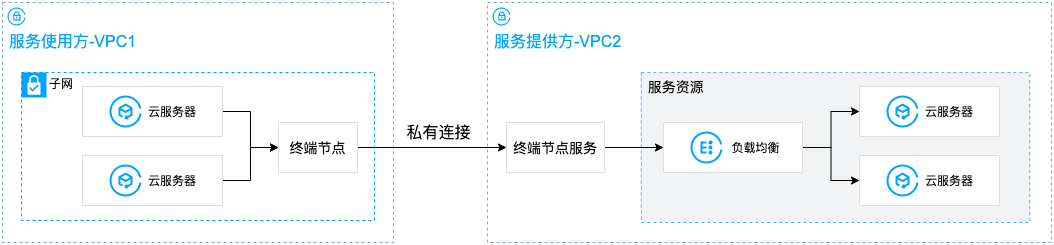
To establish a connection using Private Link, you need to create both an endpoint and an endpoint service. Before creating the endpoint service, you must create an internal Layer 4 Cloud Load Balancer (CLB) instance and a listener associated with the Cloud Virtual Machine (CVM) instance where your service is deployed. Then, when creating the endpoint service, associate it with the CLB instance. At this point, the endpoint service will serve as the access entry point for the service provider's business, allowing the service consumer's endpoint to request a connection. Once the connection is successfully established, the service consumer can access the service provider's deployed business services.

Scenario Example

In this guide, we will use the following business scenario as an example. A company has its business distributed across two Virtual Private Clouds: VPC1 and VPC2. Due to business expansion, the company has deployed relevant service resources in VPC2 and wishes to share the services in VPC2 with VPC1 for access. To avoid potential security risks associated with public network access, Tencent Cloud's Private Link is used to implement a secure private network access solution from VPC1 to VPC2.


Preparations

Service provider's VPC2 and service consumer's VPC1 have been created. For more information, see Creating Virtual Private Cloud.
In the service provider's VPC2, an internal Layer 4 CLB instance has been created, and related service resources have been deployed in the backend Cloud Virtual Machine instances. Please ensure that the backend Cloud Virtual Machine instances can properly handle requests forwarded by the Cloud Load Balancer. For more information, refer to the Cloud Load Balancer Quick Start Guide.
Please ensure that the security group associated with the Cloud Virtual Machine in the service provider's VPC2 has allowed the 11.163.0.0/16 address range. For more information, see Adding Security Group Rules, as shown in the following figure:


Instructions

Step 1: Service provider creates an Endpoint Service

Note
In this example, the service provider's VPC2 has created a Layer 4 private network CLB, with the backend Cloud Virtual Machine instances already deployed with the relevant business services. The security group of the Cloud Virtual Machine instances has allowed the 11.163.0.0/16 IP address range.
2. Click Private Link > Endpoint Services in the left sidebar.
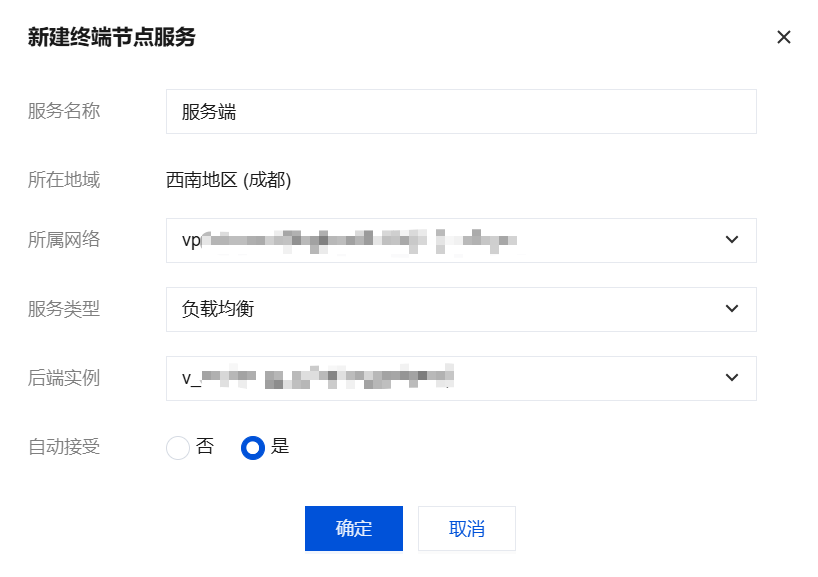
3. Click Create, and in the pop-up window for creating a new Endpoint Service, configure the relevant parameters.

Name
Description
Service name
Customize the Endpoint Service name.
Region
Endpoint service region.
Network
Select the associated VPC; in this example, choose VPC2.
Cloud Load Balancer
Select the Cloud Load Balancer instance that has been created in the VPC. In this example, choose the CLB instance already created in VPC2.
Accept endpoint connection request
Specify whether the endpoint service automatically accepts or does not accept connection requests initiated by the endpoint. By default, it is set to not accept. In this example, we choose accept:
When Yes is selected for automatic acceptance, the endpoint service will accept all connection requests from endpoints by default. After the endpoint is successfully created, its status will be Available.
When choosing not to accept automatic connections, the endpoint connection status will be Pending Acceptance. The endpoint service must manually perform Accept Connection to change the status from Pending Acceptance to Available.
4. After completing the parameter settings, click OK to finish creating the Endpoint Service.

Step 2: Service consumer creates a VPC endpoint

Note
In this example, the access is between VPCs under the same account, so there is no need to add the service consumer's whitelist account in the endpoint service. If the access is between VPCs across different accounts, the service consumer needs to provide their UIN account to the service provider in advance. The service provider's endpoint service should add the whitelist first, and then proceed with this step. For more information, see Service Sharing Between VPCs Across Accounts.
1. Click Endpoints in the left sidebar.
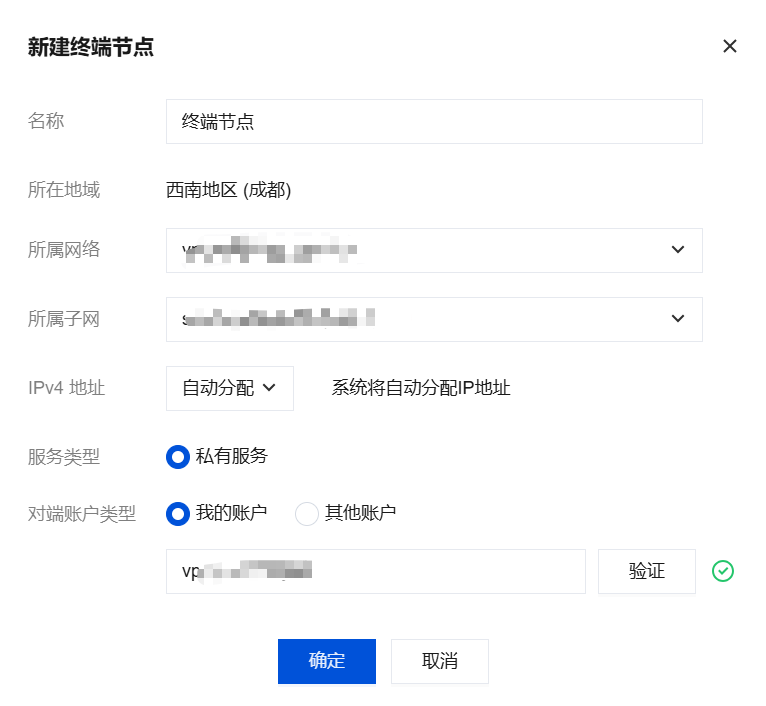
2. Click Create and, in the pop-up window for creating a new endpoint, configure the relevant parameters.

Parameter name
Description
Name
Specify a custom name for the endpoint.
Region
Endpoint node region.
Network
Select the VPC where the Endpoint is located; in this example, choose VPC1.
Subnet
Select the subnet where the Endpoint is located.
IP Addresses
Endpoint IP address: You can specify an IP address, which should be a private IP within VPC1, or you can choose to have the IP address automatically assigned.
Destination account type
Select the account to which the Endpoint Service to be connected belongs. In this example, choose My Account:
For access between VPCs under the same account, select My Account.
For cross-account VPC access, select Other Account.
Select a service
After entering the Endpoint Service ID, click Validate. Only validated services can establish a connection.
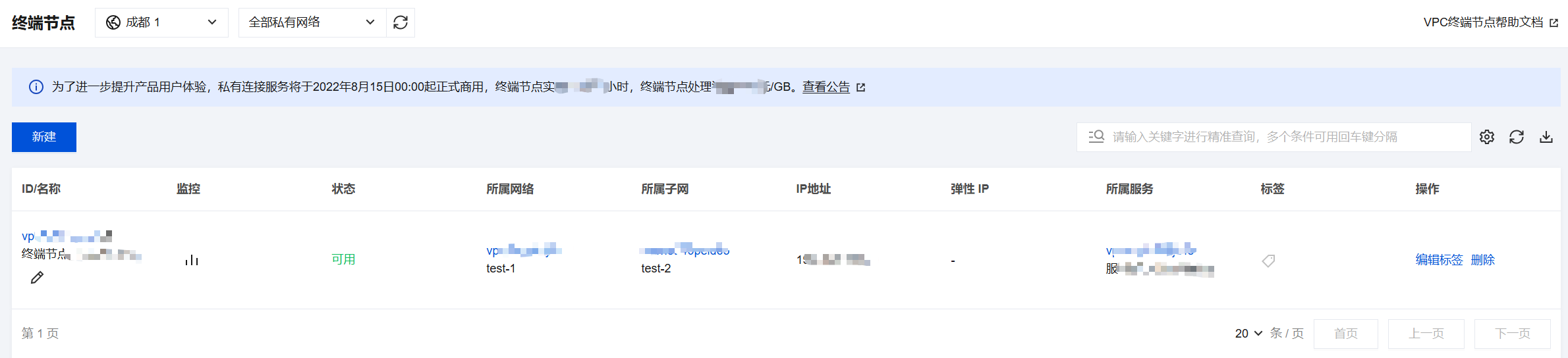
3. After completing the parameter configuration, click Confirm. In this example, since the Endpoint Service in Step 1 is set to automatically accept connections, it will accept connection requests from all Endpoints by default. Therefore, once the Endpoint is created successfully, its status will be Available.


Step 3: Service consumer initiates access request for connection validation

1. Log in to a CVM instance under the service consumer's VPC1 and access the service provider's backend services via VIP+VPORT.
2. In this example, telnet is used to verify connectivity by executing telnet VIP VPORT.
Note
If the server does not have telnet installed, please run yum install telnet to install telnet first.
Obtain the Endpoint VIP:

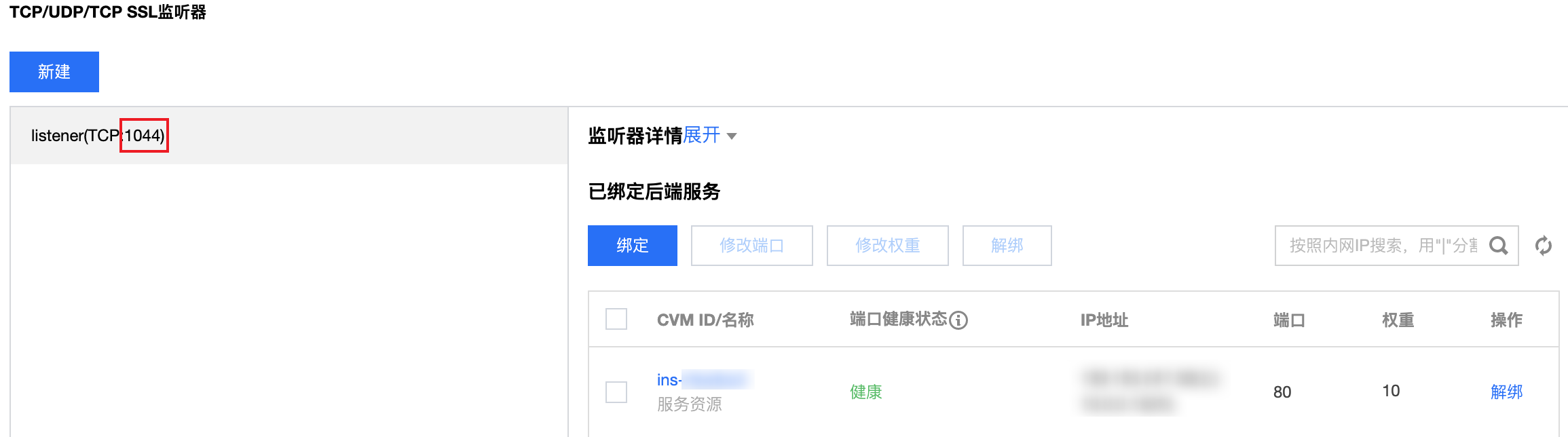
Obtaining the CLB VPort:

If the following message appears, it indicates that the connection has been established:
Note
In case of connection issues, please document the configuration information and promptly contact Online Customer Support.


Documentation