This document outlines how to enable HTTP/3 protocol support within the EdgeOne platform.
Note:
1. In order to activate HTTP/3 support, it is necessary that the current access domain has already configured an HTTPS certificate for it to take effect.
2. If both HTTP/2 and HTTP/3 are activated, either HTTP/2 or HTTP/3 will be utilized, depending on the actual client request conditions.
Billing description
HTTP/3 is a premium feature. For specific cost standards, please refer to: Value-added Service Fee - QUIC Requests.
Scenario 1: Enabling HTTP/3 Protocol Support for All Domain Names on the Site
To enable HTTP/3 protocol configuration for all domain names, please refer to the following steps:
1. Log in to the EdgeOne console. In the left sidebar, click Site List. Within the site list, click the site that needs to be configured to enter the site details page.
2. On the site details page, select Site Acceleration > Network Optimization to navigate to the Network Optimization details page.
3. Toggle the HTTP/3 module switch to enable or disable the HTTP/3 feature.
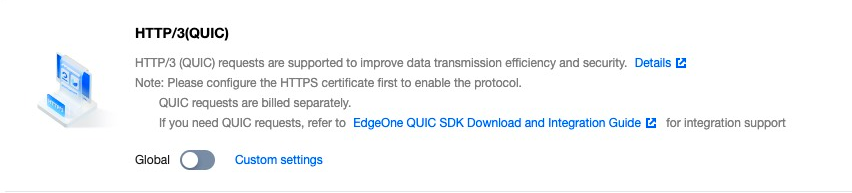
Off (default): HTTP/3 requests are not supported.
Enabled: HTTP/3 requests are supported, utilizing HTTP/3 to expedite site requests.
Scenario 2: Enabling HTTP/3 Protocol Support for Specified Domain Names
To configure HTTP/3 protocol activation for specific domain names, please refer to the following steps:
1. Log in to the Edge Security Acceleration Platform Console. In the left-hand menu, click on Site List. Within the site list, click on the site that needs to be configured.
2. On the site details page, click Rule Engine.
3. On the rule engine management page, click Create rule to enter the new rule editing page.
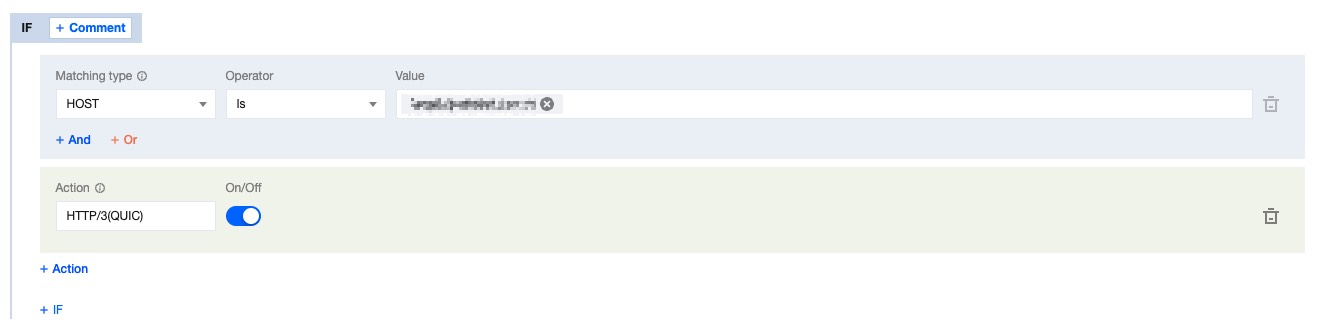
4. On the page that appears, select HOST from Matching type and specify an operator and a value to match the requests of specified domain names.
5. From the Operation drop-down list, select HTTPS/3. Then, toggle the switch to enable this feature.
6. Click Save and publish to complete the rule configuration.