SSL encryption overview
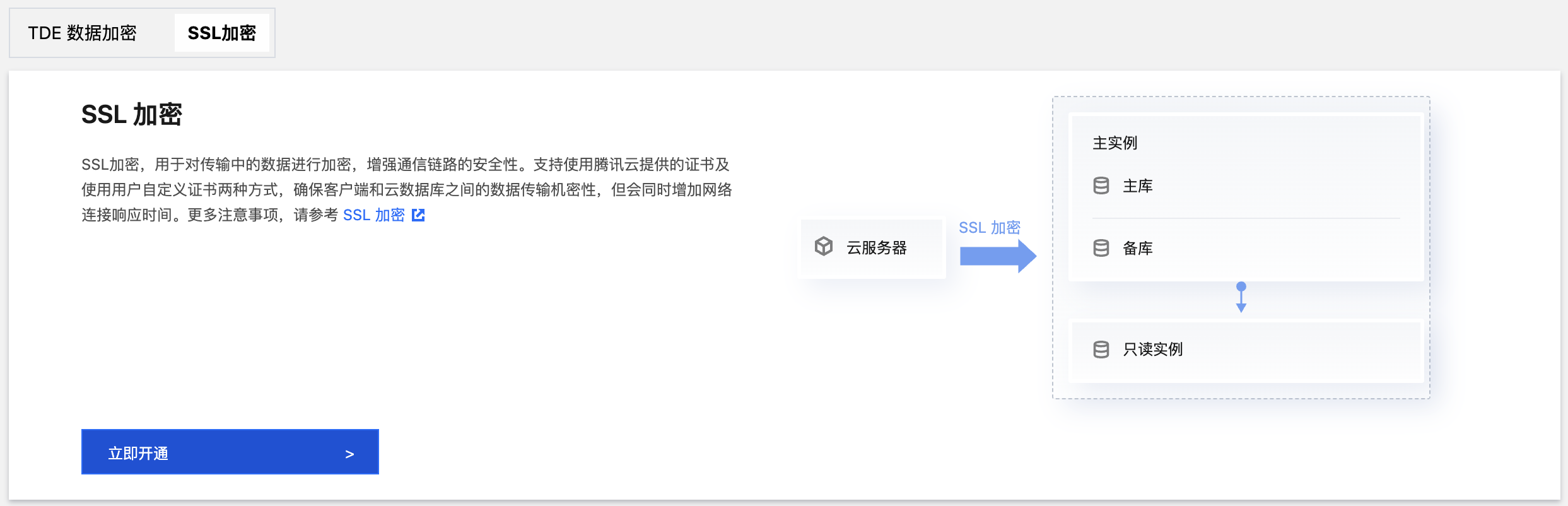
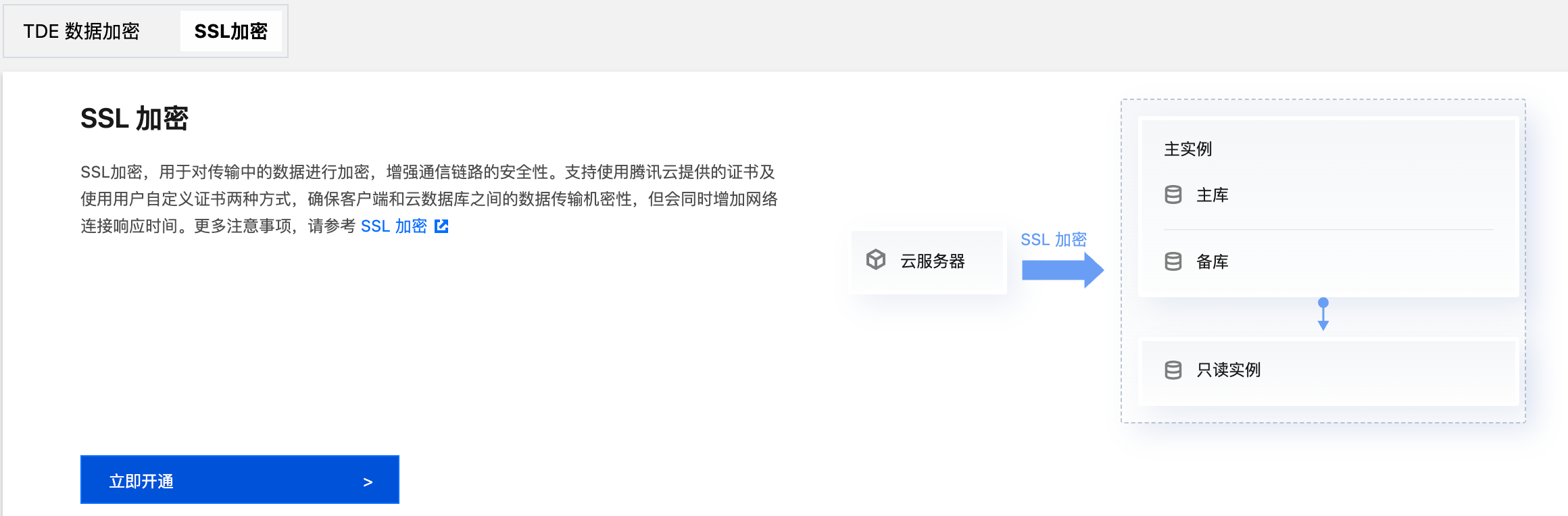
SSL (Secure Sockets Layer) authentication is a process that verifies the connection from the client to the cloud database server, authenticating both the user and the server. After enabling SSL encryption, you can obtain a CA certificate and upload it to the server. When the client accesses the database, the SSL protocol is activated, establishing an SSL secure channel between the client and the cloud database server. This ensures encrypted data transmission, preventing data from being intercepted or tampered with during transfer, and ensuring the security of the information exchanged between both parties.
The SSL protocol needs to be established based on reliable TCP and has the advantage of being independent from application layer protocols; therefore, high-level application layer protocols such as HTTP, FTP, and TELNET can be transparently established on it. It completes encryption algorithm processing, communication key negotiation, and server authentication before communication is made over application layer protocols. After that, all data transferred over application layer protocols will be encrypted to ensure communication privacy.
Background
SSL is a secure communication protocol proposed by Netscape, used to establish a secure channel for data transmission between a browser and a web server, utilizing encryption algorithms such as RC4, MD5, and RSA for secure communication. The Internet Engineering Task Force (IETF) standardized SSL 3.0, renaming it to Transport Layer Security (TLS). As the term SSL is more commonly used, SSL encryption mentioned here actually refers to TLS encryption.
Note:
The supported TLS versions for Tencent Cloud databases are 1.0, 1.1, and 1.2.
When connecting to a database in an unencrypted manner, all information transferred over the network is in plaintext, posing three major risks: interception, tampering, and impersonation by malicious users. The SSL protocol is designed to address these risks and theoretically achieves:
Information is encrypted during transmission, preventing third-party interception.
There is a verification mechanism for immediate tampering detection by both parties in the communication.
Identity certificates will be used to authenticate the identity.
TencentDB for SQL Server supports enabling SSL encryption to enhance connection security and allows downloading and installing SSL CA certificates to necessary application services.
Note:
SSL encryption does not protect the data itself but ensures the security of the traffic between the client and the cloud database server. It encrypts the network connection at the transport layer, enhancing the security and integrity of communication data, but also increasing network connection response time.
Supported architectures and versions
TencentDB for SQL Server supports setting up SSL encryption for all database instance architectures and versions. For read-only instances, separate setup is not required; enabling SSL encryption on the master instance will synchronize it to its read-only instances.
Note:
If you set SSL for the master instance and choose to execute it during maintenance time, the SSL effective time for the associated read-only instances will follow the master instance's maintenance time and take effect after restarting the instance.
Notes
Enabling SSL encryption will cause an increase in CPU utilization and read/write latency. It is recommended to enable SSL encryption only when there is a need to encrypt external network links. Intranet links are relatively safe and usually do not require link encryption.
Enabling SSL encryption, updating the SSL certificates provided by Tencent Cloud, or disabling SSL encryption will restart the database instance, potentially causing a few minutes of unavailability. Therefore, ensure your business has a reconnection mechanism before proceeding, and it is advisable to do so during business off-peak periods.
SSL certificates have a validity period (1 year). Please manually update the certificate's validity period on the console before it expires, otherwise, client programs using SSL encryption will be unable to connect properly.
Failure to update the SSL certificate upon expiration will only lead to an inability for client programs using encrypted connections to connect to the instance, without affecting the instance's normal operation or data security.
After disabling SSL encryption, connections to the instance can only be made through non-SSL encrypted methods.
Enabling SSL encryption
1. Log in to SQL Server Console.
2. Select the region, then in the instance list, click the Instance ID or the Operation column of the instance you need to enable SSL for, and then choose Management.
3. On the Instance Management page, select Data Security > SSL Encryption, then click the button after SSL Encryption Status to enable the feature.

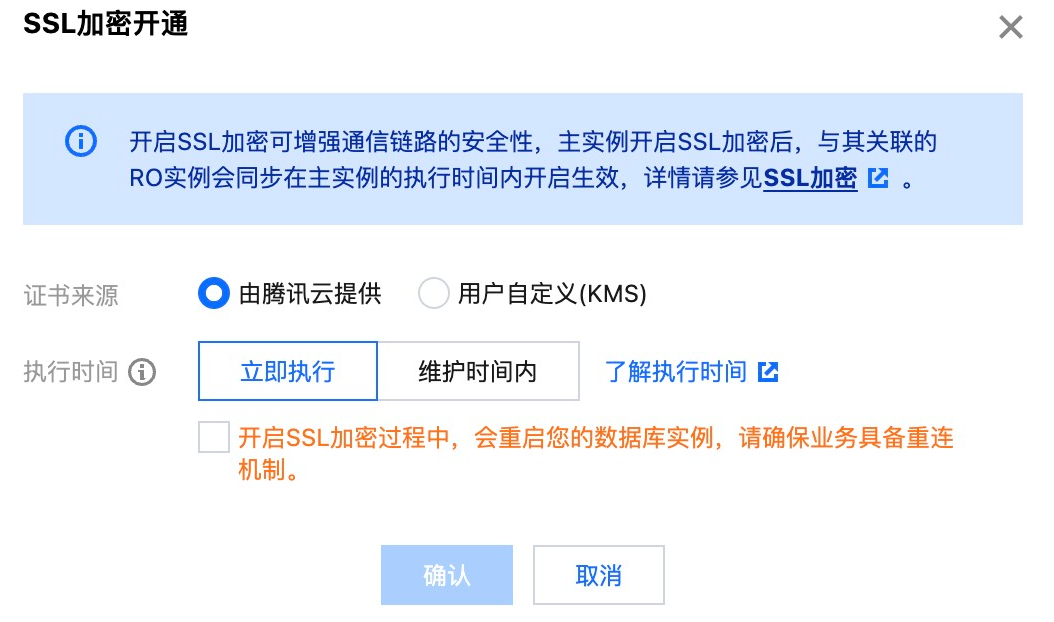
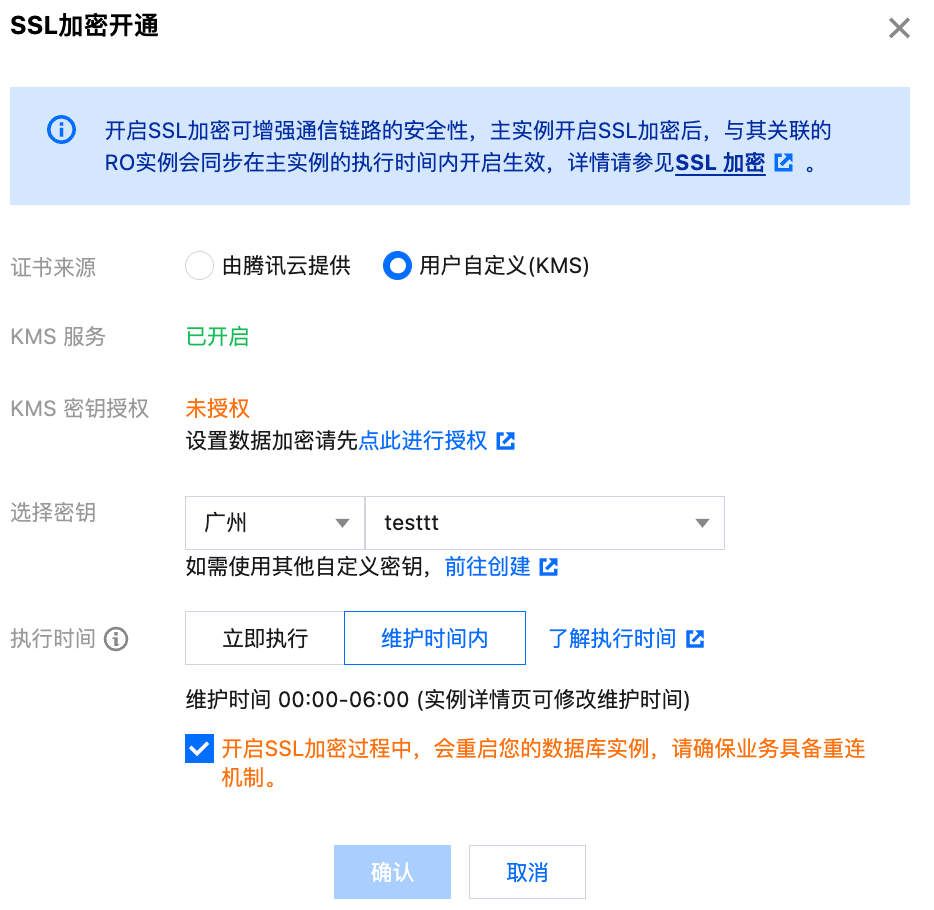
4. In the pop-up window, choose the execution time and click OK.

Certificate source: By default, use the certificate provided by Tencent Cloud.
Execution time:
Immediate execution: Click Confirm to enable SSL encryption immediately.
Within maintenance time: Enable SSL encryption within the instance maintenance time. You can modify the instance maintenance time on the instance details page.
Note:
For detailed explanations regarding status changes related to the instance when enabling SSL encryption, please refer to Appendix 1.
During the process of enabling SSL encryption, your database instance will be restarted. Please ensure that your business has a reconnection mechanism.
5.
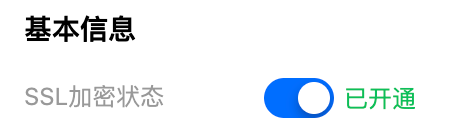
After successfully enabling
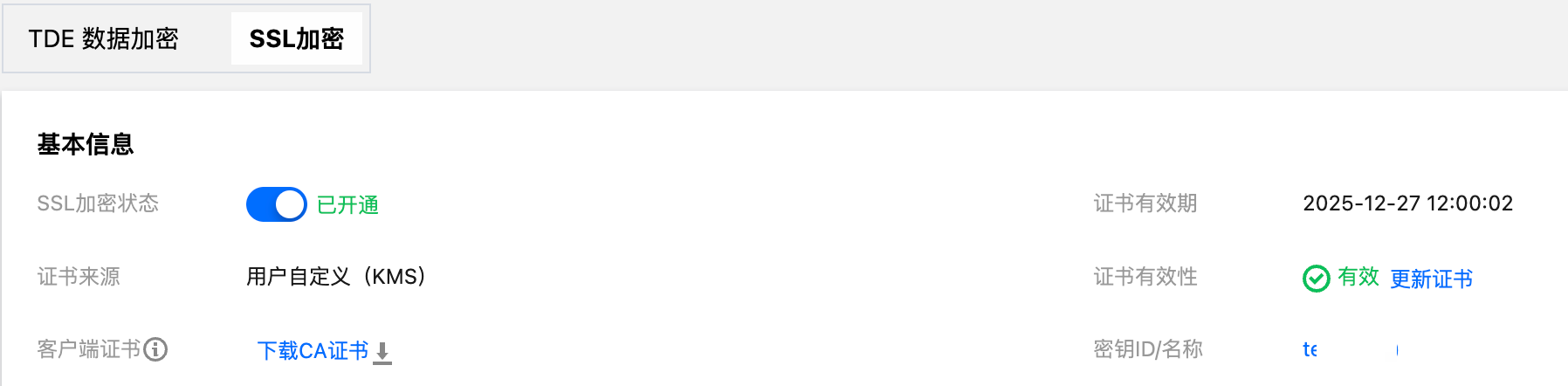
, the interface will look like this.
Note that configuring the client CA certificate is optional and is used for client trust of the server. Click Download CA Certificate to download the certificate and configure it on the client.
The downloaded file will be a compressed package (TencentDB-SSL-CA.zip) containing the following three files:
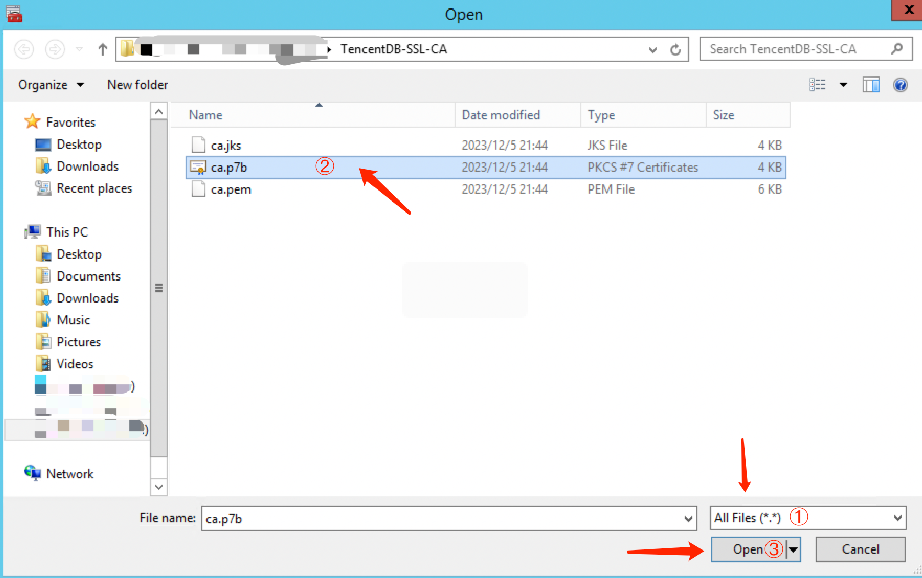
.p7b file: It is used to import the CA certificate into Windows.
.jks file: Java truststore certificate storage file. The password is uniformly tencentdb, used to import the CA certificate chain into Java applications.
.pem file: It is used to import the CA certificate into other systems or applications.
SSL client connection log in to
After enabling SSL encryption, the client connects to the TencentDB for SQL Server instance in two scenarios: trusting the server certificate and not trusting the server certificate. If the server certificate is trusted, no configuration of the SSL CA certificate is needed to make an encrypted connection. If the server certificate is not trusted, the SSL CA certificate must be imported and configured before making an encrypted connection.
Scenario 1: Encrypted connection with trusted server certificate
Step 1: Encrypted connection log in to
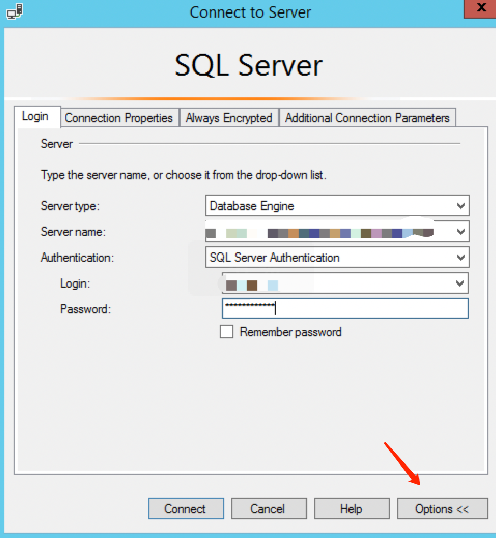
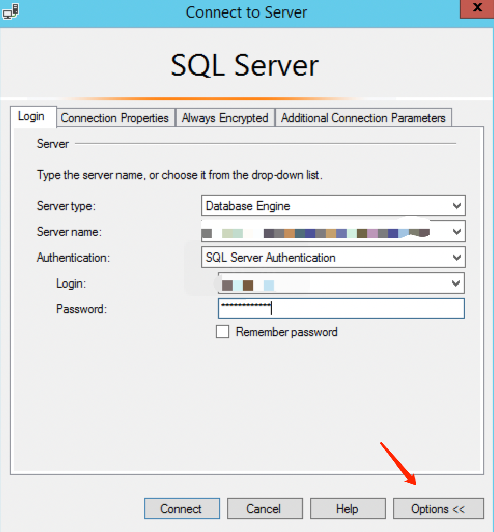
1. Open the SQL Server Management Studio client, click Options in the bottom right corner of the dialog.

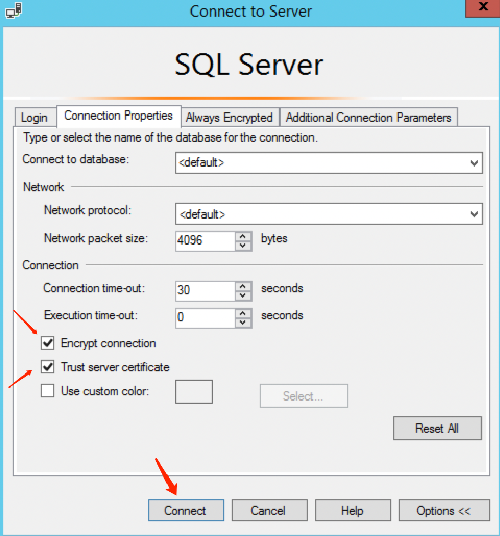
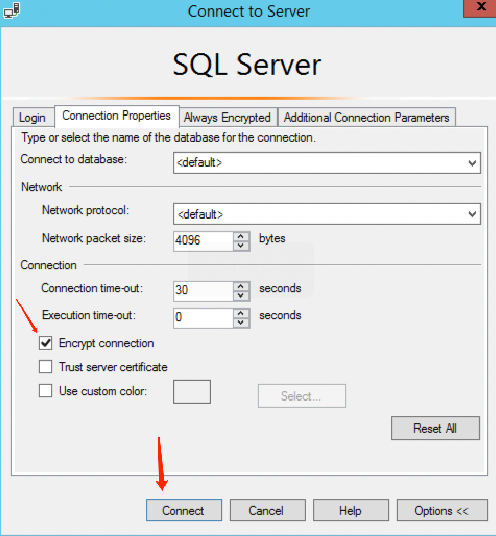
2. In the Connection Properties tab, check Encrypt connection and Trust server certificate, and click Connect.

Step 2: Check if the connection is encrypted
1. After successfully connecting through SSMS, right-click on the instance and select Properties.

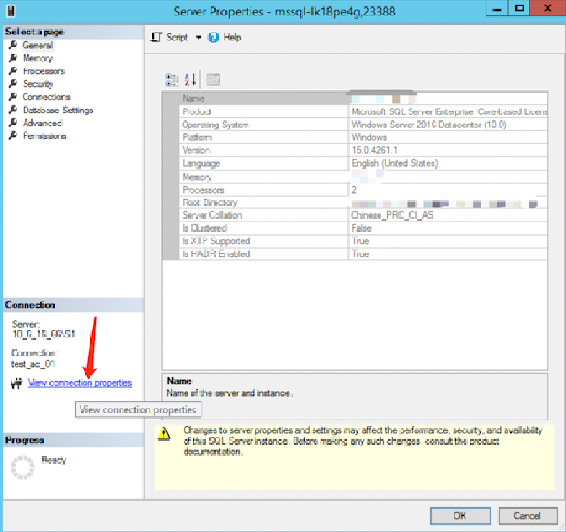
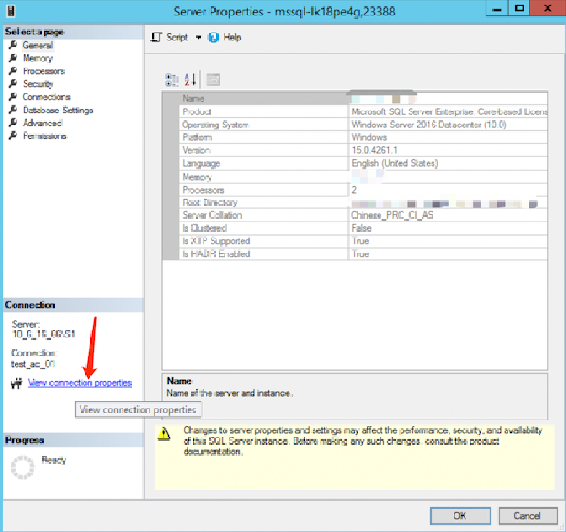
2. In the pop-up Server Properties window, click View Connection Properties on the left.

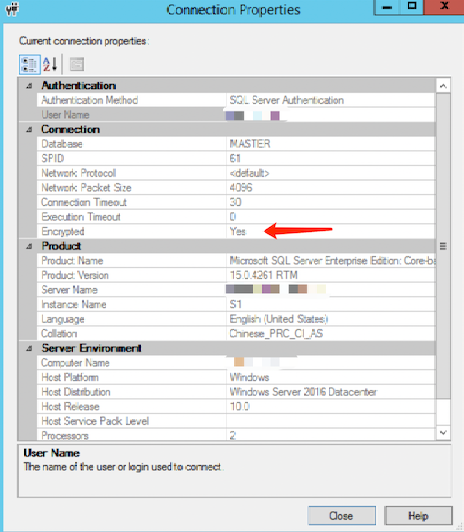
3. In the popped-up Connection Properties window, you can check if the connection is encrypted.

Execute the following query command. If the query result is TRUE, the connection is encrypted. If the query result is FALSE, the connection is not encrypted.
SELECT ENCRYPT_OPTION FROM SYS.DM_EXEC_CONNECTIONS WHERE SESSION_ID = @@SPID;
Scenario 2: Encrypted connection with untrusted server certificate
Step 1: Download the CA certificate
After enabling SSL encryption, in the target Instance details page > Data security > SSL Encryption, click Download CA certificate.
Step 2: Client imports the CA certificate
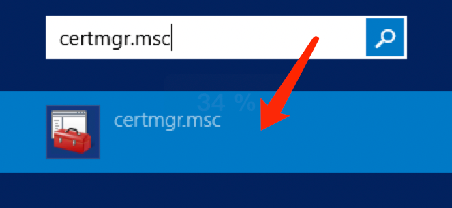
1. Click the search box at the bottom left of the desktop, enter certmgr.msc to open Certificate Manager.

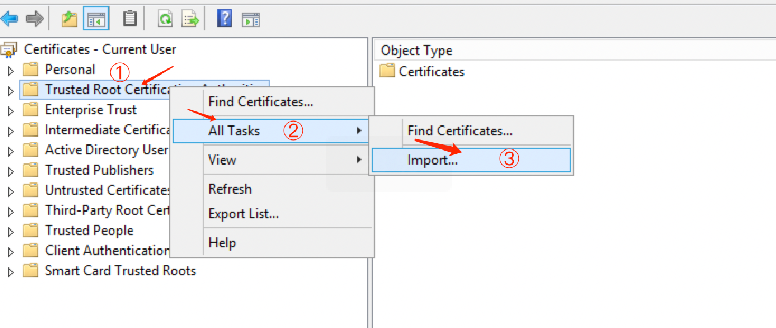
2. In the certmgr dialog box, right-click Trusted Root Certificate Authorities and select All Tasks > Import.

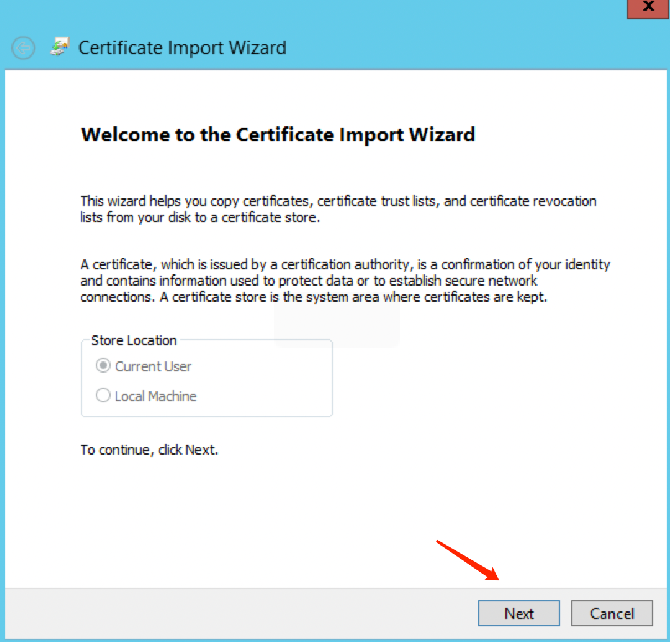
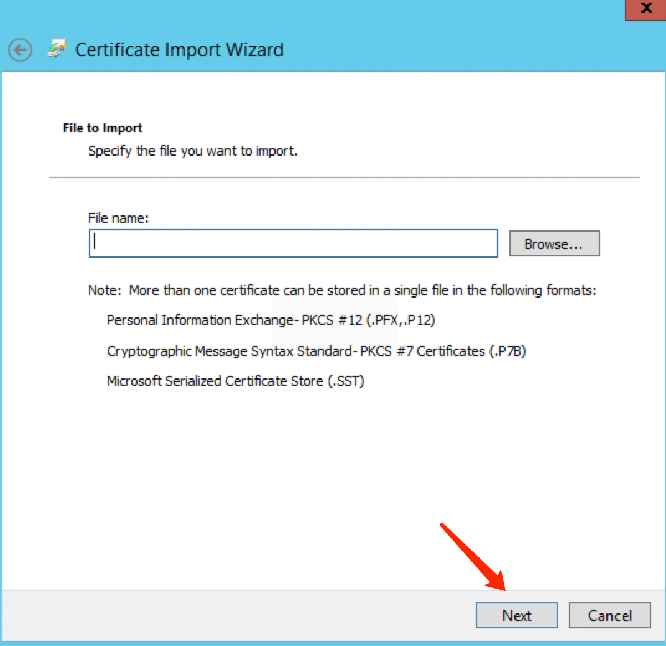
3. click Next .

4. In the Certificate Import Wizard page, click Browse to import the downloaded SSL CA certificate, and click Next.

5. Select the locally downloaded TencentDB-SSL-CA certificate file and click Open.

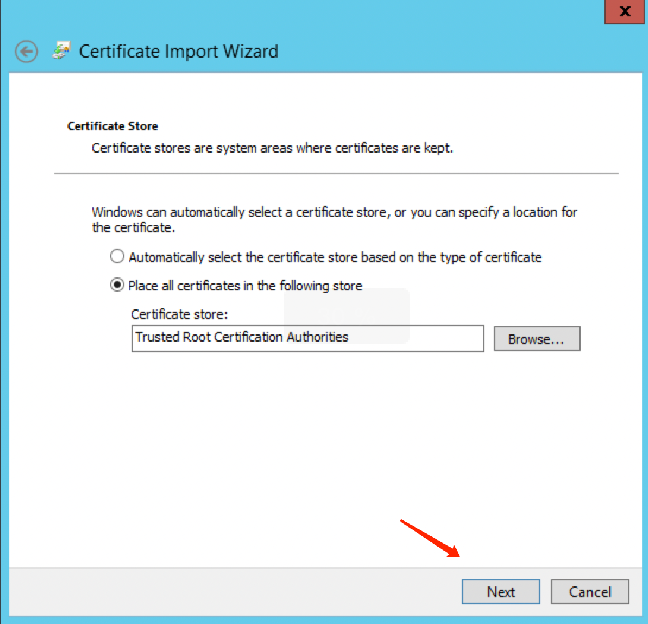
6. Choose the certificate storage location as needed, click Next, and then click Finish.

You can also import the SSL CA certificate through a command, for example, by executing the following commands in CMD or PowerShell to import the certificate.
CERTUTIL -addstore -enterprise -f -v root "ca.p7b"
Step 3: Encrypted connection log in to
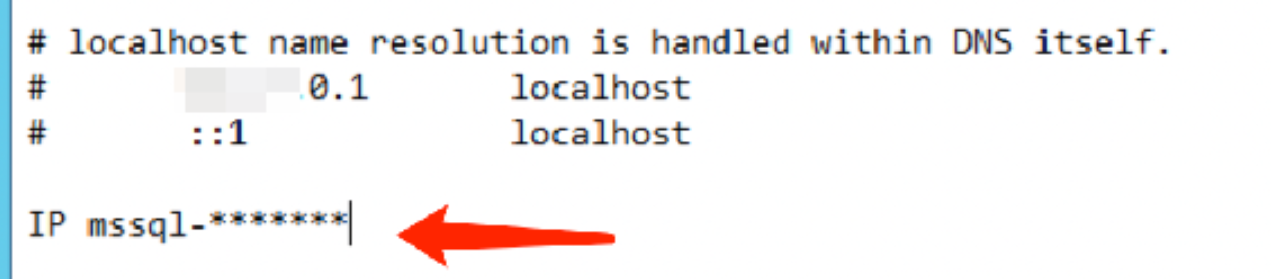
1. Open the hosts file, located at C:\Windows\System32\drivers\etc.
2. Add IP mssql-******* to the last line of the hosts file.

Note:
IP: Replace with the internal IP or external IP of the corresponding instance.
mssql-*******: Replace with the corresponding instance ID.
3. Open the SQL Server Management Studio client, click Options in the bottom right corner of the dialog.

4. In the Connection Properties tab, check Encrypt connection and click Connect.

Step 4: Check if the connection is encrypted
1. After successfully connecting through SSMS, right-click on the instance and select Properties.

2. In the pop-up Server Properties window, click View Connection Properties on the left.

3. In the popped-up Connection Properties window, you can check if the connection is encrypted.

Execute the following query command. If the query result is TRUE, the connection is encrypted. If the query result is FALSE, the connection is not encrypted.
SELECT ENCRYPT_OPTION FROM SYS.DM_EXEC_CONNECTIONS WHERE SESSION_ID = @@SPID
Update the certificate validity period
Note:
SSL certificates have a validity period of one year. You need to manually update the certificate before it expires to ensure that client programs using SSL encryption connections can continue to connect normally.
During the process of updating SSL certificates, your database instance will be restarted to load the new SSL certificates. Make sure that your business has a reconnection mechanism.
1. Log in to SQL Server Console.
2. Select the region, in the instance list, click the target SSL's Instance ID or the Operation column's Management.
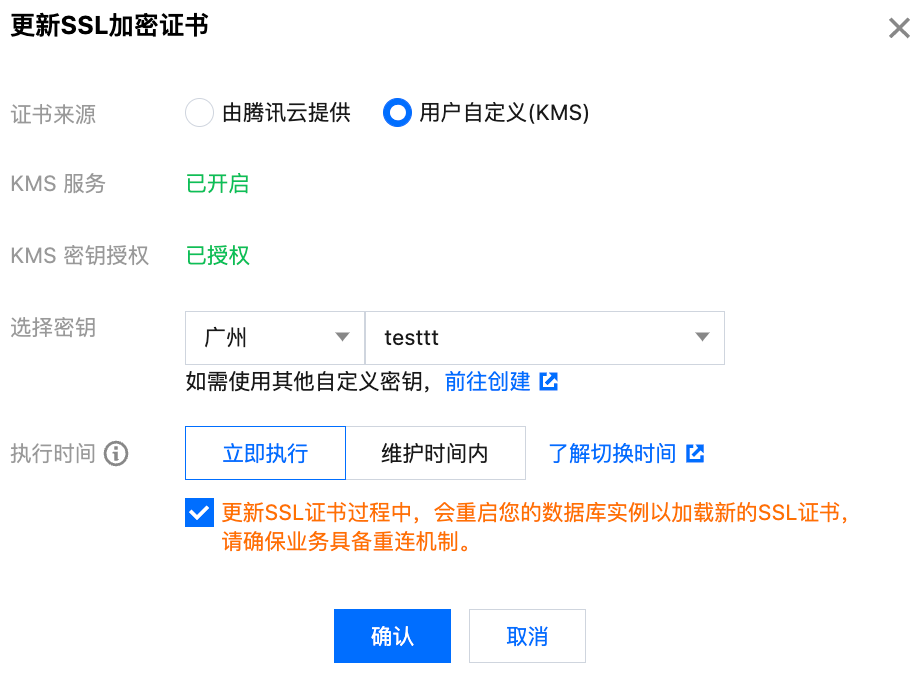
3. In the Instance Management page, select Data Security > SSL Encryption, then click Update Certificate after the SSL Certificates validity.
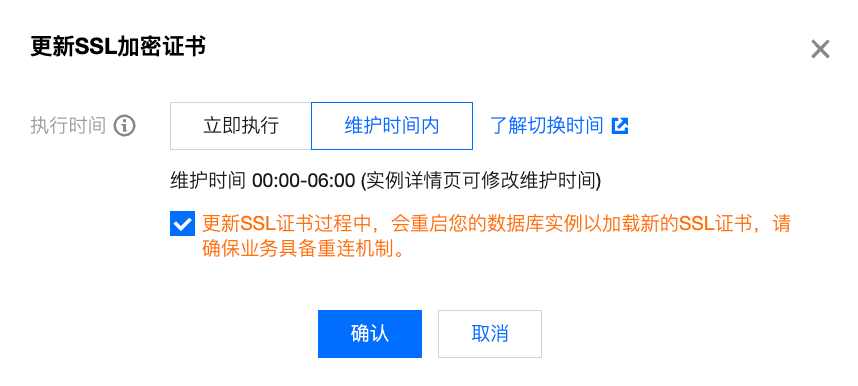
4. In the pop-up window, choose the execution time and click OK.

Execution time:
Immediate Execution: Click Confirm to update the SSL certificates immediately.
During Maintenance Time: Update the SSL certificates within the instance maintenance time. You can modify the instance maintenance time on the instance details page.
Disabling SSL encryption
Note:
During the process of disabling SSL encryption, your database instance will be restarted. Make sure that your business has a reconnection mechanism.
1. Log in to SQL Server Console.
2. Select the region, in the instance list, click the Instance ID of the instance that needs to disable SSL, or the Operation column's Management.
3. In the Instance Management page, select Data Security > SSL Encryption, then click the button after SSL Encryption Status to turn off the feature.

4. In the pop-up window, choose the execution time and click OK.
Execution time:
Immediate Execution: Click Confirm to disable SSL encryption immediately.
During Maintenance Time: Disable SSL encryption within the instance maintenance time. You can modify the instance maintenance time from the instance details page.
Appendix 1: Changes in the instance's status when setting SSL
When setting SSL, if the execution time is chosen to be within maintenance time, the system will check every 10 minutes to see if the SSL-related operation hits the maintenance time window. If it does, the system will start to deploy or disable SSL, and the service will be restarted immediately upon completion.
Note:
If the user sets SSL operations to be performed during maintenance time, and the maintenance time window has not yet been reached, the target instance will be in a non-operational state during this period, and no other tasks can be initiated until the SSL encryption task is completed.
Example
Assume the maintenance time window is from 17:00 to 18:00, and the user sets to enable SSL encryption within the maintenance window at 17:05. The system will start an asynchronous scheduling task at 17:10, and the service will be restarted immediately upon successful deployment of SSL Certificates.
Explanation of instance state changes
The instance state changes when the execution time is set within the maintenance time as follows:
Before 17:05, the instance status is Running;
Between 17:05 and 17:10, the status of the master instance and RO replica instance is Instance SSL Operation in Progress;
After 17:10, the status of the master instance and RO replica instance is Task Execution in Progress;
The status of the master instance and RO replica instance will revert to Running only after the asynchronous task is completed.
The instance state changes when the execution time is set to immediate execution are as follows:
After initiating the SSL operation task through the console, the status of both the master instance and RO replica instance will change to Task Execution in Progress. The status will revert to Running only after the asynchronous task is completed.
Explanation of Instance SSL Operation State Changes
The changes in the instance operation state when enabling SSL are as follows:
Execution time set to immediate:Not Enabled->In Progress->Enabled.
Execution time set within maintenance:Not Enabled->Waiting for Maintenance Time Window->In Progress->Enabled.
The changes in the instance operation state when updating the certificate are as follows:
Execution time set to immediate:Enabled->Updating->Enabled.
Execution time during maintenance:Not enabled->Waiting for update within the maintenance window->Updating->Enabled.
The status changes of the instance when SSL is turned off are as follows:
Execution time for immediate execution:Enabled->Disabling->Disabled.
Execution time during maintenance:Enabled->Waiting for shutdown within the maintenance window->Disabling->Disabled.
FAQs
How to check if the current connection has SSL encryption enabled?
You can use the following command to query the sys.dm_exec_connections system dynamic management view to check if the current connection has SSL encryption enabled:
SELECT session_id,encrypt_optionFROM sys.dm_exec_connections;GO
If querying the sys.dm_exec_connections system dynamic management view returns the session ID of the current connection and the value of encrypt_option is true, then SSL encryption has been successfully enabled for that connection.
Why could the client program connect last year but cannot connect normally this year?
SSL certificates have a validity period of 1 year. They might expire and require manual renewal. For detailed procedures, refer to Renew certificate validity.
Related APIs
API | Description |
The interface (ModifyDBInstanceSSL) is used to enable\disable\update the SSL encryption feature for an instance. |