When a server under a user's Tencent Cloud account is detected with a malicious file, if Host Security finds that the file is not in the allowlist, a real-time alarm will be triggered.
Processing Procedures
After receiving a malicious file alert, follow these steps:
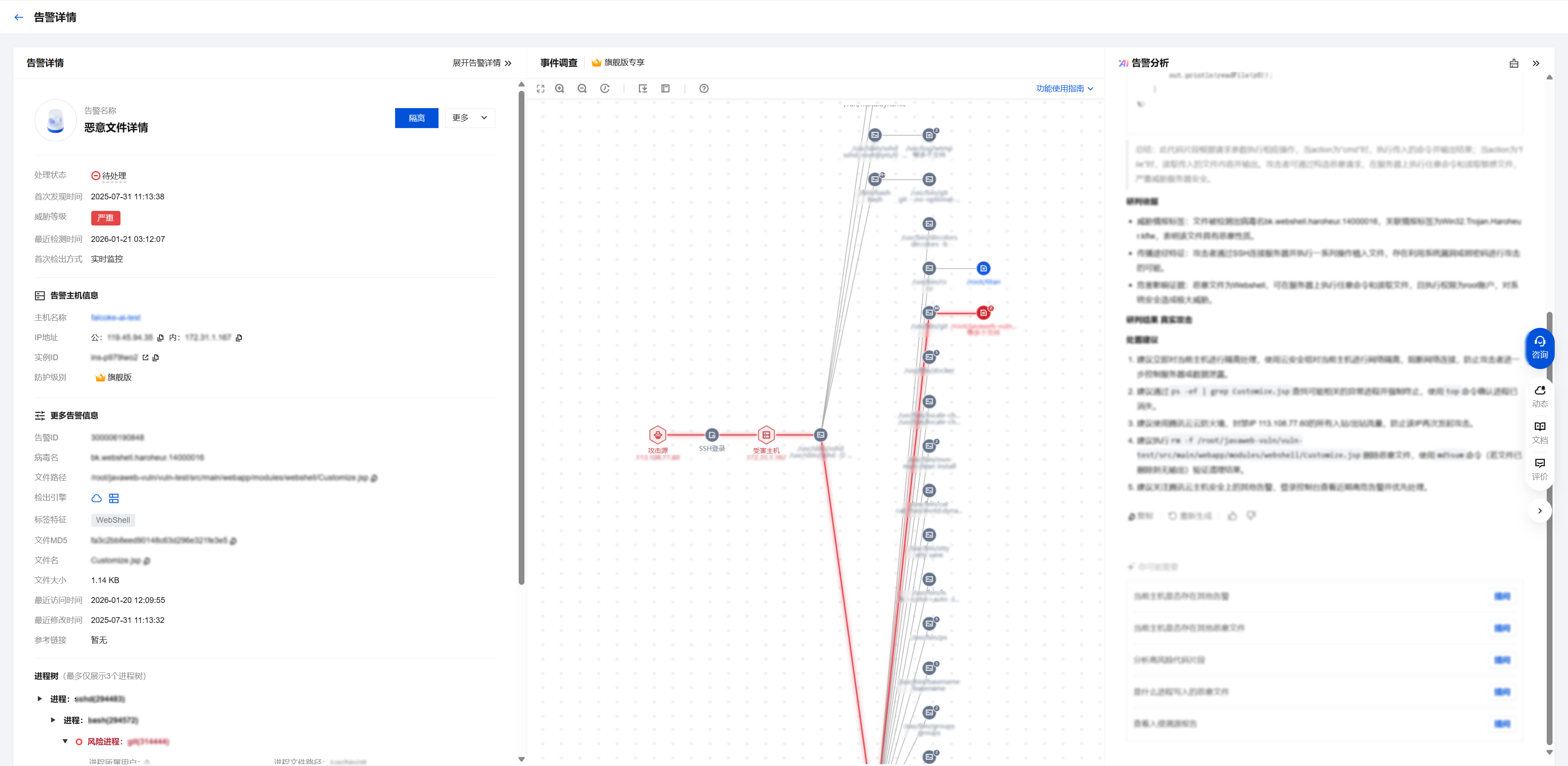
1. Log in to the CWPP Console, and select Intrusion Detection > Malicious File Scan from the left sidebar.
2. On the Malicious File Scan page, search by Alarm Asset ID to locate the specific alarm and click Details.

3. After viewing the alarm details, confirm whether the malicious file is a false alarm. If it is a false alarm, proceed to step 4. If it is not a false alarm, proceed to step 5.
Note:
Whether the malicious file is a false alarm can be determined by the following methods:
Contact the business team to determine if the file is necessary for normal business operations.
Query threat intelligence to determine if the file is marked as a malicious sample by the public network.
Determine if the file's behavior triggers more alarms.
Contact Security Expert Service.
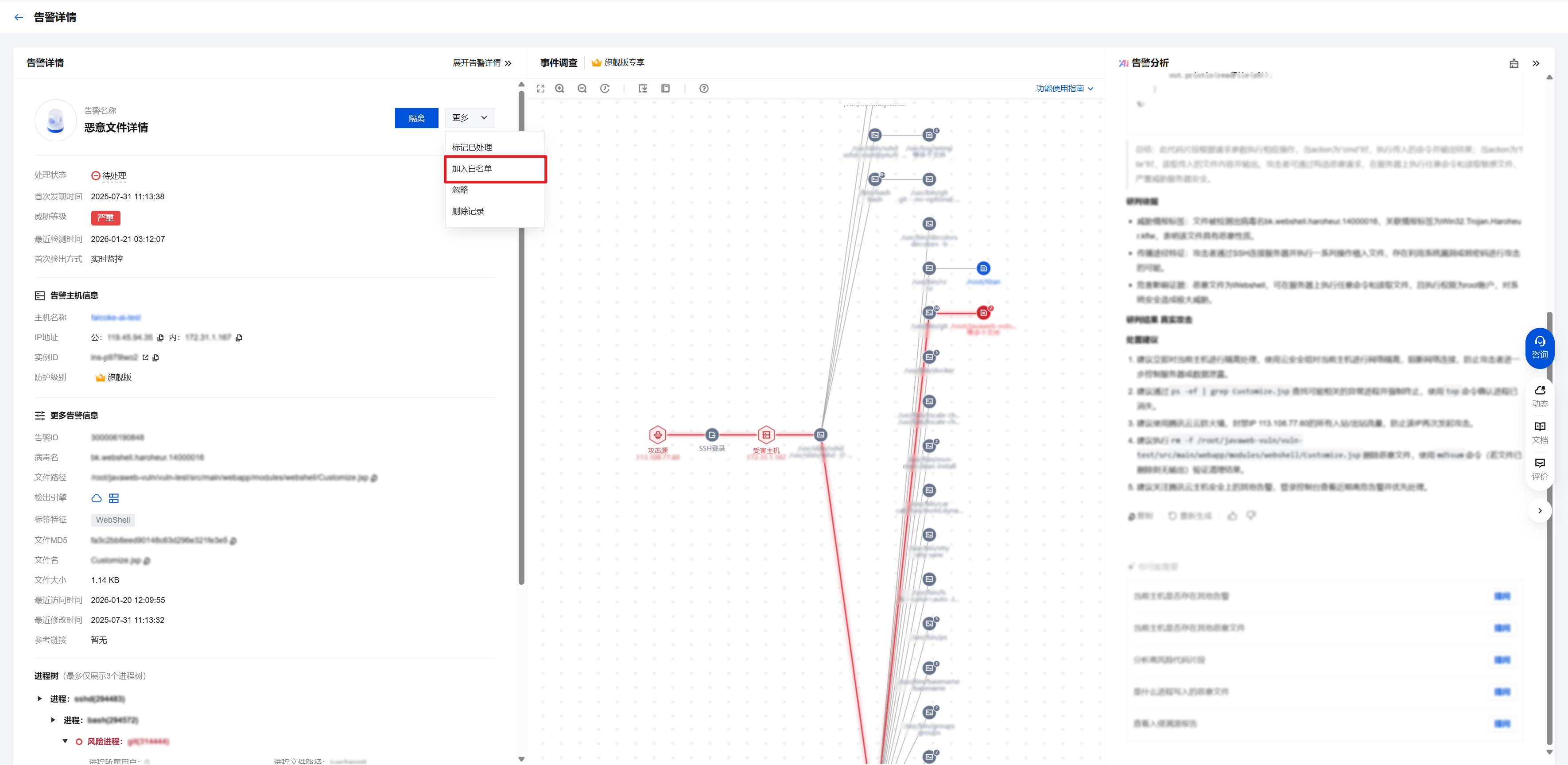
4. If it is confirmed as a false alarm, add the file to the allowlist. Future detections of this file will be ignored and will not trigger an alarm. Contact us for Feedback on False Alarms.

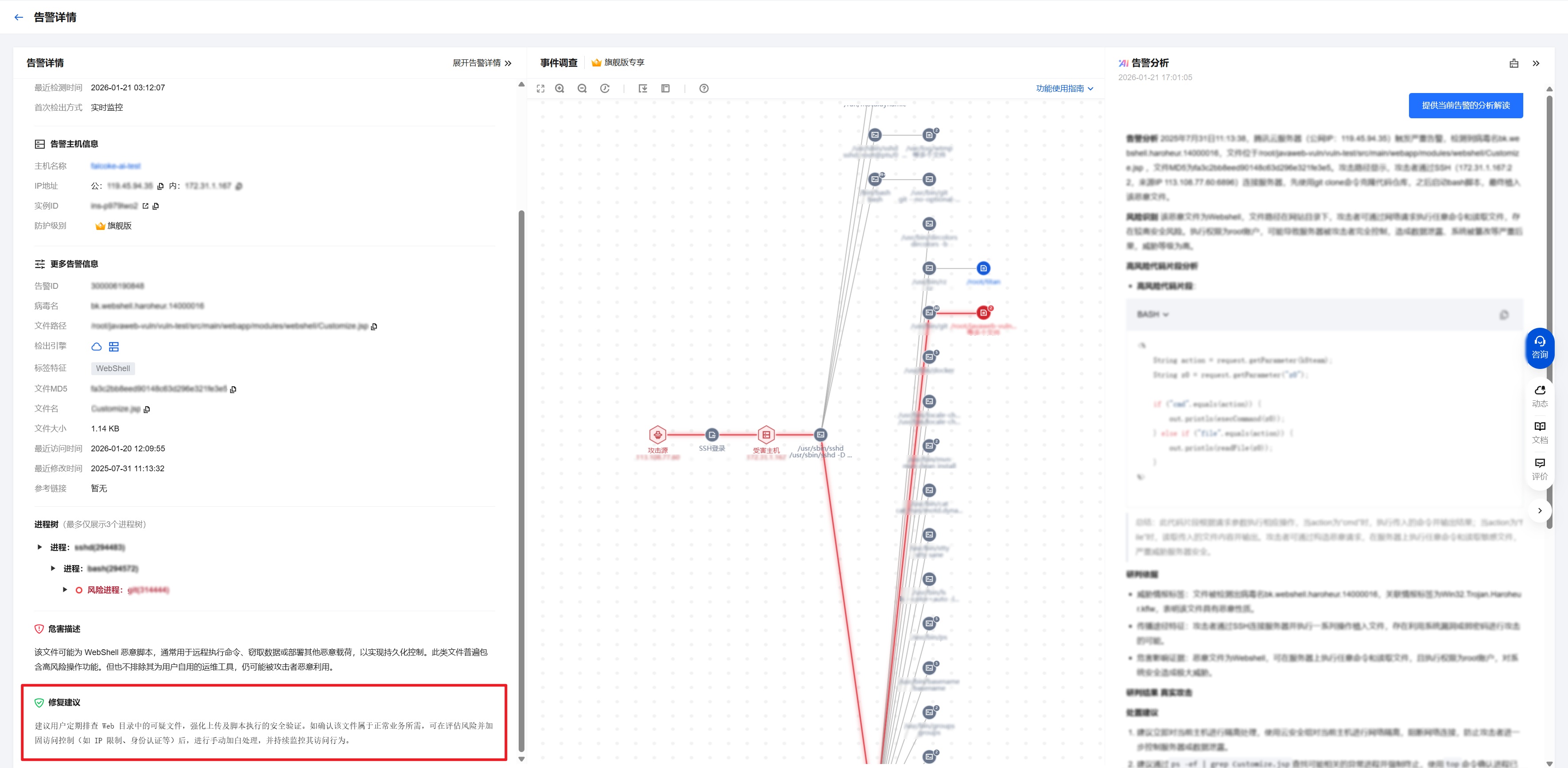
5. If it is confirmed not to be a false alarm, follow the remediation suggestions in the alarm details to handle it.

You can click Isolation to isolate the file and terminate the related process. The Alarm processing status will change to "Isolated".
You can log in to the host, find the corresponding file, manually delete or isolate it and terminate the related process, then mark the Alarm as processed in the console. The Alarm processing status will change to "Processed".
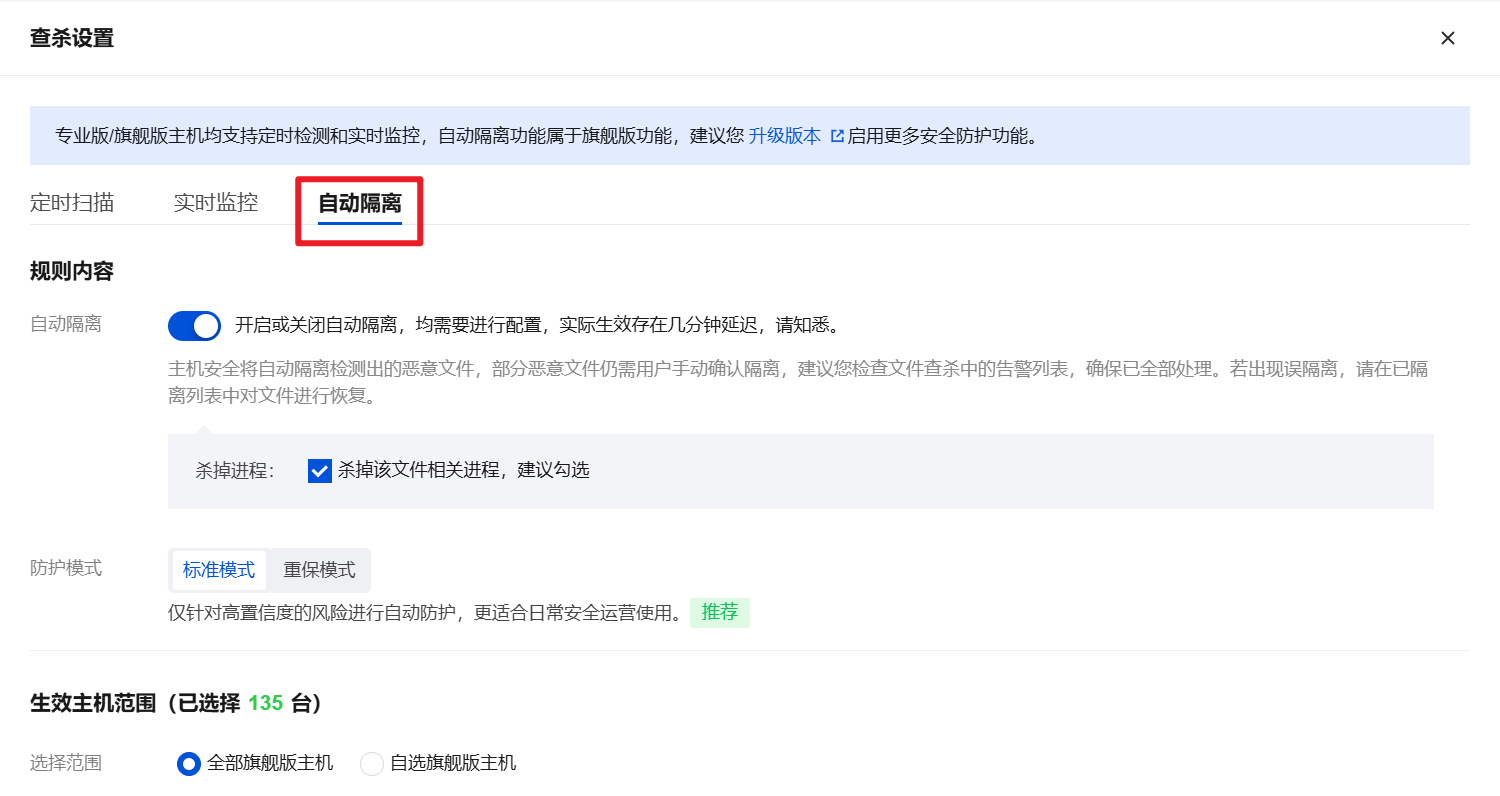
6. On the Malicious File Scan page, click Scan Settings in the upper right corner. It is recommended to enable the automatic isolation switch to automatically isolate detected malicious files immediately.

Note:
Not all detected malicious files can be automatically isolated. Some malicious files still require manual confirmation for isolation. It is recommended to check the alarm list in file scanning to ensure all have been handled.
If a false positive isolation occurs, please restore the file from the isolated list.
Enabling or disabling automatic isolation requires configuration, and there is a delay of a few minutes before it takes effect.
Hot Issues
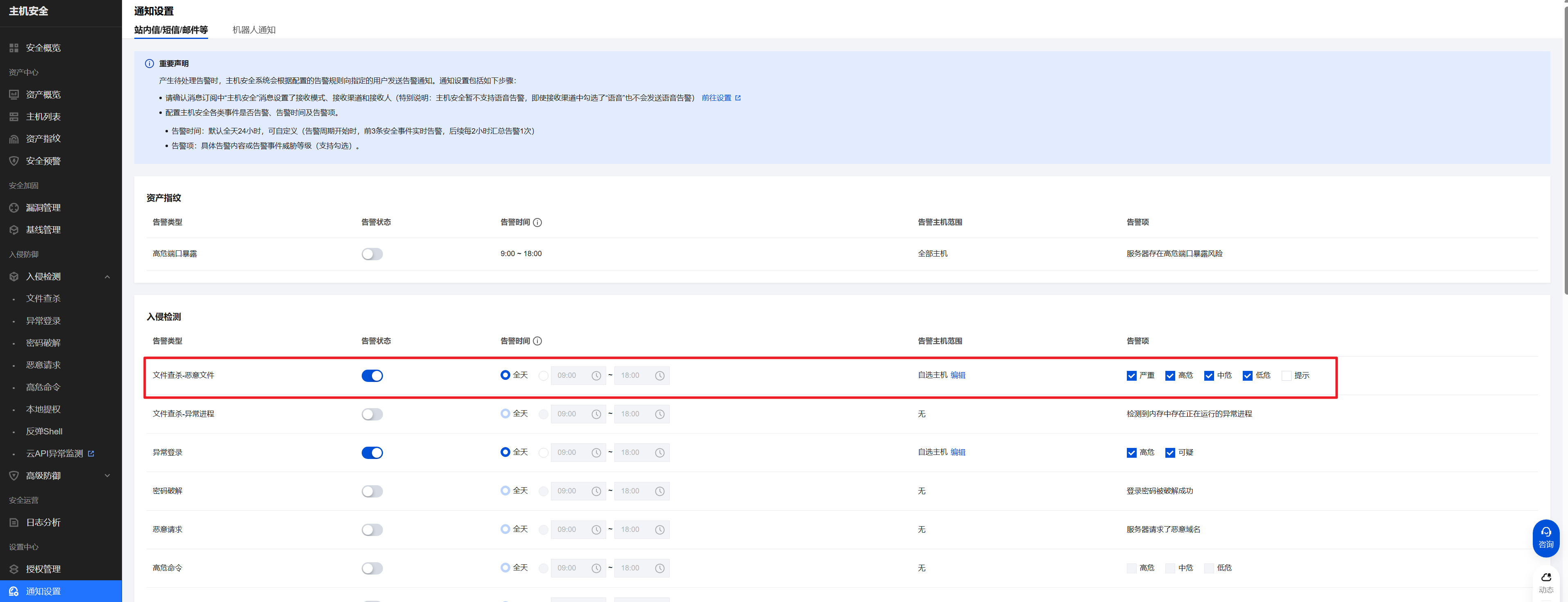
Where To Configure Alarms For Malicious Files?
On the Alarm Settings page, configure the alarm time, alarm scope, and alarm items for Malicious File Scan - Malicious File.

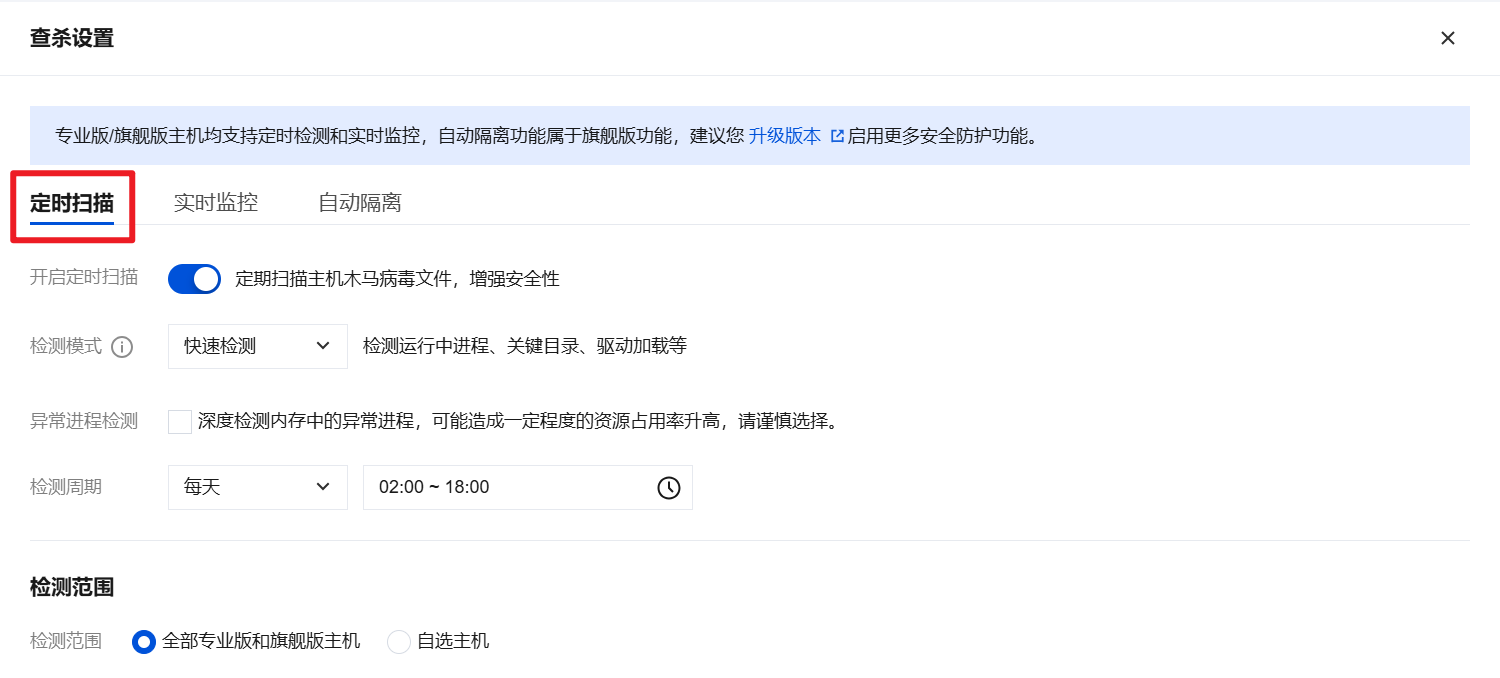
How To Set Up Periodic Detection For Malicious Files?
On the Malicious File Scan page, click Scan Settings in the upper right corner to open the scan settings popup and set up a scheduled scan.

If the File Has Been Deleted, What Will Be the Status Of the Original Alarm After Scanning For Malicious Files Again?
The original alarm processing status will change to "Cleared."