Help & Documentation>SSL Certificates

Installing an SSL Certificate on an Apache Server (Linux)

Last updated: 2023-09-28 16:58:51

Scenario

This document describes how to install an SSL certificate on an Apache server.
Note
The certificate name cloud.tencent.com is used as an example.
The Apache version used as an example is Apache/2.4.6. The default port is 80. You can download it from the Apache official website. If you need to use other versions, please contact us.
The current server OS is CentOS 7. Detailed steps vary slightly with the OS version.
Before installing an SSL certificate, enable port 443 on the Apache server to ensure that HTTPS can be enabled after the certificate is installed. For more information, see How Do I Enable Port 443 for a VM?.
For detailed directions on how to upload SSL certificate files to a server, see Copying Local Files to CVMs.

Preparations

A remote file copy tool, such as WinSCP, has been prepared (it is recommended to download the latest version from the official website). If you are deploying to a Tencent Cloud server, it is recommended to use the server's file upload feature. For more information, see Uploading Files to the Cloud Server.
Install the remote login tool such as PuTTY or Xshell.
The Apache service has been installed and configured on the current server.
The data required to install the SSL certificate includes:
Name
Note
Server IP address
The server IP address, which is used to connect the PC to the server.
Username
The username used to log in to the server.
Password
The password used to log in to the server.
Note
For a CVM instance purchased on the Tencent Cloud official website, log in to the CVM console to get the server IP address, username, and password.

Instructions

Certificate Installation

1. Please navigate to the SSL Certificate Management Console and select the certificate you wish to install, then click Download.
2. In the "Certificate Download" window that appears, select Apache for the server type, click Download and decompress the cloud.tencent.com certificate file package to a local directory. After decompression, you can obtain the relevant type of certificate files. This includes the cloud.tencent.com_apache folder:
Folder Name: cloud.tencent.com_apache
Folder content:
root_bundle.crt: Certificate file
cloud.tencent.com.crt: Certificate file
cloud.tencent.com.key: Private key file
CSR file content: cloud.tencent.com.csr file
Note
The CSR file, either uploaded by you or generated online by the system during the certificate application, is provided to the CA. This file can be disregarded during installation.
3. Log in to the Apache server using "WinSCP", a tool for copying files between local and remote computers.
Note
We recommend using the file upload feature of the Cloud Virtual Machine (CVM) for deployment to Tencent Cloud CVM. For more details, please refer to Uploading Files to CVM.
4. Copy the obtained certificate file root_bundle.crt, the certificate file cloud.tencent.com.crt, and the private key file cloud.tencent.com.key from the local directory to the /etc/httpd/ssl directory on the Apache server.
Note
If there is no /etc/httpd/ssl directory, you can create it using the mkdir /etc/httpd/ssl command line.
5. Log in to the Apache server remotely. For instance, using the "PuTTY" tool.
Note
For a first-time Apache server installation, directories such as conf.d, conf, and conf.modules.d are located by default in the /etc/httpd directory.
6. Locate the configuration statement Include conf.modules.d/*.conf (used to load the SSL configuration directory) in the httpd.conf configuration file in the /etc/httpd/conf directory, and ensure that this configuration statement is not commented out. If it is commented out, remove the comment symbol (#) at the beginning of the line and save the configuration file.
7. Locate the configuration statement LoadModule ssl_module modules/mod_ssl.so (used to load the SSL module) in the 00-ssl.conf configuration file in the /etc/httpd/conf.modules.d directory. Ensure that this configuration statement is not commented out. If it is, remove the comment symbol (#) at the beginning of the line and save the configuration file.
Note
Given the variations in operating system versions, directory structures also differ. Please search according to your actual OS version. If you cannot find the configuration statements LoadModule ssl_module modules/mod_ssl.so and Include conf.modules.d/*.conf in the above configuration files, please verify if the mod_ssl.so module has been installed. If the mod_ssl.so module is not installed, you can install it by executing the yum install mod_ssl command.
8. Edit the ssl.conf configuration file in the /etc/httpd/conf.d directory. Make the following changes:
<VirtualHost 0.0.0.0:443>
DocumentRoot "/var/www/html"
#Enter the certificate name
ServerName cloud.tencent.com
#Enable SSL functionality
SSLEngine on
#Path of the certificate file
SSLCertificateFile /etc/httpd/ssl/cloud.tencent.com.crt
#Path to the private key file
SSLCertificateKeyFile /etc/httpd/ssl/cloud.tencent.com.key
#Path to the certificate chain file
SSLCertificateChainFile /etc/httpd/ssl/root_bundle.crt
</VirtualHost>
9. Restart the Apache server and then you can access it through https://cloud.tencent.com.
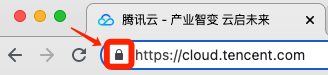
If the security lock icon is displayed in the browser, the certificate has been installed successfully. The details are as shown below:


In case of a website access exception, troubleshoot the issue by referring to the following FAQs:

(Optional) Security configuration for automatic redirect from HTTP to HTTPS

If you need to automatically redirect HTTP requests to HTTPS, you can set it up using the following steps:
1. Edit the httpd.conf configuration file in the /etc/httpd/conf directory.
Note
Different versions of Apache have different directory structures. For specifics, please refer to the official Apache rewrite documentation.
The location of the httpd.conf configuration file is not unique. You can search for it one by one according to /etc/httpd/*.
2. Please confirm whether the configuration file contains LoadModule rewrite_module modules/mod_rewrite.so.
If it exists, please remove the comment symbol (#) in front of LoadModule rewrite_module modules/mod_rewrite.so and proceed to Step 4.
If it does not exist, please proceed to Step 3.
3. Please create a new *.conf file in /etc/httpd/conf.modules.d, for example, 00-rewrite.conf. Add the following content to the new file:
LoadModule rewrite_module modules/mod_rewrite.so
4. Add the following content to the httpd.conf configuration file:
<Directory "/var/www/html">
# Addition
RewriteEngine on
RewriteCond %{SERVER_PORT} !^443$
RewriteRule ^(.*)?$ https://%{SERVER_NAME}%{REQUEST_URI} [L,R]
</Directory>
5. Restart the Apache server and then you can access it through http://cloud.tencent.com.
Note
If anything goes wrong during this process, please contact us.