The content of this page has been automatically translated by AI. If you encounter any problems while reading, you can view the corresponding content in Chinese.
Help & Documentation>VPN Connections>Operation Guide>SSL VPN Client>Downloading SSL VPN Client Configuration

Downloading SSL VPN Client Configuration

Last updated: 2024-09-26 10:27:44

After successfully creating an SSL VPN client, you can download the client configuration for connecting to the SSL VPN server on the SSL VPN client management page. Two-way authentication will be performed when you use OpenVPN or a compatible VPN client to connect to the SSL VPN server through the downloaded client configuration. To guarantee your communication security, only after two-way authentication is passed can you access Tencent Cloud resources (such as CVM instances in a VPC) associated with the SSL VPN server gateway from the mobile client.

Downloading the SSL VPN Client Configuration as a Tenant Admin

1. Log in to the VPC console.
2. In the left directory, click VPN Connections > SSL Client to enter the management page.
3. Download SSL Client Configuration.

Single Download: Click Download Configuration on the row of the target SSL Client certificate instance, and select the download format in the pop-up dialog box.
Batch Download: Select the instances to be downloaded, then click Download Configuration at the top, and choose the download format in the pop-up dialog box. You need to distribute the downloaded configuration files to users who need to connect to Tencent Cloud via SSL VPN Connections (e.g., your company employees). They must use this file to configure OpenVPN or a compatible VPN client to interconnect with the Tencent Cloud VPC. For detailed directions, see Mobile Configuration.
Note
Do not disclose the configuration file to unrelated personnel to prevent asset loss. If a configuration file is leaked, promptly disable the SSL Client. For details, see Disable SSL Client Certificates.

Downloading the SSL VPN Client Configuration on the Self-Service Portal

If identity verification is enabled when you create an SSL VPN server, the mobile client user (such as an employee in your company) can download the configuration file required by OpenVPN or a compatible VPN client on their own. In addition, Tencent Cloud uses an authentication mechanism to guarantee the security throughout the entire download process.

Prerequisites

The tenant administrator has already created Identity and Access Management user groups, added the corresponding users and configured application permissions for the user groups. For detailed operations, please refer to the EIAM product documentation.
The tenant admin has created an SSL Server in the VPN console, which supports identity authentication.
The tenant admin has distributed the ID of the SSL VPN server with identity verification enabled to you (as a user). If you don't have the ID, contact your admin to get it.

Operation Steps

The following steps should be performed by the mobile terminal user (e.g., your company employees) on their own.
Note
We recommend you use the latest version of Chrome.
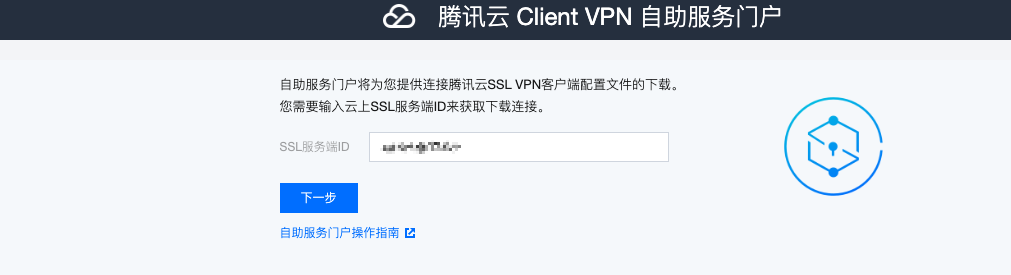
1.1 Enter the previously distributed SSL server instance ID in the input box of the SSL Server ID row, then click Next to enter the log in to interface.

1.2 Perform identity verification.       Click

to perform SAML authentication, then click Go to SAML for authentication to log in. You need to use the authentication method specified by your tenant administrator. For example, the tenant administrator
VPN 3.0 and 3.1 versions: If the tenant administrator specifies authentication by connecting to your enterprise account system in EIAM, you will see the domain account login page of your enterprise in the browser. Please enter your domain account for authentication. If the administrator specifies another method such as WeCom, you need to authenticate using the corresponding account.
VPN 4.0 version: The identity verification relies on the CAM role configuration, supporting mainstream third-party IdPs based on SAML 2.0. For more details, please refer to the SSL VPN Access Control Guide (Okta)
Note
EIAM is no longer maintained. Please use it with caution.
2. Download the SSL VPN client configuration file and client.
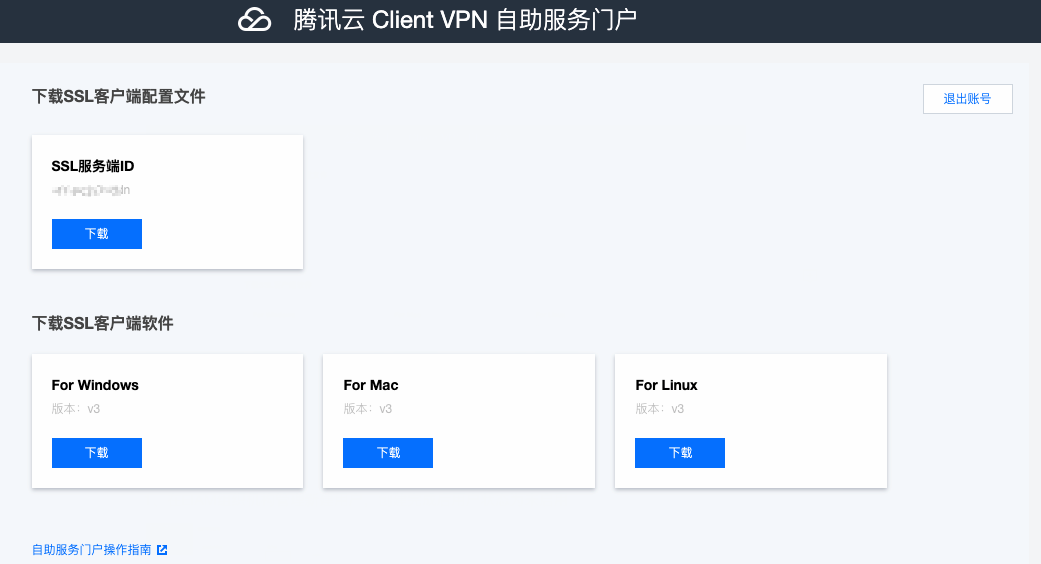
2.1 Find the SSL client configuration file you need to download in the Download SSL Client Configuration File section, click Download.
2.2 In the Download SSL VPN client section, find and download the appropriate SSL VPN client software. After downloading, please install the client.

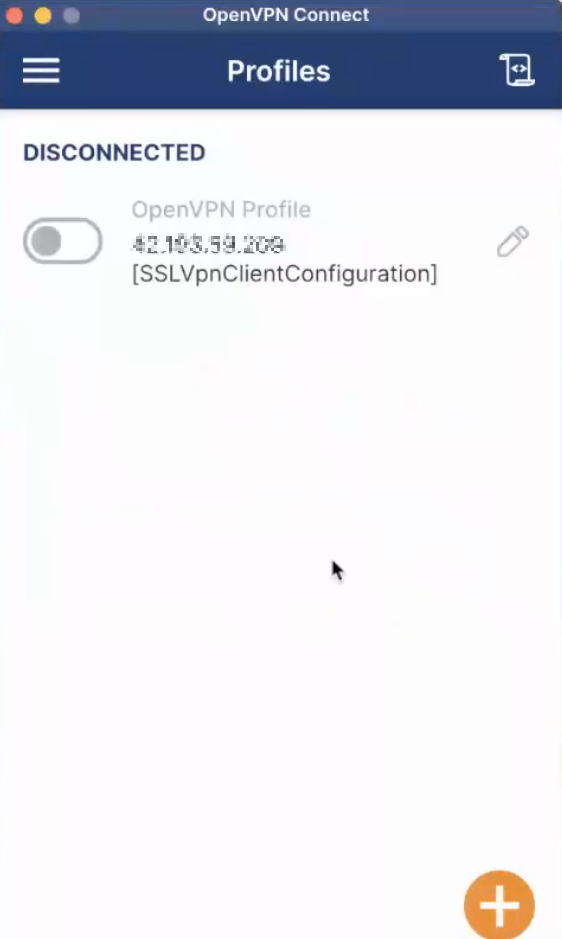
3. After installing the SSL VPN client, upload the downloaded configuration file. Then, the client will automatically connect to the SSL VPN server.