Serverless Cloud Function (SCF) is a serverless execution environment provided by Tencent Cloud for businesses and developers. It allows you to run code without the need to purchase and manage servers. All you need to do is write your core code in a supported language and set the conditions for the code to run. This allows for flexible and secure code execution on Tencent Cloud's infrastructure. SCF is an ideal computing platform for real-time file processing and data processing scenarios.
SCF is a service-level computing resource. Its rapid iteration and swift deployment characteristics inherently require a separation of storage and computation. Cloud File Storage (CFS) provides a high-performance shared storage service, making it the optimal storage solution for SCF. With just a few simple configurations, your functions can easily access files stored in the CFS file system. The advantages of SCF using CFS are as follows:
The execution space of functions is unlimited.
Multiple functions can share the same file system to share files.
Instructions
Associating an authorization policy
Note
To use the CFS feature, your cloud function needs permission to operate your CFS resources.
Follow the steps below to grant the permission to your account:
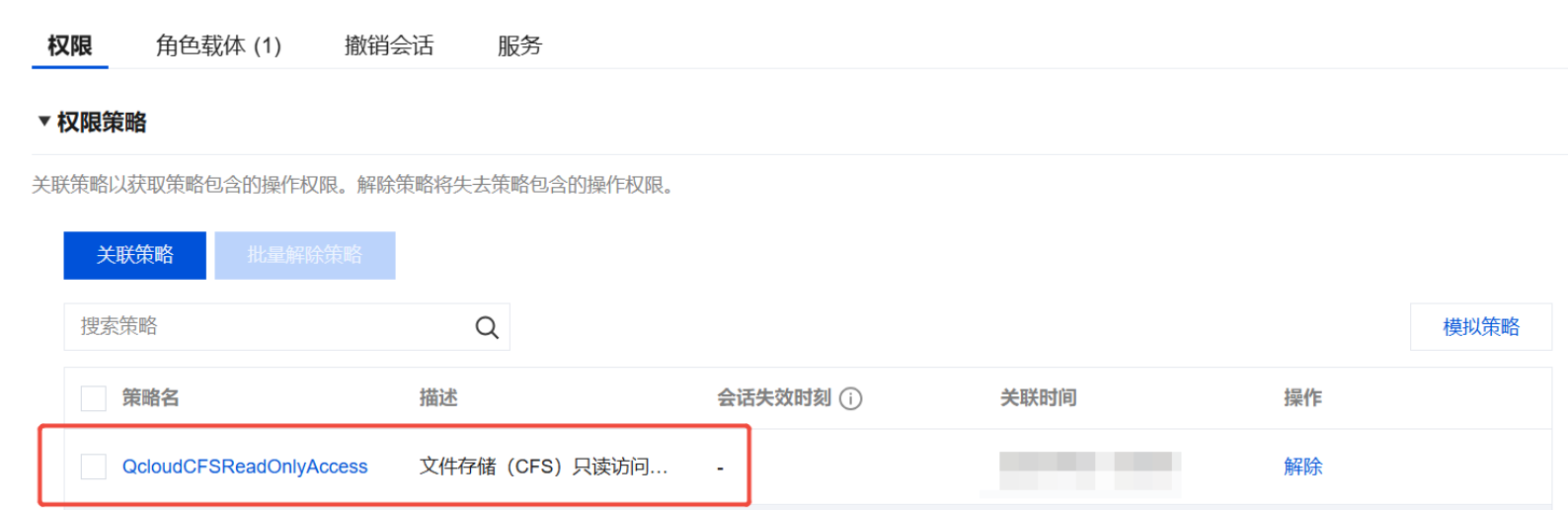
1. Please refer to Modify Role to associate the SCF_QcsRole role with the QcloudCFSReadOnlyAccess policy. Successful association is as shown in the figure below:
If the account you are using has not performed this operation, you may encounter issues such as the function not being able to save, and CFS related functions not being usable.
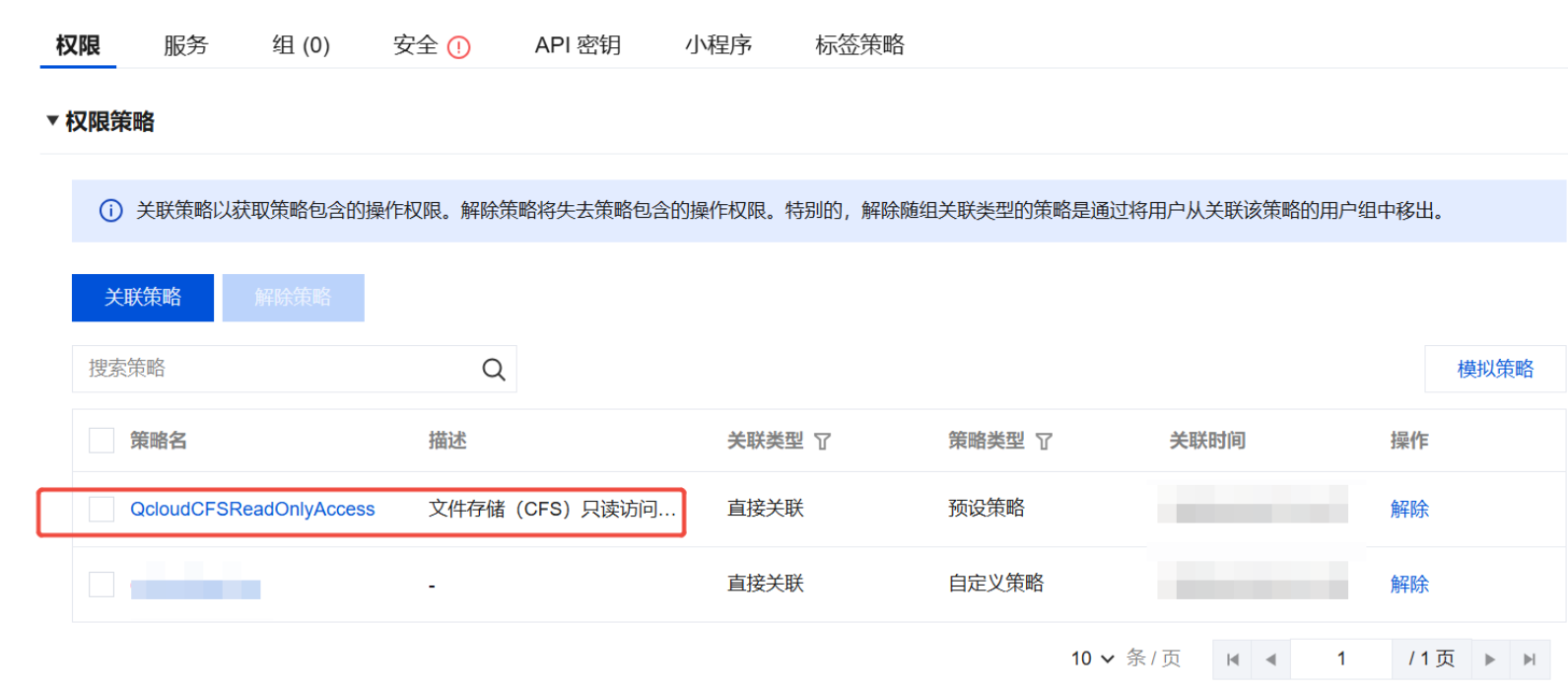
2. If you are using a sub-account, please contact the root account and refer to Sub-user Permission Settings to associate your sub-account with the QcloudCFSReadOnlyAccess policy. Successful association is as shown in the figure below:
If the sub-account you are using has not performed this operation, you may encounter problems using CFS related functions.
Currently, SCF only supports adding CFS file systems with a network type of VPC as mount points. When creating the CFS file system, please select the same VPC as the function to ensure network connectivity.
Mounting and using a CFS file system
1. Log in to the SCF console and select Function Service on the left sidebar.
2. On the Function Service page, select the name of the function to be configured.
3. On the "Function Management" page, under the Function Configuration tab, click Edit in the upper right corner.
4. Check Enable for VPC and select the VPC where your CFS file system resides. See below:
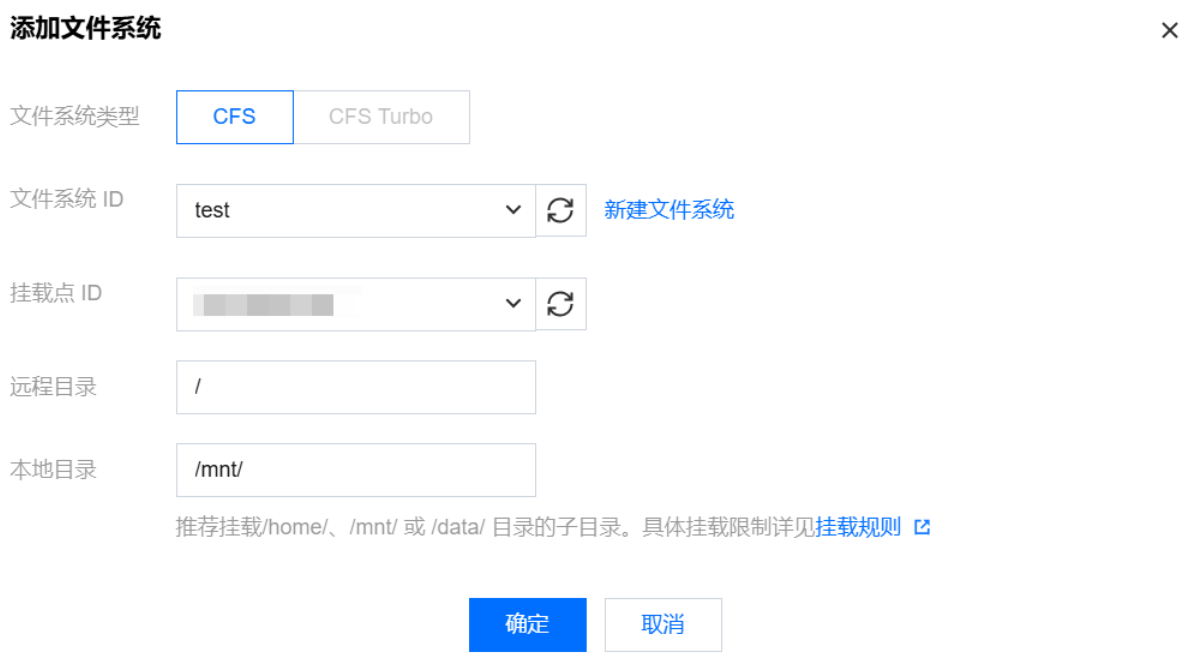
5. Check Enable for File system and enter the following information to mount the file system. See below:
User ID and Group ID: These two values correspond to the user and user group in the CFS file system. The default user and user group values for cloud functions are 10000, which operate your CFS file system. Please set the permissions of the file owner and the corresponding group as needed, and ensure that your CFS file system has configured the corresponding permissions. For more details, please refer to Permission Settings.
Remote Directory: This is the remote directory of the CFS file system that the cloud function needs to access. It consists of two parts: the file system and the remote directory.
Local Directory: This is the mount point for the local file system. You can use a subdirectory of the /mnt/ directory to mount the CFS file system.
File System ID: Select the file system to be mounted from the drop-down list.
Mount Point ID: Select the corresponding file system's mount point ID from the dropdown list.
6. Click Save at the bottom of the page to complete the configuration.
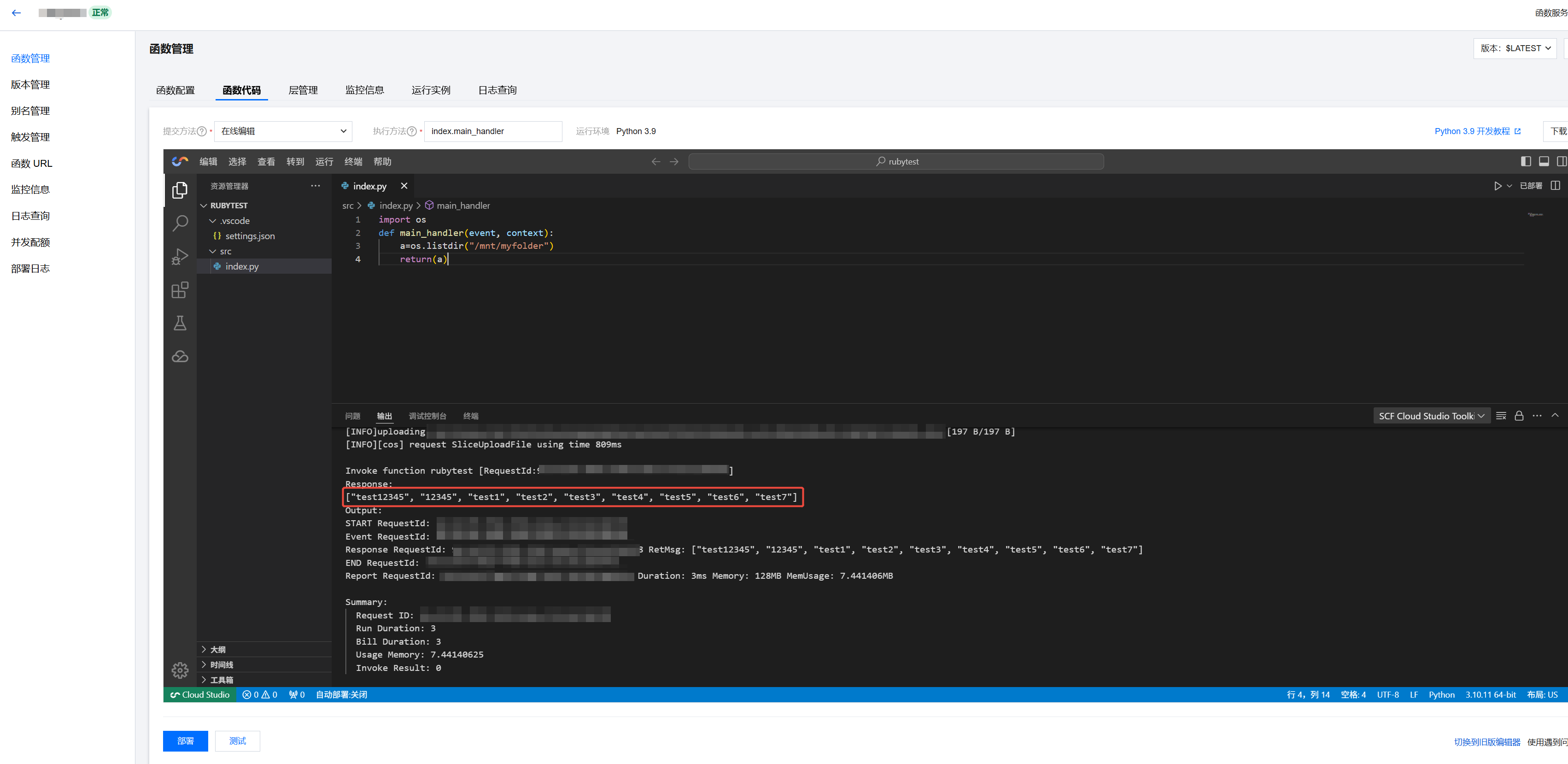
You can execute the following function code to start using the CFS file system.