操作场景
前提条件
已 创建文件系统及挂载点。
已有可用的 Linux 云服务器,且操作系统类型及内核版本满足兼容性要求。若无 Linux 云服务器,可参见 快速配置 Linux 云服务器 进行购买配置。
若文件系统使用云联网实现跨区通信,请确保云联网已关联 Linux 客户端的 VPC,并启用相应的路由,可参见 开始使用云联网 进行购买配置。
若文件系统使用 VPC,建议与 Linux 客户端的 VPC 设置在同可用区。
已在客户端安全组中放通 CFS Turbo 所有 IP 的512 - 1023端口双向流量。
兼容性列表
操作系统类型 | 操作系统版本 |
CentOS | 7.9、7.8、7.7、7.6、7.5、7.4、7.3、7.2 |
Ubuntu | 22.04、20.04、18.04 |
TencentOS | 3.1(TK4)、2.4(TK4) |
注意:
文件系统客户端安装是否成功,除了与操作系统版本有关,更重要的是内核版本是否满足要求,您可以通过
uname -r 查看内核版本号。目前 Turbo 支持兼容性列表内云上默认公共镜像的内核,若有特殊内核的需求,可 提交工单 与我们联系。
操作步骤
方法一:通过控制台进行挂载
方法二:通过命令行挂载
控制台登录 Linux 客户端
1. 登录 云服务器控制台。
2. 在实例列表中找到刚购买的云服务器,在右侧操作栏中单击登录。
3. 在弹出的登录 Linux 实例窗口,选择标准登录方式,单击立即登录。
4. 在打开的 WebShell 登录页面,输入用户名和密码,单击确定。
开放网络端口
挂载 CFS Turbo 并行文件存储前,需要确认客户端与文件系统的网络可达性,请提前在安全组放开端口,具体信息如下:
网络协议 | 端口方向 | 开放端口号 |
TCP | 出+入 | 512-1023 |
注意:
为确保服务的高可用性,CFS 服务端采用多端口冗余机制。当检测到当前端口连接异常时,系统将自动向下遍历端口号(从1023至512)直至建立有效连接。强烈建议在安全策略中全面放通512 - 1023范围内的所有端口。
对于 CFS Turbo 服务的网络配置,需同时开放服务端所有 IP 对应端口号的双向通信。例如,如果您创建的 Turbo 服务选择云联网类型并指定11.0.0.0/24网段,则必须在安全组中配置该网段512 - 1023端口的出入站规则,而非仅开放挂载点端口。此配置是确保服务正常通信的必要条件。
安装 CFS Turbo 客户端
执行如下命令,下载客户端工具,并执行自动化安装。
wget http://mirrors.tencentyun.com/install/cfsturbo-client/tools/cfs_turbo_client_setup && chmod a+x cfs_turbo_client_setup&&sudo ./cfs_turbo_client_setup
如上述域名无法访问,您可以使用以下命令获取 CFS Turbo 客户端安装包
wget http://mirrors.tencent.com/install/cfsturbo-client/tools/cfs_turbo_client_setup && chmod a+x cfs_turbo_client_setup&&sudo ./cfs_turbo_client_setup
若返回如下信息,即表示安装成功。
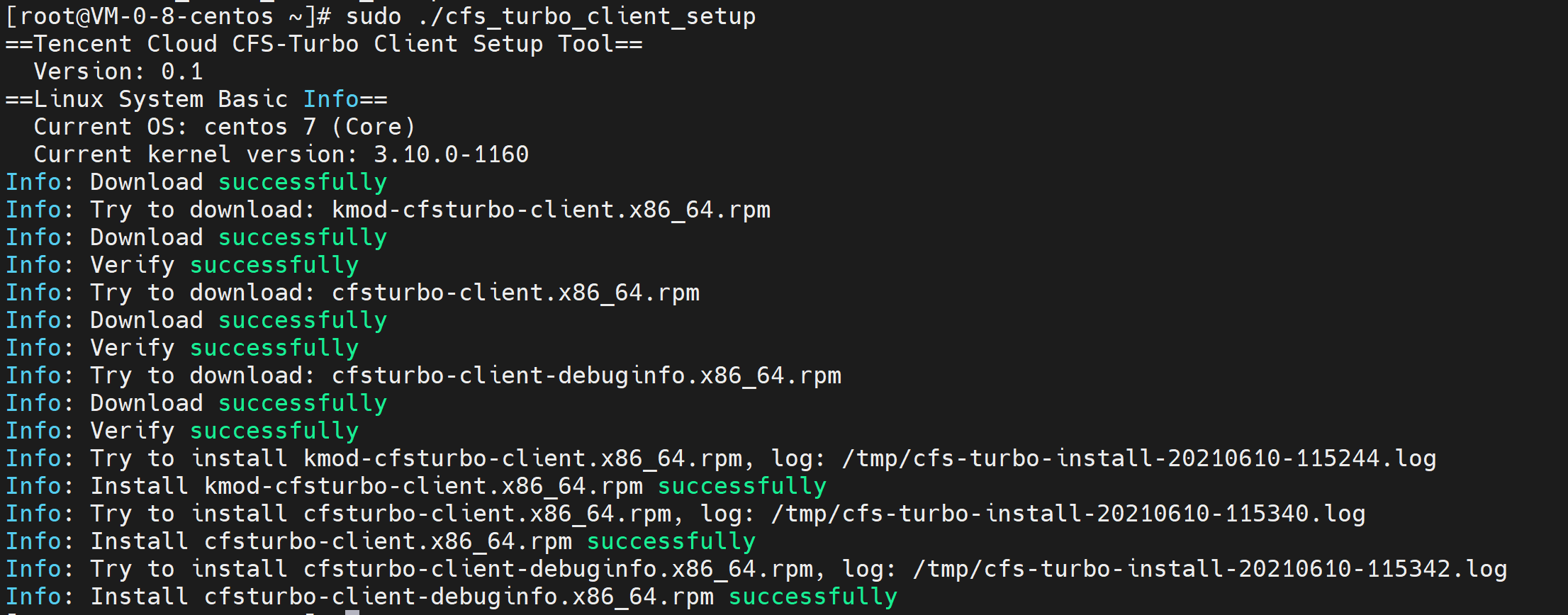
若返回如下信息,即表示暂不支持该内核版本,可 提交工单 与我们联系。

挂载文件系统
1. 登录文件存储控制台,进入 文件系统 管理页面。
2. 单击需要操作的 Turbo 文件系统 ID,进入挂载点信息页面。
3. 在挂载点信息的挂载命令中,单击 
4. 切换至登录的实例,执行刚复制的挂载命令。关于挂载指令的说明如下,请根据实际的业务情况使用合适的挂载指令。
如果您希望支持扩展属性且所有操作默认为同步执行(机器重启不会丢数据,但性能会有损耗),请复制和执行如下命令,例如:
sudo mount.lustre -o sync,user_xattr 172.XX.XX.XX@tcp0:/c4abcde/cfs /path/to/mount
如果您希望支持扩展属性且无需强制同步执行(机器重启有可能会丢少量尚缓存在内存中的数据,但性能好),请复制和执行如下命令,例如:
sudo mount.lustre -o user_xattr 172.XX.XX.XX@tcp0:/c4abcde/cfs /path/to/mount
如果您无需支持扩展属性且无需强制同步执行(机器重启有可能会丢少量尚缓存在内存中的数据,但性能好),请复制和执行如下命令,例如:
sudo mount.lustre 172.XX.XX.XX@tcp0:/c4abcde/cfs /path/to/mount
说明:
若需要只读挂载,可在挂载时添加
-o ro 的指令。支持对文件系统子目录挂载,修改对应的路径执行挂载指令即可。
当某些情况下需要卸载共享目录,请打开命令行终端后使用如下命令。其中 "目录名称" 为根目录(如
/path/to/mount)或者文件系统的完整路径。sudo umount /path/to/mount
注意:
如果涉及到 NFS 客户端和 Turbo 客户端在同一台机器上使用时,请确保 NFS 客户端挂载的时候已加入参数 noresvport,避免 NFS 客户端占用了512 - 1023范围内的端口,尤其是988端口,导致挂载时因端口占用而报错失败。


