This article demonstrates the quick start operation of Flow Logs using the example of creating a flow log for an Elastic Network Interface (ENI) in an internal network interconnection scenario. After creating a network flow log for the ENI, you can perform real-time storage and analysis of network traffic, which is suitable for troubleshooting, compliance auditing, security detection, and other use cases.
Preparations
Ensure that your Cloud Virtual Machine is included in the supported list for Flow Logs.
As the flow log data needs to be delivered to Cloud Log Service (CLS), make sure you have completed the authorization for CLS in order to view the log data. For specific operations, please refer to Authorizing Flow Logs to Access CLS.
You have created a log topic. For detailed instructions, see Adding a Log Topic.
Background Information
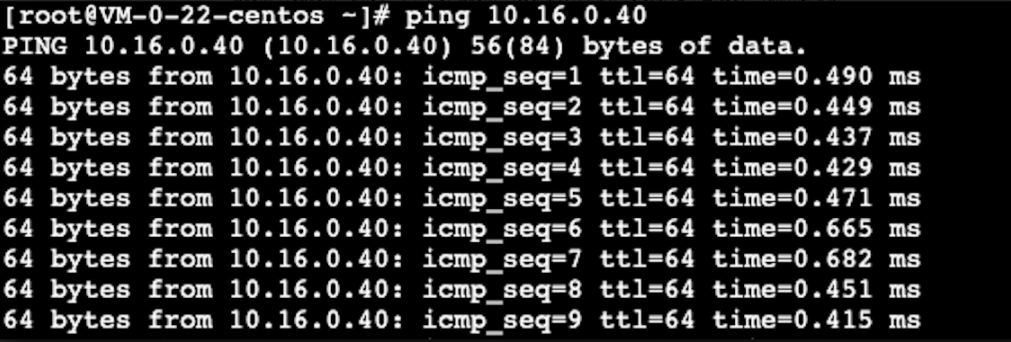
CVM A (10.16.0.22) and CVM B (10.16.0.40) reside in the same VPC. After you log in to the CVM A and run the ping command to the CVM B, the ENIs on both CVMs will be triggered to generate traffic. If a flow log is created for the ENI on CVM A, the flow log also records the traffic.
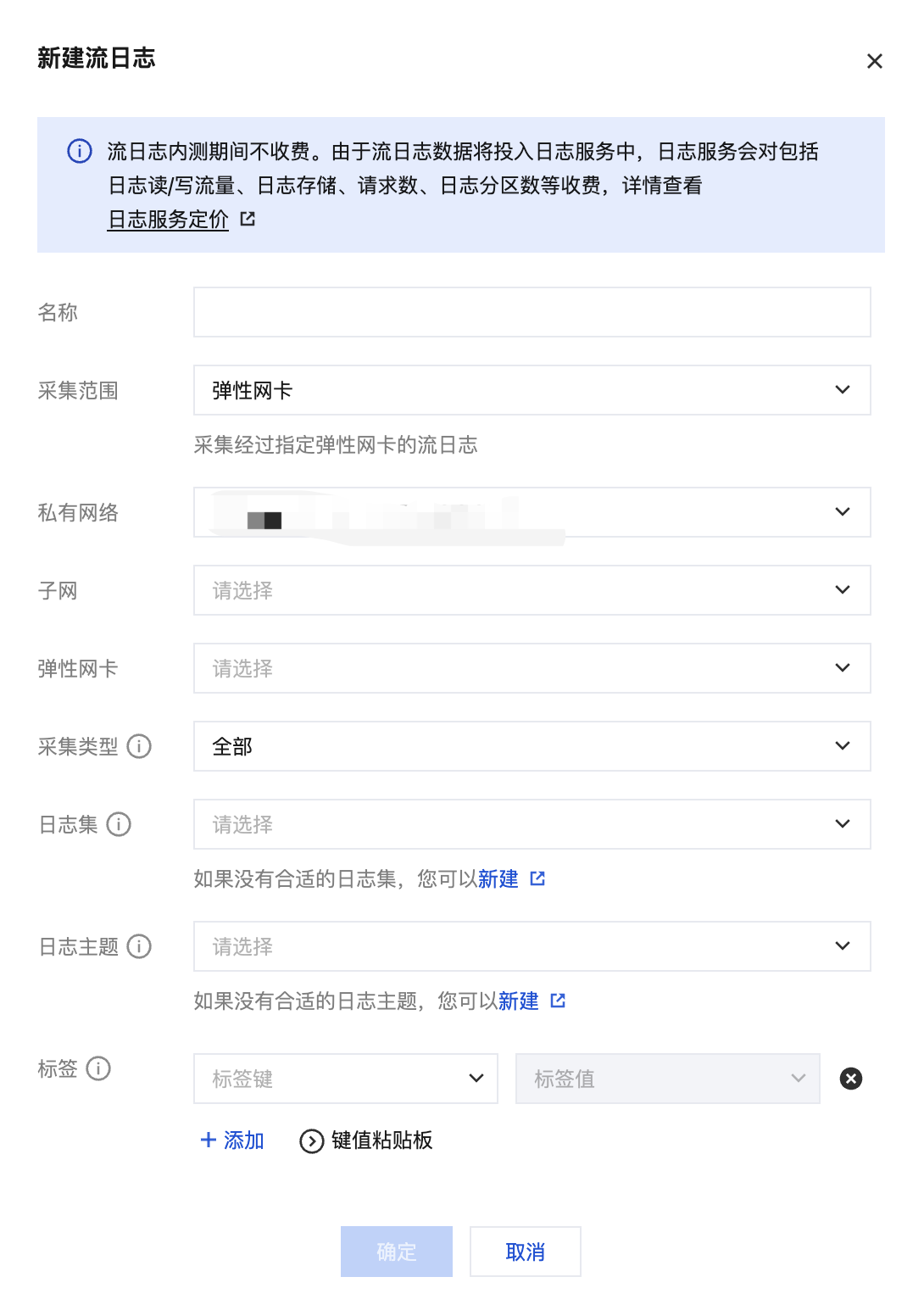
2. On the Flow Logs page, select a region in the top-left corner, click +Create, and configure the following parameters in the Create Flow Log dialog box:
Parameter
Description
Name
The name of the flow log.
Collection range
Specify the flow log collection range. In this example, select ENI.
VPCs
The VPC where the ENI is located. In this example, select the VPC of CVM A.
Subnets
The subnet where the ENI is located. In this example, select the subnet of CVM A.
Collection type
Select the type of traffic to be collected by the flow log: all traffic, or the traffic rejected or accepted by security groups or ACL. In this example, select Accepted.
Logset
Specify the storage collection for flow logs within Cloud Log Service. Please select the logset you have already created. If you have not yet created a logset, click Create to create a new one in the Cloud Log Service console.
Log Topic
Specify the minimum dimension for log storage to distinguish different types of logs, such as Accept logs. Please select the log topic you have created. If you have not yet created a log topic, go to the Cloud Log Service console to create a new one.
Tag Key
(Optional) It is used for locating and managing flow logs. You can create a tag key or select an existing one.
Tag Value
(Optional) You can create a tag value, select an existing one, or just leave it empty.
3. Click OK.
Note
Upon creating a flow log for the first time, you need to wait for approximately 10 minutes (5 minutes for the capture window and 5 minutes for data publishing) before you can view the flow log in Cloud Log Service.
Flow Logs themselves do not incur charges, but data storage in Cloud Log Service will be billed according to standard rates.
Result Verification
After about 10 minutes, click View in the Operation column of the target flow log on the Flow Logs page. On the Search and Analysis page, select a time range and enter the IP address of Server B for keyword search.