This article will introduce how to use the new console of Tencent Cloud OCR, helping you get started quickly.
Feature Overview
1. The new console features include service overview, data reports, mobile terminal SDK integration, resource package management, settings, usage query, permission management, and common tools.
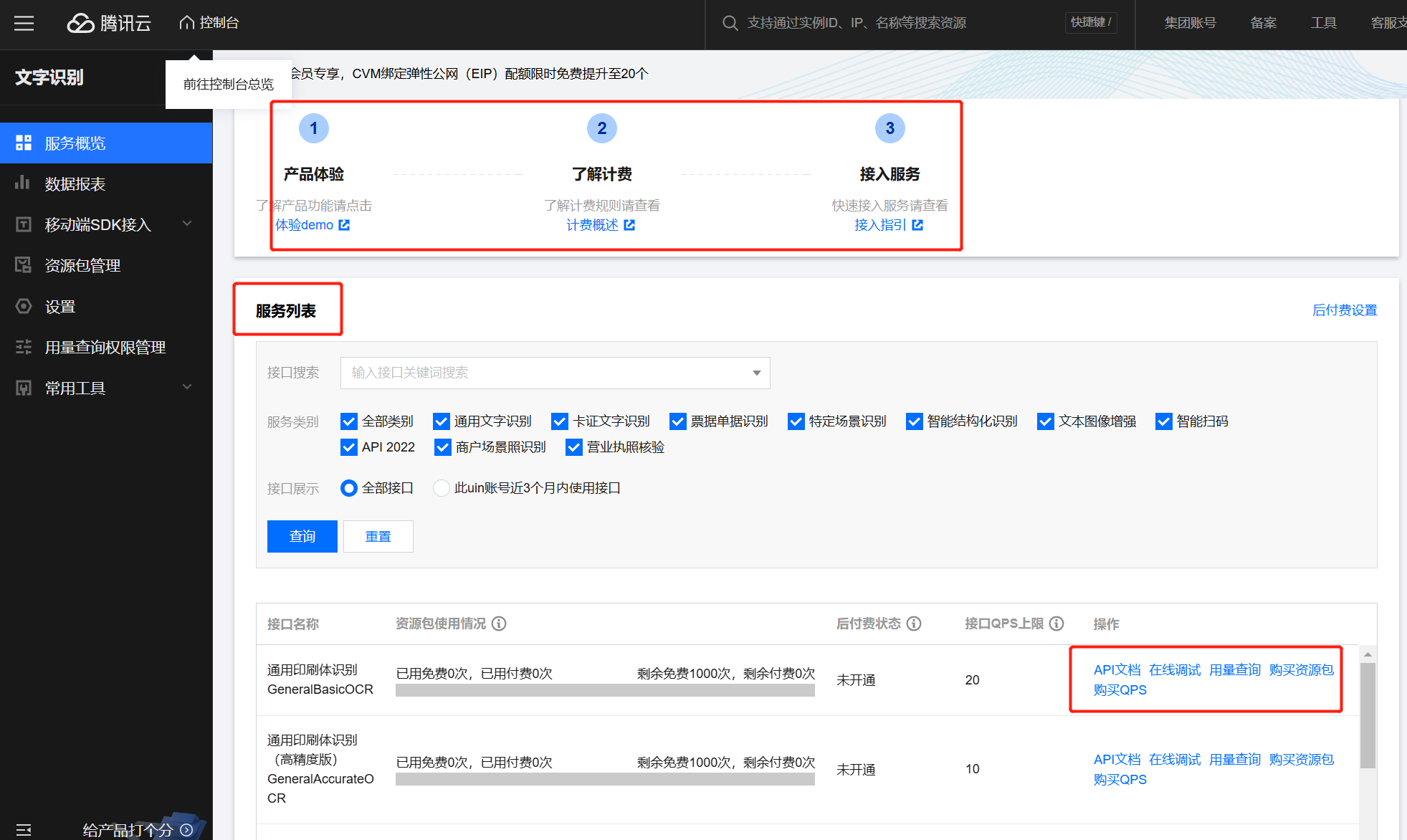
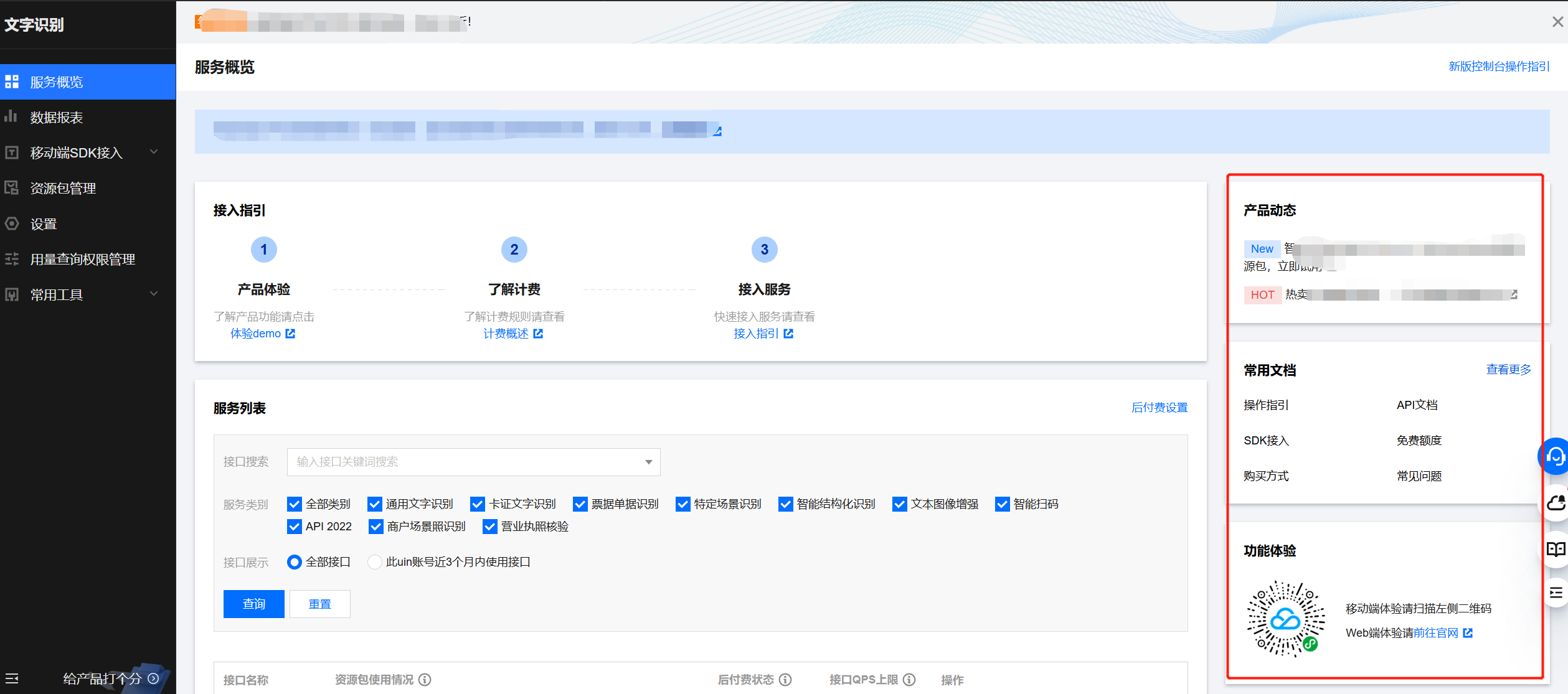
2. The service overview module includes access guide, API total calls overview, API usage overview for the past 30 days, resource package usage overview, and provides product news, common documents, feature experience, and contact us guidance.
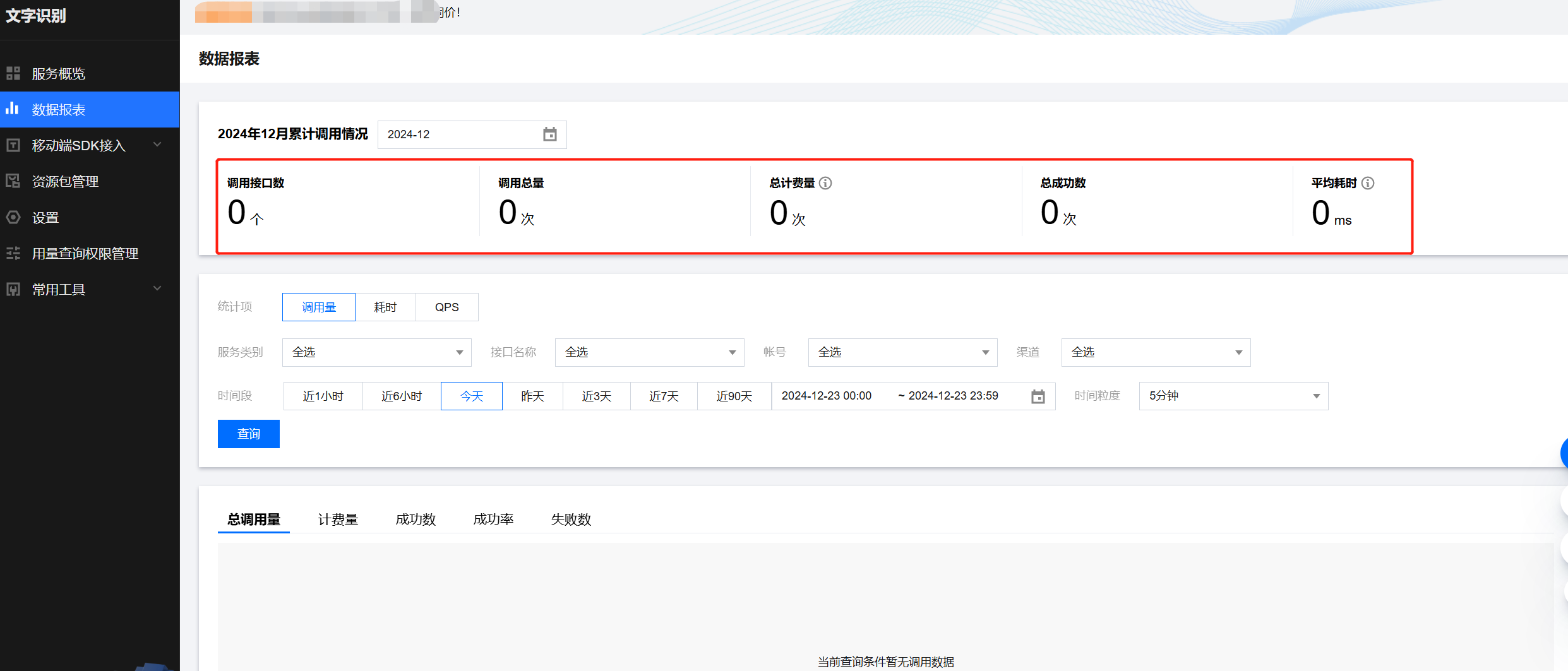
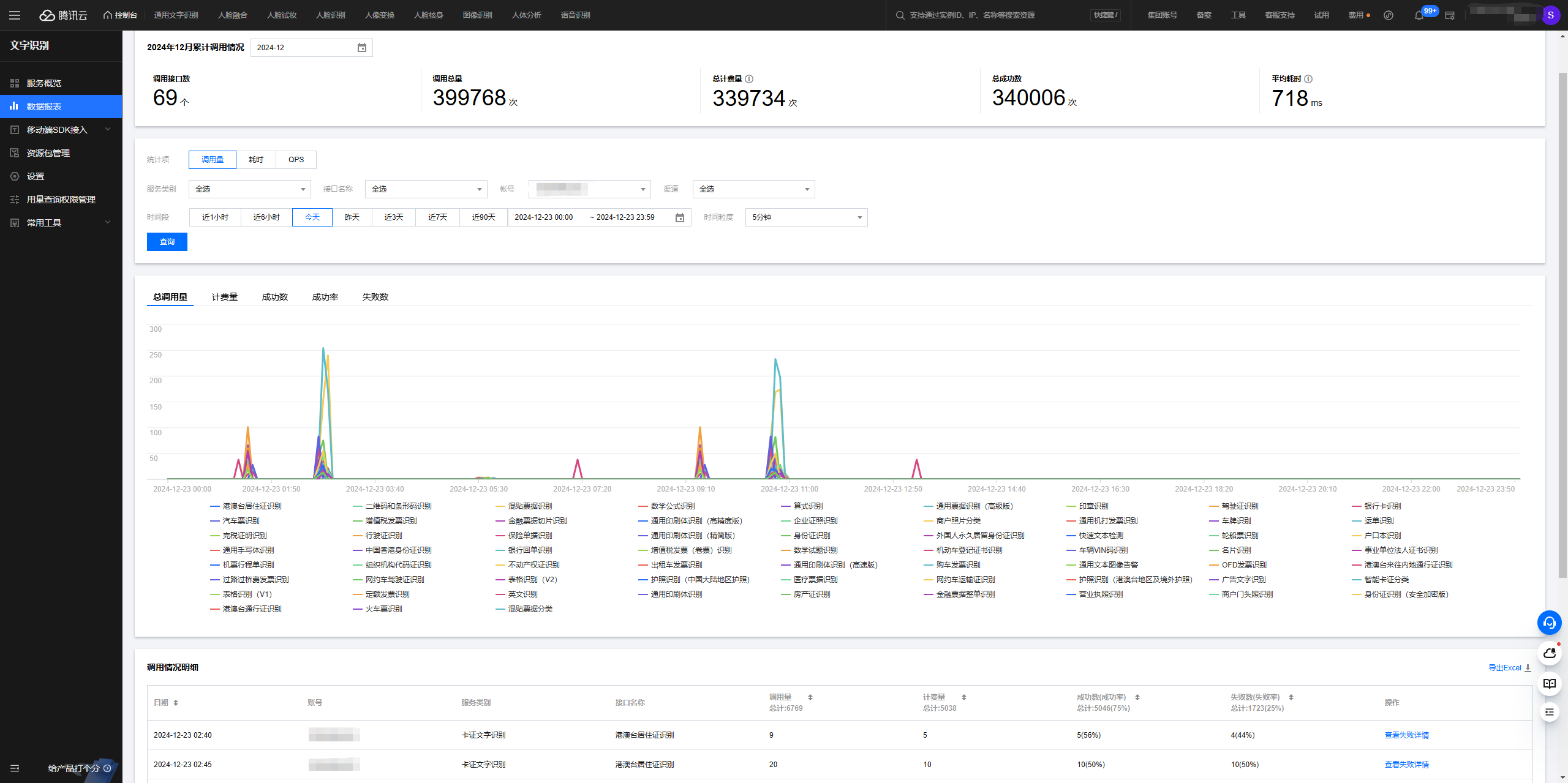
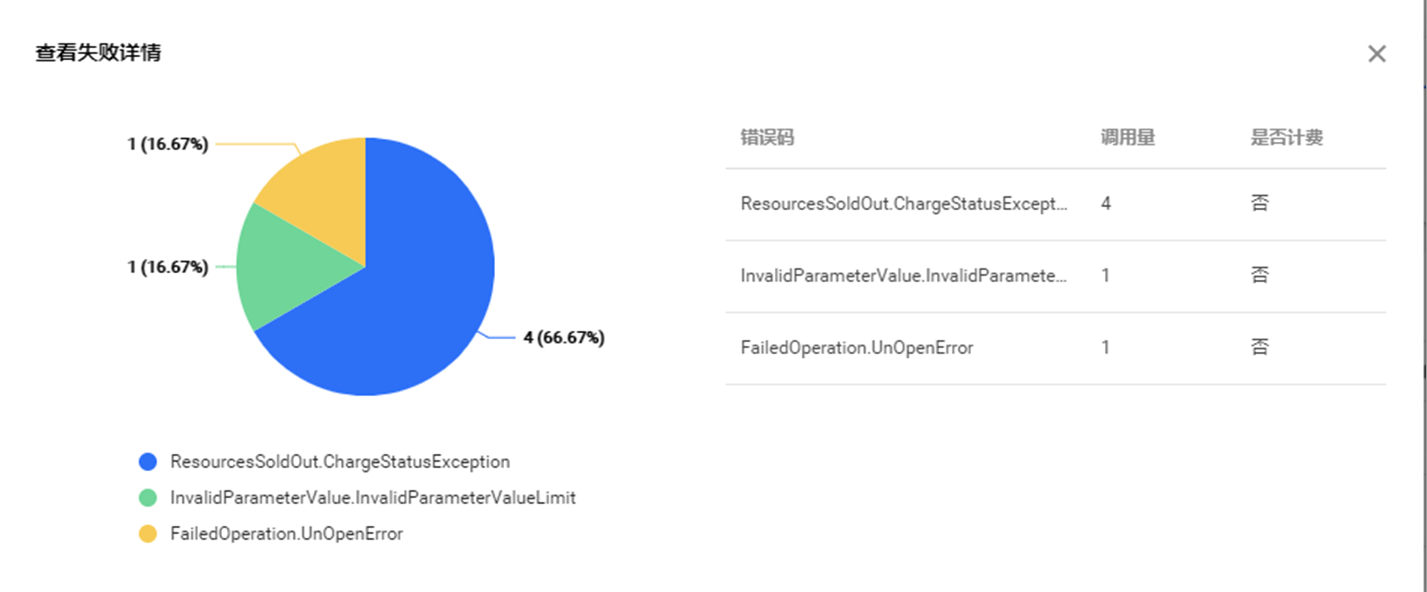
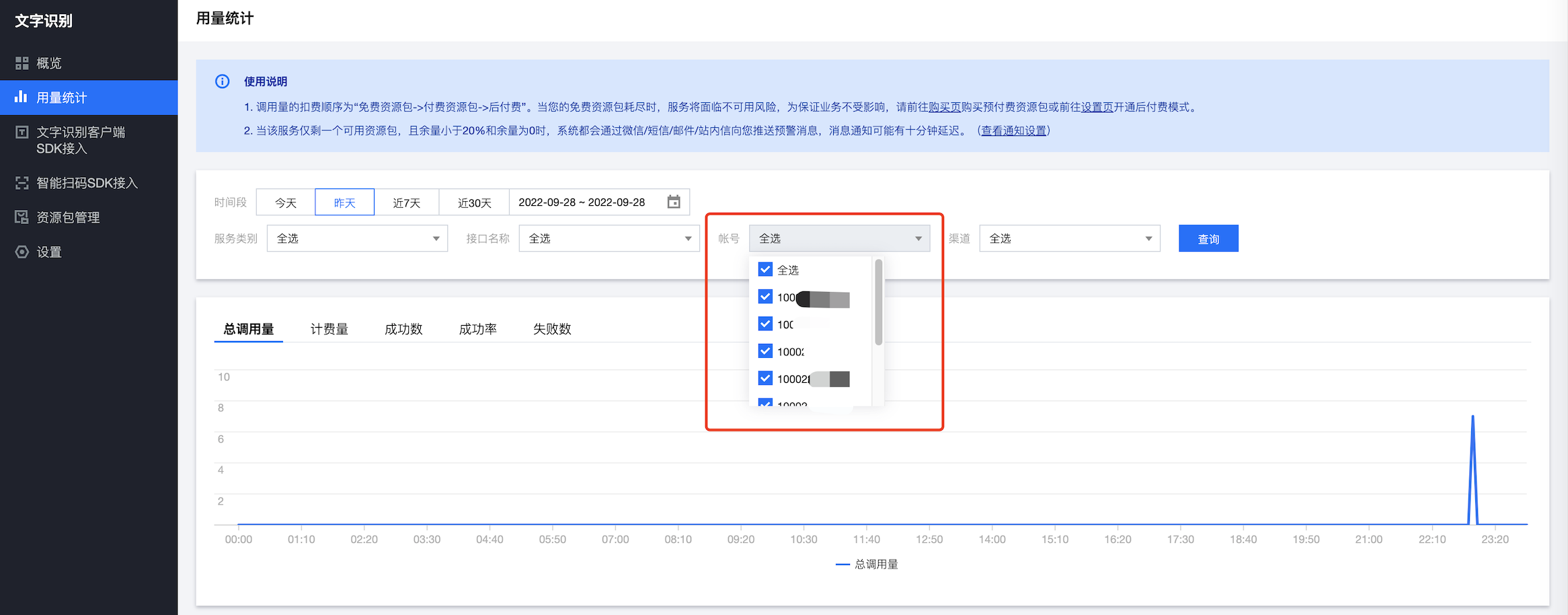
3. The data reports module provides filter and export functions. You can filter and query the usage of each API based on time period, service category, API name, account, and channel. It supports viewing total calls, billing usage, number of successes, success rate, failure count, and error code distribution, and supports exporting call details to local.
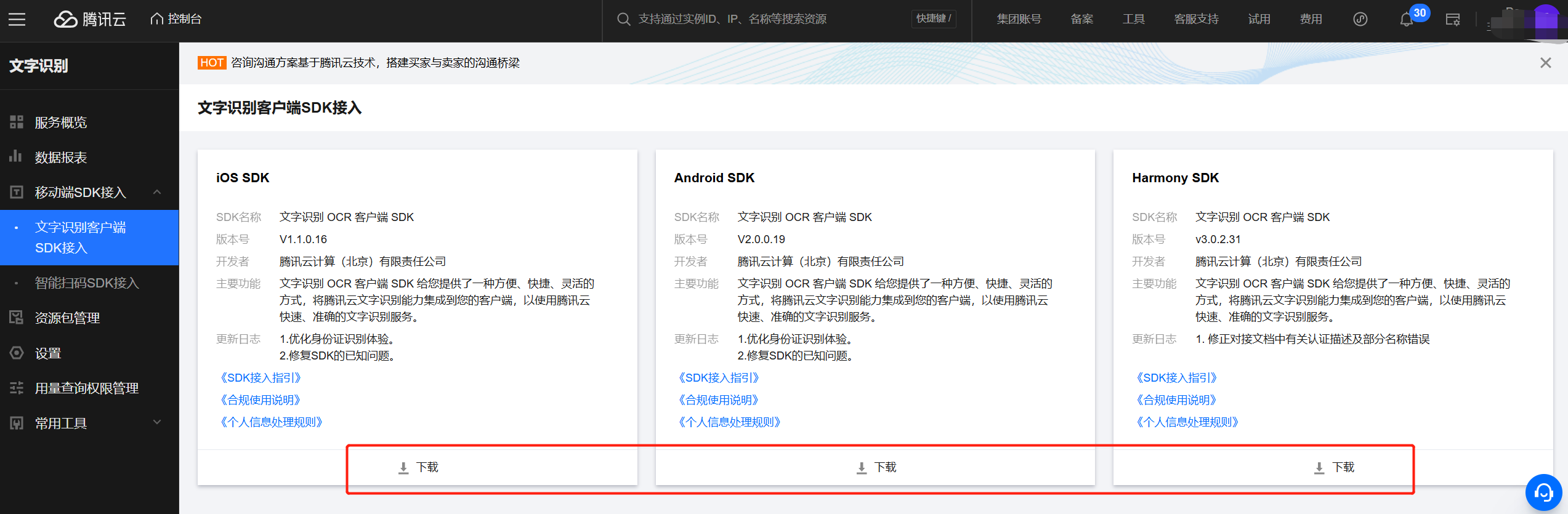
4. The mobile terminal SDK integration module provides an entry for applying for Optical Character Recognition (OCR) client SDK integration, supporting iOS SDK, Android SDK, and Harmony SDK downloads. The Intelligent Scan SDK integration provides an entry for applying for Intelligent Scan SDK. You can apply for the trail version or purchase the official version online.
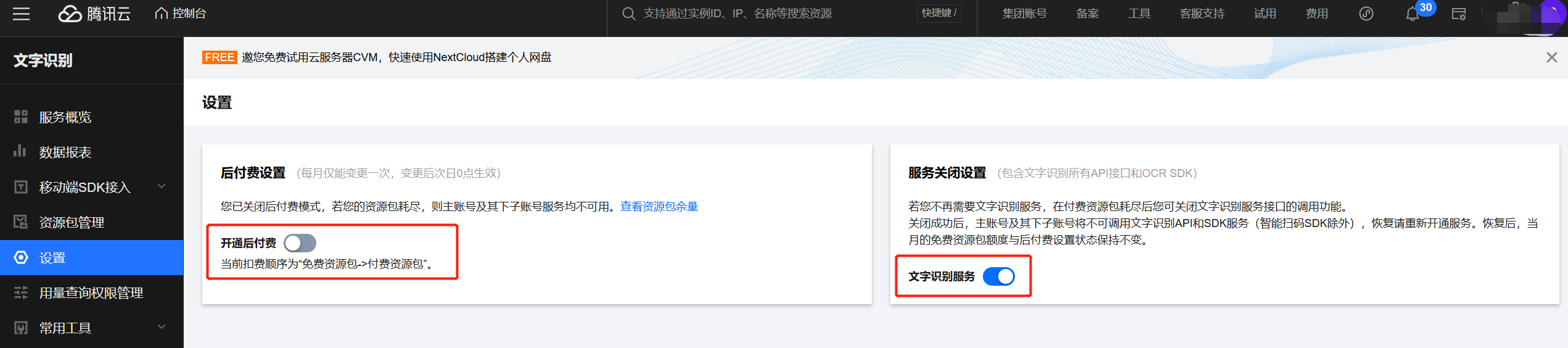
6. The settings module allows users to independently set whether to enable postpaid and disable OCR services; it supports enabling postpaid settings, disabling all OCR API interfaces and OCR SDK services (excluding Intelligent Scan SDK).
Activate Product
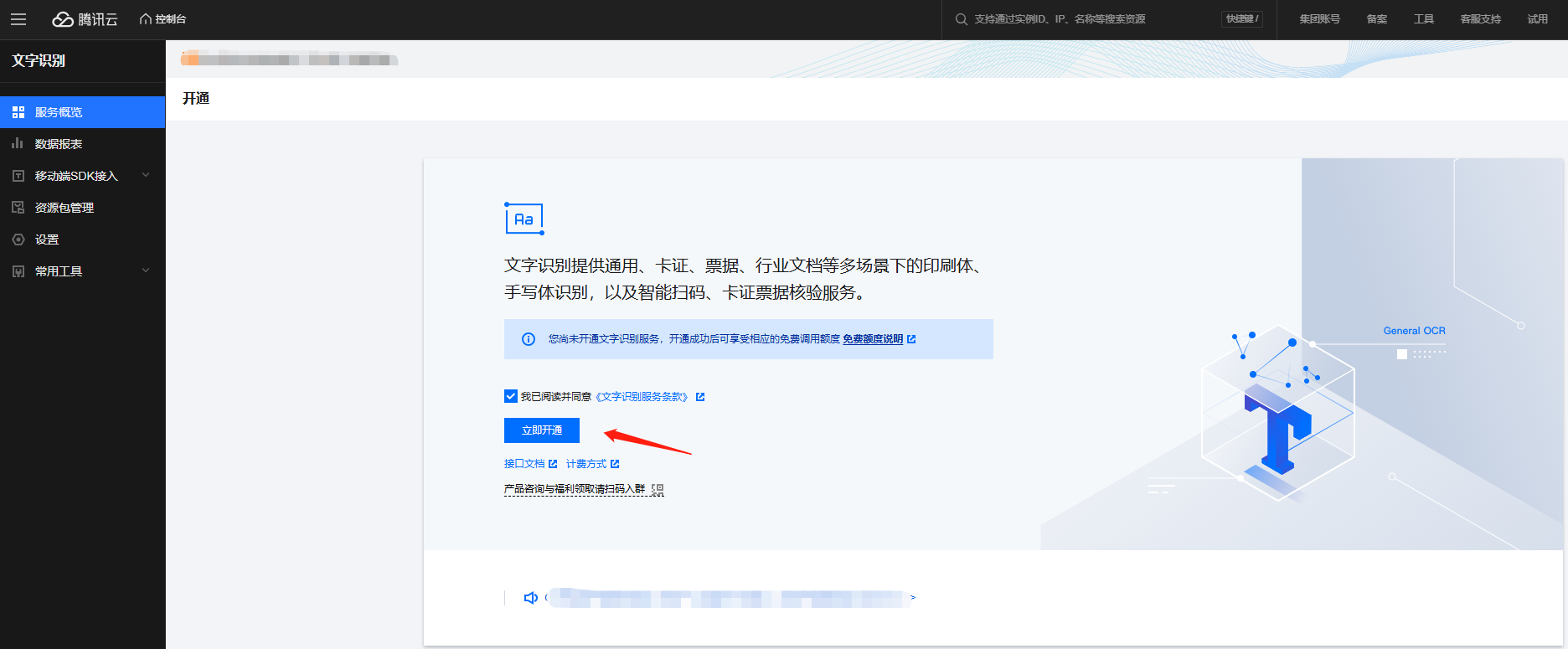
If you haven't activated the OCR service, upon entering the console, you will be directed to the service activation page. After reading the "OCR Service Terms," click to check the agreement box, and you can activate all OCR API services with one click, obtaining a free resource package for each API.
Viewing Service Overview
1. Getting Started
If you are a new user, you can follow the steps and documentation provided in the Service Overview module to learn about the product, pricing, and how to integrate and use it. You can search and query APIs through the Service List below, or click "API Documentation, Online Debugging, Usage Query, Purchase Resource Pack, Purchase QPS" to jump to the corresponding links for the next step.
2. API Calling Volume Overview
If you have started using OCR, you can view your API usage for the past month in the Report Data module, including the number of API calls, total calls, total successful calls, and total billing amount.
3. Resource Pack Overview
The Resource Package Overview module provides an overview of the resource packages, where you can see the available APIs and the remaining/total amount. When the remaining amount is low, you can click Purchase Now to jump to the purchase page to buy resource packages. If you need to modify the notification method for message alerts, you can click Viewing the set status in the usage instructions to jump and set it.
4. Product Updates and Common Documents
The overview page on the right provides product news, common documents, feature experiences, and after-sales service guides. You can use the relevant features as needed.
Viewing API Usage Statistics
On the Data List page, you can filter by time period, service category, API name, use account, and channel. The total calling volume, billing usage, number of successes, success rate, failure count, line chart, and call details table under the selected conditions will be displayed below. You can view the API usage in the chart overview, check the usage details in the call details table, click to view call failure details, and see the error code distribution. You can also export the call details to Excel for local download for further data analysis.
OCR Client SDK Integration Application
The console provides an application entry for the OCR client SDK, supporting downloads for iOS SDK, Android SDK, Harmony SDK, and more.
Intelligent Scan SDK Integration Application
The console provides an application entry for the Intelligent Scan SDK. After logging in to the console, you can apply for the trial version or the official version. The Intelligent Scan SDK trial version offers a three-month free trial period. After submitting the application and passing the review, you will receive an exclusive key and a demo project file download link. Each account can only apply once. You can also directly obtain the official version for integration through online purchase.
Description
If the Intelligent Scan SDK is not purchased, the application for the official version will not be approved.
Viewing Resource Pack Usage Details
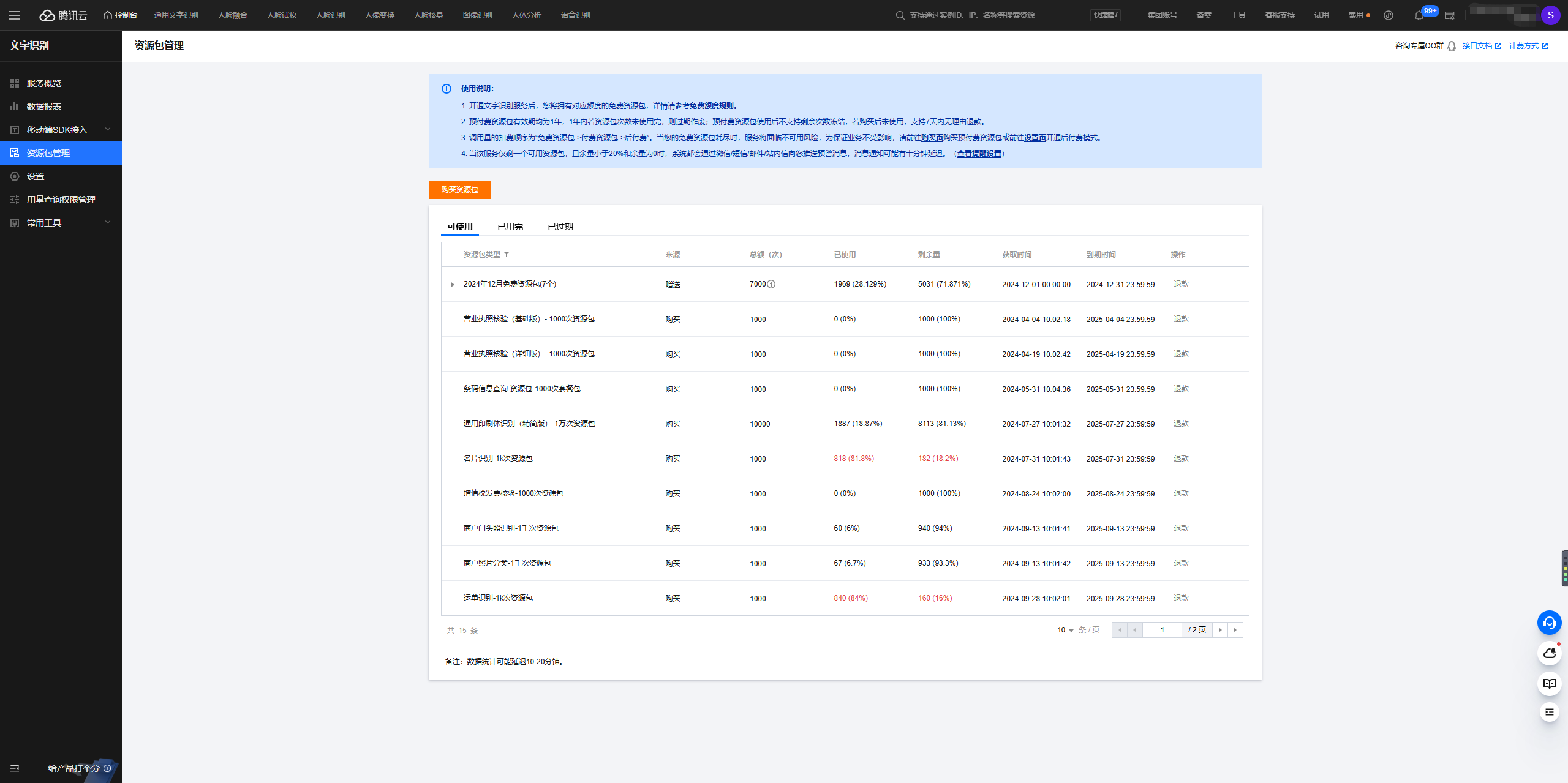
You can view the usage of all resource packages on the Resource Package Management page, including source, total amount, used amount, remaining amount, and validity period. When the resource package is about to run out, you can click the Purchase Resource Package button above to purchase a resource package. If the free quota and prepaid resource package call times are exhausted, the API billing will automatically switch to the postpaid mode and be settled monthly. For specific billing standards, you can check the OCR Purchase Page.
Disabling OCR Service
You can disable the OCR service in Settings. After successful deactivation, the root account and its sub-accounts will not be able to call the OCR API and SDK services (excluding the Intelligent Scan SDK). To resume, you need to reactivate the service.
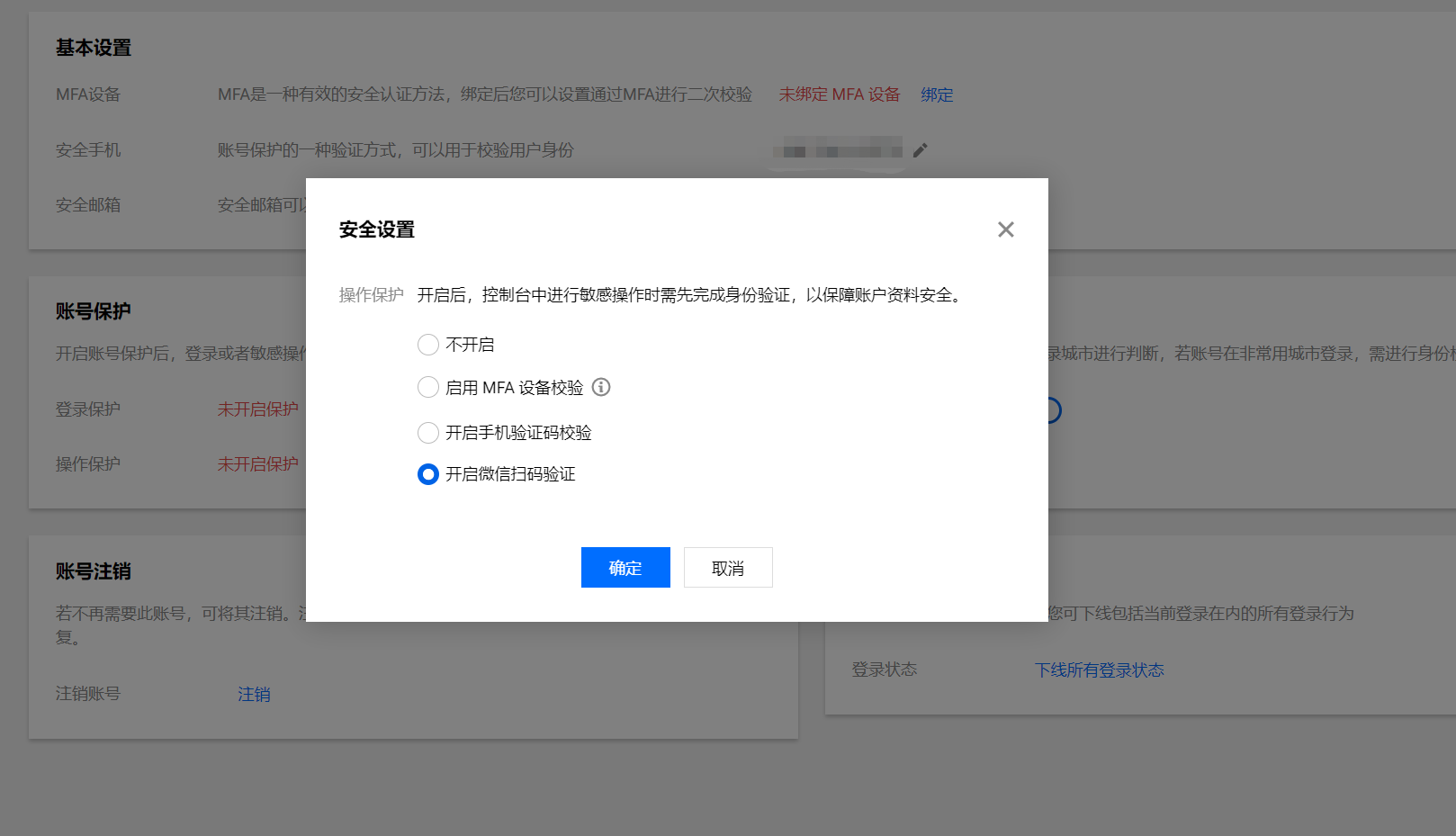
Disabling the OCR service may affect your subsequent use of the service. It is a sensitive operation, and it is recommended to enable the operation protection feature. Only after identity verification can you set the feature to ensure it is operated by you. Operation protection supports WeChat QR code authentication, MFA device authentication, and mobile Captcha authentication. It is recommended to enable WeChat QR code authentication. The steps are as follows:
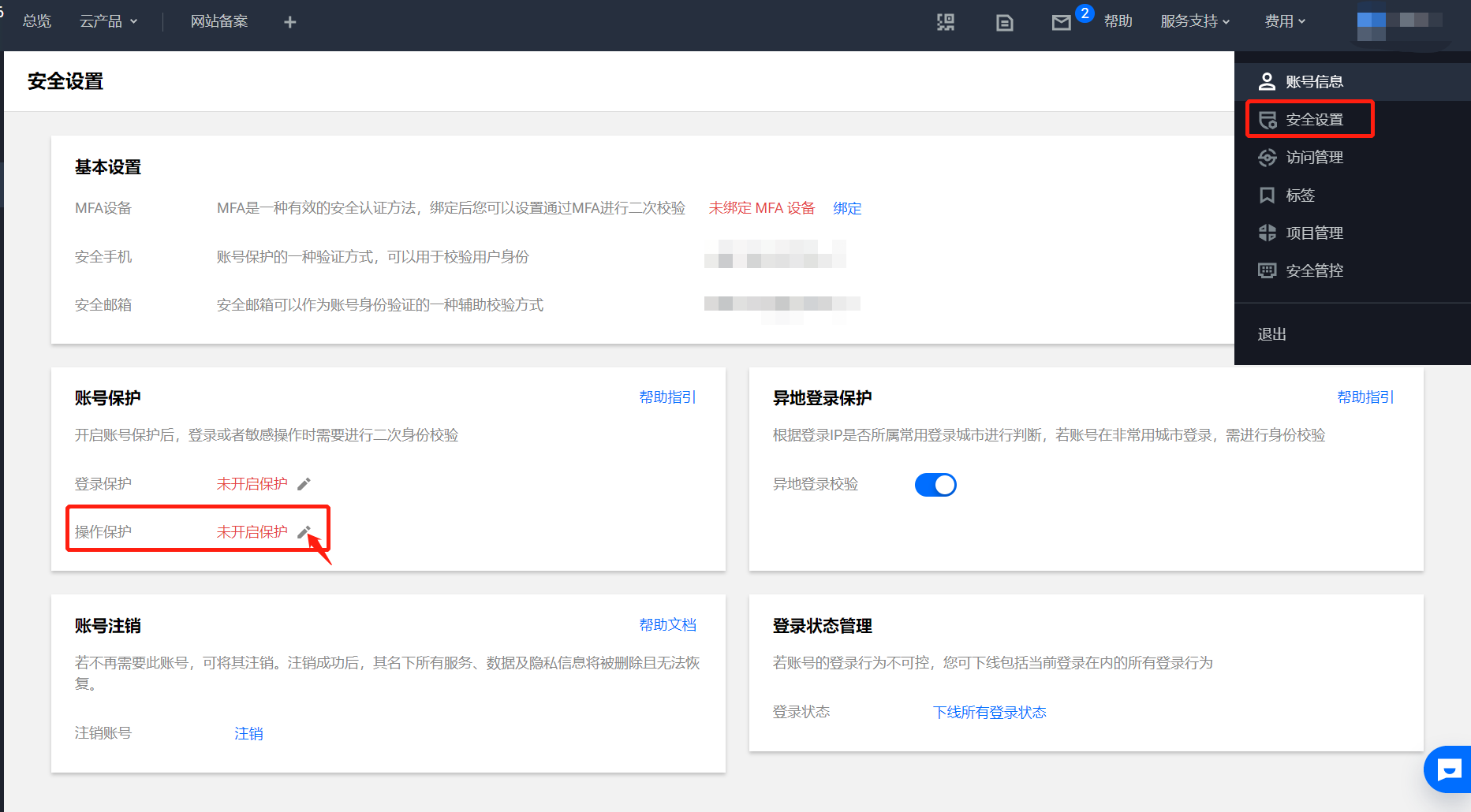
After logging in to the Tencent Cloud account, click Security Settings in the avatar dropdown list to enter the security settings page. In the Account Protection module, click the operation protection edit feature and select Enable WeChat Scan Code Verification. If you have not associated a WeChat ID, you can enable it after scanning the code to associate.
Must-Knows
1. If your paid resource package is not exhausted, you cannot turn off the OCR service.
2. Once you have turned off the OCR service, you will not be able to view the original use of data when re-entering the console unless you reactivate it. After reactivation, you can view the previous usage record.
How Can a Sub-Account View the Calling Volume Of Other Accounts On the OCR Console?
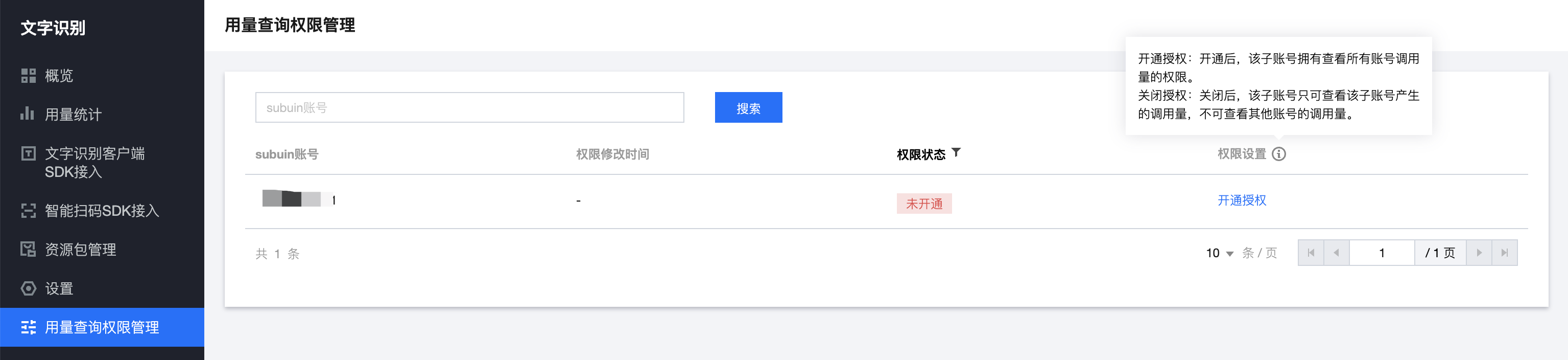
The root account can view the calling volume of all sub-accounts under it. Sub-accounts are only allowed to view their own calling volume. If you need to grant a sub-account permission to view the calling volume of all other accounts, you need to perform the following operations:
1. Root account logs in to the OCR console Usage Permission Query Management Page to grant permissions to the sub-account. This page involves permission management operations, only the root account has access permission.
2. Log in to the OCR console Usage Statistics Page with the authorized sub-account, and you can select other sub-accounts to view their calling volume.