The content of this page has been automatically translated by AI. If you encounter any problems while reading, you can view the corresponding content in Chinese.
Tag is a key-value pair provided by Tencent Cloud to identify a resource in the cloud. It can help you easily categorize and manage TDMQ for Pulsar resources in many dimensions such as business, purpose, and owner.
Description
Tencent Cloud will not use the tags you set, and they will only be used for your management of TDMQ for Pulsar resources.
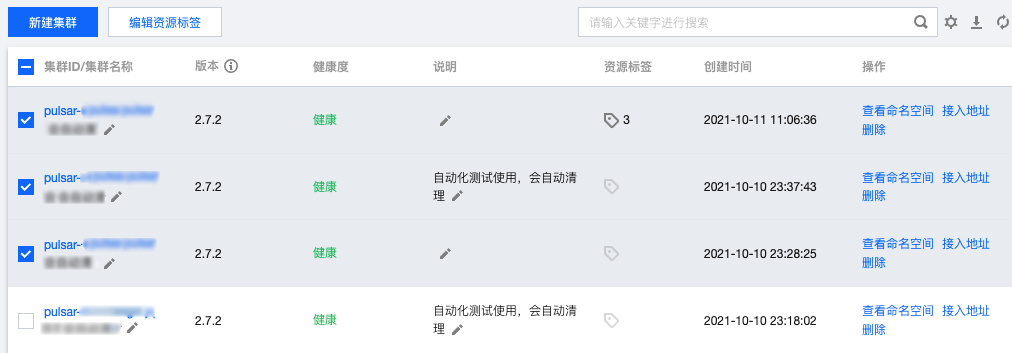
2. On the Cluster Management list page, after selecting the region, check the clusters that need to be edited with tags, and click Edit Resource Tags at the top of the page.
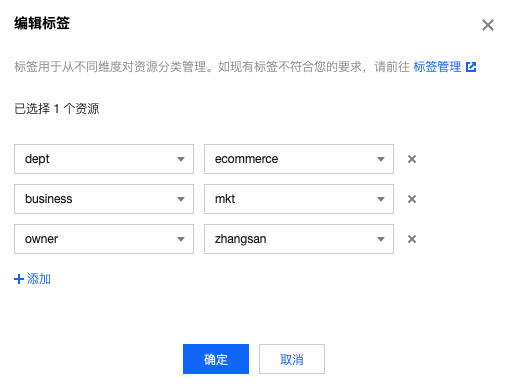
3. Set tags in the "Edit Tags" window that pops up.
For example, add three sets of tags to the cluster pulsar-rgxj35jgo3d1.
Description
If the existing tags cannot meet your needs, go to Tag Management to create more.
4. Click OK, and the system will prompt that the modification was successful. You can view the tags bound to the cluster in the Resource Tag column.
Filtering Resource By Tag Key
You can filter out clusters bound to a specific tag in the following steps:
1. Select Tag in the search box at the top-right corner of the page.
2. In the window that pops up after Tag:, select the tag you want to search for and click OK to search.
For example, if you select Tag: owner:zhangsan, you can filter out clusters bound to the tag key owner:zhangsan.
Editing Tags
1. On the Cluster Management list page, after selecting the region, check the clusters that need to be edited with tags, and click Edit Resource Tags at the top of the page.
Description
Batch editing of tags is supported for up to 20 resources.
2. In the pop-up "Edit Tag" window, add, modify, or delete tags as needed.