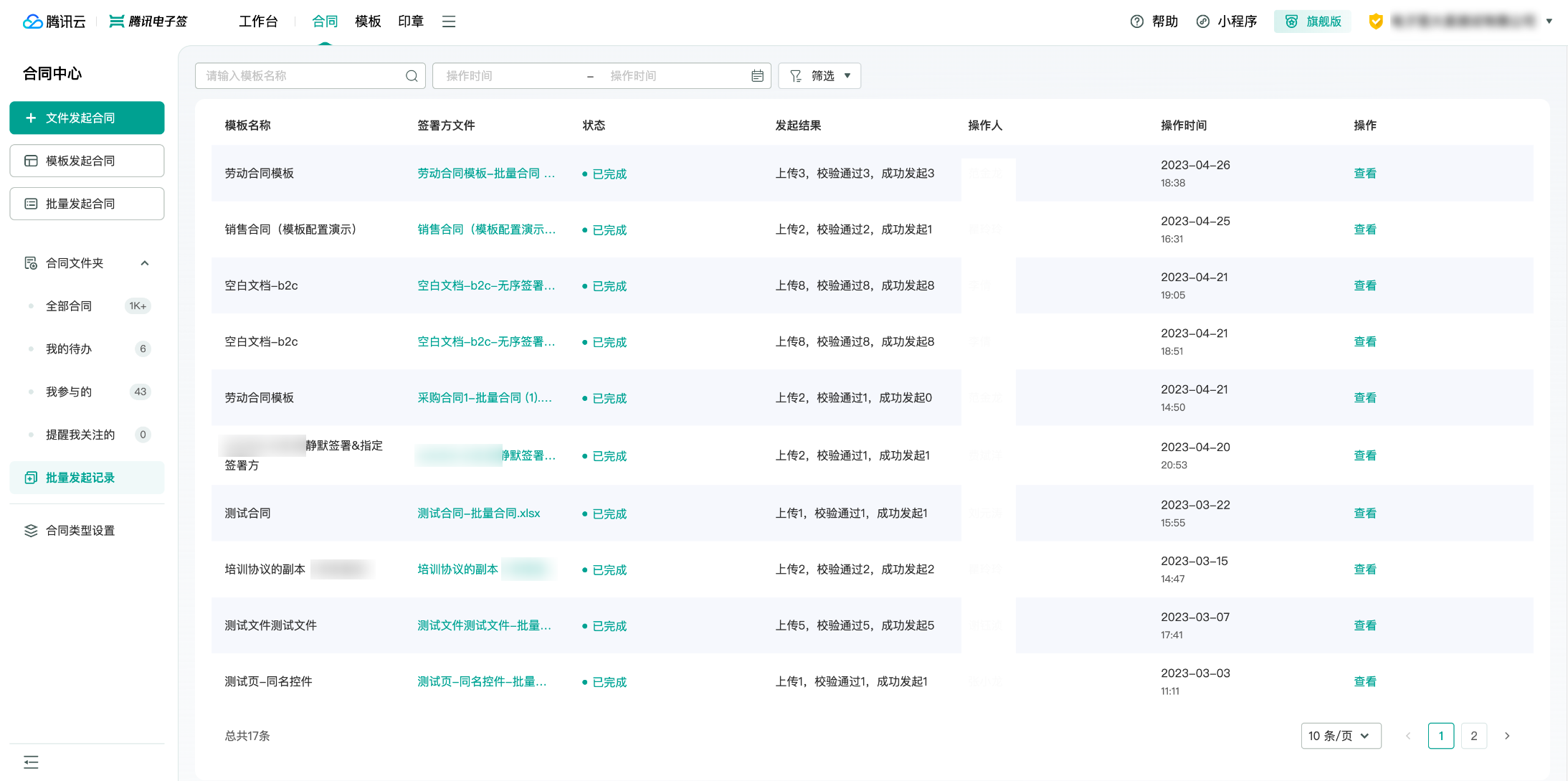
Operation Entry
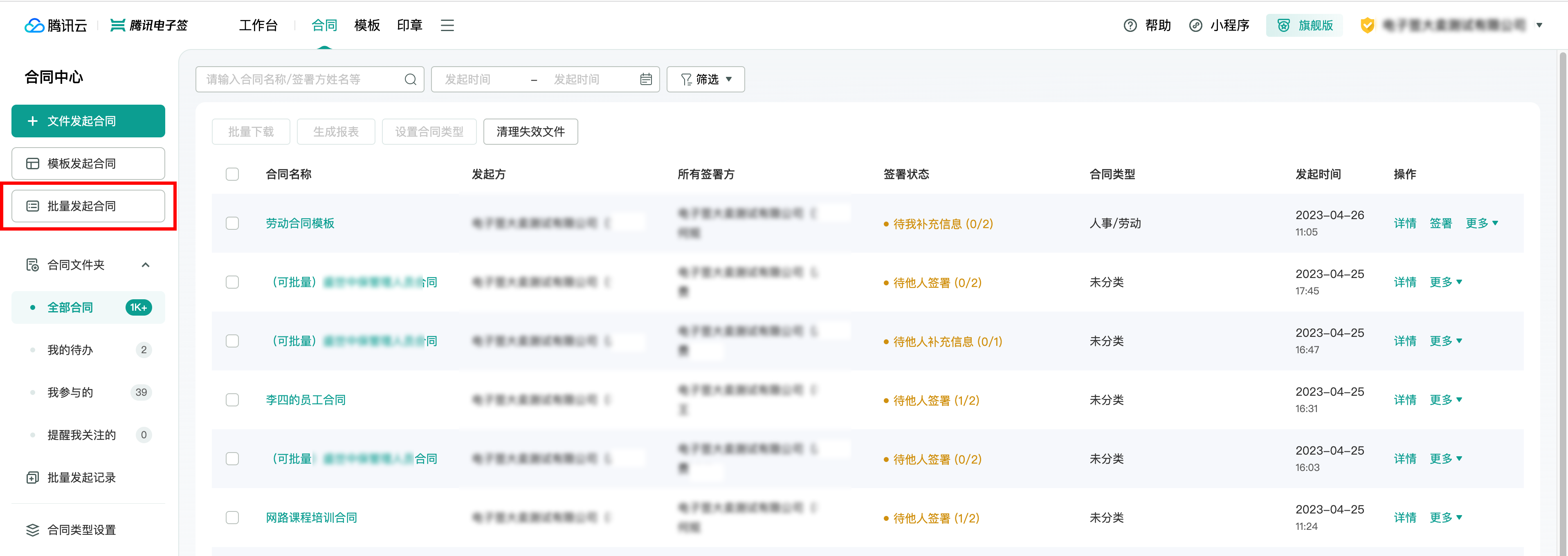
Operation step
Step 1: Choose the template for bulk initiation
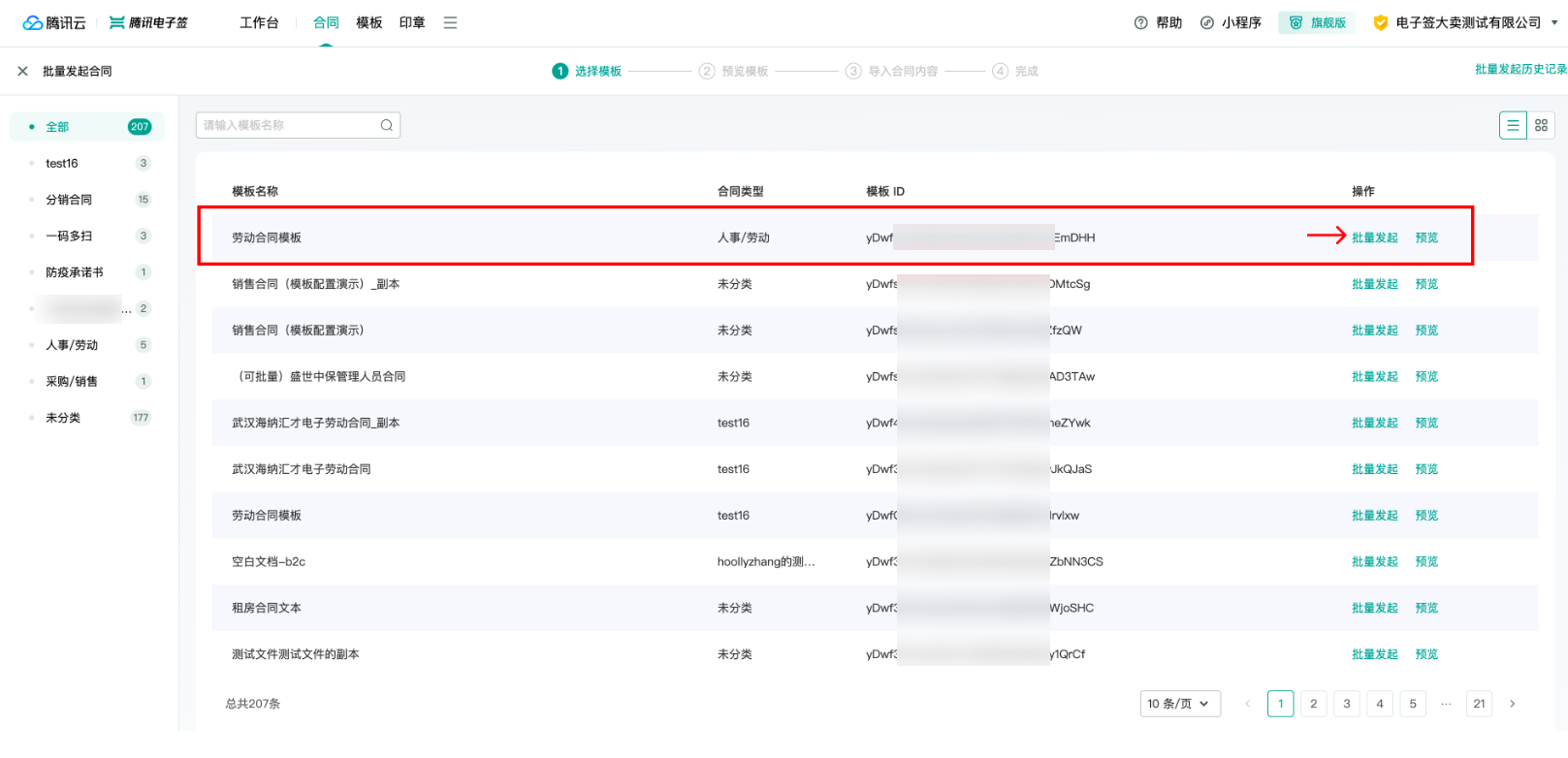
On the Bulk Initiate Contracts page, select a template and click Bulk Initiate.
Note:
The list of templates for bulk initiation will display templates that can be initiated in bulk. Whether a template can be initiated in bulk can be set individually in Template Management.
Step 2: Preview the template
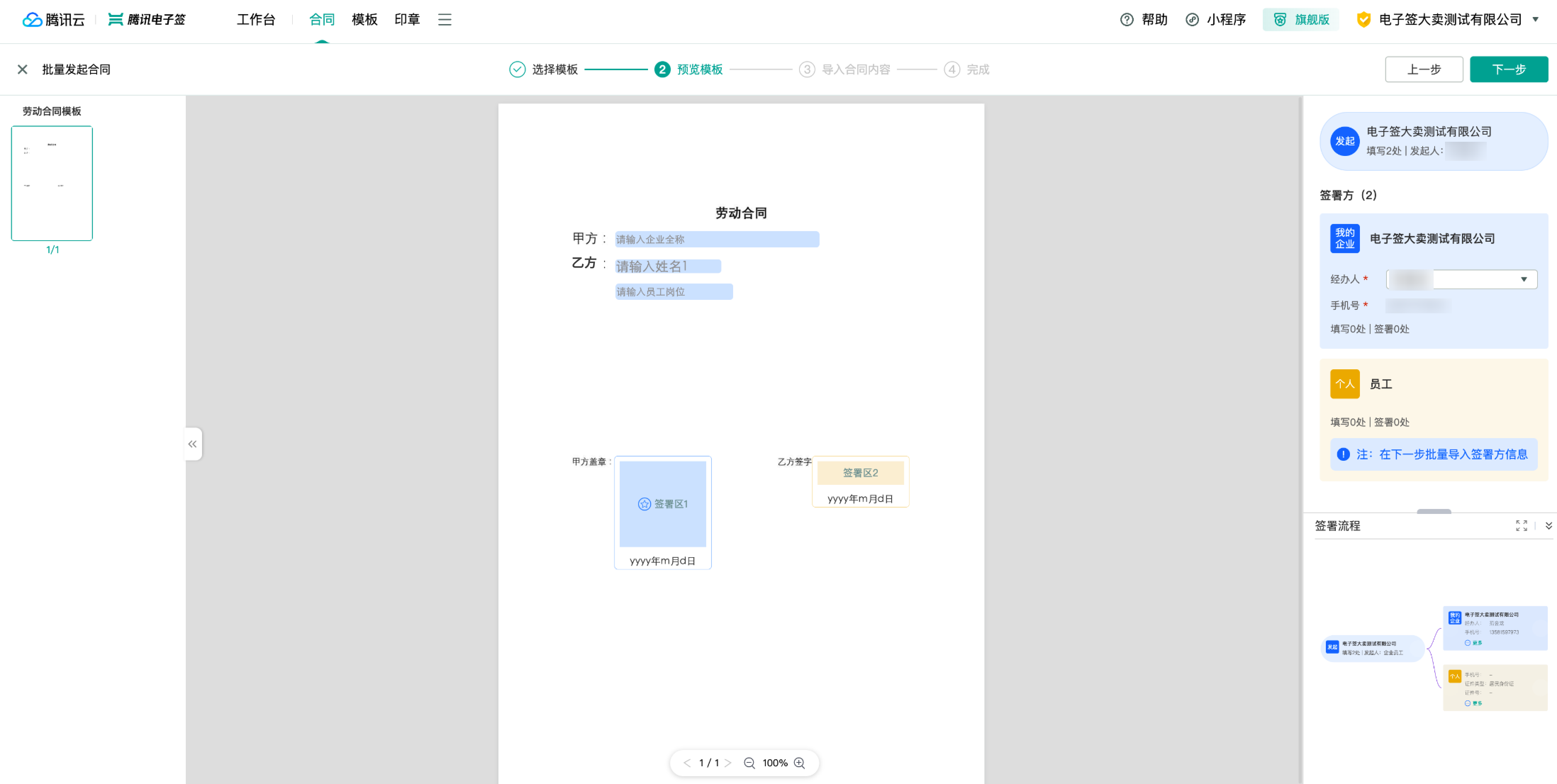
Preview the detailed content of the template and the corresponding signatory definitions. Click the Next button in the upper right corner.
Note:
If the template hasn’t set Automatic Signing for your company, clicking Next will prompt a message. To have your company automatically sign after bulk initiation, set Automatic Signing in the template editor first. Clicking Cancel will skip template editing and continue with the bulk initiation process.

Step 3: Import Signatories
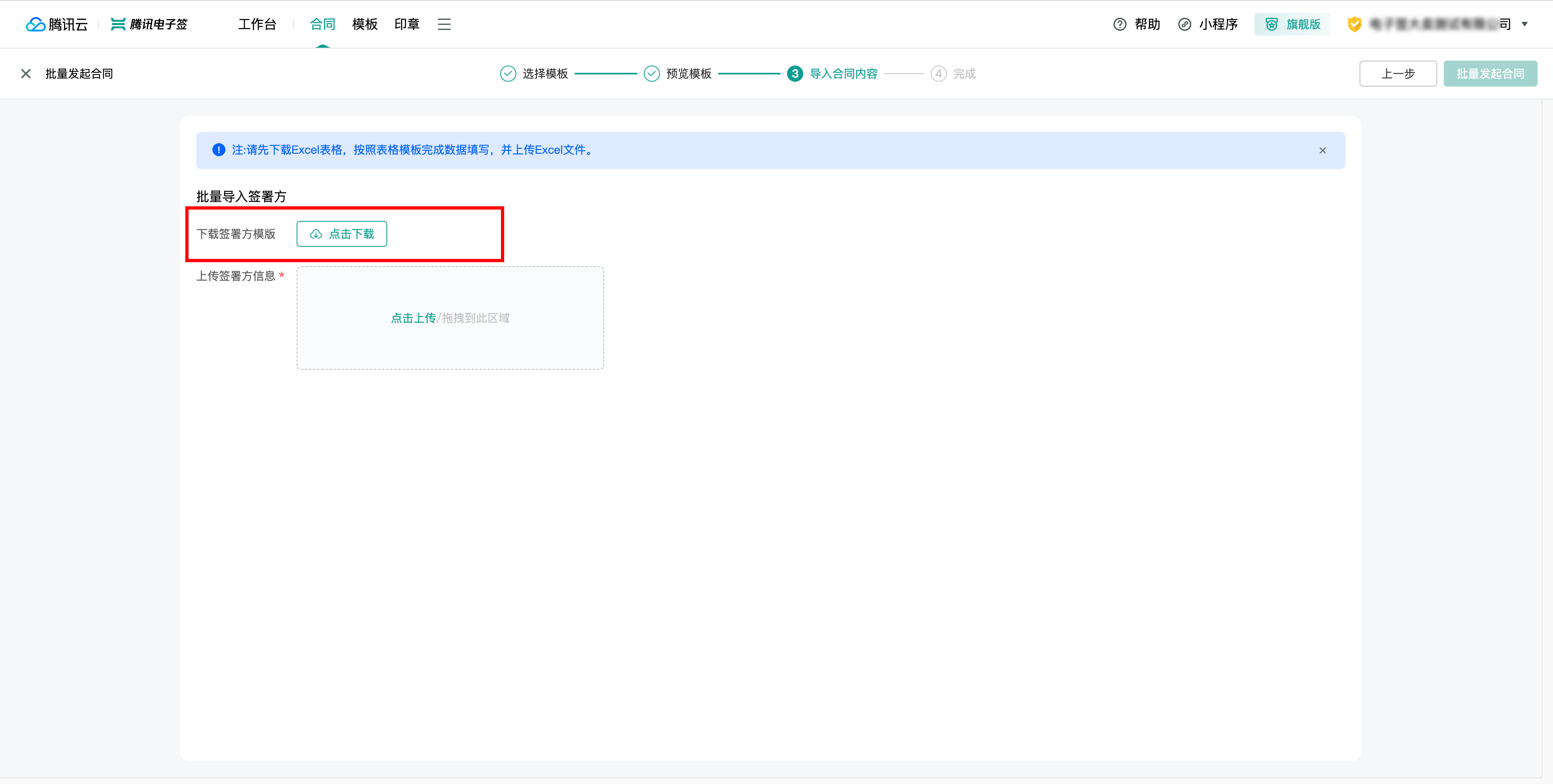
1. First, click Download Signatory Template next to Click to Download to download the Excel template.
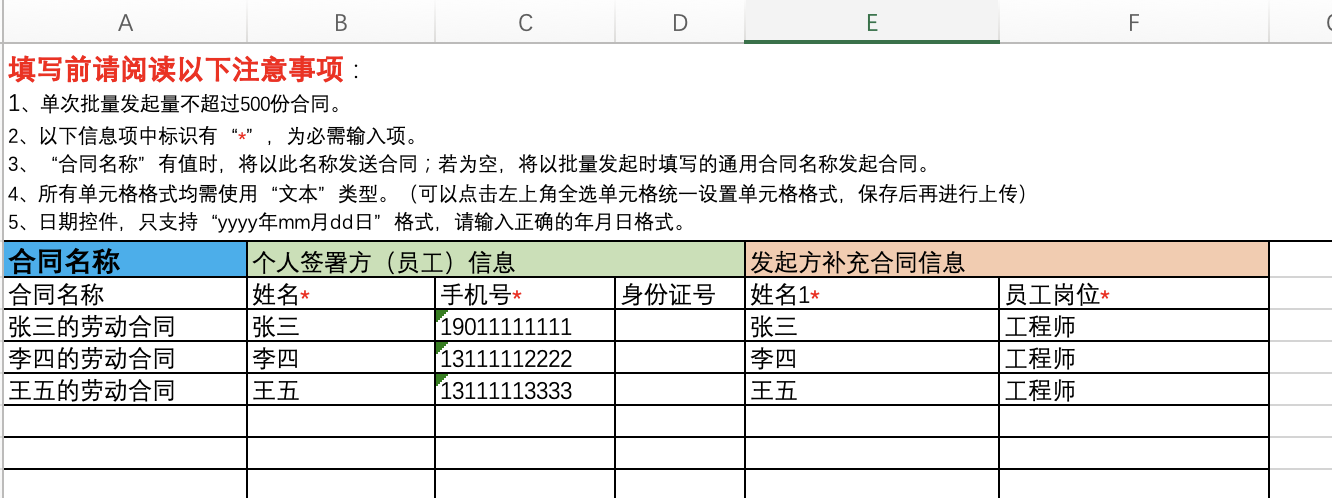
2. Fill in the local Excel template with the contract names (optional), signatory information, and contract information as shown below:
Currently, no more than 5 signatories per single contract can be initiated in bulk.
Up to 500 contracts can be initiated in bulk at a time.
3. Upload the edited Excel file. The system will automatically check the mandatory fields and format rules of the imported data.
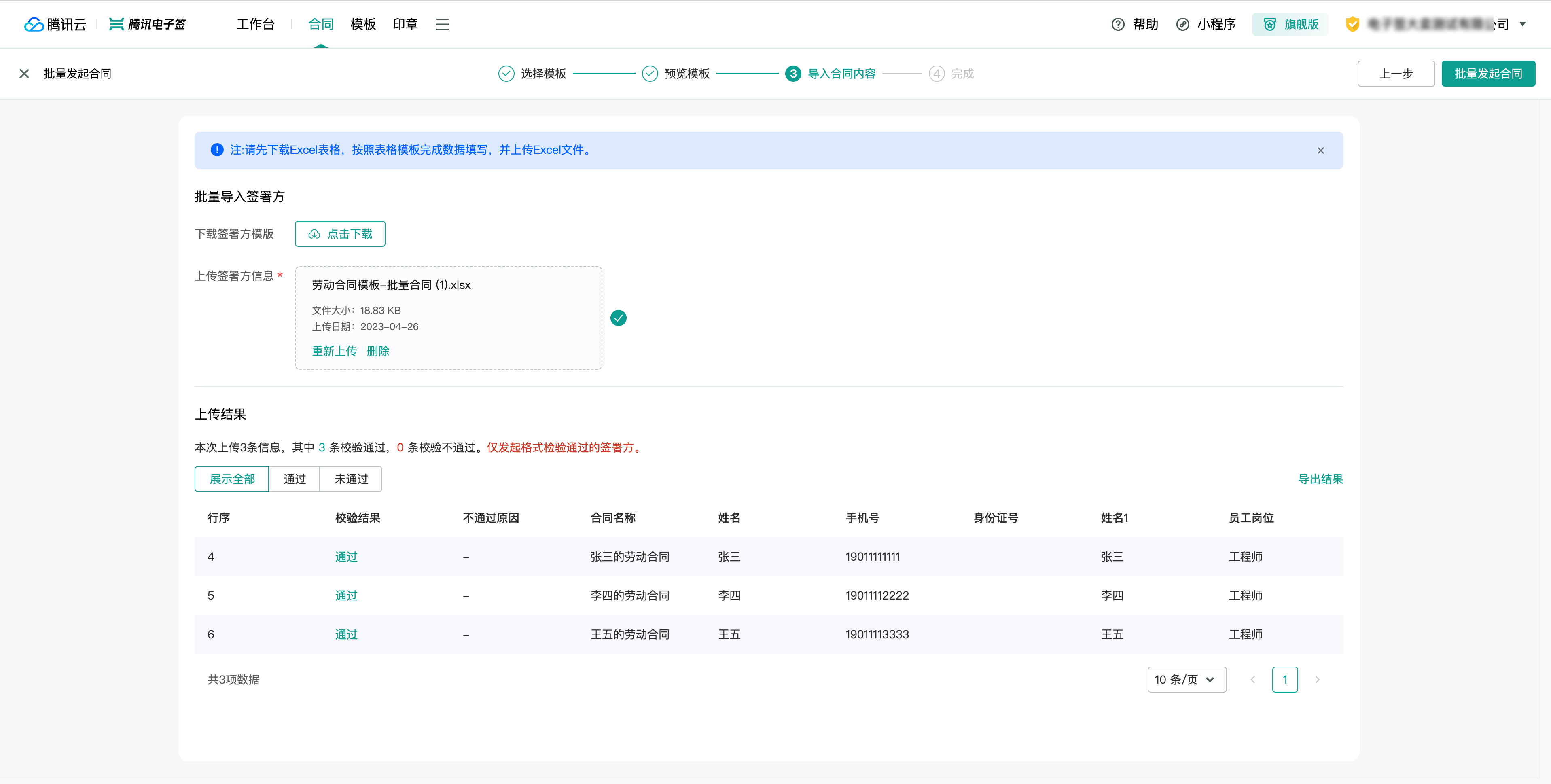
4. Click Bulk Initiate Contracts.
Step 4: Bulk Initiate Contracts
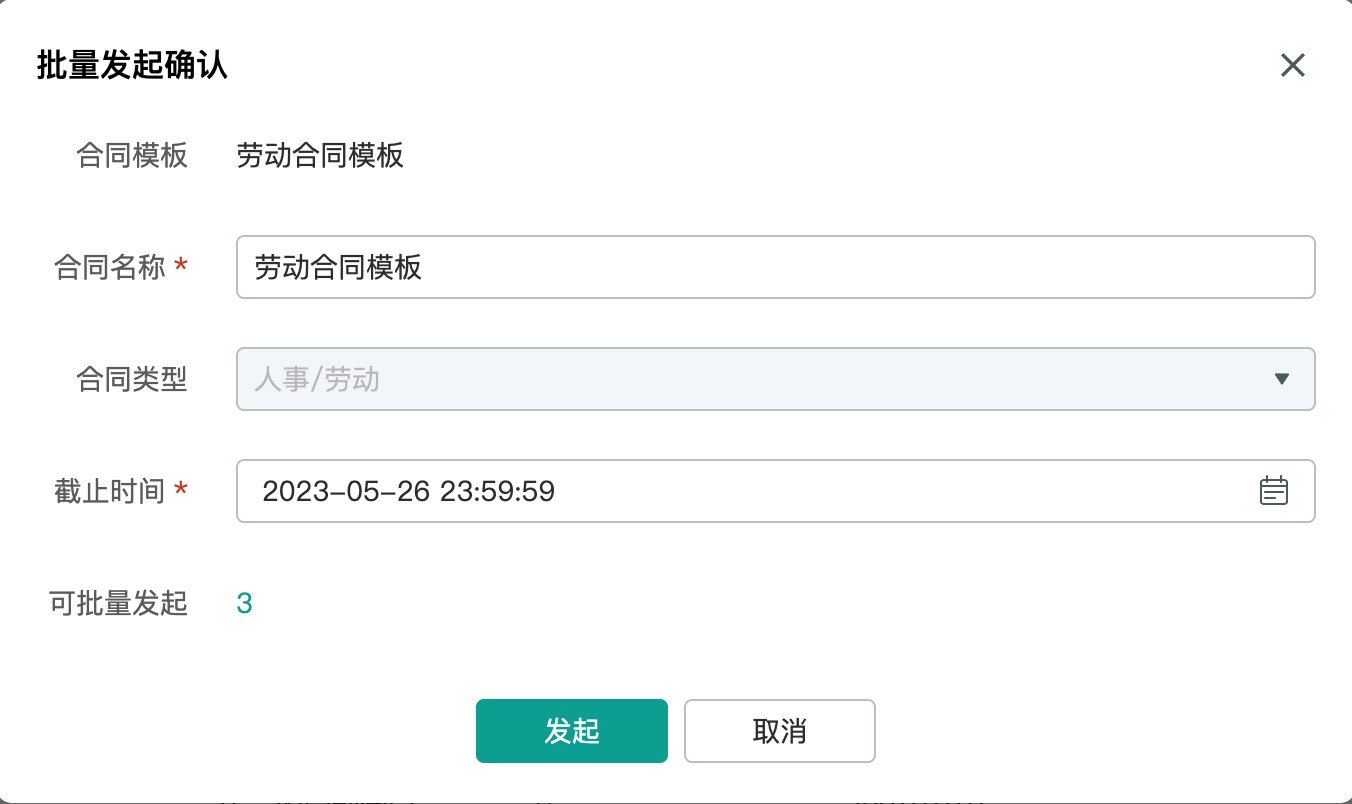
Enter the common contract name, signing deadline, contract type (default is Template Configuration Type), and click Initiate to enter the bulk initiation queue.
Note:
If the contract name is not filled in the imported Excel Sheet, it will default to the "Contract Name" filled in the confirmation pop-up during bulk initiation.
After the bulk initiation is successful,
you can view the initiation result of each contract in this batch.
You can click Batch Initiation History to view the historical bulk initiation records.
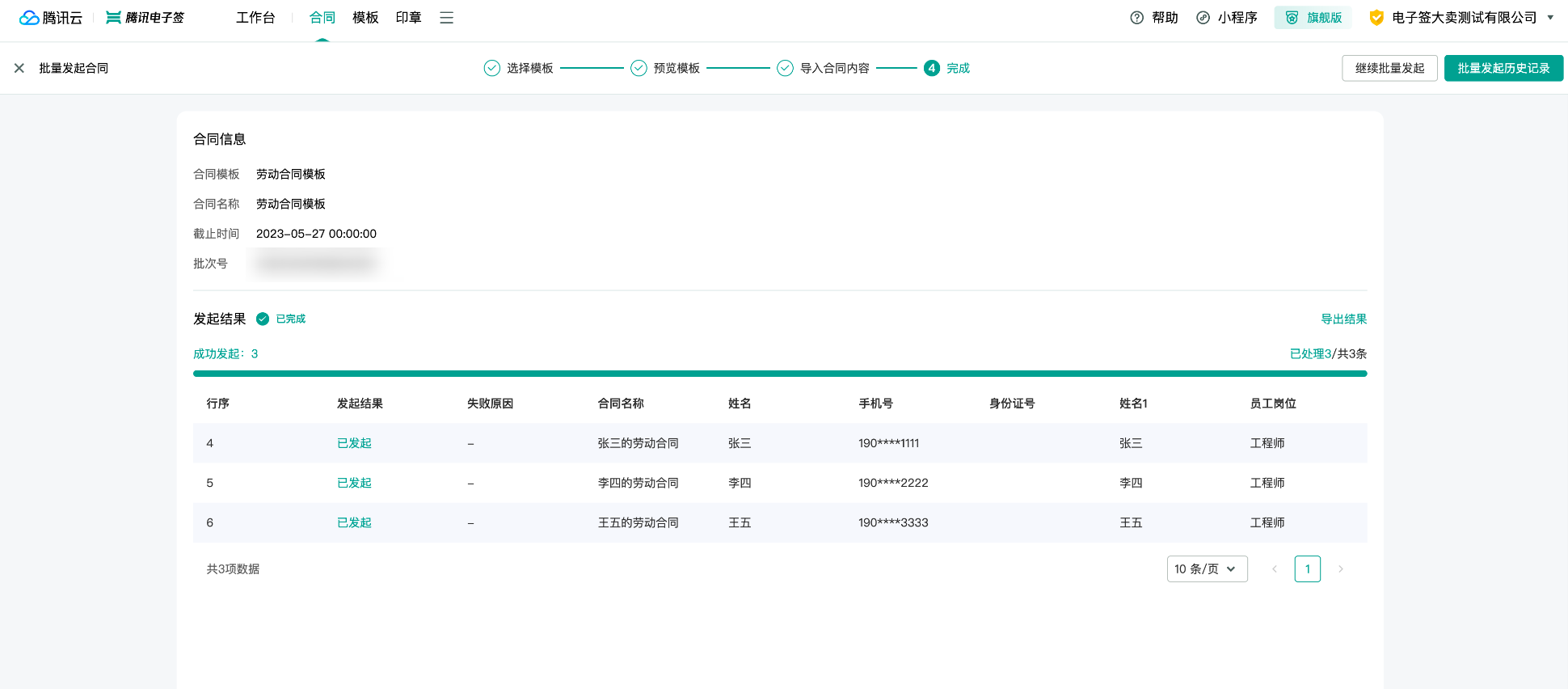
Batch Initiation History: