Scenario
After creating and authorizing a user group, you can add/remove sub-accounts to/from it to quickly change user permissions.
Upon adding a user to a user group, the user will inherit all permissions of that group.
Upon removing a user from a user group, the user will no longer possess the permissions of that group.
Preparations
You should already have a user group (if not, please Create a User Group).
You should already have a sub-account. If not, please create a new sub-account.
Instructions
Adding user to user group
1. Log in to the Cloud Access Management Console and navigate to the User Group page.
2. Locate the target user group and click Add User in the operation column.
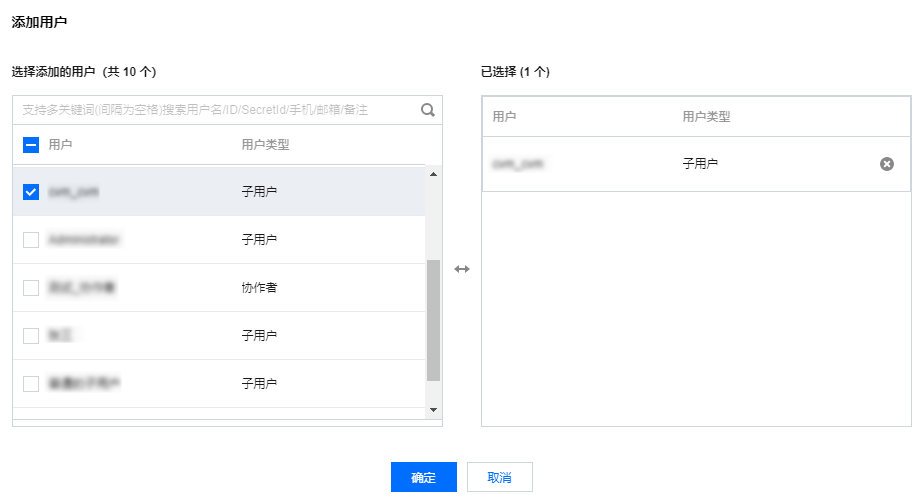
3. In the pop-up window, check the user to be added.
4. Click OK to finalize the addition of users to the user group.
Note
You may also click on the user group name and add users in the Users tab on the details page.


Removing user from user group
1. Log in to the Cloud Access Management Console and navigate to the User Group page.
2. Click the user group name to enter the user group details page.
3. On the User Group Details page, click Users to navigate to the User List page.
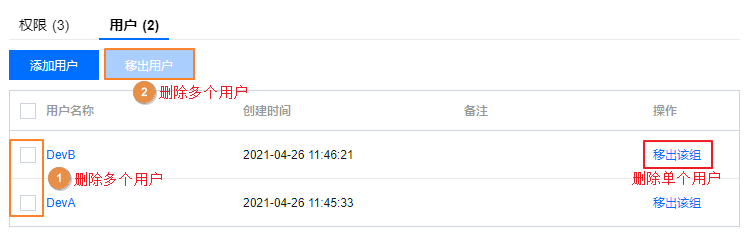
4. Locate the user to be removed and click Remove from Group in the operation column on the right.
5. Click Remove User to complete the operation of deleting a single user from the user group.
Note
You can also select users and click Remove Users above the user list to delete multiple users at once.