Besides the system parameter templates provided by TencentDB for MySQL, you can create custom parameter templates in order to configure parameters as needed.
You can apply a parameter template to configure and manage the parameters of a database engine. A template is like a container of the values of database engine parameters, which can be applied to one or more database instances.
You can log in to the TencentDB for MySQL console and click Parameter Templates on the left sidebar to create, view, and manage parameter templates which support the following features:
Use system default parameter templates, including high-performance and high-stability parameter templates.
Create custom templates by modifying a default parameter template.
Import the MySQL configuration file my.conf to generate templates.
Save parameter configurations as templates.
Import parameters from templates to apply to one or more instances.
Compare two parameter templates.
Note
If the parameters in the template are updated, the instance parameters are not updated unless they are manually re-applied to the instances.
You can apply the parameter changes to single or multiple instances by importing a template.
Default Templates
As different systems have different requirements on database performance and stability, TencentDB for MySQL provides performance- or stability-centric default templates.
High-stability parameter template
High-stability templates focus on data security and running stability. They run slower than high-performance parameter templates.
High-Performance parameter template
High-performance parameter templates focus on running performance. They run faster than high-stability parameter templates.
Note
Currently, high-performance parameter templates are only supported for TencentDB for MySQL 5.6, 5.7, and 8.0 versions on two-node and three-node architectures.
Parameters are as follows:
Note
Some parameters in the parameter template support setting parameter formulas. For the description of parameter formulas and the parameters that support parameter formulas, see Parameter Formula.
Different parameter
Default Template (Disused)
High-Performance parameter template
High-Stability parameter template
innodb_read_io_threads
12
{MAX(DBInitCpu/2,4)}
{MAX(DBInitCpu/2,4)}
innodb_write_io_threads
12
{MAX(DBInitCpu/2,4)}
{MAX(DBInitCpu/2,4)}
max_connections
10000
{MIN(DBInitMemory/4+500,100000)}
{MIN(DBInitMemory/4+500,100000)}
table_definition_cache
768
{MAX(DBInitMemory*512/1000,2048)}
{MAX(DBInitMemory*512/1000,2048)}
table_open_cache
2000
{MAX(DBInitMemory*512/1000,2048)}
{MAX(DBInitMemory*512/1000,2048)}
table_open_cache_instances
16
{MIN(DBInitMemory/1000,16)}
{MIN(DBInitMemory/1000,16)}
innodb_disable_sort_file_cache
OFF
OFF
ON
innodb_log_compressed_pages
ON
OFF
ON
innodb_print_all_deadlocks
OFF
OFF
ON
sync_binlog
0
1000
1
thread_handling
one-thread-per-connection
pool-of-threads
one-thread-per-connection
innodb_flush_redo_using_fdatasync
FALSE
TRUE
FALSE
innodb_fast_ahi_cleanup_for_drop_table
FALSE
TRUE
FALSE
innodb_adaptive_hash_index
FALSE
TRUE
FALSE
innodb_table_drop_mode
SYNC_DROP
ASYNC_DROP
SYNC_DROP
innodb_flush_log_at_trx_commit
2
2
1
Core parameters:
Category
Code
Note
innodb_flush_log_at_trx_commit
1
When a transaction is committed, the transaction log is written from the cache to the log file and immediately written to the disk.
2
When a transaction is committed, the transaction log is written from the cache to the log file, but not necessarily written to the disk immediately. The log file will be written to the disk every second. If the system crashes before writing, the log in the last second will be lost.
innodb_flush_redo_using_fdatasync
true
Use fdatasync to flush the redo log file. Compared with fsync, fdatasync doesn't flush metadata, which slightly improves performance.
false
Use fsync to flush the redo log file. Compared with fdatasync, fsync will cause a slight decrease in performance.
sync_binlog
1
After the transaction is committed, the binary log file is written to the disk and flushed immediately, which is equivalent to writing to the disk synchronously without going through the system cache.
1000
Every time the system cache is written 1000 times, the operation of writing to the disk and flushing is performed, and there is a risk of data loss.
thread_handling
one-thread-per-connection
Each connection is handled by a background thread. When there are a large number of sessions, it will cause a lot of resource contention, and a lot of thread scheduling and cache invalidation will also lead to performance degradation.
pool-of-threads
Unlike the previous one where each connection is handled by a background thread, all connections are jointly processed by a thread pool, which provides better performance in high-concurrency scenarios.
innodb_flush_redo_using_fdatasync
FALSE
Redo log files are flushed to disk by using the fsync system call.
TRUE
Redo log files are flushed to disk by using the fdatasync system call. In some redo storage scenarios, you can avoid always flushing file metadata to the storage device to reduce overhead.
innodb_table_drop_mode
SYNC_DROP
InnoDB will finish dropping the table before DROP TABLE ends.
ASYNC_DROP
InnoDB will rename the ibd file to innodb_async_drop_tmp_dir and put it in the background for async drop.
table_definition_cache
400 - 524288
The number of table definitions that can be stored in the definition cache. If you work with a large number of tables, you can create a large table definition cache to speed up table opening. Unlike the normal table cache, the table definition cache takes up less space and uses no file descriptors.
table_open_cache
1 - 524288
The number of opened tables for all threads. Increasing this value will raise the number of file descriptors that mysqld requires.
Creating a Parameter Template
To use your own database parameter template, you can create a parameter template, modify the parameter values, and apply the template to instances.
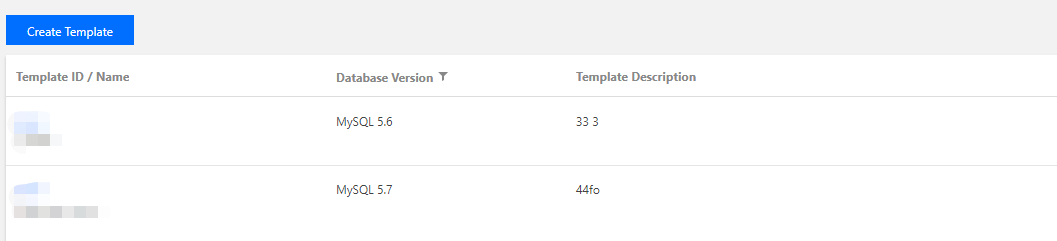
1. Log in to the TencentDB for MySQL console, select Parameter Templates on the left sidebar, and click Create Template.
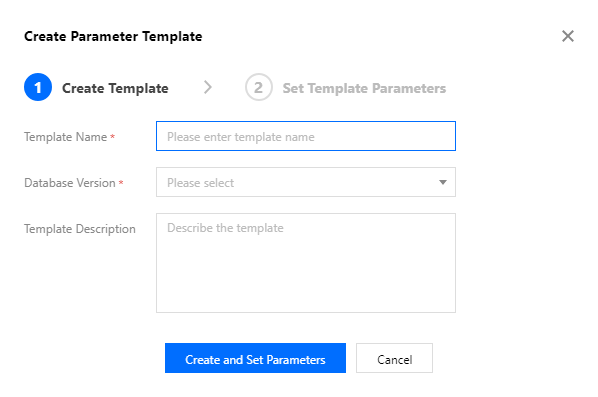
2. In the pop-up window, configure the following parameters and click Create and Set Parameters.
Template Name: Enter a unique name for the parameter template.
Database Version: Select a database version.
Referenced Template: Select a type of default template that will be referenced as the creation template.
Template Description: Enter a brief description of the parameter template.
3. After the creation is completed, you can modify, import, and export parameters on the template details page.
2. In the parameter template list, locate the desired template and click Apply to Instance.
3. On the displayed page, specify the execution mode and instances, make sure that all parameter values are correct, and click Submit.
Execution Mode: Immediate execution is selected by default. If you select During maintenance window, the parameter modification task will be executed and take effect during the instance maintenance period.
MySQL Instance: Select one or more instances that need to apply the parameter template in the specified region.
Parameter Comparison: View the changed parameter values of the selected instance.
Note
Before applying a parameter template to multiple instances, please make sure that the instances do support those parameters.
Copying a Parameter Template
To include most of the custom parameters and values of an existing parameter template in a new template, you can copy the existing template.
Method 1. Copying an existing parameter template
1. Log in to the TencentDB for MySQL console. On the left sidebar, click Parameter Templates, then click a template ID or View Details in the Operation column to enter the template details page.
2. Click Save as Template on the template details page.
3. In the pop-up dialog box, specify the following configurations:
Template Name: Enter a unique name for the parameter template.
Template Description: Enter a brief description of the parameter template.
4. After confirming that everything is correct, click Save to save the current parameter template as a new one, completing the duplication process.
Method 2. Saving parameters of an instance as a parameter template
1. Log in to the TencentDB for MySQL console. In the left sidebar, click Instance List and then click an instance ID to enter the management page.
2. Select Database Management > Parameter Settings and click Save as Template.
3. In the pop-up dialog box, specify the following configurations:
Template Name: Enter a unique name for the parameter template.
Template Description: Enter a brief description of the parameter template.
4. After confirming that everything is correct, click Create and Save.
Modifying Parameter Values in a Parameter Template
1. Log in to the TencentDB for MySQL console, select Parameter Templates on the left sidebar, and click Template ID to enter the template details page.
2. On the template details page, click Batch Modify Parameters. Or in the Current Value column, click
to modify parameter values.
Note
Select Import Parameters. When choosing a parameter configuration file in the local file import page, ensure that the file format is consistent with the MySQL database server's configuration file format or use the exported parameter file template; otherwise, the import will fail.
Importing a parameter template
1. Log in to the TencentDB for MySQL console, select Parameter Templates on the left sidebar, and click Template ID to enter the template details page.
2. On the template details page, click Import Parameters.
Note
Select Import Parameters. When choosing a parameter configuration file in the local file import page, ensure that the file format is consistent with the MySQL database server's configuration file format or use the exported parameter file template; otherwise, the import will fail.
3. In the pop-up window, select the file and click Import and Overwrite Original Parameters.
2. In the parameter template list, locate the desired template and click Export in the Action column.
Method 2
1. Log in to the TencentDB for MySQL console, select Parameter Templates on the left sidebar, and click Template ID to enter the template details page.
2. On the template details page, click Export Parameters at the top.
Deletes a parameter template.
If a parameter template is created redundantly or no longer needed, it can be easily deleted.