TencentDB for SQL Server supports changing the instance network based on business needs. This document describes how to change the network through the SQL Server console.
Note:
TencentDB for SQL Server supports changing only the internal network address of an instance without changing the network. For more details, see Change Internal Network Address Only.
TencentDB for SQL Server supports manually releasing old addresses when the reclaim time for the old address is not set to 0 during the internal network address change. For more details, see Manually Release Reserved Address.
Network type:
There are two types of TencentDB network environments: VPC and classic network.
Classic network: It is the public network resource pool for all Tencent Cloud users. All your Tencent Cloud resources will be centrally managed by Tencent Cloud.
VPC: it is a logically isolated network space that can be customized in Tencent Cloud. Even in the same region, different VPCs cannot communicate with each other by default. Similar to the traditional network in an IDC, a VPC is where your Tencent Cloud service resources are managed.
Operation scenarios
Tencent Cloud supports VPC to offer a diversity of smooth services. On this basis, we provide the VPC change feature to help you manage network connectivity with ease.
Scenario 1: VPC to VPC: Changing the network of an instance will change the internal network address. The application system must reconnect using the new internal address.
Scenario 2: Network Unchanged, Change Internal Network Address Only: The network of the instance remains unchanged. Only the internal network address changes. The application system must reconnect using the new internal address.
Scenario 3: Manually Release Reserved Address: When the reclaim time for the old address is not set to 0 during the internal network address change, you can quickly release the old address and activate the new internal network address by manually releasing the reserved address.
MFA Integration for Sensitive Operations
To enhance the security of your cloud account, TencentDB for SQL Server supports MFA (Multi-Factor Authentication), which adds an extra layer of protection beyond the username and password. Once MFA device verification is enabled, operations such as destroying instances, modifying networks, changing IP addresses, resetting passwords, deleting accounts, restarting instances, and switching primary/standby instances will require secondary authentication based on MFA dynamic codes. After verification, you can proceed with the operations. For more information about MFA and to enable operation protection, see MFA Device.
Supported Instance Type
VPC to VPC: master instance (including SSIS instance), read-only instance, replica node (replica node read-only address).
Network Unchanged, Change Internal Network Address Only: master instance (including SSIS instance), read-only instance.
Manually Release Reserved Address: master instance (including SSIS instance), read-only instance.
Notes
Modifying the internal network IP will affect the database business being accessed.
Changing the network will change the instance IP. By default, the old access IP will become invalid after 24 hours (customizable). Make sure to update the client program promptly.
If the reclaim time for the old IP is set to 0, the old IP will be immediately reclaimed after changing the network.
Subnet description
A subnet is a logical network space in a VPC. You can create subnets in different AZs in the same VPC, which communicate with each other over the private network by default. Even if you select a subnet in another AZ in the same region, the network latency will not be increased because the actual business connection adopts nearby access.
Scenario 1: VPC to VPC
1. Log in to SQL Server Console, select the region, click the Instance ID/Name to be switched, or click Management in the operation column.

2. In the Instance Details page on the right side, within the Instance Info section, click on the primary node or under the current read-only instance, select Change Network.

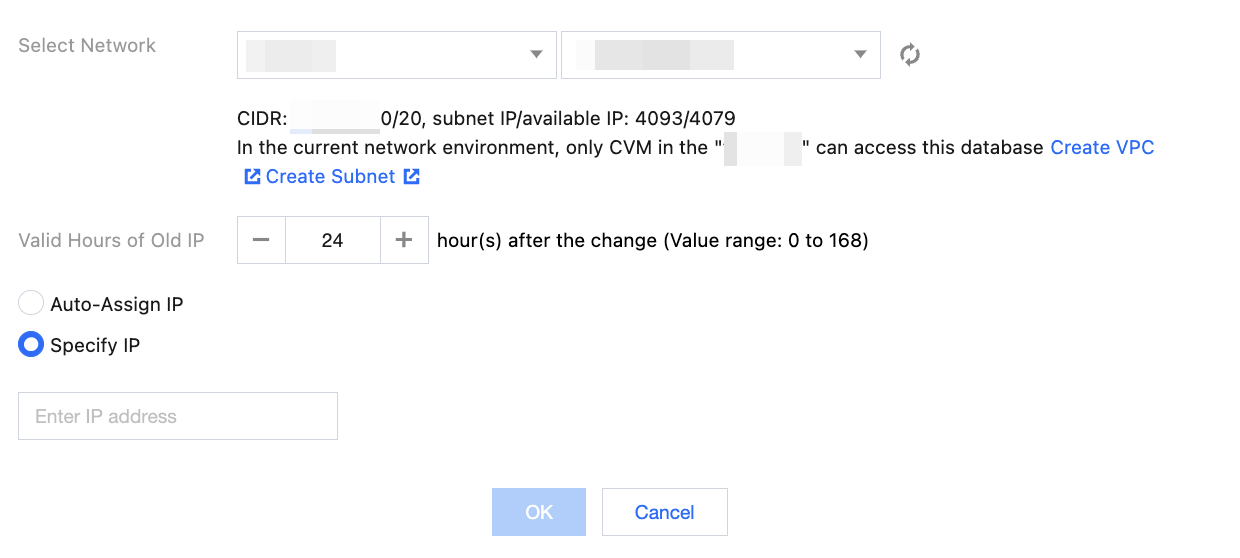
3. In the pop-up dialog box, select the VPC, set the valid hours of the old IP, choose to auto-assign or specify a new IP, and then click OK.
Select Network: After a VPC is selected, only servers in it can access the database.
Valid Hours of Old IP: You can select 0–168 hours. If it is set to 0, the old IP will be repossessed immediately.
Auto-Assign IP: The system automatically assigns the new IP address.
Specify IP: You can customize the subnet IP address.
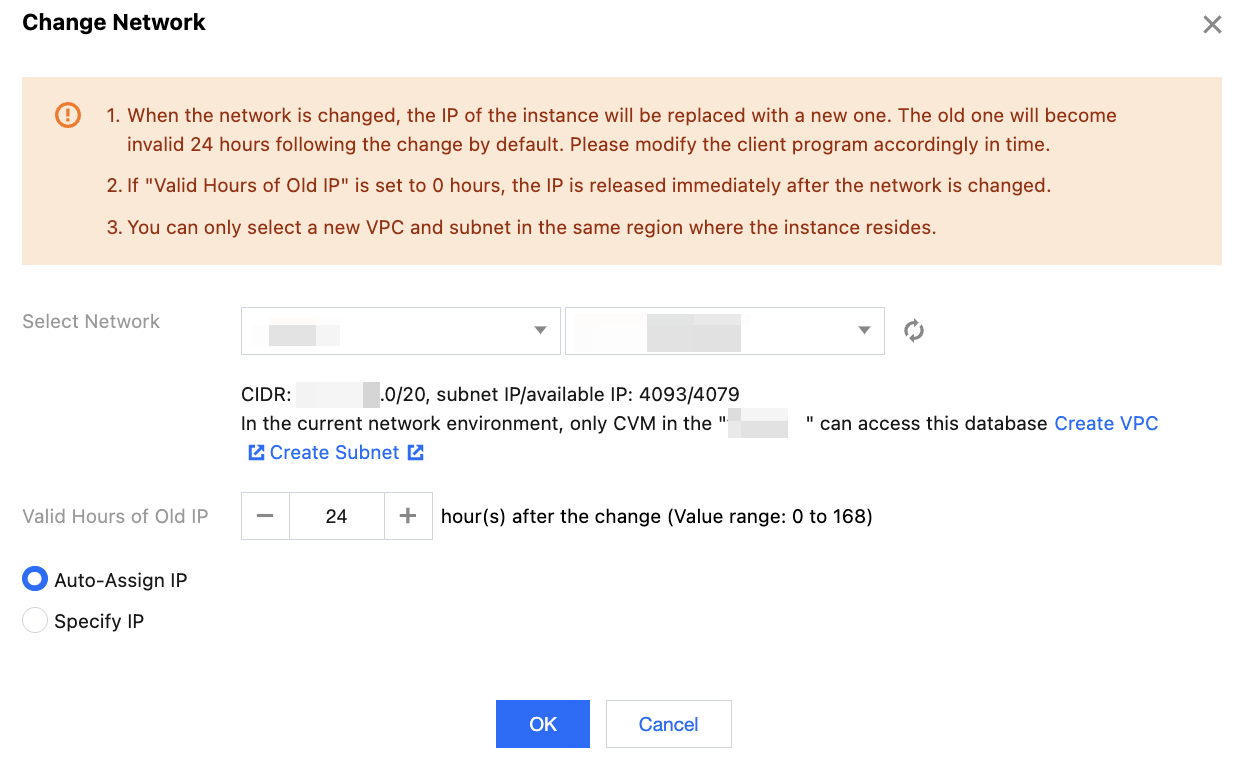
4. The VPC is changed successfully when the instance status becomes Running.
Note:
The standby node read-only feature must be activated to modify the standby node read-only address. For activation steps, please refer to Standby Node Read-only.
Changing the network will change the standby node read-only IP. The old IP address will be immediately reclaimed after changing the network.
You can only select a VPC network and subnet in the same region as the instance when changing the network.
1. Log in to SQL Server Console, select the region, click the Instance ID/Name to be switched, or click Management in the operation column.

2. In the Instance Details page on the right side, within the Instance Info section, click on the standby node, then select Change Network.
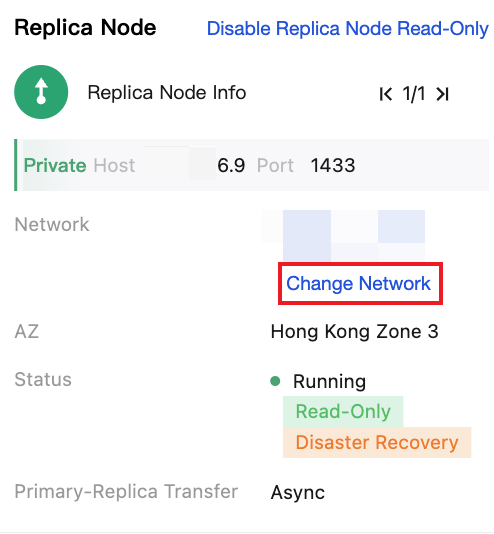
3. In the Change Network pop-up, modify the network and read-only address, then click OK.
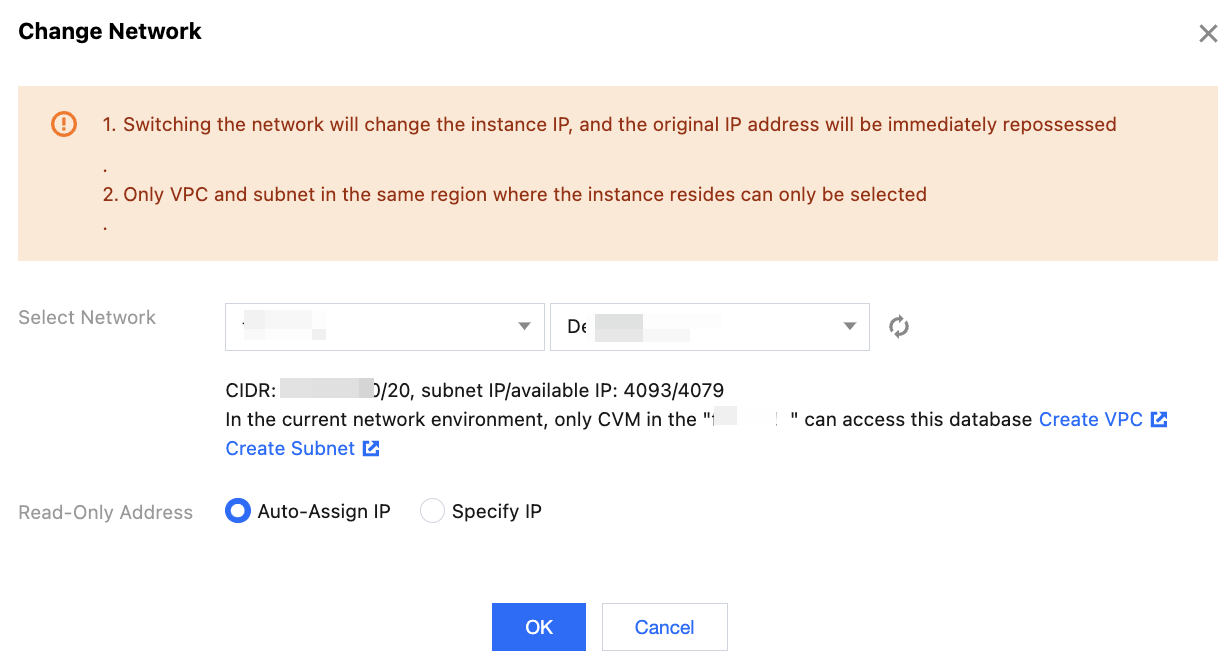
Select Network: After a VPC is selected, only servers in it can access the database.
Auto-Assign IP: The system automatically assigns the new IP address.
Specify IP: You can customize the subnet IP address.
Scenario 2 steps: Network unchanged, change internal network address only
1. Log in to SQL Server Console, select the region, click the Instance ID/Name to be switched, or click Management in the operation column.

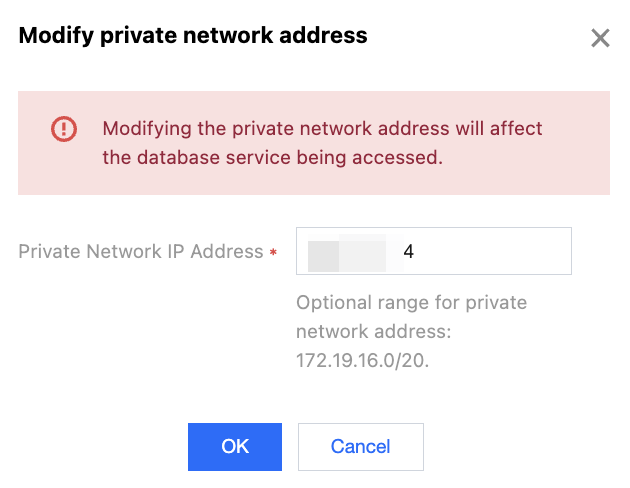
2. On the Instance Details page, on the right side, within Instance Info,, click the edit icon next to the internal network address under the primary node or current read-only instance.
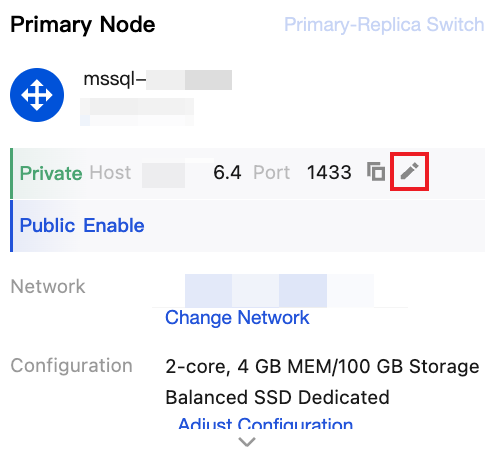
3. In the pop-up, modify the internal network address, then click OK.
Note:
You can also, in the Instance Details page on the right side, within the Instance Info section, click on the primary node or under the current read-only instance, select Change Network, then in the Change Network popup, without changing the network, just set the recycling time and specify the IP to change the internal network address.
Scenario 3 steps: Manually release the reserved address
When changing the network, if the reclaim time for the old IP address is set to non-zero hours, the old IP address will be reclaimed after the set time. You can also manually release the reserved address to release the old IP address earlier.
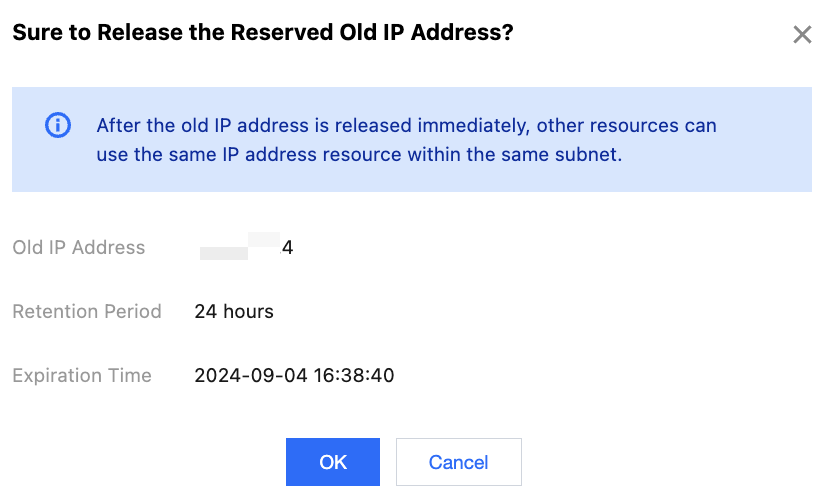
1. After the Instance Details page, on the right side, within Instance Info, Reserved Address, click Release.
2. In the pop-up, click OK. The old IP address will be immediately released, and other resources can use this IP address in the same subnet.
Related APIs
API | Description |
The API (ModifyDBInstanceNetwork) is used to modify the network of a running instance, supporting only VPC to VPC conversions. |