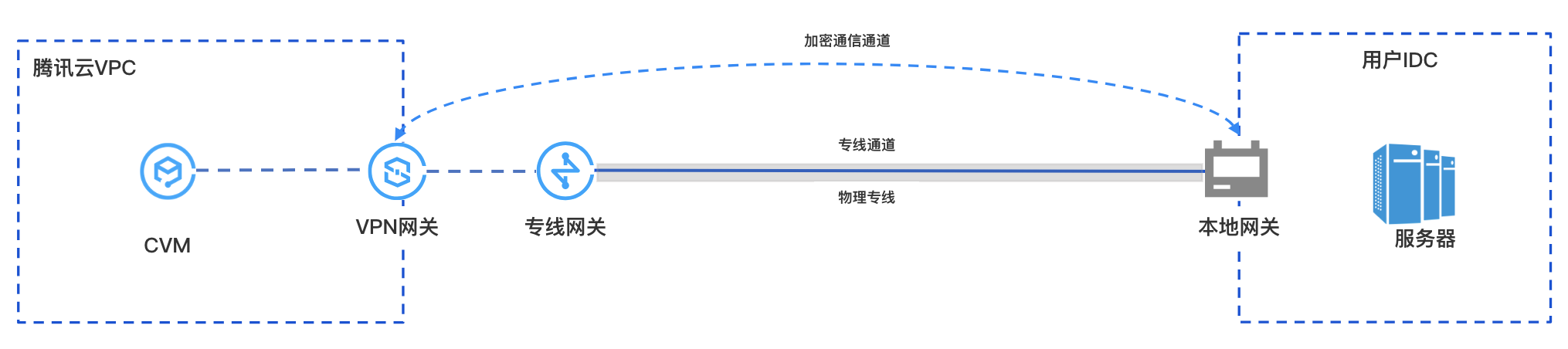
After establishing private network communication between the local data center (IDC) and the VPC on the cloud through a physical dedicated line, the Private Network VPN Gateway can establish an encrypted communication channel with the local gateway device through the existing private network connection. You can configure relevant routes to guide the traffic between the local IDC and the VPC that needs to be interconnected into the encrypted communication channel, achieving encrypted communication of private network traffic.
Business Scenario

Use Limits
Currently, the Private Network VPN only supports VPC-type VPNs, and CCN-type VPNs are not supported yet.
Private Network VPN currently does not support dynamic BGP routing.
Only supported in VPN v4.0.
Network Planning
Configuration Object | IP Range Planning | IP addresses and Notes |
VPC | 10.7.0.0/16 | CVM:10.7.6.10 Private Network VPN Gateway IP: 10.7.6.15 Note: Private Network VPN Gateway IP belongs to the tenant VPC. |
Direct Connect Gateway | 195.168.0.0/29 | VLAN ID:1234 Tencent Cloud Primary IP1: 195.168.0.3/29 Tencent Cloud Primary IP2: 195.168.0.2/29 Customer Edge IP: 195.168.0.1/29. |
Local Gateway | 195.168.0.0/24 | Local Gateway IP for connection with Cloud-based VPN Connections: 195.168.0.6 IP Range connected with Direct Connect Gateway: 195.168.0.1/29 |
Local IDC Server | 133.168.0.0/16 | Client address: 133.168.0.3/32 |
Prerequisites
You have created a VPC.
Physical dedicated line has been constructed and connected.
You have applied for Private Network VPN permissions. If you need to use it, please submit a work order.
IDC-side equipment is ready.
Configuration Process

Step 1: Deploy Dedicated Line Service
1. Log in to the DC Console, and click on Dedicated Line Gateways in the left navigation bar.
2. At the top of the Direct Connect Gateway page, choose the region and VPC, then click New.
3. In the Create a Dedicated Line Gateway dialog box, configure the gateway details and click Confirm upon completion.
Field | Meaning |
Name | Enter a name for the direct connect gateway. |
Availability Zone | Select the AZ supported by the region. |
Associated Network | Select VPC. |
Network Location | Associate with the created VPC instance, vpc-xxx. |
1. Log in to DC - Dedicated Tunnel console.
2. In the left navigation bar, click Dedicated Tunnel > Exclusive Private Channel. At the top of the page, click New and configure the name, dedicated line type, access network, region, associated Direct Connect Gateway, and other basic configurations. Once completed, click Next.
Field | Meaning |
Dedicated tunnel name | Dedicated tunnel name. |
Direct Connection Type | Select "My Dedicated Line" |
Connection | Select the ready physical dedicated line. |
Access network | Select VPC. |
Gateway Region | Select the region where the target VPC instance is located, such as Guangzhou. |
Direct Connect Gateway |
3. On the Advanced Configuration page, configure the following parameters.
Field | Meaning |
VLAN ID | Configure the planned VLAN, e.g., 1234. One VLAN corresponds to one channel, with a range of values [0,3000). |
Bandwidth | The maximum bandwidth of the exclusive channel cannot exceed the bandwidth of the associated physical dedicated line. Under the postpaid model after the 95th percentile for the month, the "bandwidth" parameter does not represent the billing bandwidth. |
Tencent Cloud Boundary IP1 | Configure the planned Edge Interconnect IP on the Tencent Cloud side of the physical dedicated line, e.g., 195.168.0.3/29Do not use the following IP ranges or addresses: 169.254.0.0/16, 127.0.0.0/8, 255.255.255.255/32, 224.0.0.0/8 - 239.255.255.255/32, 240.0.0.0/8 - 255.255.255.254/32. |
Tencent Cloud Boundary IP2 | Configure the planned Standby Border Interconnect IP, e.g., 195.168.0.2/29.In the event of a failure of the primary border IP, the standby IP is automatically activated to ensure the normal operation of your service. If Tencent Cloud Edge IP has a mask of 30 or 31, standby IP configuration is not supported. |
User Boundary IP | Configure the cloud IP on the IDC side used to interconnect with the dedicated line, e.g., 195.168.0.1/29. |
Routing mode | Select BGP Routing. |
Health examination | |
Check Mode | Select BFD Mode. |
Health Check Interval | Interval between two health checks. |
Number of health checks | Route switching occurs after the specified number of consecutive health check failures. |
BGP ASN | Enter the BGP neighbor ASN on the CPE side. Note that the Tencent Cloud ASN is 45090. If this field is left empty, a random ASN will be assigned. |
BGP keys | Enter the MD5 value of the BGP neighbor. The default is "tencent", leave empty to indicate no BGP key is required. The BGP key does not support 6 special characters including ? & space" \ +. |
4. Click Submit.
Step 2: Deploy VPN Service
1. Log in to the VPC console.
2. Click VPN Connections > VPN Gateway in the left directory to enter the admin page.
3. On the VPN Gateway management page, click New.
4. In the pop-up Create VPN Gateway dialog box, configure the following gateway parameters.
Parameter name | Parameter Description |
Billing Mode | Select bill-by-traffic. Private Network VPN does not support annual and monthly subscriptions. |
Gateway Name | Enter the VPN gateway name (up to 60 characters). |
Region | Display the region of the VPN gateway. |
Protocol Type | Select IPSEC. |
Network Type | Select "Private Network". |
Associated Network | Here, select VPC. Private Network VPN does not support CCN. |
On-cloud subnet | Select the subnet created on the VPC side. The Private Network VPN Gateway IP address belongs to the tenant VPC and is allocated from this subnet. |
Bandwidth Cap | Select 5M. |
Network | Specify the VPC to be associated with the VPN gateway only when the associated network is VPC. |
Tag | Tags mark VPN gateway resources so that these resources can be queried and managed efficiently. Tag is not a required configuration. You can decide whether to configure it according to your demand. |
5. After completing the gateway parameter settings, click Create to start creating the VPN gateway.
1. In the left sidebar, choose VPN Connections > Customer Gateway.
2. On the Customer Gateway management page, select the region and click New.
3. Enter the name of the customer gateway. For Private Network IP, enter the private network IP of the local gateway device at the IDC side (195.168.0.6).
4. Click Create.
1. In the left sidebar, choose VPN Connections > VPN Tunnel.
2. On the VPN Tunnel management page, select the region and click New.
3. Fill in the VPN tunnel information on the pop-up page.
This section only introduces key parameter configurations. For other configurations, please refer to Create VPN Tunnel.
Parameter name | Parameter Description |
Name of the channel | Enter the channel name. |
Network Type | Select VPC. |
Virtual Private Cloud | Select the created VPC instance. |
VPN Gateway | |
Customer Gateway | |
Pre-shared Key | Set it to 123456. |
Negotiation Type | Select "Traffic Negotiation". |
Communication Mode | Select "Destination Routing". |
Advanced Configuration | Select the current default value. |
4. Click Create.
After completing the first three steps, the configuration of the VPN gateway and VPN tunnel on Tencent Cloud is completed. Continue to configure the VPN tunnel information on the IDC side with the local gateway. For details, refer to Local Gateway Configuration. The "local gateway" on the IDC side is the IPsec VPN device, and its private IP address is recorded in the customer gateway created in Step 2.
Step 3: Configure the Cloud Routing
After completing the above configuration, an encrypted communication channel can be established between the local gateway device and the VPN gateway. You also need to configure routing for the cloud network instance to direct traffic from both the cloud and on-premises into the VPN encrypted communication channel.
Step 1. Configure the Definition route for the VPC on the Cloud
1. Log in to the VPC console.
2. In the left directory, click Subnet, select the relevant Region and VPC, and click the subnet's associated route table ID to go to the details page.
3. Click Create a routing policy, and configure the route to the VPN gateway in the pop-up window.
Parameter name | Description |
Destination Address | Enter the local IDC subnet, for example, 133.168.0.3/32. |
Next Hop Type | Select "Private VPN Gateway". |
Next Hop |
4. Click +Add a line to configure the routing policy to the Direct Connect Gateway.
Parameter name | Description |
Destination Address | Enter the VPN IP address of the local gateway device, e.g., 195.168.0.6. |
Next Hop Type | Select Direct Connect Gateway. |
Next Hop | Select the Direct Connect Gateway created in Step 1 of Deploying the Direct Connect Gateway, dcg-xxxx. |
5. Click Create.
Step 2. Configure the VPN Gateway Route
Note:
To direct VPC traffic to the off-cloud encrypted communication tunnel of the VPN Gateway, you need to add a route for the local IDC segment in the VPN Gateway.
1. Click VPN Connections in the left navigation bar > VPN Gateway.
2. On the VPN Gateway page, select the Region and VPC, and click the VPN gateway instance ID to go to the details page.
3. On the Instance Details page, click the Route Table tab, then click Add Route to configure the routing policy.
Note:
When adding routes to the VPN gateway route table, the list will display all VPN tunnels (i.e., all SPD policy-based and routing-type VPN tunnels) under the VPN gateway by default.
Configuration Item | Description |
Destination | Enter the local IDC segment, e.g., 133.168.0.3/32. |
Next Hop Type | Unselectable, default is "VPN tunnel". |
Next Hop | |
Weight | Set the tunnel weight value to 0. 0: High priority. 100: Low priority. |
4. After configuring the routing policy, click Confirm.
Step 4: Business Validation
After completing the above configurations, encrypted private network communication between the local IDC and the VPC is established. Test the private network connectivity and verify that the traffic is encrypted through the VPN Gateway.
1. Testing connectivity
Log in to the CVM instance and use the Ping command to access the server in the local IDC segment.
2. Encryption Validation
In the VPN Console, check the VPN tunnel traffic monitoring. Traffic indicates successful encryption.