注意:
接入白板推流后,白板推流服务会把白板画面推送到指定的音视频房间,如果客户端不需要展示白板推流的画面,请根据白板推流的用户 ID 进行过滤。
交互流程
接入白板推流后,从开始上课到结束上课,一般经过如下几个交互过程:
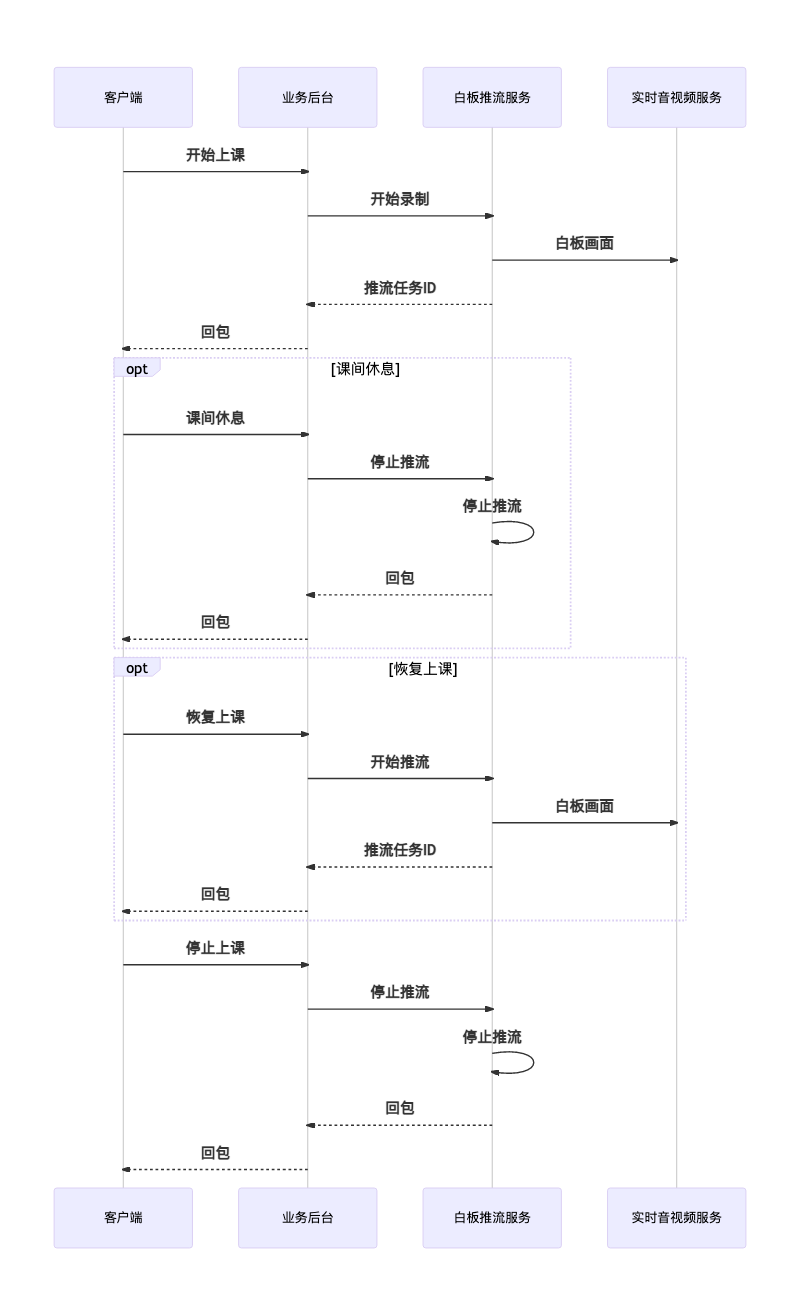
白板推流
准备 PushUserId 和 PushUserSig
白板推流服务需要通过 IM 服务实时拉取白板操作信令进行白板渲染,同时需要进入到实时音视频房间内把白板画面以主路流的方式推送到房间内,以便其他用户进行流订阅,因此需要您提供一个白板推流服务进房时使用的
PushUserId以及PushUserSig,生成PushUserId和PushUserSig的方法请参考 如何计算 UserSig。注意:
PushUserSig签名请设置一个较长的有效期,至少比课堂时长要长,避免由于签名过期导致白板推流中断的情况。开始白板推流
在需要进行白板推流时,例如老师学生都已经准备好开始上课,您可以使用 开始白板推流 接口来通知白板推流服务开始白板推流,在请求接口时,需要使用到上一步准备好的
PushUserId和PushUserSig。 说明:
由于网络延迟等因素,发送请求后,实际白板推流操作将在2s左右后进行。
目前服务端 API 接口只支持区域广州,在调用 API 时,Region 参数请填写
ap-guangzhou。停止白板推流
说明:
由于网络延迟等因素,发送请求后,实际白板推流操作将在2s左右后进行。
目前服务端 API 接口只支持区域广州,在调用 API 时,
Region参数请填写ap-guangzhou。白板混流
注意:
通常情况下,白板推流与房间内的其他音视频流都是独立的音视频流,观看端需要分别订阅各路流,并按照布局来进行视频播放,同时云端录制录下来的视频也是一个个独立的视频,这大大提高了客户端开发以及后续回放视频生成的复杂度。
通过把白板推流与实时音视频云端混流的能力结合起来,可以实现白板视频流与房间内其他音视频流混合成一路,从而达到我们期望的效果,同时降低客户端与录制回放的复杂度。
云端混流 golang 版本代码示例:
package mainimport ("fmt""github.com/tencentcloud/tencentcloud-sdk-go/tencentcloud/common""github.com/tencentcloud/tencentcloud-sdk-go/tencentcloud/common/errors""github.com/tencentcloud/tencentcloud-sdk-go/tencentcloud/common/profile"trtc "github.com/tencentcloud/tencentcloud-sdk-go/tencentcloud/trtc/v20190722")func main() {// 这里需要填上您的真实SecretID和SecretKeycredential := common.NewCredential("您的SecretID","您的SecretKey",)cpf := profile.NewClientProfile()cpf.HttpProfile.Endpoint = "trtc.tencentcloudapi.com"client, _ := trtc.NewClient(credential, "ap-guangzhou", cpf)request := trtc.NewStartMCUMixTranscodeRequest()// 指定输出参数,决定混流后的视频流去向,如果旁路推流和云端录制选择的是全局自动,则可以忽略这里的参数。request.OutputParams = &trtc.OutputParams{// 在OutputParams中指定StreamId,表示这路混流视频需要旁路推流,这里的字符串可自行定义。StreamId: common.StringPtr("1400000001_880528_mix_stream"),// 在OutputParams中指定RecordId,表示这路混流视频需要录制,这里的字符串可自行定义。RecordId: common.StringPtr("1400000001_880528_mix"),}// 指定混流音视频编码参数,可以按需自行调整request.EncodeParams = &trtc.EncodeParams{AudioSampleRate: common.Uint64Ptr(48000),AudioChannels: common.Uint64Ptr(1),AudioBitrate: common.Uint64Ptr(50),VideoWidth: common.Uint64Ptr(1280),VideoHeight: common.Uint64Ptr(720),VideoBitrate: common.Uint64Ptr(500),VideoFramerate: common.Uint64Ptr(20),VideoGop: common.Uint64Ptr(3),}// 指定混流布局,这里选择了预定义布局模板2(屏幕分享模板),并设置大屏显示白板推流视频。// 这里假设白板推流的用户ID为"tic_push_user_880528_test", 使用的时候请修改为真实的白板推流用户IDrequest.LayoutParams = &trtc.LayoutParams{Template: common.Uint64Ptr(2),MainVideoUserId: common.StringPtr("tic_push_user_880528_test"),MainVideoStreamType: common.Uint64Ptr(0),}// 这里请修改为真实的SdkAppID及RoomIDrequest.SdkAppId = common.Uint64Ptr(1400000001)request.RoomId = common.Uint64Ptr(880528)response, err := client.StartMCUMixTranscode(request)if _, ok := err.(*errors.TencentCloudSDKError); ok {fmt.Printf("An API error has returned: %s", err)return}if err != nil {panic(err)}fmt.Printf("%s", response.ToJsonString())}
观看白板推流
注意
白板推流服务负责把白板画面以主路流的方式推送到指定的音视频房间内,观看端想要对这路流进行观看的话,通常有两种方式:
进入房间实时观看:观看端集成实时音视频 SDK,进入到相同的音视频房间,通过 SDK API 对相应的流进行订阅。具体实现可以参考相关指引文档 导入 SDK 到项目中。
通过 CDN 旁路直播观看:开通旁路推流,通过直播 CDN 拉流观看。 具体实现可以参考相关指引文档 实现 CDN 直播观看。


