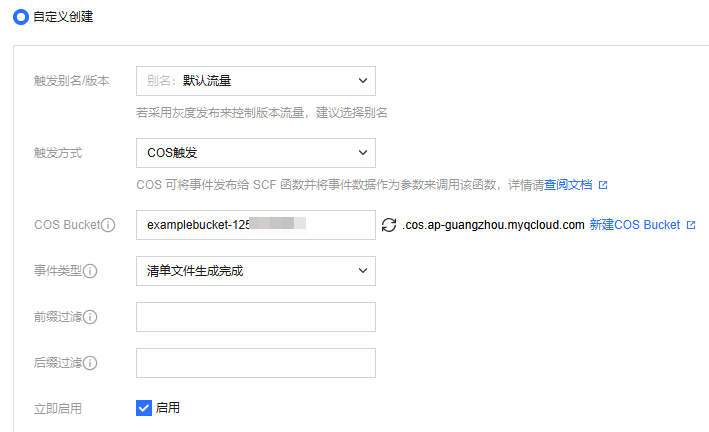
How can I know whether an inventory file has been delivered successfully?
When an inventory file is generated depends on your configuration. If you have selected “daily”, the inventory file will usually be delivered early in the morning on the next day (Beijing time). If you have selected “weekly”, the inventory file will be generated and delivered on the last day of the current week in most cases.
If you want to receive a notification after the inventory file has been successfully delivered, you can configure a COS trigger in the Cloud Function console and set the event type to Complete Inventory Report Delivery Event.
How can I analyze an inventory report?
After an inventory report is generated, you can use the COS Select feature to filter information in the inventory. The following are some examples:
1. Filtering files whose storage class is STANDARD:
select * from cosobject s where s._7 = TO_STRING('Standard')
2. Filtering files smaller than 5 GB:
select * from cosobject s where s._4<5*1024*1024
3. Filtering files larger than 5 GB and use the STANDARD storage class:
select * from cosobject s where s._4>5*1024*1024 AND s._7=TO_STRING('Standard')
4. Filtering files whose status is “replica” (indicating the replication has been completed):
select * from cosobject s where s._9=TO_STRING('replica')
5. Viewing the first 100 records in the inventory report:
select * from cosobject s limit 100
How can I export all file information?
You can enable inventory for your bucket. In this way, COS will regularly (daily/weekly) publish an inventory report that contains the object attributes and configuration details.
Note
Currently, the inventory feature is not available for Finance Cloud regions.
The inventory feature incurs Management feature fees. For detailed pricing, please see Product Pricing.
How can I get a file list?
You can obtain the file inventory in COS using the following methods:
1. Use the COS console to enable inventory for your bucket. The inventory feature allows you to regularly (daily/weekly) publish inventory reports about the object attributes, configurations, and more. For more information about inventory, see Inventory Overview.
2. Call the GET Bucket (List Objects) API to obtain a list of all objects. The returned list is in XML format, which can be processed as needed.
Can I reset the inventory configuration immediately after I found out I set it incorrectly?
COS will regularly read the latest inventory task configuration in the early morning and then start executing the task. You can modify the inventory configuration before execution and wait for the next day's early morning to re-read the inventory task configuration before starting the task.
Does COS support counting file quantity by file type?
You can use the inventory feature to regularly (daily/weekly) scan specified objects or objects with a specified prefix in a bucket, output an inventory report, and save the CSV file to a specified bucket. After this, you can use “fileFormat” to filter objects by file type and count the quantity.
How can I compare a local file and the one stored in COS?
You can obtain the MD5 of a single object or multiple objects using HEAD Object and List Object requests, and compare them with the MD5 of local files. For large-scale buckets, you can use the Inventory feature to asynchronously obtain the object list and their MD5 values. For operational guidance, please refer to the Enabling Inventory Feature console documentation.
How can I export an XLS file that contains the COS filename, file size, and object URL?
You can enable the inventory feature to automatically output an inventory report, and save the CSV file to a specified bucket. With the inventory feature, you can obtain the file path, file size, last modified time, ETag, storage class, and other information. An object URL can be obtained by combining the bucket’s region and the file path. For more information, please see Inventory Overview.
How can I see the number of files in a folder and the storage they take up?
If there are not a lot of files in the folder, you can use the console to view the folder details, which include the number of files as well as the storage they take up. If the number of objects in your bucket is greater than 10,000, you are advised to query using the inventory feature.