The content of this page has been automatically translated by AI. If you encounter any problems while reading, you can view the corresponding content in Chinese.
Tencent Cloud IoT Explorer provides developers with an H5 custom panel demo. Developers can deploy and experience the H5 custom panel demo following the guidance process in this document. For more information about the demo, please see H5 Panel Demo.
Prerequisites
Sign up for a Tencent Cloud account and complete Identity Verification.
Procedure 1: Create a Product and Devices
This step guides you to create a smart light product and device through the quick start feature of IoT Explorer, and connect the simulated device to the platform for data reporting. If you need to create products and devices by yourself, please refer to Product Development.
1. Log in to Tencent Cloud and enter the IoT Explorer console, select the public instance or the standard enterprise instance you have purchased, and enter the product development.
2. Refer to Beginner Instruction to create products and devices, and successfully integrate the devices into IoT Explorer and report data.
2. Log in to Tencent Cloud and enter the IoT Explorer console, select the project created in Step 1, and enter the project details page.
3. Select the product created in Step 1 from the product list and enter the product detail page.
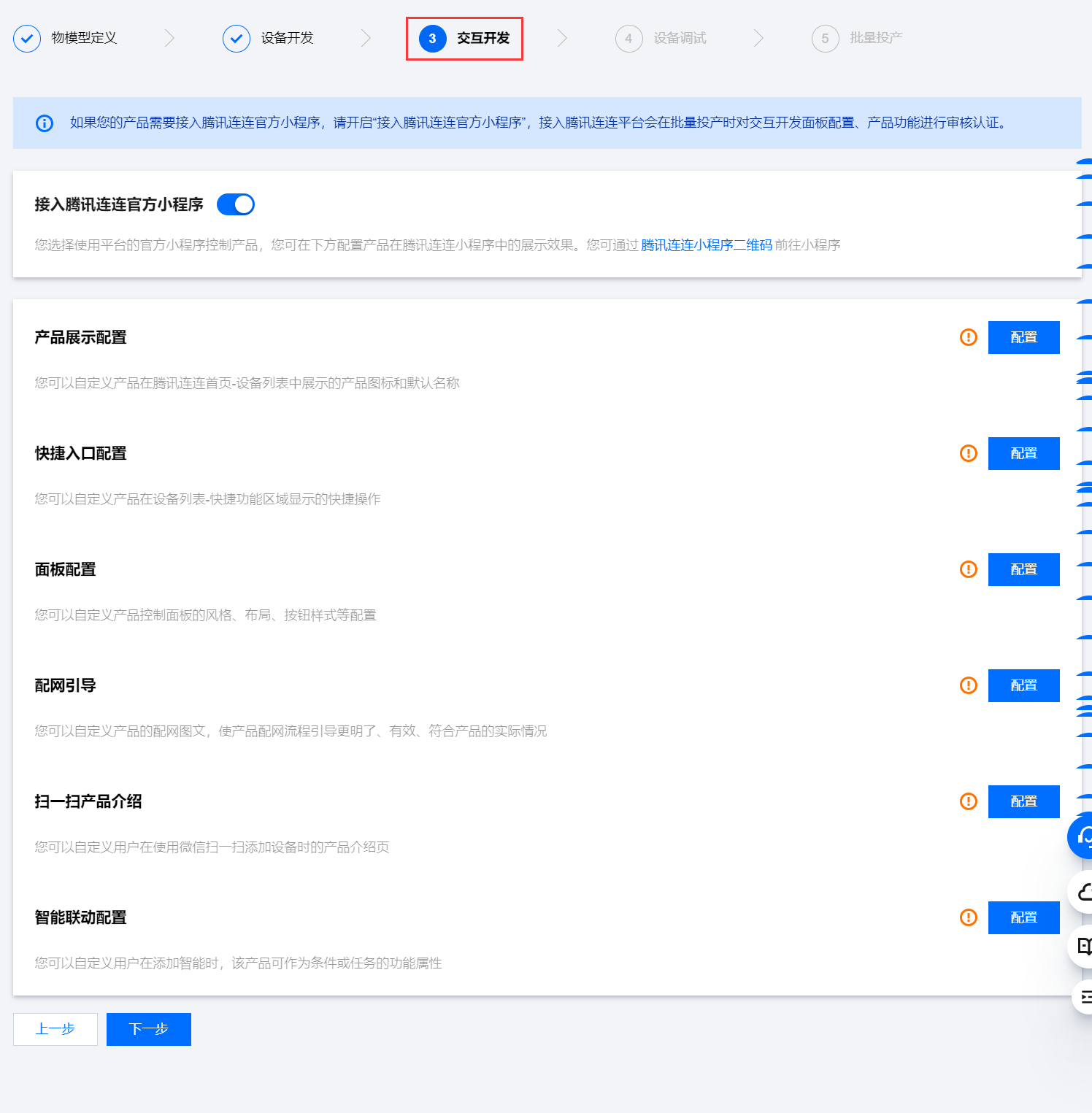
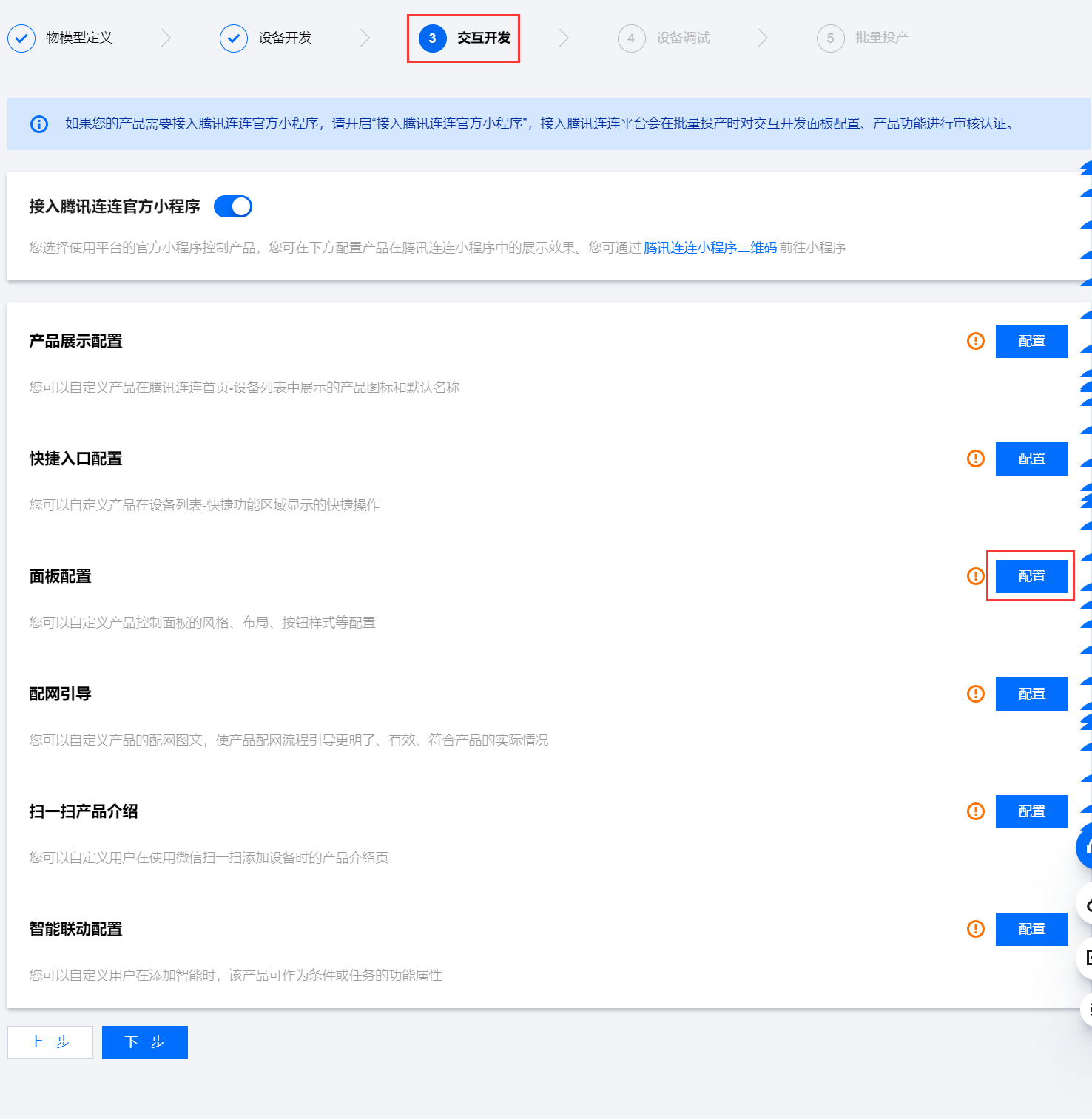
4. Select Interactive Development > Panel Configuration, click Configure to enter the panel configuration page.
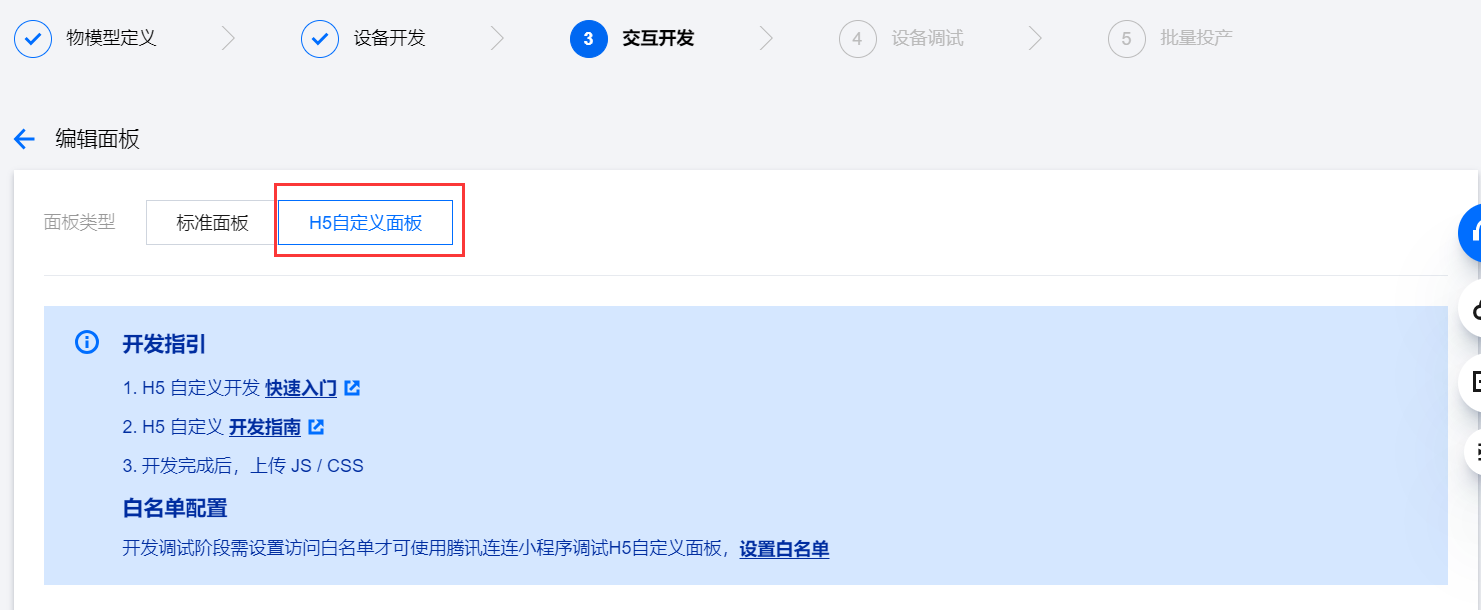
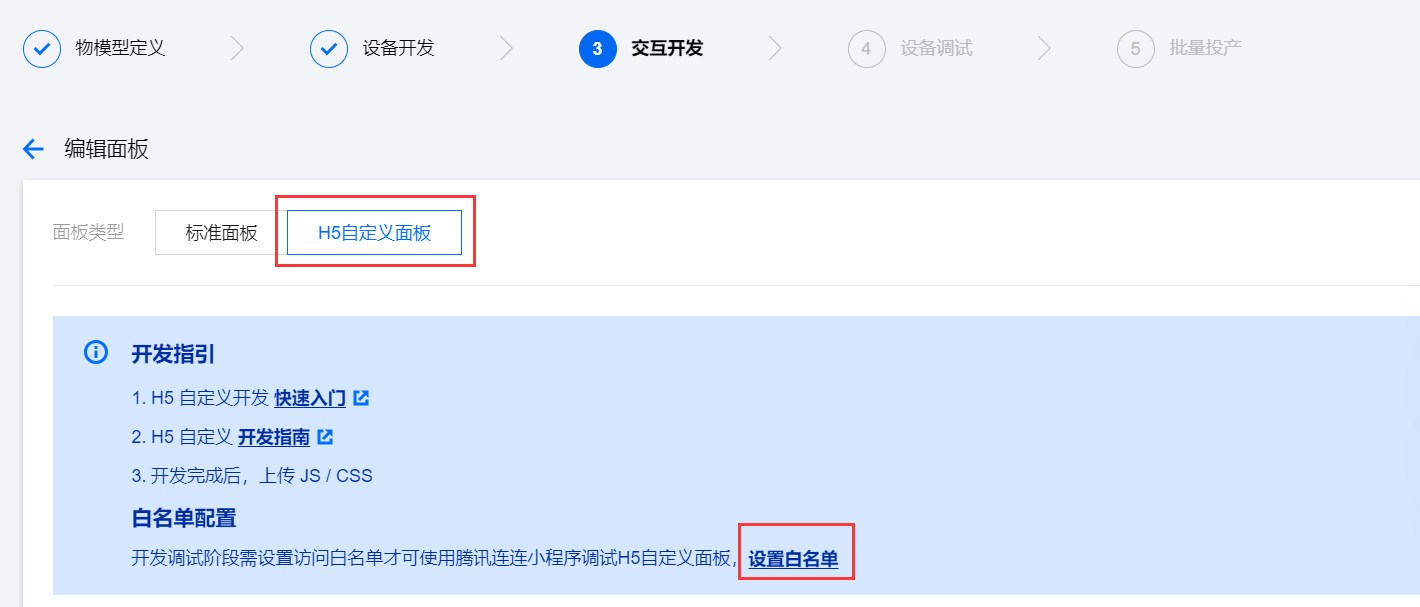
5. In the dashboard type, select "H5 Custom Dashboard".
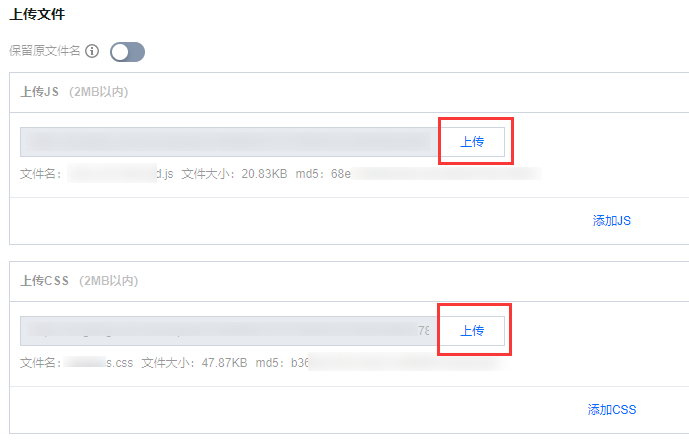
6. In the "Upload JS" form, click Upload and select the JS file of the H5 dashboard. After upload completion, the page displays the file name, size, and MD5 info of the JS file.
7. In the "Upload CSS" form, click Upload and select the CSS file of the H5 dashboard. After upload completion, the page displays the file name, size, and MD5 info of the CSS file.
Procedure 3: Add Lianlian Users to the H5 Panel Access Allowlist
During the development phase, you need to set the access allowlist to use Tencent Lianlian to debug the H5 custom panel. The operation steps to set the access allowlist are as follows:
1. Open the Tencent Lianlian Mini Program.
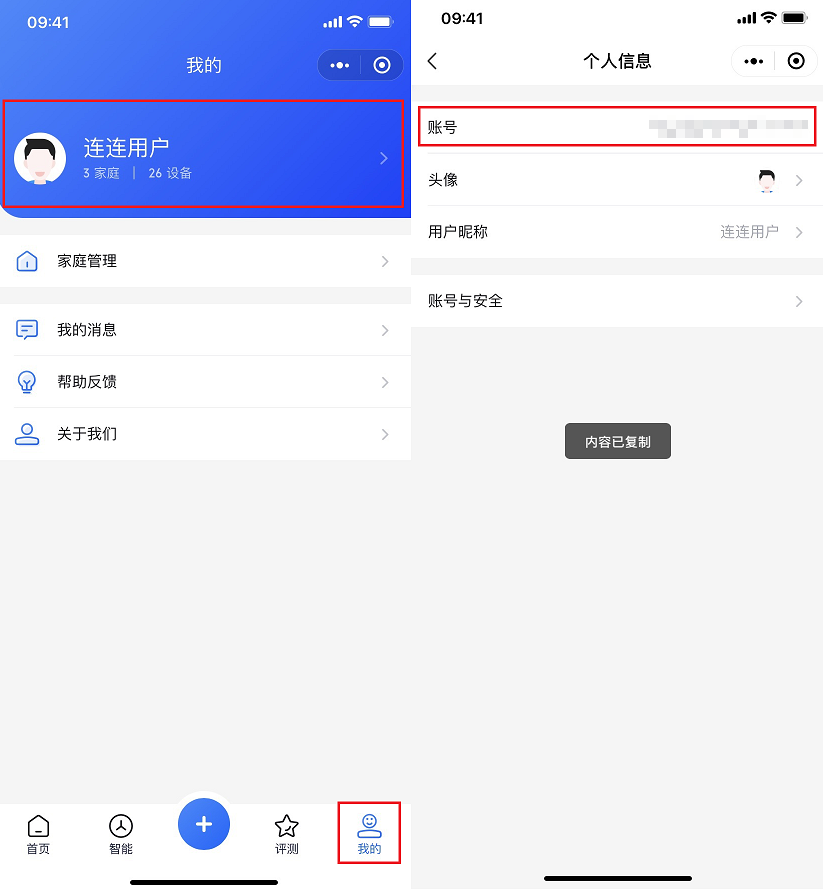
2. Click Mine, then click your personal information at the top of the page to enter the personal information page.
3. Long-press Account to copy the Tencent Lianlian user ID. After copy success, the page prompts that the content has been copied.
4. Log in to the IoT Explorer console, and select the corresponding project and product.
5. Click Interactive Development > Configure Mini Program > Panel Configuration > Configuration in the product to enter the panel configuration page.
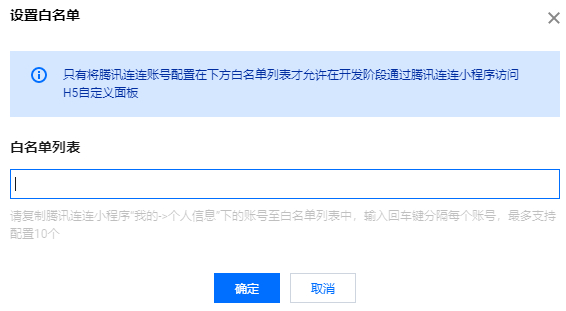
6. Select the "Dashboard Type" as "Custom H5 Dashboard", click Set up allowlist, and enter the allowlist setting page.
7. In the allowlist, input the Tencent Lianlian user ID copied from the above steps.
8. Click Confirm. The page prompt shows that the saving succeeded.
9. After closing the pop-up of "Set up allowlist", click Save on the configuration page.
Procedure 4: Bind Device in Mini Program
Virtual Device
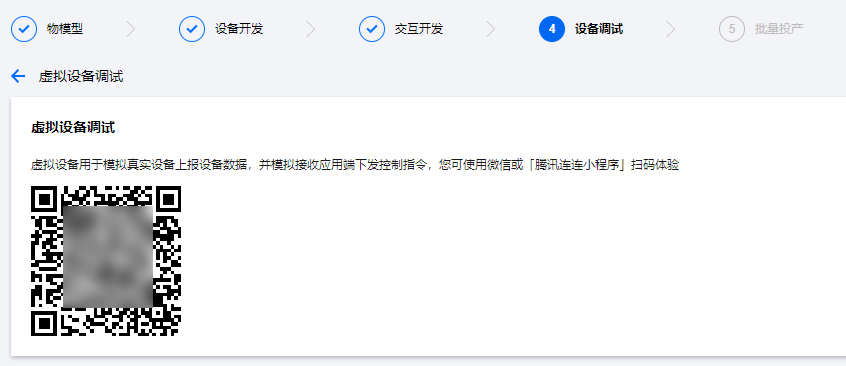
1. On the product details page, select Device Debugging > Virtual Device Debugging to enter the virtual device debugging page. The page will display the QR code for virtual device debugging.
2. Use WeChat Scan to scan this QR code. WeChat will navigate to Tencent Lianlian Mini Program. After authorization completed, Tencent Lianlian Mini Program will automatically bind the device. The page prompt shows that the device has been added successfully.
Real Device
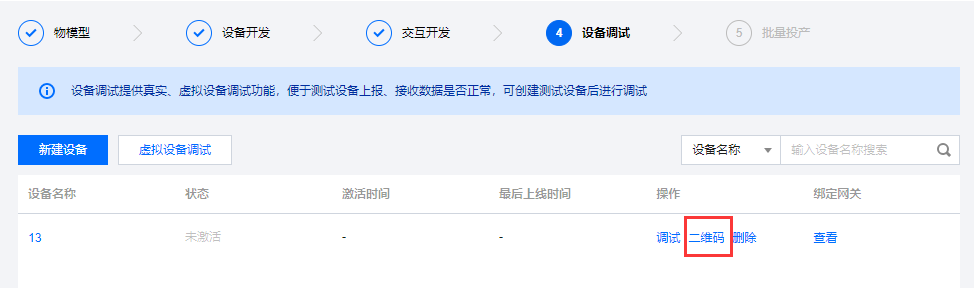
1. On the product details page, click Device Debugging to enter the device debugging page. The page displays the device list.
2. In the device list, select the device created in Step 1 and click QR Code. The page displays the device binding QR code.
3. Use WeChat Scan to scan the mini program code below and open Tencent Lianlian Mini Program.
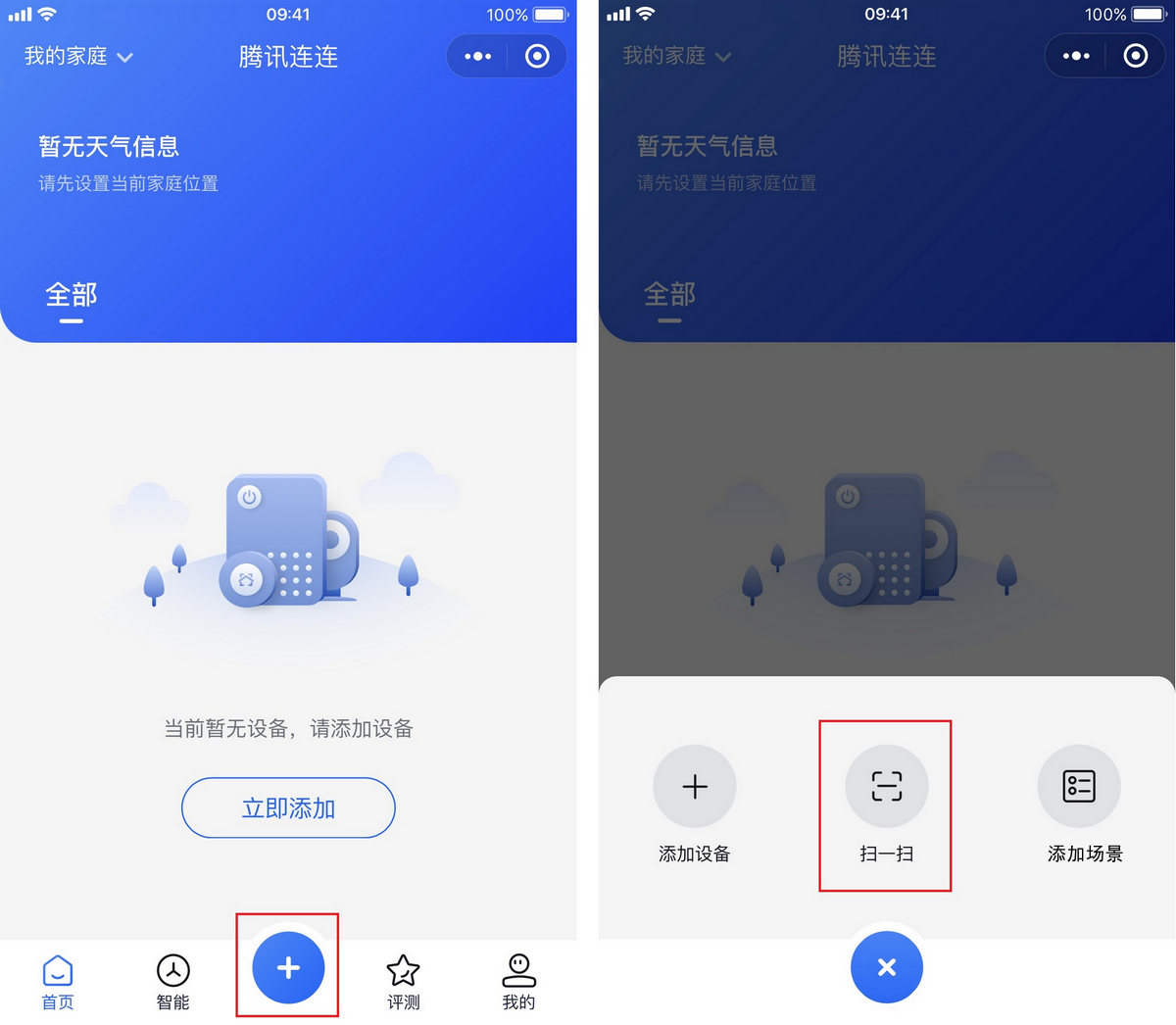
4. 1. Select "+" > scan, and scan the QR code shown on the console page. After the scan is successful, Tencent Lianlian Mini Program will automatically bind the device. The page prompt shows that the device has been added successfully.
Procedure 4: Experience Custom H5 Panel
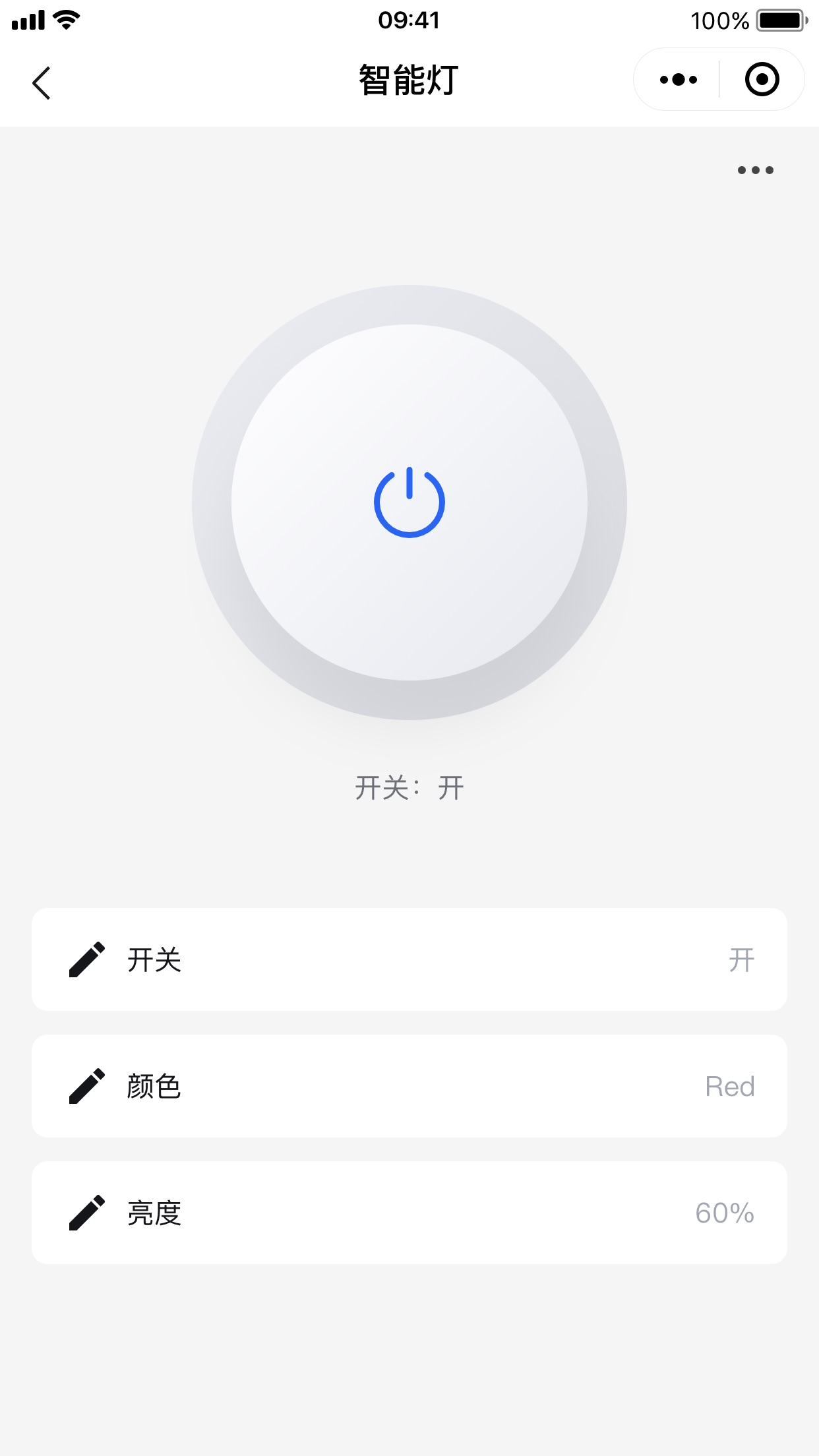
In the Tencent Lianlian Mini Program, select the device bound in Step 3 and enter the device control page. The page displays a custom H5 panel, where you can perform device control and other operations.