Description of the Feature
In Tencent Meeting, in addition to sharing your current screen, the screen sharing feature also supports sharing the audio from your PC with other attendees.
Applicable People and Scenarios
When sharing content with built-in sound effects, such as videos and music, make sure to enable it.
Conditions of Use
log in to user: Free Edition, Membership, Business Edition, Enterprise Edition user.
Version Requirement: Version 2.2.0 or later.
System Requirements:
Operating system: Windows 7 or later.
Operating system: macOS 10.11 or later.
Share Device Sound
Windows/macOS
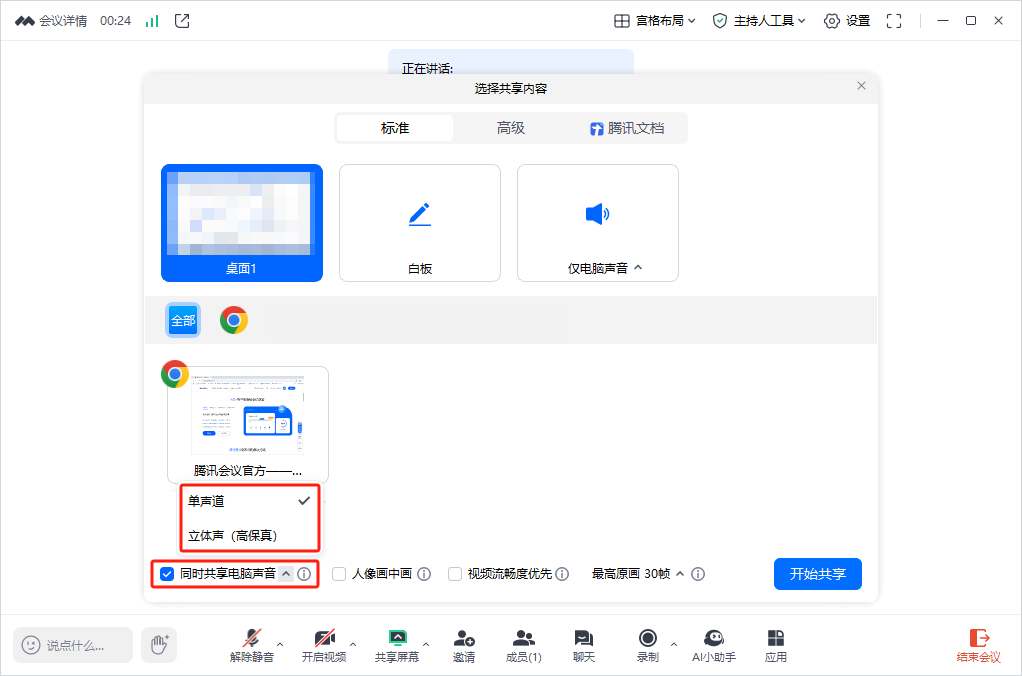
When selecting the content to share, check the box in the lower-left corner of the window labeled Share computer sound. This will allow you to share your computer's sound along with the screen content to other attendees.

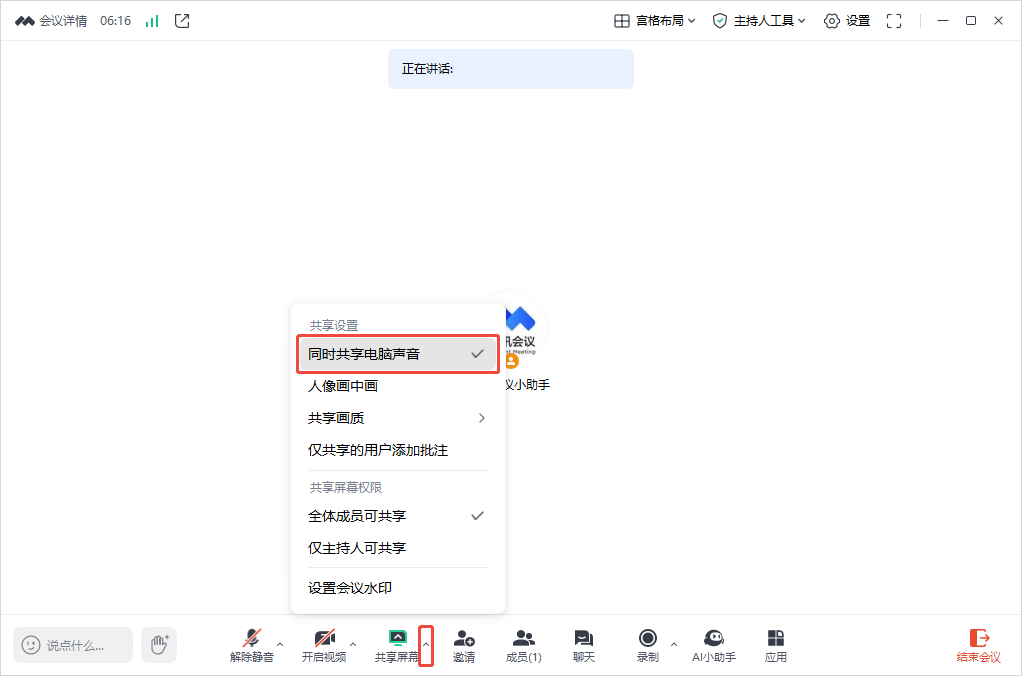
You can also click the pull-up arrow to the right of Screen Sharing, then select Share computer sound in the Sharing Settings to enable it.

Android/iOS
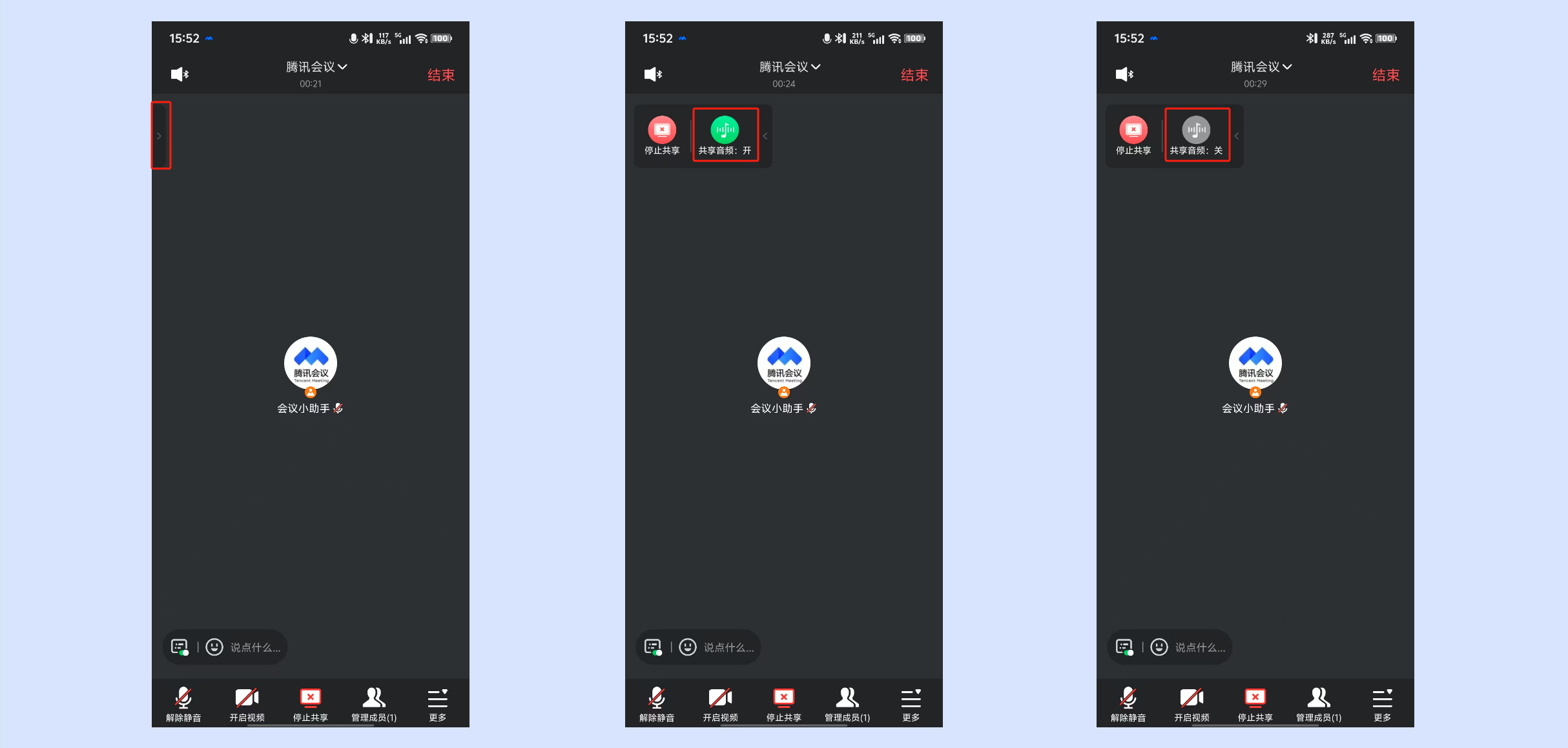
Mobile users can choose whether to share audio when sharing screen content.

Share Computer Sound Only
Windows/macOS
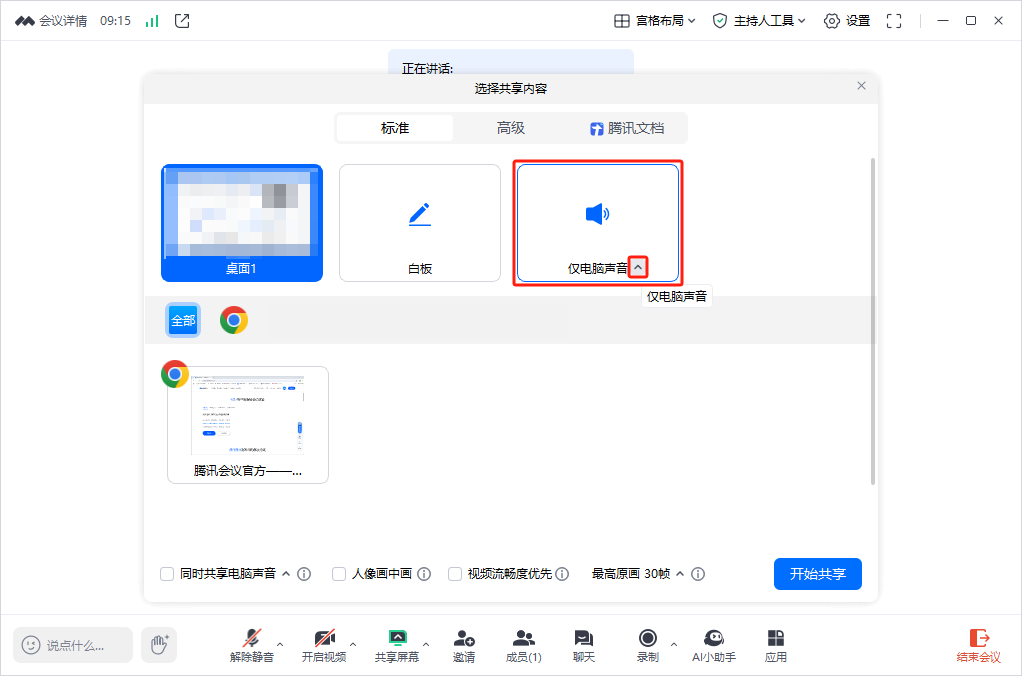
If you want to share only the sound from your computer, select Computer sound only when choosing the content to share.

Notes
Sharing computer audio alone is also considered a type of "shared content" and follows the rule that "only one user can share their screen at a time, and only one item can be shared".
When sharing only the computer sound, annotations cannot be enabled, and the toolbar will not retract to the top.
During screen sharing, you don't need to turn on the microphone to enable "Share computer sound".
When sharing computer sound, please check if the computer volume is set to 0. If the computer volume is 0, other participants will not be able to hear the content you are sharing.
The mobile terminal does not currently support sharing audio content only.