The content of this page has been automatically translated by AI. If you encounter any problems while reading, you can view the corresponding content in Chinese.

Bucket Configuration

Last updated: 2024-12-19 17:39:18

Overview

The storage service for Interactive Whiteboard document transcoding results/real-time recording videos and other resource files is based on COS COS. For normal use of document transcoding/real-time recording and other Interactive Whiteboard features, you need to complete CAM authorization and bucket configuration in the console. After completing the configuration, Interactive Whiteboard's backend automatically stores the generated resources in the specified path of the configured COS bucket. You can manage the access permissions and lifecycle of these resource files.
Function
Documentation
Bucket Overview
Access Control
Access Accelerated by CDN

Related Description

Public Bucket Usage Restrictions
Please refer to the Interactive Whiteboard Usage Restrictions documentation.
Bucket Access Control
To handle large-scale downloads and distribution of the same video/document, reduce access latency, and improve availability, it is recommended to use CDN for bucket access acceleration. To enable CDN-based accelerated access for the bucket, please refer to Setting CDN Acceleration.
As adding documents to the Interactive Whiteboard currently does not support carrying authentication parameters, the access URL for document transcoding needs to be set to Public Read, which means it can be accessed normally without including authentication parameters. You can set bucket access permissions to Public Read for all users or enable CDN origin-pull authentication.
Interactive Whiteboard resource management relies on cloud services such as COS/CDN, and the actual usage will be charged according to the billing rules of the respective products.
Cloud Product
Billing Overview
CSP
CDN

Operation Steps

1. Log in to the Interactive Whiteboard Console, click Application Management in the left navigation bar to enter the Interactive Whiteboard application list.
2. click Application Configuration to enter the Application Configuration Details Page.
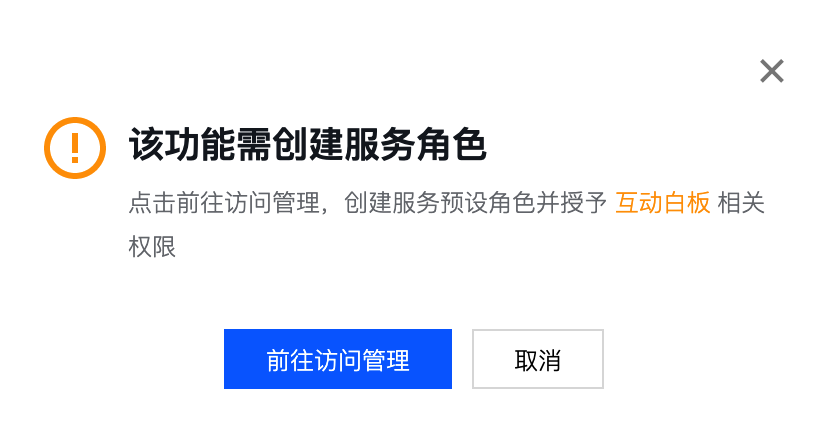
3. Document Transcoding and Real-time Recording Resource Dependencies require COS service. If you have not activated the COS service, please go to COS Console, and follow the instructions to activate the Service. Then, go to CAM and agree to Authorization.

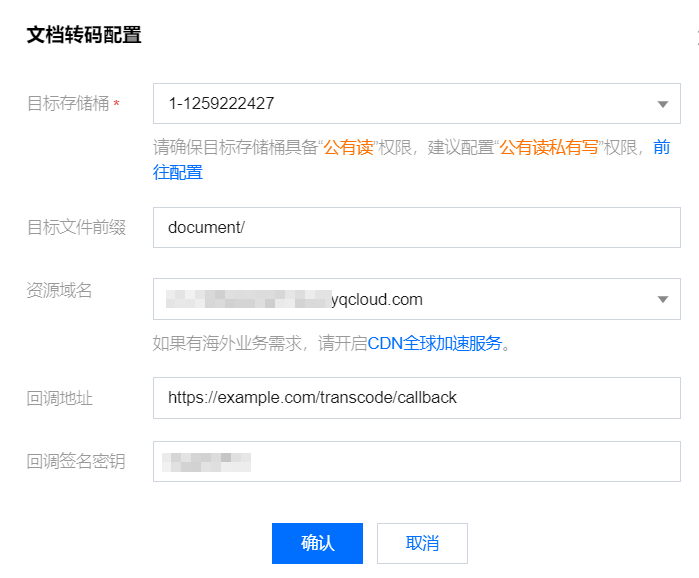
4. On the Application Configuration details page, select the Modify option located at the top right of the Document Transcoding or Real-time Recording card to open the Modify Application Configuration dialog box.
Destination bucket: The bucket is where the Document Transcoding or Real-time Recording resources are stored. If you do not have a bucket yet, you need to go to the COS Console to create one and enable CDN acceleration.
Target File Prefix: The specific path prefix for storing the generated Document Transcoding or Real-time Recording resources. If not set, it defaults to the root directory of the bucket. To save resources in a folder, the Target File Prefix needs to end with /. For more details on folder descriptions in COS, please refer to Folder Management.
CDN Domain Name: If CDN acceleration is enabled for your bucket, the existing CDN domain name will be auto-filled here. The domain name in the returned resource URL from Document Transcoding or Real-time Recording will be replaced with this CDN domain name.
As shown in the configuration below, the returned access path ResultUrl after document transcoding might be http://test1.coshelper.com/document/0ev05m1ojr7q4e7rj3rb/h5/index.html.

5. After adding the configuration, click OK to see that the bucket configuration has been successfully added.
6. Call the TencentCloud API interface again to initiate a Document Transcoding or Real-time Recording task. The generated Document Transcoding resources or recorded video files will be stored in the configured bucket. You can log in to the COS Console to view and manage them.