The content of this page has been automatically translated by AI. If you encounter any problems while reading, you can view the corresponding content in Chinese.
Help & Documentation>Cloud Virtual Desktop>Operation Guide>Admin>Password Policy and Terminal Session Management

Password Policy and Terminal Session Management

Last updated: 2024-10-18 17:19:26

User Password Policy Settings

Adding an end user password policy

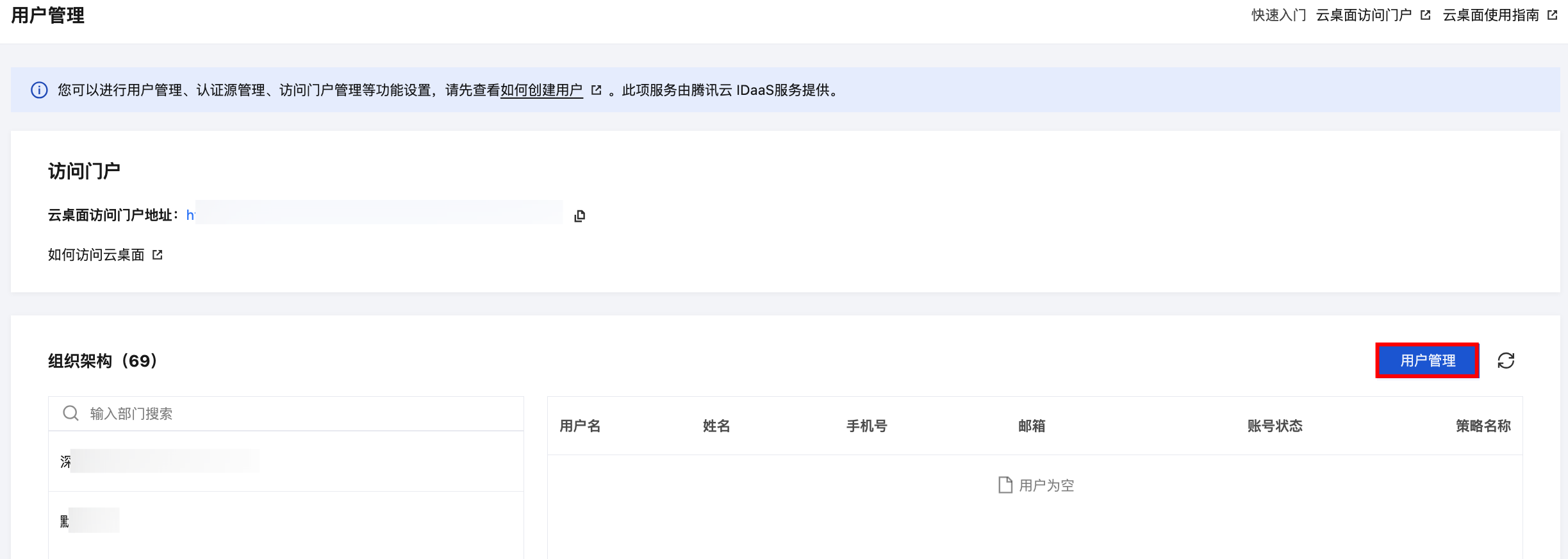
1. Enter CVD Console , on the User Management main interface, click User Management , and you will be directed to the Tencent Cloud IDaaS interface. The end user password policy settings are provided by Tencent Cloud IDaaS.
Search for the required CAM policy as needed, and click to complete policy association.

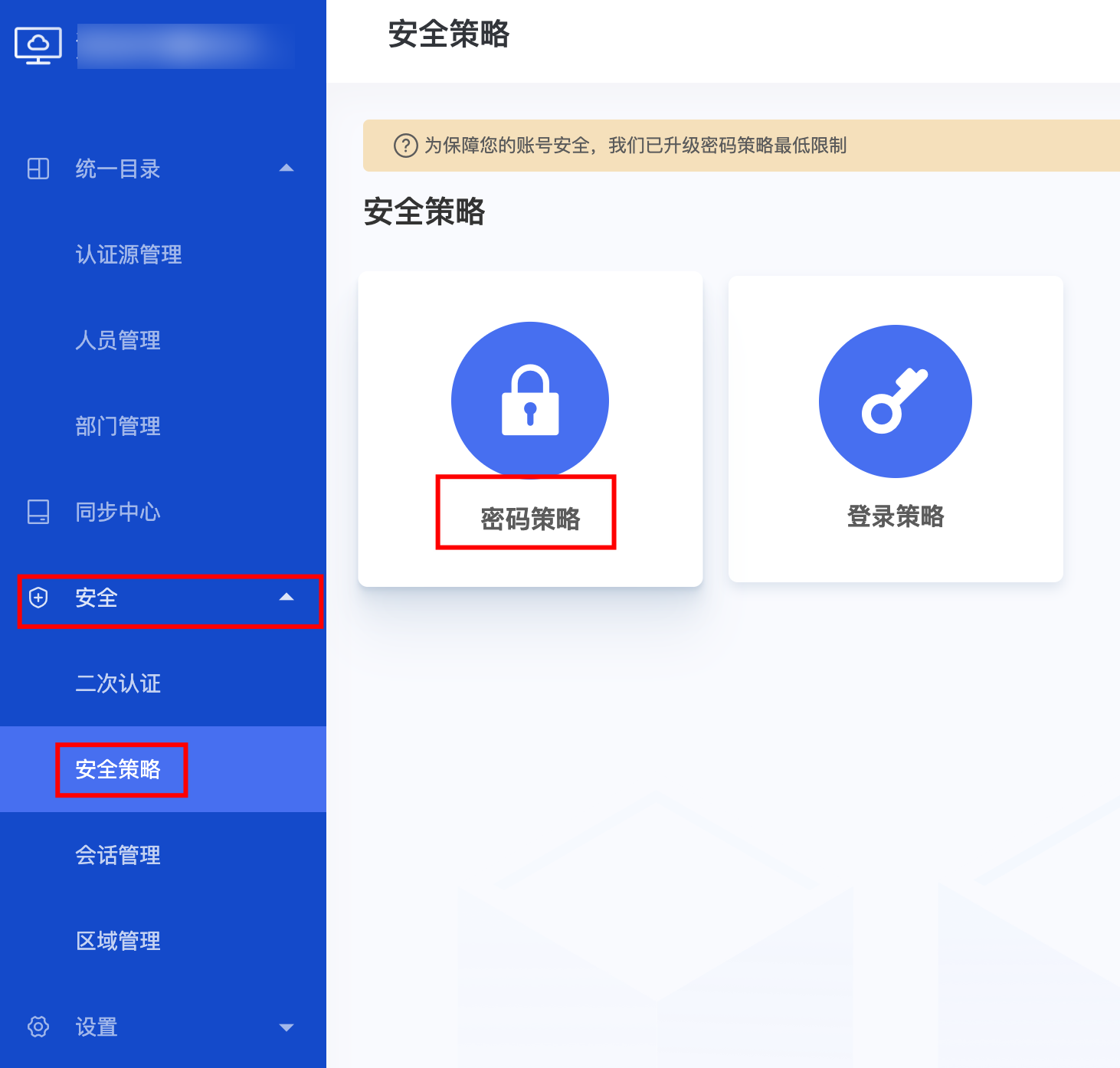
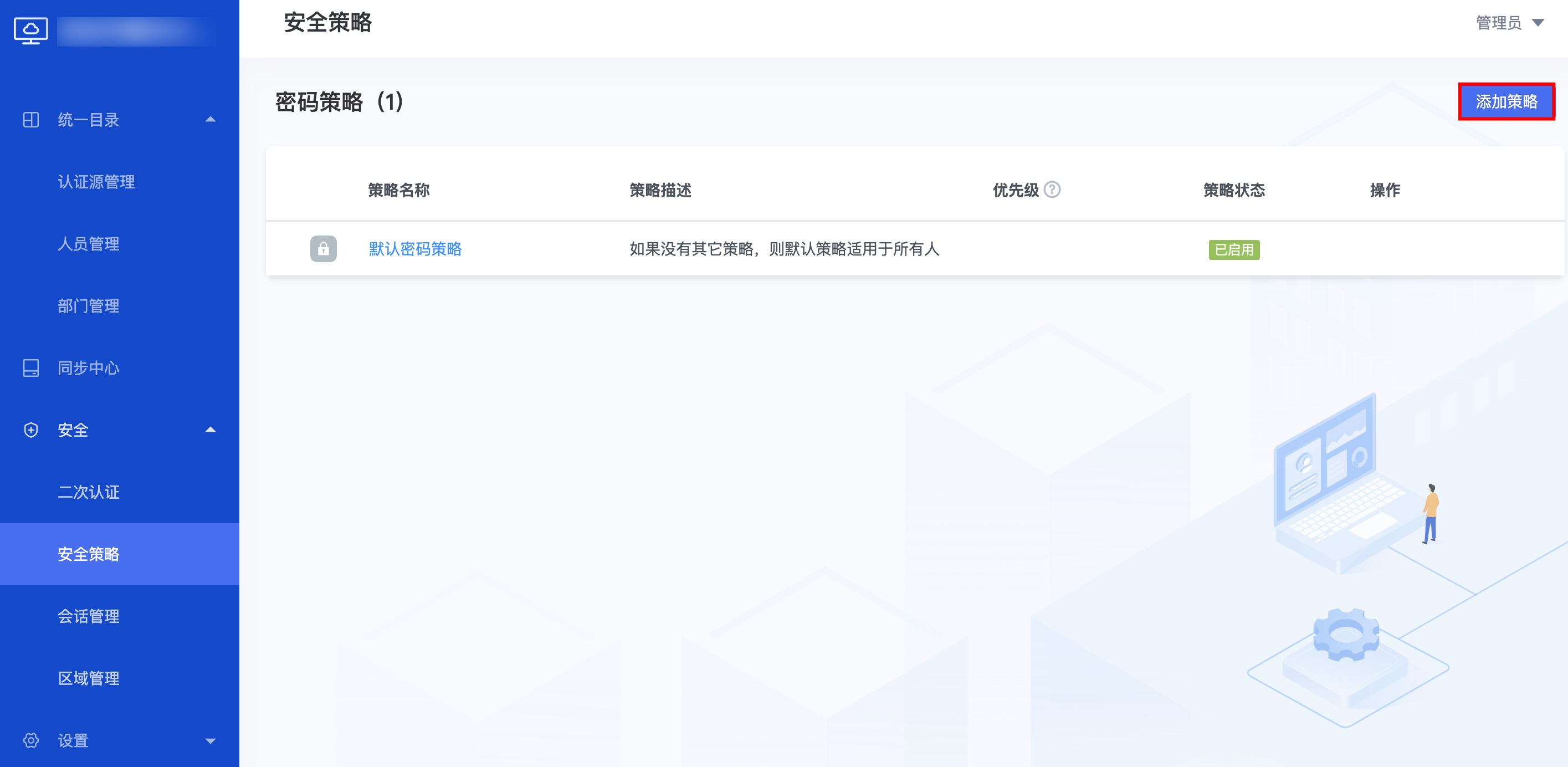
2. Click Security > Password policy to enter the password policy management page, then click Add policy .
3. Enter the policy name and description. When you set the password requirements, the password length is required, and other items are optional. The higher the required password complexity, the higher the security.
4. Set the requirements for user password expiration and password reset.
5. Set the requirements for secure login. You can configure login authentication and account lock/unlock as needed. If you enable self-service unlock, users can unlock their accounts via email or security question; otherwise, they need to contact the admin for assistance.
6. Set the effective range of the password policy:
You can select all users, or choose Custom Definition, specifying users within any range based on dimensions such as personnel, personnel attributes, their department, and so on. In the "Exclude the following users" input box, enter the names of personnel to be excluded, up to a maximum of 20.
7. After completing the above settings, click Confirm to finish the current password policy settings.

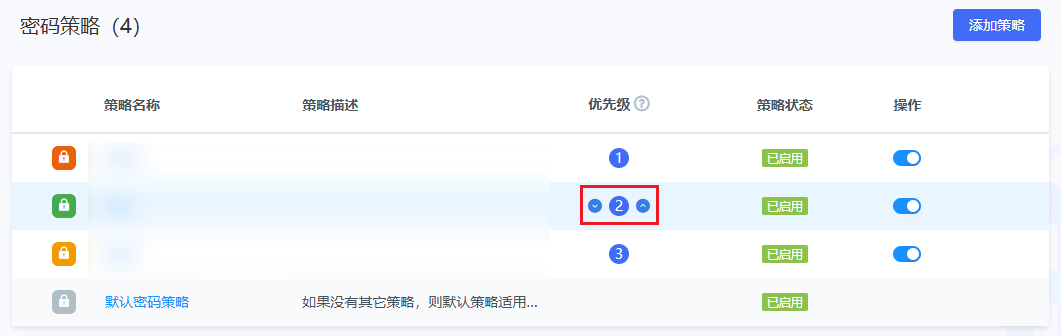
Sorting password policies by priority

In the password policy list:
Click the up icon to increase the priority.
Click the down icon to decrease the priority.

End User Session Management

1. Enter CVD Console.
2. Enter the main user management interface, click User Management, and navigate to the Tencent Cloud IDaaS interface.
Note:
Session Expiry Settings are provided by Tencent Cloud IDaaS.
3. Click Security > Session Management to enter the session management page. On the session management page, you can configure the following settings:
Session Expiration Time: In the Session Expiration Time settings section, set the expiration time for Access Authentication Token and Access Refresh Token.
Session Termination Behavior: In the Session Termination Behavior settings section, configure the associated behaviors of Close Browser and Long-term Lack of System Operation.
Note:
The time range for Long-term Lack of System Operation can be set to a minimum of 10 minutes and must not exceed the expiration time of the Access Refresh Token. The default is 30 minutes.

Custom Portal Settings

1. Enter CVD Console.
2. Enter the main interface of User Management, click User Management, and navigate to the Tencent Cloud IDaaS interface.Custom Portal Settings are provided by Tencent Cloud IDaaS.
3. click Settings > System Appearance Settings to enter the System Appearance Settings interface, where you can configure the following settings:
Settings
Description
Browser Tab Settings
click the logo area to change the browser tab logo. The logo image must meet the system requirements. Edit the text of the browser tab in the input box and click OK to save the changes.
Portal appearance
click the logo area to change the login page logo. The logo image must meet the system requirements. Click the background area of the login page to change the background image. The background image must also meet the system requirements. Click OK to save the changes.