The content of this page has been automatically translated by AI. If you encounter any problems while reading, you can view the corresponding content in Chinese.
2. Listen to the onSetMixTranscodingConfig() API and modify according to the returned error information.
3. If the bypass stream ID is customized through the SDK API, the old cloud stream mixing method will fail.
4. If onSetMixTranscodingConfig() returns success but pulling the stream from the bypass CDN still has no effect, it may be caused by the lack of configuration of the playback domain. It is recommended to check the relevant configuration of the playback domain.
New Version of Cloud Recording Issues
Real-time audio and video launched a brand-new cloud recording capability on August 1, 2022. After August 1, 2022, newly created applications will be upgraded to new version cloud recording capability by default. At the same time, in order to be compatible with old applications (sdkappid), legacy version cloud recording capability will be retained. An application (sdkappid) only supports one of the recording capabilities. When using the recording capability and consulting related recording capability issues, please first confirm the type of cloud recording capability of the current application. See Determine Cloud Recording Capability Type.
What Are the Control Methods of the New Version of Cloud Recording Capacity?
TRTC provides two cloud recording solutions, namely API call recording and global automatic recording. These two solutions do not conflict and can be used simultaneously. Manual API Recording has the advantages of flexible recording and complete features compared to global automatic recording. Customers can specify the streamers to be recorded in the subscribed room, customize the mixed-stream layout, and update the layout and subscription during recording. The advantage of Global Automatic Recording is that recording does not require customers to start and stop. TRTC backend manages recording tasks. You can complete automatic recording of all audio and video streams in the room according to the preset recording template, reducing the access threshold.
How to Record a Single Stream?
Under Manual API Recording: You need to achieve manual single-stream recording by setting RecordMode to single-stream recording in RecordParams > RecordMode through the Start Cloud Recording API: CreateCloudRecording.
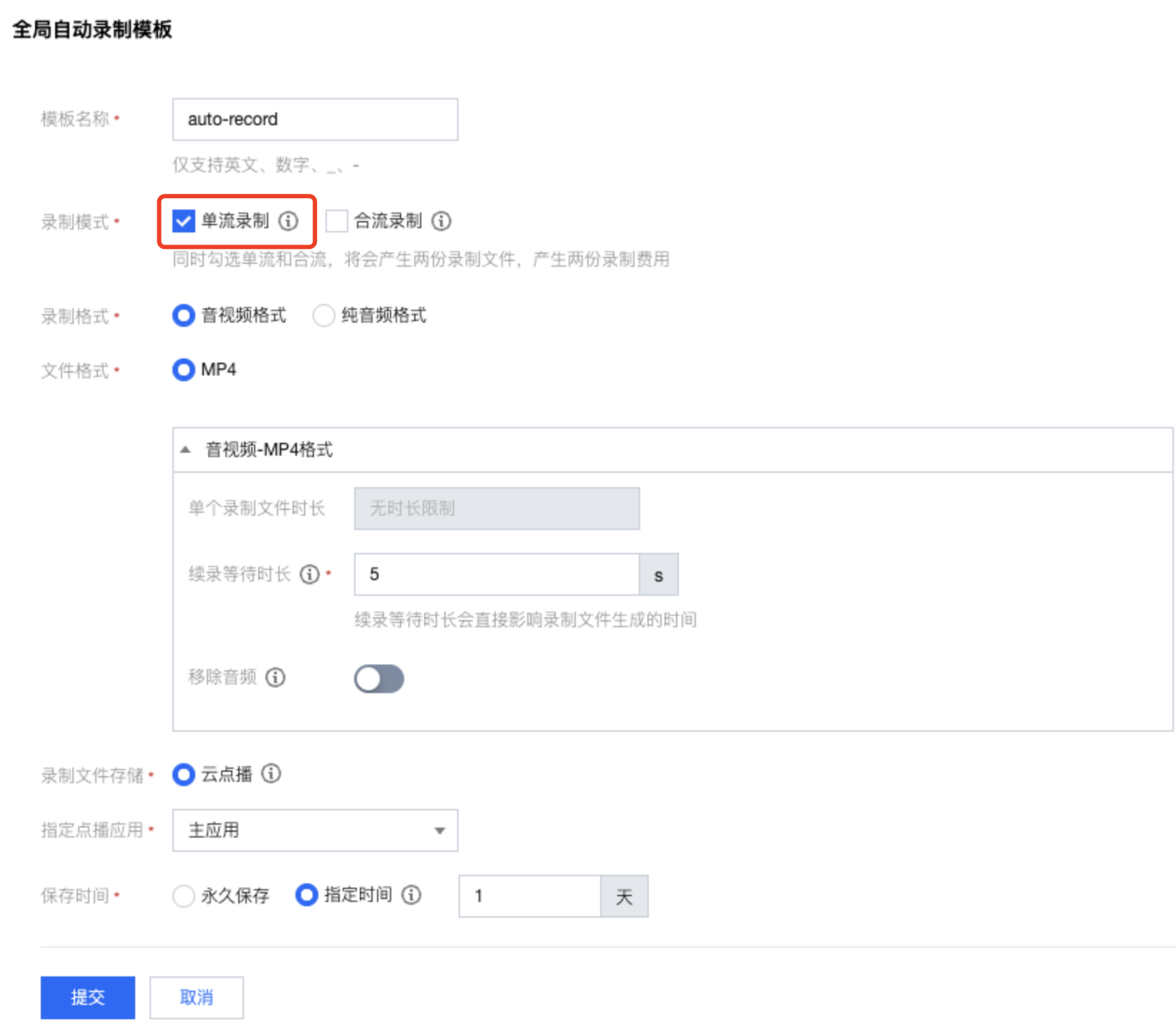
Under Global Automatic Recording: You need to set the recording mode to single stream recording in the global automatic recording template configured in the console. For details, see global automatic recording.
How to Record Stream Mixing (Merge)?
Under Manual API Recording: You need to achieve manual single-stream recording by setting RecordMode to merge recording in RecordParams -> RecordMode through the Start Cloud Recording API: CreateCloudRecording.
Under Global Automatic Recording: You need to set the recording mode to Mixed Stream Recording in the global automatic recording template configured in the console. For details, see Global Automatic Recording.
How to Get Recording Callback?
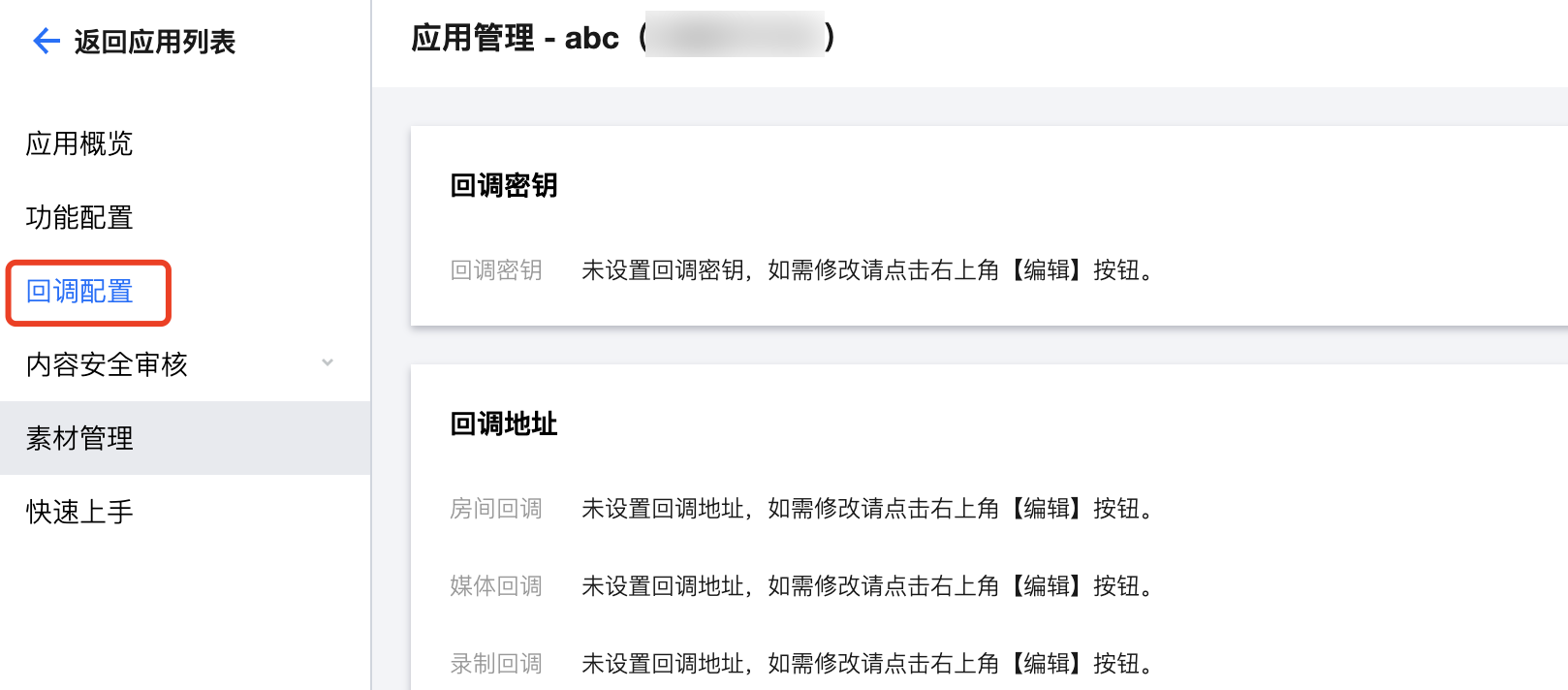
1. Set callback address: For the new version of cloud recording callback address, please go to Recording Callback under Callback Configuration of the corresponding application in the console to set it. For details, see Callback Configuration.
2. Initiate a recording task, receive callback information. The new version of cloud recording provides the following cloud recording events. For details, see Cloud Recording Callback Description.
Field Name
Type
Meaning
EVENT_TYPE_CLOUD_RECORDING_RECORDER_START
301
Cloud-based recording module startup
EVENT_TYPE_CLOUD_RECORDING_RECORDER_STOP
302
Exit the cloud-based recording module
EVENT_TYPE_CLOUD_RECORDING_FAILOVER
306
Triggered when cloud recording is migrated and the original recording task is migrated to a new load.
EVENT_TYPE_CLOUD_RECORDING_DOWNLOAD_IMAGE_ERROR
309
Error occurred when decoding the downloaded image file of cloud-based recording.
EVENT_TYPE_CLOUD_RECORDING_VOD_COMMIT
311
Cloud-based recording: Upload of media content for VOD recording task completed.
EVENT_TYPE_CLOUD_RECORDING_VOD_STOP
312
Cloud-based recording: End of VOD recording task.
Note:
Cloud recording resource upload end event 311. Depending on the individual file size of the files recorded by your recording task, there may be a delay in the upload completion callback. The specific delay is affected by the file size.
How to Get Recording Files?
The updated cloud recording feature will store the recorded files in the Video on Demand (VOD) you specify. You can find them in the following ways:
Method 1: Manual Search in the VOD Console
1. Log in to VOD Console and select Media Asset Management in the left sidebar.
2. Click Prefix Search at the top of the list, select Prefix Search, enter keywords in the search box, fill in according to Recording File Naming Rules, for example, enter 1400000123_1001 under combined stream recording, click
, and video files with matching prefixes of video names will be displayed.
Single stream recording MP4 filename rules: <SdkAppId>_<RoomId>_UserId_s_<UserId>_UserId_e_<MediaId>_<Index>.mp4
Tencent Cloud VOD system provides a series of REST APIs to manage audio and video files on it. You can query files on the VOD system through the Search media information REST API. You can perform matching searches through the NamePrefixes parameter.
REST request example:
Configure global automatic recording in the console. When streaming, every single stream in the room will be automatically recorded. For details, see global automatic recording.
Configure specified user recording in the console. For the stream to be recorded, set the userDefineRecordId parameter in TRTCParams when entering the room. For details, see specified user recording (SDK API).
If global automatic recording is configured, stream mixing will also be automatically recorded.
If specified user recording is configured and server REST API is used to trigger stream mixing, specify the parameter OutputParams.RecordId in the stream mixing API to enable stream mixing recording. For details, see stream mixing parameters - OutputParams.
If specified user recording is configured and stream mixing is triggered using the Client SDK API, stream mixing will be recorded when the anchor sets the userDefineRecordId parameter in TRTCParams upon entering the room. For details, see specified user recording (SDK API).
When Does the Recording Start?
Single stream: Start recording a few seconds (network latency and key frame waiting) after starting streaming.
Stream mixing: Start recording a few seconds (network latency and key frame waiting) after starting stream mixing.
When Does the Recording End?
Separate stream recording ends after a stream stops. If a resumption timeout period is specified, the recording ends after the timeout period elapses.
If stream mixing triggered by calling the client SDK setMixTranscodingConfig(), it ends when the anchor stream exits or when setMixTranscodingConfig() is called again and the parameter is set to null.
If stream mixing triggered by calling the server REST API StartMCUMixTranscode, it stops automatically after all users check out, or stops manually by calling StopMCUMixTranscode midway.
When Do Recording Files and Callbacks Occur?
The recording file will be transferred to the VOD platform and trigger a callback 5 minutes after the recording is completed.
If resumption time is set, the resumption timeout time needs to be added on top of the waiting time. If resumption time is set, recording will not end during stream interruption, and no recording files or callbacks will be generated.
For MP4, FLV and AAC types, there is a limit on the maximum duration of a single file (configurable in the console). After exceeding the maximum duration, a recording file and a callback will be generated, and then a new recording file will continue to be generated.
How to Get Recording Files?
You can manually search through the VOD console or search via the VOD REST API. For details, see Search for recording files.
You can obtain the download URL of the recording file in a timely manner through callback. For details, see Receive recording files.
How to Troubleshoot When No Recording Files Are Generated?
The call is not established normally or the upstream streaming time is too short (it is recommended to stream for more than 30 seconds), and no recording file may be generated. You can check whether the upstream data is normal through the dashboard.
If specified user recording is configured and userDefineRecordId in TRTCParams is not set when entering the room, the single stream will not be recorded.
If specified user recording is configured and server REST API is used to trigger stream mixing, and the parameter OutputParams.RecordId is not specified in the stream mixing API, the stream mixing will not be recorded.
If specified user recording is configured and stream mixing is triggered using the Client SDK API, stream mixing will not be recorded if the anchor does not set userDefineRecordId.
How to Troubleshoot When No Recording Callback Is Received?
First, check whether the recording file is generated through the console. If it is not generated, you can perform preliminary troubleshooting according to the previous method. For file search, see Find recording files.
If the recording file is generated but no callback is received, first check whether the callback has been correctly configured. For callback configuration, see Receive recording files.
If the callback has been correctly configured, you can further check whether the server can process the callback normally, for example, by using CURL to perform simulation testing to see if the callback request can be processed normally.
Why Are There So Many Generated Recording Files?
If global automatic recording is configured, every stream in the room will be automatically recorded.
If resumption time is not configured, a new recording file will be generated after each stream interruption and re-streaming.
For MP4, FLV and AAC types, there is a limit on the maximum duration of a single file. After exceeding the maximum duration, a recording file and a callback will be generated, and then a new recording file will continue to be generated.
If stream mixing is triggered multiple times in a room, multiple stream mixing recording files may be generated.