操作场景
客户在使用 TDMQ RocketMQ 版时,通常会面临着存量业务的切换,例如从自建的 RocketMQ 或者其他平台的托管版 RocketMQ 迁移到 TDMQ-RocketMQ 版上。
该任务指导您将自建的开源 RocketMQ 集群的元数据迁移至腾讯云消息队列 RocketMQ 版。
说明:
专享集群和虚拟集群均支持元数据迁移,且迁移步骤相同。
前提条件
操作步骤
步骤1:导出元数据文件
如您使用的是自建的开源版 RocketMQ,我们提供了三种方法帮助您导出元数据。
方法1:在线使用脚本导出
如您的环境可以访问公网,直接在您的服务器运行如下脚本(如果您的 RocketMQ 集群包含多台机器,在保证集群内网络互通的情况下,在任意机器运行即可)。
/bin/bash -c "$(curl -fsSL https://rocketmq-1306598660.cos.ap-guangzhou.myqcloud.com/rocketmq-export.sh)"
方法2:通过本地执行脚本
如您的网络环境没有公网访问权限,可通过本地执行脚本。
1. 下载 迁移上云工具 到本地。
2. 将下载好的工具上传至您自建的 RocketMQ 集群(如果您的 RocketMQ 集群包含多台机器,在保证集群内机器间网络互通的情况下,在任意机器运行即可)。
3. 解压并进入到工具的目录。
unzip rocketmq-migration.zipcd rocketmq-migration
4. 执行如下命令进行迁移。
// 执行这个命令,主要是为了使用导出工具的文件作为执行文件ROCKETMQ_HOME=`pwd`//开始执行导出./bin/export.sh// 输入需要导出的开源Rocketmq的地址,如localhost:9876Enter name server address list:localhost:9876// 选择输入一个需要导出的集群名称,如DefaultClusterChoose a cluster to export:DefaultCluster// 输入元数据导出的目录,默认最终的元数据存放于/tmp/rocketmq/config/rocketmq-metadata-export.jsonEnter file path to export [default /tmp/rocketmq/export]:
方法3:通过 .xlsx 文件导出/导入
如您的元数据来源于另外一个腾讯云 RocketMQ 集群,您可以直接通过上传 .xlsx 模板的方式上传 Topic 和 Group 数据。
通过 Topic/Group 列表页右上角的 

对于新建的集群,您也可以将数据按照上述的元数据模板 .xlsx 的格式将元数据在表格内编辑后进行上传。您可以在迁移上云 > 元数据迁移页面右侧说明获取模板。获取模板时通过选择不同类型的目标集群来区分 4.x 集群 和 5.x 集群的元数据模板。
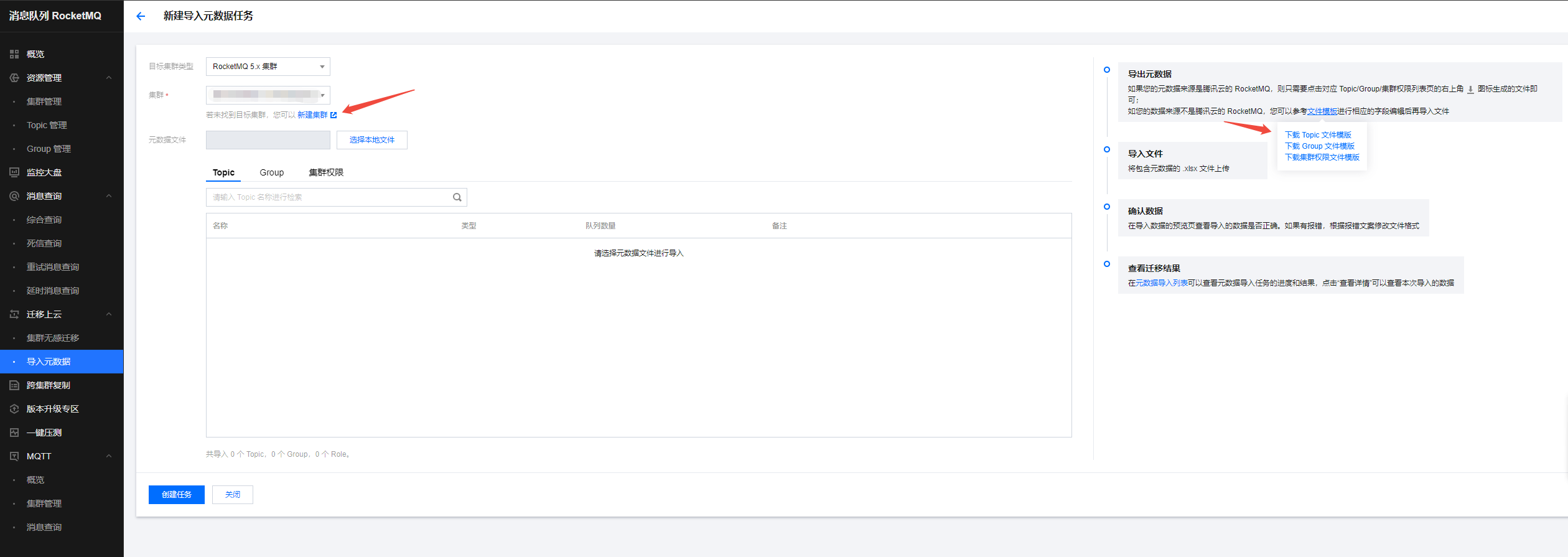
步骤2:创建迁移任务
1. 登录 TDMQ RocketMQ 控制台,进入 迁移上云 页面。进入到迁移任务列表页。单击新建任务创建对应的迁移任务。
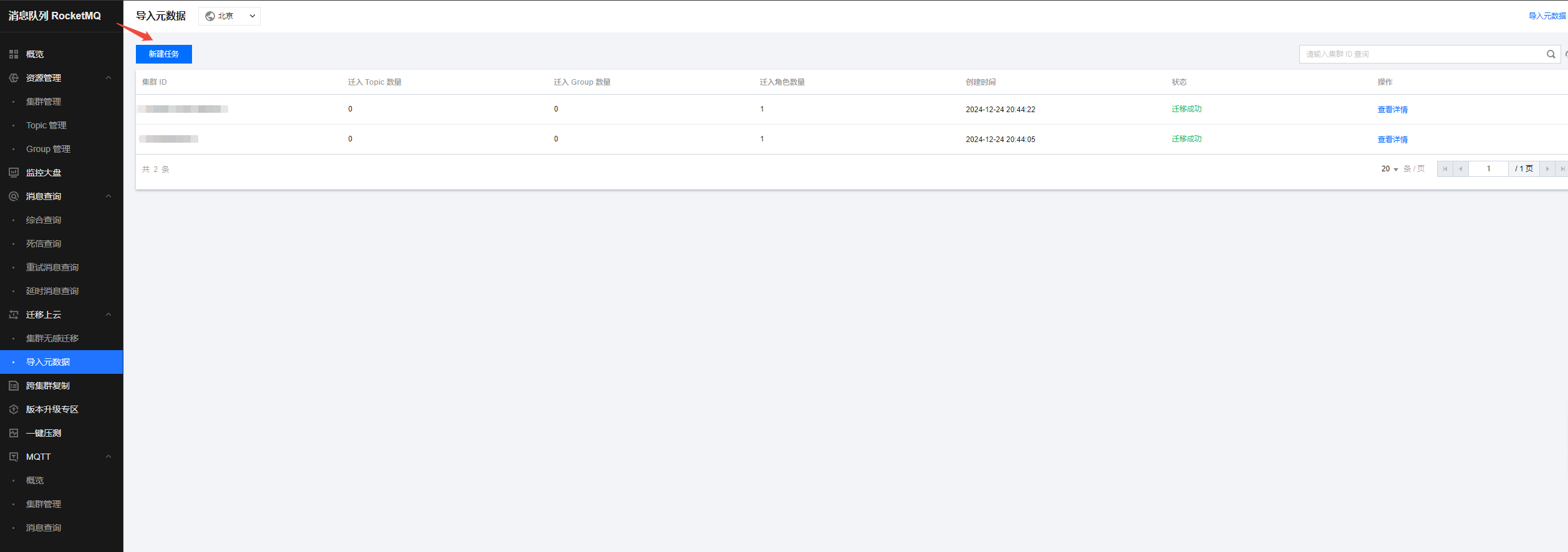
2. 选择迁移任务类型:
集群迁移:将原先自建集群的元数据迁移到已创建的集群中来,在进行“集群迁移”任务时,迁移工具默认会将开源 RocketMQ Dashboard 中 topic 名称内“%”前的部分解析为命名空间的名称,以此来为您创建多个互相逻辑隔离的命名空间。如原先自建集群中没有区分命名空间,则系统会默认为您生成一个名为 default 的命名空间(仅适用于 4.x 专享集群和存量 4.x 虚拟集群)。
导入至指定的命名空间:仅 4.x 专享集群和存量 4.x 虚拟集群支持。将原先自建集群的元数据迁移到指定的命名空间内。如原先的 topic 没有区分命名空间或者进行业务分类,可以借助迁移上云的机会,在接下来导入的过程中,选择特定的 topic 和 group,指定它们进入不同的命名空间以区分业务或者环境。

说明:
5.x 集群和 4.x 通用集群支持导入角色和 ACL 信息。
5.x 集群和 4.x 通用集群没有命名空间,因此只支持导入到集群,没有 “导入到命名空间” 的选项。
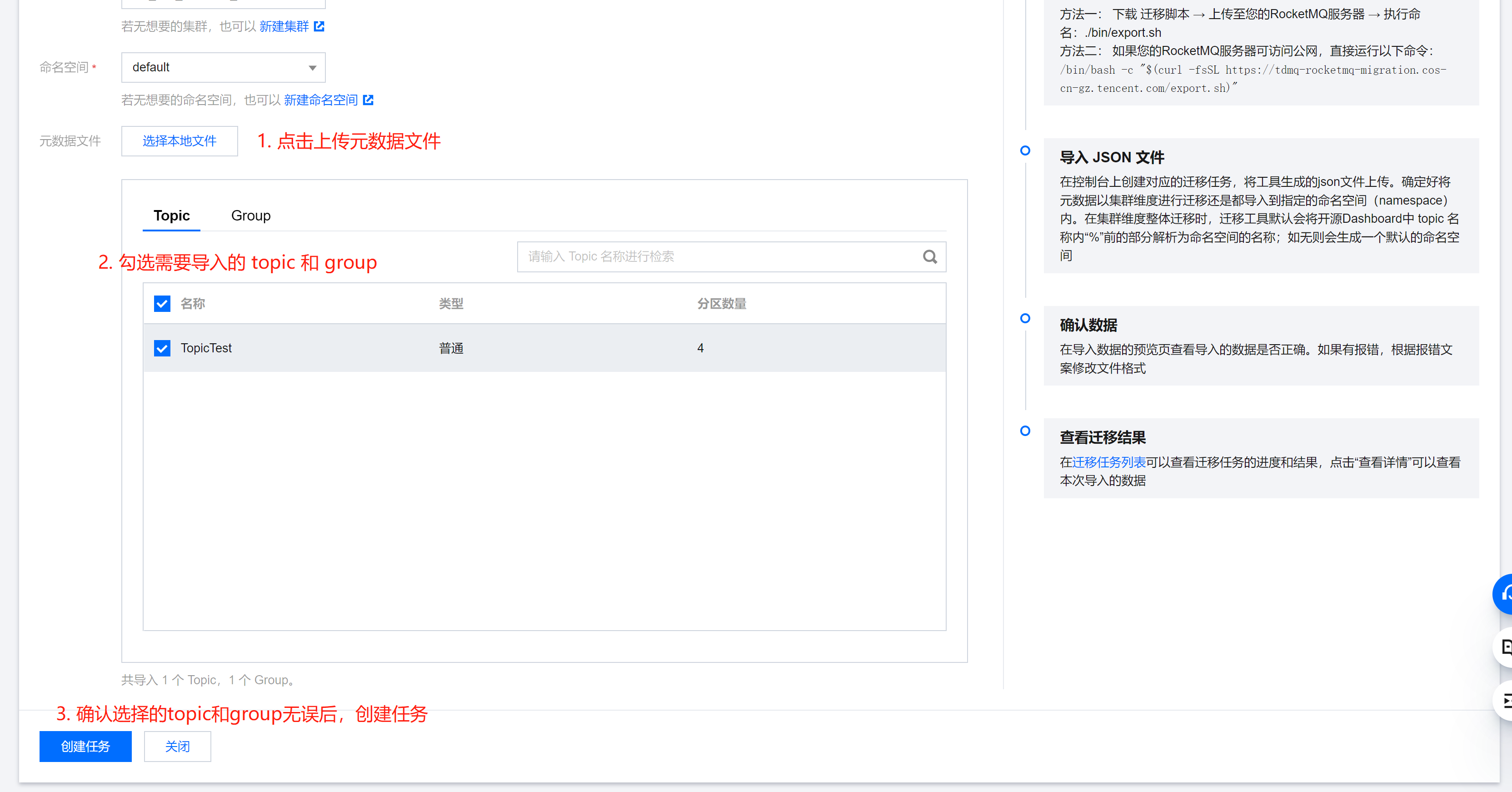
3. 根据图示,上传在第一步中获取的元数据文件,选择需要导入的 topic 和 group。
注意:
单个任务只能导入最多 1000 条 topic 和1000条 group 数据,多余的数据将出现导入失败的情况。
步骤3:查看任务状态
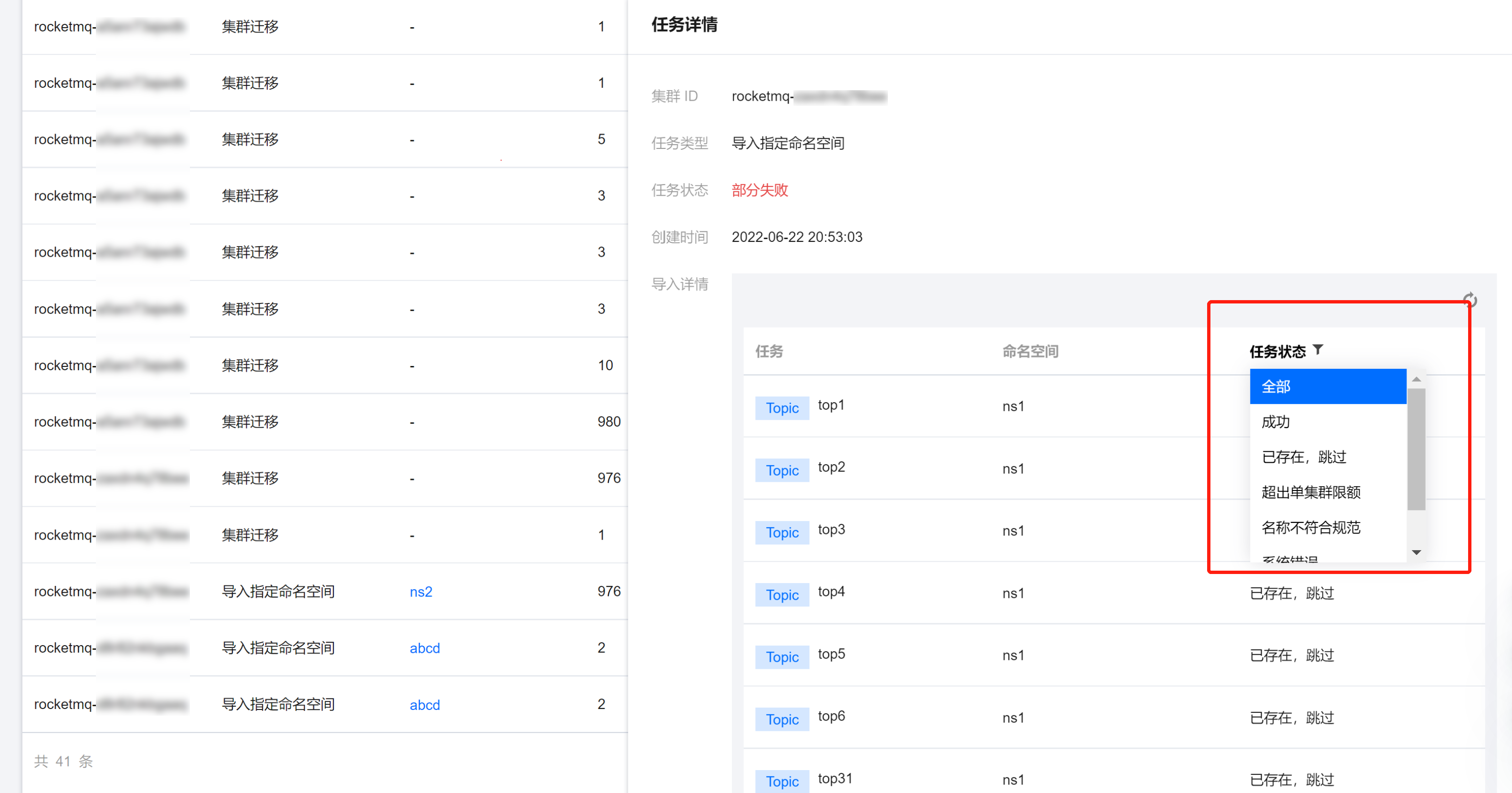
任务创建成功后,进入任务列表查看任务进度。如果数据过多时,任务需要加载一段时间。单击查看详情可以查看任务具体的运行状态。

如果任务出现 “部分失败” 或者 “全部失败” 的场景,可以通过筛选查看失败的任务原因。