操作场景
由于2020年3月23日后,CLB 的证书相关操作均接入访问管理(CAM)鉴权。因此当使用子用户账号进行 CLB 的证书相关操作时,若提示“该操作需要授权,请联系您的开发商为您添加权限”,可根据如下操作,给子用户账号授予证书相关权限。
前提条件
登录的账号需为主账号,或有 CAM 相关权限的子用户账号:即已关联 QcloudCamFullAccess(用户与权限(CAM)全读写访问权限)策略的子用户账户。
说明:
子用户账户 CAM 相关权限查看方式:您可在访问管理控制台的 用户列表 中,进入对应子用户的详情页,在“权限”中查看是否已关联 QcloudCamFullAccess 策略。
若已关联 QcloudCamFullAccess 策略,但进行授予证书相关权限操作中仍出现“暂无API权限(message:GetReceiversOnAllType),请联系开发商授权”的提示,请忽略并继续操作。
操作步骤
请选择如下任意一种方式,进行授予证书相关权限操作。
方式一:关联自定义策略
1. 登录 访问管理控制台。
2. 在左侧导航栏,单击策略,进入“策略”列表页面。
3. 单击新建自定义策略,在弹出框中,选择按策略语法创建。
4. 在“选择模板策略”页面中,选择空白模板,单击下一步。
5. 在“编辑策略”页面中,输入策略名称,在“编辑策略内容”的输入框中,输入如下策略内容。
{"version": "2.0","statement": [{"action": "name/ssl:*","resource": "qcs::ssl:::*","effect": "allow"}]}
6. 单击完成,返回策略列表页面。
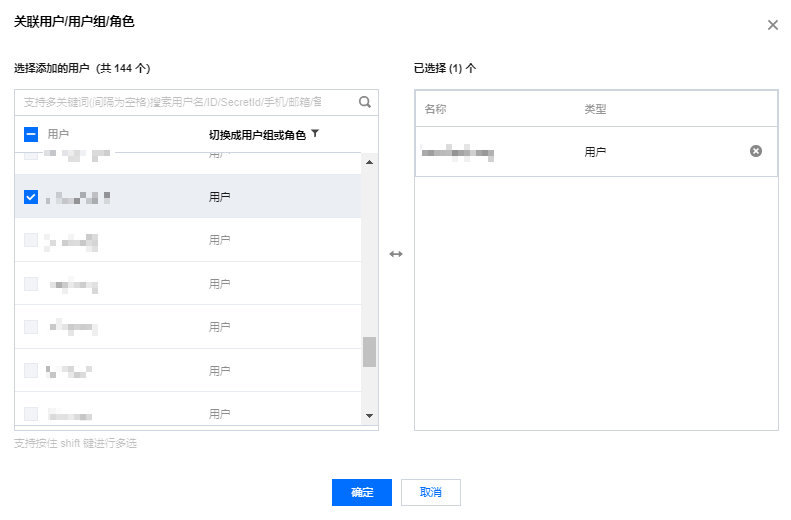
7. 在“策略”列表页面中,找到刚创建的策略所在行,单击操作栏下的关联用户/组/角色。

8. 在弹出框中,选择需授权的用户,单击确定即可。
方式二:关联预设策略
1. 登录 访问管理控制台。
2. 在左侧导航栏,选择用户 > 用户列表,进入“用户列表”页面。
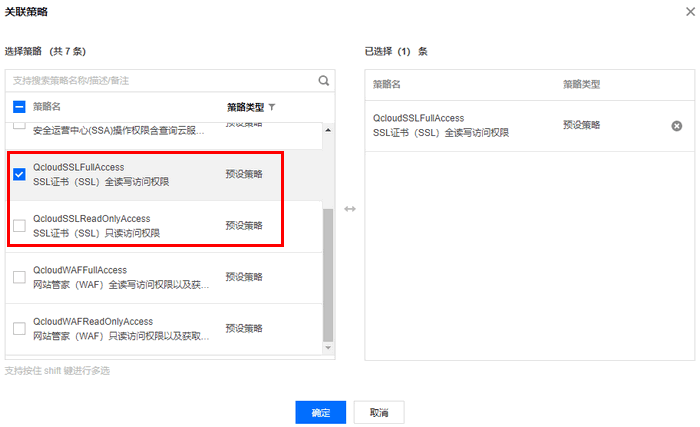
3. 在需授权的子用户的所在行,单击操作栏下的授权。
4. 在弹出框中,选择 QcloudSSLFullAccess(SSL证书(SSL)全读写访问权限)或者 QcloudSSLReadOnlyAccess(SSL证书(SSL)只读访问权限),单击确定即可。