Tencent Cloud provides Virtual Private Cloud (VPC), a platform for hosting TencentDB instances. You can launch Tencent Cloud resources in a VPC, such as TencentDB instances.
A common scheme is to share data between a TencentDB instance and a web server running in the same VPC. This document uses this scheme to create a VPC and add a TencentDB instance to it.
Below describes how to add CVM and TencentDB for MySQL instances in the same VPC to interconnect cloud resources over the private network.
Step 1. Create a VPC
A VPC has at least one subnet, and Tencent Cloud service resources can only be added in a subnet.
2. Select the region of the VPC at the top of the list and click Create.
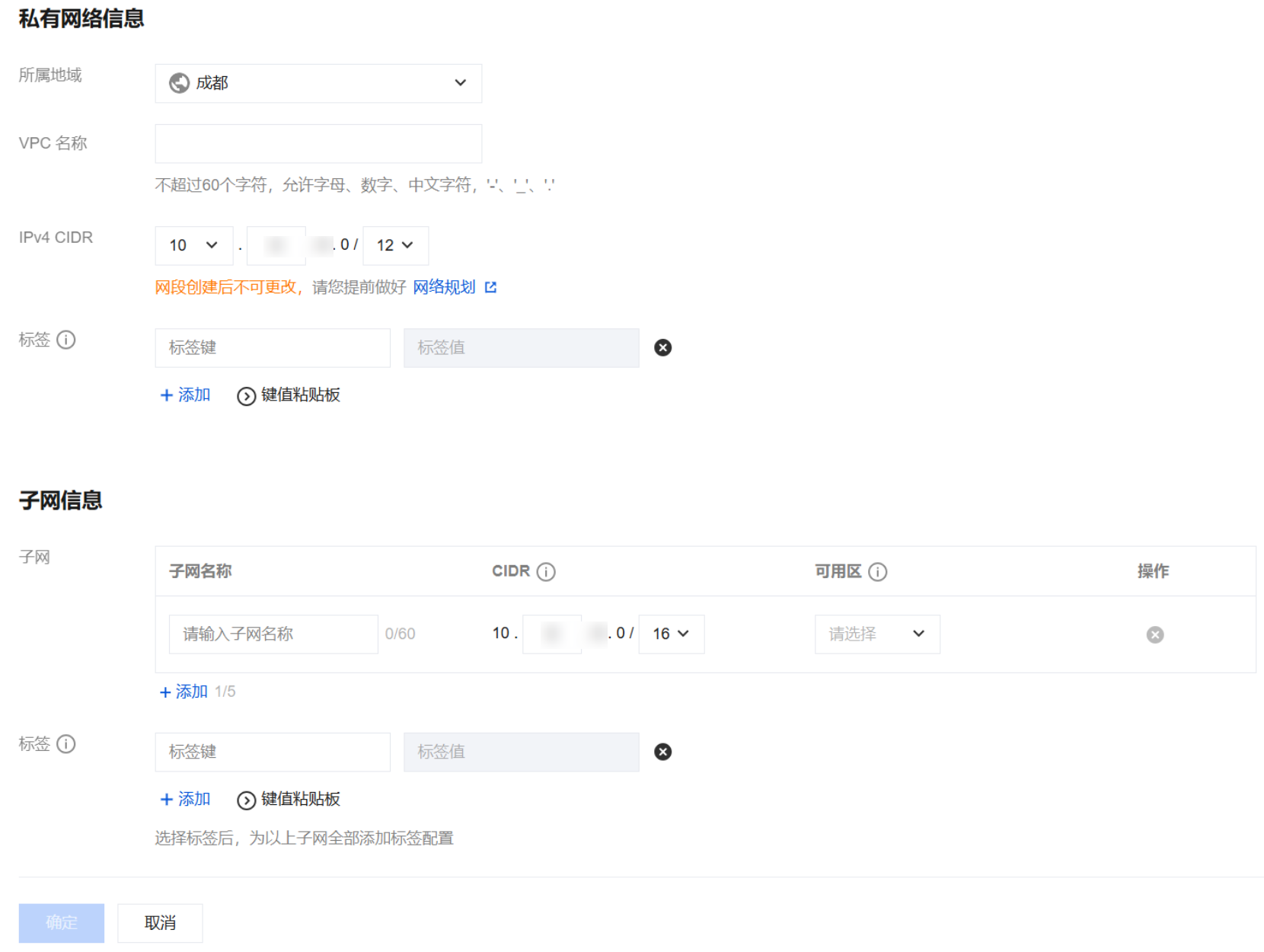
3. Enter the VPC information and initial subnet information and click OK. The CIDRs of the VPC and subnet cannot be modified after creation.
The VPC CIDR can be any of the following IP ranges. For VPCs to communicate with each other over the private network, their CIDRs should not overlap.
10.0.0.0 - 10.255.255.255 (subnet mask range must be between 12 and 28)
172.16.0.0 - 172.31.255.255 (mask range must be between 12 and 28)
192.168.0.0 - 192.168.255.255 (mask range must be between 16 and 28)
The subnet CIDR must be within or the same as the VPC CIDR.
For example, if the VPC CIDR is 192.168.0.0/16, the subnet CIDR within the VPC can be 192.168.0.0/16, 192.168.0.0/17, etc.
2. Click Subnet on the left sidebar to enter the management page.
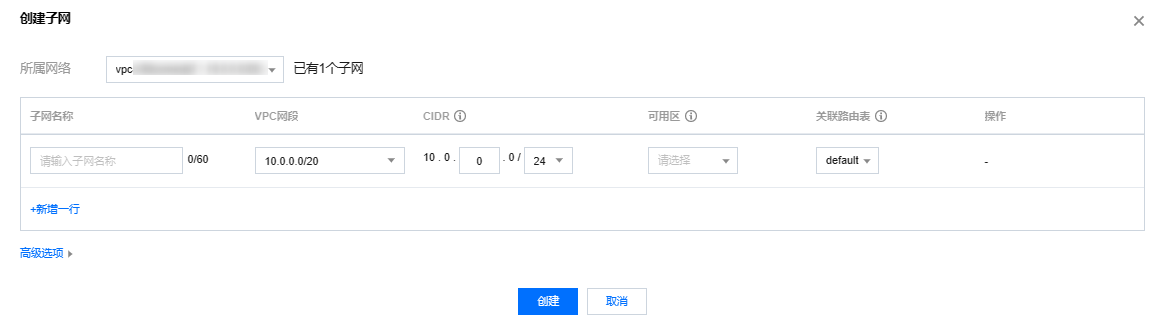
3. Select the region and VPC in which the subnet is to be created and click Create.
4. Enter the subnet’s name, CIDR, availability zone, and associated route table.
5. (Optional) Click +New line to create multiple subnets at a time.
6. Click Create.
Step 3. Create a route table and associate it with a subnet
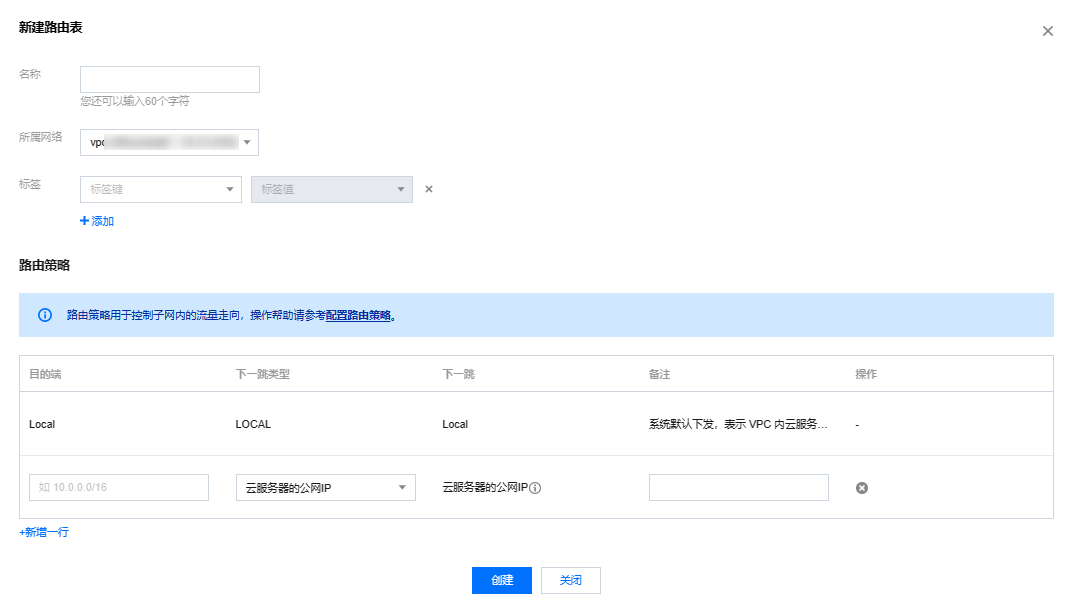
You can create a custom route table, edit its routing policy, and associate it with a specified subnet. The route table associated with a subnet is used to specify the outbound routes for the subnet.
1. Log in to the VPC console and select Route Tables on the left sidebar.
2. Select the region and VPC at the top of the list and click Create.
3. In the pop-up dialog box, enter the name, network, routing rules and click Create. Return to the route table list to view the newly created route table.
4. Click Subnet on the left sidebar, select the subnet to be associated with the route table, and click More > Change route table in the Operation column to associate it.
2. Click Subnet on the left sidebar to enter the management page.
3. Click the “Add a CVM” icon in the row of the subnet where the CVM instance is to be added.
4. Follow the on-screen instructions to complete the purchase of a CVM instance. For more information, refer to the CVM documentation Purchase Methods.
Step 5. Add a TencentDB instance
Create a database
1. Log in to the TencentDB for MySQL console and click Create in the instance list to enter the purchase page.
2. In the Network section on the purchase page, select the previously created VPC and the corresponding subnet, and add the new TencentDB instance to the VPC.
Existing database
1. In the Instance List, click an instance ID or Manage in the Operation column to enter the instance details page.
2. In the Network section on the details page, switch to the corresponding VPC.