Overview
During routine maintenance, you can adjust the MongoDB instance and Cloud Virtual Machine (CVM) to be in the same AZ for lower network latency. TencentDB for MongoDB supports free switching of AZs for cross-AZ instances and also supports adjusting non-cross-AZ instances to cross-AZ instances.
Billing Instructions
Adjusting the AZ will not affect instance billing, please use with confidence.
Notes
Adjusting the AZ will cause a master-slave switch, resulting in a disconnection of about 10 seconds. Please operate during business off-peak period.
Must-Knows
After adjusting the AZ, all attributes, specifications, and connection IP address of the instance will not change. However, switching network will cause the internal network IP of the database to change, requiring application reconnection.
Prerequisites
You have created a TencentDB for MongoDB instance.
The current instance status is Running.
The target AZ to switch to and the current instance's AZ are in the same region.
Directions
1. Log in to the TencentDB for MongoDB console.
2. In the MongoDB drop-down list on the left sidebar, select Replica Set Instance or Sharded Instance. The operations for Replica Set Instance and Sharded Instance are similar.
3. Select Region at the top of the Instance List page on the right.
4. In the Instance List, find the target instance.
5. Click the instance ID to enter the Instance Details page.
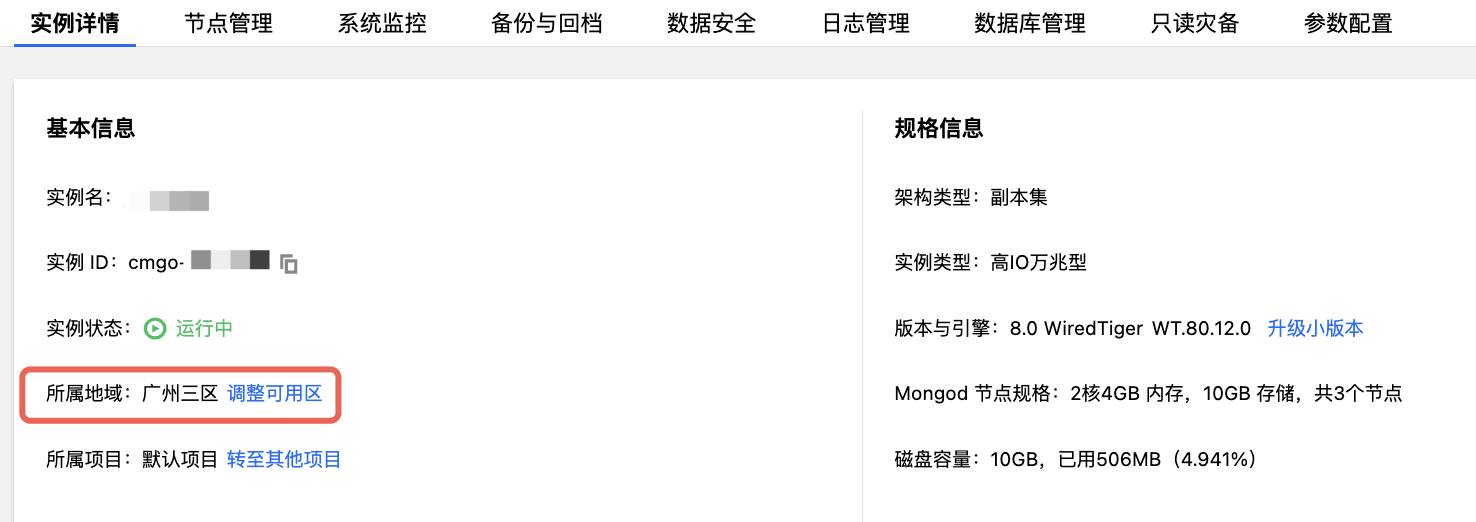
6. On the Instance Details page, click Region and then Modify AZ.

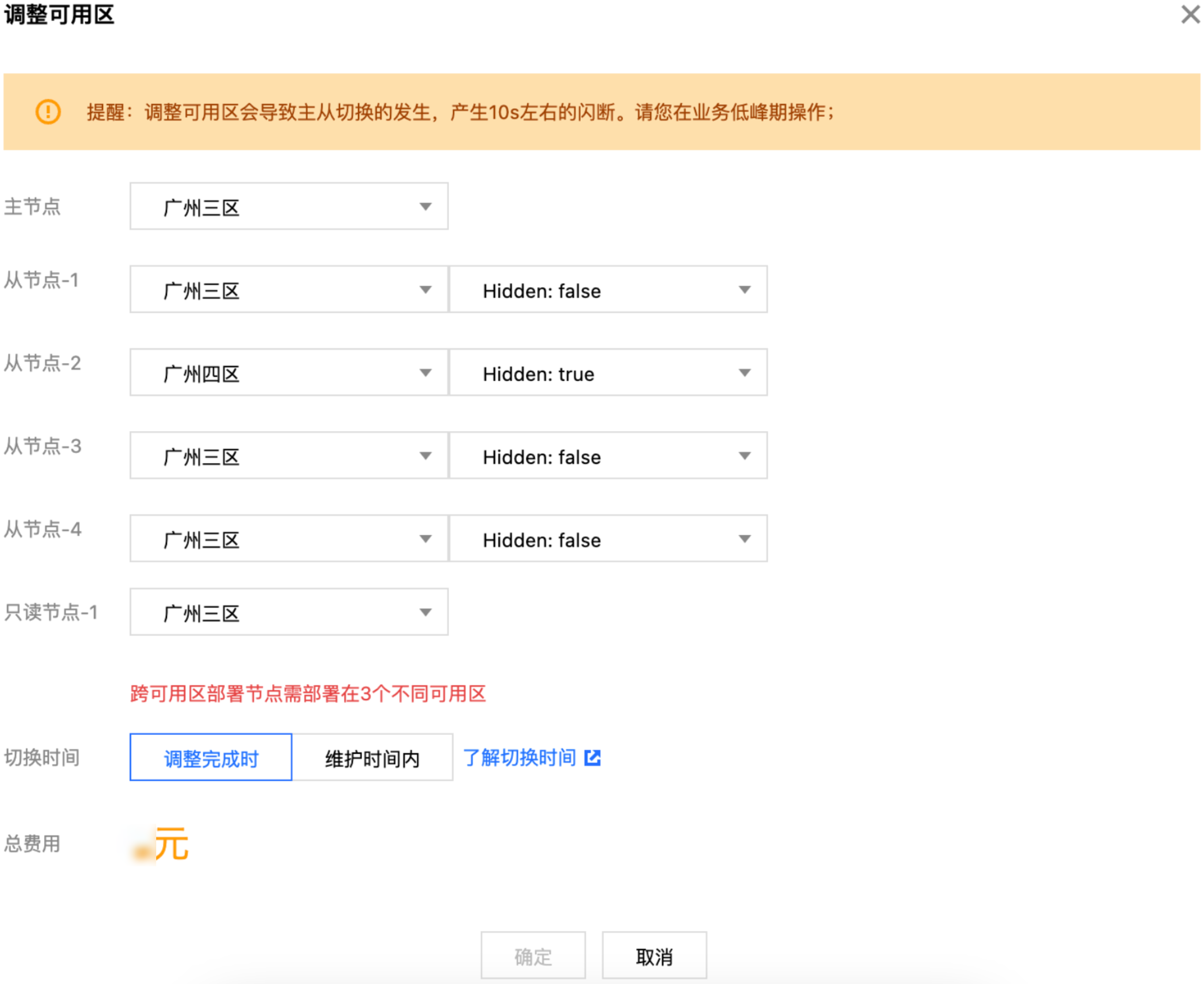
7. In the Modify AZ window, understand the impact of modifying the AZ. For multi-AZ deployment instances, configure different AZs for the primary and secondary nodes. For single-AZ deployment instances, configure the same AZ for both primary and secondary nodes.

Note:
Modifying the AZ will cause a master-slave switch, resulting in a disconnection of about 10 seconds. Please perform this operation during off-peak hours.
8. Select the time to execute the AZ switch task after Switch Time. Click understand switch time to change the instance maintenance window according to the business off-peak period. For specific operations, see adjust instance maintenance time.
Note:
If you have scheduled a task to adjust AZs during the maintenance timeframe, avoid selecting upon completion of adjustment to execute immediately before the maintenance time, as it may cause program errors. Initiated tasks cannot be stopped manually; you need to Submit a Ticket to apply.
Upon completion of adjustment: Execute immediately after configuration is completed.
Maintenance timeframe: Execute tasks within the maintenance period.
9. Confirm the total cost, click Yes to enter the product order page, verify the order, click Submit Order, pay the fee, and complete the operation.
The instance status changes to Switching AZs. Wait for the task to complete to see the adjusted AZ.
Subsequent Operations
After adjusting AZs, switch the VPC subnet to avoid high access latency. For specific operations, refer to Switching Instance Network.