The content of this page has been automatically translated by AI. If you encounter any problems while reading, you can view the corresponding content in Chinese.

Setting Alarms

Last updated: 2024-09-26 10:29:38

You can customize traffic alarms for VPN connections. When a metric value exceeds its threshold, alarm notifications are sent to you automatically via email and SMS. Alarm services are free of charge, helping you quickly locate problems.

Operation Steps

1. Log in to TCOP Console.
2. Click Alert Management > Policy Management in the left-side menu to enter the management page, then click New Policy.
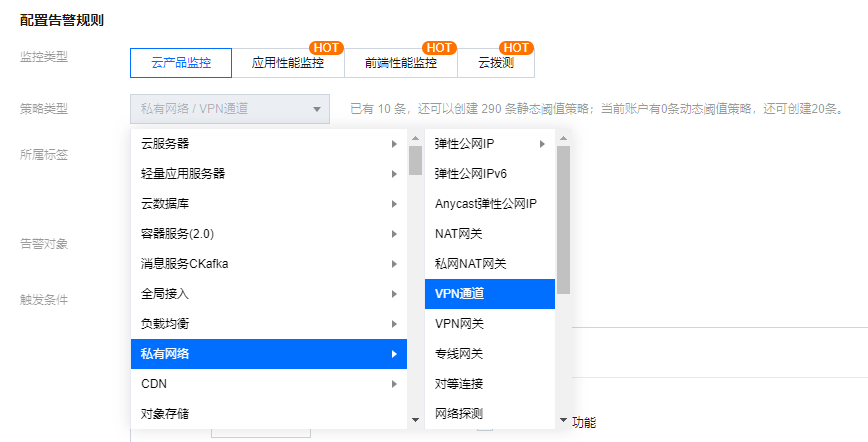
3. Fill in the alarm policy name, choose the policy type as VPC > VPN Tunnel, select Alert Object, set the Trigger Condition, then click Next: Configure Alarm Notification.

Configuration Type
Configuration Item
Description
Alarm Rule Configuration
Alarm Object
If you select Instance ID, the alarm policy will be associated with the selected instance.
If you select the instance group, the alarm policy will be associated with the selected instance group.
If you select all objects, the alarm policy will be associated with all instances under the current account.
Trigger Condition
An alarm trigger condition is a semantic condition composed of metrics, comparative relationship, threshold, statistical granularity, and lasting N monitoring data points. You can set the metrics and event alert trigger conditions according to your business needs, configuring alert metrics, statistical granularity, alert thresholds, alert classification, and alert frequency. You can also directly use the trigger condition templates and predefined trigger conditions. Refer to Configure Alarm Trigger Condition.
Alarm Notification Configuration
Using alarm notification template
Support selecting system preset notification templates and user-defined notification templates. Each alarm policy can bind up to three notification templates. Refer to Alarm Notification.
4. On the Configure Alarm Notification page, select Notification Template, then click Finish
5. View alarm information When the alarm condition is triggered, you will receive an alarm notification through the selected alert channels (SMS/Email/WeChat, etc.). You can also click Alert History in the left-side menu to view. For more alarm-related information, refer to Alarm Configuration.