查看 VPN 通道
VPN 通道创建后,您可以在 VPN 通道管理页面查看通道详情。
操作步骤
1. 登录 私有网络控制台。
2. 在左侧目录中单击 VPN 连接 > VPN 通道,进入管理页。
3. 在 VPN 通道管理页面,单击通道实例进入 VPN 通道详情页面。
基本信息
在基本信息页签展示了如通道名称、通道 ID、协议类型、所属网络、预共享密钥、协商类型、DPD 参数和通信模式等信息。
高级配置信息
在高级信息页签展示了 IKE 和 IPSec 相关的配置信息,如加密算法、认证算法等。
修改 VPN 通道
VPN 通道创建后,您可以修改通道基本信息中的通道名称、预共享密钥、协商类型、标签信息等,以及高级配置中的 IKE 配置和 IPSec 配置,也可以重置通道的所有配置。
对系统的影响
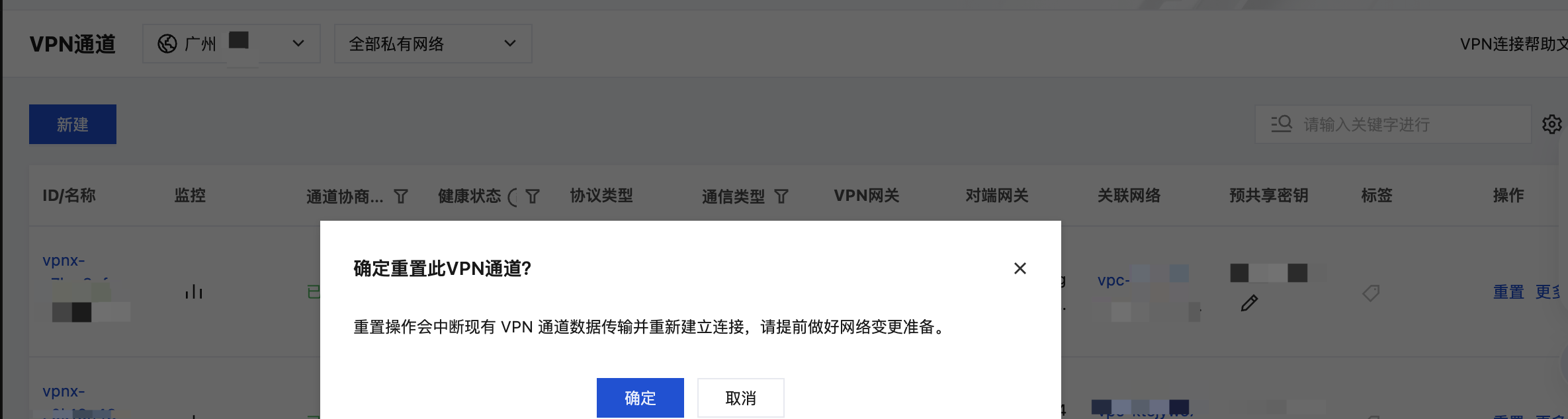
注意:重置操作会中断现有 VPN 通道数据传输并重新建立连接,请提前做好网络变更准备。
操作步骤
1. 登录 私有网络控制台。
2. 在左侧目录中单击 VPN 连接 > VPN 通道,进入管理页。
3. 在 VPN 通道管理页面,单击需要修改的 VPN 通道实例 ID,进入详情页。
4. 在基本信息页面,单击图中的编辑图标,可修改 VPN 通道名称、预共享密钥、协商类型、DPD参数以及标签信息,修改后单击确定即可。
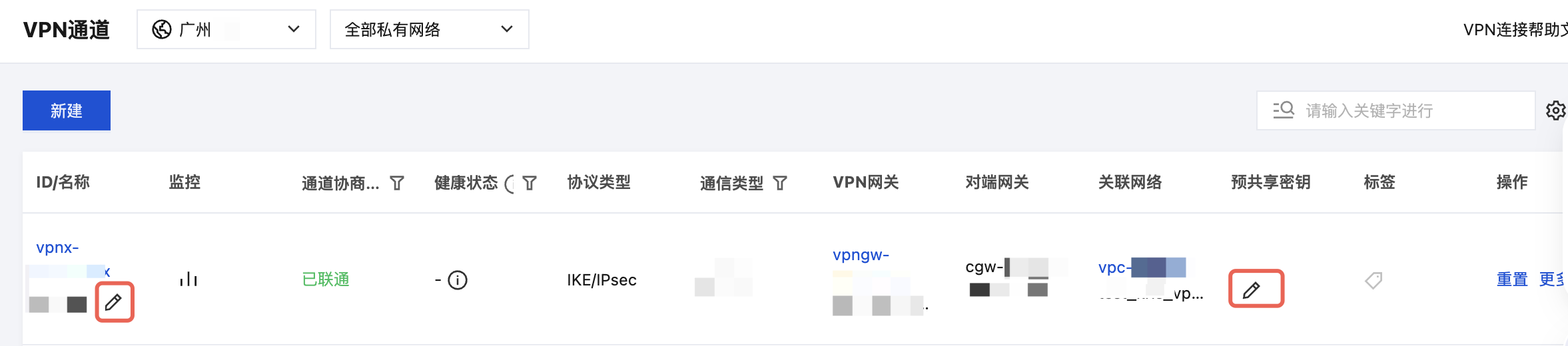
其中,通道名称和预共享密钥也可以在 VPN 通道列表界面单击编辑图标直接修改,如下图所示。
5. 单击高级信息选项卡,可在高级信息中修改 IKE 配置 和 IPSec 配置,修改后单击确定即可。
6. 单击重置将中断现有 VPN 通道数据传输并重新建立连接,请知悉风险并谨慎操作。
删除 VPN 通道
当 VPN 通道不再使用时,您可以执行删除操作。
操作步骤
1. 登录 私有网络控制台。
2. 在左侧目录中单击 VPN 连接 > VPN 通道,进入列表管理页。
3. 在 VPN 通道管理页面,单击通道实例右侧的更多 > 删除。
4. 在确认对话框中,单击确定即可完成操作。


