The content of this page has been automatically translated by AI. If you encounter any problems while reading, you can view the corresponding content in Chinese.
Access control rules allow you to control access from public network users by matching HTTP message sections such as request path, GET parameters, POST parameters, Referer, and User-Agent. This feature enables Tencent Cloud users to respond flexibly with a combination of rules to easily block various cyber attacks.
Note:
Rule types distinguish between single-domain rules and batch multiple-domain rules. The total number of rules per domain is the sum of single-domain and batch rules.
The maximum number of rules that can be configured for a single domain varies by plan version. For details, refer to Plans and Editions.
Each rule can contain up to 5 conditions.
Multiple conditions within each Access Control Policy are related with an "AND" relationship, meaning the policy takes effect only if all conditions are met.
Recommended action: Each rule supports six actions after matching: Block, CAPTCHA, Observe, Redirect.
Interception: WAF intercepts access that hits this policy.
CAPTCHA: Enables WAF to verify access requests that hit the specified rule.
Observe: Enables WAF to observe access requests that hit the specified rule.
Redirect: Enables WAF to redirect access requests that hit the specified rule.
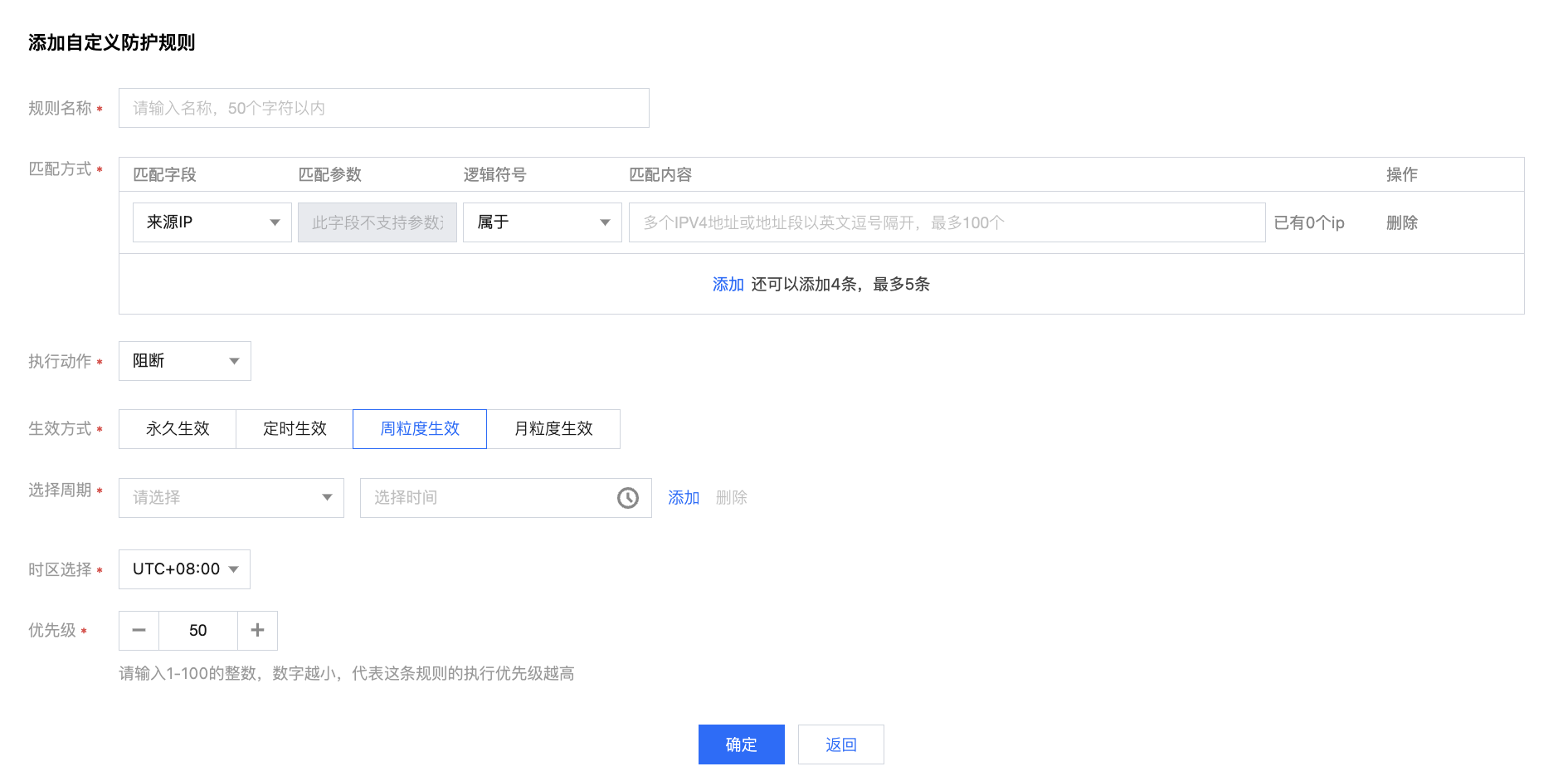
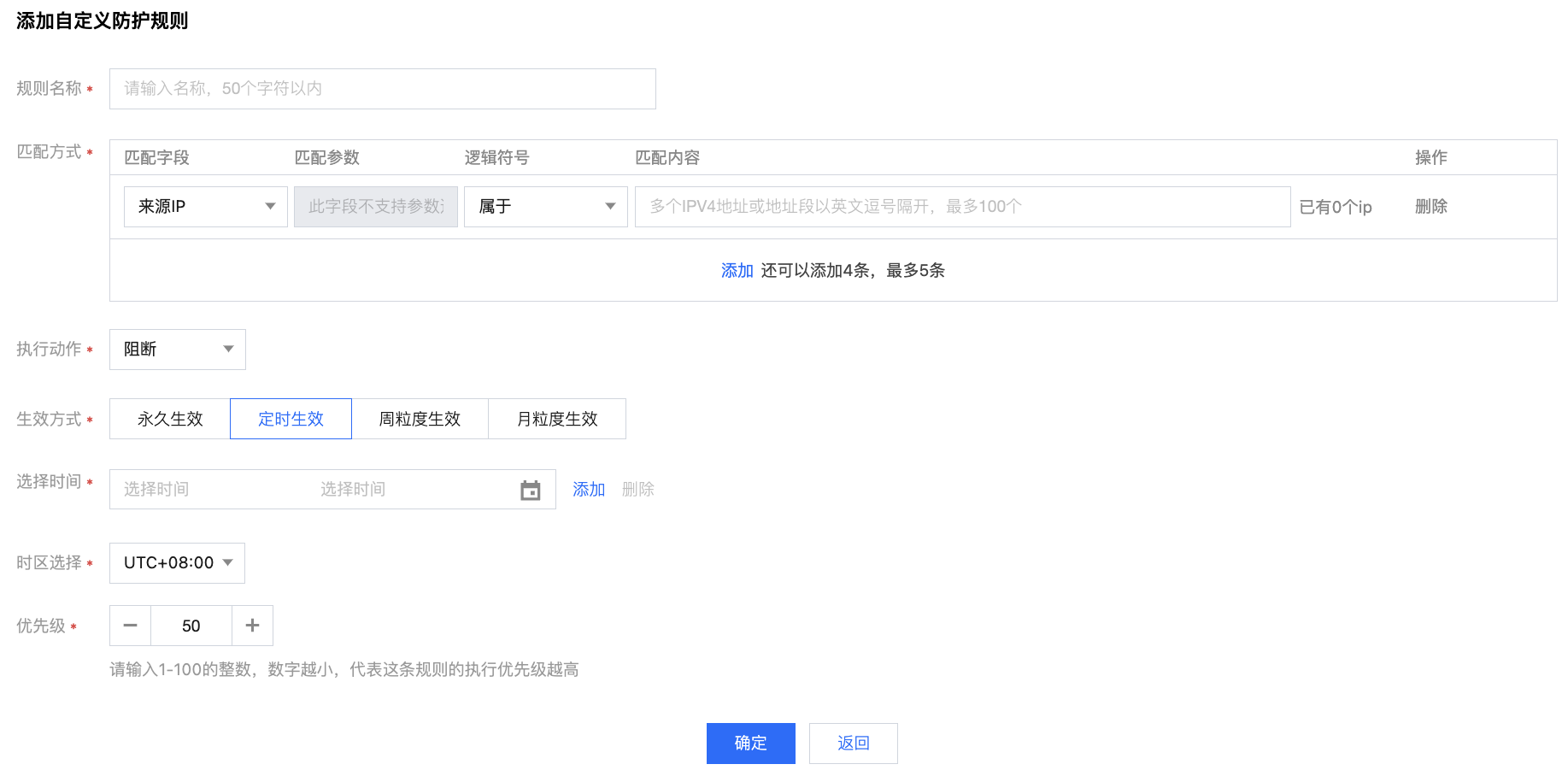
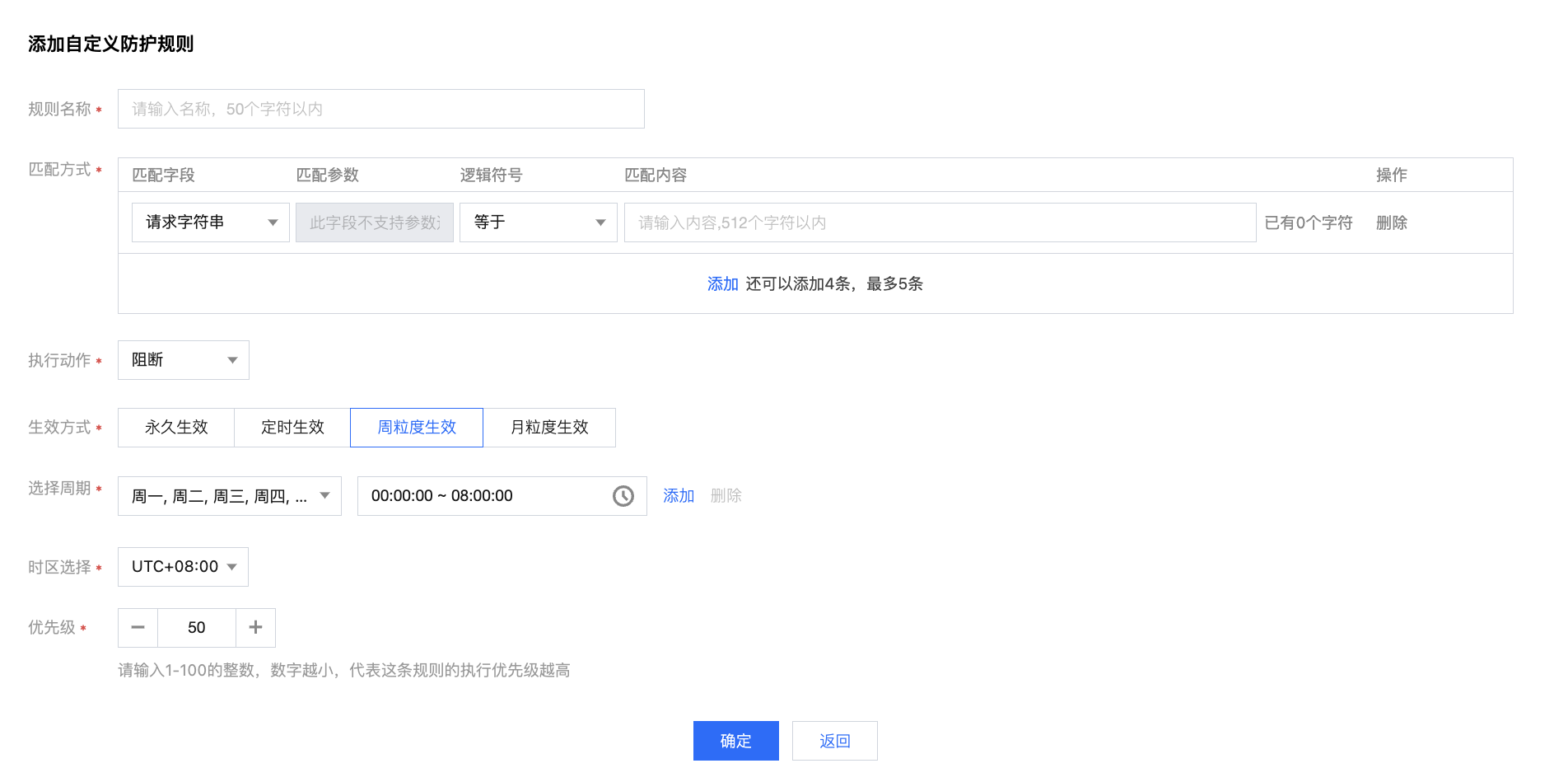
Effective Method: Supports four different effective methods: Immediate, Custom, Weekly Cycle, and Monthly Cycle Effect.
Priority: The value range is 1-100. A smaller number represents higher priority.
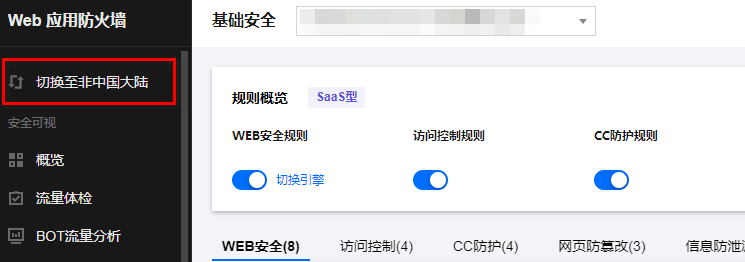
2. In the top menu, select WAF Instance Region (Chinese mainland, non-Chinese mainland).
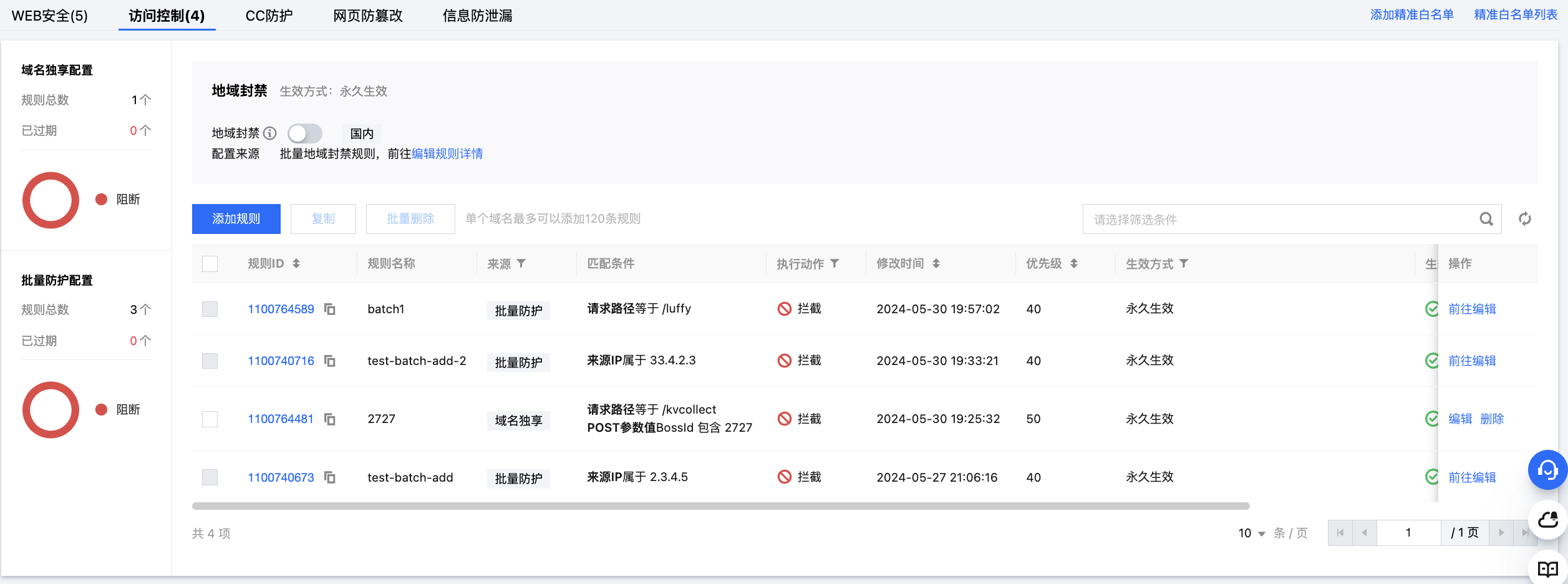
3. In the left sidebar, select Basic Security > Access Control.
4. In the Access Control page, switch to the domain name you want to set.
5. Access Control configuration consists of three parts: effective Region Blocking Policy of the current domain, domain-specific Custom Rules, and batch rules effective through Custom Policy. It supports adding, deleting, modifying, and querying single-domain Custom Rules, as well as viewing batch rules.
Search for the required CAM policy as needed, and click to complete policy association.
Example 1: Banning specific IP addresses from accessing a designated site at specific times
To ban specific IP addresses from accessing a designated site, the webmaster can configure it with the following steps:
1. On the Add Custom Protection Rule page, enter the rule name (e.g., 001), select a field in the match field (e.g., source IP), choose the logical operator as match, fill in the content to be banned (e.g., 192.168.1.1), select the recommended action (e.g., block), and after filling in the details, click OK to save the rule.
Note:
WAF's access control policy supports using masks to control the access requests of source IPs in a certain IP range. We can input a specific IP range (e.g., 10.10.10.10/24) in the match content.
2. Then the rule will take effect and all HTTP access requests from the specific source IP will be blocked.
Example 2: During a specific time period, banning public network users from accessing specified Web resources
When website administrators do not want public internet users to access certain specific web resources (such as the management panel /admin.html), the following configuration can be made: On the Add Custom Definition protection rule page, select "Request Path" for the matching field, choose "Equals" for the logical operator, enter /admin.html for the matching content, select "Block" for the action, and click OK to complete the configuration.
Example 3: Banning an external site from hot-linking certain resources
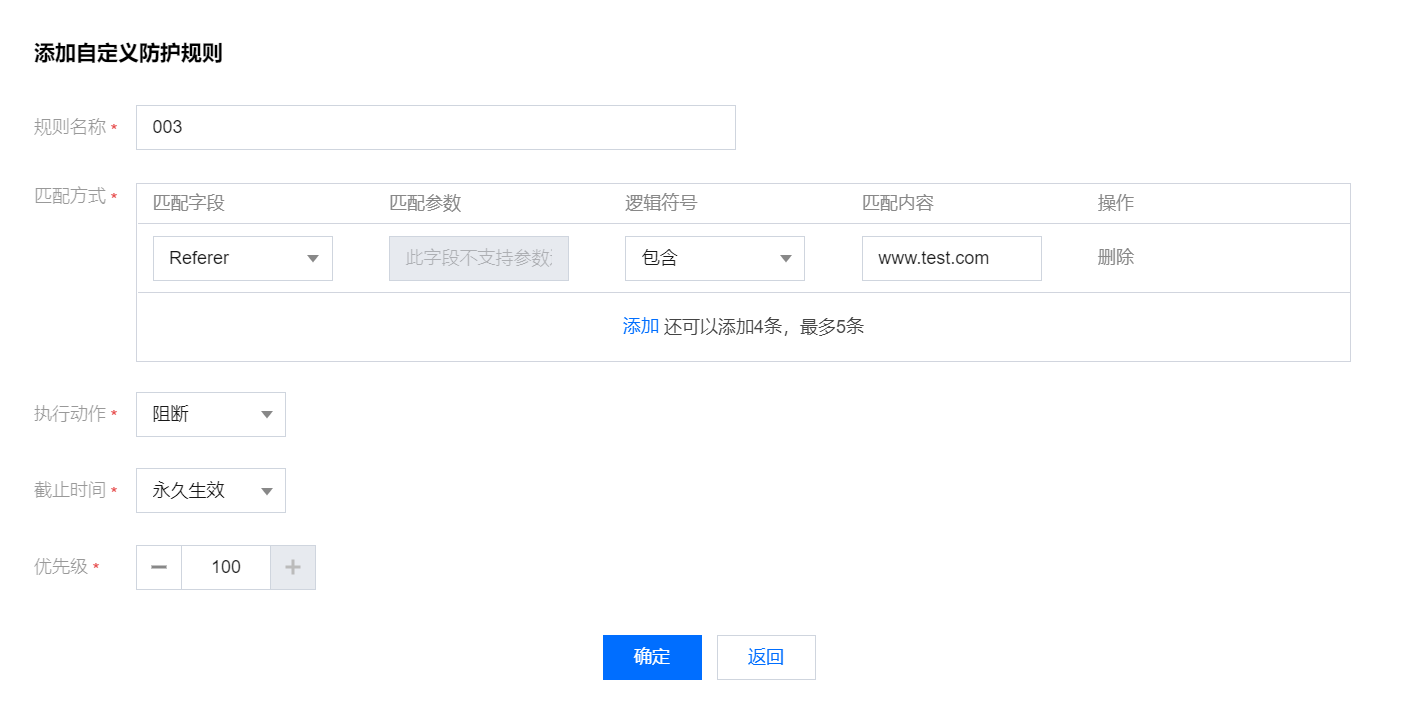
When website administrators need to block hotlinking behavior from external sites (such as www.test.com), access control policies can be utilized to capture and block requests with Referer characteristics indicative of hotlinking. The configuration is as follows: On the Add Custom Definition protection rule page, select "Referer" for the matching field, choose "Contains" for the logical operator, enter www.test.com for the matching content, select "Block" for the action, and click OK to complete the configuration.
Example 4: Copying rules to target domain names
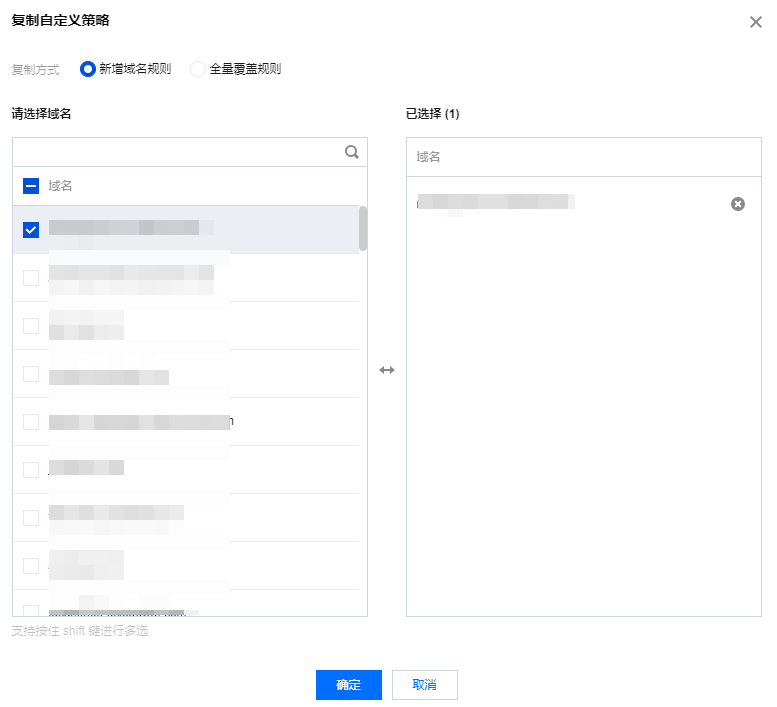
You can copy the rule you configured to other domain names by using the copy operation.
1. On the Basic Security > Access Control page, select the required policy and click Copy. The custom policy copy window will pop up.
2. In the custom policy copy window, select the required domain name and click OK to copy the policy to the target domain name.