You need to create logsets and log topics to store and view the flow logs.
Logset: Specifies the storage collection for flow logs within Cloud Log Service.
Log Topic: Specifies the smallest dimension for log storage, used to distinguish different types of logs, such as Accept logs, etc.
Note
This document describes how to create logsets and log topics that are not marked with Flowlog. These logsets and log topics cannot be used to create and use the advanced analysis dashboards.
Instructions
1. Log in to the Cloud Log Service Console, click Log Topics in the left sidebar to access the log topic management page.
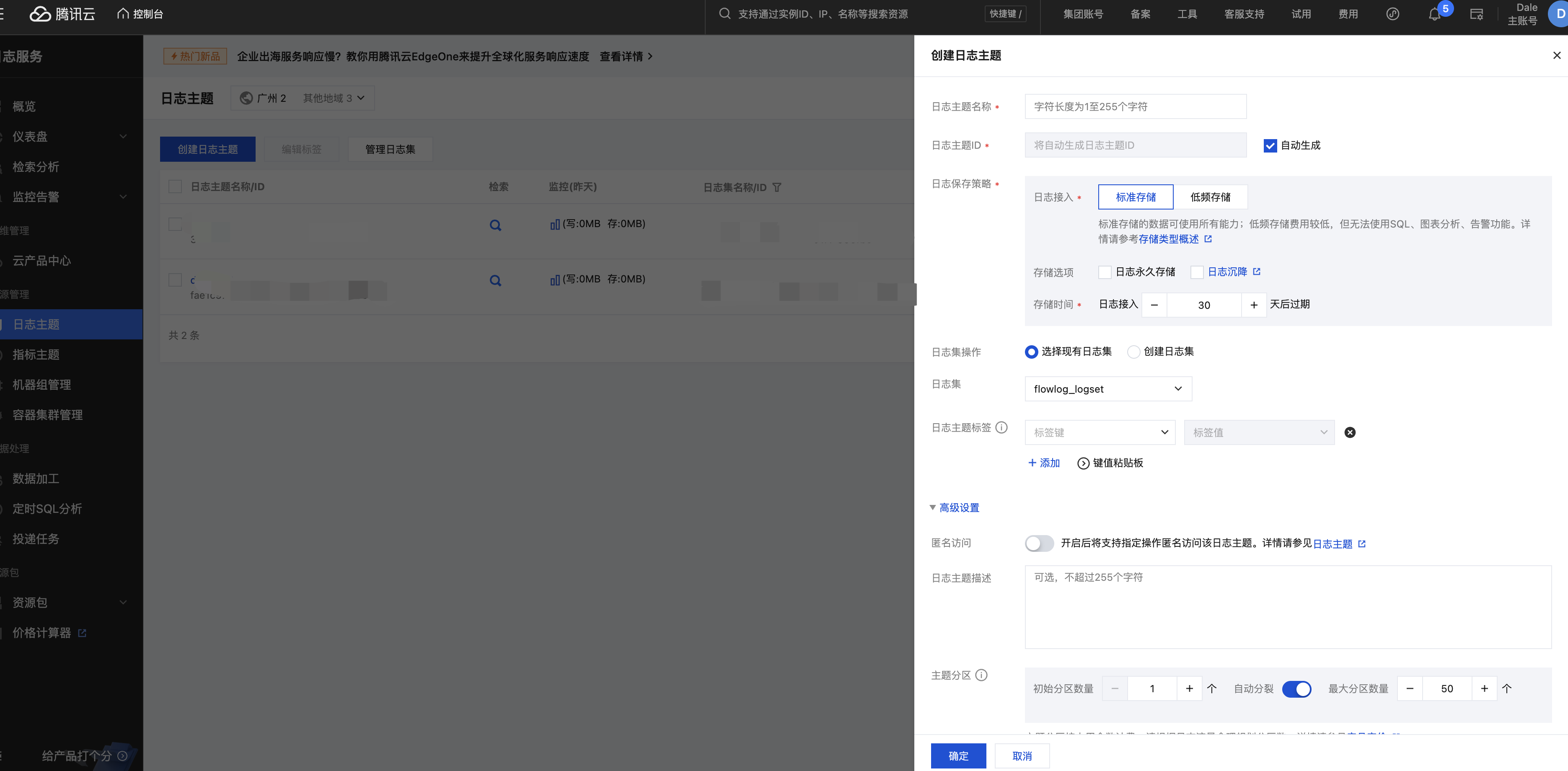
2. At the top of the page, select the appropriate region and click Create Log Topic.
3. In the pop-up Create Log Topic window, enter the log topic name, partition count, and other information, then click Confirm.
Log Topic Name: For example, nginx.
Storage types: By default, STANDARD storage is used. For more information on storage types, see Storage Class Overview.
The log retention period is set to 30 days by default, and can be selected from a range of 1 to 3,600 days.
Logset Operations:
Select an existing logset: Choose the target logset from the drop-down menu. The log retention period will be the same as the logset retention period.
Create Logset: Logset Name, for example, cls_test.
Partition Count: By default, one partition is created. For more information on topic partitions, please refer to Topic Partition Introduction.
Partition Auto-Split: Enabled by default.
Maximum number of partitions: You can customize the number of partitions, with a maximum limit of 50 partitions.
Note
After the auto-split feature is enabled, the partition will be automatically split up to 50 partitions based on the actual write capacity when the write requests or write traffic of the partition always exceed the capability.
If the number of partitions in a log topic reaches the maximum value set, Cloud Log Service will no longer trigger auto-splitting, and the excess portion will be rejected, returning a request limit exceeded error code.
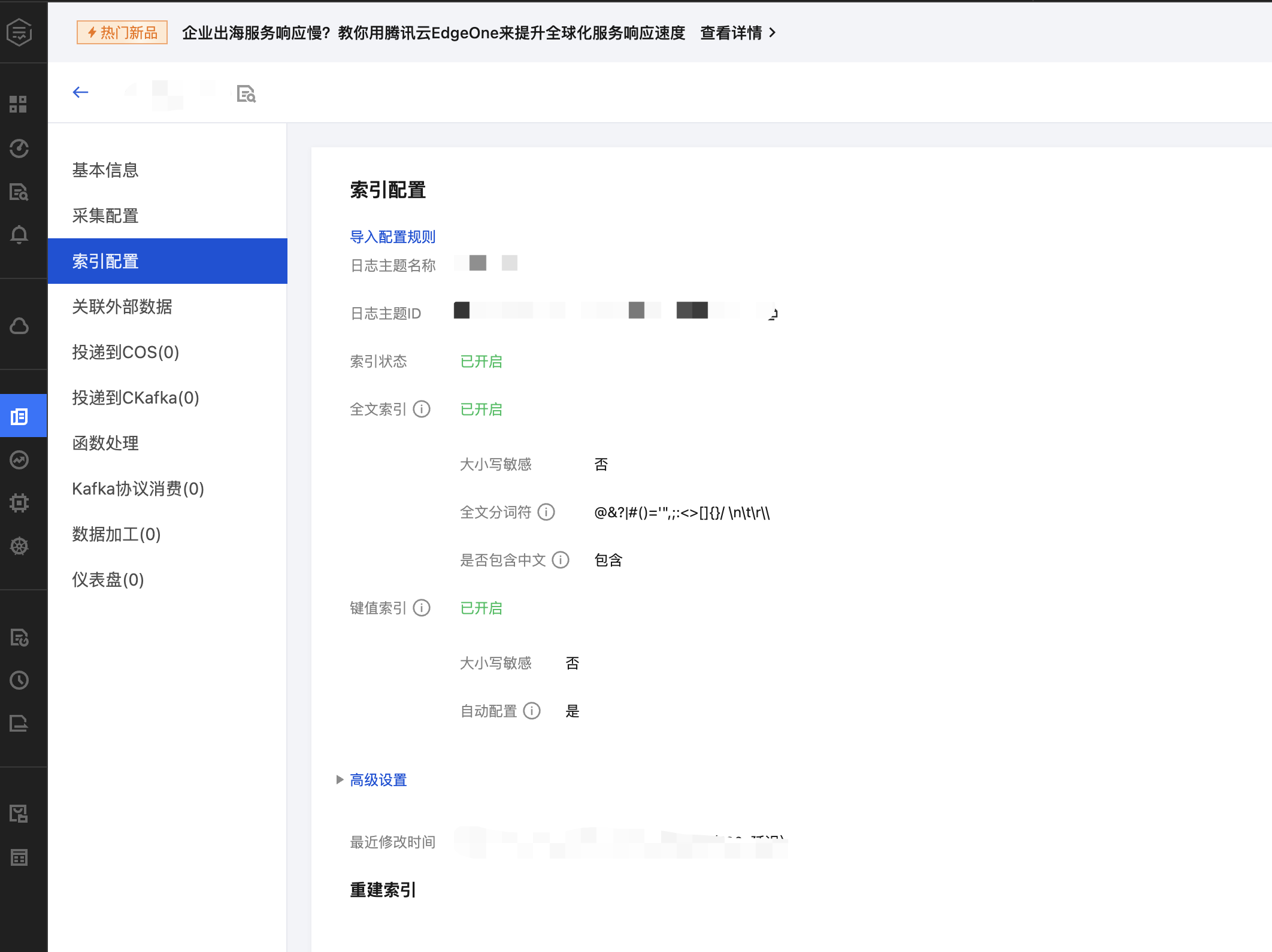
4. In the details page of the created log topic, select the Index Configuration tab and click Edit in the upper right corner.
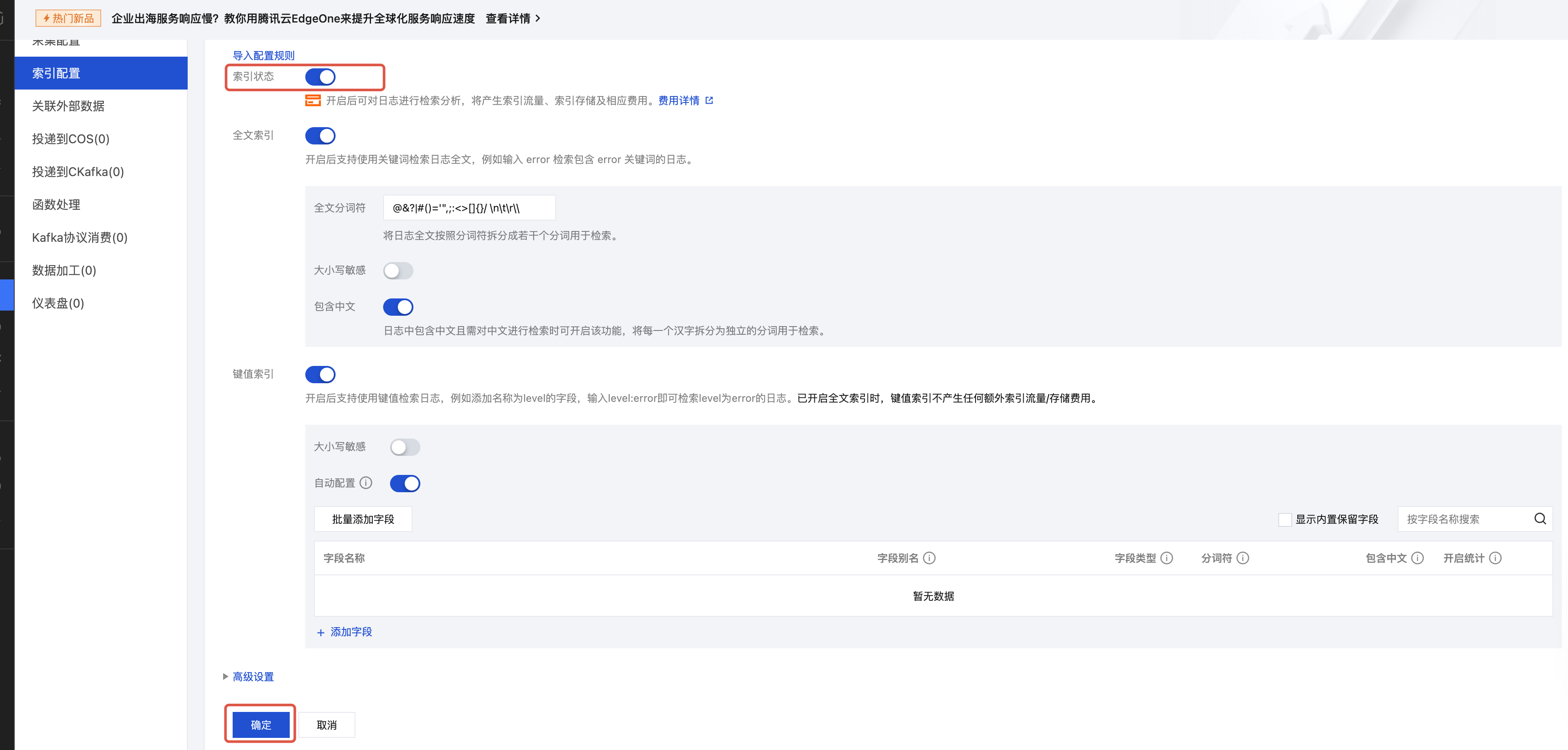
5. Enable indexing and click Confirm to view and search flow logs.
Note
You do not need to install agents or be concerned about the server group status.
If you have no need to import flow logs into services like COS, you don't need to worry about log shipping tasks.