
如何使工具栏和状态条的颜色从上到下渐变
我正在尝试实现工具栏和状态栏的渐变颜色,使其看起来如下所示:
但我却得到了这个:
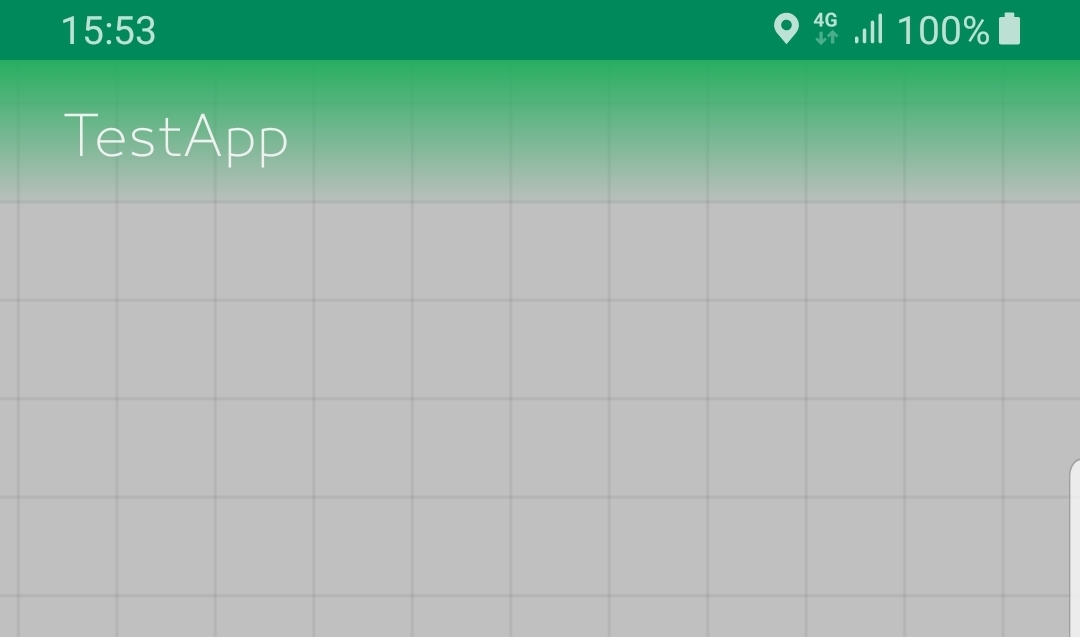
我已经为工具栏设置了一个带有渐变颜色的自定义背景,并在样式中设置了windowTranslucentStatus=true。但是工具栏和状态栏上的颜色看起来不一样。如何解决这个问题才能达到预期的效果。
工具栏:
<androidx.constraintlayout.widget.ConstraintLayout
    android:id="@+id/relativeLayout"
    android:layout_width="match_parent"
    android:layout_height="match_parent">

    <androidx.appcompat.widget.Toolbar
        android:id="@+id/my_toolbar"
        android:layout_width="match_parent"
        android:layout_height="?attr/actionBarSize"
        android:background="@drawable/toolbar_gradient"
        app:popupTheme="@style/AppTheme.PopupOverlay"
        android:elevation="4dp"
        app:layout_constraintTop_toTopOf="parent"
        app:layout_constraintRight_toRightOf="parent"
        app:layout_constraintLeft_toLeftOf="parent">


        <androidx.constraintlayout.widget.ConstraintLayout
            android:layout_width="match_parent"
            android:layout_height="wrap_content">


            <ImageView
                android:id="@+id/imageViewToolbar"
                android:layout_width="40dp"
                android:layout_height="40dp"
                android:layout_marginEnd="16dp"
                android:visibility="invisible"
                app:layout_constraintBottom_toBottomOf="parent"
                app:layout_constraintEnd_toEndOf="parent"
                app:layout_constraintTop_toTopOf="parent"
                app:srcCompat="@drawable/logo_transparent" />

            <TextView
                android:id="@+id/textView4"
                android:layout_width="wrap_content"
                android:layout_height="wrap_content"
                android:layout_marginStart="8dp"
                android:layout_marginTop="8dp"
                android:text="TestApp"
                android:textColor="@color/colorSplashText"
                android:textSize="18sp"
                app:layout_constraintStart_toStartOf="parent"
                app:layout_constraintTop_toTopOf="parent" />

        </androidx.constraintlayout.widget.ConstraintLayout>


    </androidx.appcompat.widget.Toolbar>
toolbar_gradient
<?xml version="1.0" encoding="utf-8"?>
<shape android:shape="rectangle" xmlns:android="http://schemas.android.com/apk/res/android">

    <gradient
        android:endColor="#00008A5B"
        android:startColor="@color/colorPrimary"
        android:angle="270"
        />

</shape>
styles.xml
    <!-- Base application theme. -->
<style name="AppTheme" parent="Theme.MaterialComponents.Light.NoActionBar">
    <!-- Customize your theme here. -->
    <item name="colorPrimary">@color/colorPrimary</item>
    <item name="colorPrimaryDark">@color/colorPrimaryDark</item>
    <item name="colorAccent">@color/colorAccent</item>
    <item name="fontFamily">@font/bukra_light</item>
    <item name="android:windowTranslucentStatus">true</item>
</style>
Activity.java
@Override
protected void onCreate(Bundle savedInstanceState) {
    super.onCreate(savedInstanceState);
    setContentView(R.layout.activity);
    Toolbar toolbar = (Toolbar) findViewById(R.id.my_toolbar);
    setSupportActionBar(toolbar);
    getWindow().addFlags(WindowManager.LayoutParams.FLAG_KEEP_SCREEN_ON);
    getWindow().clearFlags(WindowManager.LayoutParams.FLAG_TRANSLUCENT_STATUS);
    getWindow().setStatusBarColor(ContextCompat.getColor(this, R.color.colorPrimary));
.....
}Stack Overflow用户
发布于 2020-10-26 23:29:24
有关详细解释,请参阅我在Create Linear gradient from top to bottom to status bar and toolbar in android中的答案。
使用您的代码并应用相同的过程,我得到以下代码:
res/values/styles.xml:
<resources>

    <!-- Base application theme. -->
    <style name="AppTheme" parent="Theme.AppCompat.Light.NoActionBar">
        <!-- Customize your theme here. -->
        <item name="colorPrimary">@color/colorPrimary</item>
        <item name="colorPrimaryDark">@color/colorPrimaryDark</item>
        <item name="colorAccent">@color/colorAccent</item>
        <item name="android:windowTranslucentStatus">true</item>
    </style>

</resources>
res/values/styles-v21.xml:
<resources>
    <style name="AppTheme" parent="Theme.AppCompat.Light.NoActionBar">
        <item name="android:statusBarColor">@android:color/transparent</item>
    </style>

</resources>
res/drawable/statusbar_gradient.xml:
<?xml version="1.0" encoding="utf-8"?>
<shape android:shape="rectangle" xmlns:android="http://schemas.android.com/apk/res/android">

    <gradient
        android:startColor="#ff008A5B"
        android:endColor="#b0008A5B"
        android:angle="270"
        />
</shape>注意,梯度endColor与下面的toolbar_gradient.xml中的梯度startColor匹配。
res/drawable/toolbar_gradient.xml:
<?xml version="1.0" encoding="utf-8"?>
<shape android:shape="rectangle" xmlns:android="http://schemas.android.com/apk/res/android">
    <gradient
        android:startColor="#b0008A5B"
        android:endColor="#00008A5B"
        android:angle="270"
    />
</shape>
res/layout/activity_main.xml:
<?xml version="1.0" encoding="utf-8"?>
<androidx.constraintlayout.widget.ConstraintLayout
    xmlns:android="http://schemas.android.com/apk/res/android"
    xmlns:app="http://schemas.android.com/apk/res-auto"
    android:id="@+id/relativeLayout"
    android:layout_width="match_parent"
    android:layout_height="match_parent"
    android:fitsSystemWindows="false">

    <View
        android:id="@+id/status_bar_scrim"
        android:layout_width="match_parent"
        android:layout_height="26dp"
        app:layout_constraintTop_toTopOf="parent"
        app:layout_constraintBottom_toTopOf="@+id/my_toolbar"
        android:background="@drawable/status_bar_gradient" />

    <androidx.appcompat.widget.Toolbar
        android:id="@id/my_toolbar"
        android:layout_width="match_parent"
        android:layout_height="?attr/actionBarSize"
        android:background="@drawable/toolbar_gradient"
        app:layout_constraintLeft_toLeftOf="parent"
        app:layout_constraintRight_toRightOf="parent"
        app:layout_constraintTop_toBottomOf="@id/status_bar_scrim" />


</androidx.constraintlayout.widget.ConstraintLayout>注意使用android:fitsSystemWindows="false"确保划线覆盖状态栏区域。
MainActivity.java:
public class MainActivity extends AppCompatActivity {

    @Override
    protected void onCreate(Bundle savedInstanceState) {
        super.onCreate(savedInstanceState);
        Window window = getWindow();
        if (Build.VERSION.SDK_INT < Build.VERSION_CODES.Q) {
            // ensure the layout fills the screen
            final int layoutFlags = View.SYSTEM_UI_FLAG_LAYOUT_STABLE
                    | View.SYSTEM_UI_FLAG_LAYOUT_FULLSCREEN;
            window.getDecorView().setSystemUiVisibility(layoutFlags);
            // make the status bar translucent
            if (Build.VERSION.SDK_INT >= Build.VERSION_CODES.LOLLIPOP) {
                window.clearFlags(WindowManager.LayoutParams.FLAG_TRANSLUCENT_STATUS);
                window.addFlags(WindowManager.LayoutParams.FLAG_DRAWS_SYSTEM_BAR_BACKGROUNDS);
                window.setStatusBarColor(0x00000000);
            }
        } else {
            window.setDecorFitsSystemWindows(false);
        }

        setContentView(R.layout.activity_main);
        Toolbar toolbar = findViewById(R.id.my_toolbar);
        setSupportActionBar(toolbar);

        if (Build.VERSION.SDK_INT == Build.VERSION_CODES.KITKAT) {
            // set the height of the scrim to standard status bar height for this device (normally 26dp)
            View statusBarScrim = findViewById(R.id.status_bar_scrim);
            if (statusBarScrim != null) {
                int height;
                int resourceId = getResources().getIdentifier("status_bar_height", "dimen", "android");
                if (resourceId > 0) {
                    height = getResources().getDimensionPixelSize(resourceId);
                    ViewGroup.LayoutParams lp = statusBarScrim.getLayoutParams();
                    lp.height = height;
                    statusBarScrim.setLayoutParams(lp);
                    statusBarScrim.setVisibility(View.VISIBLE);
                }
            }
        }
    }
}
我得到的是:
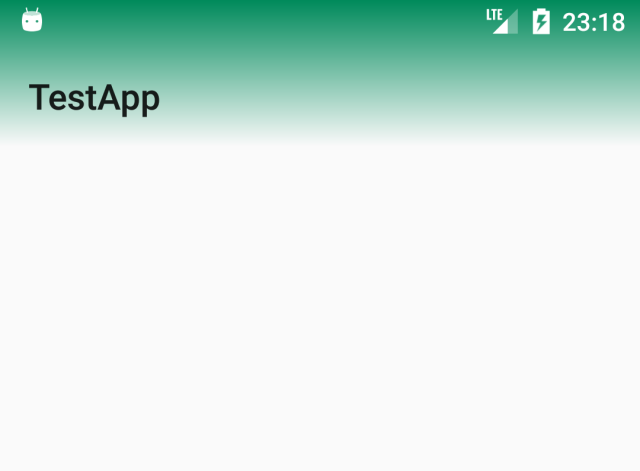
注意:响应更新以考虑到安卓11中WindowManager UI标志的不推荐。在Android10 (Q)之前的版本仍然需要UI标志,因此不可能完全消除弃用警告,但可以通过版本检查来保护它们。
在KitKat (19)、Marshmallow (23)、努格特(24)和R (30)上测试成功。
https://stackoverflow.com/questions/64537042
复制相似问题
腾讯云开发者

Copyright © 2013 - 2026 Tencent Cloud. All Rights Reserved. 腾讯云 版权所有
深圳市腾讯计算机系统有限公司 ICP备案/许可证号:粤B2-20090059  粤公网安备44030502008569号
腾讯云计算(北京)有限责任公司 京ICP证150476号 | 京ICP备11018762号