
 针线文档搜索添加福利群:解决AI开发者的「MCP实战痛点」
 github
使用 Needle MCP 服务器构建代理

MCP(模型上下文协议)服务器,用于通过 Claude 的桌面应用程序管理文档并使用 Needle 进行搜索。
目录
概述
Needle MCP 服务器允许您:
- 组织和存储文档以便快速检索。
- 通过 Claude 的大型语言模型执行强大的搜索。
- 与 Needle 生态系统无缝集成,实现高级文档管理。
MCP(模型上下文协议)标准化了大型语言模型(LLM)连接到外部数据源的方式。您可以使用 Needle MCP 服务器轻松在 AI 应用程序中启用语义搜索工具,使 PDF、DOCX、XLSX 和其他文件中埋藏的数据能够被 LLM 即时访问。
我们推荐使用我们的远程 MCP 服务器以获得最佳体验——无需本地设置。
功能
- 文档管理: 轻松在服务器上添加和组织文档。
- 搜索与检索: 基于 Claude 的自然语言搜索,快速获取答案。
- 易于集成: 与 Claude 桌面 和 Needle 集合配合使用。
使用方法
Claude 桌面中的命令
以下是如何在 Claude 桌面中使用命令与服务器交互的示例:
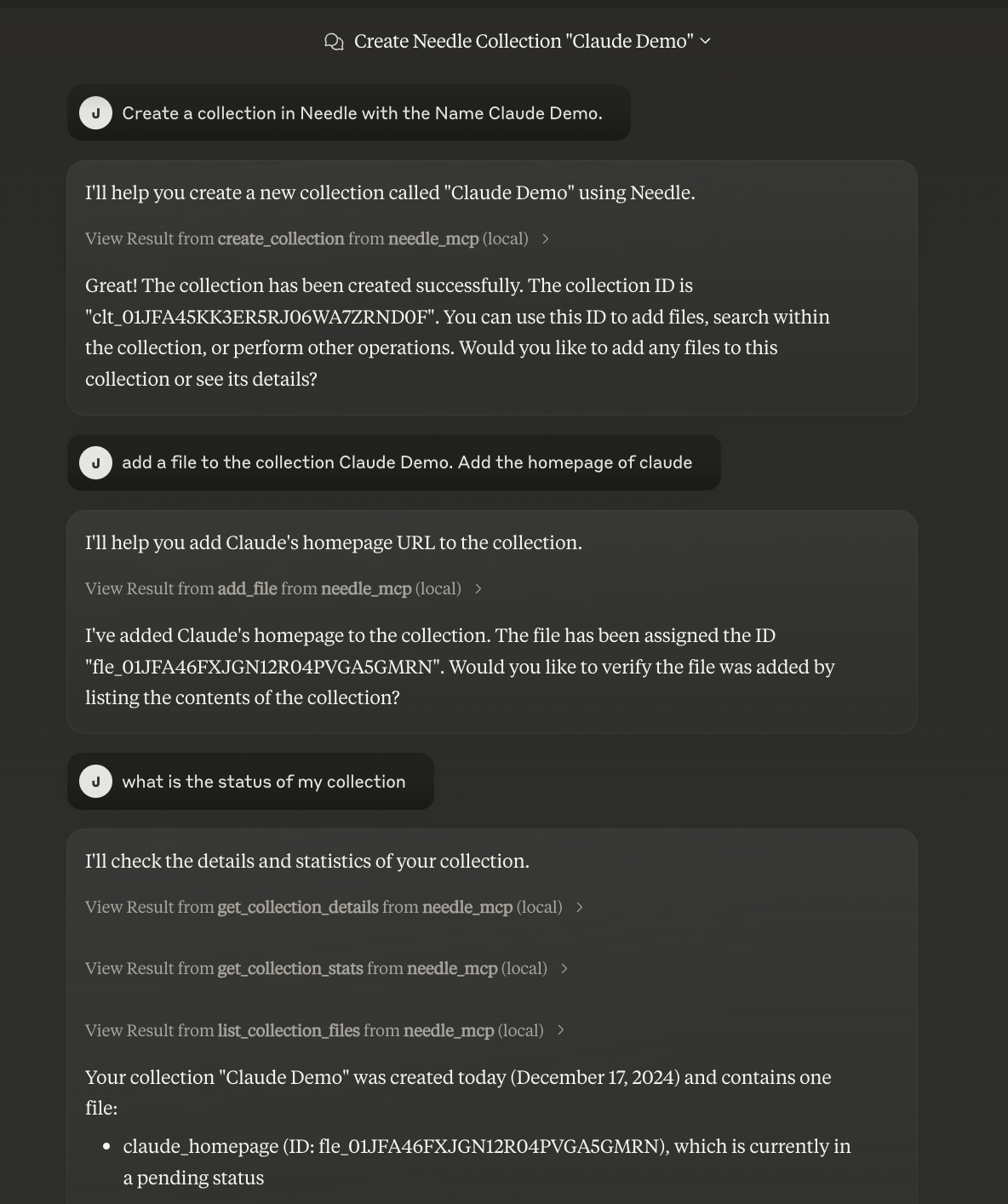
- 打开 Claude 桌面并连接到 Needle MCP 服务器。
- 使用简单的文本命令进行搜索、检索或修改文档。
- 查看搜索结果,Claude 会在用户友好的界面中返回结果。
Needle 中的结果
https://github.com/user-attachments/assets/0235e893-af96-4920-8364-1e86f73b3e6c
YouTube 视频讲解
要全面了解如何使用 Needle MCP 服务器与 Claude 和 Claude 桌面,请观看此 YouTube 讲解视频。
安装
1. 远程 MCP 服务器(推荐)
Claude 桌面配置
创建或更新您的配置文件:
- 对于 MacOS:
~/Library/Application Support/Claude/claude_desktop_config.json - 对于 Windows:
%APPDATA%/Claude/claude_desktop_config.json
{
  "mcpServers": {
    "needle": {
      "command": "npx",
      "args": [
        "mcp-remote",
        "https://mcp.needle.app/mcp",
        "--header",
        "Authorization:Bearer ${NEEDLE_API_KEY}"
      ],
      "env": {
        "NEEDLE_API_KEY": "<your-needle-api-key>"
      }
    }
  }
}

Cursor 配置
创建或更新 .cursor/mcp.json:
{
  "mcpServers": {
    "needle": {
      "command": "npx",
      "args": [
        "mcp-remote",
        "https://mcp.needle.app/mcp",
        "--header",
        "Authorization:${NEEDLE_AUTH_HEADER}"
      ],
      "env": {
        "NEEDLE_AUTH_HEADER": "Bearer <your-needle-api-key>"
      }
    }
  }
}
从 Needle 设置 获取您的 API 密钥。
我们提供两个端点:
- 可流式 HTTP:
https://mcp.needle.app/mcp(推荐) - SSE:
https://mcp.needle.app/sse
注意:MCP 在最新规范中弃用了 SSE 端点,因此新客户端应优先使用可流式 HTTP 端点。
2. 本地安装
- 克隆仓库:
git clone https://github.com/needle-ai/needle-mcp.git
- 使用 Homebrew 全局安装 UV:
brew install uv
- 创建您的配置文件:
- 对于 MacOS:
~/Library/Application Support/Claude/claude_desktop_config.json - 对于 Windows:
%APPDATA%/Claude/claude_desktop_config.json
- 对于 MacOS:
Claude 桌面配置
{
  "mcpServers": {
    "needle": {
      "command": "uv",
      "args": ["--directory", "/path/to/needle-mcp", "run", "needle-mcp"],
      "env": {
        "NEEDLE_API_KEY": "<your-needle-api-key>"
      }
    }
  }
}
Cursor 配置
{
  "mcpServers": {
    "needle": {
      "command": "uv",
      "args": ["--directory", "/path/to/needle-mcp", "run", "needle-mcp"],
      "env": {
        "NEEDLE_API_KEY": "<your-needle-api-key>"
      }
    }
  }
}
- 将
/path/to/needle-mcp替换为您的实际仓库路径 - 添加您的 Needle API 密钥
- 重启 Claude 桌面
通过 Smithery 安装
npx -y @smithery/cli install needle-mcp --client claude
3. Docker 安装
- 克隆并构建:
git clone https://github.com/needle-ai/needle-mcp.git
cd needle-mcp
docker build -t needle-mcp .
- 添加到您的 Claude 桌面配置(
~/Library/Application Support/Claude/claude_desktop_config.json):
{
  "mcpServers": {
    "needle": {
      "command": "docker",
      "args": ["run", "--rm", "-i", "needle-mcp"],
      "env": {
        "NEEDLE_API_KEY": "<your-needle-api-key>"
      }
    }
  }
}
- 重启 Claude 桌面
使用示例
- "创建一个名为 '技术文档' 的新集合"
- "将此文档添加到集合中,文档链接为 https://needle.app"
- "在集合中搜索关于 AI 的信息"
- "列出我所有的集合"
故障排除
如果无法工作:
- 确保
uv已全局安装(如果没有,请使用pip uninstall uv卸载,然后使用brew install uv重新安装) - 或者使用
which uv查找uv路径,并用完整路径替换"command": "uv" - 验证您的 Needle API 密钥是否正确
- 检查配置中的 needle-mcp 路径是否与您的实际仓库位置匹配
重置 Claude 桌面配置
如果您看到旧配置或集成无法工作:
- 查找所有 Claude 桌面配置文件:
find / -name "claude_desktop_config.json" 2>/dev/null
- 删除所有 Claude 桌面数据:
- 在 MacOS 上:
rm -rf ~/Library/Application\ Support/Claude/* - 在 Windows 上:删除
%APPDATA%/Claude/的内容
- 创建一个仅包含 Needle 的新配置:
mkdir -p ~/Library/Application\ Support/Claude
cat > ~/Library/Application\ Support/Claude/claude_desktop_config.json
<< 'EOL'
{
  "mcpServers": {
    "needle": {
      "command": "uv",
      "args": [
        "--directory",
        "/path/to/needle-mcp",
        "run",
        "needle-mcp"
      ],
      "env": {
        "NEEDLE_API_KEY": "your_needle_api_key"
      }
    }
  }
}
EOL
-
完全退出 Claude 桌面(在 Mac 上使用 Command+Q)并重新启动
-
如果您仍然看到旧配置:
- 检查其他位置是否有额外的配置文件
- 如果使用网页版,请尝试清除浏览器缓存
- 验证配置文件是否从正确的位置读取
腾讯云开发者

Copyright © 2013 - 2026 Tencent Cloud. All Rights Reserved. 腾讯云 版权所有
深圳市腾讯计算机系统有限公司 ICP备案/许可证号:粤B2-20090059  粤公网安备44030502008569号
腾讯云计算(北京)有限责任公司 京ICP证150476号 | 京ICP备11018762号