Only the Chinese version of this page is provided currently. The English version will be provided soon.
Help & Documentation>腾讯会议>屏幕共享相关问题

Screen Sharing

Last updated: 2024-08-28 15:27:23

Screen Recording Permission Issues in Tencent Meeting Mac Version

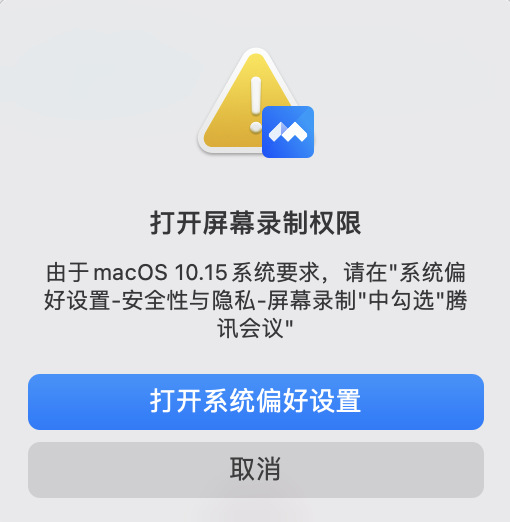
Why is it always prompting for authorization, but Tencent Meeting is not found in the permissions list?


This pop-up window only guides users to the authorization interface, but whether Tencent Meeting appears in the authorization list is determined by the system. The behavior that triggers the authorization is a system-encapsulated black box logic, and ordinary apps cannot intervene. Therefore, the problem is usually a system issue.
Possibility 1: Other apps in the current system have applied for screen recording permissions, preventing Tencent Meeting from triggering the screen recording permission request.
Click the button on the keyboard or TouchBar to

view all windows. If you see a system screen recording authorization pop-up, complete the authorization or rejection based on the actual situation.
Possibility 2: System issue.
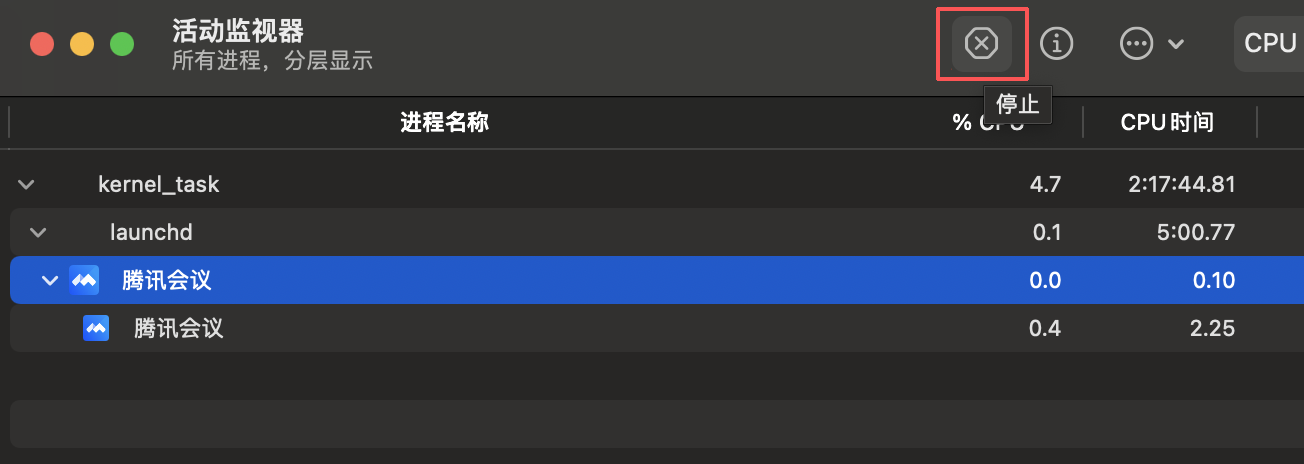
After ruling out Possibility 1, if it still prompts to open screen recording permissions, you can open Activity Monitor, close the Tencent Meeting process, then restart the app to trigger the screen recording permission request.


Previously authorized, but after a short time, it prompts that there is no permission again?

Tencent Meeting Mac v2.13-2.15 versions, if the current Tencent Meeting version falls within this range, please upgrade to the latest version.

None of the above solutions work, what should I do?

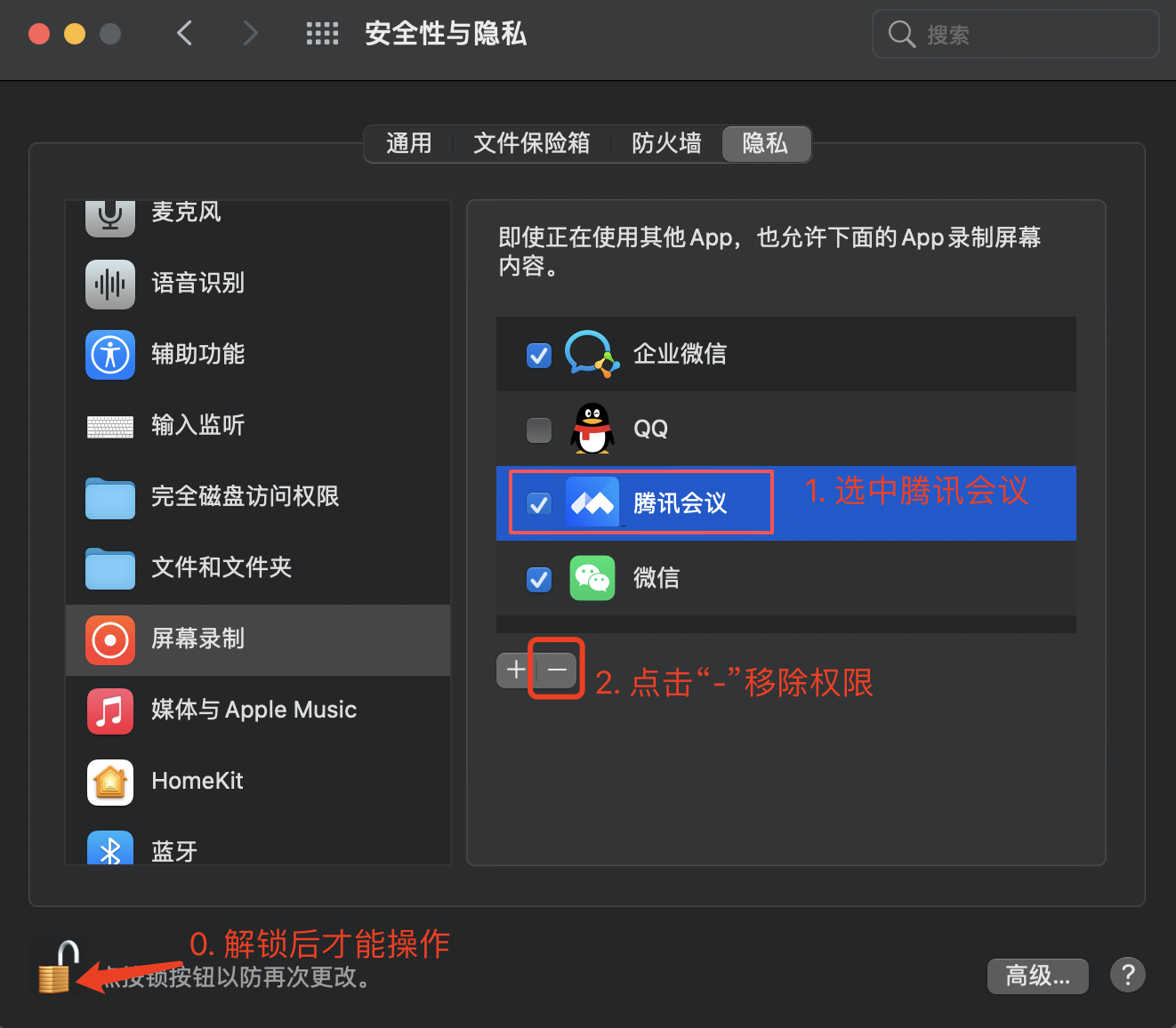
1. Remove Tencent Meeting from the permissions list.

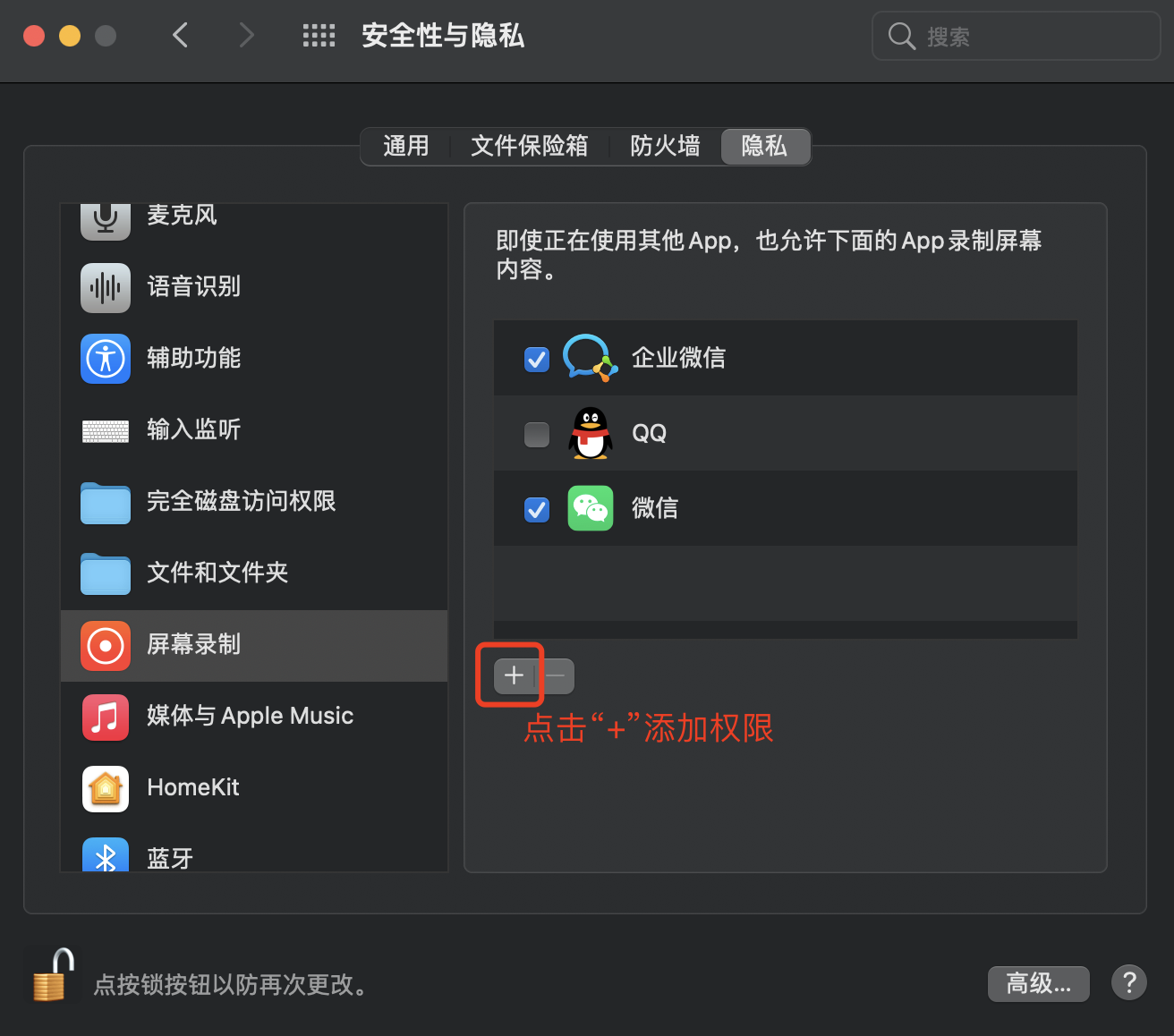
2. Manually add permissions.

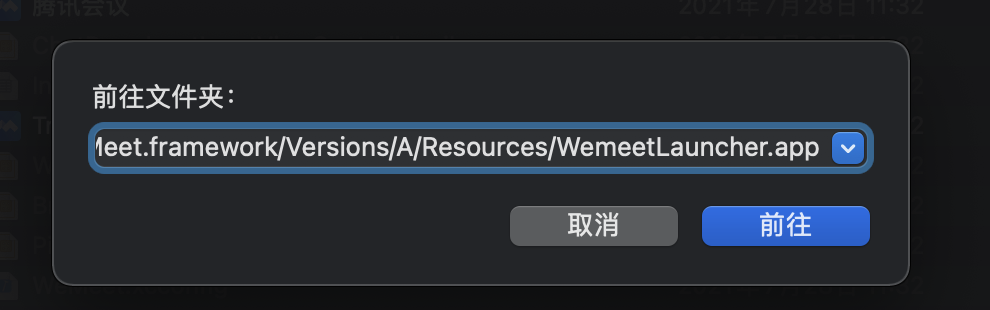
Use the shortcut key Command+Shift+G in the pop-up file selection window to find the app.

To be safe, you need to authorize Tencent Meeting in two paths. The paths are:
Tencent Meeting : /Applications/TencentMeeting.app
Tencent Meeting - Auxiliary Services: /Applications/TencentMeeting.app/Contents/Frameworks/WeMeetFramework.framework/Versions/Current/Frameworks/WeMeet.framework/Versions/A/Resources/WemeetLauncher.app
3. Restart Tencent Meeting.

Others

What should I do if I see a black or gray screen during screen sharing?

The main causes for black/gray screens are as follows:

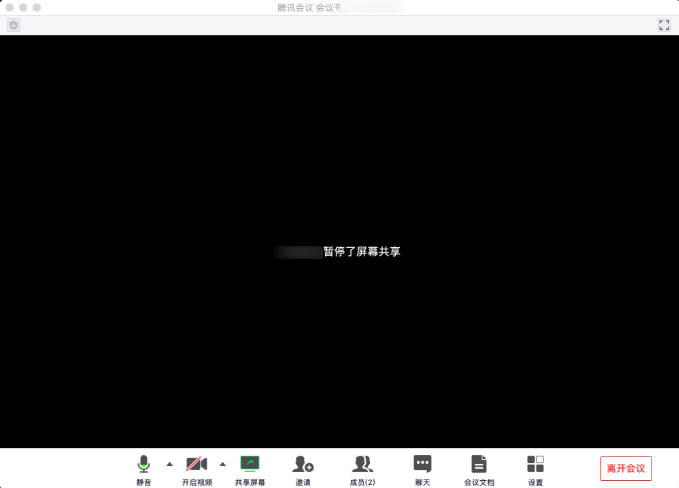
Black screen caused by pause, with a message displayed in the center of the screen

Solution: The sharer should click Continue Sharing or Maximize Window, and check if the black screen displays "xxx has paused the share", as shown in the image below:

If such a message is displayed, confirm if the sharer's top bar shows the following prompt:
xxx has paused screenshare.
Share paused. Bring your shared window to the front.
If the sharer's top bar displays xxx has paused screenshare (as shown in the image below), check whether the sharer clicked Pause Sharing.


If the sharer's topbar displays "Share paused. Bring your shared window to the front." , check whether the sharer minimized the shared window.


Partial or full black/gray screen caused by window occlusion

Solution: the sharer should remove the occlusion.
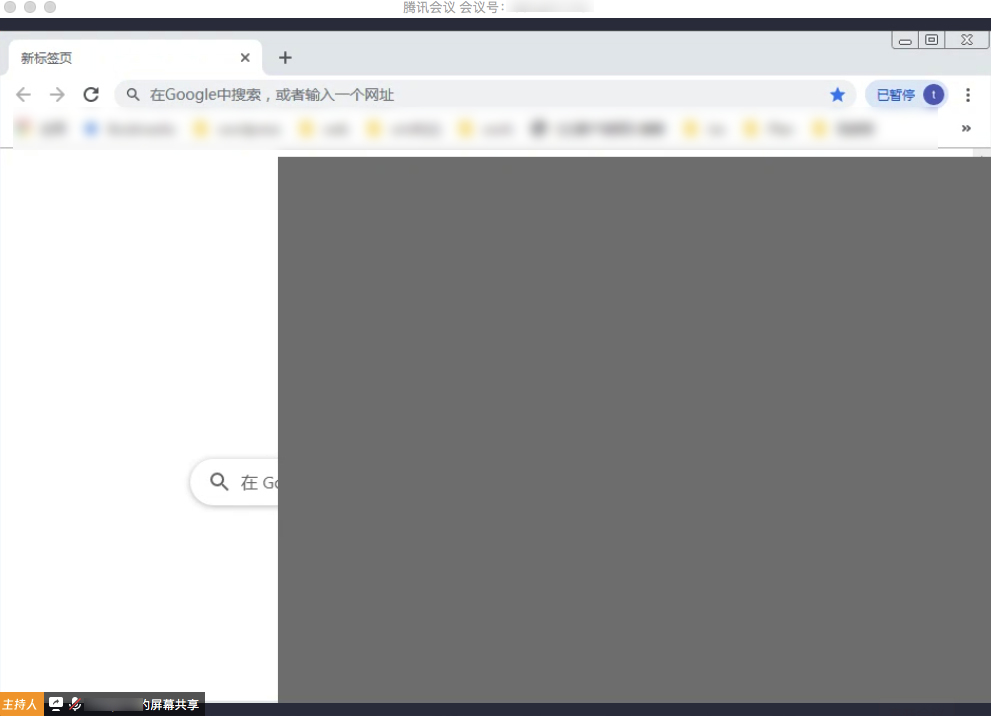
Check whether the sharer's window is occluded by another window. On some devices (for example, Windows 7), the occluded part of the window will show as black or gray on the viewer's side (as shown in the image below).

At this time, the sharer's topbar will display "Window obscured. Bring your shared window to the front.". This helps determine whether the problem is caused by window occlusion, and if this is the case, the problem can be fixed when the sharer removes the occlusion of the shared window.


Black/Gray screen caused by other issues

If the above situations do not apply, you can use Online Support for assistance. Tencent Meeting's maintenance personnel will help you identify and solve the issue.

How do I share PowerPoint slides on VooV Meeting?

Download and install the Windows or macOS client and use the screen sharing feature to share slides. You can also purchase the accessory NP30 and pair it to share the computer desktop.

Why is there no screen sharing button on the mobile client?

iOS client: Screen sharing is supported on iOS 12.0 and later, except 13.0.x due to a system bug.
Android client: Screen sharing is supported on Android 5.0 and later.

Issue with sharing specific software on Tencent Meeting?

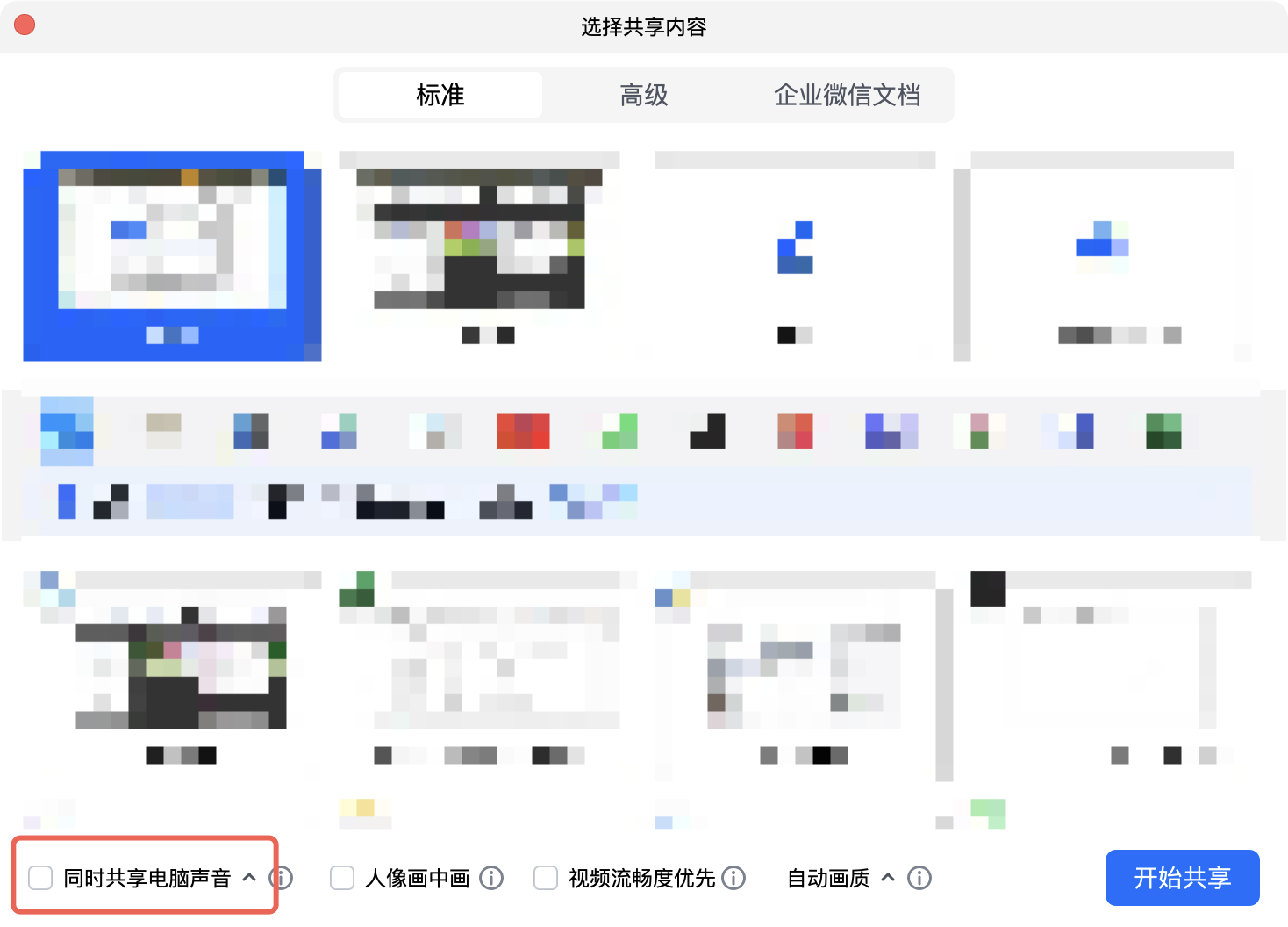
When using screen sharing, select Shared Desktop. For detailed instructions, refer to Screen Sharing.

How do I disable screen sharing?

Mobile client: click Stop Sharing on the screen.
PC client: hover over the meeting number in the upper middle of the desktop for a while, and click End Sharing on the pop-up interface.

Does the shared screen content occasionally freeze or play unsmoothly during the meeting?

This may be related to the performance of your computer or mobile phone and the network environment. We recommend trying to clean up your device or disconnect and connect to another network hotspot. If the unsmooth experience persists for a long time, please promptly record the issue and use Online Support for assistance.