The content of this page has been automatically translated by AI. If you encounter any problems while reading, you can view the corresponding content in Chinese.
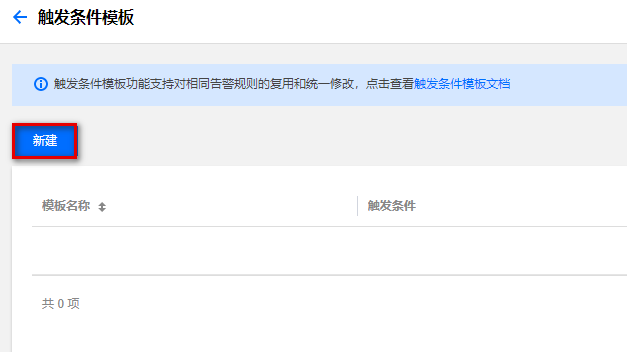
1. Log in to TCOP Console, in the left navigation, click Alert Management > Trigger Condition Template.
2. On the Trigger Condition Template page, click Create to open the new creation pop-up window.
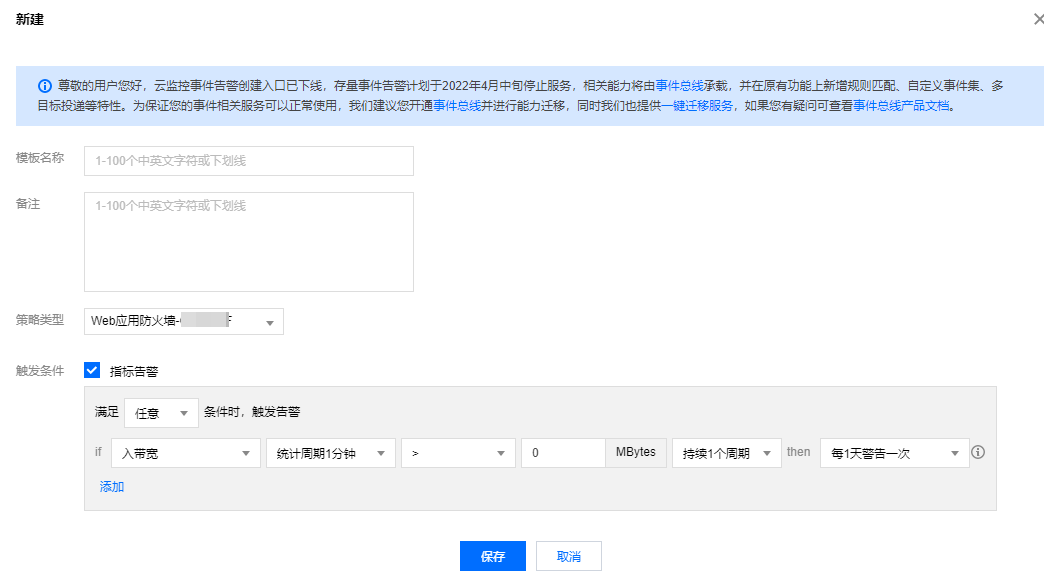
3. In the pop-up window, complete all the settings and click Save to successfully create a trigger condition template.
Parameter Description:
Template Name: enter a template name.
Remarks: enter template remarks.
Policy Type: select WAF.
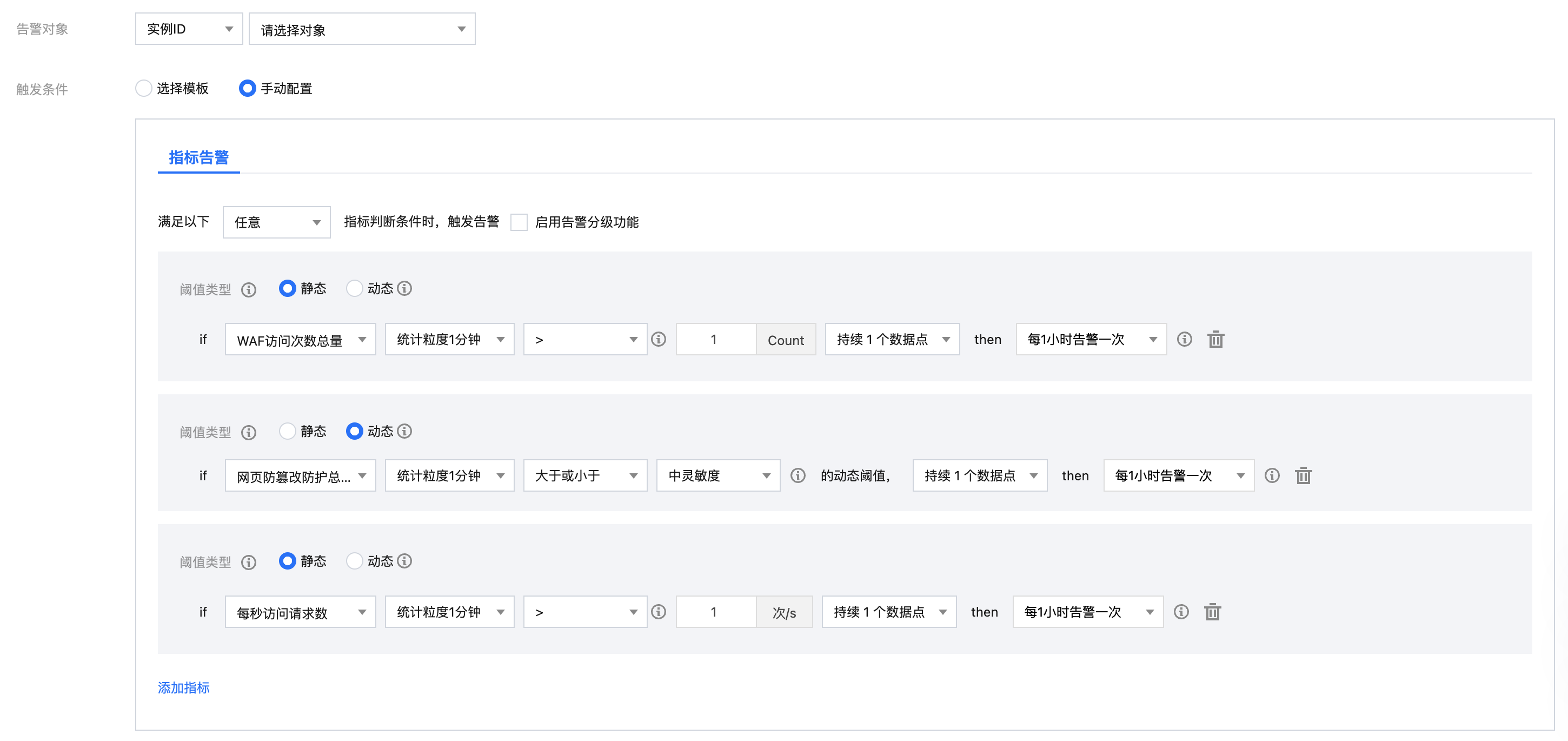
Use Predefined Trigger Conditions: TCOP provides built-in trigger conditions for corresponding monitoring items. Check the rules to enable them.
Trigger Conditions:
It supports metric alarms and event alarms. Click Add to set multiple alarms.
WAF can monitor a range of conditions, including the number of accesses, number of web attacks, number of CC attacks, upstream and downstream bandwidth, QPS, number of bot attacks, percentage of web attacks, percentage of bot attacks, and percentage of CC attacks.
Step 2. Configure the notification template
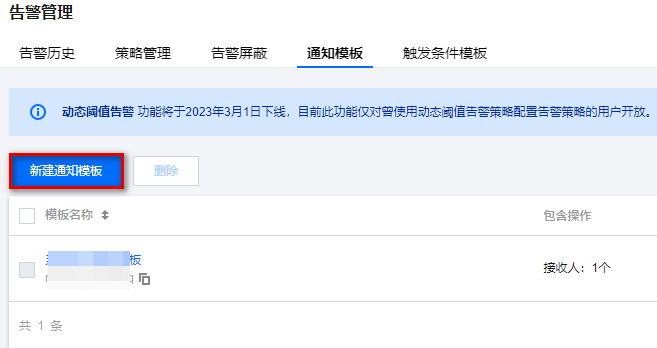
1. log in to TCOP 控制台, in the left navigation, click Alarm Management > Notification Template.
2. On the Notification Templates page, click New to go to the Create Notification Template page.
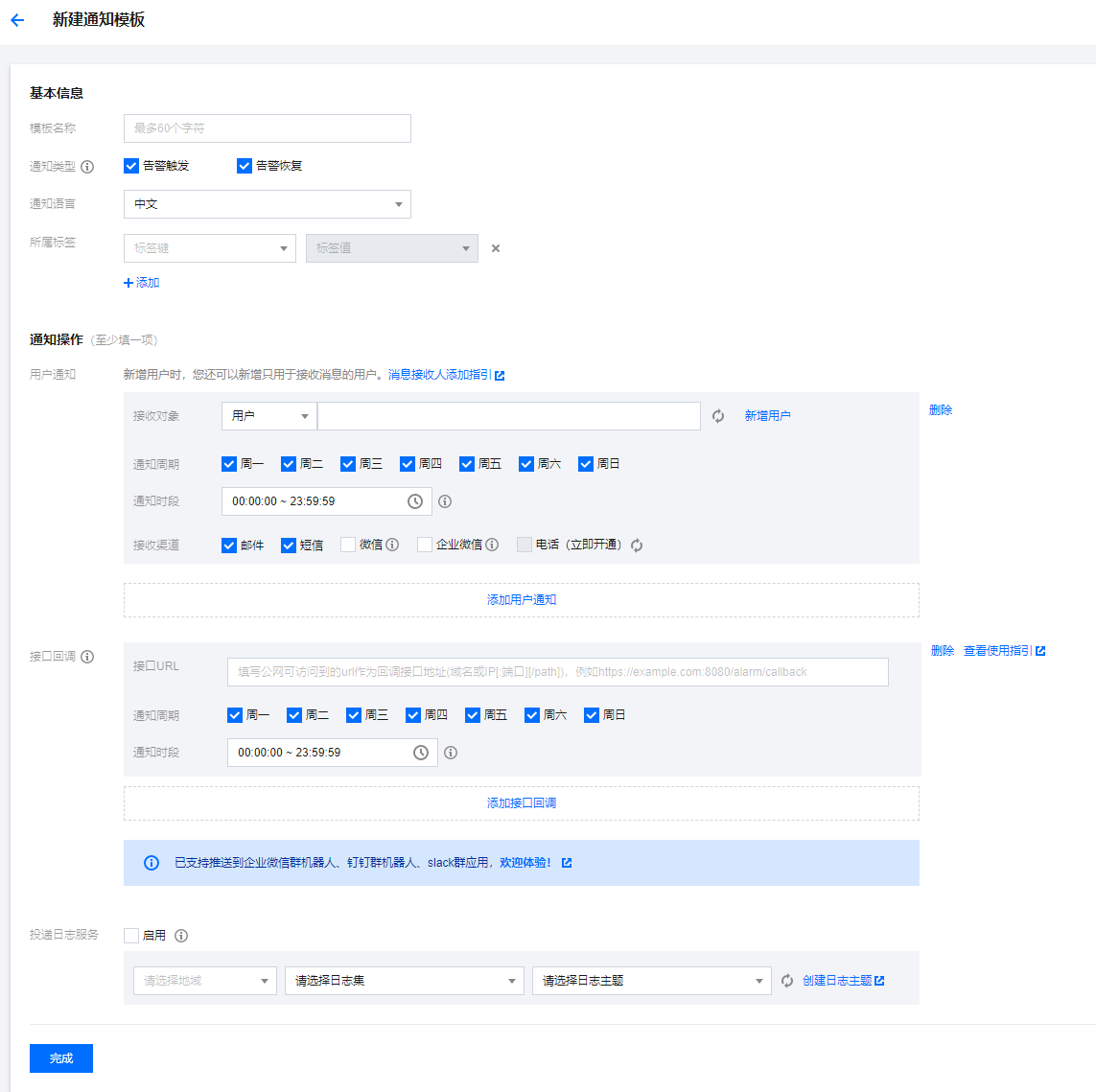
3. On the Create Notification Template page, configure the required content, then click Complete to successfully create the notification template.
Parameter Description:
Template Name: Enter a custom template name.
Notification Type:
Alarm Trigger: A notification will be sent when an alarm is triggered.
Alarm Recovery: A notification will be sent when an alarm is resolved.
Notification Language: Select Chinese or English.
User Notification:
Recipient Object: Select a recipient group or recipient.
Notification Period: Define the time period for receiving alarms.
Receiving Channel: Email, SMS, WeChat, or phone call.
API Callback: you can enter up to three URLs accessible over the public network as the callback API addresses, and TCOP will push alarm messages to them promptly. If the HTTP response returns code 200, the verification is successful. For more information on alarm callback fields, please see Alarm Callback Description.
Deliver to CLS: After it is enabled, alarms will be delivered to specific log topics of CLS in real time.
Step 3. Configure the alarm policy
1. Log in to TCOP Console, in the left navigation menu, click Alarm Management > Alarm Policies.
Note
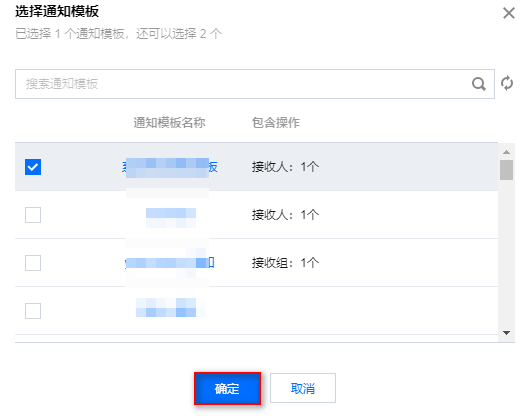
You can add, modify, and copy an alarm policy and view the alarm history of the policy on the alarm policy page. Each policy can be associated with newly set Trigger Conditions and Notification template.
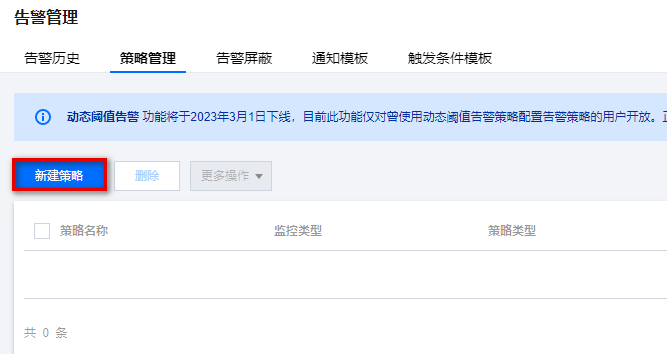
2. On the alarm policy page, click New to enter the new alarm policy page.
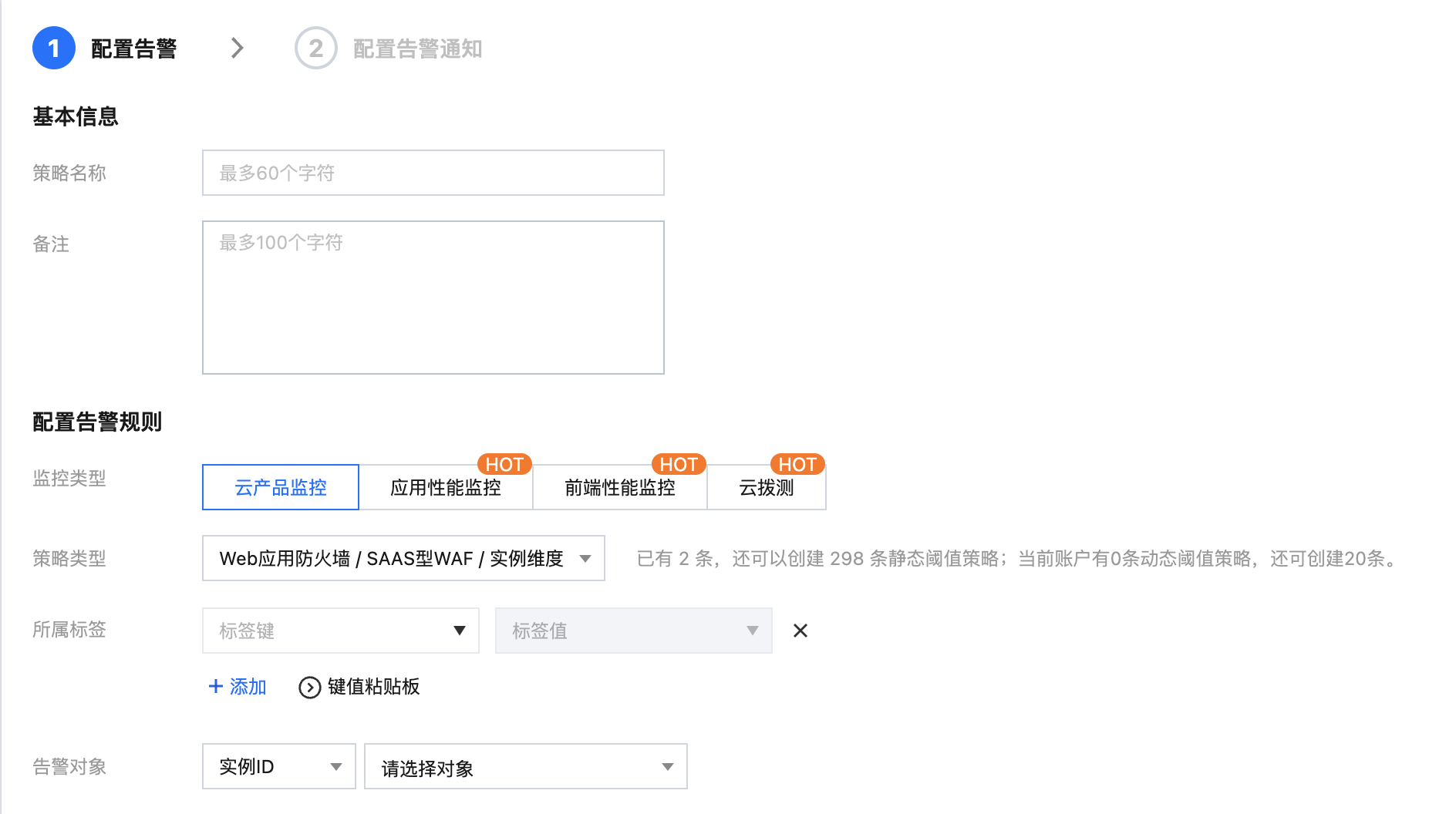
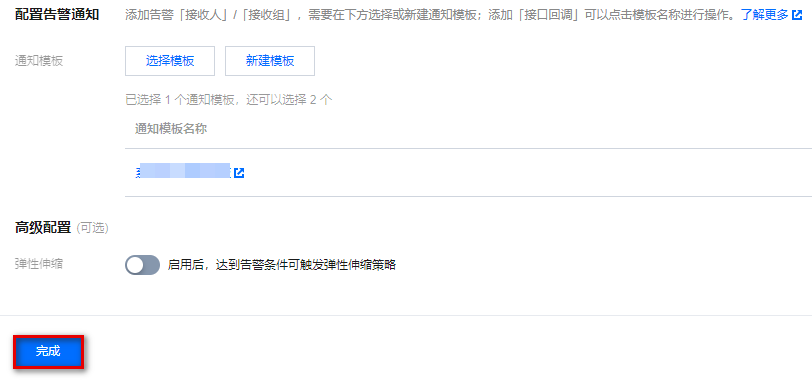
3. On the new alarm policy page, you need to complete the following steps:
3.1 Basic Information: Configure the name and remarks. Select WAF for the policy type.
3.2 WAF Alarm Objects: Select WAF. It supports monitoring alarms at the instance level and instance group level. You need to manually configure the groups.
Note
Instance ID: The alarm policy is associated with the selected instance.
Instance Group: The alarm policy is associated with the selected instance group.
All Objects: The alarm policy is associated with all instances the current account has permission on.