Help & Documentation>Text To Speech

Cloud Access Management Operation Guide

Last updated: 2025-02-06 15:06:17

Creating Sub-Account (User)

Step 1: Creating a User

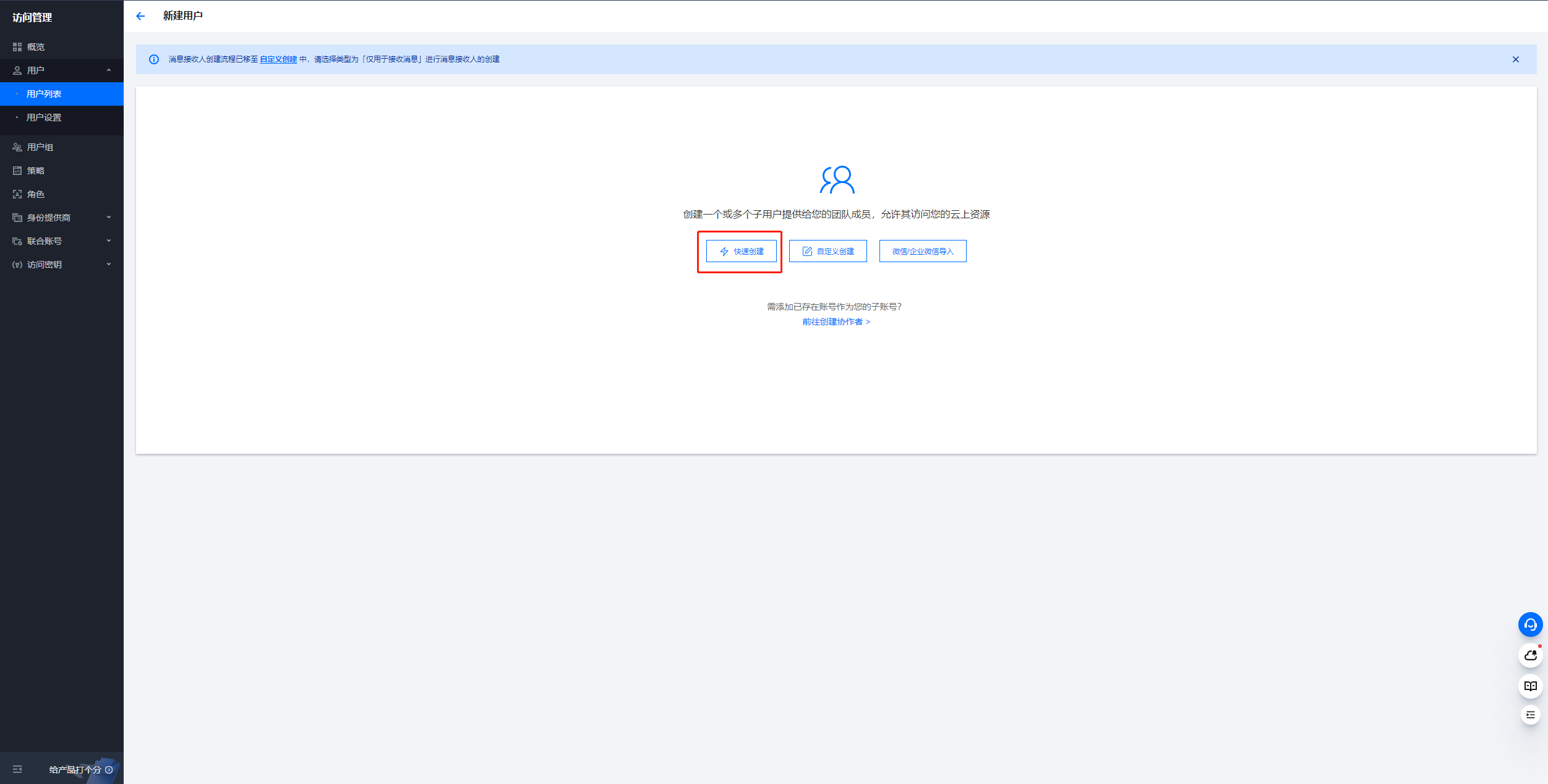
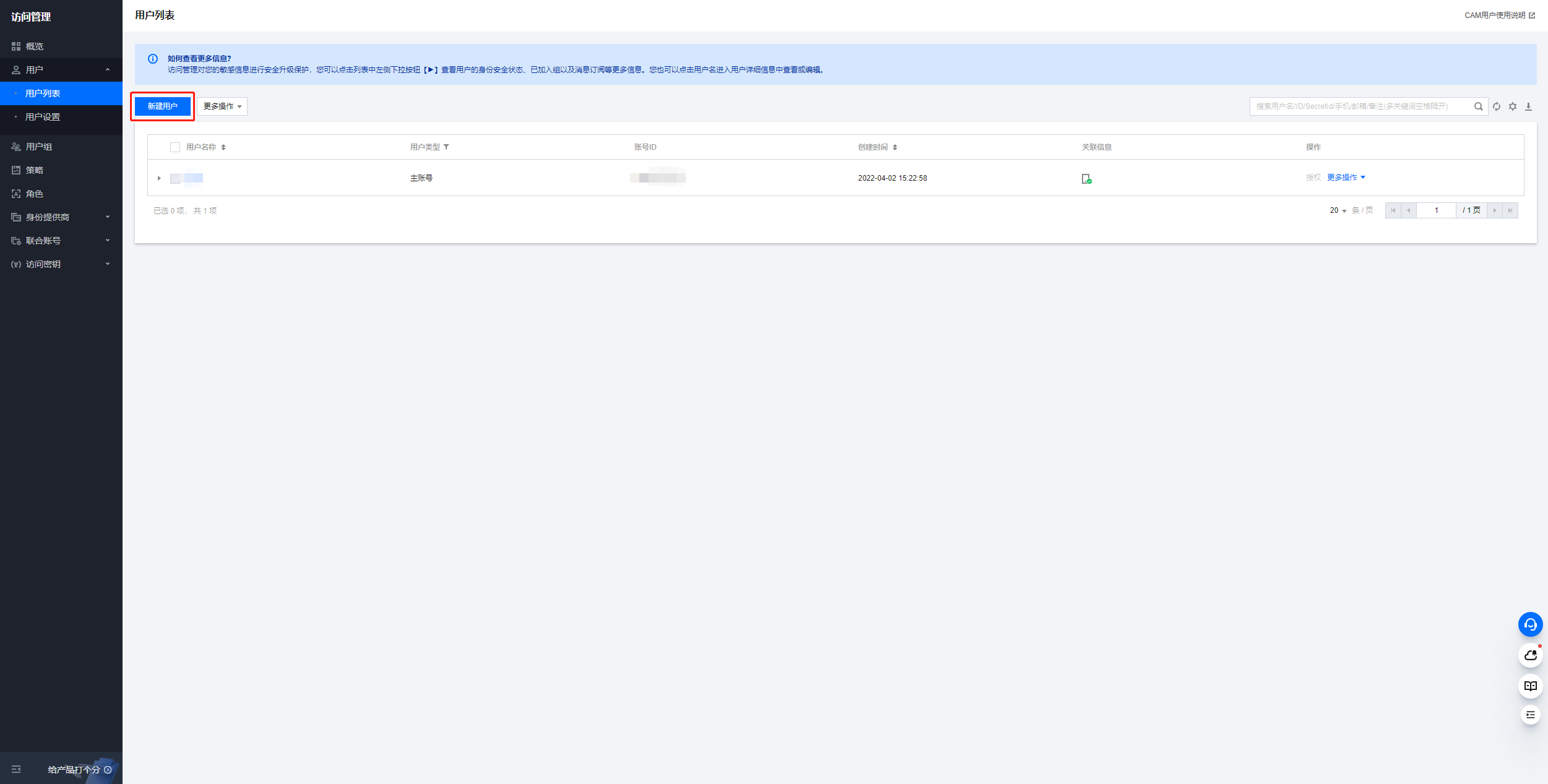
Go to Tencent Cloud CAM > User List > click Create User.


Select Quick creation


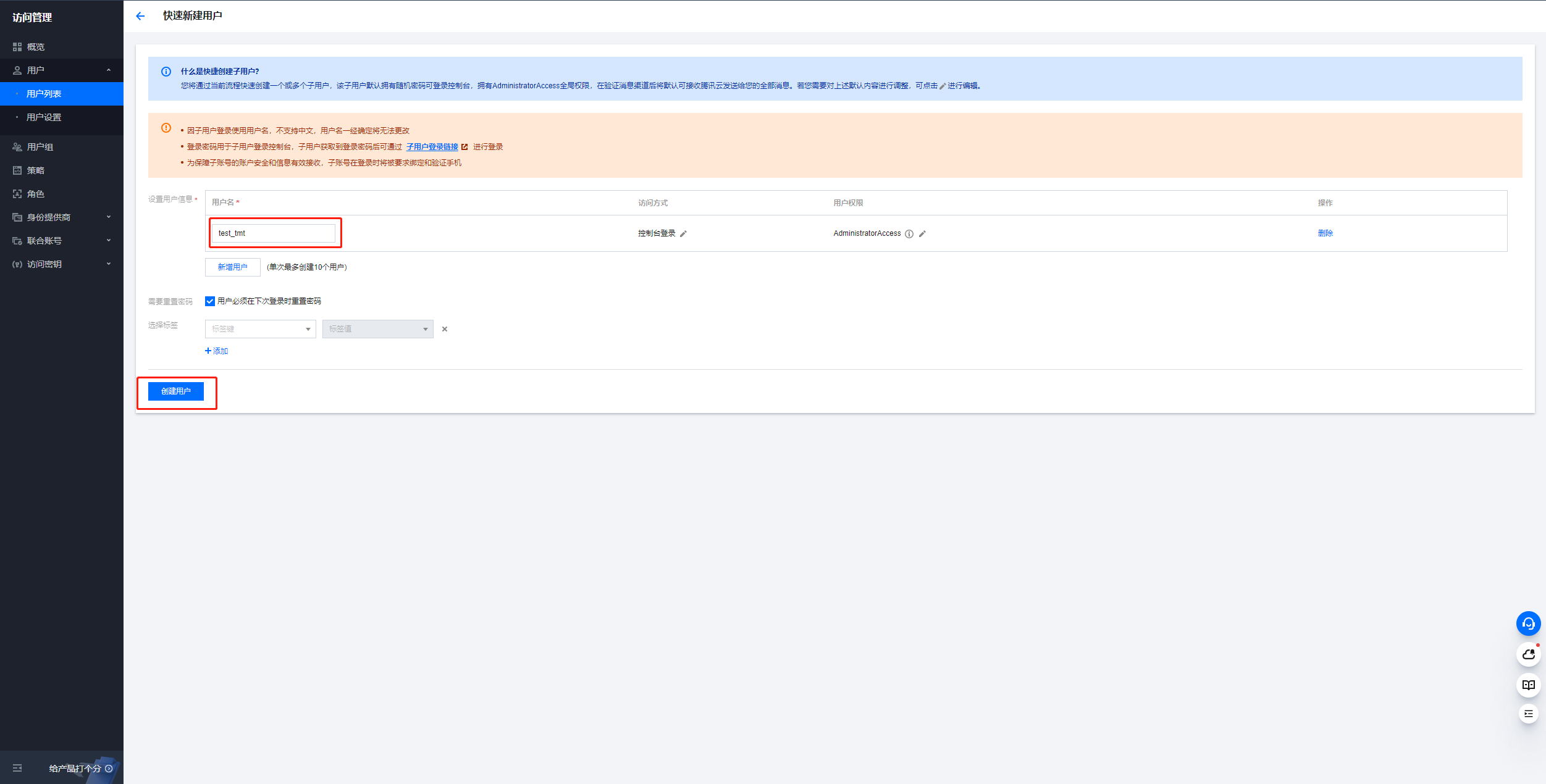
Step 2: Filling In Creation Information

Enter the username and click Create User to complete the creation.


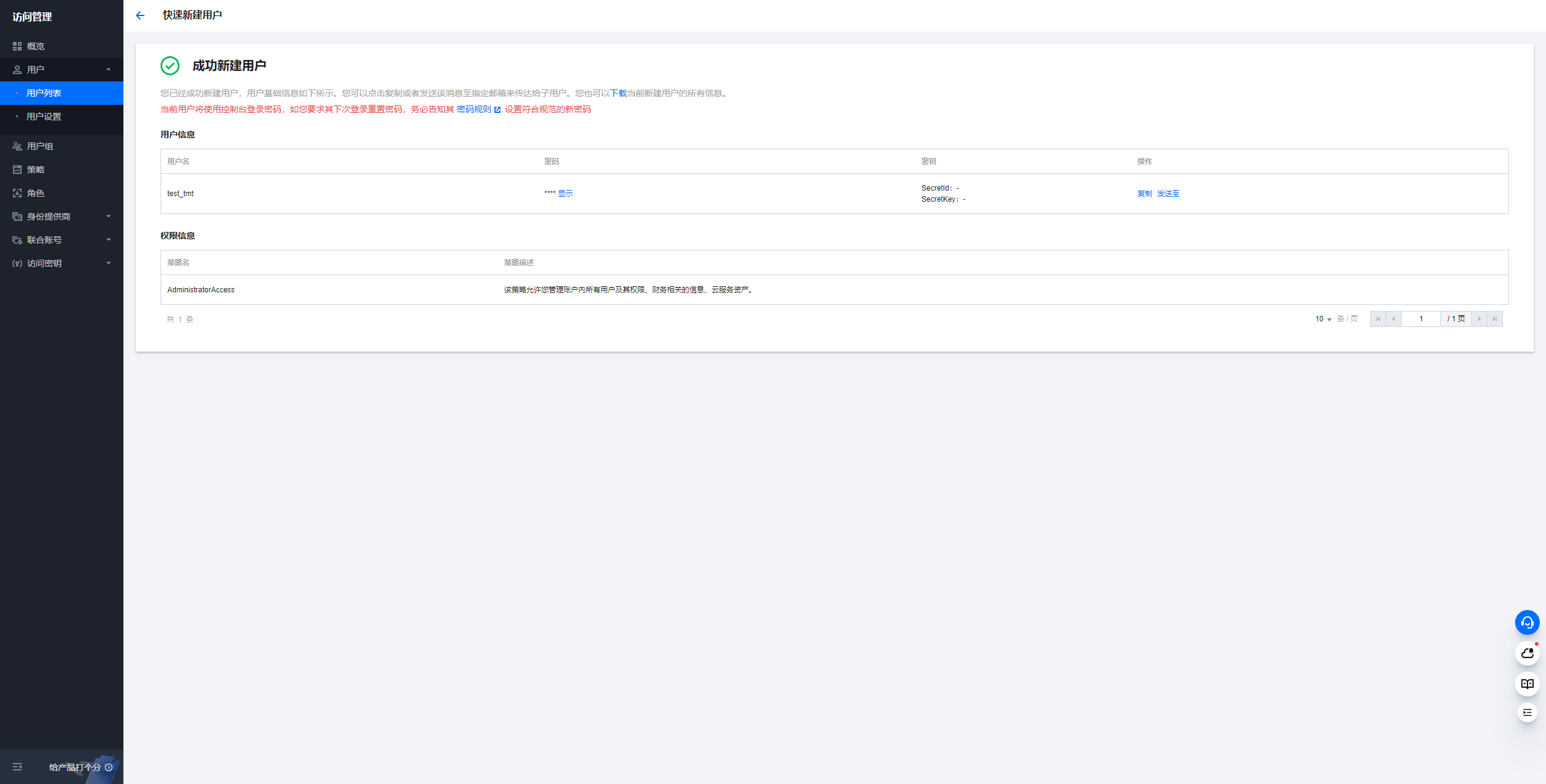
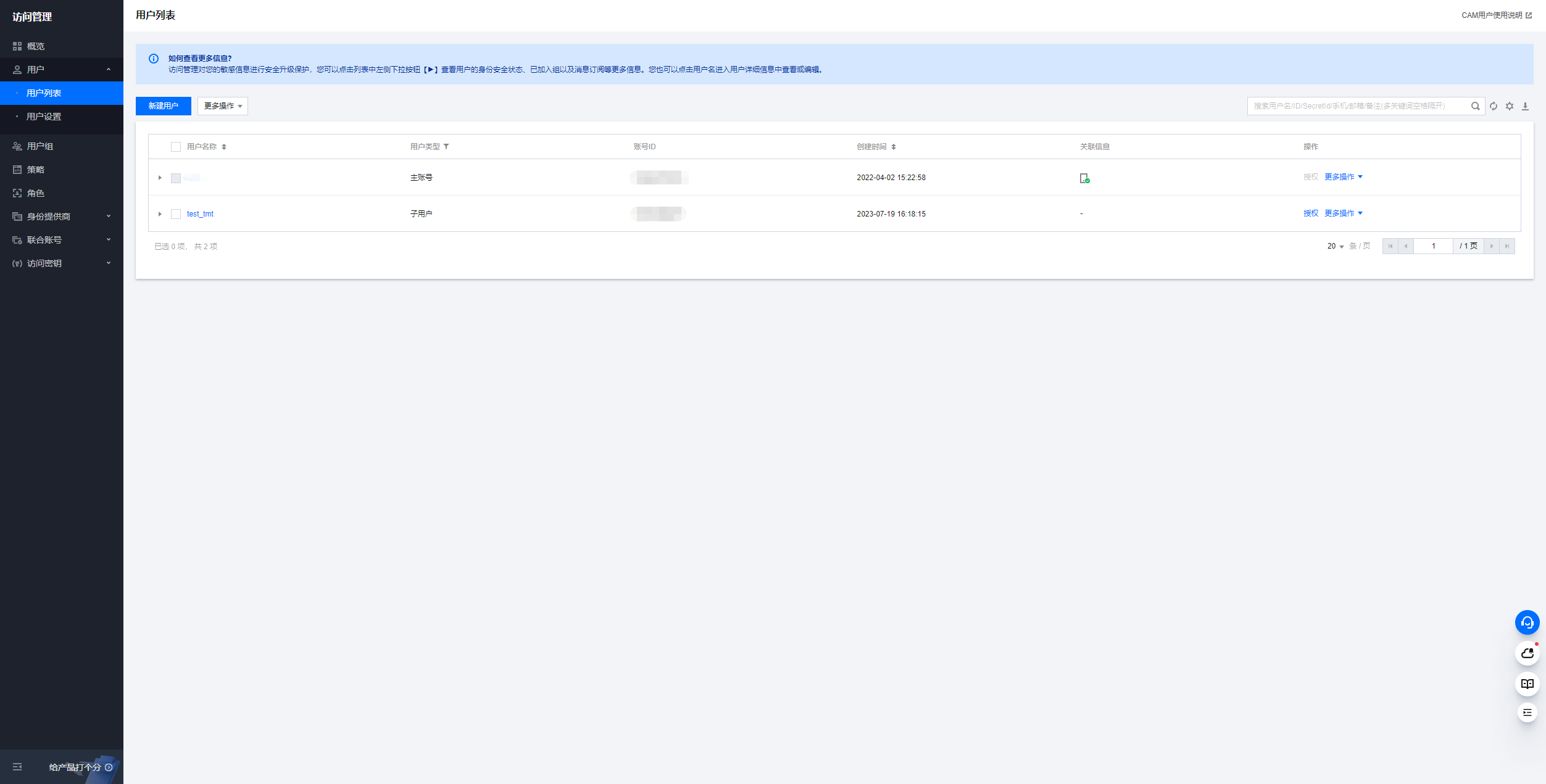
Step 3: Viewing Created User


Create a JSON Policy

Step 1: Creating a Custom Policy

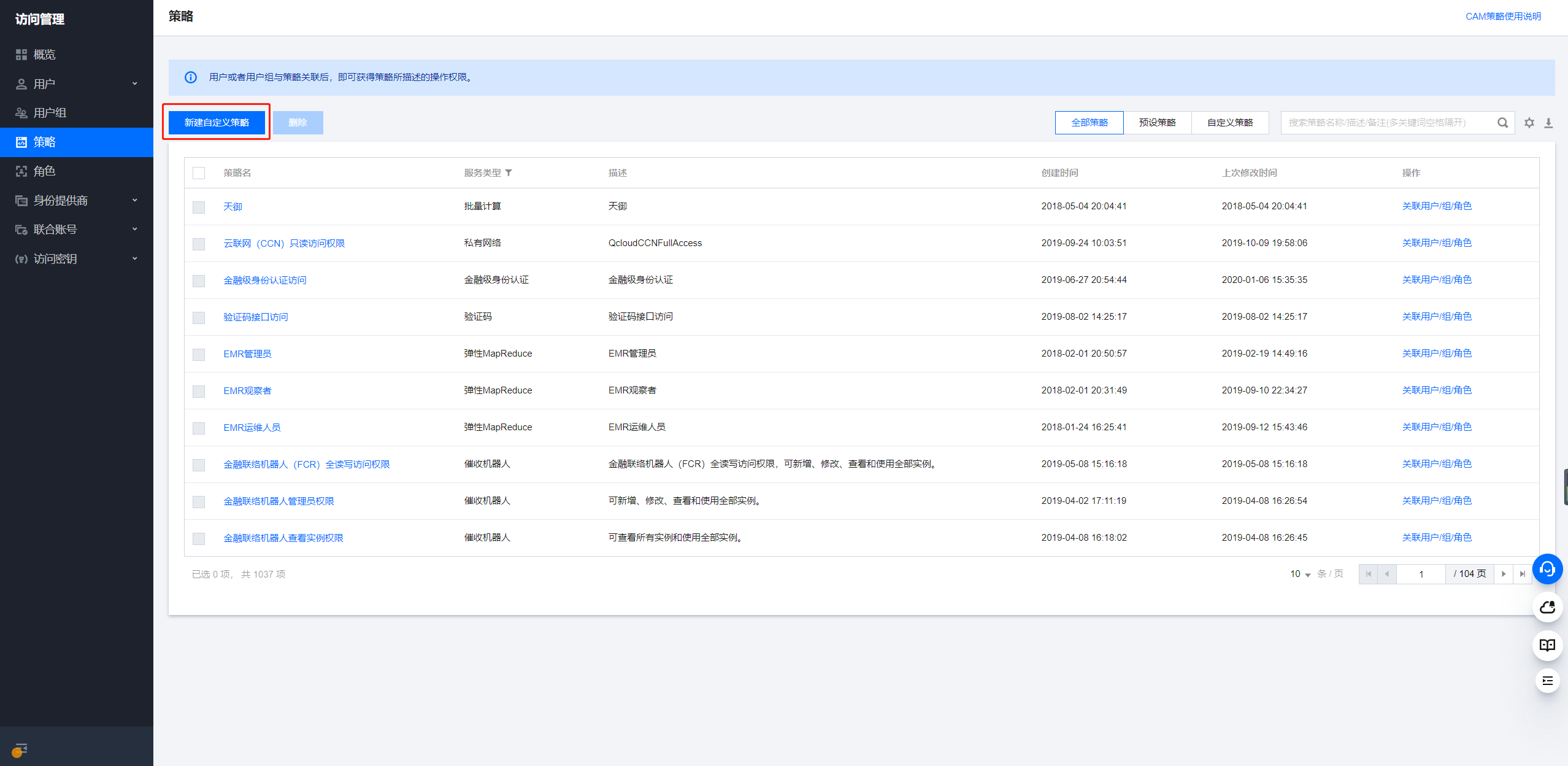
Go to Tencent Cloud CAM > Policies > click Create Custom Policy


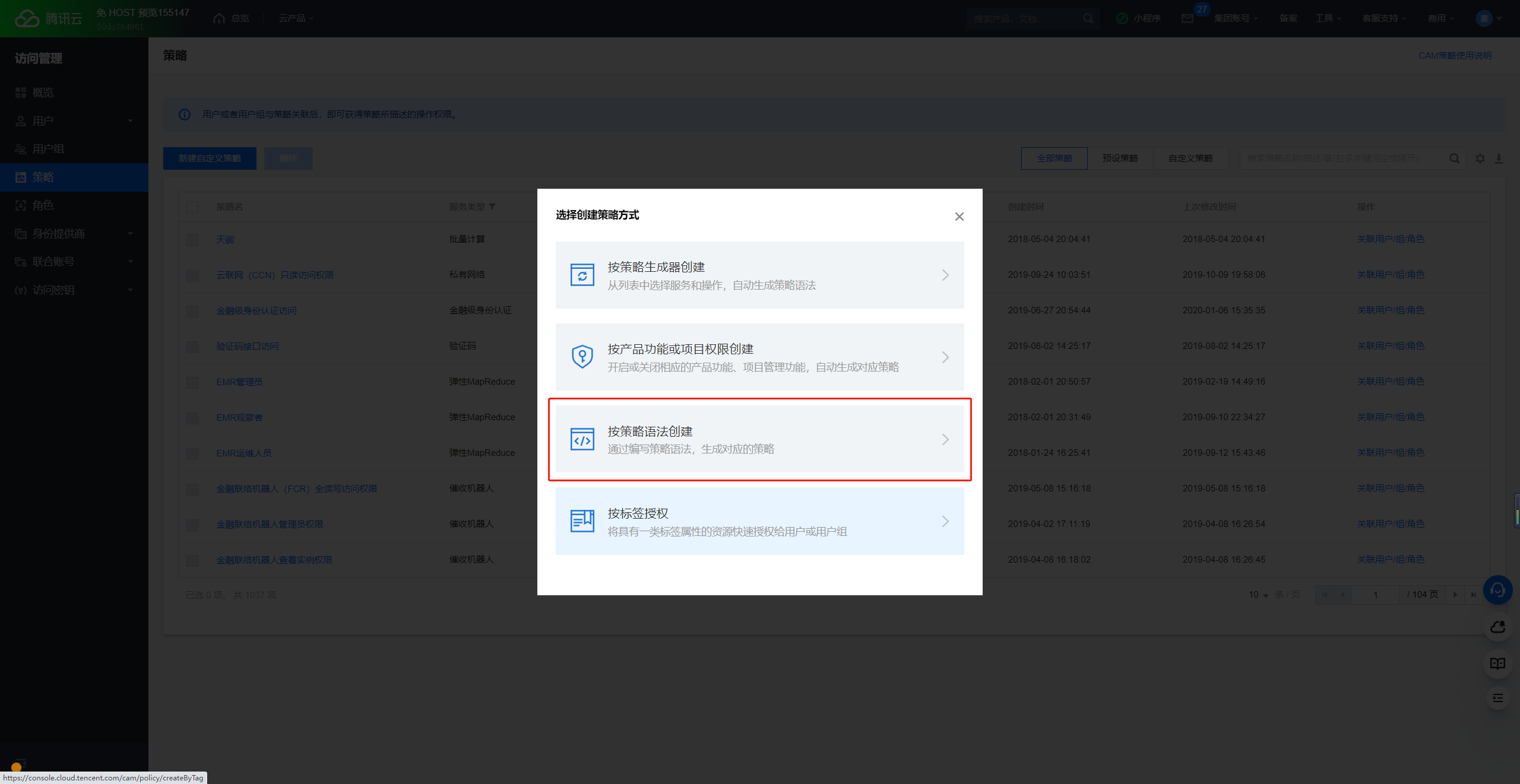
Step 2: Selecting Policy Type

Select Create by policy syntax


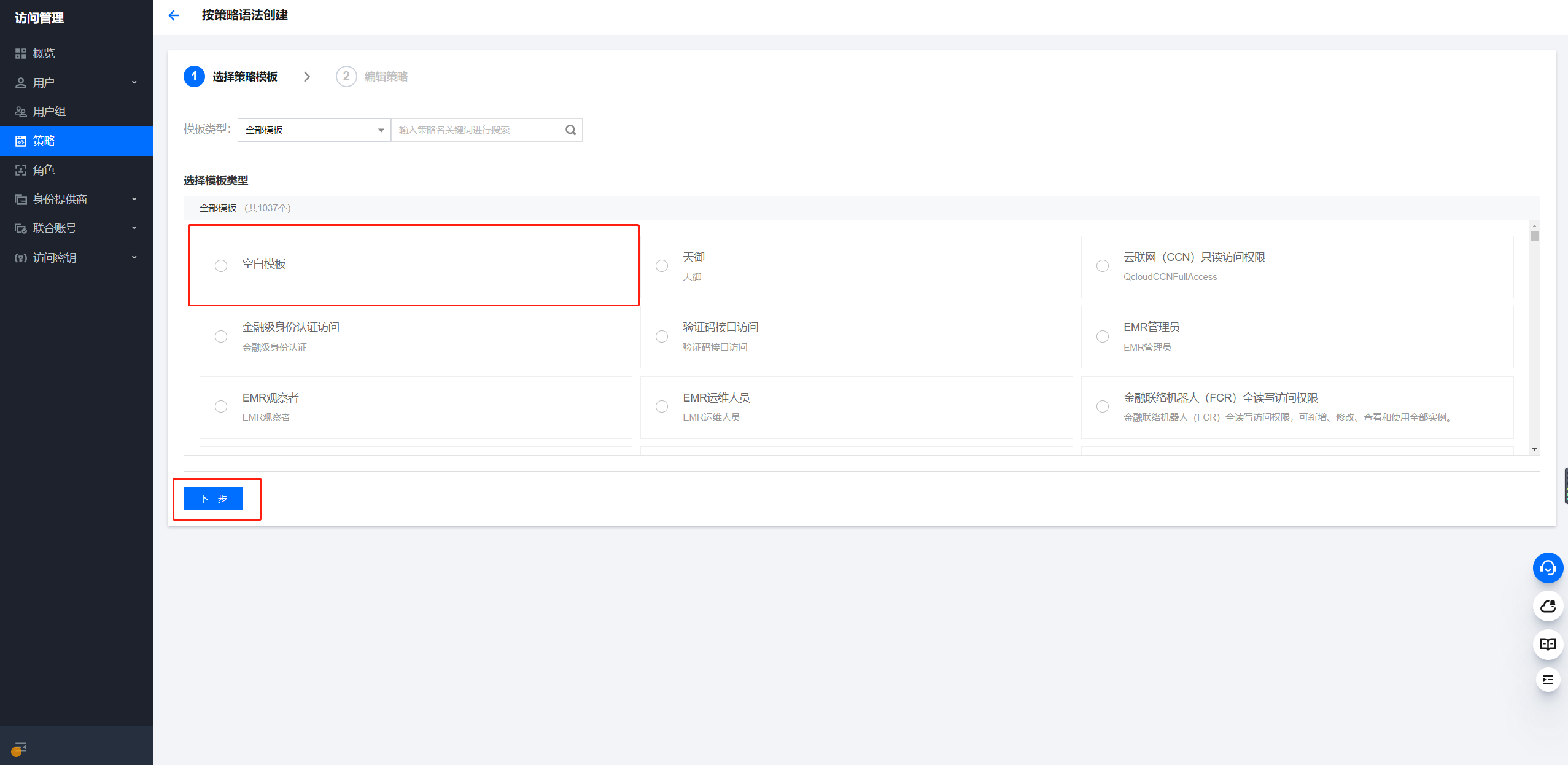
Step 3: Select Template Type

Select Blank Template > click Next


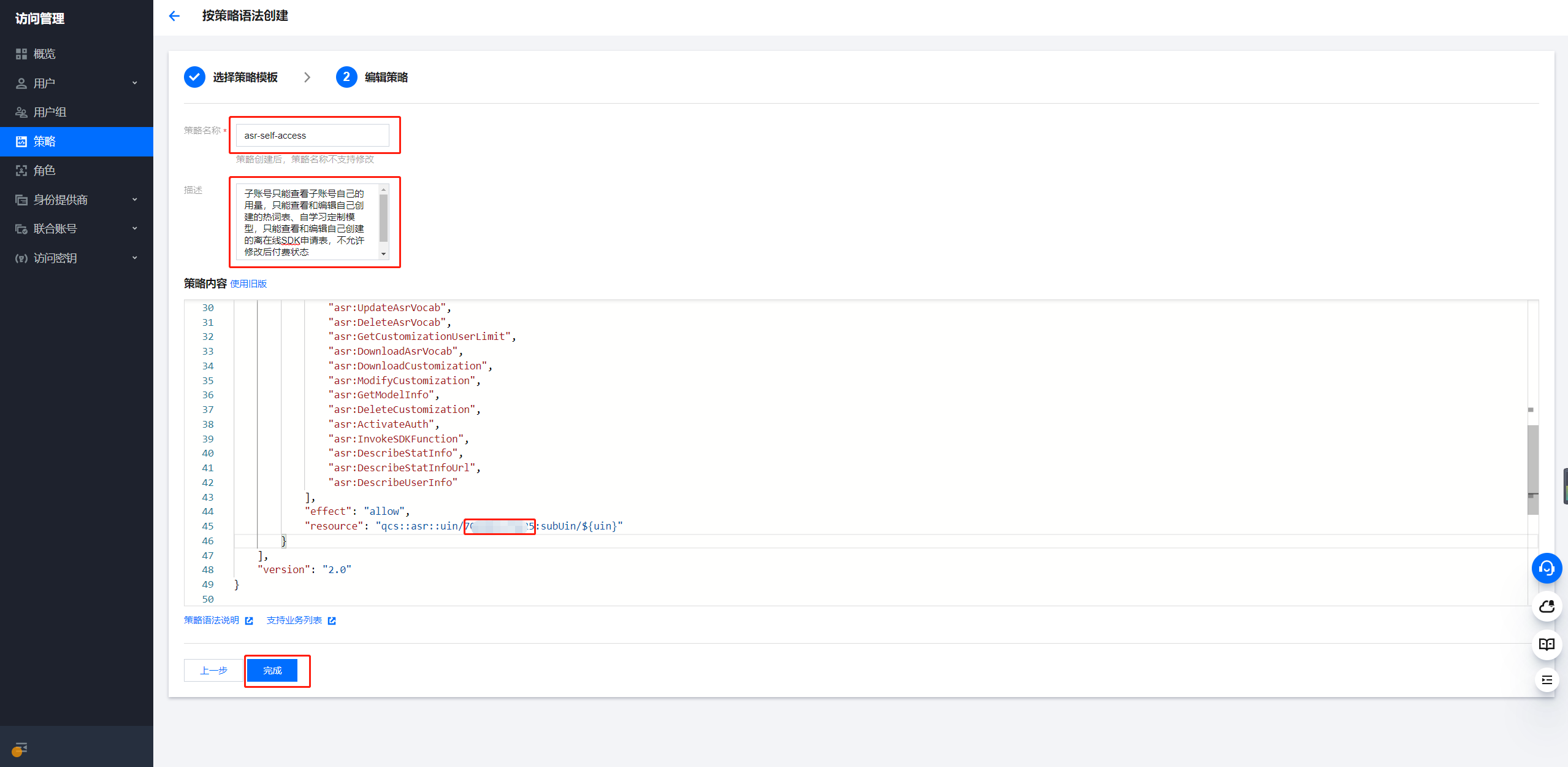
Step 4: Fill In Policy Information and Save

Fill in the policy name and description, copy and paste the required preset JSON policy into Policy Content, then click Complete to create the policy.


Policy Content (Note: The condition in the resource needs to be replaced with the root account's uin, as shown below)


Associate or Grant a Policy

Method 1: In the Policy List, Associate Related Users

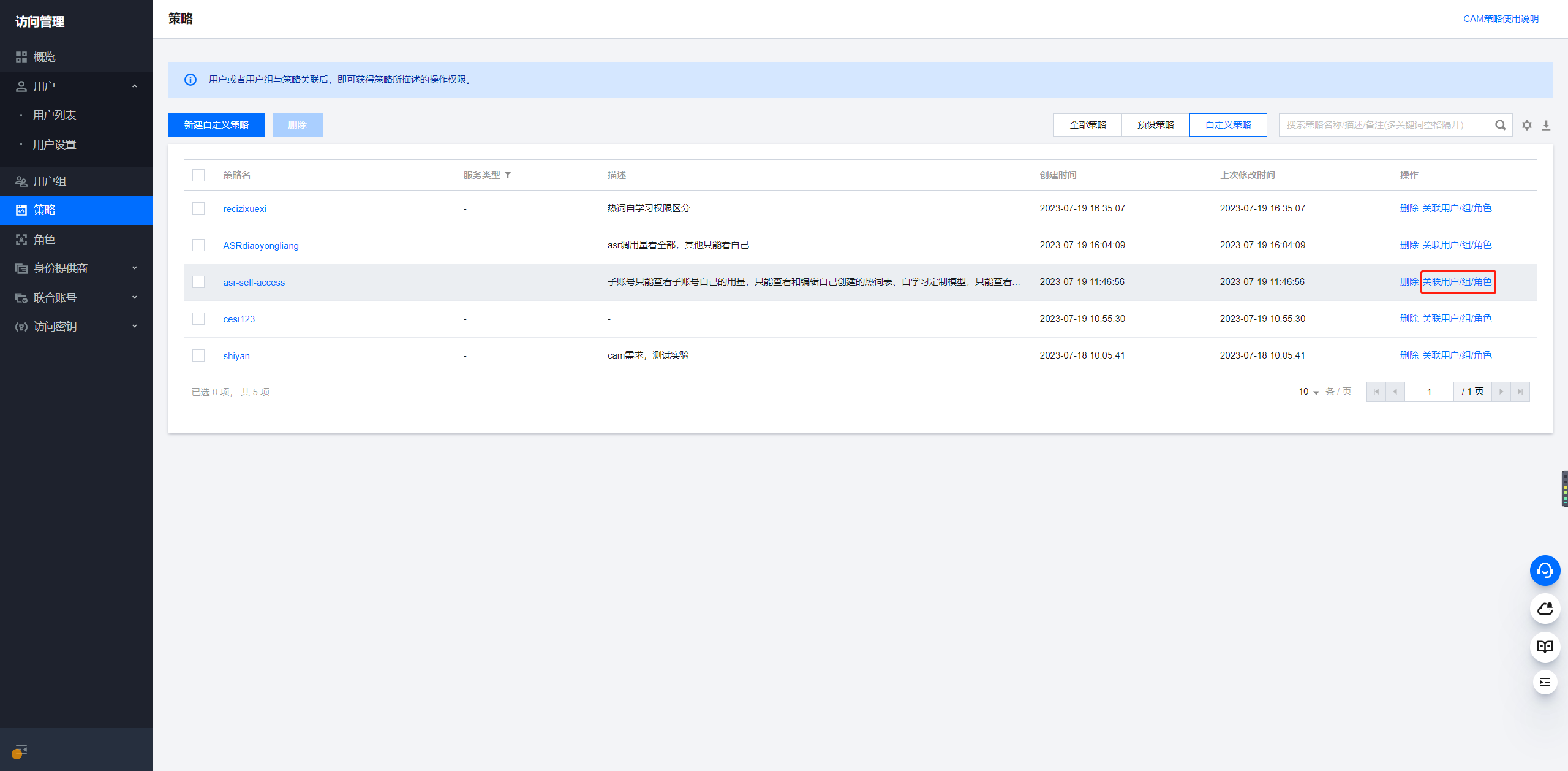
Step 1: Go to Tencent Cloud CAM > Policies > select the policy to be authorized > click Associate Users/Groups/Roles


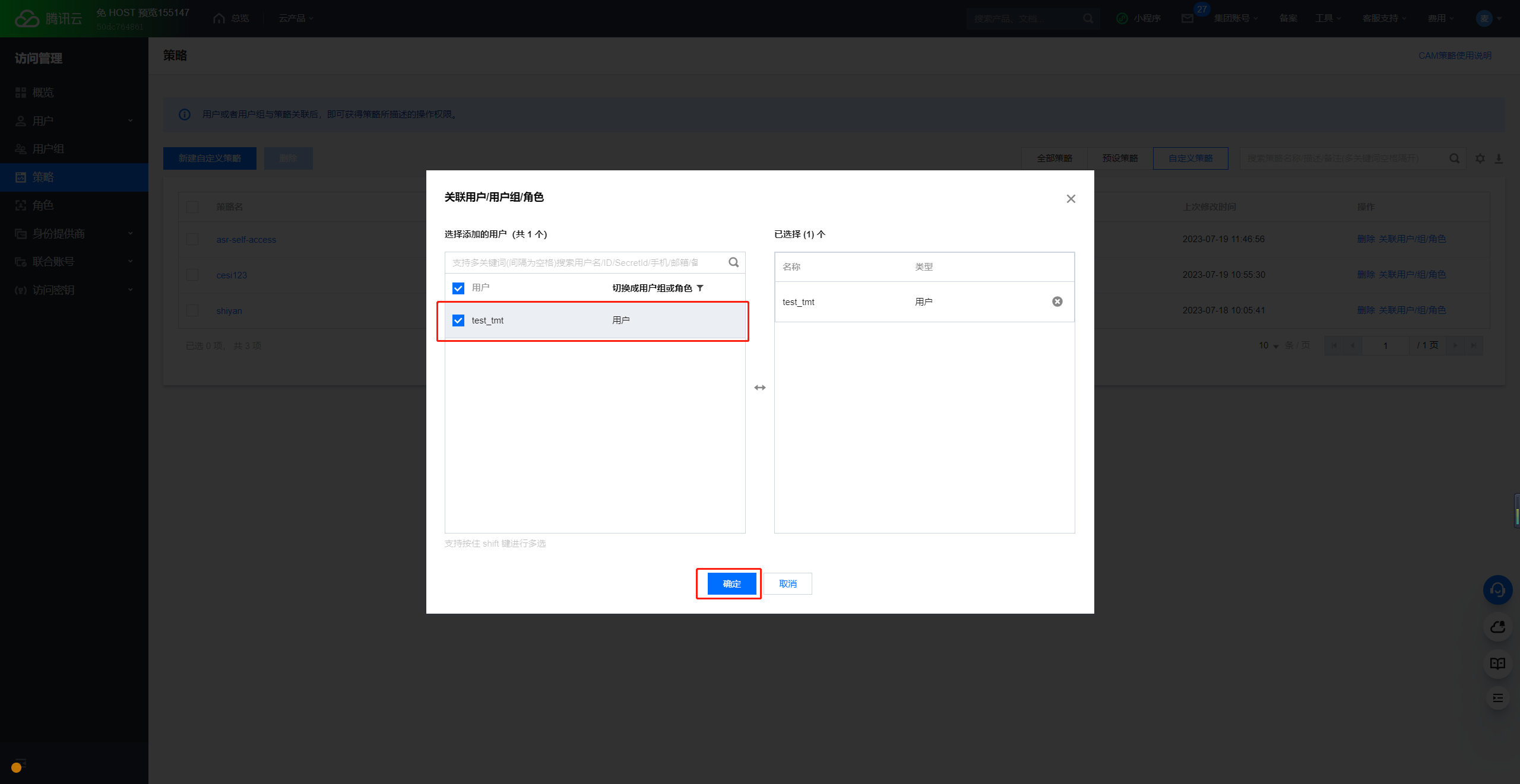
Step 2: Select the Users/Groups/Roles to be authorized, and click OK to complete the policy association.


Method 2: Grant Policy In the List Of Users

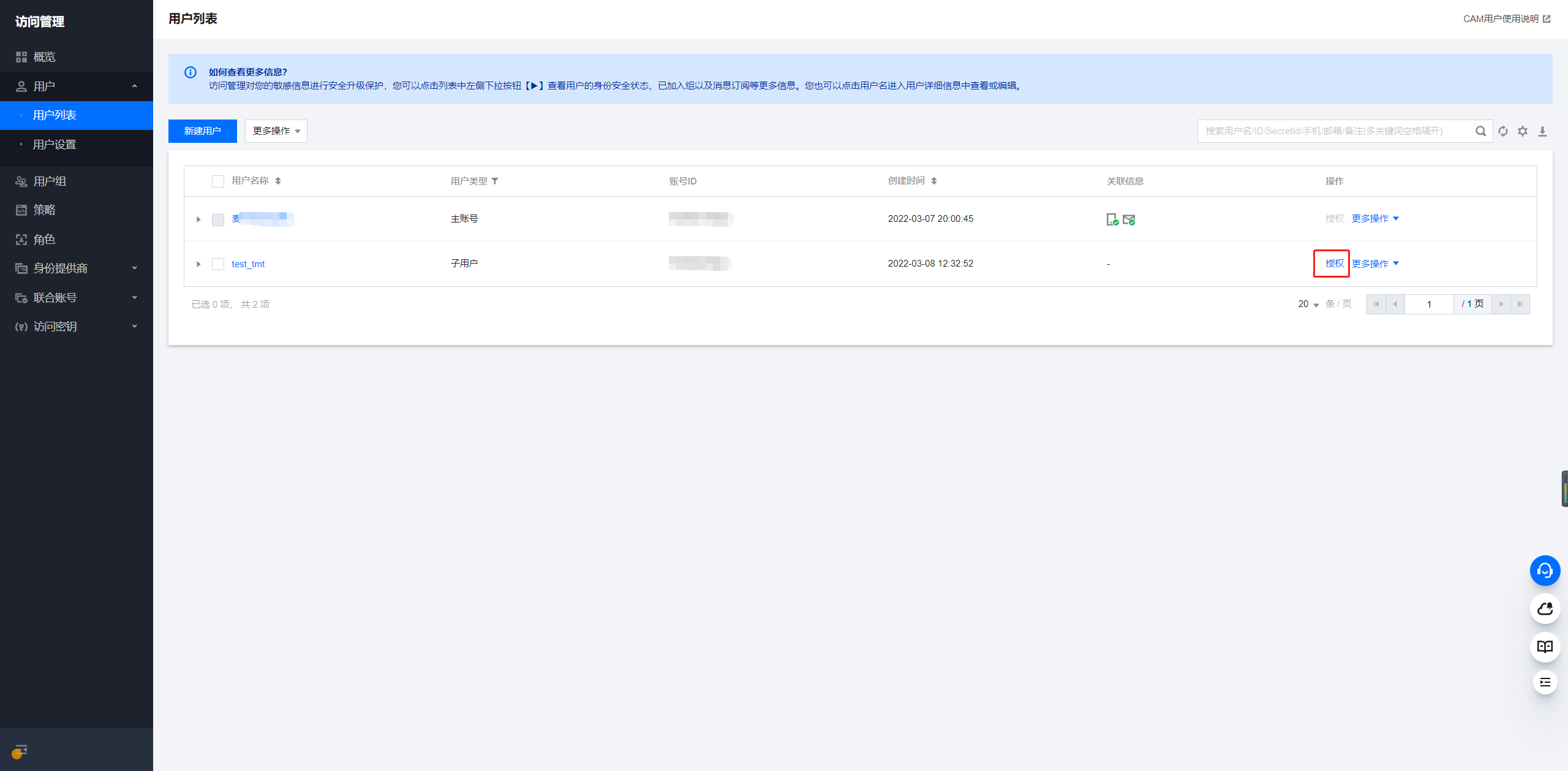
Step 1: Go to Tencent Cloud CAM > List of Users > select the User/User Group/Role to be granted the policy > click Authorize.


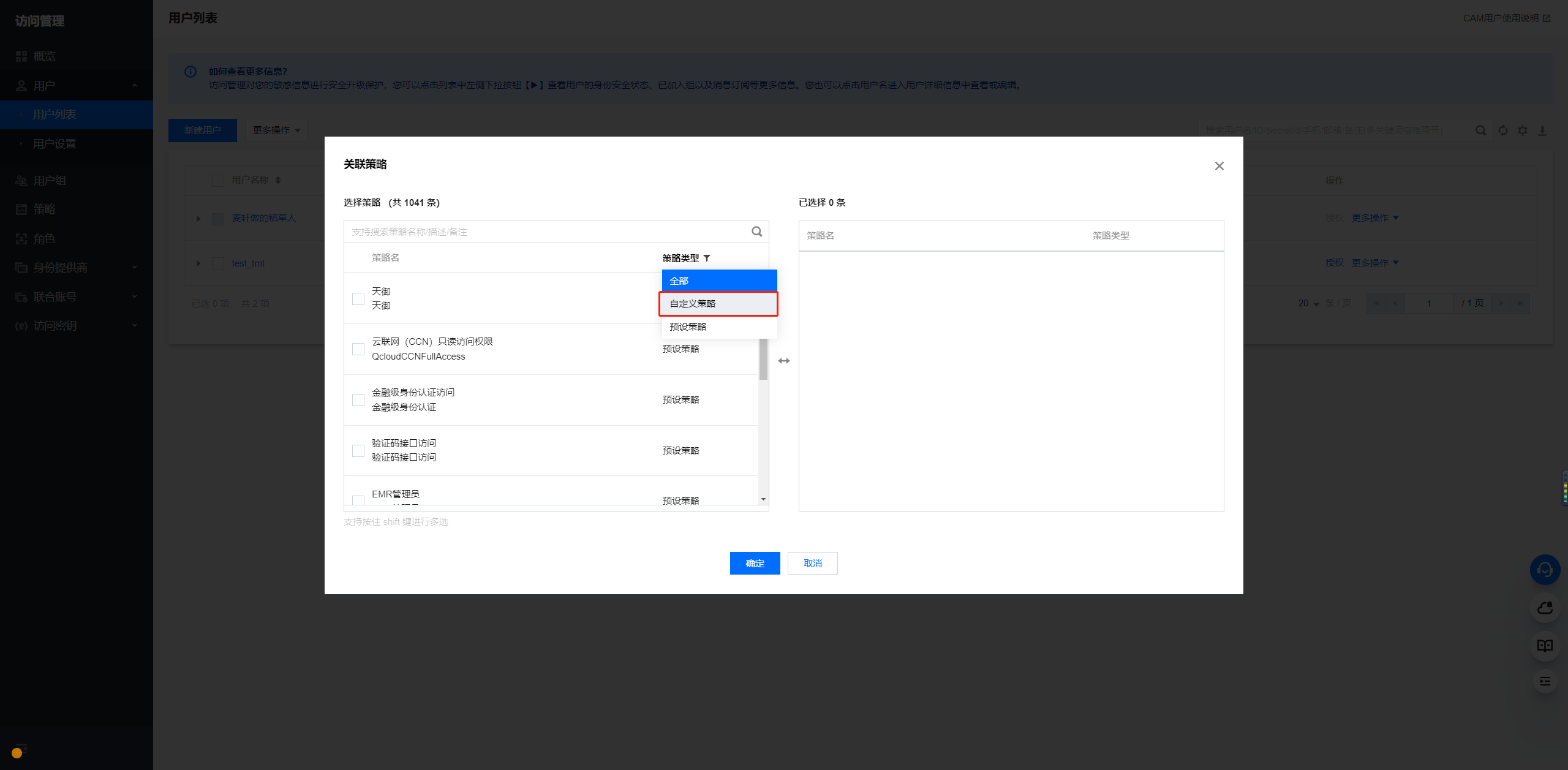
Step 2: Select a custom policy, click Yes to enter the custom policy list.


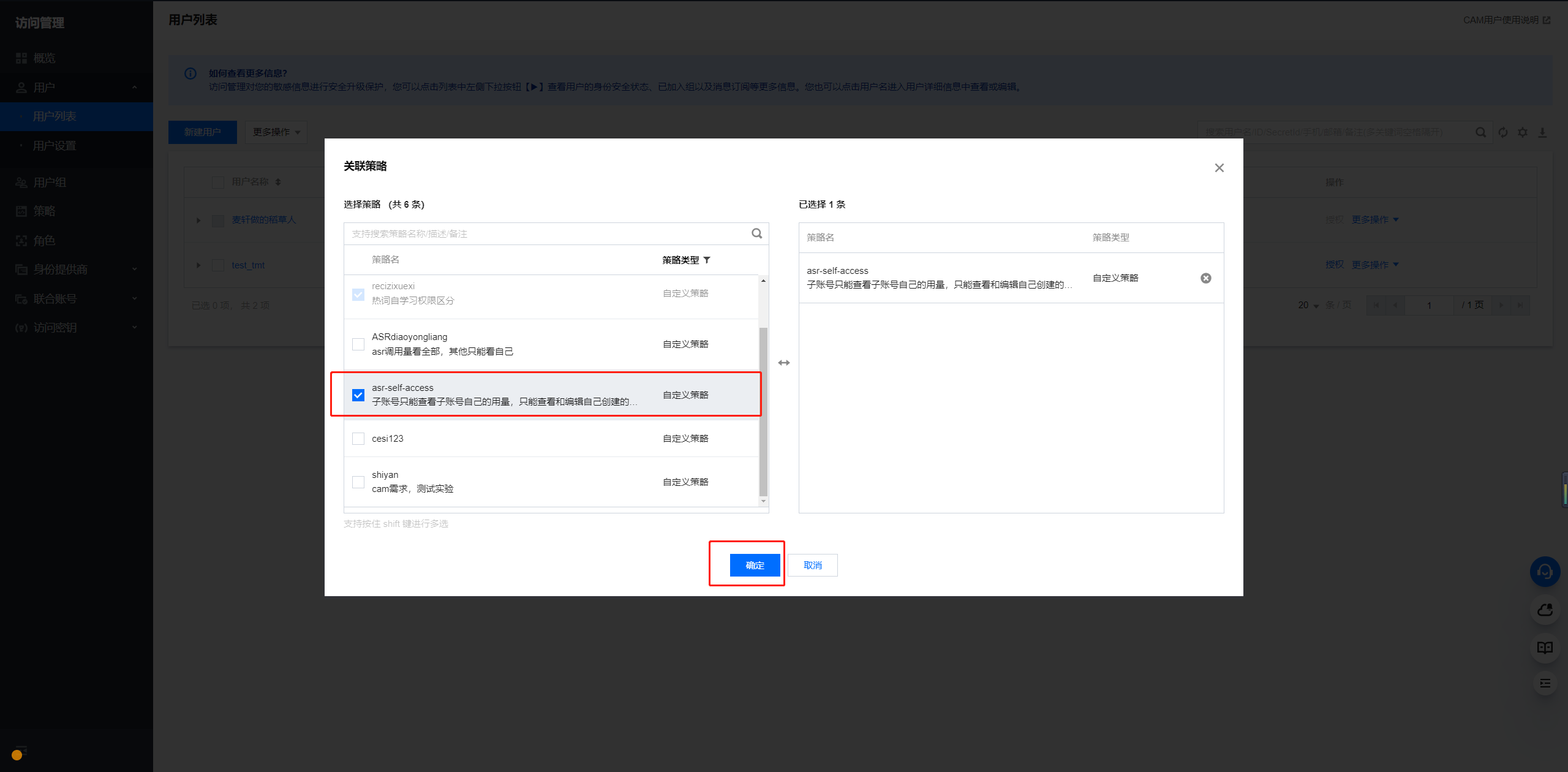
Step 3: Select the previously configured custom policy, click Yes to complete the policy grant.


Preset a JSON Policy

The following JSON policies are only applicable to some mainstream permission scenarios. If you have more business scenarios, please write and configure JSON policies after understanding and familiarizing yourself with the CAM Policy Syntax and Authorizable Resource Types.

Scenario 1: Sub-Account Can Only Read-Write Its Own

If you need to restrict all sub-accounts:
Can only view own amount
Can only view and edit own online/offline SDK application form
The following JSON policies can be used:


{
"statement": [
{
"action": [
"tts:DescribeStatInfo",
"tts:DescribeStatInfoUrl",
"tts:DescribeUserInfo",
"tts:ActivateAuth",
"tts:InvokeSDKFunction"
],
"effect": "allow",
"resource": [
"qcs::tts::uin/{replace with your main account uin}:subUin/${uin}"
]
},
{
"action": [
"tts:ActivateService",
"tts:DescribeOpenStatus",
"tts:GetQuotaConfig",
"tts:GetQpsStatistics",
"tts:DescribePidOrders",
"tts:DescribeQuotaPkgs",
"tts:CheckFreePackage",
"tts:DescribeVoices",
"tts:CreateShortSynthesizeTask",
"tts:DescribeLongSpeechTasks",
"tts:CreateSynthesizeLongSpeechTask",
"tts:SetPayMode",
"tts:TextToVoice",
"tts:DownloadLongSpeechTasks",
"tts:DeleteLongSpeechTasks",
"tts:ChangeTaskName",
"tts:SendFreePackage",
"tts:CreateTextFromUrl",
"tts:DescribeVrsUserInfo"
],
"effect": "allow",
"resource": [
"*"
]
}
],
"version": "2.0"
}


Scenario 2: Sub-Account Has Full Read/Write Permissions (Equivalent To the Root Account)

If you need to allow all sub-accounts to have the same full read/write permissions as the root account
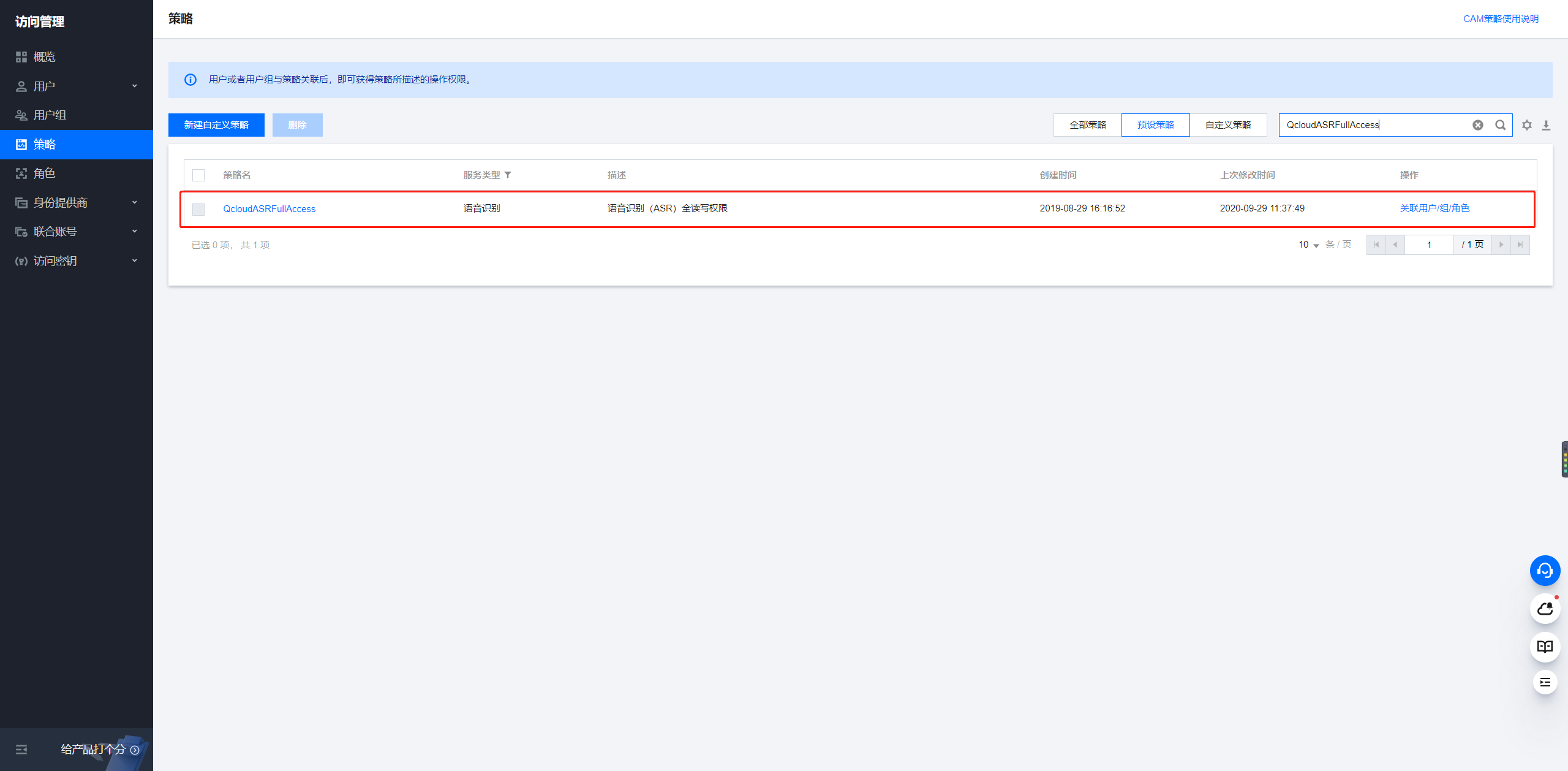
Available preset policy: QcloudTTSFullAccess and associate/authorize all users