The content of this page has been automatically translated by AI. If you encounter any problems while reading, you can view the corresponding content in Chinese.

Message Push

Last updated: 2025-04-27 17:36:13

Overview

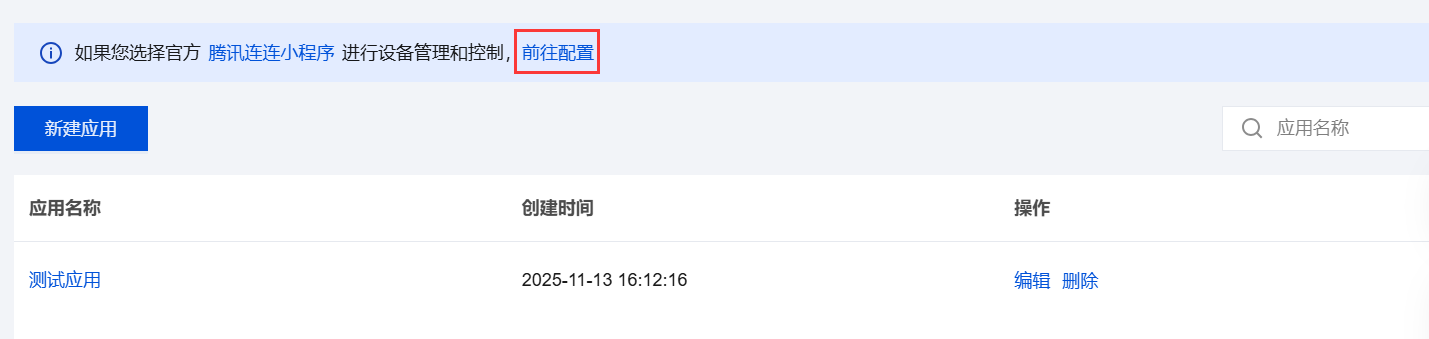
To meet developers' needs to process device-reported data and status, by defining rules in the cloud, notifications such as Alarms and messages can be pushed in real time to Tencent Lianlian Official Account or via App Push, reducing the cost for developers to handle device-reported data.

Prerequisites

Project and product created, and the Thing Model of the product defined.

Create an Alarm Task

1. Log in to the IoT Explorer console, select Public Instance or the standard enterprise instance you have purchased to enter the project list page.
2. Click on the project name to enter the project details page, click on the left menu Data Development.
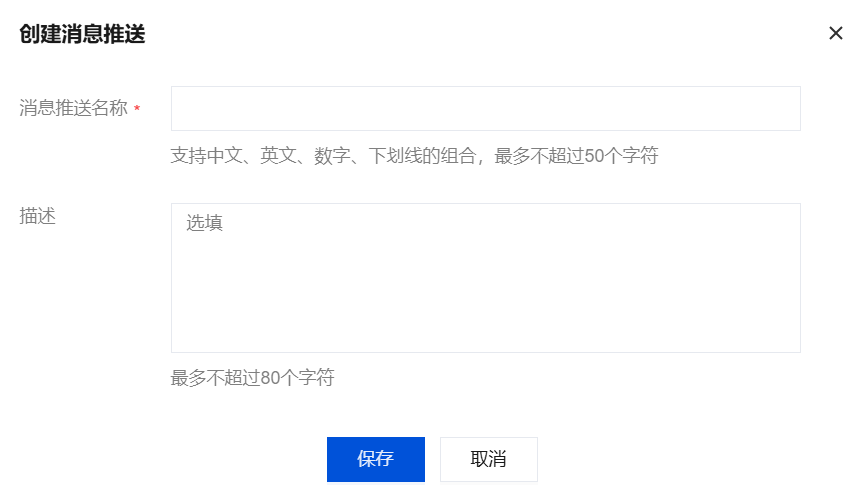
3. Enter the data development list page and click Create New Data Stream.


Data Stream Name: Enter the name identifier for data stream processing.
Description: Input the remark information for this data stream processing.
4. Click Save. After saving is successful, the data stream list page will be displayed.

Alert Task Configuration

Device Property Orchestration

1. Click on the stream name in the stream list page to enter the orchestration page.
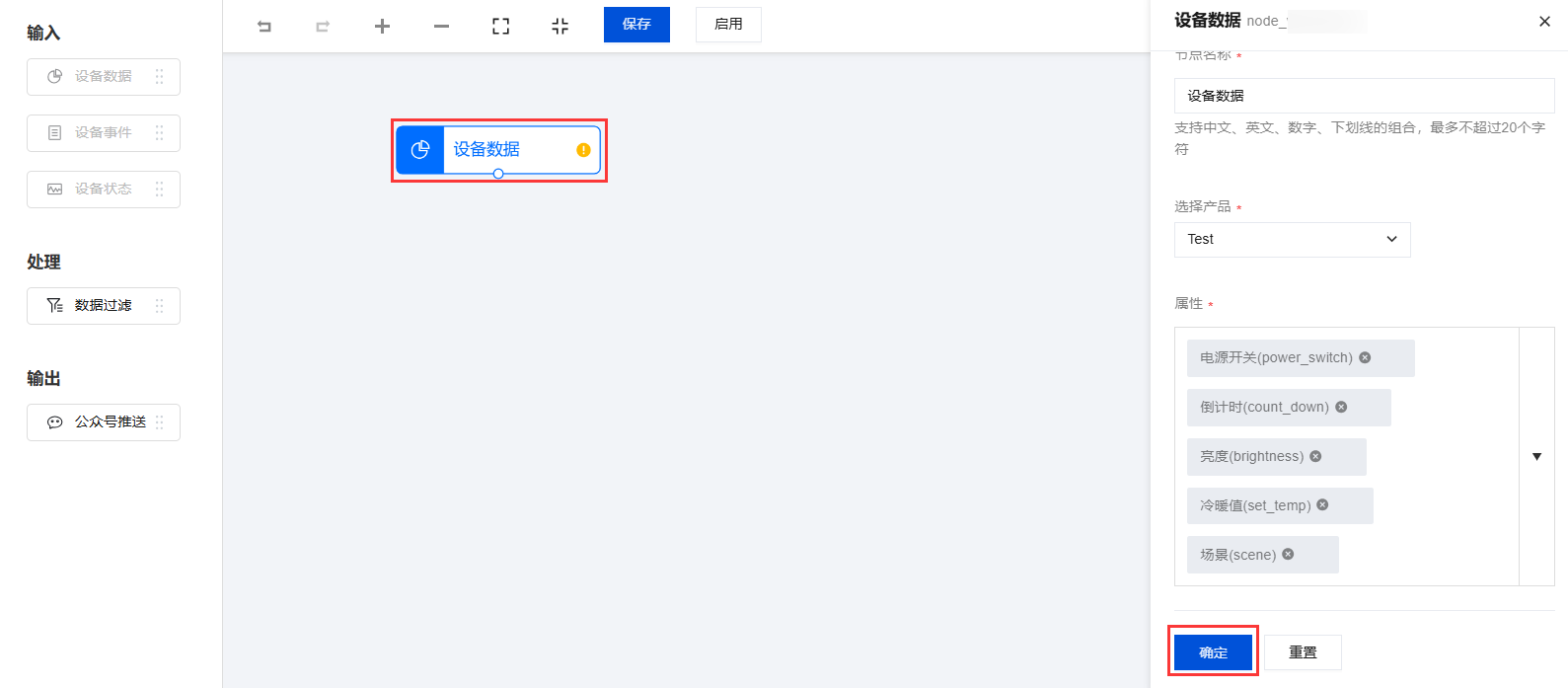
2. Mouse long press and drag the device data node in the left input area and place it in the canvas area. The device data node corresponds to the attributes of device reporting in the Thing Model.
3. Click the dragged and dropped device data node. The configuration content of the node will be displayed on the right side of the interface.


Node name: The node name of this device data, defaults to "Device Data", modifiable.
Select product: After dropping down to select a specific product under the project, the platform will perform real-time processing on the reported data of all devices under the product.
Attribute: Users can select which attributes of the product to use as input as needed.
4. After selecting the product and attribute, you must confirm for the system to save the configuration data of the node.
5. After the device data node is saved successfully, the right-side icon of the device data node in the canvas will become green.

Data Filtration Orchestration

1. Mouse long press and drag the Data Filtering node in the left processing zone and place it in the canvas area.
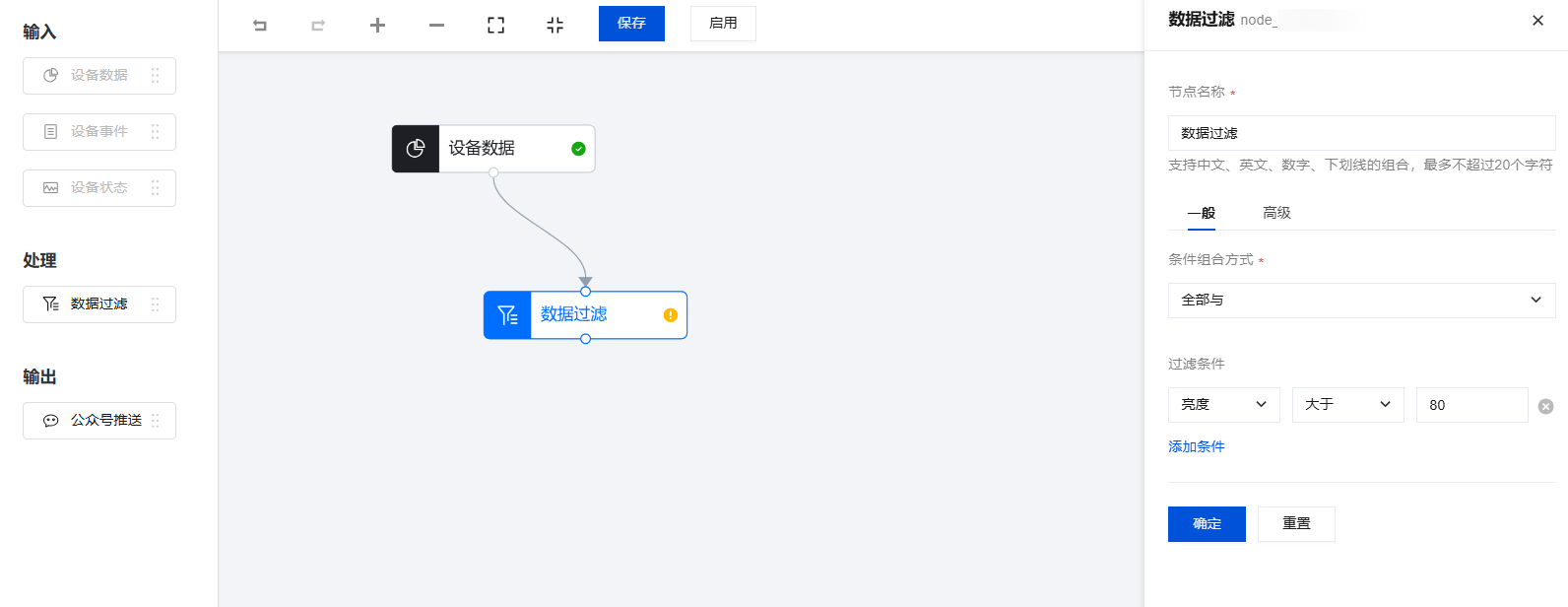
2. Click the dragged and dropped Data Filtering node. The configuration content of the node is displayed on the right side of the interface.
3. Before configuring "data filtering", you must specify a data source, that is, you need to connect the "device data" node with the "data filtering" node.


4. The data filtering criteria currently support all AND, all OR logical combinations. Filter conditions can be combined in any way based on the output of the previous node. The selection criteria combination method in this document is "all AND".
5. Add "filter conditions", select the "brightness" attribute, set the selection condition to "larger than", and enter the value 80; this means that only when the brightness value reported by the device is larger than 80, the data will be output to the next processing node.

Tencent Lianlian App Push

If the developer's alert scenario is to push alarm information to the Tencent Lianlian App, the "App Push" node can be placed on the canvas.
1. Mouse long press and drag the App Push node in the left output region and place it in the canvas area.
2. Click the dragged and dropped App Push node. The configuration content of the node will be displayed on the right side of the interface.
3. Before configuring "App Push", you must specify a data source, that is, you need to connect the "App Push" node with the "data filtering" node.


4. Input the push title.
5. The push content can be defined by the developer, and the output data of the previous node can be obtained through input $.
6. Click Confirm to save the configuration of the node.

Tencent Lianlian Official Account Push

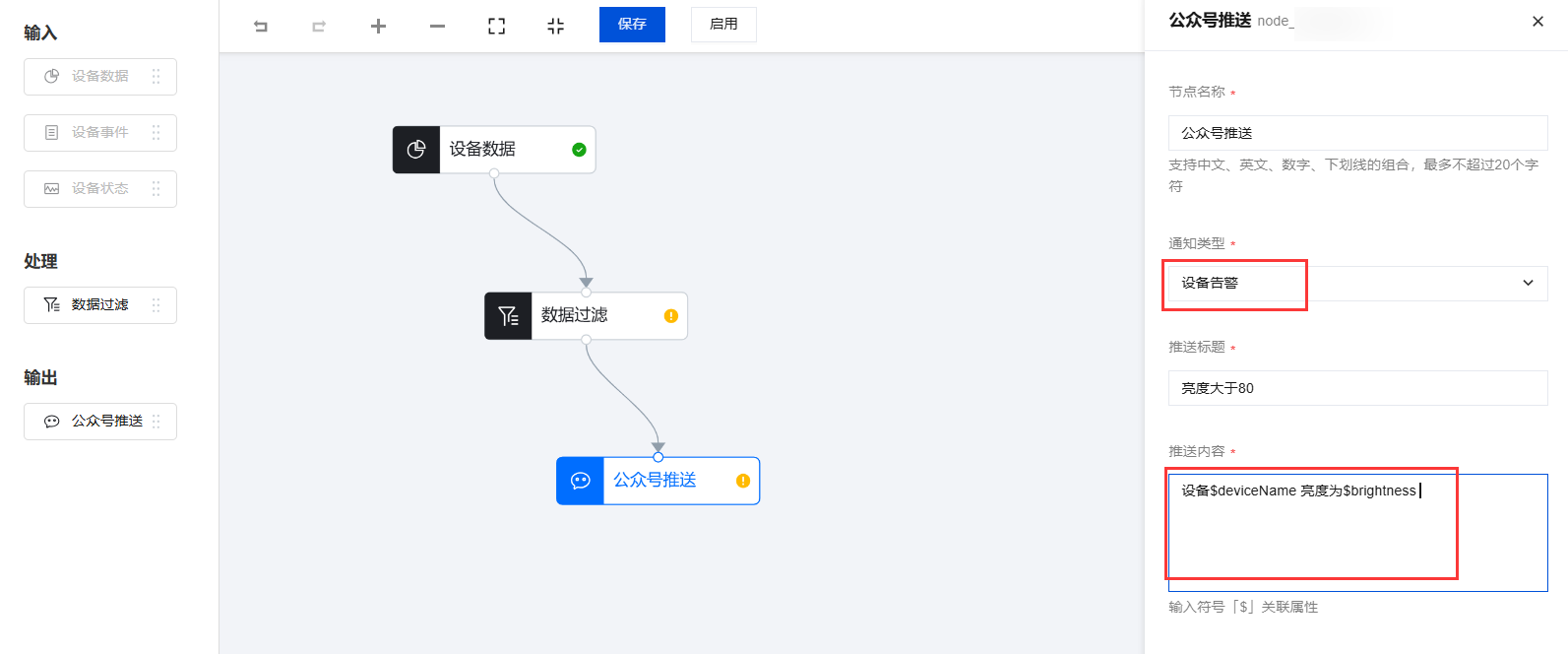
If the developer's alert scenario is to push alarm information to the Tencent Lianlian Official Account, the "official account push" node can be dragged onto the canvas.
1. Mouse long press and drag the Official Account Push node in the left output region and place it in the canvas area.
2. Click the dragged and dropped Official Account Push node. The configuration content of the node will be displayed on the right side of the interface.
3. Before configuring "Official Account Push", you must specify a data source, that is, you need to connect the "Official Account Push" node with the "data filtering" node.


4. Select the notification type: device alarm or notification message. The difference between notification types lies in the different template titles of official account messages.
5. Input the push title.
6. The push content can be defined by the developer, and the output data of the previous node can be obtained through input $. It includes the attribute data reported by the device and system-level data, such as product ID, device ID, and device alias.
7. Jump path: This jump path is the page that users will be navigated to after they click to view the official account message. It can be selected from the drop-down items.
8. Push scope: You can select which roles to push to from the drop-down items.
Note:
Push content must follow WeChat official account template message regulations. Each intermediate main content should not exceed 20 characters and does not support line breaks.
9. Click Confirm to save the configuration of the node.

Custom Push

If developers need to forward filtered and aggregated data to their own servers, they can use custom push.
1. Mouse long press and drag the Custom Push node in the left output region and place it in the canvas area.
2. Click the dragged and dropped Custom Push node. The configuration content of the node will be displayed on the right side of the interface.
3. Before configuring "Custom Push", you must specify a data source, that is, you need to connect the "Custom Push" node with the "data filtering" node.


4. Input the push title and push content.
5. Input the server address and authentication Token for accepting alarm push notifications and click Confirm.
Note:
For your backend's consistent usage, please fill in the authentication Token. You can fill in any Token, used as generating signature (this Token will be compared with the Token contained in the API URL, thereby verifying security).

Push Message Content Format

1. The message template for alarm content pushed from the platform side to the server is as follows:
{
"RequestId": "Push request ID"
"ProductId": "Product ID"
"DeviceName": "device name"
"MsgTitle": "push title"
"MsgContent": "push content"
}

2. If you need to push to your own brand official account, please see the WeChat official account official documentation Push via Template Message.
3. If alarm messages need to be pushed to Chinese domestic brand mini programs or apps, developers can implement according to business logic on their own.

Saving and Enabling Data Stream

1. After the user sets the rules for input, processing, and output nodes, click Save > Enable at the top of the page.
2. After the data stream is enabled, as long as the reported data of the device meets the defined rules, an official account push will be triggered.


Experiencing Official Account Push

After the alarm rule is configured and enabled as above, you can follow the following two steps to experience the virtual device alarm push official account message.

Bind a Virtual Device to the Tencent Lianlian Mini Program

1. Enter the product corresponding to the above alarm rule, and click Device Debugging > Virtual Device Debugging.


2. Open WeChat App and directly use WeChat "Scan" to scan the Device QR Code of the virtual device.


3. After successful binding, it will be displayed in the device list as follows:
image


4. First-time binding requires attention to the "Tencent Lianlian" official account. Click the red box in the figure below to follow the Tencent Lianlian official account, and then you can receive official account messages pushed from the cloud.
image


Virtual Device Simulated Reporting Data

1. On the device control panel of the virtual device, fill in the brightness value as 91, fill in other values as the corresponding values, and click Submit.


2. Enter the Tencent Lianlian Official Account, and a push "message" will be displayed.
image


Experiencing App Push

1. Refer to the download instructions of the General App and download the corresponding app.
2. Experience official account push After the virtual device simulation reports data, you can view the following App push messages.


Disable Data Stream

1. When a user needs to stop a certain data stream service, enter the data development page to check the corresponding stream list.
2. Click Off under the effective status column. A system pop-up confirmation prompt will appear. Click Disable to stop the data stream service. Even if the device reports data, the system will no longer process it.
image