Description of the Feature
Supports free and paid registration. After enabling registration, you can collect registration questions from the audience, and either automatically approve or manually review whether to allow the audience to join. You can set up registration questions, deadlines, approval methods, and import/export registration lists.
Applicable Scenario
Online Training, Employee Meeting, Salon Summit, Marketing Presentation.
Conditions of Use
log in to user: Free Edition, Membership, Business Edition, Enterprise Edition user.
Version Requirement: Client version 3.8.0 or later.
System Requirements: Windows/macOS/Android/iOS.
How to Set Up the Registration Feature
Enable Registration
After enabling the registration feature, the meeting creator can collect basic information from participants through a registration questionnaire. Audience members must successfully register before joining the meeting.
Windows/macOS
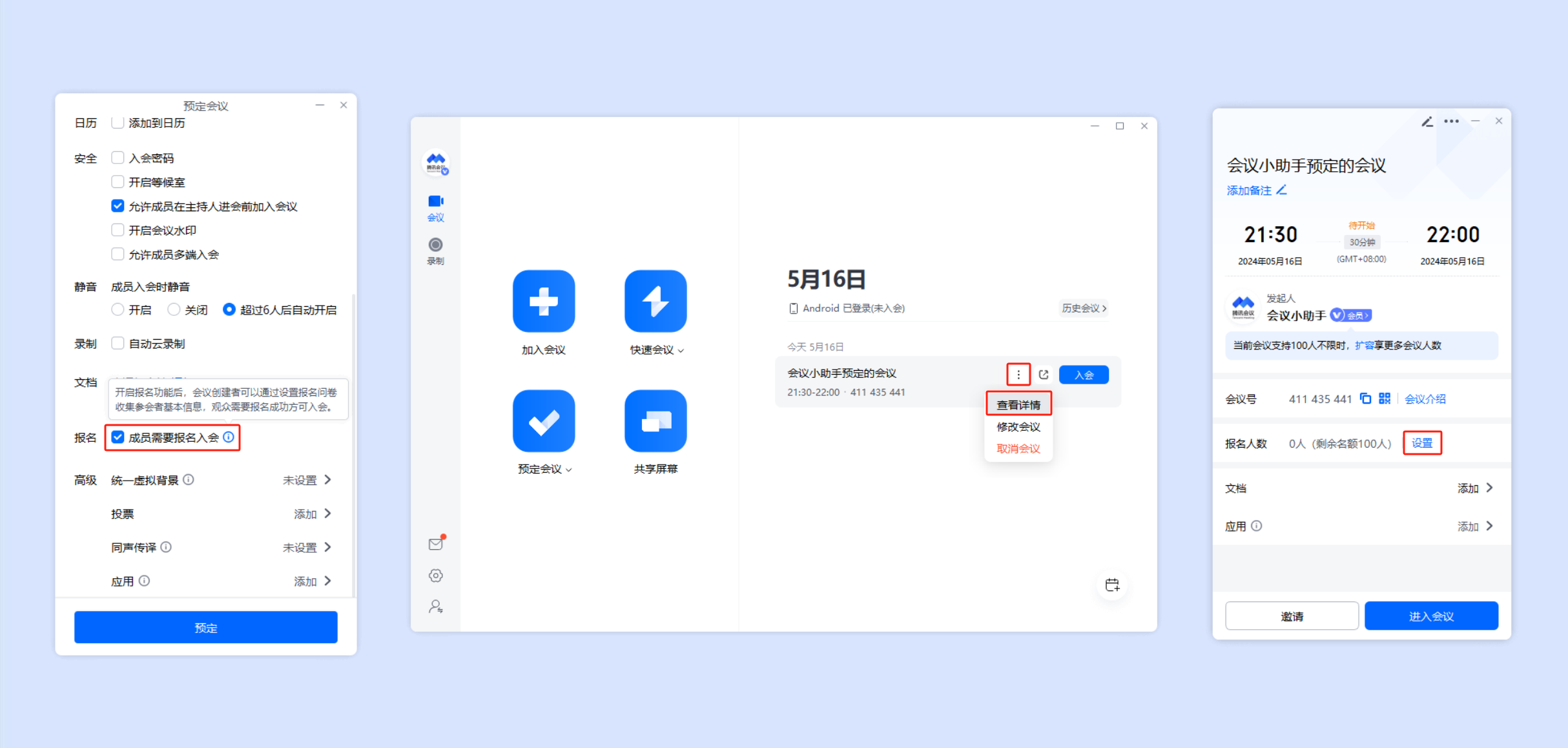
When booking a meeting on the desktop client, check Members need to sign up to join at the bottom of the booking interface > After completing the booking, select the meeting from the meeting list and click More Menu > View Details. In the details page, clicking on the Settings for the number of sign-ups will take you to the registration settings page to make settings.
Android/iOS
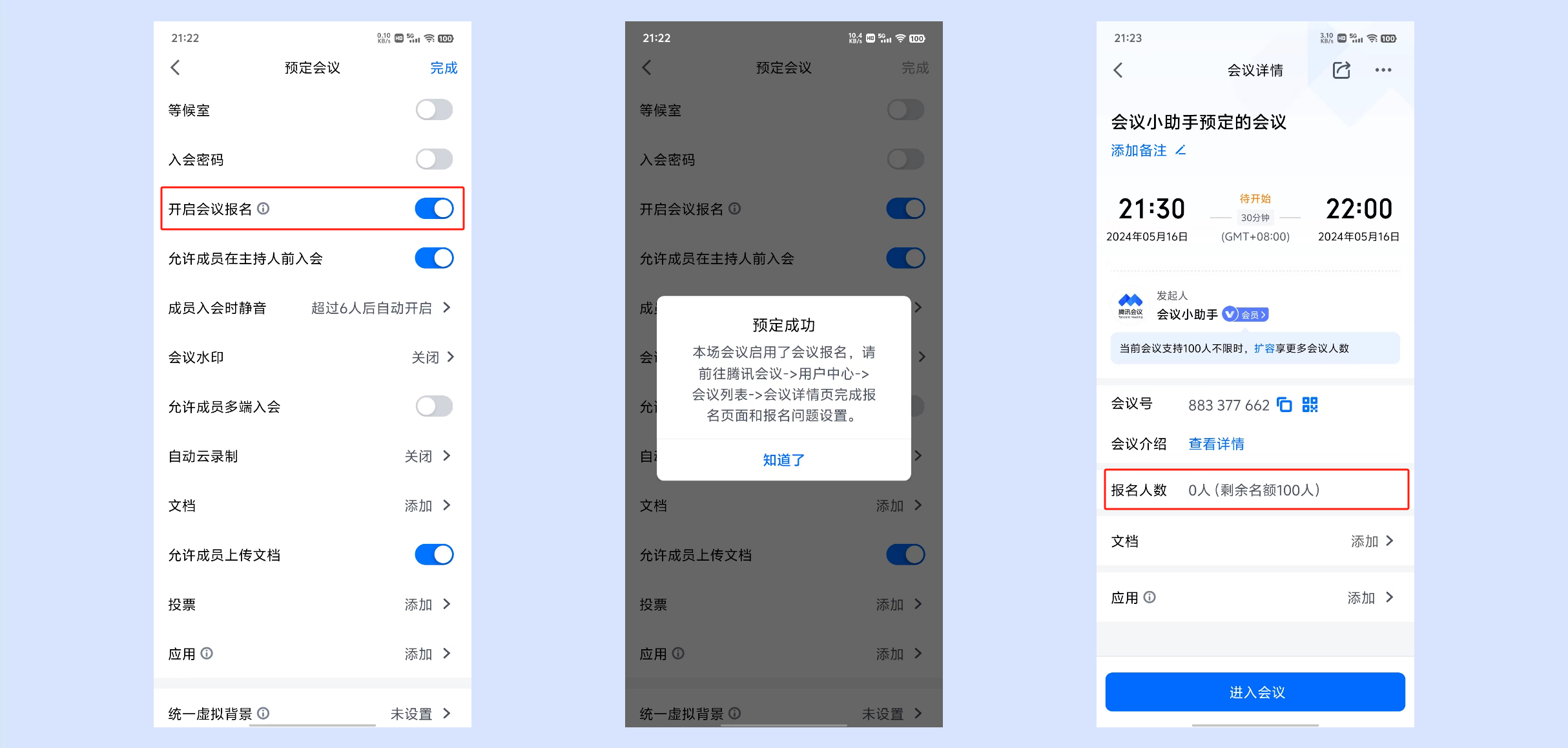
When mobile users schedule a meeting, they need to check Enable Meeting Registration at the bottom of the scheduling interface > After completing the scheduling, they can complete the registration page and registration questions in the meeting details page, and view the registration status.
User Center
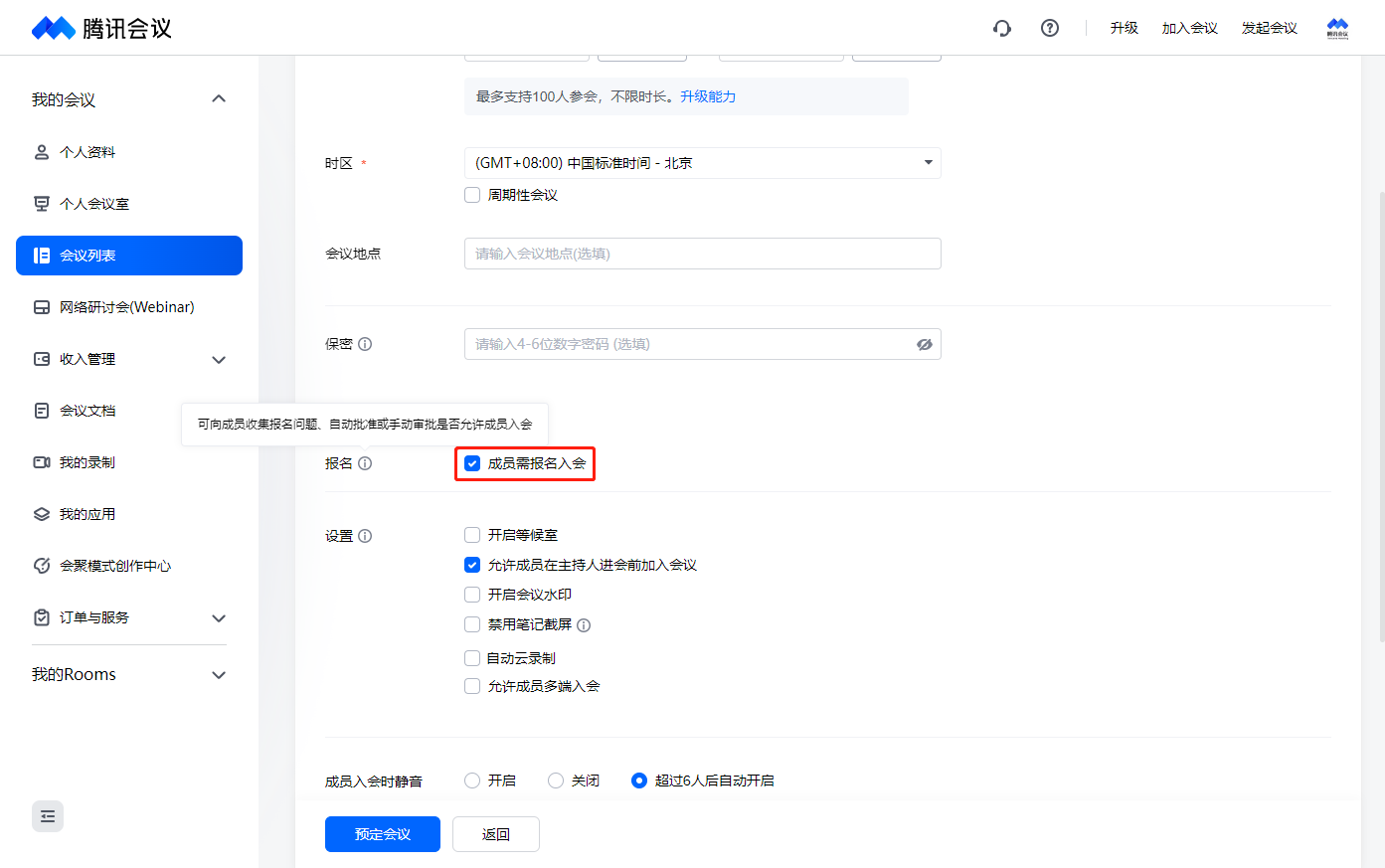
When booking a meeting in the user center, check Members need to sign up to join at the bottom of the booking interface > After completing the booking, you can go to User Center > Meeting List > Meeting Details page to complete the settings for the registration page and registration questions.
Registration Settings
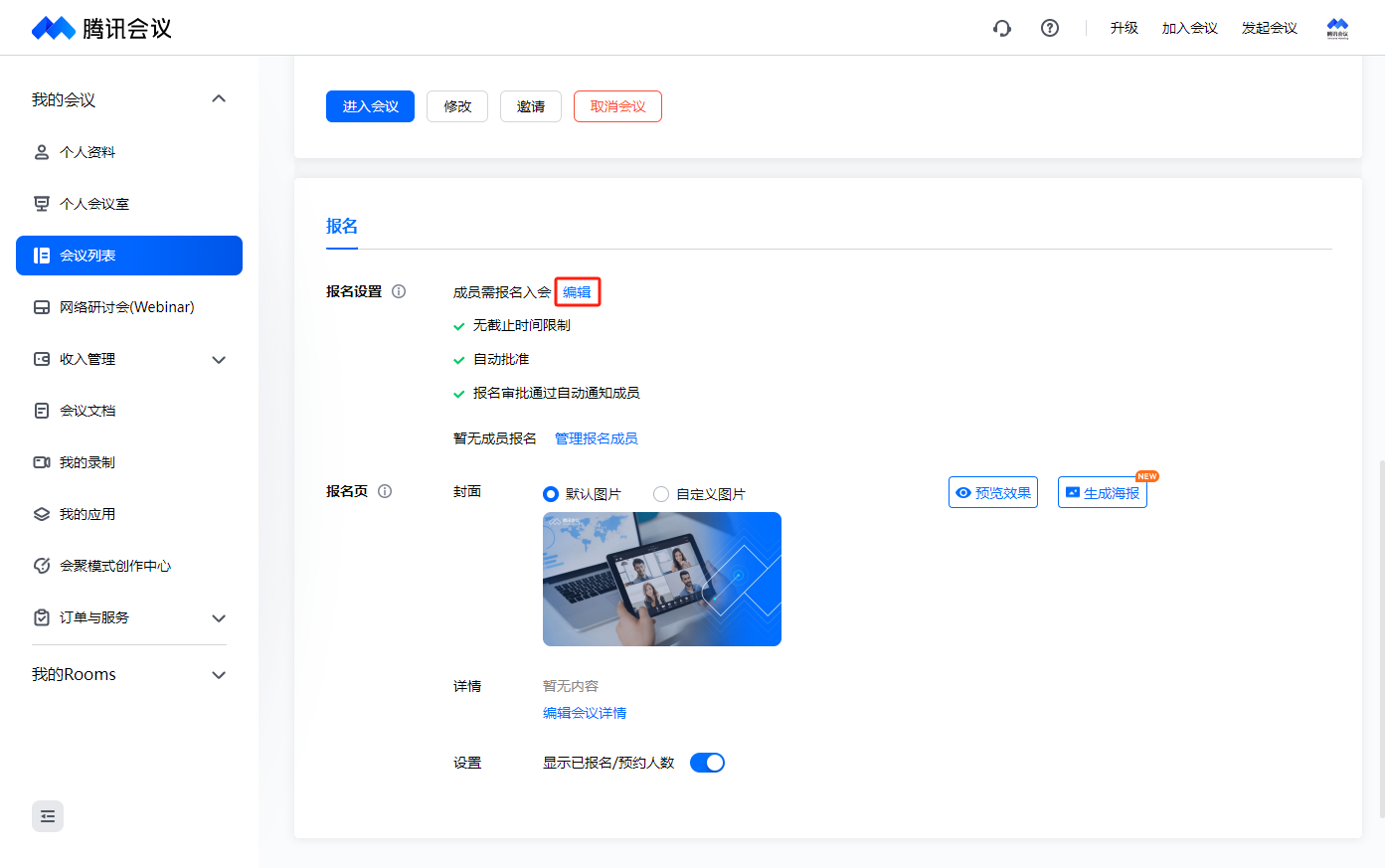
After enabling registration for a booked meeting, on the meeting details page at the bottom click Register then click Edit to proceed with the registration settings.
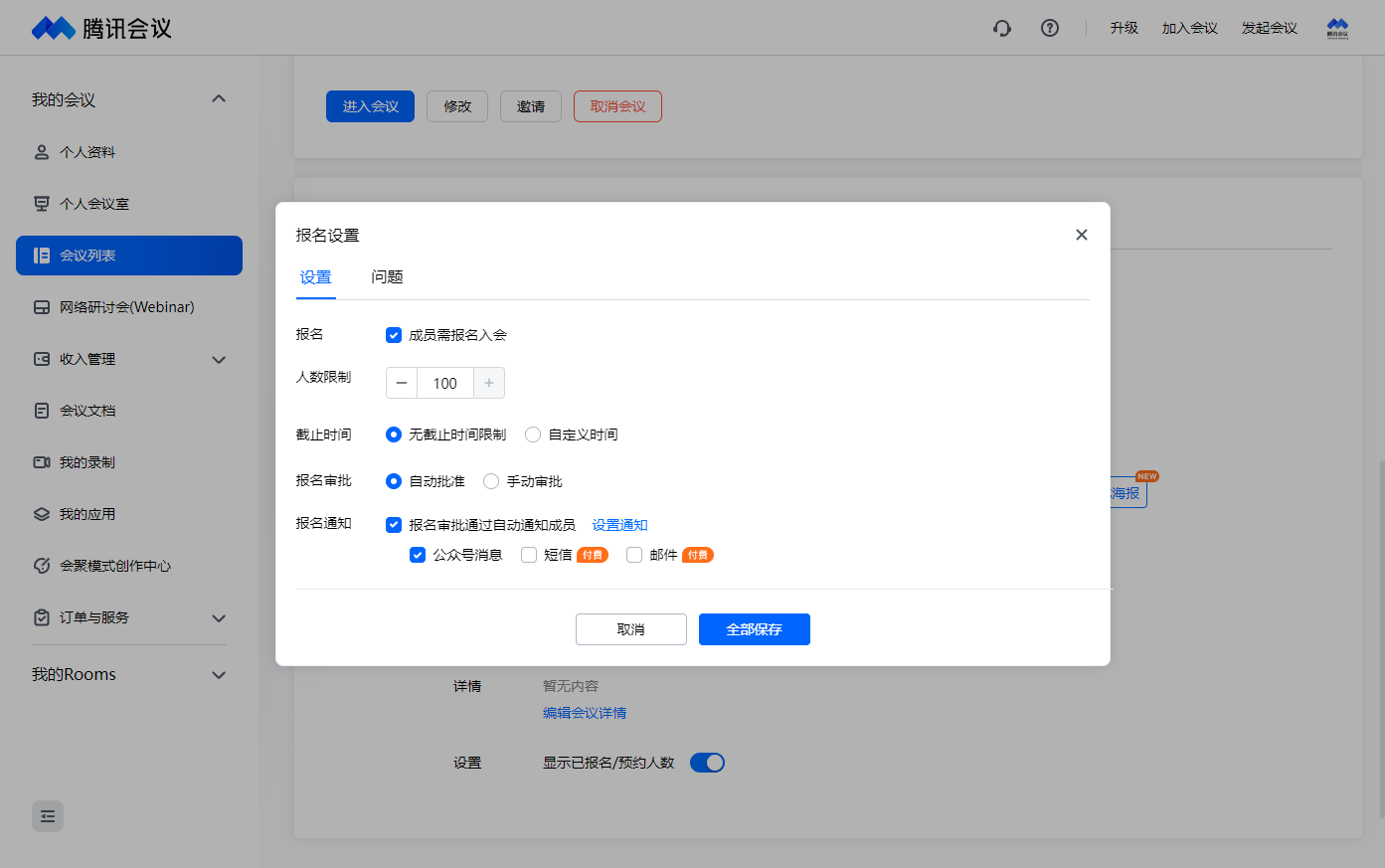
Type of Registration: Supports both free and paid registration types. Paid registration is available only to Business Enterprise Edition users after application review.
Number of Registrants: The maximum number of registrants is the same as the meeting capacity associated with the account.
Expire Time: No default expire time, can be set manually, but not earlier than the scheduled start time.
Registration Approval:
Automatic Approval: Upon submitting the registration questions set by the organizer, registration will be approved. The organizer can also manually change the registration status.
Manual Approval: After submitting registration questions, the host needs to manually review them.
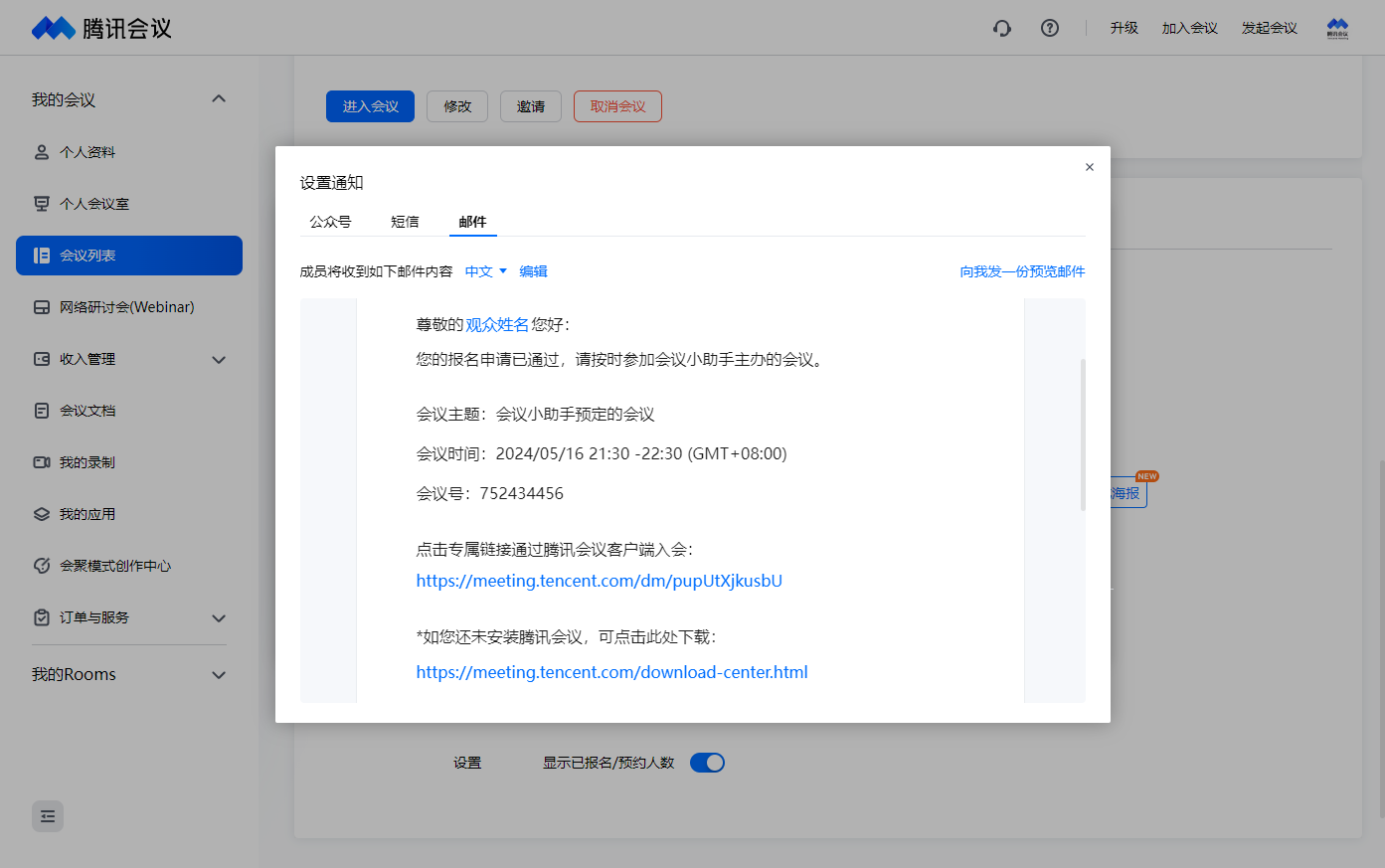
Registration Notification: By default, notifications are via the WeChat public account. Participants can receive registration and meeting start notifications after following the Tencent Meeting public account; Business and Enterprise Edition users can use SMS and email notifications, supporting Chinese, English, and bilingual types.
Corporate Registration: Business/Enterprise accounts support corporate registration. When selected, members under the same organization account as the meeting creator do not need to register.
Click Set Notifications to view and edit the notification content.
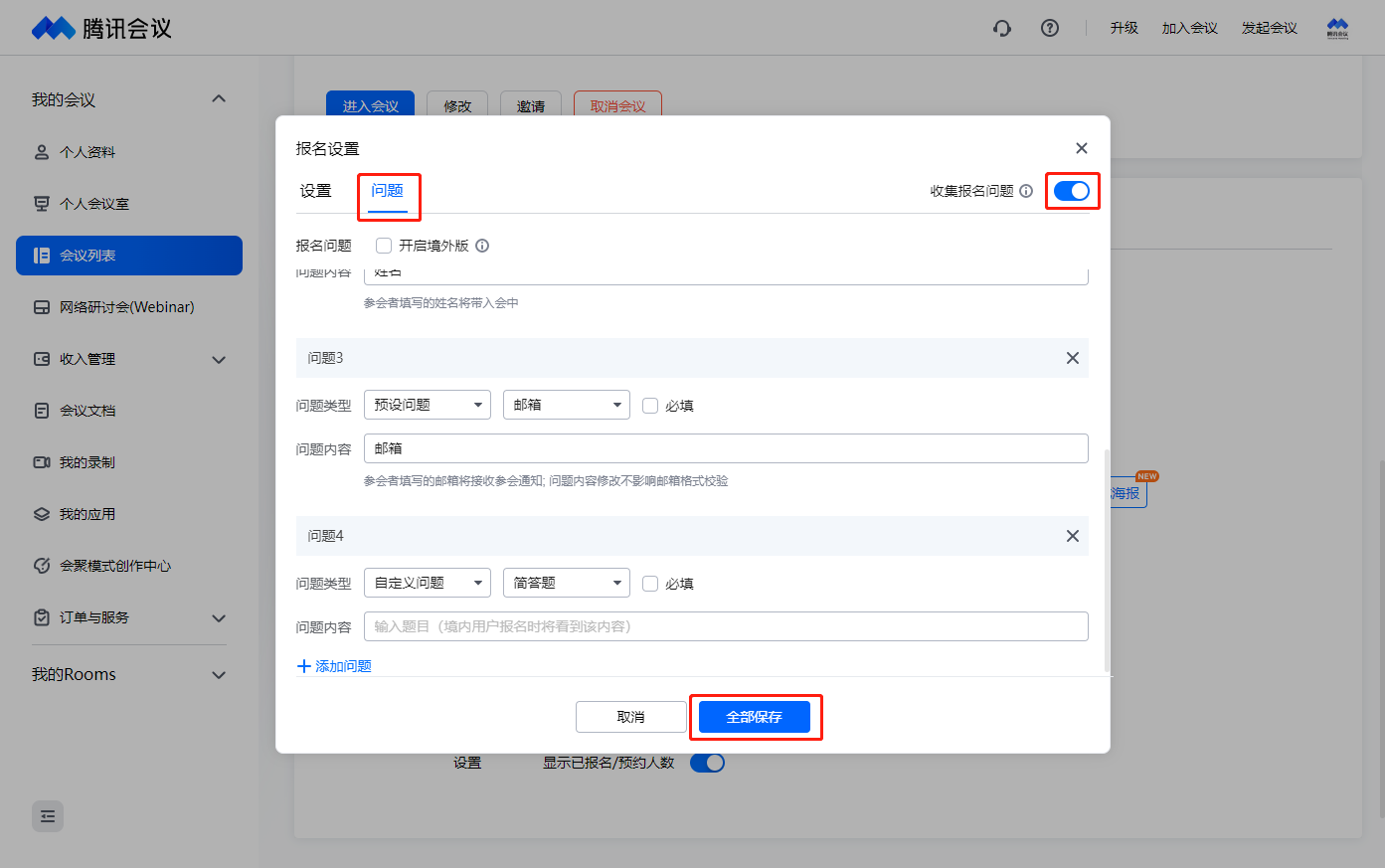
Registration Issues: Click Issues and check Collect Registration Issues to set registration questions.
Preset Questions: Supports setting preset questions such as name, phone number, email, organization name, and organization size; phone number supports SMS verification feature.
Custom Questions: Supports single choice, multiple choices, and simple text types.
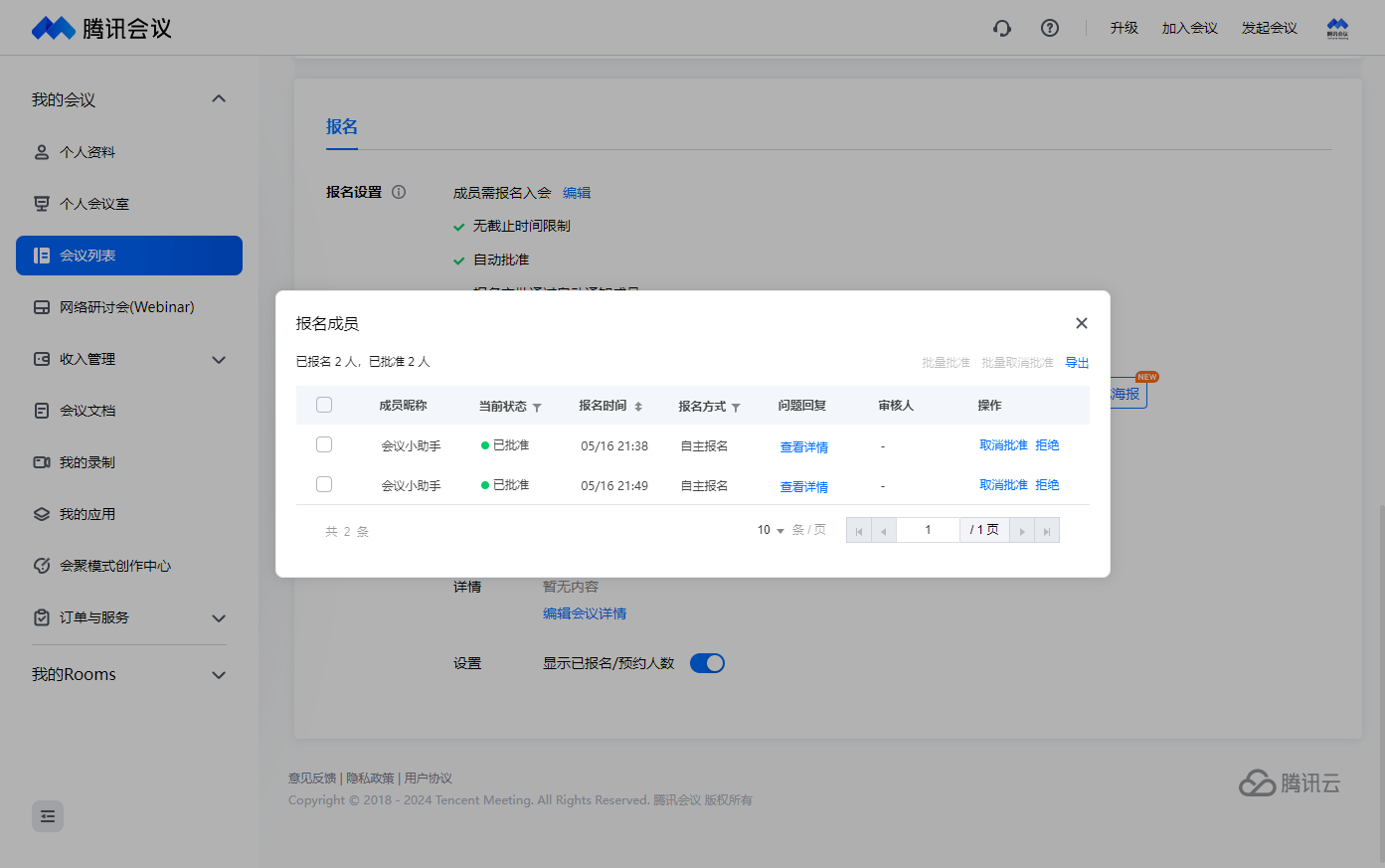
Registration Member Management: View the number of registrations and approvals, approve or reject registrations individually or in bulk, and view answers to registration questions from registered attendees.
Bulk Instance Import: Available for Enterprise and Business editions, members can be imported by userid or phone number, with a maximum of 5000 people per meeting. Imported members do not need to register to attend.
Export: Export the list of registered members, displaying detailed information as a list. Post-meeting, more detailed information such as registration questions can be exported.
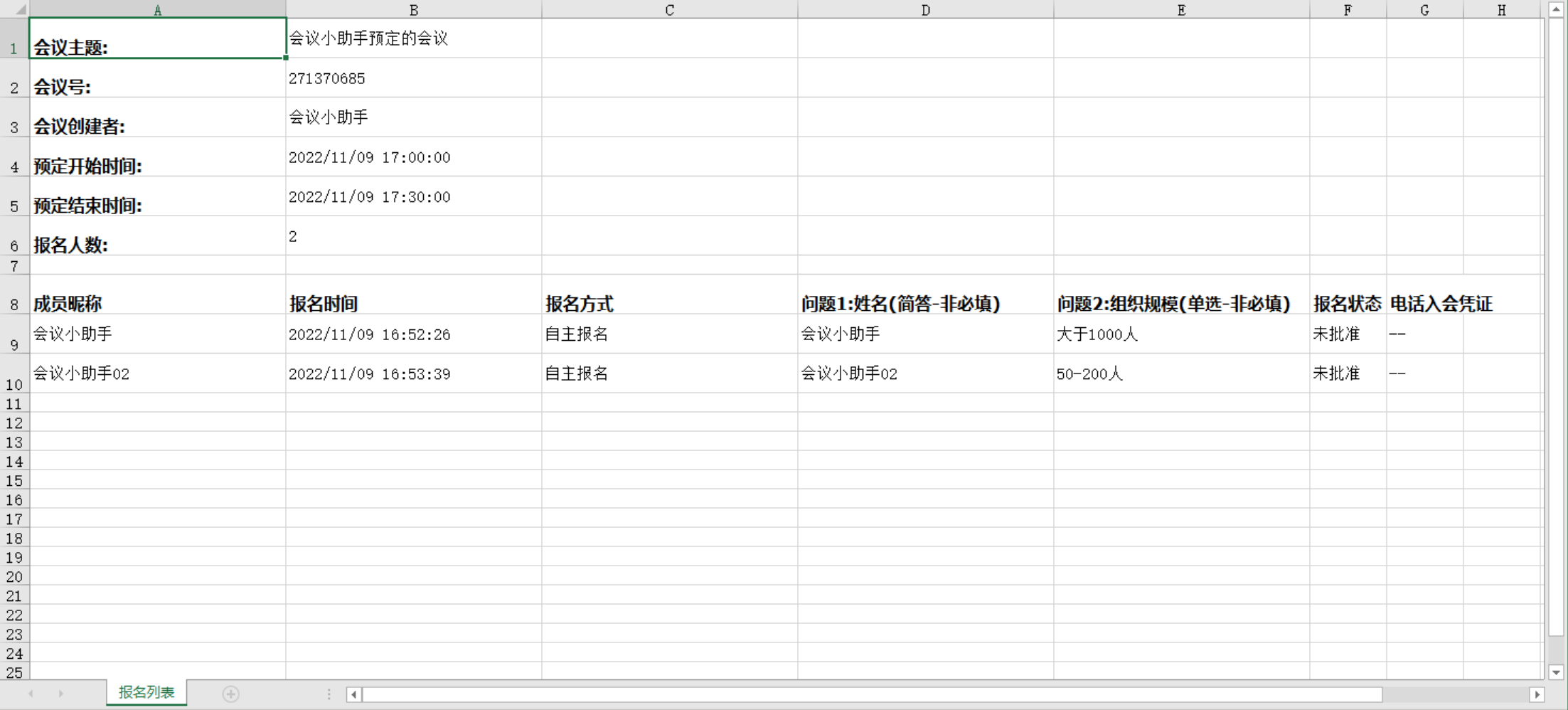
Registration Page
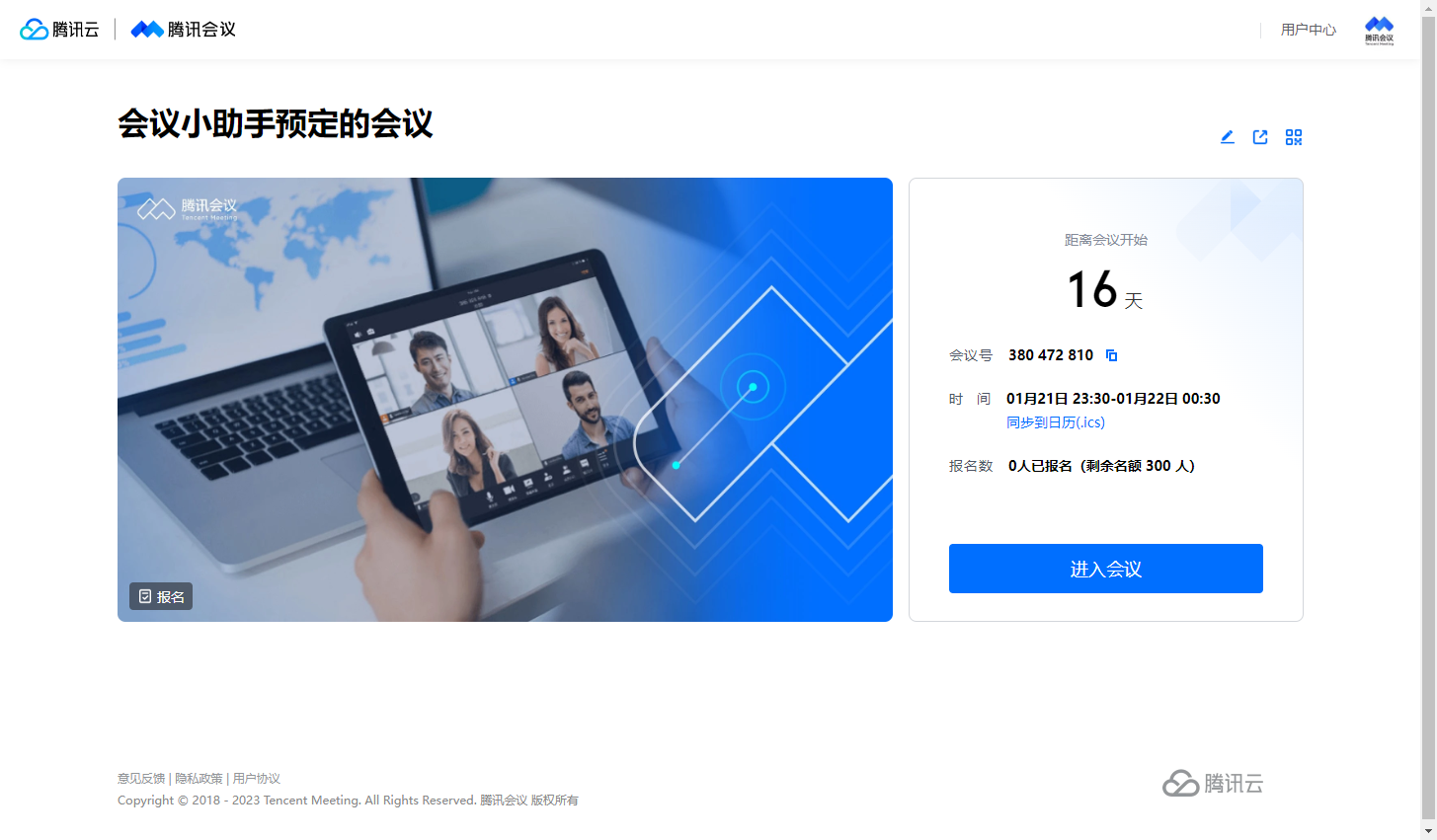
Participants who open the meeting link can view this page, choose a page style, customize the activity page with a cover, meeting introduction, add guests, and schedule introduction.
Page Style: Meetings with registration enabled will automatically bind to the customize activity page feature. Meetings without registration enabled can choose between the regular invitation page or the customize activity page.
If selecting the customize activity page, you can add a cover, meeting introduction, and set whether to display the number of registered or booked participants.
Cover: Multiple custom covers can be added. It is recommended to use high-definition images of 1280*720, with each file being within 5 MB. QR codes and other promotional information are prohibited. Images will be displayed in a carousel and can be sorted by dragging.
Details: You can enter a detailed introduction of the meeting, with up to 10 images inserted, each not exceeding 10 MB.
Display number of sign-ups/bookings: Enable to display the current number of registered and booked participants.
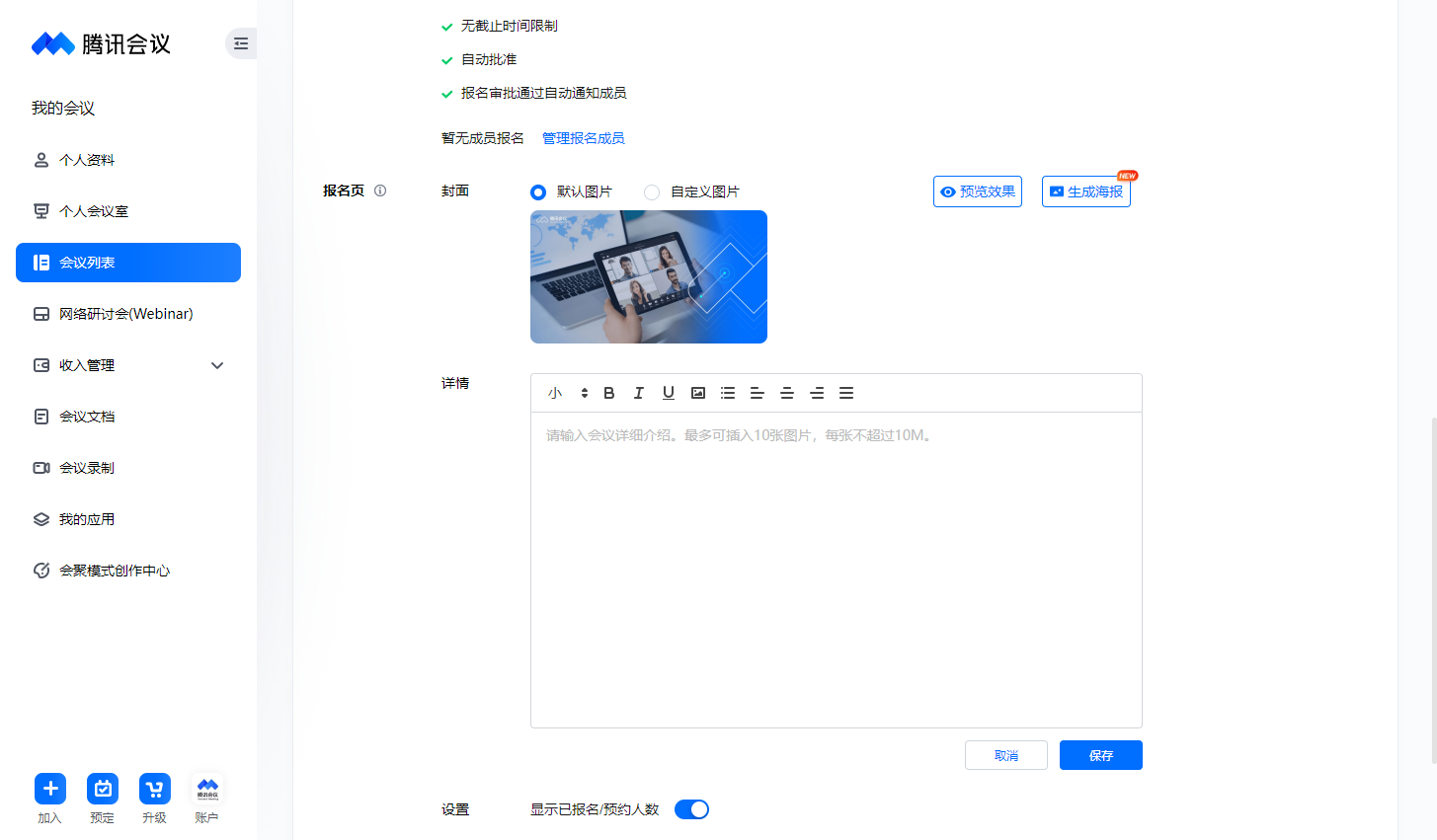
Preview Effect: Click to preview the registration page effect.
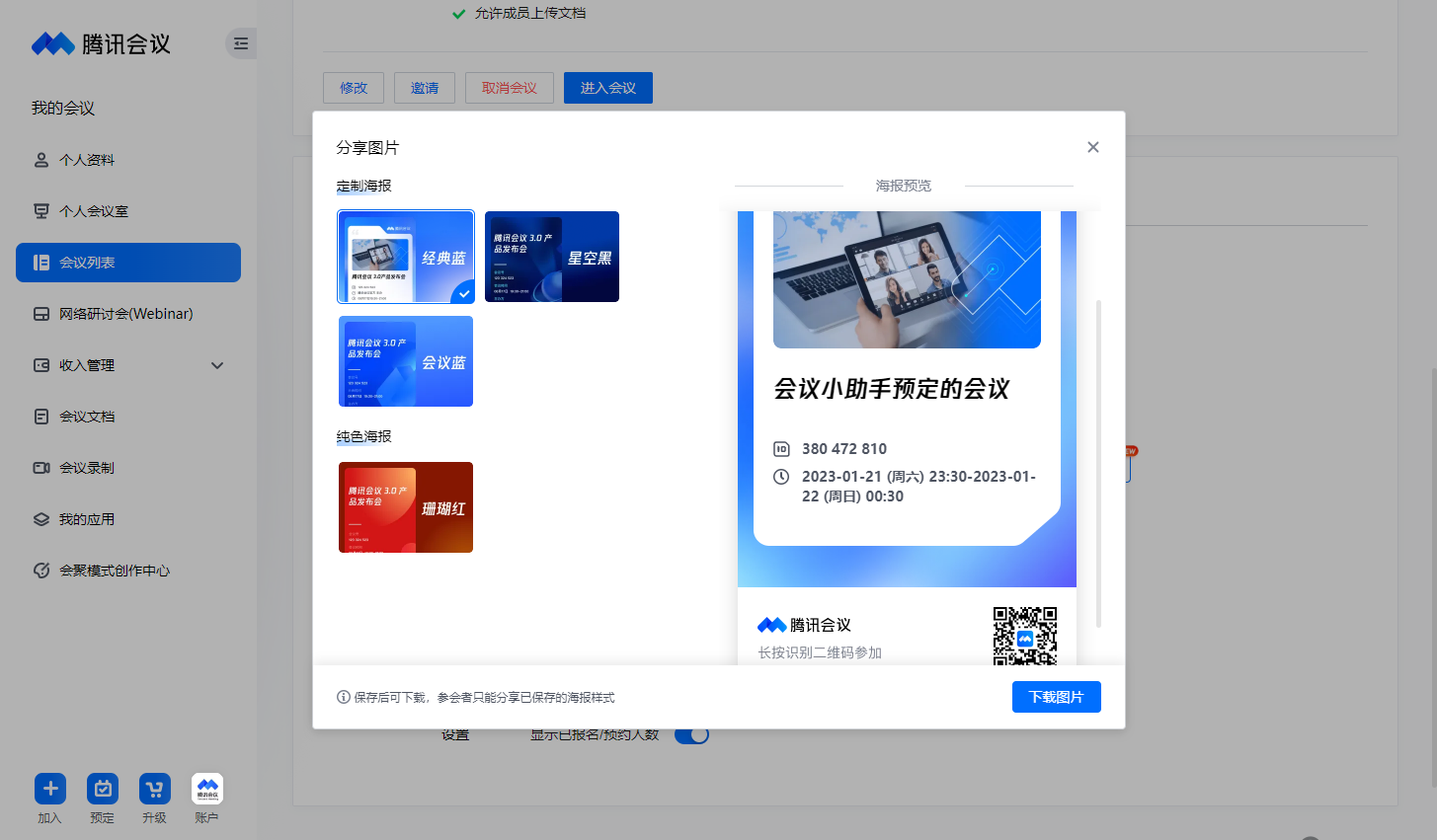
Generate Poster: Click to preview and download the shareable poster. Participants can long-press to recognize the QR code in the poster to join. Already saved posters can also be shared.
Notes
Registration approval method, registration issues, and other settings need to be configured on the official website user center booking page. The mobile terminal and desktop terminal can only enable registration.
Batch import of registration list, registration SMS and email notifications, paid registration, and other features are available only to Business Edition and Enterprise Edition users.