The content of this page has been automatically translated by AI. If you encounter any problems while reading, you can view the corresponding content in Chinese.

User Account and Permission Management

Last updated: 2025-05-15 14:37:38

Overview

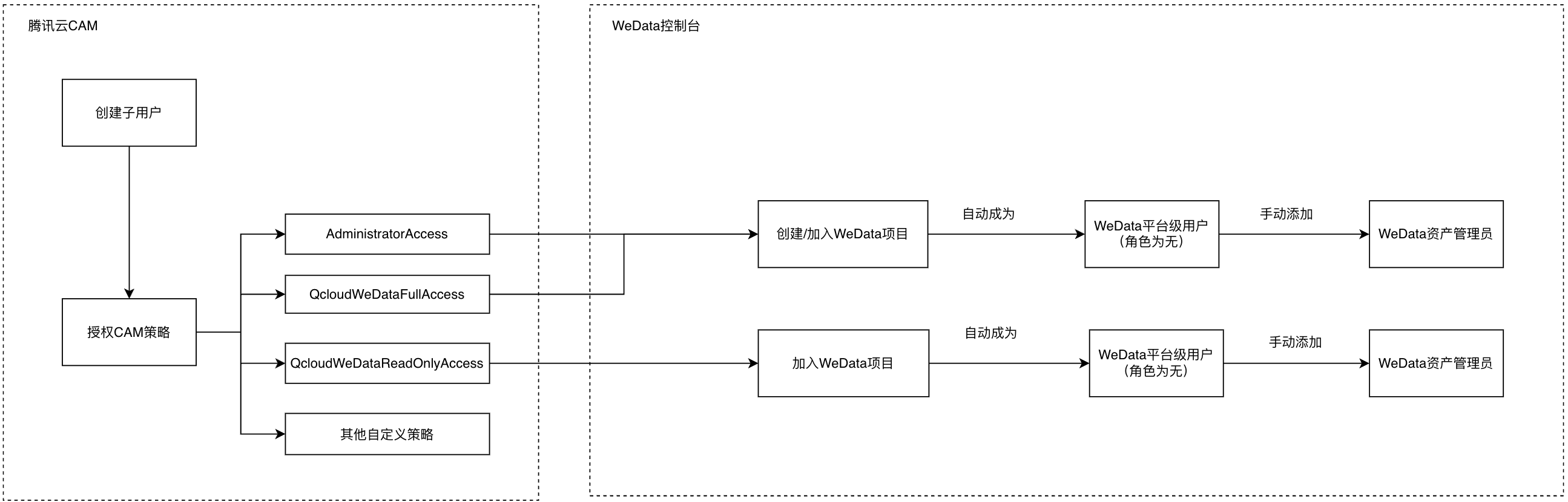
Data Development and Governance Platform WeData is based on Tencent Cloud CAM User and Permission Management System. It supports users to log in through the Tencent Cloud official website console using either a root account or a sub-account. Simultaneously, within the WeData product, there is an independent user role and permission control system based on RBAC. Tencent Cloud accounts need to be granted both CAM policies and WeData member roles.
WeData user management is divided into three layers: cloud account, WeData project-level member, and WeData platform-level member. User access permission control is performed through Tencent Cloud CAM policy, project-level role, and platform-level role respectively, as shown in the table below.
Account Type
Permission Management
Permission Control Scope
Policy/Role Name
Permission Description
Tencent Cloud Account
Tencent Cloud CAM Policy
WeData Console menu, including project management, execution resource group management, user management.
QcloudWeDataFullAccess
Have full read-write access to the WeData Console menu.
QcloudWeDataReadOnly
Have read-only access permission to the WeData Console menu.
Custom Policy
Perform API-level access control based on policy details.
Project members in WeData
WeData project-level role
WeData project-level menu, including Data Integration, data development.
Project Administrator
Have full read-write access to the belonging project, responsible for operations such as project public configuration and project member management.
data engineer
Have data development and operation and maintenance related permissions in the belonging project.
Ops engineers
Have data operation and maintenance related permissions in the belonging project.
Ordinary member
Have read-only access permission to the belonging project.
Custom role
Perform access control according to the custom permission list.
Platform-level members in WeData platform
WeData platform-level role
WeData Global Menu, including data asset, data modeling.
Asset Administrator
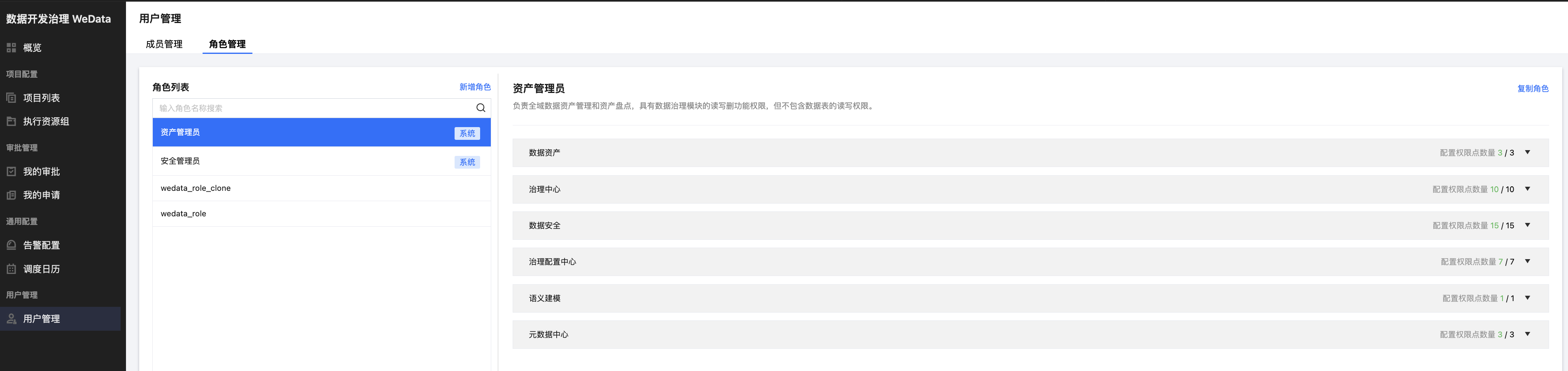
Have full read-write access to the data asset module and read-only access permission to other global menus.

Tencent Cloud Account

Before using the data development and governance platform WeData, you need to prepare a Tencent Cloud root account and manage sub-accounts through CAM.
Tencent Cloud root account: It is the CAM root account and by default has access to all Tencent Cloud resources under the account. In CAM, the root account is by default the main entity for ownership, usage metering and billing of all cloud resources, and is responsible for creation, authorization, and management of sub-accounts within the organization.
Tencent Cloud sub-account: Created, managed in a unified way, and paid for by the root account through the Tencent Cloud CAM console. In CAM, sub-accounts do not own resources by default and must be authorized by the root account to which they belong. Once authorized, sub-accounts can manage resources under the root account within the granted permissions.
To authorize access to WeData for a Tencent Cloud sub-account, you need to associate either the QcloudWeDataFullAccess or QcloudWeDataReadOnlyAccess policy in CAM.
For more details, see CAM-related documentation.

WeData Project-Level Member

A Tencent Cloud account entering a WeData project needs to be added as a WeData project-level user and associated with a project-level role.
Tencent Cloud root account, by default the project administrator of all projects in WeData, requires no manual user operation.
Tencent Cloud sub-account, by default not a member within a WeData project, needs to create a project or be manually added to an existing project by the project administrator.

Platform-Level Members in WeData Platform

Users will automatically become platform-level users of WeData when they create a project or join an existing one, with the default role being "None".
To grant access permission to the platform-level menu, you can manually add roles such as "Asset Administrator".

User and Permission Management Operation Process


Signing up for a Tencent Cloud account

Create a Tencent Cloud Main Account

Registration: If you haven't registered a Tencent Cloud root account yet, go to the homepage of the Tencent Cloud official website, click free registration in the top right corner of the page. For more details, see registration guide.
Real-name authentication: A Tencent Cloud root account needs to complete real-name authentication before purchasing and using Tencent Cloud products. For more details, see authentication guide.

Create a Tencent Cloud Sub-Account

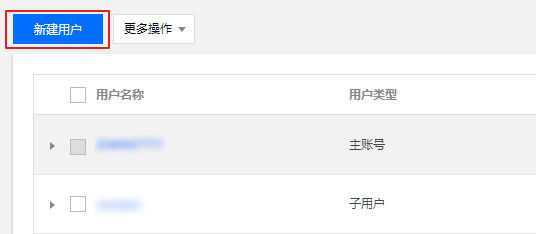
1. Use the root account or log in to Tencent Cloud CAM Console, and in the left sidebar, select Users > User List.
2. On the "User List" page, click Create User to create a sub-account, including Sub-users and Collaborators.


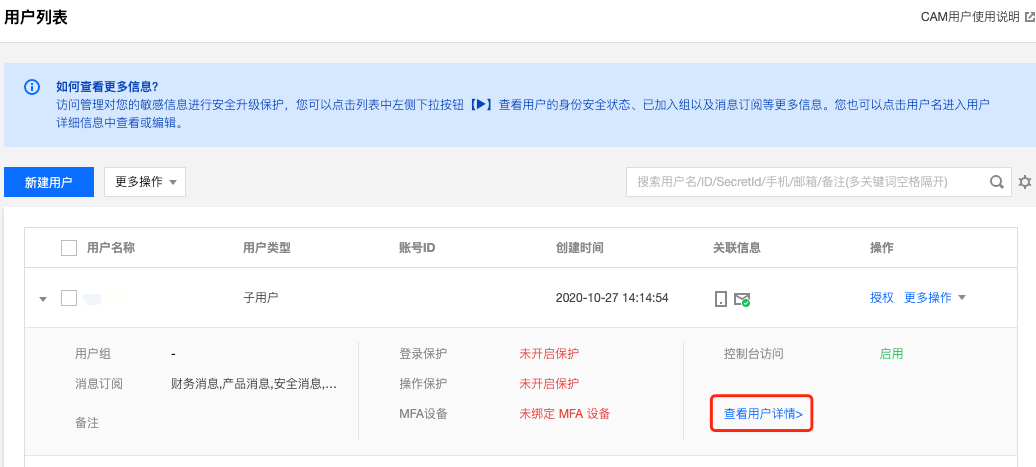
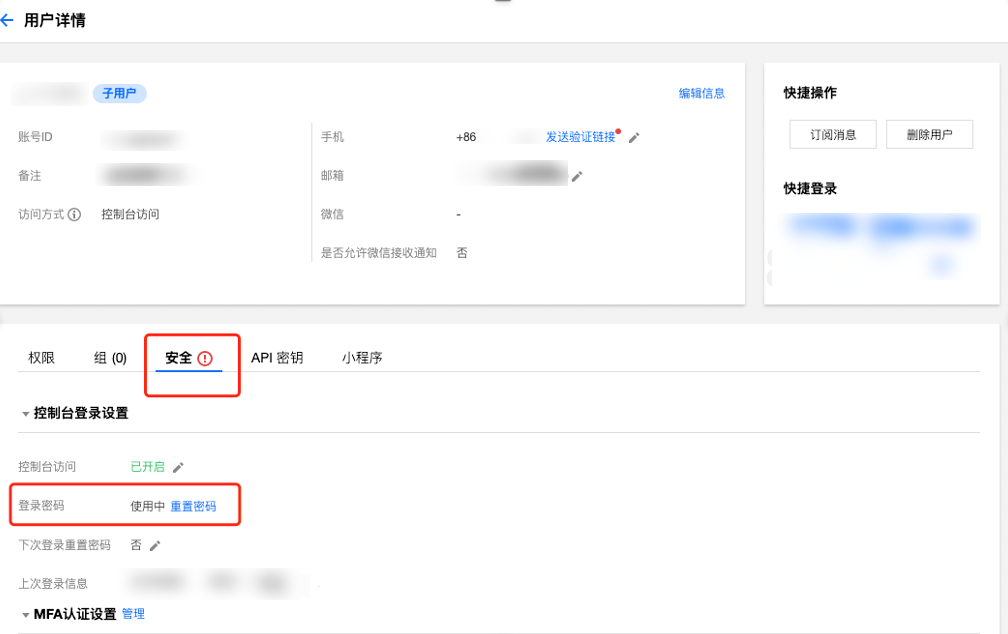
3. After successful creation, CAM will generate login information for the sub-account. You can click View User Details, then select Security and reset the password.


Note
Note: If you need multi-person collaborative development, please create a CAM sub-account for other collaborators.

Authorize Sub-Account WeData Product Access Permission

1. Log in to Tencent Cloud using the root account CAM Console , and in the left navigation, select Users > User List .
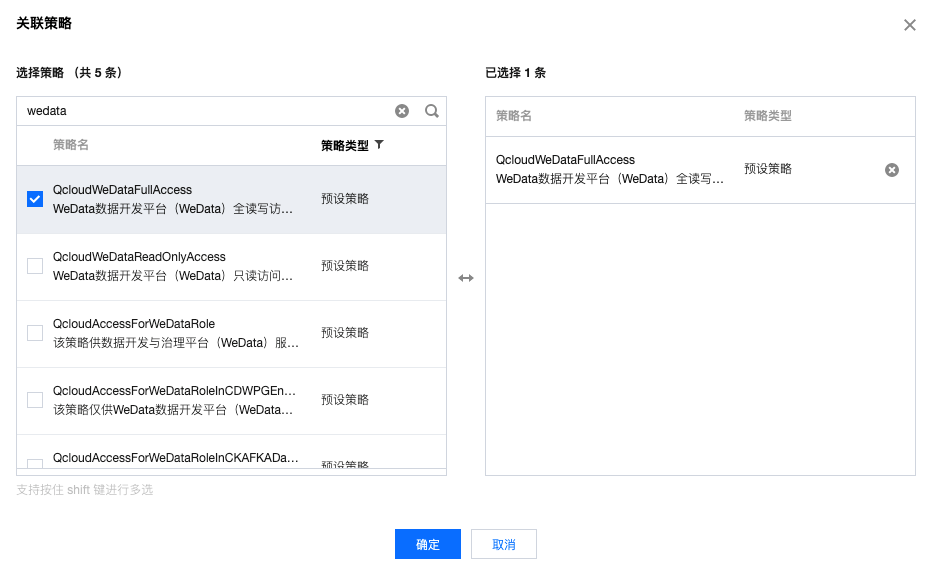
2. On the "User List" page, select a sub-account and click Authorize in the operation list. Search and select either the QcloudWeDataFullAccess policy or the QcloudWeDataReadOnly policy.


3. Click Confirm to authorize sub-account WeData access permissions.
4. Inform collaborators of the required information for sub-account log-in: login entry, root account ID, and username and password.

Become a WeData Project-Level Member

Creates a project.

Note
Only the WeData Root Account Administrator has the permission to create a project. After successful creation, they will automatically become the project administrator of that project.
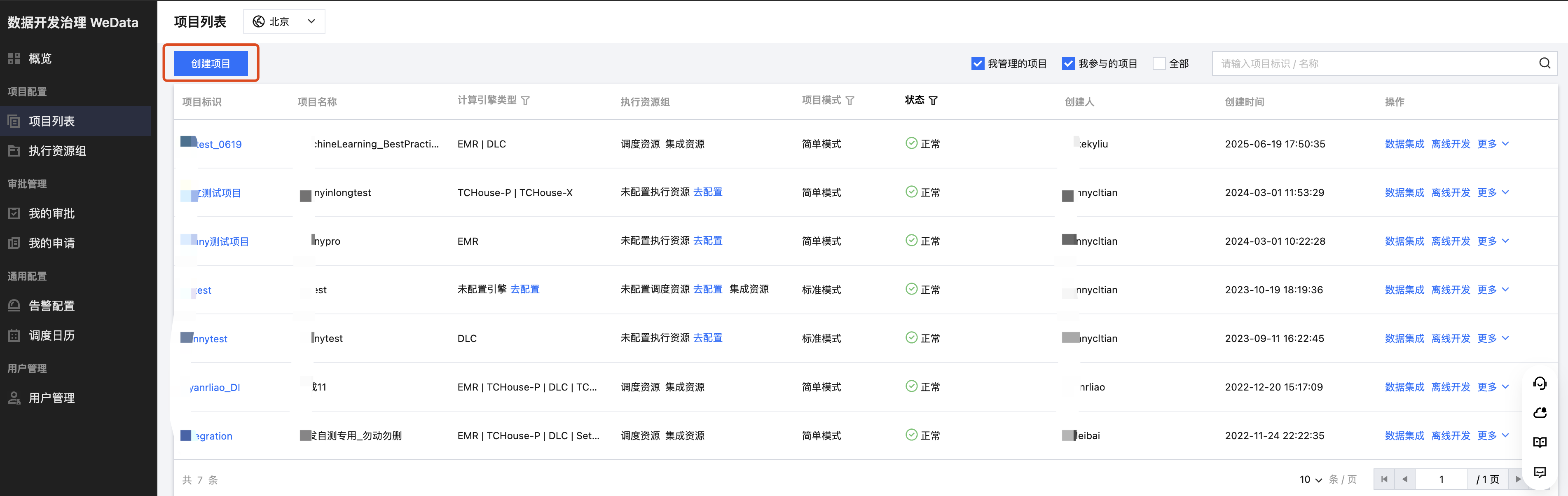
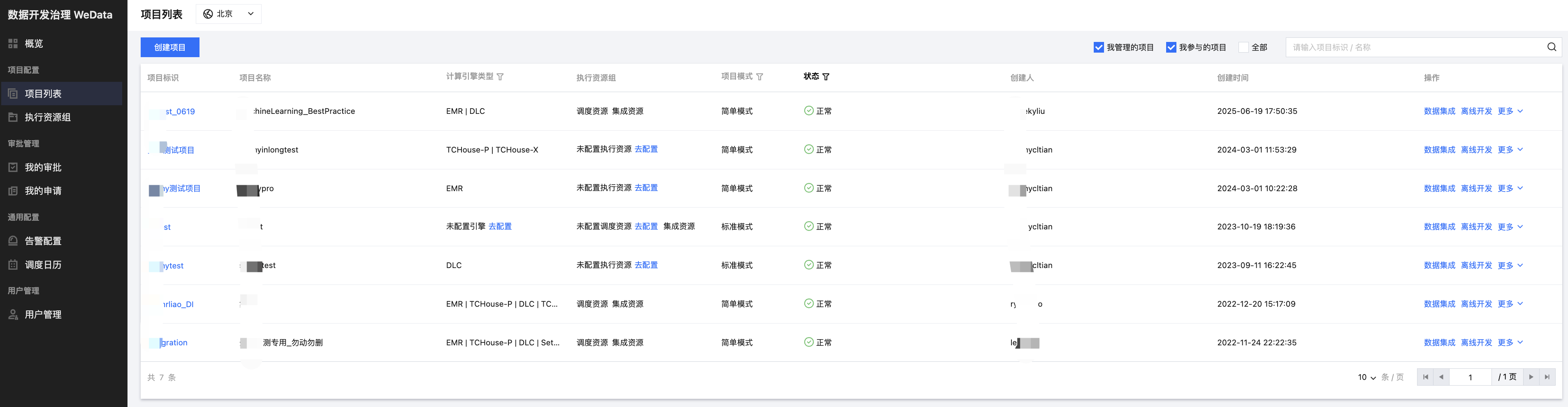
1. Log in to WeData Console with the WeData Root Account Administrator account, enter the project list page, and click Create Project.

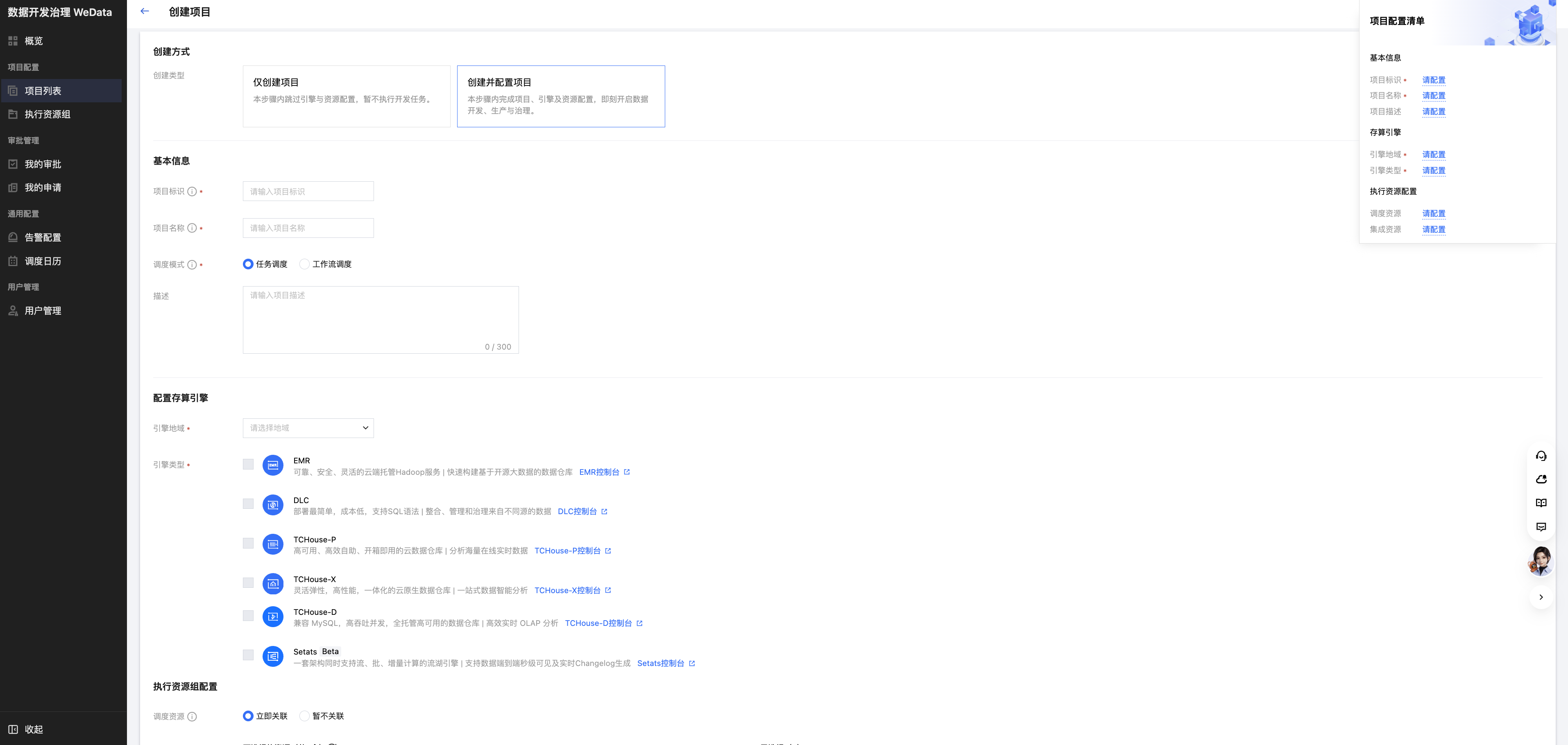
2. Configure project parameters
2.1 Ways to create include "create and configure project" and "create project only".

2.2 Configure each parameter on the Creation Interface. The parameters are described as shown in the table below.
Category
Parameter
Description
Ways to create
Creation Type
You can select two ways to create a project: "create and configure project" or "create project only".
Basic Information
project ID
Project English ID, unique within the region. Must start with a letter, can contain letters, digits and underscores, and no more than 20 characters.
project name
Project Chinese display name, unique within the region. Must start with a letter or Chinese character, and can contain letters, Chinese characters, digits and underscores.
Description
Perform a simple description of the created space.
Select engine type
Elastic MapReduce (EMR)
Once activated, you can use Elastic MapReduce in WeData to develop big data processing tasks. Go to EMR Console.
Tencent Cloud TCHouse-P
Once activated, you can use Tencent Cloud TCHouse-P in WeData. Go to TCHouse-P Console.
Data Lake Compute (DLC)
Once activated, you can use Tencent Cloud Data Lake Compute (DLC) in WeData. Go to DLC Console.
Configure storage and computing engine
Engine region
Select the region where the Compute Engine Instance is located. Different types of Compute Engine Instances in WeData need to be in the same region.
EMR
Cluster Type
Support selecting two kinds of cluster types: EMR on CVM and EMR on TKE.
Cluster Name
Select an EMR cluster that is available in the selected region for the current root account. If there is no available cluster, you can purchase an instance.
Component Information
After selecting an EMR cluster, the component information contained in the EMR cluster will be automatically obtained.
Yarn Resource Queue
Select one or more Yarn Resource Queues in the EMR cluster.
DLC
DLC Data Engine
Select an available DLC computational resource in the selected region for the current root account. Currently supports two types of engines: standard engine and SuperSQL engine.
Database name
When no database is specified in DLC-related tasks, this database is used for data access by default.
Test Connectivity
Test whether WeData service can connect to the engine resource.

TCHouse-P
TCHouse-P Version
Selectable TCHouse-P1.0 or TCHouse-P2.0 version.
Cluster Name
The names of the TCHouse-P clusters purchased in the selected region under this account.
Username
Username for connecting to the TCHouse-P cluster.
Password
Password for connecting to the TCHouse-P cluster.
Test Connectivity
Test whether the username and password can connect to the cluster. After successful connection, you can create a project. (If the connectivity test fails, it may be because WeData is forbidden by the network firewall where the cluster is located. Please see adding TCHouse-P cluster allowlist.)
Execute resource allocation
scheduling resource
scheduling resource
Scheduling resources are primarily used for scheduled data development tasks (including sql tasks, shell tasks).
Associating the Resource
Scheduling resources must be located in the same region as EMR. After association, the project exclusively uses the associated resources. This list only displays scheduling resources not associated with other projects. You can go to view resources or purchase resources.
Integration Resource
The main integration resource group runs data integration tasks.
Associating the Resource
After association, the project exclusively uses the associated resources. This list only shows integrating resources not associated with other projects. You can go to view resources or associate resources.
3. After successful creation, the sub-account will automatically become the project administrator of the project.

Add to an Existing Project

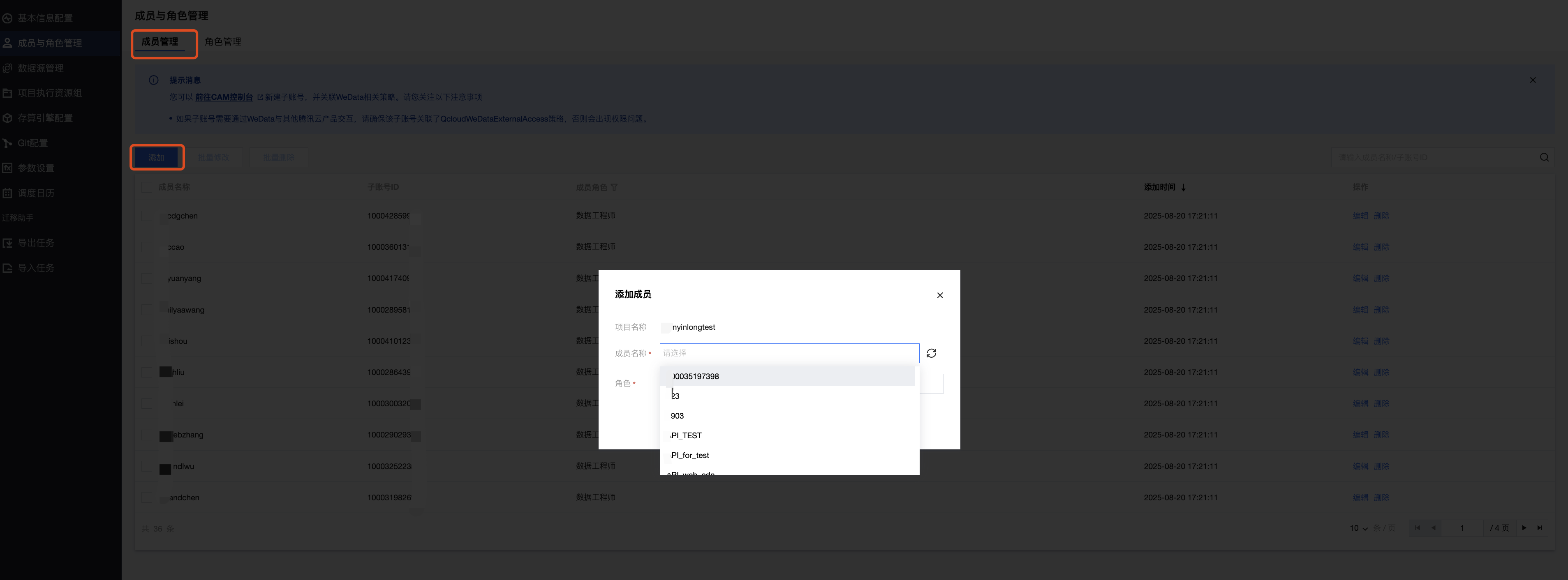
1. Log in to WeData Console with the project administrator account, enter the project list, select a project, and enter the Project Management module.

2. Select the Member and Role Management menu, add sub-accounts as project members, and assign project-level roles to them.

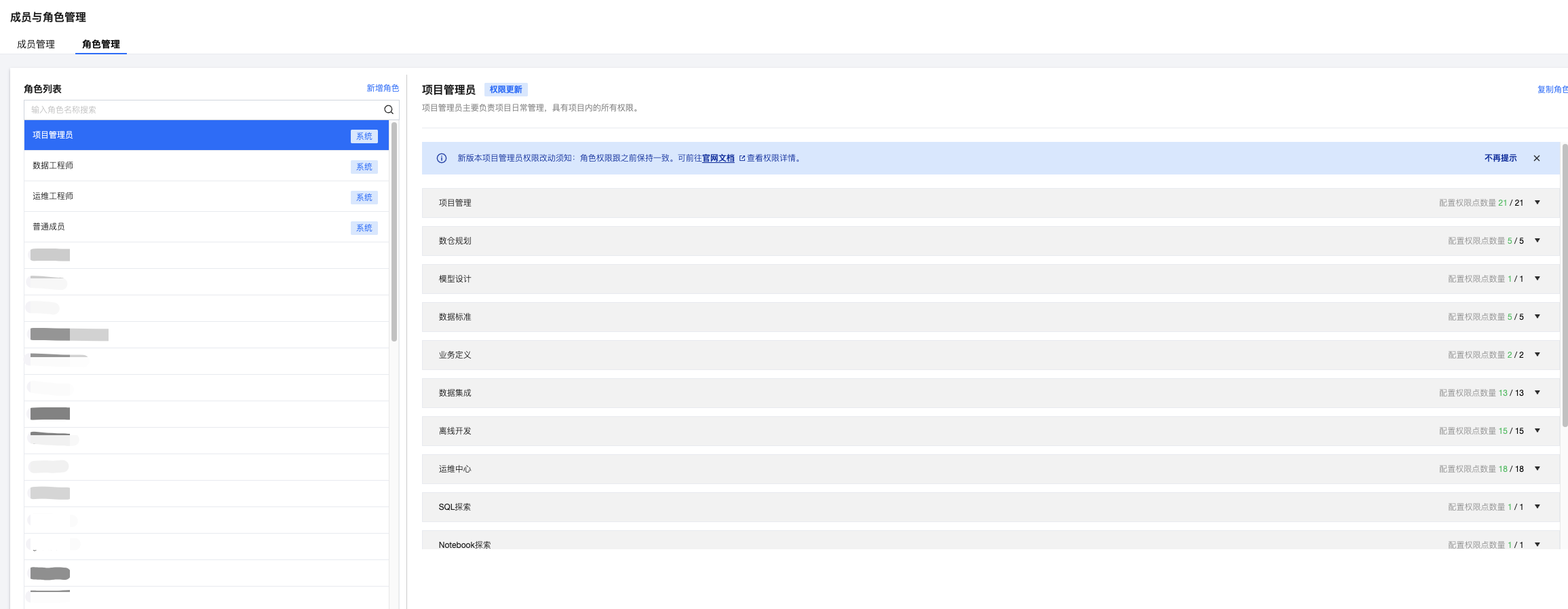
3. Click Role Management to view the permission list of WeData project-level roles.


Become a Platform-Level Member in WeData Platform

Automatic Addition

If a sub-account creates or joins a project, it will automatically become a platform-level user of WeData, with the member role defaulting to "None".


Manual Addition

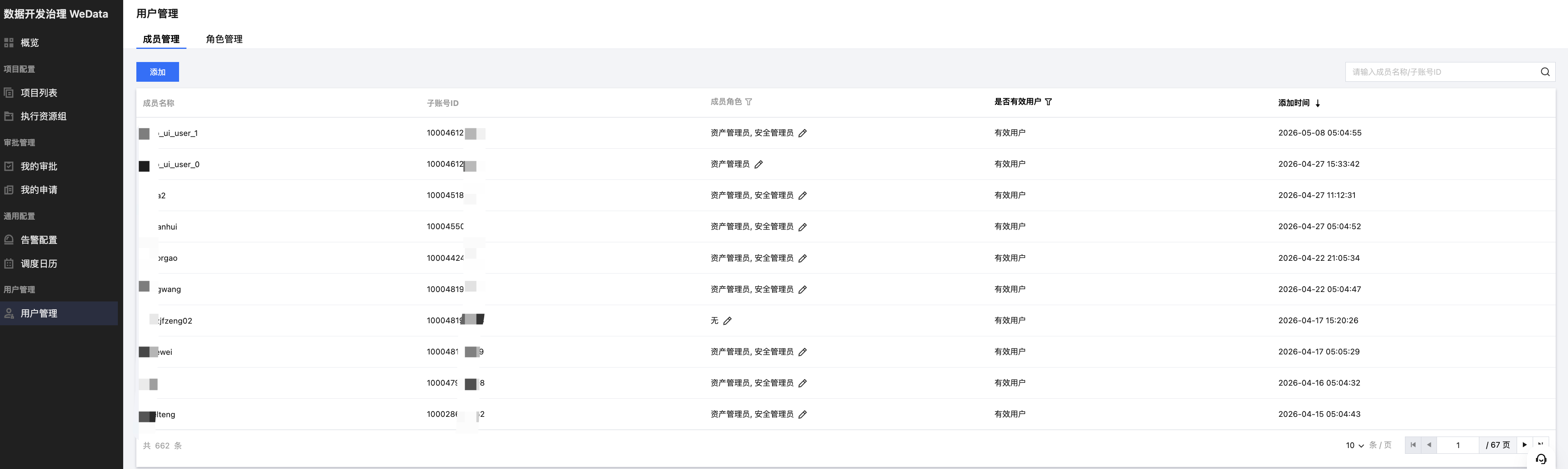
1. Log in to the WeData Console using the root account or a sub-account with full read-write access to WeData. In the left sidebar, select User Management > Member Management.
2. Under the Member Management list, click Add.
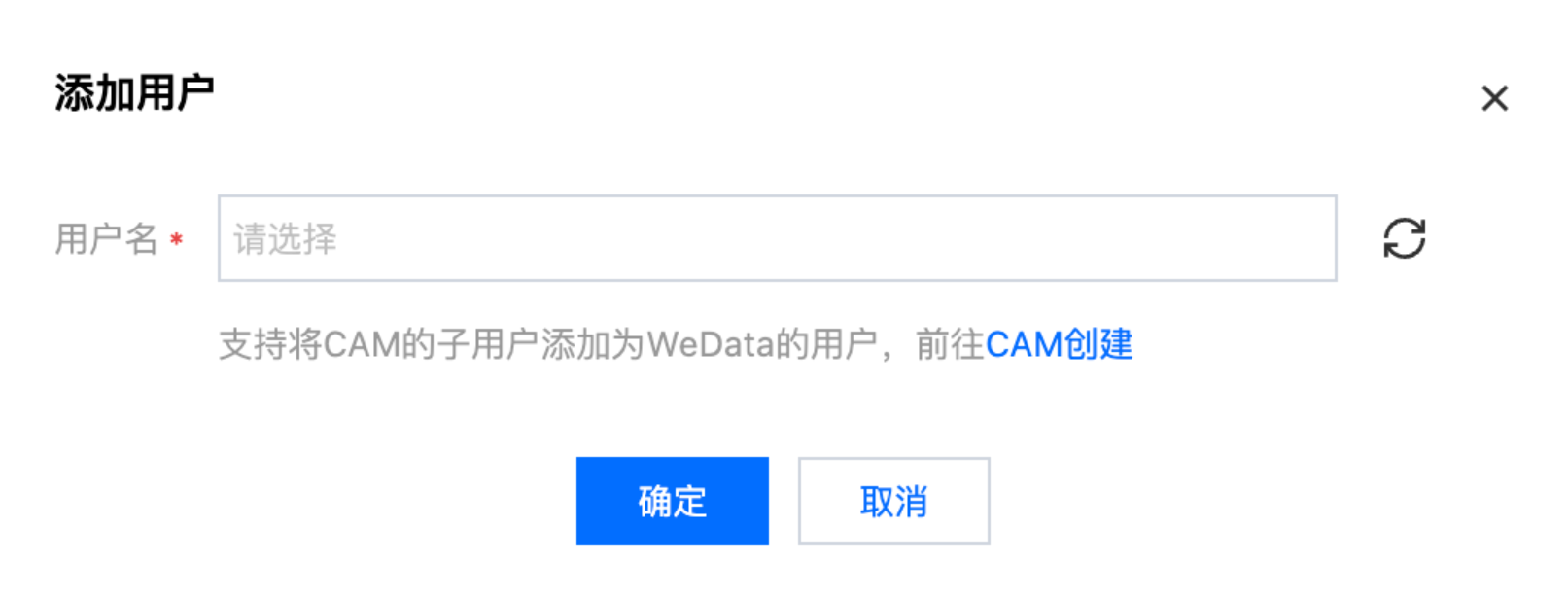
3. Enter the Add User interface and add the sub-user of CAM as a user of WeData. The user role of the successfully added user defaults to "None".


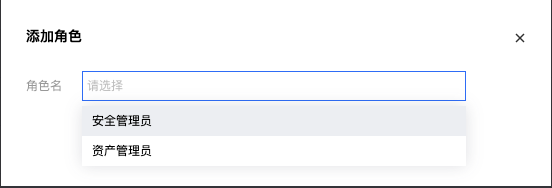
4. If you want to grant this sub-user permissions to create projects, purchase execution resource groups, manage users, etc., click the Edit button, enter the Add Role interface, and modify their member role.

5. Click Role Management to view the permission list of WeData global-level roles.