The content of this page has been automatically translated by AI. If you encounter any problems while reading, you can view the corresponding content in Chinese.

OPS of Instances

Last updated: 2024-11-25 14:43:00

OPS of instances is the operations page for instance snapshots generated by computing tasks according to the scheduling policy and event listening. You can view and manage periodic instances and event instances through the page features. Perform a series of feature operations to maintain instances, ensuring the stability, effectiveness, and reliability of data processing and operation processes.

Enter the Ops page

2. Click the project list in the left-hand directory tree.
3. Select the corresponding item, and click to enter the Data Development Module.
4. In the left directory tree, click Instance Operations.

Periodic Instances List

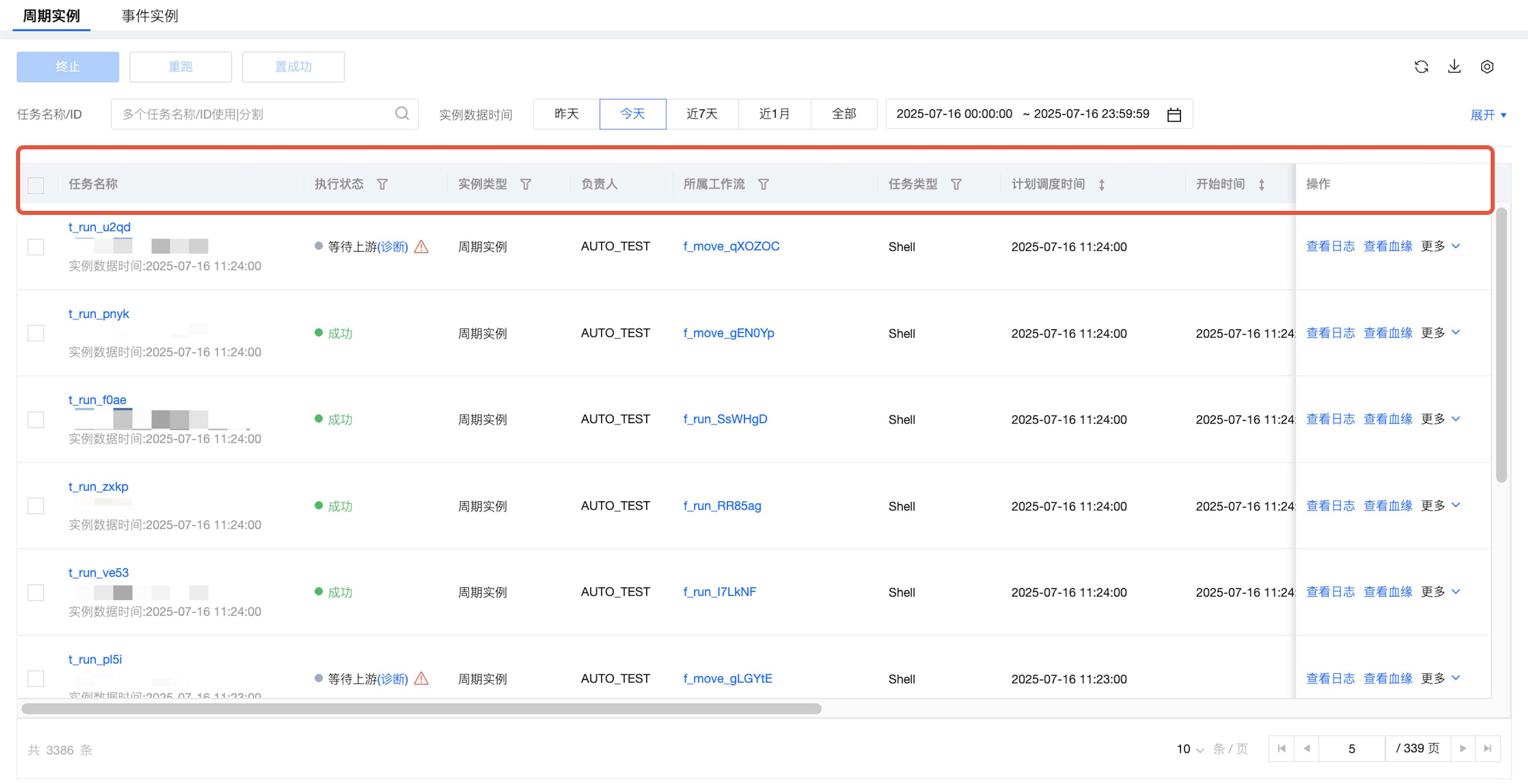
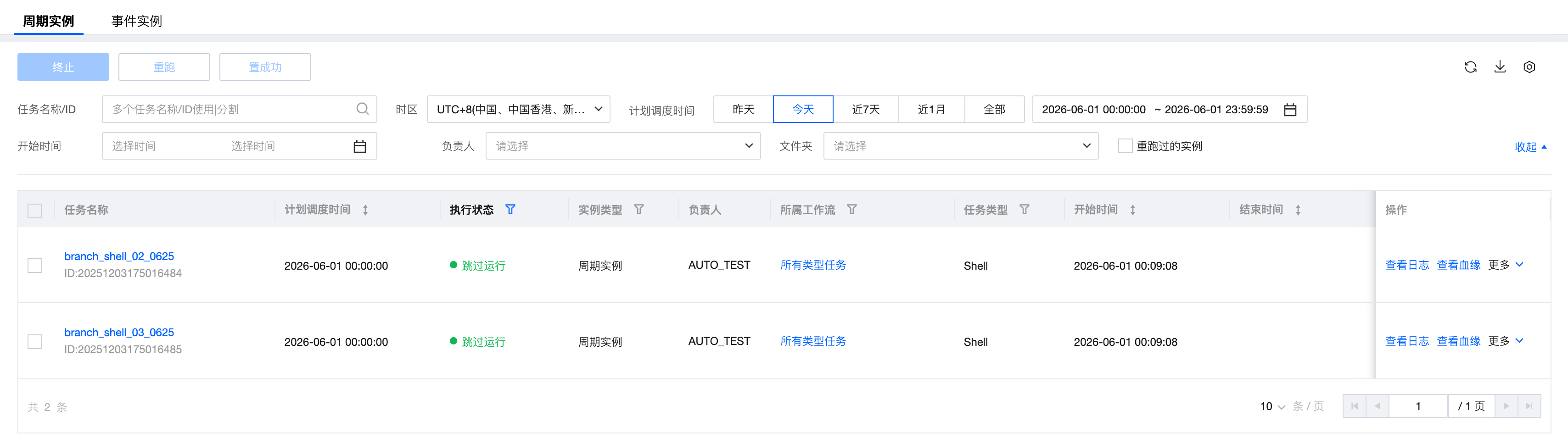
The periodic instances page displays detailed information and operating features of instances generated by computing tasks through scheduling policies in a list form. You can view the instance running status, logs, and upstream and downstream relationships of parent and child instances. You can rerun, terminate, or mark instances as successful. The system currently retains instances within three months; instances older than three months will be automatically cleaned up.


Periodic Instances List Information

Feature description:
Information
Description
Task Name
Task Name: Click to jump to the instance details page - Instance Lineage, support copying. Task ID: Used for background log queries, troubleshooting scenarios, and supports copying. Instance Data Time: Displays the data time of the task. The task name + instance data time uniquely identify an instance.
Execution Status
The running status of periodic instances helps to identify faults, problems, and other exceptions.
Waiting for Event: The computing task to which the instance belongs is configured to listen for events. The instance can run normally after the event is triggered.
Wait for Upstream: The computing task to which the instance belongs has upstream dependent tasks in the workflow orchestration process. The current instance task will run normally only after the upstream computing task generates the instance and runs successfully.
Pending Execution: Waiting for scheduling resources or exceeding the scheduling concurrency, waiting to be sent to the execution machine. The instance is in the ready-to-run stage shortly after being generated and will enter the next stage within a short period.
Running: The instance is in the running stage, and you can view the running process in real-time through the logs.
Terminating: Tasks in waiting for events, waiting for upstream, pending execution, and running stages can be terminated using the termination feature.
Failed Retry: When an instance execution fails, according to the failure retry configuration in the task scheduling policy, the instance will execute again after failing.
Failure: Task instance failed.
Success: Task instance succeeded.
Diagnostic Information and Error Code information are provided in the execution status column
Diagnostic Information: Provides diagnostic information, possible causes, and operation guidance to help users quickly locate and resolve issues when an instance is abnormal.
Error Code: Provides error codes and error messages. If the problem cannot be located, you can copy the error code and seek assistance from the platform's support team.
Instance type
Displays the instance type according to the scheduling policy of generated periodic instances.
Periodic Instances: Compute task instances generated by periodic scheduling strategies, such as daily, weekly, monthly, hourly, and minute-based schedules.
Non-periodic Instance: Compute task instances generated for one-time execution.
Supplementary Instance: Task instances generated through data supplementation.
Responsible Person
Shows the responsible person's name for the periodic instance, clarifying the maintenance responsibility of the compute task instance. By default, the task creator is responsible.
Associated Workflow
Displays the name of the workflow that the periodic instance's compute task belongs to in the orchestration space, making it easy to identify and manage instances uniformly. Clicking the belonging workflow name navigates to the workflow configuration page of the corresponding compute task.
Task Type
Displays the type of compute task that the periodic instance belongs to.
Scheduled Execution Time
Scheduling operation cycle of periodic instances.
Start Time
The start time for the periodic instance to begin running after it is generated. The format is: yyyy-MM-dd HH:mm:ss.
End time
The end time for the periodic instance to stop running. The format is: yyyy-MM-dd HH:mm:ss.
Running Time Consumption
The execution duration of the periodic instance from start to end time after it starts running.
Execution Resource Group
The execution resource group used by the periodic instance for execution.
Retry Attempts
Periodic scheduling, backfill, or each rerun will count from 0. If the set retry attempts are exceeded without successful execution, the task fails. "Number of Retry Attempts on Failure" is set in the Task Scheduling Settings > Advanced Settings > Number of Retry Attempts, with a default value of 5.
Total run counts
Refers to the sum of execution counts for periodic scheduling, backfill, and each rerun of an instance.
Folder
Displays the directory of the folder that the periodic instance's compute task belongs to in the orchestration space, making it easy to identify and manage the compute task instances uniformly.
Cycle Type
Displays the scheduling period of the compute task that the periodic instance belongs to.

OPS of periodic instances


Feature description:
Operation
Description
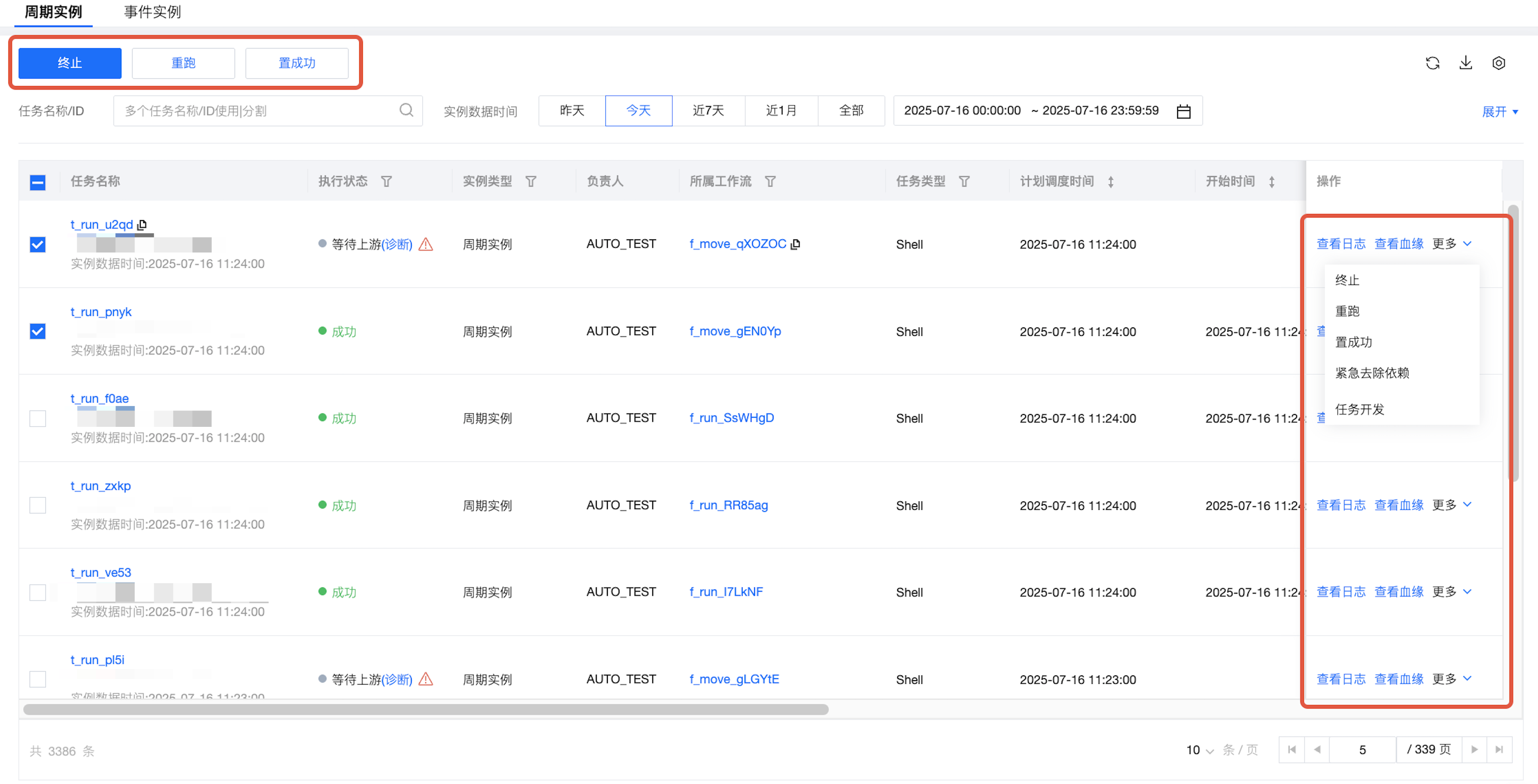
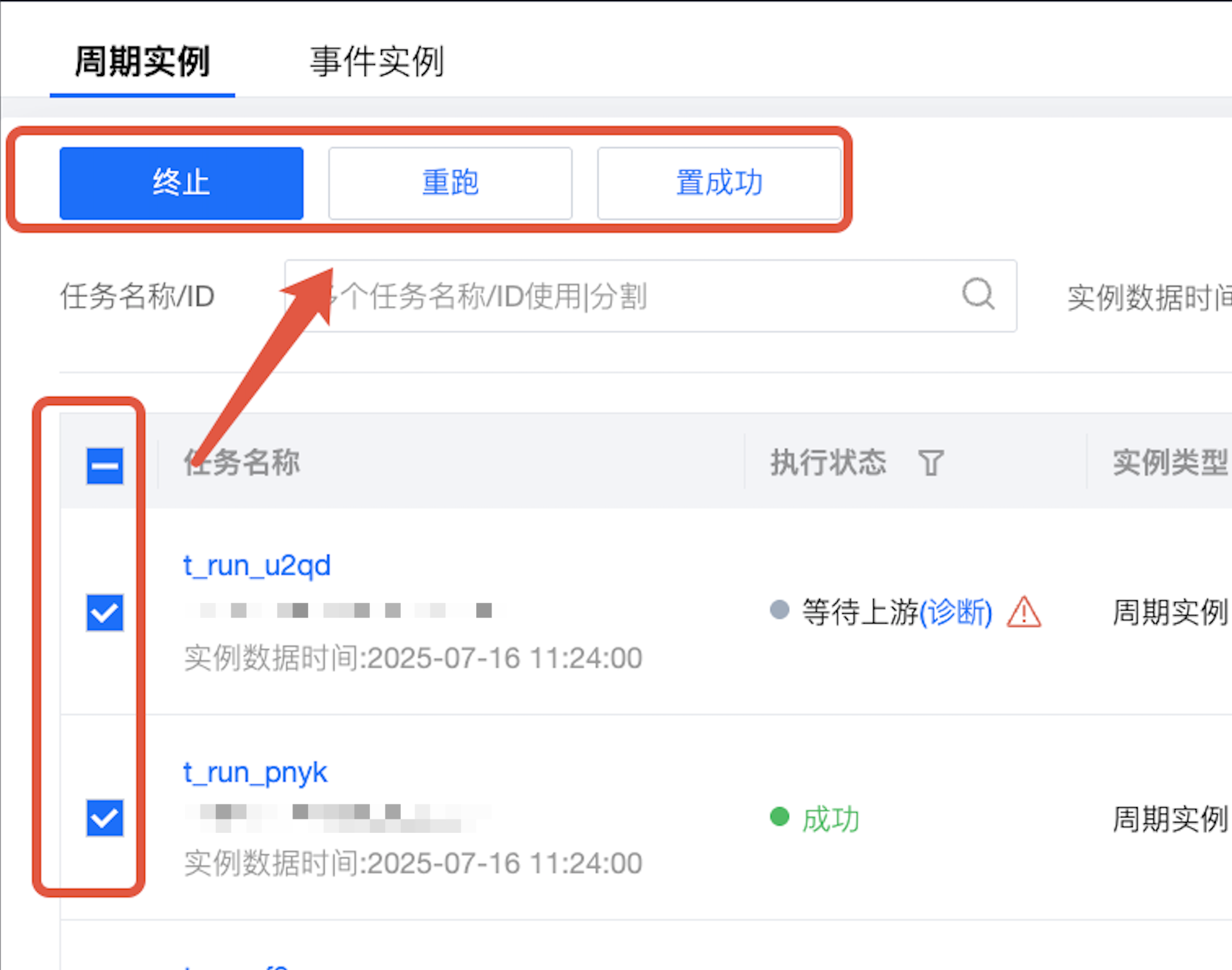
Batch operation
Select the checkbox before the task name, then use the feature button above to batch terminate, rerun, or set the selected periodic instances as successfully executed.


Viewing log
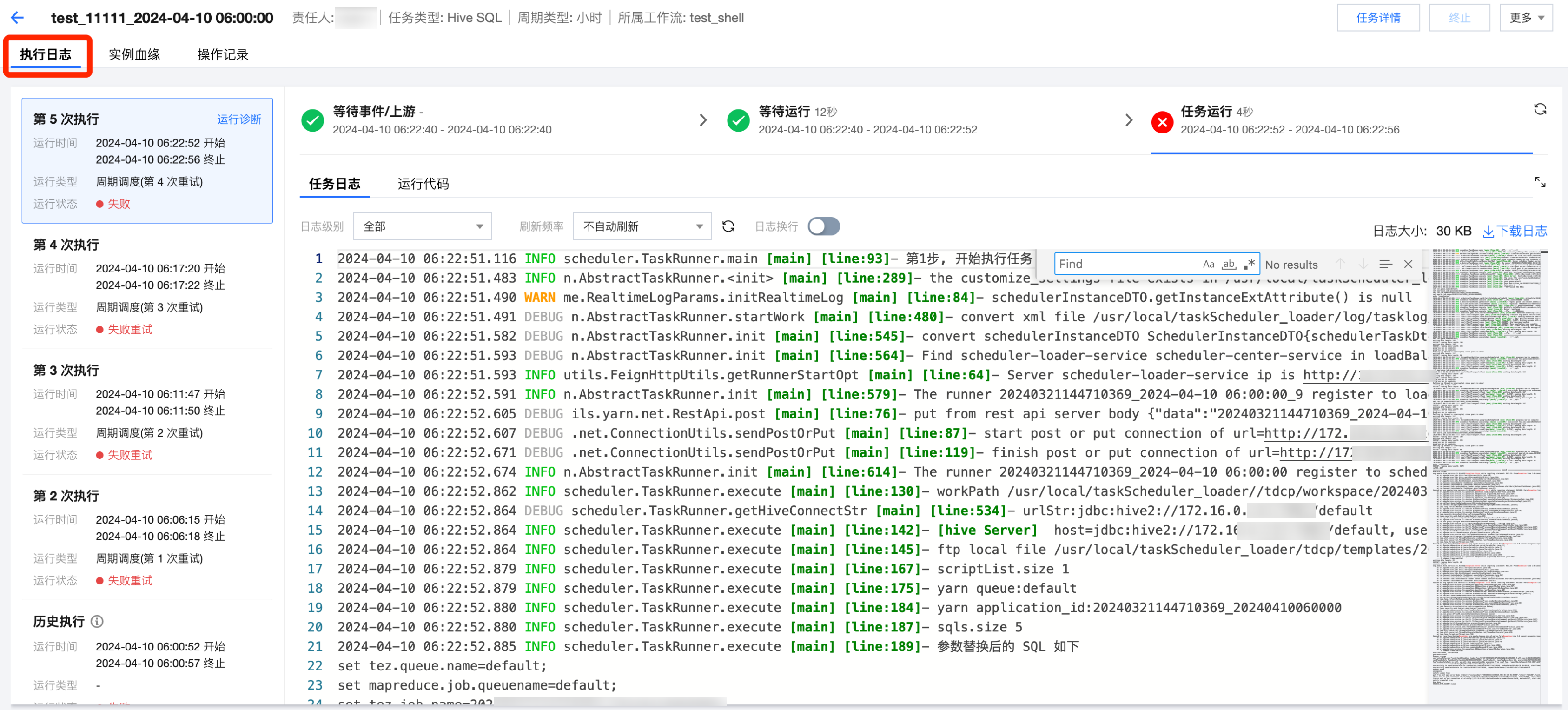
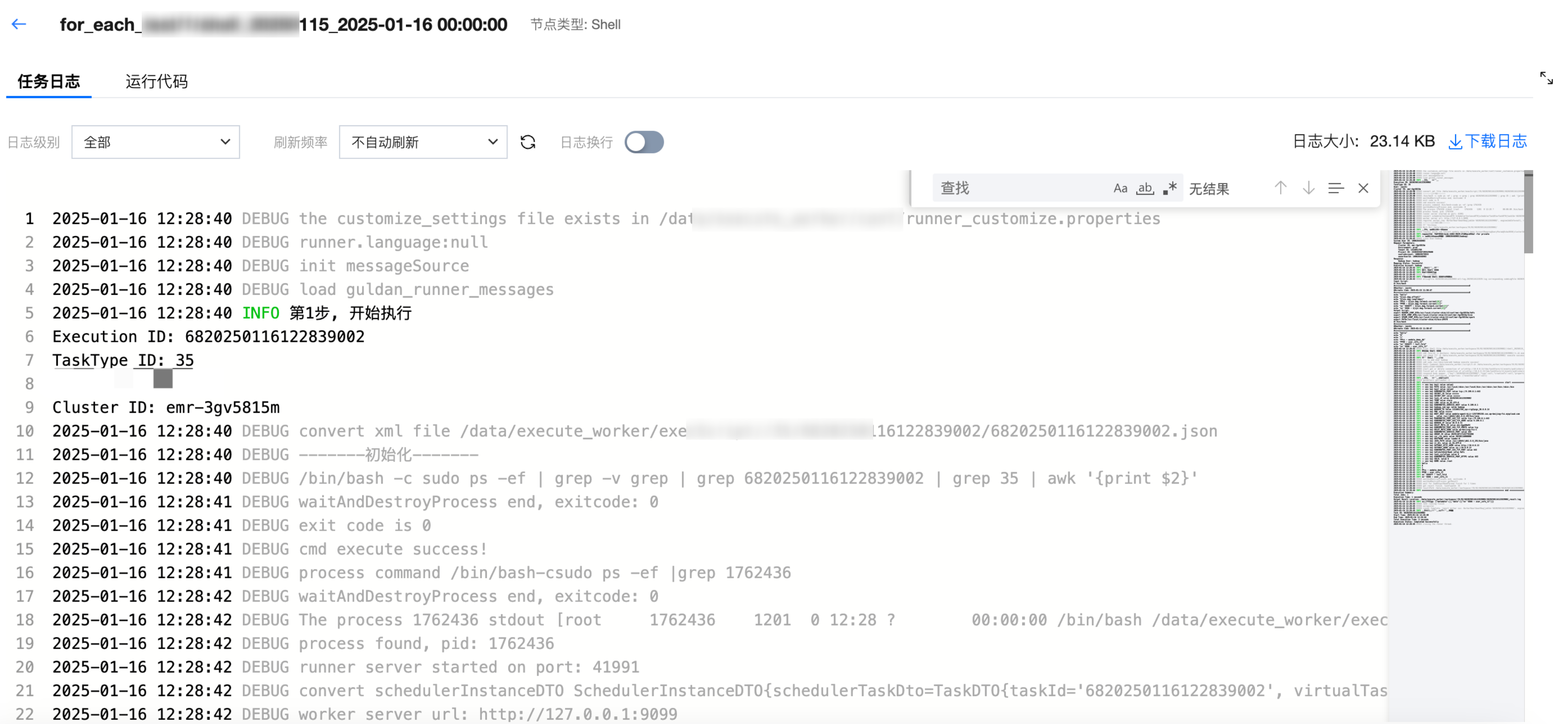
Navigate to Instance Details Page > Execution Log to view the full process of each execution after instance generation. This includes information such as Waiting for Event/Upstream, Pending Execution, Running Start Time, End Time, Time Consumption, Specific Circumstances, Execution Log, and Execute Code.
View Bloodline
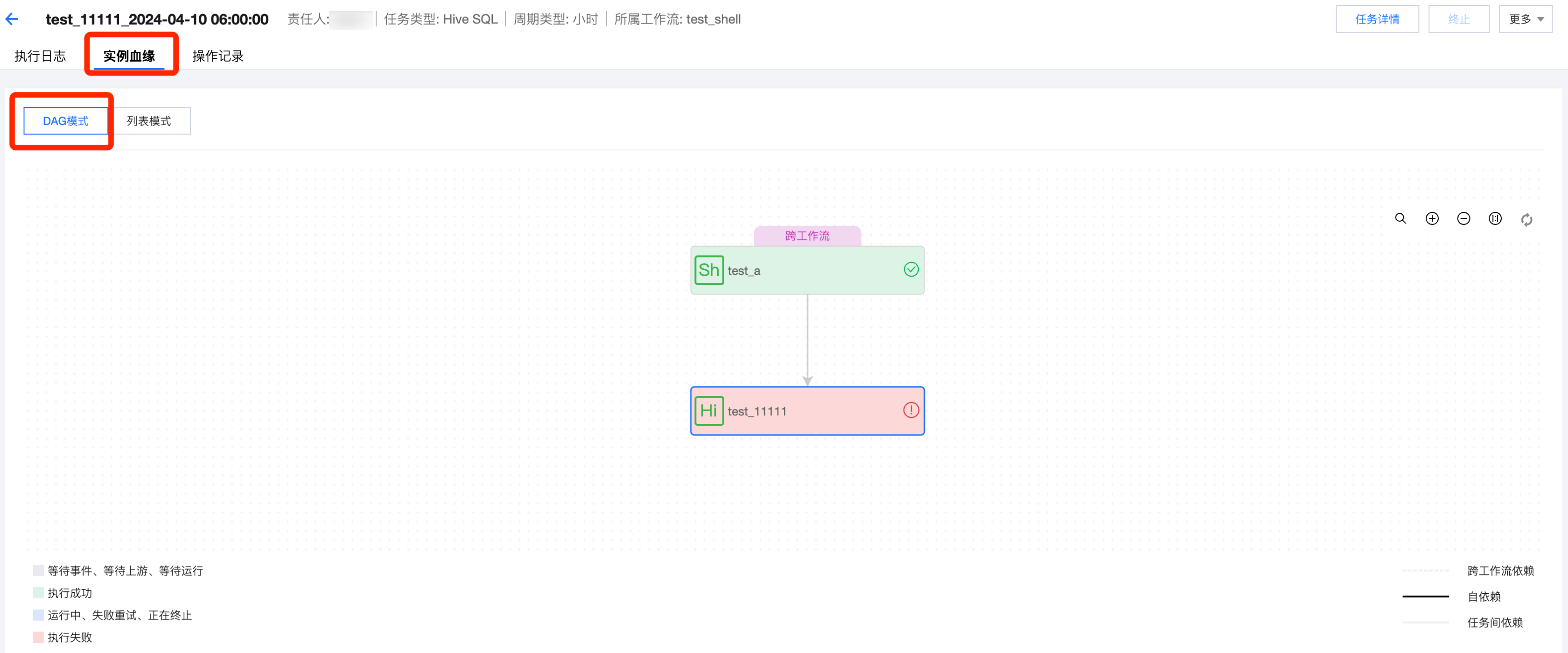
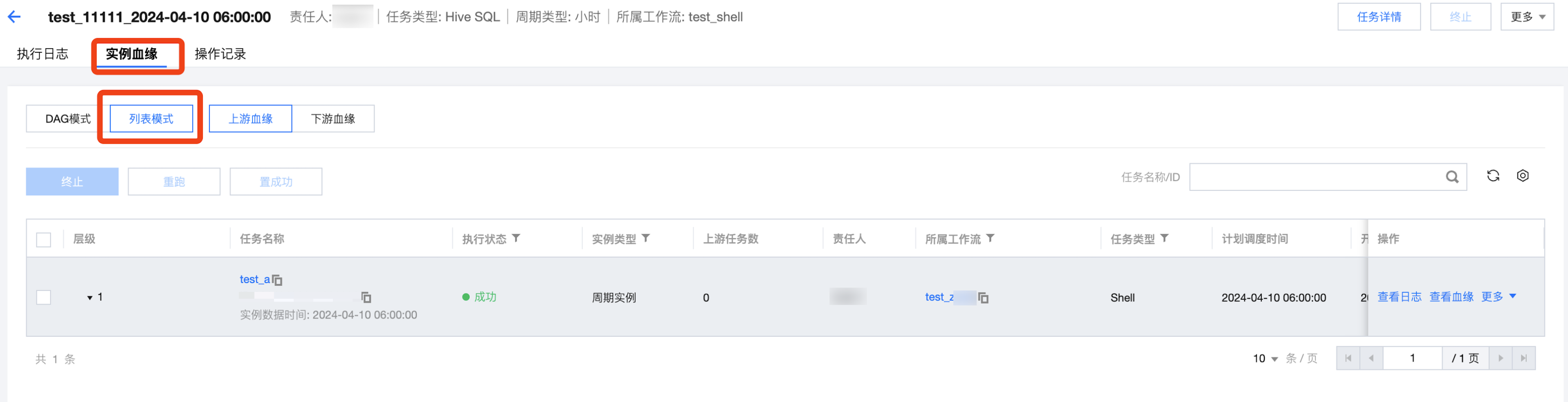
Jump to instance details page > Instance Lineage , you can view the upstream and downstream relationships of the instance and perform simple information viewing and operations on the DAG Diagram.
Terminate
Valid only for Periodic Instances with a status of "Waiting for Event", "Waiting for Upstream", "Waiting to Run", or "Running". After terminating the instance, the corresponding instance will stop running and its execution status will be set to "Failed".
Re-run
Valid only for Periodic Instances with a status of "Failed", "Success", "Waiting to Run", or "Failed Retry". After rerunning the instance, the corresponding task instance will be executed again. Rerunning the instance may affect upstream and downstream dependencies, event listeners, and scheduling policies, so it's necessary to set relevant configuration items when rerunning.
Re-run Instance Range: Three rerun methods can be selected.
Current Instance: Only rerun the currently selected instance
This Instance and Downstream Instances: Rerun the currently selected instance and its downstream task instances
Downstream Instances: Only rerun the downstream task instances of the currently selected instance
Downstream Instance Range: If the rerun instance range is set to "This Instance and Downstream Instances" or "Downstream Instances", you can specify the range of downstream instances. Includes:
Current Workflow: Downstream instances in the current workflow
Current Project: Downstream instances in the current project
All Projects: All downstream instances
Specified Instance: User-defined downstream instance range
Ignore Event: When an instance rerun involves compute tasks configurations with event listeners, you can choose whether to ignore the event trigger conditions during the rerun.
Check Parent Task: Check the directly upstream parent tasks of the selected instance. Choose whether to check instances from the previous cycle. Determined by settings in Scheduling Configuration > Self-Dependency .
Set Successful
Valid only for Periodic Instances with a status of "Running", "Failed", "Waiting for Event", "Waiting for Upstream", and "Waiting to Run". After marking the instance as successful, the execution status of the corresponding task instance will be set to "Success".
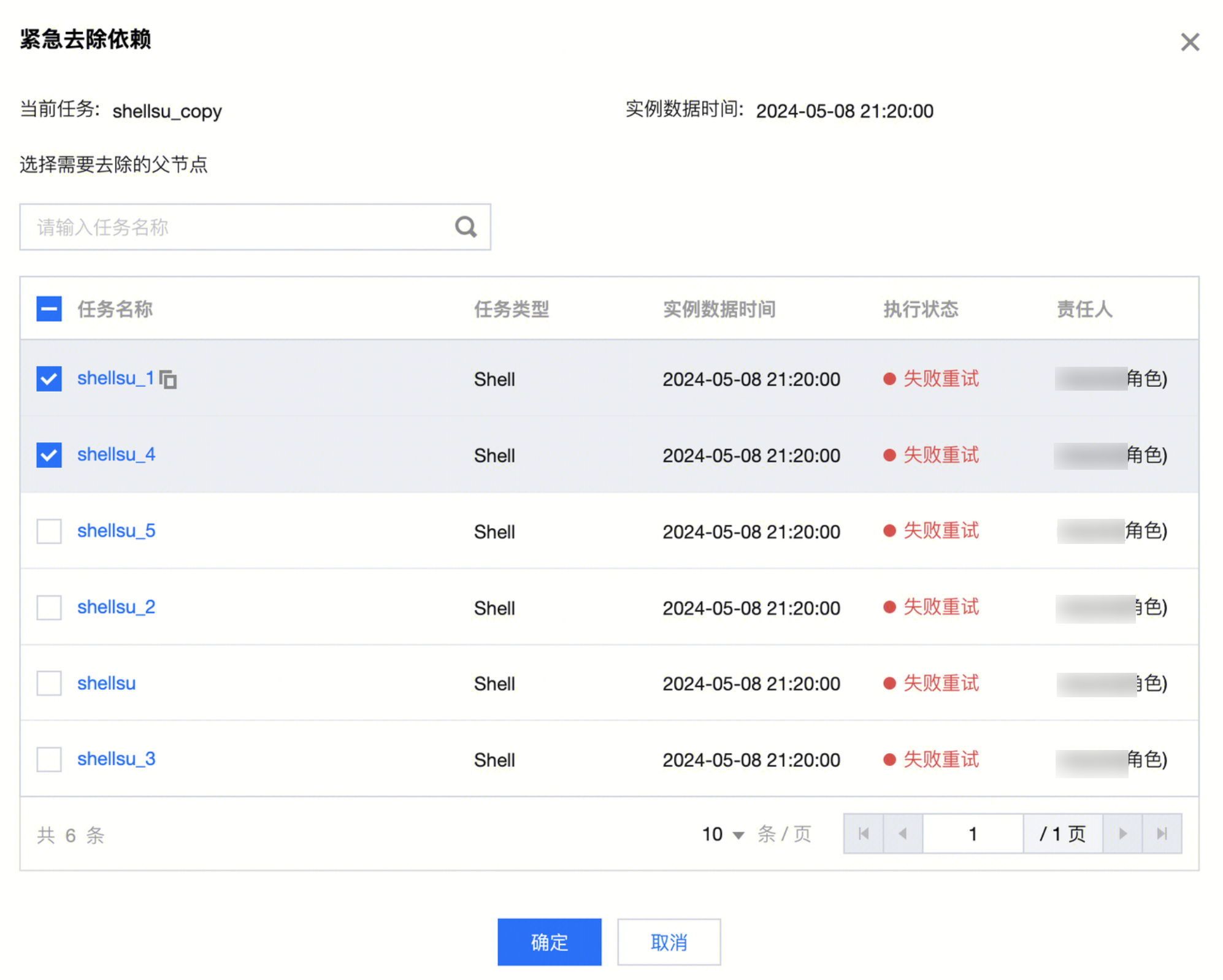
Emergency Dependency Removal
This operation can remove the dependency relationship of instances. It is used in emergency scenarios when the upstream instance has not reached a successful status and affects the execution of downstream instances. Users can perform this operation if they determine that the upstream instance has little impact on the current instance. The dependency relationship between the corresponding upstream and current instance will be removed, ensuring the current instance can execute normally.
This operation only takes effect for the current instance and does not affect the dependency relationships of previous or subsequent instances.
This operation is irreversible, meaning subsequent reruns or supplementary operations for this instance will not check for the removed dependencies.
Dependencies can be partially removed as needed.
The removed dependency relationships will still be displayed on the instance DAG chart, marked specially for user differentiation.


Task Development
Jump to the configuration interface of the compute node corresponding to the Periodic Instance in the Orchestration Space. It's a shortcut for instance maintenance to edit compute task nodes.

Periodic Instance Filtering & List Operations


Operation
Description
Filter options - Top of the list
You can filter by Task Name/ID, Instance Data Time, Start Time, Person in Charge, and Folder.
Filter options - Inside the list
You can filter by Execution Status, Instance Type, Belongs to Workflow, Task Type, Execution Resource Group, and Cycle Type.
List Operation
Refresh: You can refresh the latest status of the periodic instance list, generally used to check the instance run status after operations, helping users easily obtain the latest maintenance information.
Download: You can download the data of the current instance list. Currently, only instances generated before the current 0:00 can be downloaded.
List Configuration: Supports adjusting the fields and the order of fields displayed in the current list.

Periodic Instance Details Page

The Instance Details Page aggregates all operation histories, operation statuses, instance lineage, operation records, and basic operations of instances, helping users view and maintain instances.
Tab Page
Description
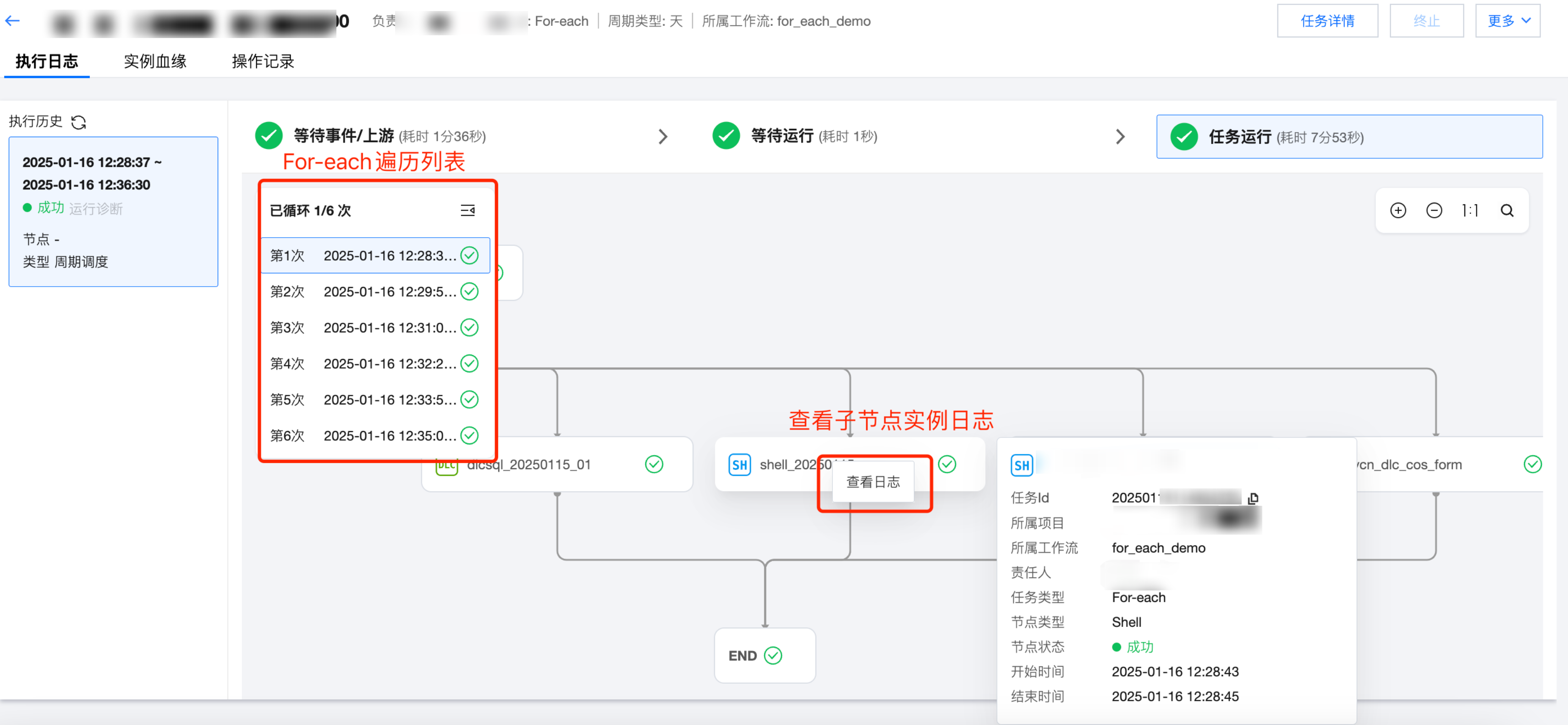
Execution Log
View the entire process of each execution after the instance is generated, including Waiting for Events/Upstream, Waiting to Run, Start Time in Progress, End Time, Duration, Specifics, Execution Logs, Execution Code, etc.
Execution List: The far right is the record list of each execution of the instance. Each cycle schedule, rerun, and first execution or retry of backfill will be recorded as an execution.
Execution Information: Each execution can view the basic conditions of three stages: Waiting for Events/Upstream, Waiting to Run, and Task Running
Waiting for Events/Upstream: Displays the direct upstream instances/events list and statuses, making it easy to quickly identify blocking instances/events.
Waiting to run: Waiting to be assigned to the execution machine.
Task execution: Assigned to the execution machine and started executing. You can view the execution log and execute code.


Instance lineage
View the upstream and downstream relationships of the current computing task instance within its workflow. The running status and detailed information for each compute node are displayed, with different colors marking the instance status. Graph mode: View instance lineage in graph mode. It supports expanding upwards layer by layer and basic instance operations.


List mode: View instance lineage through list mode. You can choose to view upstream or downstream.


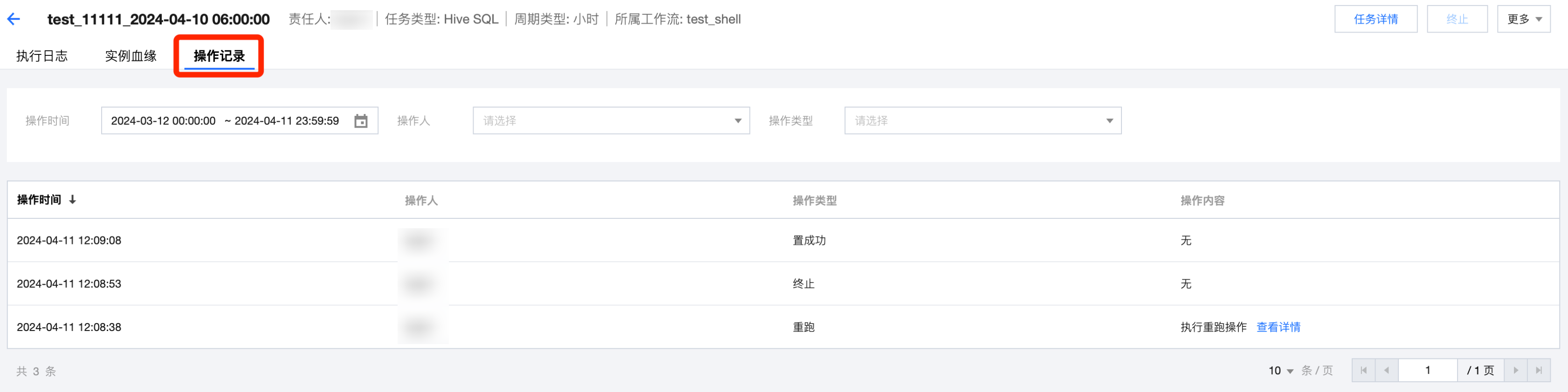
Operation Record
View the operation records for the instance, including actions like Set Successfully, Terminate, Rerun, among others. It lists the operator, operation time, and other relevant information.


Event instance list

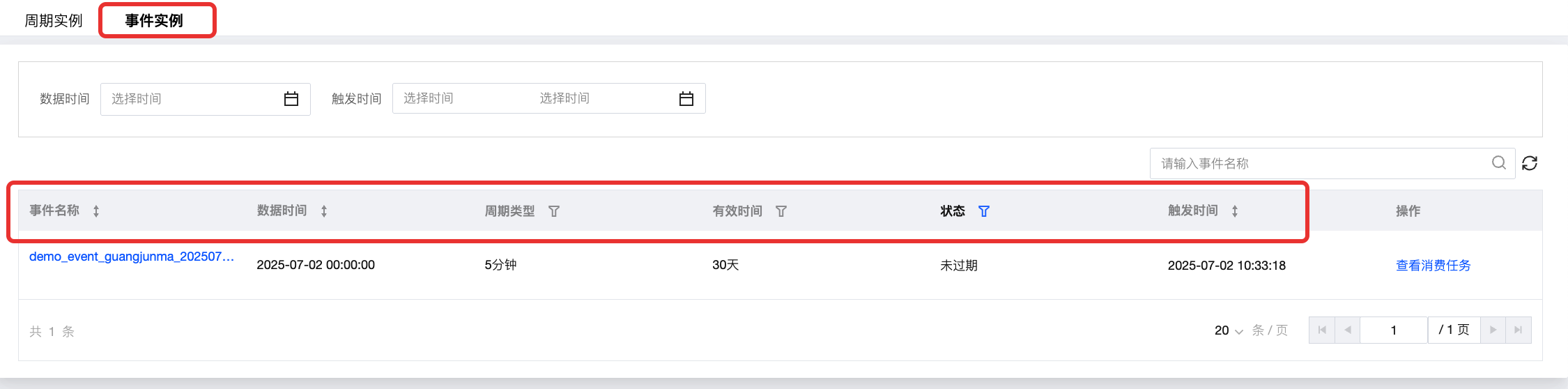
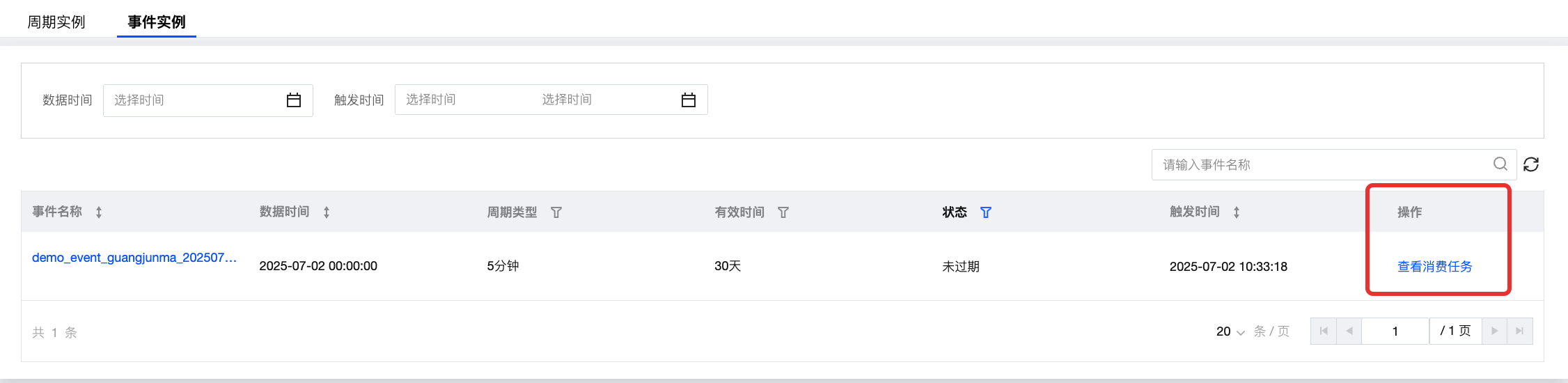
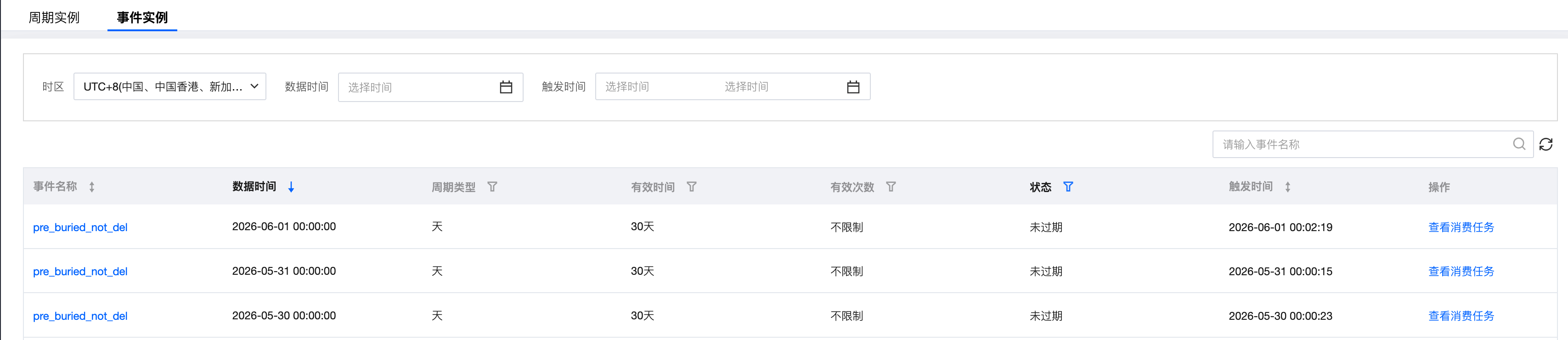
The event instance page displays the information and operation features of event instances generated after computing tasks trigger listening events as per the scheduling policy in a list format. You can view the consumption status of events, trigger time, consumption time, and more. Detailed information about the instance and consumption task can also be seen.

Event instance list information


Feature description:
Information
Description
Event name
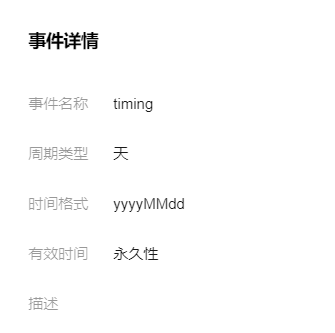
Displays the name of the listening event that triggered the instance. Click Event name to view detailed information about the corresponding listening event, including cycle type, time format, validity period, and description information.


Data time
Displays the planned scheduling time for the task instance that triggered this event instance.
Cycle Type
Displays the trigger cycle type of the event instance, including day, hour, minute, second.
Valid time
Displays the preset event waiting time in the scheduling configuration for the computing task that triggered the event instance. If the event is not triggered within this time, the task instance is automatically terminated.
Status
Displays the consumption status of the event instance, including Pending, In progress, Consumed, Expired.
Triggering time
Displays the date and time when the event instance was triggered.

Event instance operations


Operation
Description
View consumption tasks
Click View Consumption Tasks under the event instance list to view the information of the triggered computing tasks.

Event instance filtering


Operation
Description
Filter options - Top of the list
You can filter by Data Timestamp, Trigger Time, and Event Name.
Filter options - Inside the list
You can filter by Cycle Type, Validity Period, and Status.