The content of this page has been automatically translated by AI. If you encounter any problems while reading, you can view the corresponding content in Chinese.
2. Click Project List in the left menu to find the target project that requires the use of task development functionality.
3. After selecting a project, click to enter the offline development module.
4. Click Orchestration Space in the left menu.
Overview of Task Development
WeData's task development involves orchestrating computational tasks into data workflows for streamlined data processing. It supports flexible data development processes through features such as scheduling policies, event monitoring, task parameters, self-dependency, and function libraries. It can meet the needs of users for data processing, computation, and transformation, while providing a visual configuration interface to enable users to easily build and manage complex data processing workflows.
Streamlined Data Processing
Define data circulation and conversion rules between tasks, and achieve data processing, cleaning, and transformation operations.
Orchestrating Data Workflows
Orchestrate computing tasks as data processing nodes and organize them in the form of a data workflow to form a complete data processing process.
Scheduling Policies
The scheduling policy is used to determine when to execute tasks. Based on periodic scheduling times and other conditions, workflow execution is automatically triggered to ensure tasks are processed in the scheduled order and time to meet different business needs.
Listening for Events
Listening for events is applicable to scenarios where computing tasks depend on a specific event to trigger execution. It consists of a trigger program, a trigger event, and a listening task. First, define the trigger event based on business requirements under the project. Then, write a trigger program to send the event. The task runs after listening to the event reaching.
Task Parameters and Parameter Passing
Support using variable parameters in data workflow design and calculation task configuration, and enable parameter transmission between tasks. Can set different input parameters for each calculation task and transmit the task's output parameters to the next task, achieving data sharing and interaction between tasks.
Self-Dependent
Supports self-dependency during task operations, meaning a task can depend on the execution status of its previous period during scheduling execution.
Function Library
Provides library functionality, including common functions and algorithms for Hive SQL, Spark SQL, and DLC, such as mathematical functions, data transformation functions, and aggregate functions. It also supports UDF (User-Defined Function) custom functions to help users perform data processing and computational operations, providing users with more flexible and varied data processing capabilities.
Data Development Collaboration
In WeData data development, create, write, and debug development scripts that collaborate with data workflows. Scripts configured in the development space for ad-hoc development can be directly involved in the orchestration of data workflows, becoming one of the task nodes, enabling code reuse and optimization of the overall process.
Introduction to Workflow
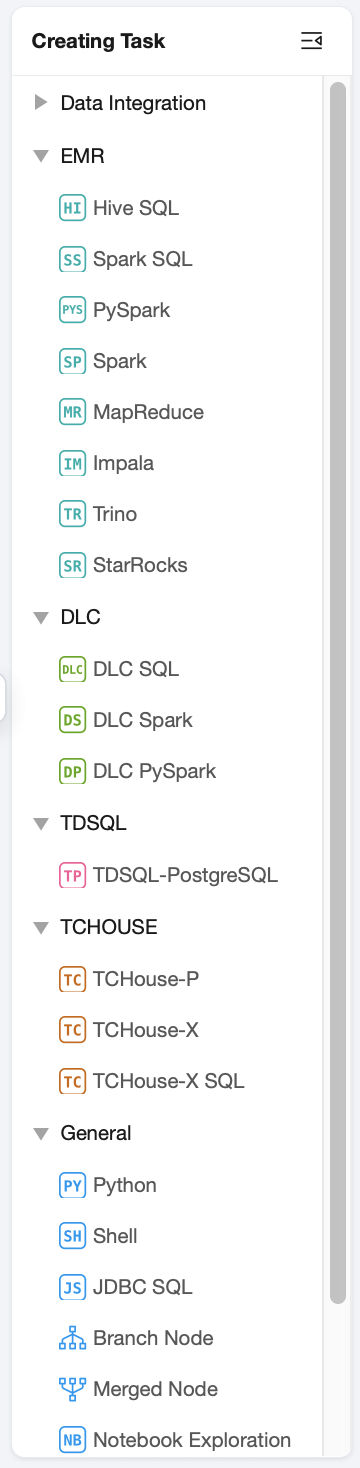
The orchestration space provides features for orchestrating and configuring data workflows, supporting users to organize the development of different types of task code based on workflows and submit them to the scheduling system for periodic execution. A project can contain multiple workflows. WeData supports placing different workflows in the same folder for convenient and efficient management. A workflow is a collection of multiple types of task objects, including data integration and computing tasks (Hive SQL, JDBC SQL, MapReduce, PySpark, Python, Shell, Spark, Spark SQL, DLC SQL, DLC Spark, Impala, TCHouse-P, Trino), as well as common tasks.
Workflow Directory
Directory feature
Function
Description
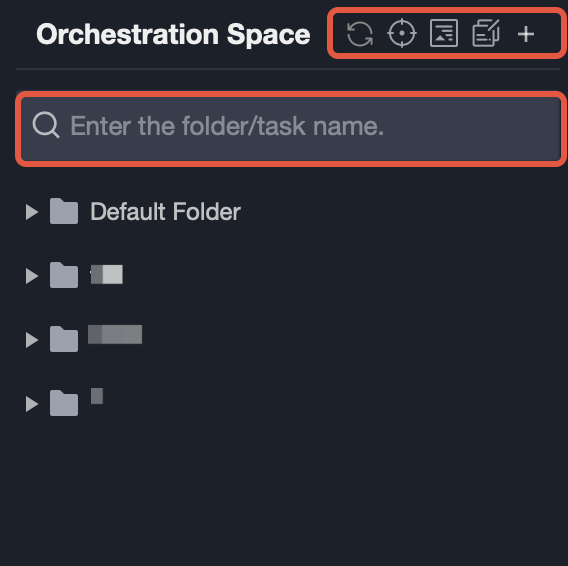
Search
Supports search folders, workflow, and task name.
Refreshing
Refresh: Refresh the directory tree to get the latest state of the orchestration directory.
Locate tree node: One-click locate the current tree node.
Collapse tree node: One-click hide all unfolded directories.
Batch
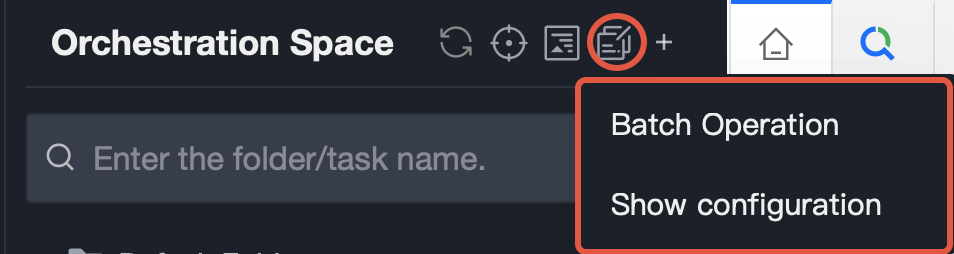
Batch operation: Support batch operations for ALL computing tasks in the orchestration directory, including submit tasks (batch), delete task, modify resource group, modify responsible person, modify data source, modify task parameters, modify scheduling cycle, modify advanced scheduling settings, and modify scheduling parameters. Viewable batch operation record.
Display settings: Support display and hide for AI assistant, cross-workflow category and node, highlight code in brackets by clicking brackets, and code snippet.
Creating
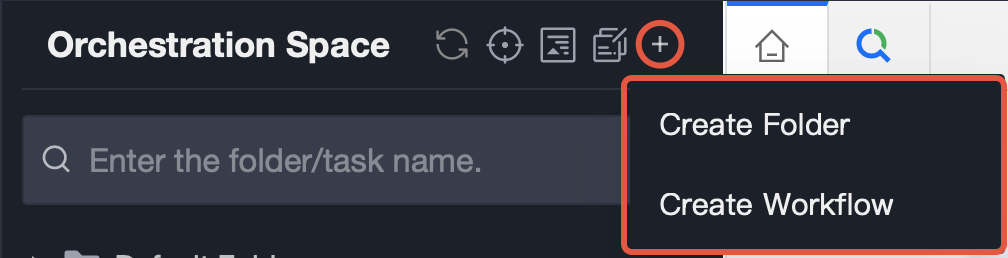
Supports creating folders and data workflows.
Workflow Canvas
Canvas functionality
Function
Description
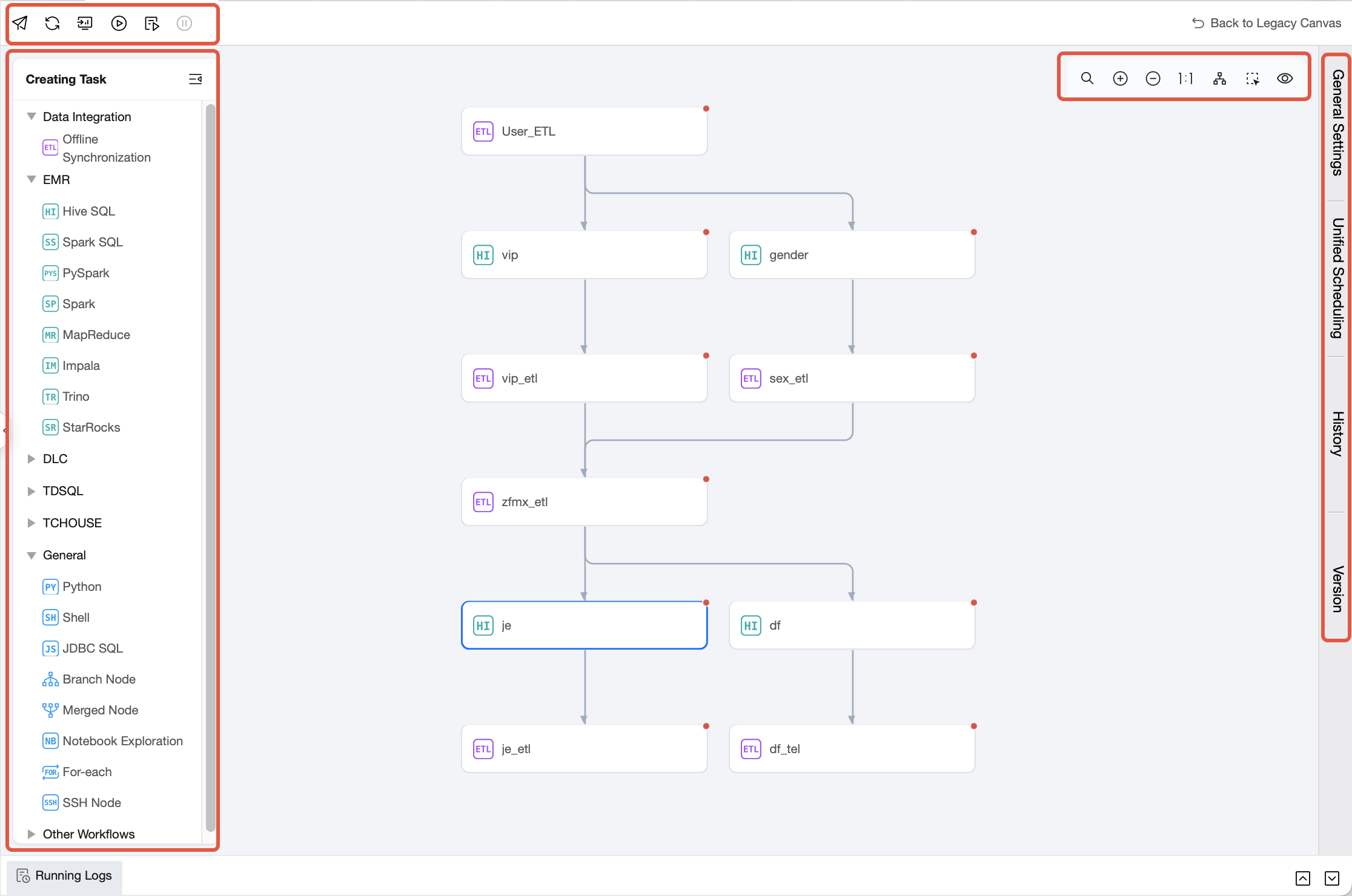
Committed
Click the
icon to submit the current workflow to the scheduling system (including node content, configuration properties, dependency relationship) and generate a new version.
Click the
icon to refresh the content on the current workflow canvas.
Click the
icon to go to Ops Center - Workflow List Page.
Click the
icon to test the current workflow. During the test, click the icon to stop testing.
Click the
icon to modify project parameters, workflow parameters, or add new parameters during a single run. In the pop-up window, click "Add Parameter" to input new parameter names and values in the newly-added line, or select existing parameter names and modify their values. After configuring, click "Run" to complete the single run with the modified parameters.
Refreshing
Go to Ops
workflow test
Advanced execution
Task Type Directory
In the Task Type Directory, click the computing task type to add a task node to the workflow canvas.
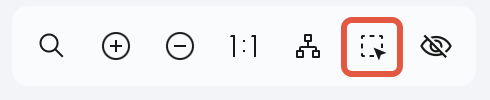
locate
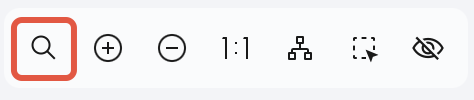
Click the icon, and in the pop-up filtering box you can select and locate the corresponding task.
canvas zoom
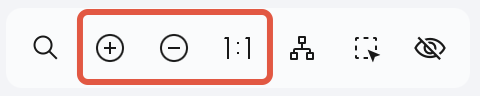
Click the icon to scale the workflow canvas.
Formatting
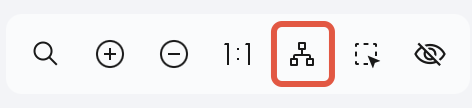
Click the icon to standardize the layout format of tasks in the workflow.
box select
Click the icon, the mouse changes to selection mode, allowing you to box select multiple tasks and execute batch operations.
Hide
Click the icon to hide cross-workflow nodes.
General Settings
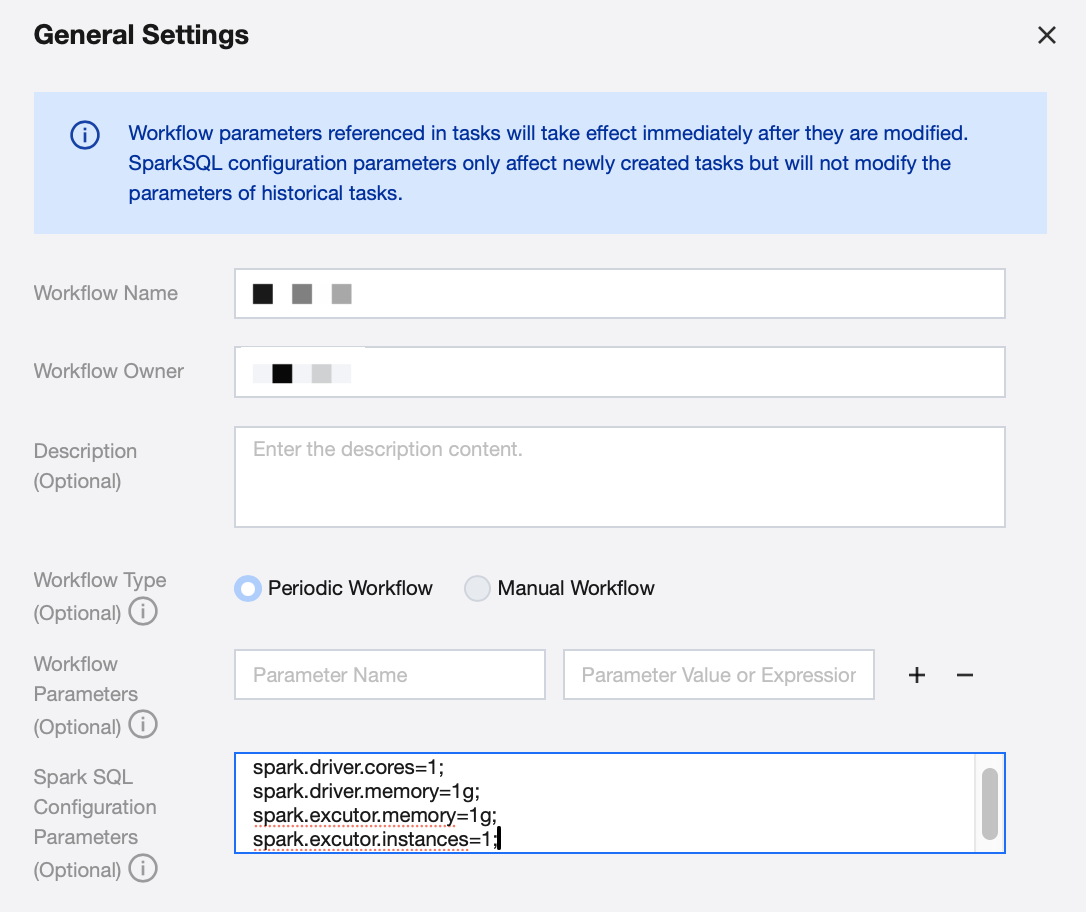
Click the General Settings in the right sidebar to edit the current workflow's name, responsible person, add description information, workflow variables, and Spark SQL configuration parameters (optional). The Spark SQL configuration only takes effect for Spark SQL tasks within workflow tasks.
Feature Description
Function
Description
Workflow name
Custom workflow name.
workflow owner
Assign a workflow owner. The owner will handle relevant permissions, submission, modification, and approval operations in subsequent workflows.
Description (Optional)
Custom workflow description.
Workflow Type (Optional)
Specify when creating workflow.
Periodic workflow generates instance based on the configured scheduling cycle.
Manual workflow requires manual triggering to generate instance and does not execute periodically.
Workflow parameter (Optional)
Workflow parameter (Optional) The scope of application is the task parameter within the current workflow. Set it through the common parameter settings of the workflow. The set rule is: variable name=variable value. Multiple parameters can be separated by ";", such as a=${yyyyMMdd};b=123;c=456. It supports filling in constants and scheduling date variables. For details, see workflow level variable usage process.
Spark SQL configuration parameters (Optional)
Configure optimization parameters (thread, memory, CPU cores, etc.), only act on Spark SQL node. Separate multiple parameters with semicolons.
For content modification in universal setting, the modification method in simple mode and standard mode is:
In simple mode:
Modify workflow name, workflow owner, and description, then click "Save" in the lower left corner to change information.
Modify workflow parameters and Spark SQL configuration parameters, then click the submit button in the top-left corner of the canvas to submit for scheduling.
In standard mode:
Modify workflow name and description, then click "Save" in the lower left corner to change information in production environments.
Modify workflow owner, workflow parameters and Spark SQL configuration parameters, then click the submit button in the top-left corner of the canvas to submit and release by the release center to update information in production environments.
Unified Scheduling
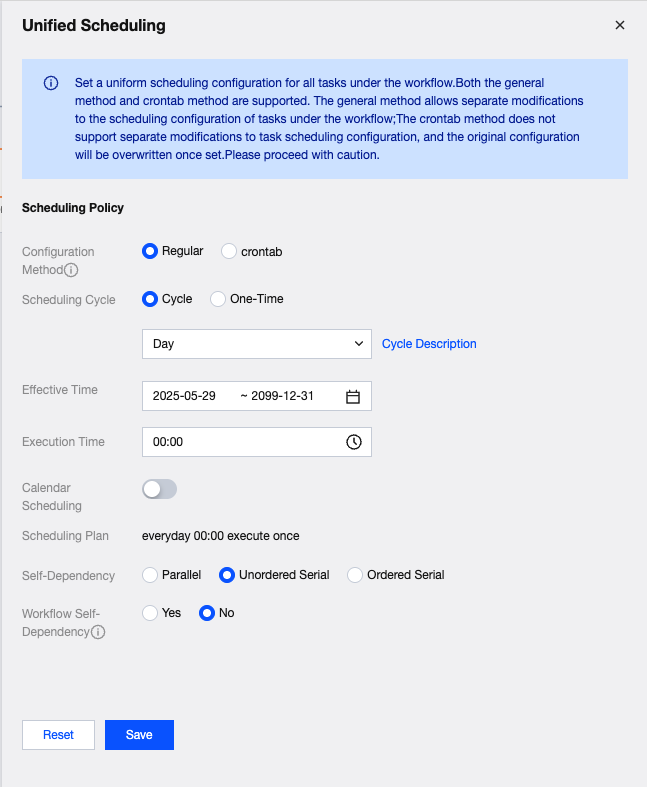
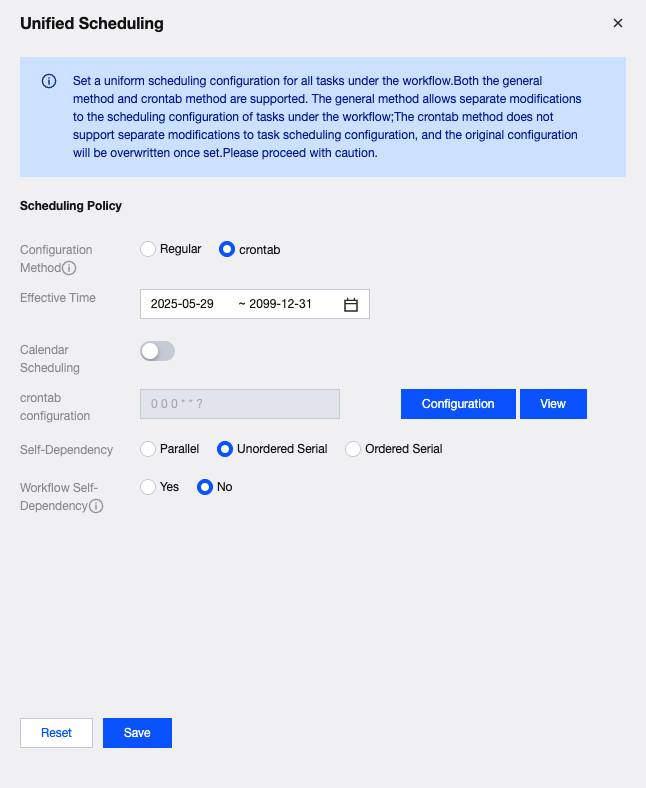
Workflow scheduling supports two cycle scheduling configuration methods: general and crontab. For general configuration, refer to the one-time, minute, hour, day, week, month, and year scheduling configurations in scheduling settings. The crontab configuration method is more flexible but only supported during unified workflow scheduling. All task scheduling times (crontab expressions) under the crontab configuration method must be the same. It does not support configuring cross-workflow dependency tasks or establishing dependencies with general configuration tasks.
Note:
Unified scheduling operation is similar to batch operation, and will change all task cycles under the current workflow to a uniform scheduling cycle. It is advisable to use when task scheduling cycles within the workflow are consistent.
general configuration method
Configuration instructions
Function
Description
Scheduling cycle
The execution cycle unit for task scheduling supports minute, hr, day, week, month, year, and one-time.
Effective Time
The effective time period of scheduling time configuration. The system will perform auto-scheduling within this time range by time configuration. It will not auto-schedule if it exceeds validity period.
Execution time
Users can manually set the duration between each task execution and the specific time when task execution started.
If the cycle interval is 10 minutes, the scheduling tasks will run once every 10 minutes between 00:00 and 23:59 each day starting from May 27, 2025.
calendar scheduling
Users can select specific dates to execute scheduling or not execute scheduling, configured in the scheduling calendar.
Scheduling plan
It will be automatically generated based on the cycle time setting.
self-dependent
Configure the task self-dependency attribute for computing tasks in the current workflow. For the dependency feature, please see Task Self-Dependency.
Workflow self-dependency
Enabling this option means the computing tasks in the current workflow depend on ALL computing tasks from the previous cycle of the current workflow. The workflow self-dependency functionality takes effect only when the tasks in the current workflow are in the same scheduling period and daily cycle.
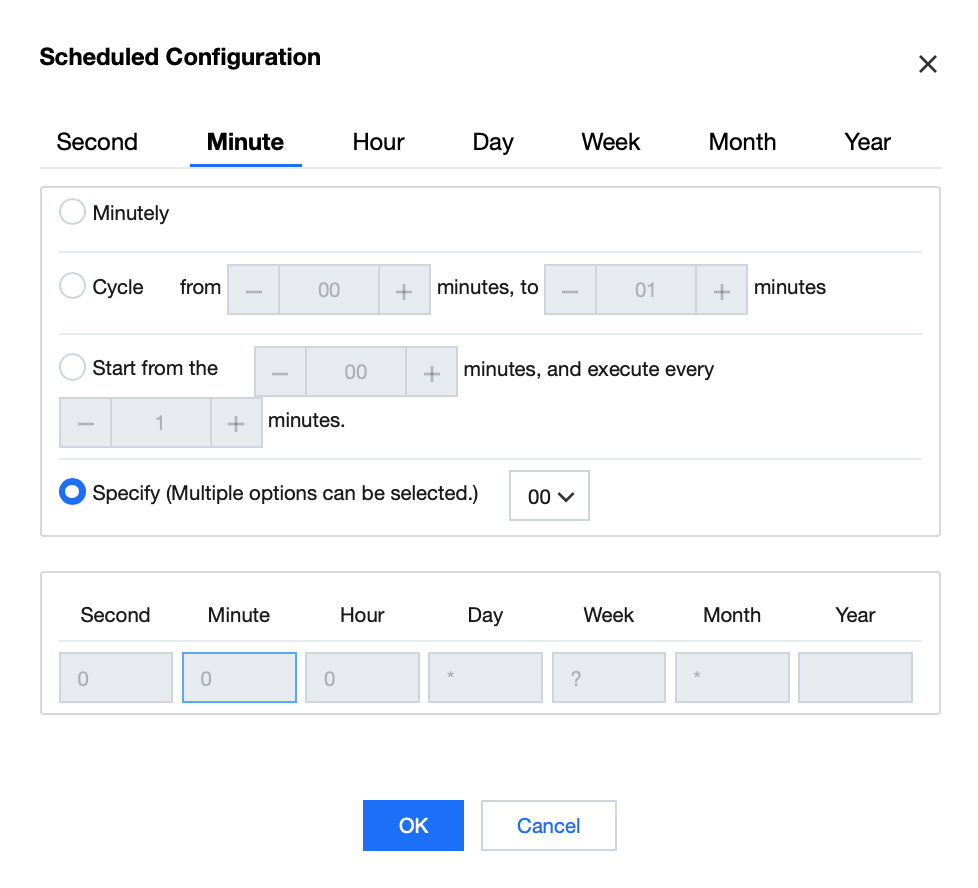
crontab configuration method
crontab configuration supports fine-grained settings for year, month, week, day, hour, minute, and second. Once configured, it supports viewing specific execution times.
Supports the use of crontab statements to configure scheduling cycles. Click Configuration to enter the configuration page.
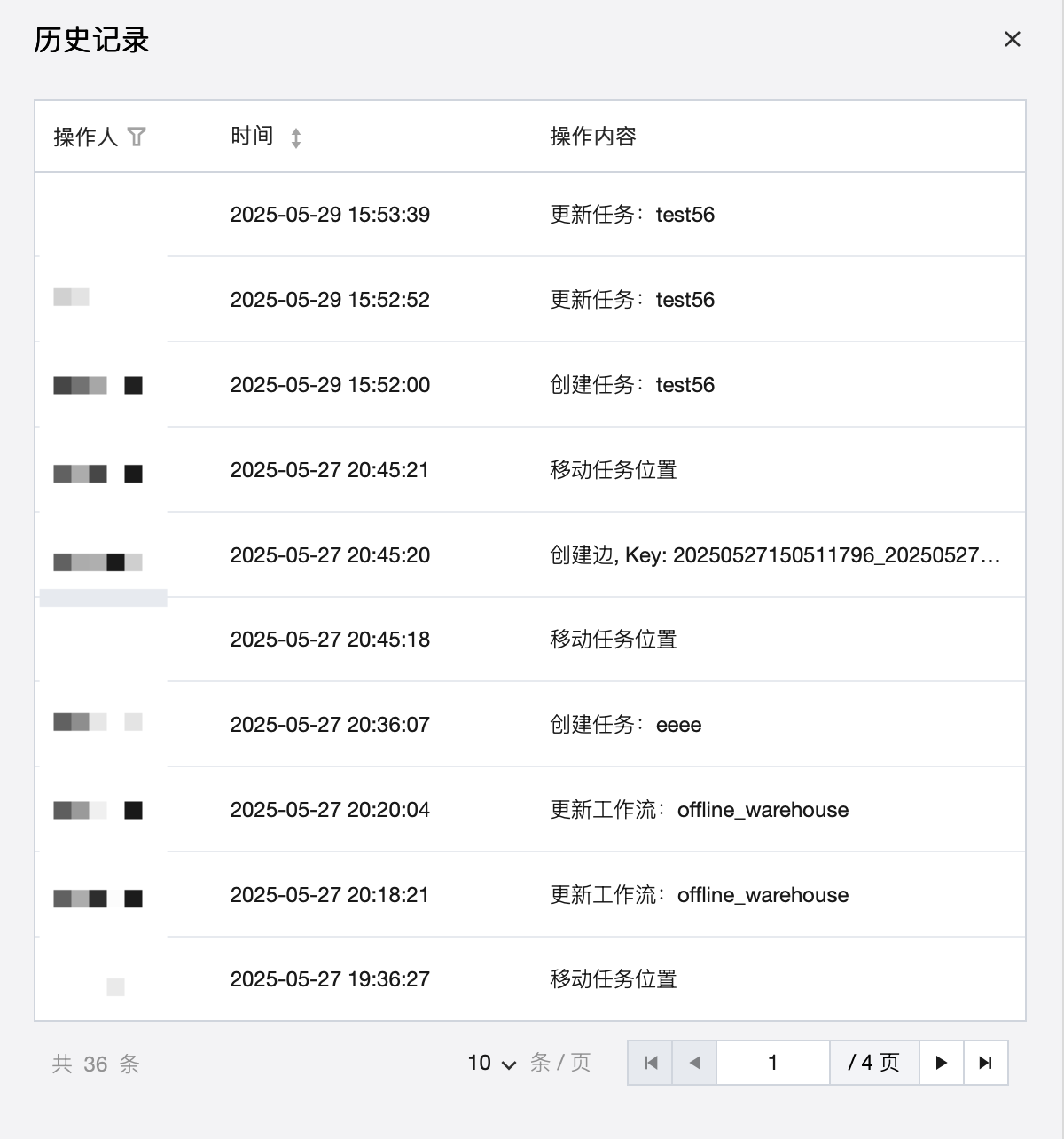
History Records
Click the History in the right sidebar to view the historical operation information of the current workflow, including the operator (execution account), operation time, and specific operation content.
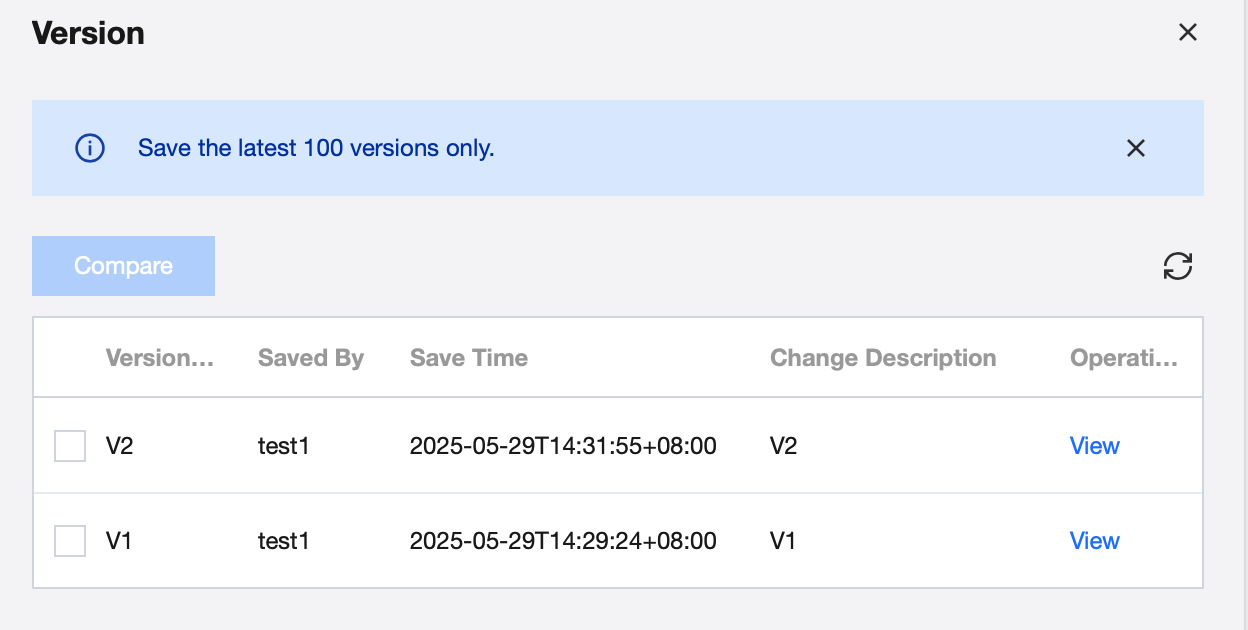
Version
Every time a data workflow is edited and submitted for operations, a workflow version will be generated accordingly. Click on the Version in the right sidebar to view the historical version information of the current workflow, including the Version Name (version number), Saved By (version submitter), Save Time (submission time), and Change Description.
Note:
A workflow version will only occur upon submission on the workflow. Submitting task individually will not generate a workflow version.
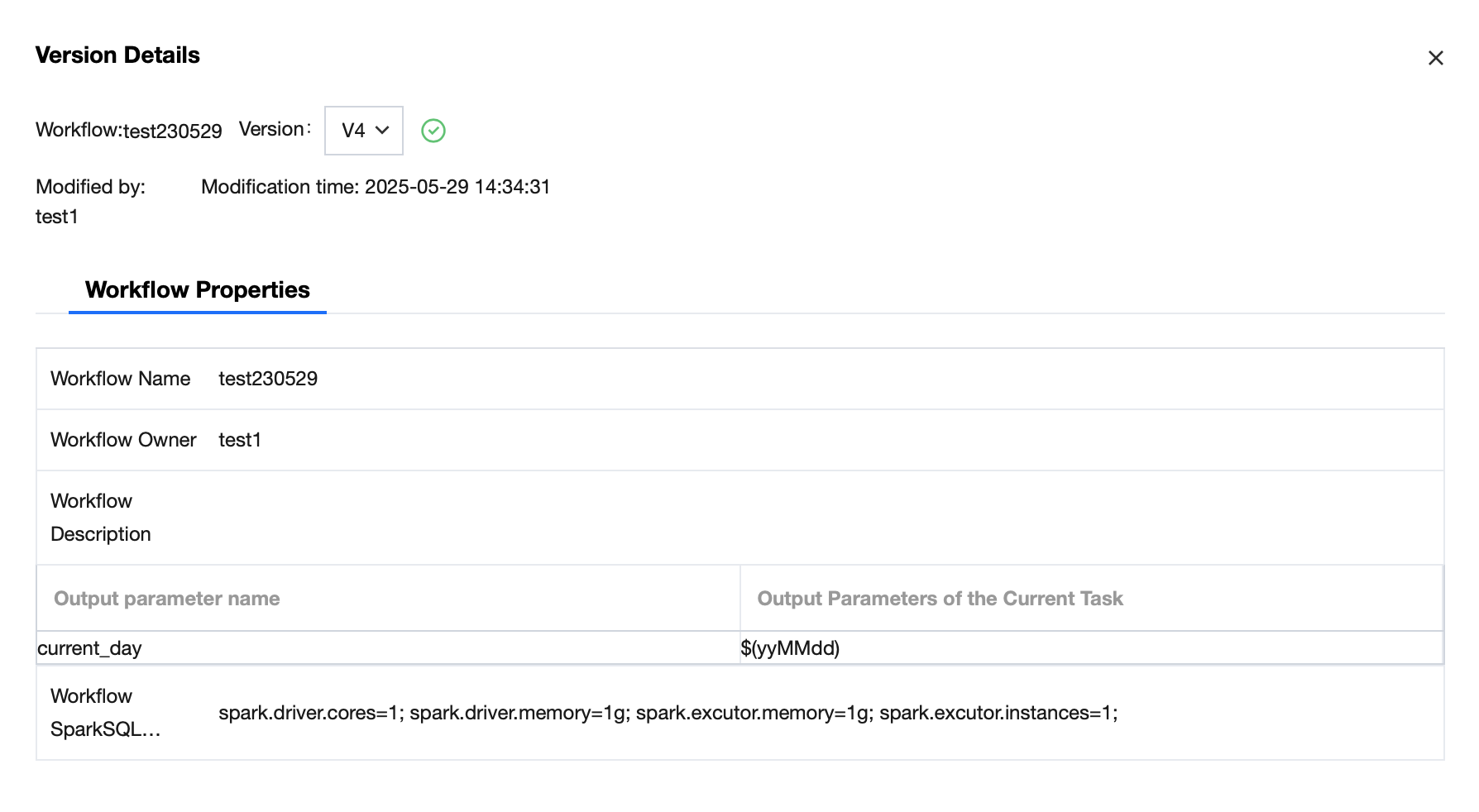
Use the View feature in the operation list to see the corresponding version's configuration message. The configuration message can be changed in the workflow's General Settings.
Computing Task Introduction
Canvas Functionality
Function
Description
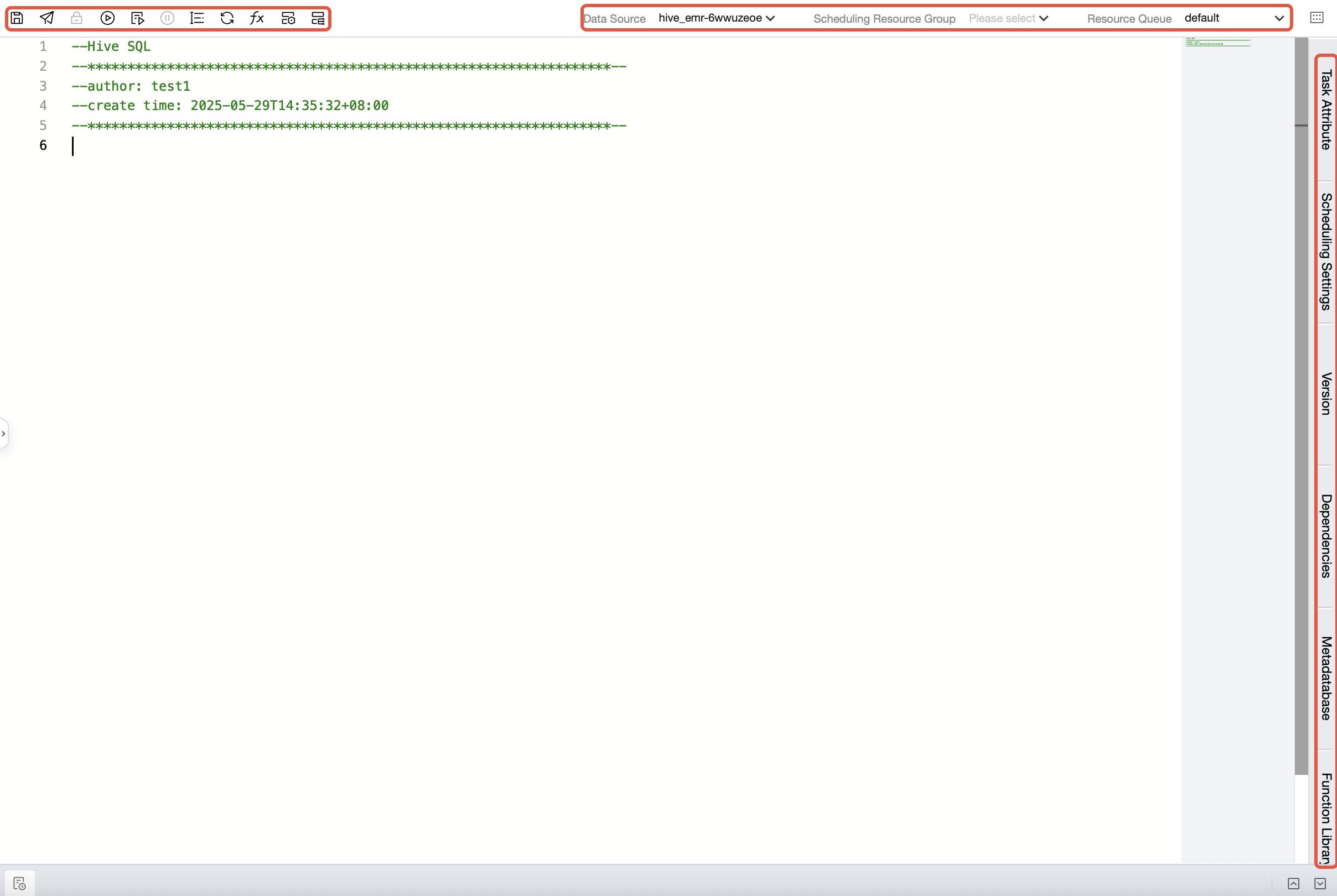
Save
Click the icon to save the current task node.
Committed
Click the icon to submit the task node to the scheduling system.
Feature limitation: The task can only be properly committed when the data source and scheduling condition settings are complete.
Lock/Unlock
Click the icon to lock/release the edit of the current file. If the task is locked by others, it cannot be edited.
Run it.
Click the icon to debug and run the current task node.
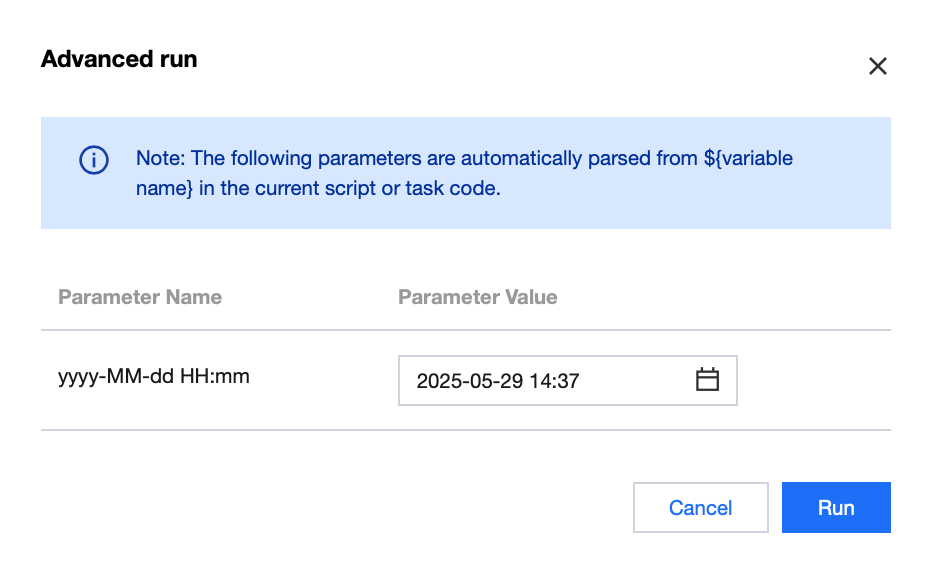
Advanced execution
Click the icon to run the current task node with parameters. The system will automatically pop up the time parameters and custom parameters used in the code.
Stop running
Click the icon to stop debugging and run the current task node.
Formatting
Click the icon to standardize the format of code statements in the task.
Refreshing
Click the icon to update the content of the current task node.
Project variables
Click the icon to view project global variables and use them in tasks.
Task Ops
Click the icon to go to the task operation and maintenance page and automatically filter the current task.
instance Ops
Click the icon to go to the instance operation and maintenance page and automatically filter the current task.
Data Source
Select the data source used by the current computing task.
execution resource group
Select the execution resource group during task execution for the current compute task.
resource queue
Select the resource queue used during task execution for the current compute task.
Committing the Task
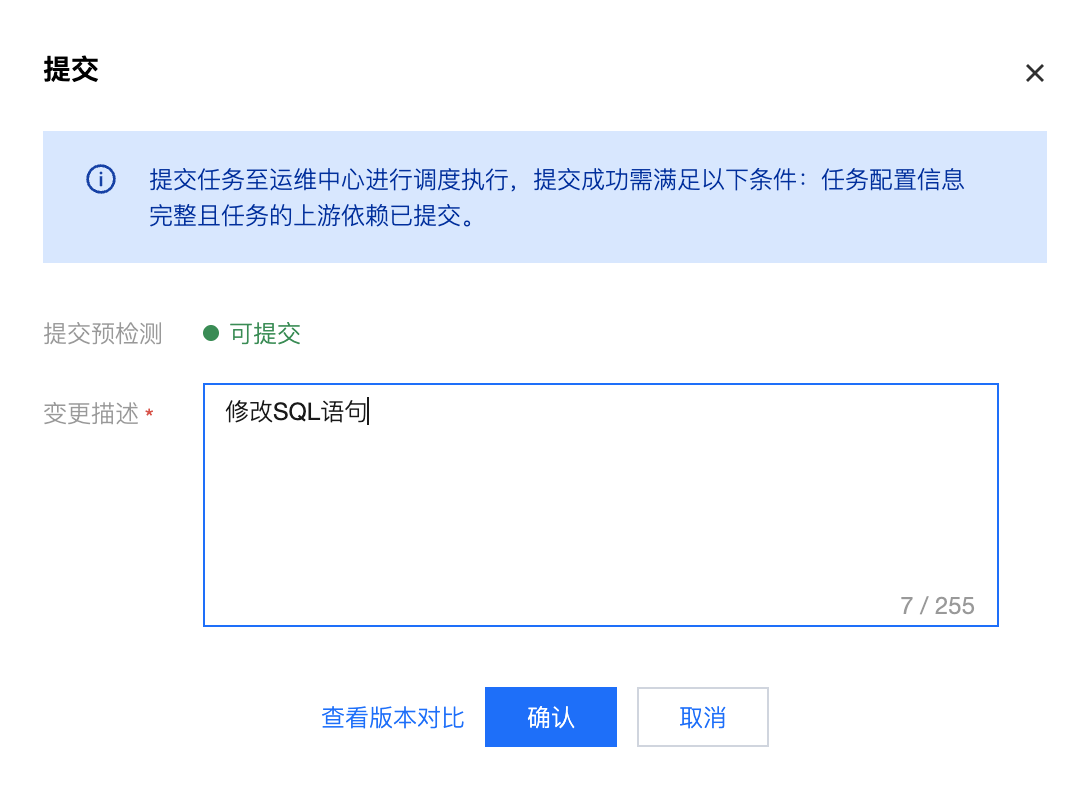
After completing task editing, click the submit button in the top-left corner of the canvas, fill in the change description in the pop-up dialog box, and submit the task (including node basic content and scheduling configuration attributes) to the scheduling system to generate a new version record. After the task is submitted successfully, you can view or operate the task and corresponding instance in the Ops center.
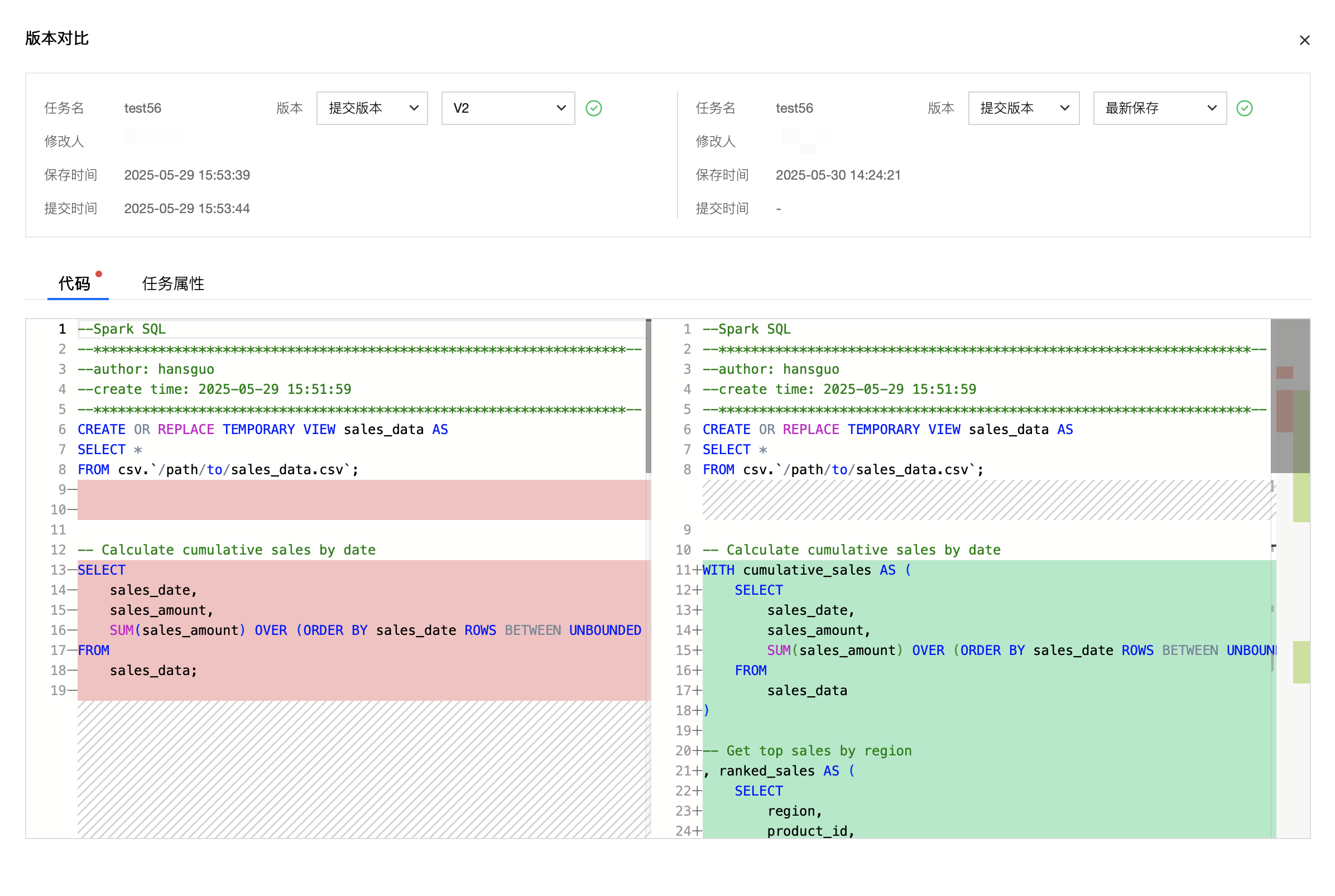
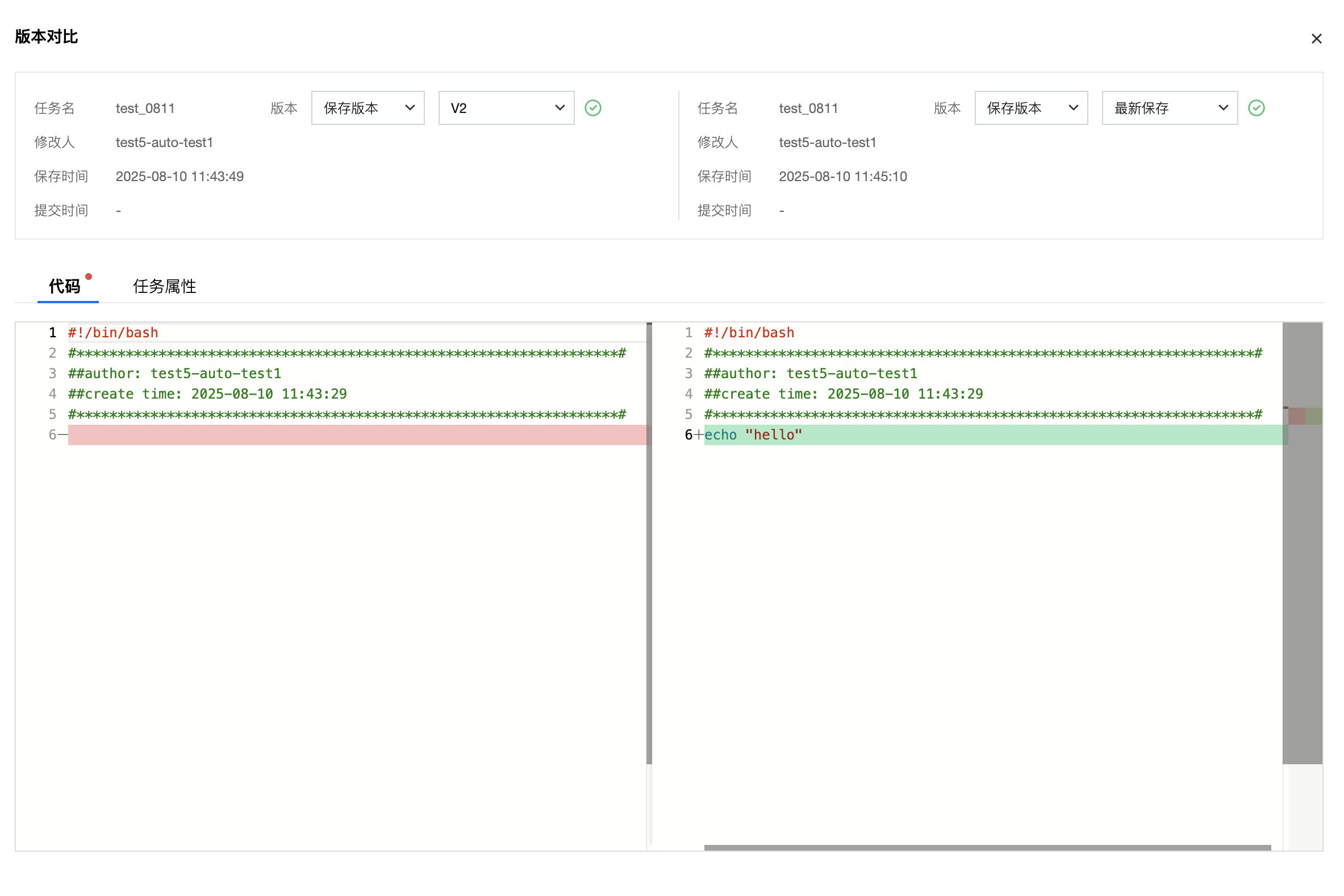
When the task is not the first submission, you can click "View version comparison" in the pop-up window to compare code content, task properties, and other information with the last submission.
Online Editor
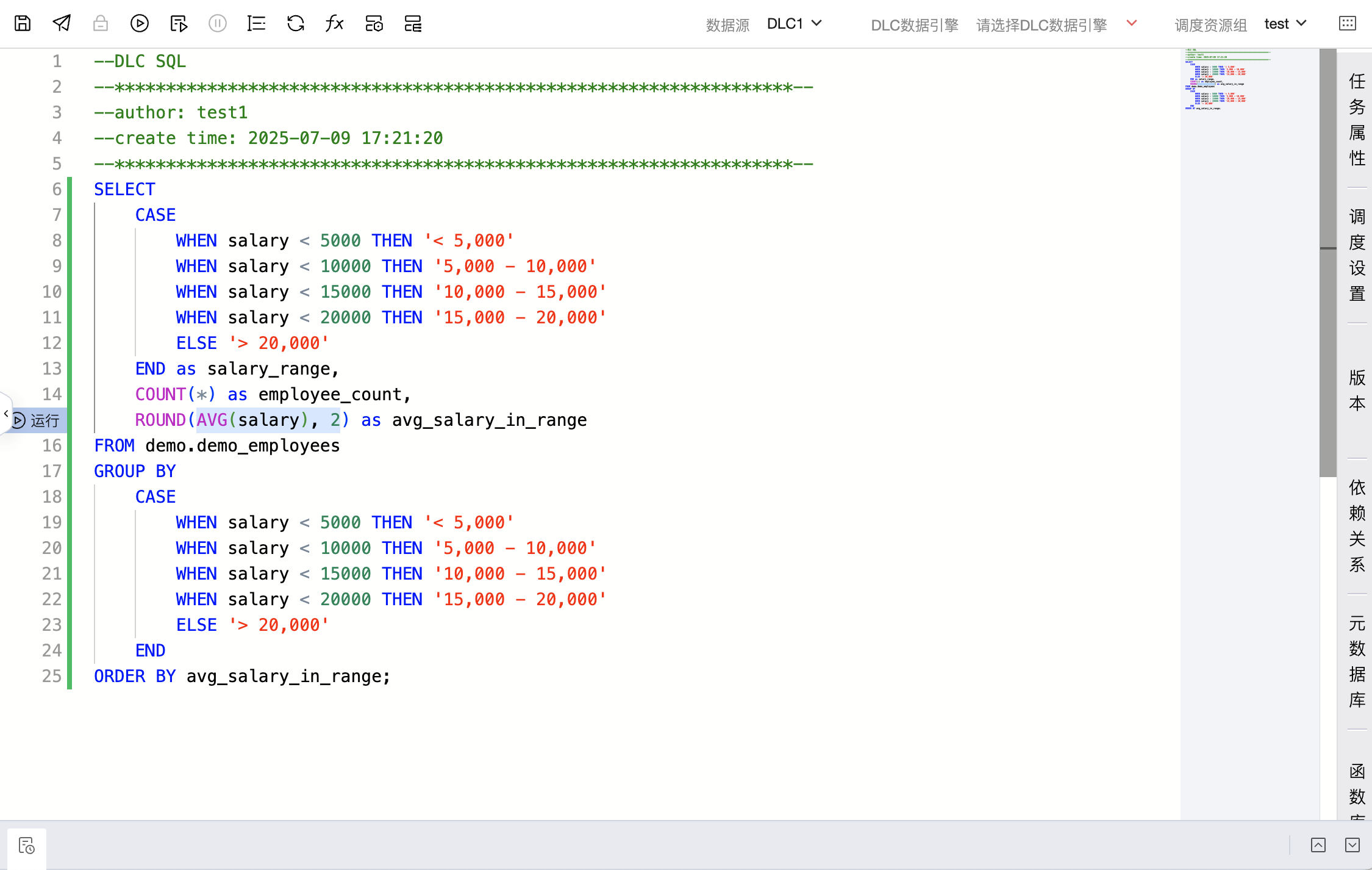
Script type tasks can be completed through the online editor by filling in code content, such as Shell, Python, and DLC SQL tasks. The online editor supports writing code with:
Click brackets to highlight code in brackets (you can turn on or off in data development configuration at the lower left corner of the offline development interface).
Double-click brackets to select code in brackets
Select the code and click the run button on the line count to run the selected statements.
Task Properties
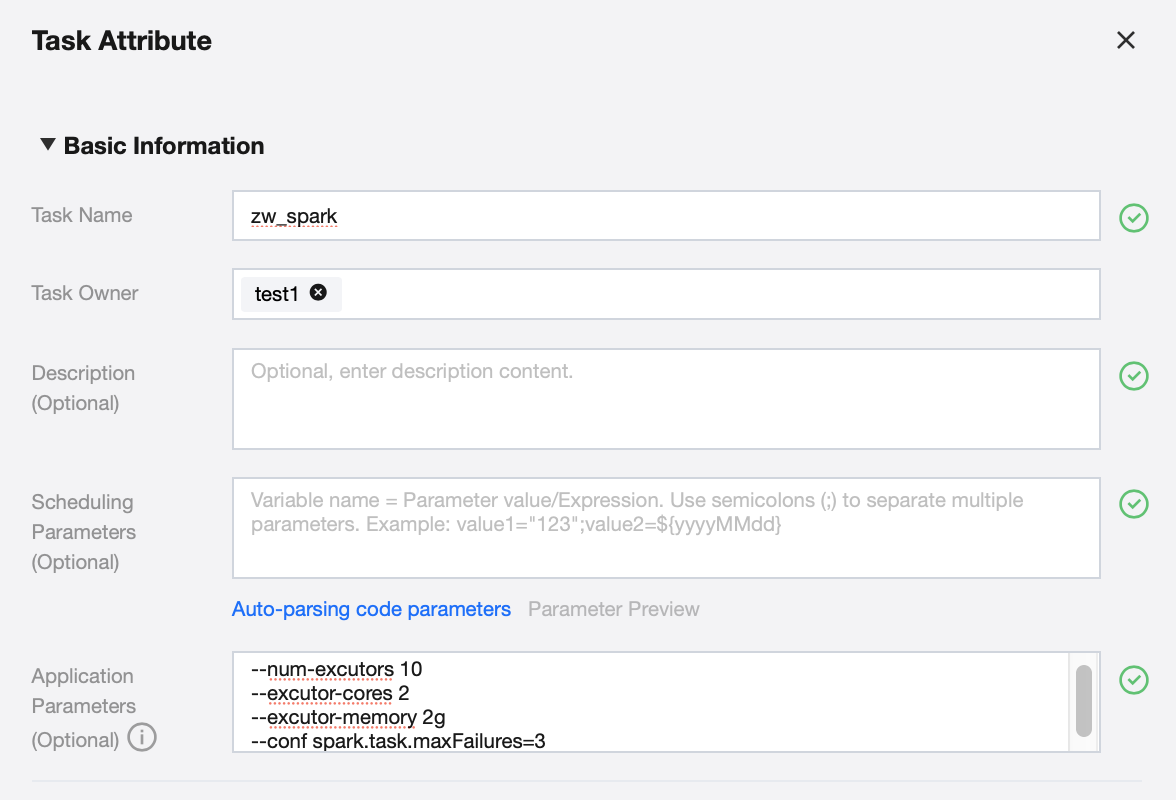
Modifications are allowed to the current task's task name, task owner, task description information, task scheduling parameters definition, application parameter usage, and it provides the automatic code variable parsing feature. It also provides a parameter description document to assist in using the task scheduling parameter feature.
Task scheduling includes scheduling policy, event scheduling, dependency configuration, upstream dependency task configuration, scheduling priority, failure policy, and other configuration items. For details, see Task Scheduling.
Version
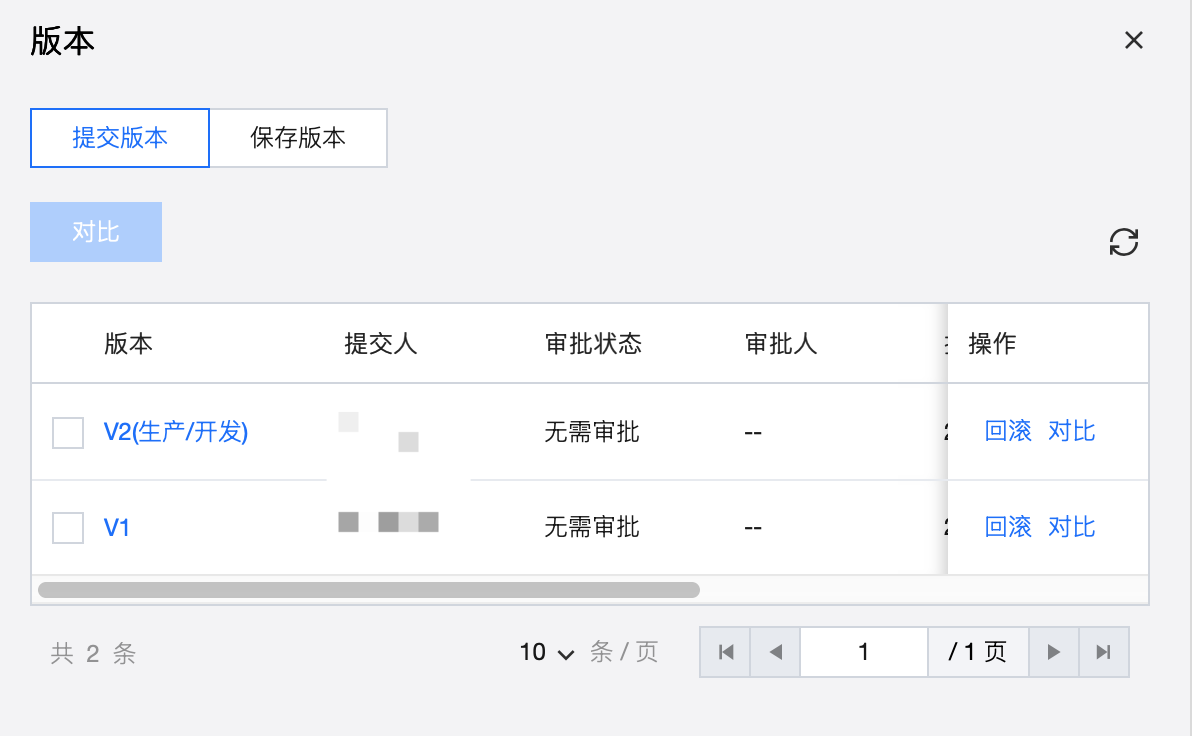
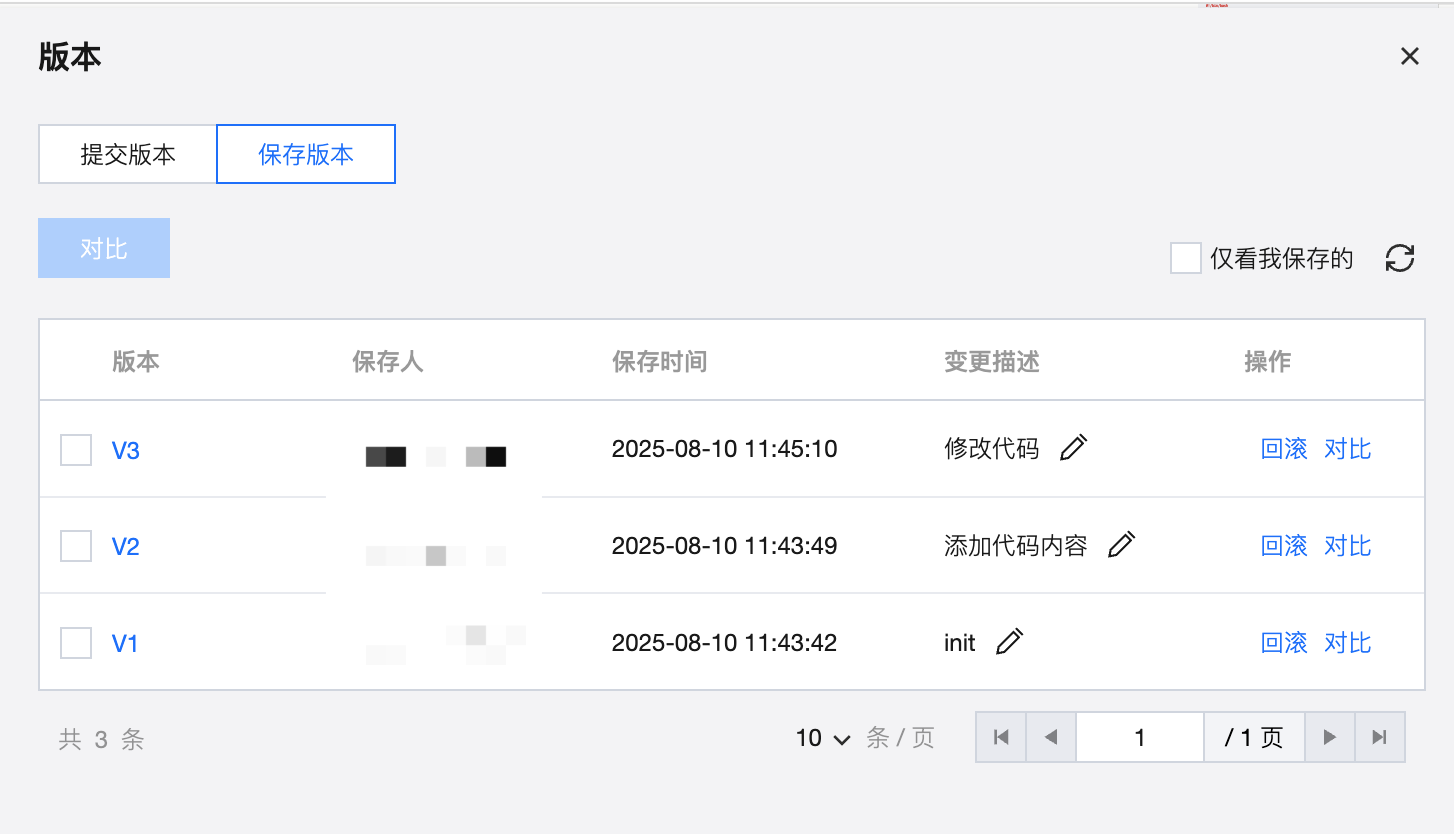
Displays the task history of submission/save records. You can view node historical version, submitter/saver, submission time/retention time, change type, status, remark, etc. in the version panel. Click the version name to view information of a single version and select two versions for comparison. After submission, a task generates a submission version. Every time it is saved, a save version is generated, and a new record is created in the submission version/save version panel. Only submitted task nodes have version information, otherwise the version information is empty.
Submit Version
Operation
Description
Rolled back.
Roll back scripts and configurations of the task, excluding dependency relationship. Submission after rollback is required to take effect. After rollback, changes (including code and task configuration) not submitted will be lost.
Compare
Offer comparison between task historical versions in pairs. Key information differences of both are shown in the form of a code comparison panel and a task properties comparison panel.
Save Version
Operation
Description
Change Description
Click the pencil icon in the change description to add or modify the description for this specific version.
Rolled back.
Roll back scripts and configurations of the task, excluding dependency relationship. After rollback, changes (including code and task configuration) not saved will be lost.
Compare
Offer comparison between task historical versions in pairs. Key information differences of both are shown in the form of a code comparison panel and a task properties comparison panel.
Dependency Relationship
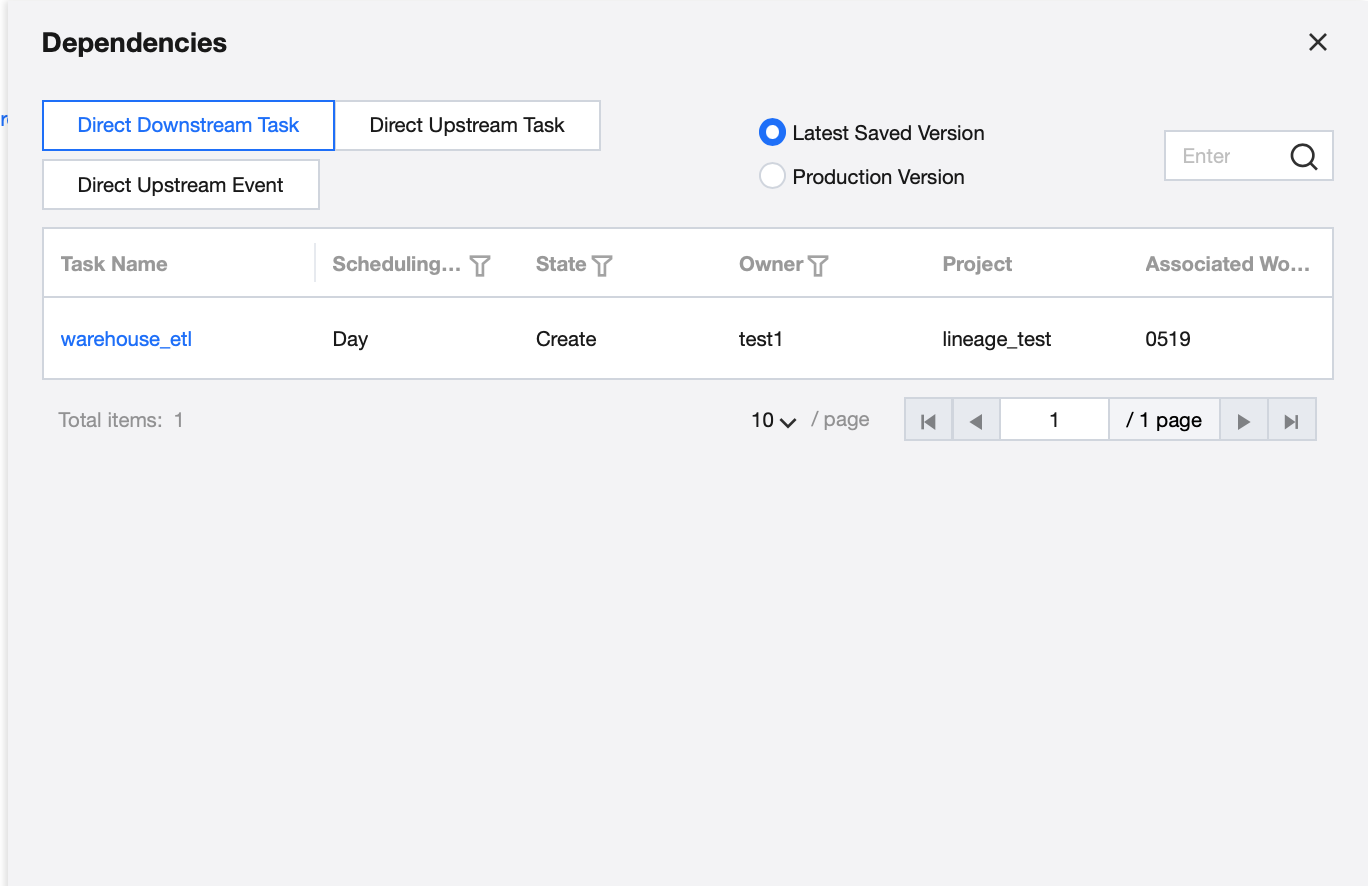
Connect task nodes on canvas or add event dependencies to nodes in scheduling settings, and dependency items will be displayed in the dependency relationship. Selecting the production version option displays dependencies from submitted runs, while selecting the latest saved option shows dependencies from the last save. Tasks support search and can be filtered by scheduling cycle, status, and owner. Events can be filtered by period type and validity time.
MetaDB
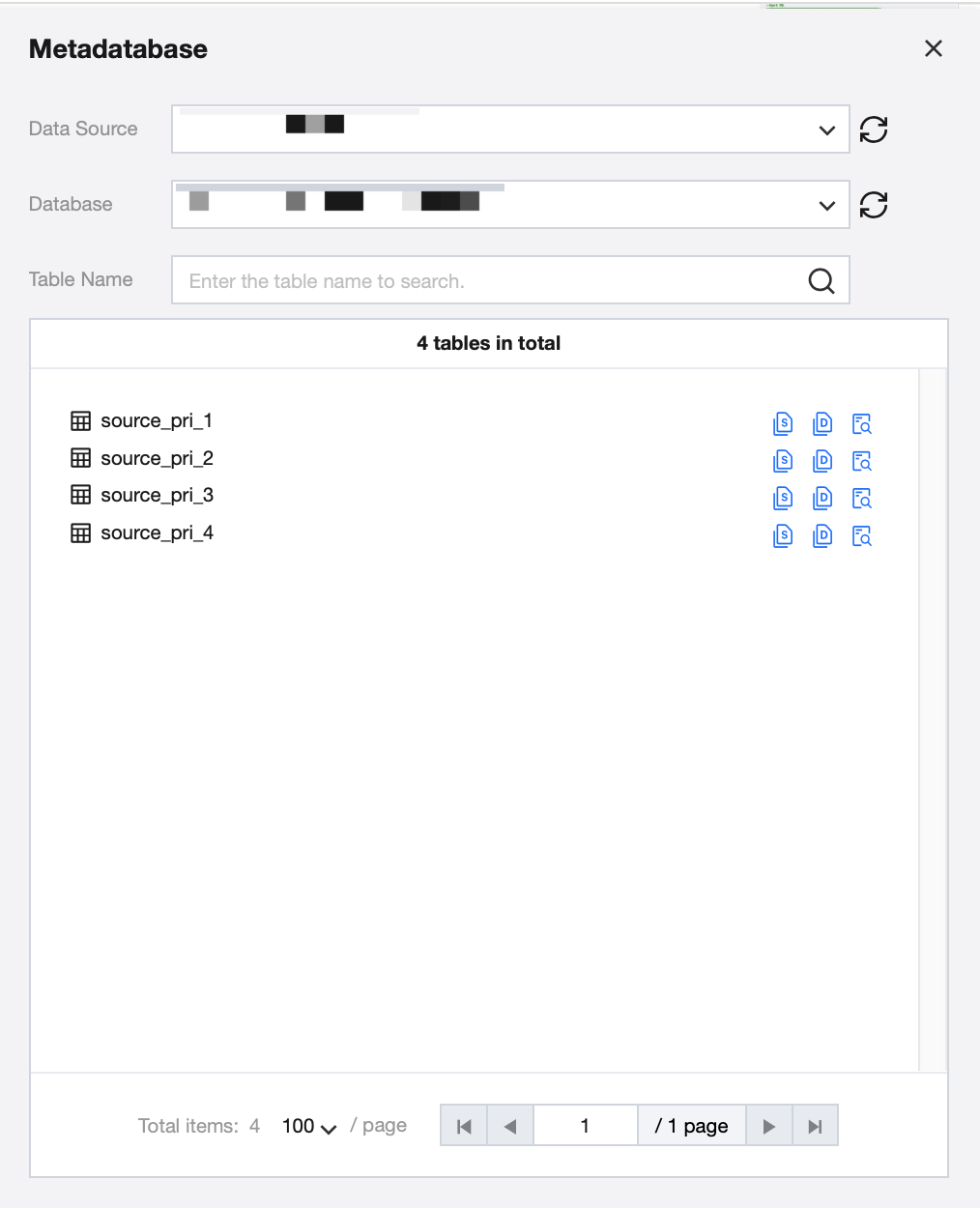
Show the metadata information of connected data sources under the current project. Database and table information can be retrieved by searching data sources, databases, or data tables, facilitating quick usage during task development. Quick functions such as query SQL for copying tables, table DDL, and table names are provided.
Note:
Currently, the ability to copy table query SQL and table DDL is only supported for system data sources.
Function Library
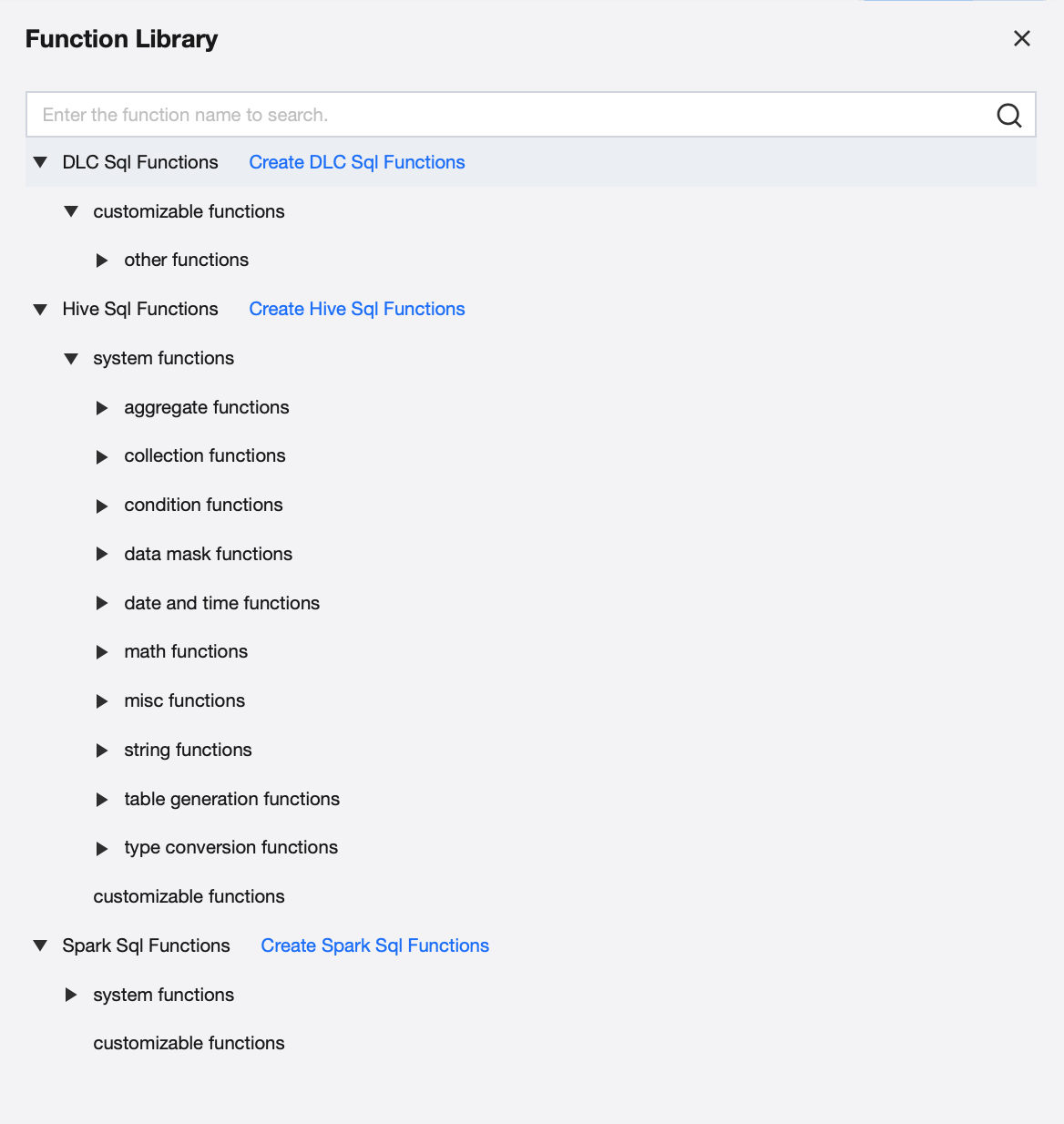
Display functions that can be used in task development. Currently supports DLC SQL, Hive SQL, and Spark SQL functions. Select based on the engine targeted by the development task. The function library includes commonly used system functions, such as analysis functions corr, covar_pop, encryption functions hash, md5, and logical functions decode, nvl, etc. Additionally supports using custom functions. Function packages uploaded through resource management can be created via the function development feature and then displayed in this function library, allowing them to be called in development tasks. For details on creating custom functions, see Function Development.