The content of this page has been automatically translated by AI. If you encounter any problems while reading, you can view the corresponding content in Chinese.
2. Click Project List in the left menu to find the target project requiring development process operation.
3. After selecting the project, click to enter the offline development module.
4. Click Orchestration Space in the left menu.
Workflow Operation Steps
Create a Folder
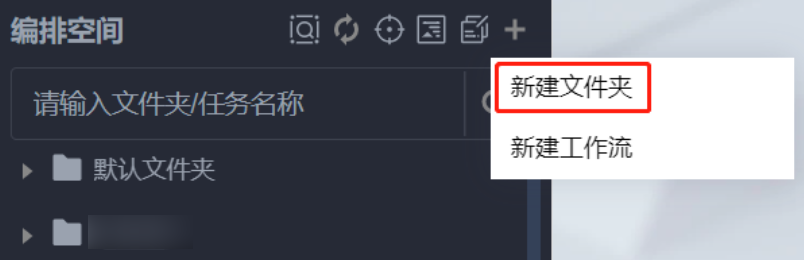
Hover the cursor over the
button in the Orchestration Space Directory Tree, click and choose Create Folder, enter the folder name and select the target folder.
Note
WeData supports creating multi-level folder directories, and newly created folders can be saved to the root directory or other created folders.
Create a New Workflow
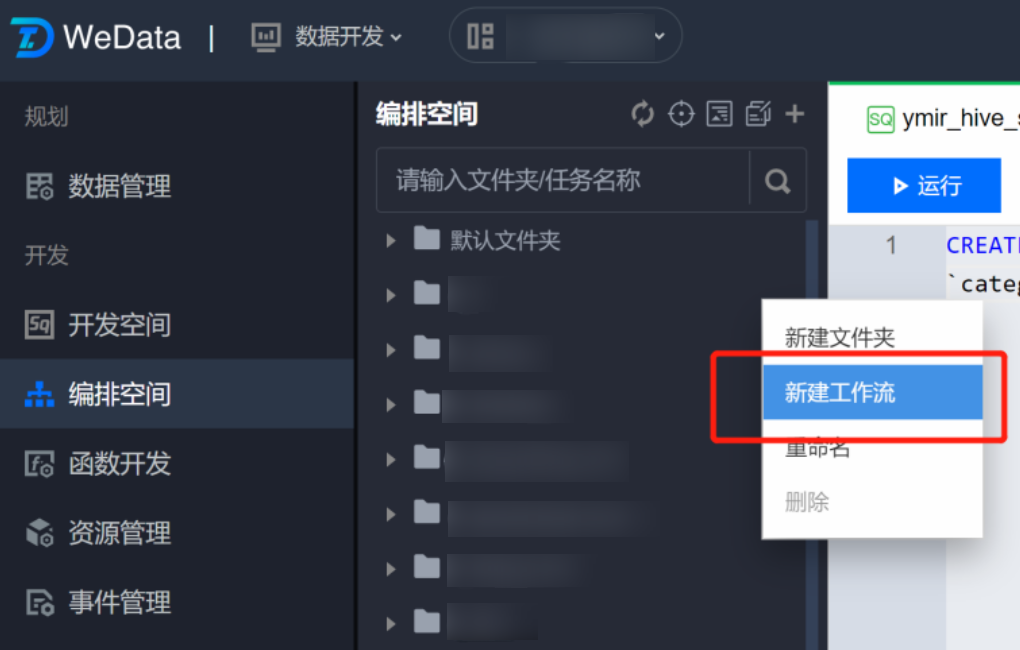
1. In the left sidebar directory tree, select the target folder, click the right-click menu and choose New Workflow.
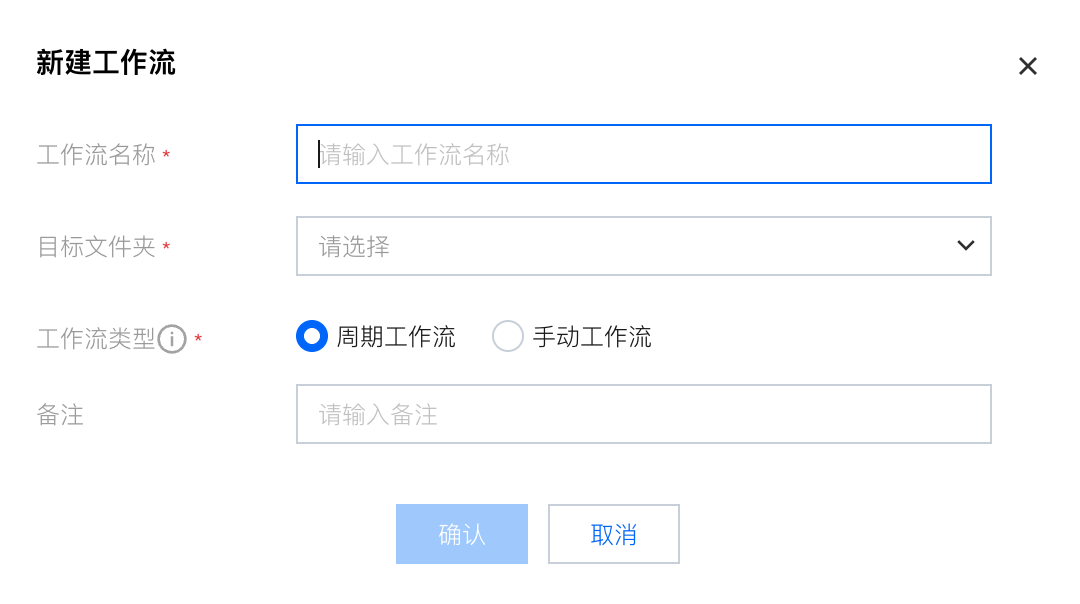
2. In the pop-up window for creating a new workflow, enter the workflow name, select the target folder, and click Confirm.
Note
Workflow name supports Chinese, uppercase and lowercase letters, digits, and underscore, and can include up to 100 characters.
Designing a Workflow
Creating and Editing Tasks
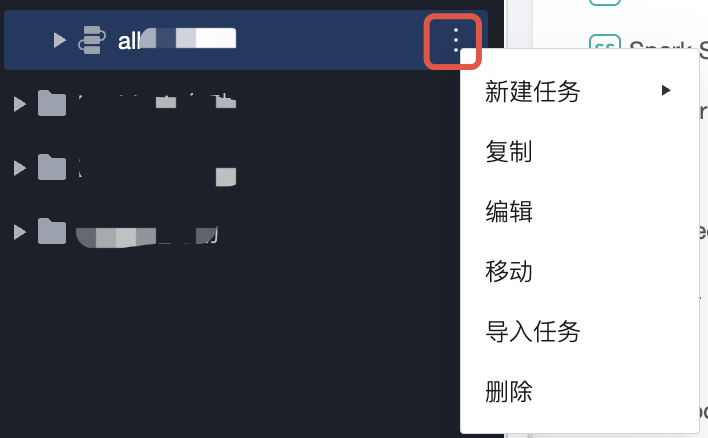
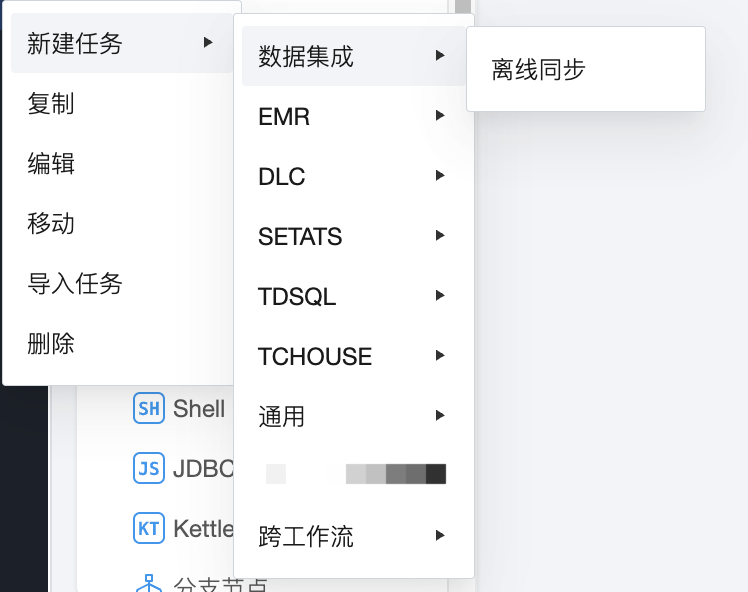
1. In the left sidebar directory tree, select the newly created workflow, click the button at the end, and choose Create Task in the pop-up menu.
2. Select the task type to be configured in the workflow. Task scheduling supports multiple task types to meet various application development scenarios, including Data Integration, EMR, DLC, SETATS, TDSQL, TCHOUSE, common, and cross-workflow task types.
3. After successful creation (or double-clicking the task node name in the directory tree), perform task editing on the opened task Tab page.
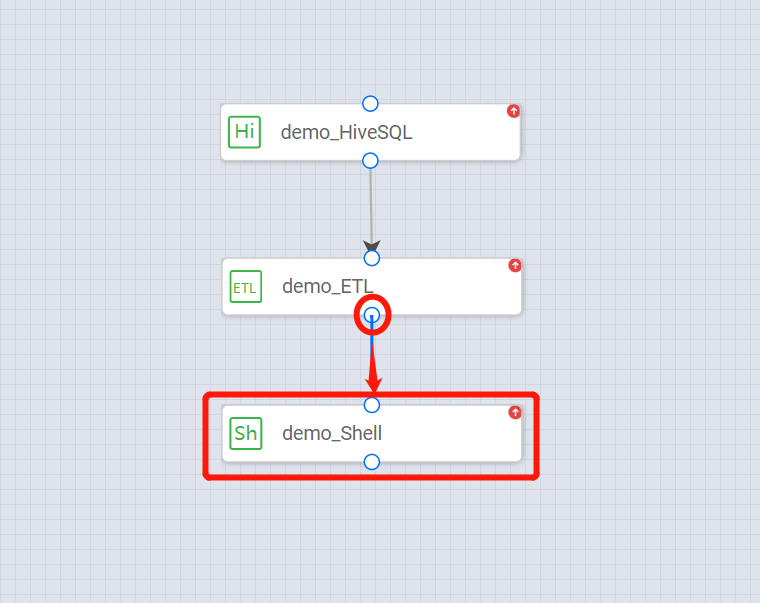
4. Follow the Compute Task Operation Steps for task configuration. After configuring multiple compute tasks, orchestrate them on the workflow canvas to form upstream and downstream dependencies between task nodes.
Submit Workflow
1. After completing the workflow editing, click the
icon in the toolbar to submit the nodes in the workflow to the scheduling system.
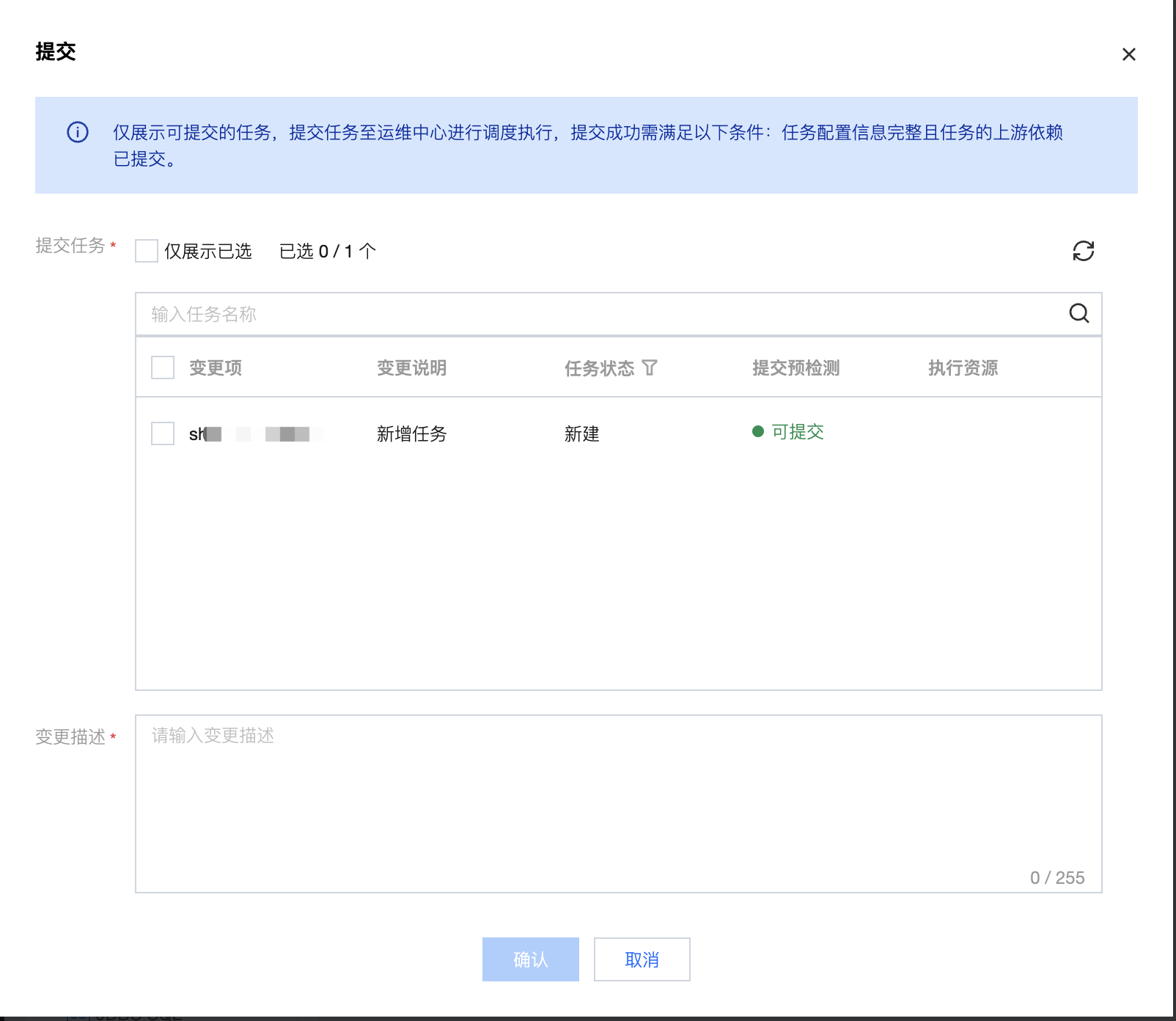
2. In the submission dialog box, view the details of the tasks to be submitted this time and enter the relevant change description.
3. Click Confirm to submit the workflow to the operations phase.
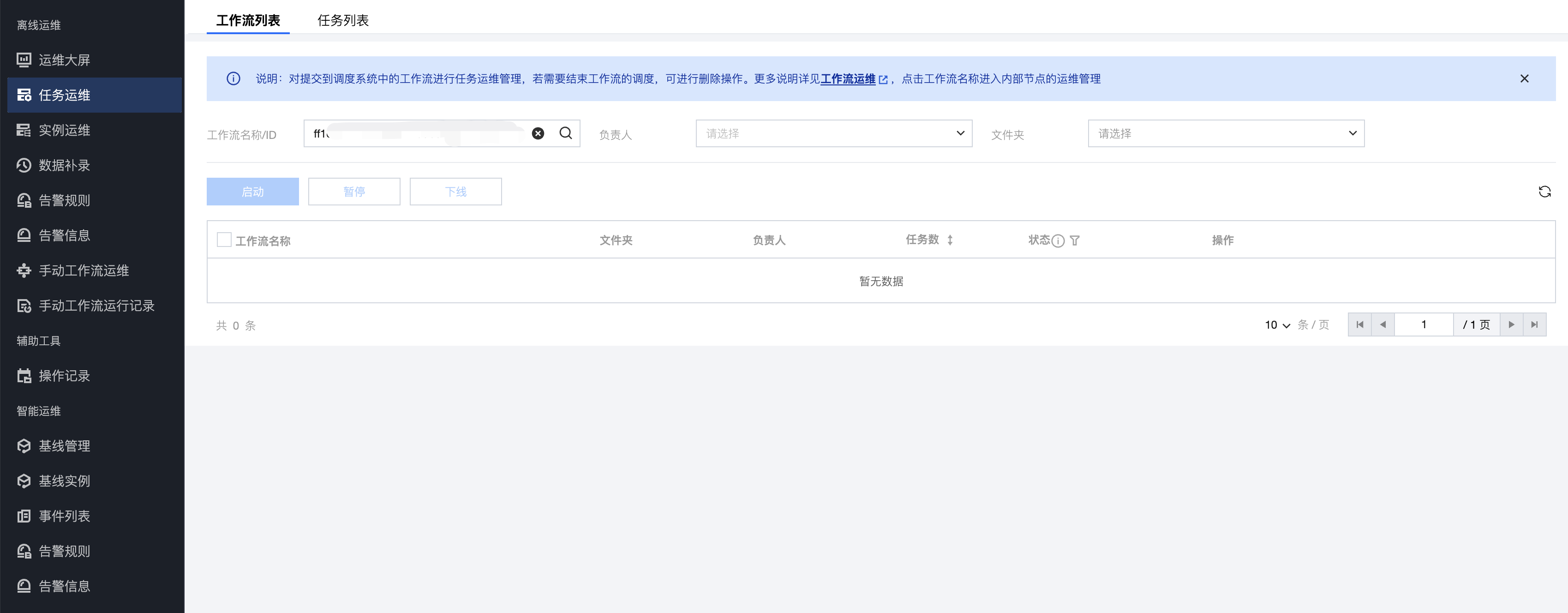
4. Nodes already submitted will not appear in the pop-up window if their content remains unchanged, but modifications to their attributes will be properly committed. Click the
icon to enter the Ops center > task operations page.
Calculating Task Operation Steps
Task node development supports multiple task types to meet various application development scenarios.
Creating a Task Node
Select a workflow, then click Create a New Task, and select the type of computing task you need to create.
Configuring a Task Node
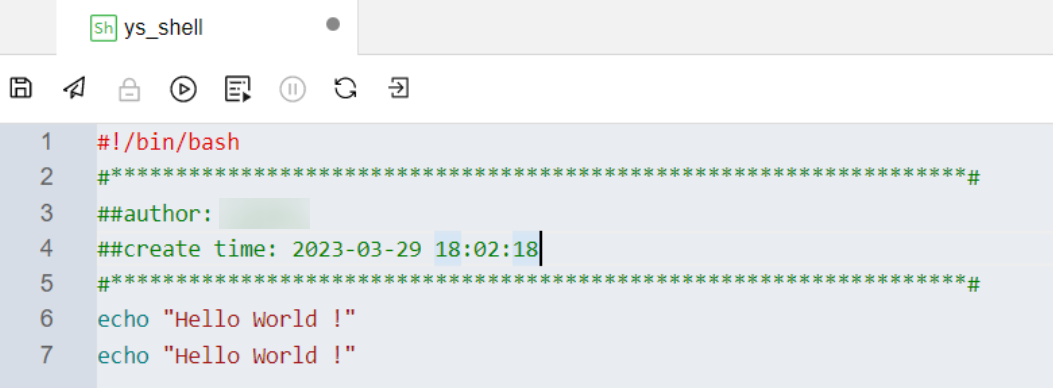
1. After successful creation, perform corresponding code development on the computational task canvas.
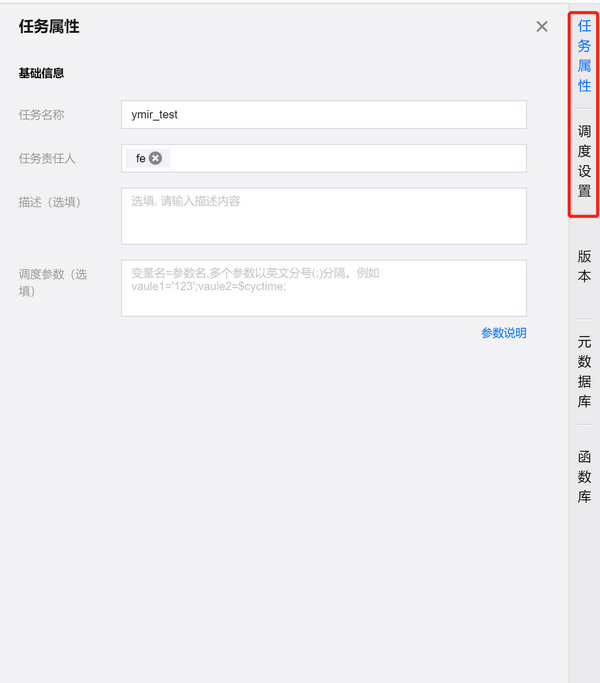
2. Configure task attributes and scheduling policies. Click the Task Attributes and Scheduling Settings on the right side of the task, and configure the basic information about the task and scheduling information in the panel.
3. Select the data source, resource queue, and scheduling resource group required for executing the computing task.
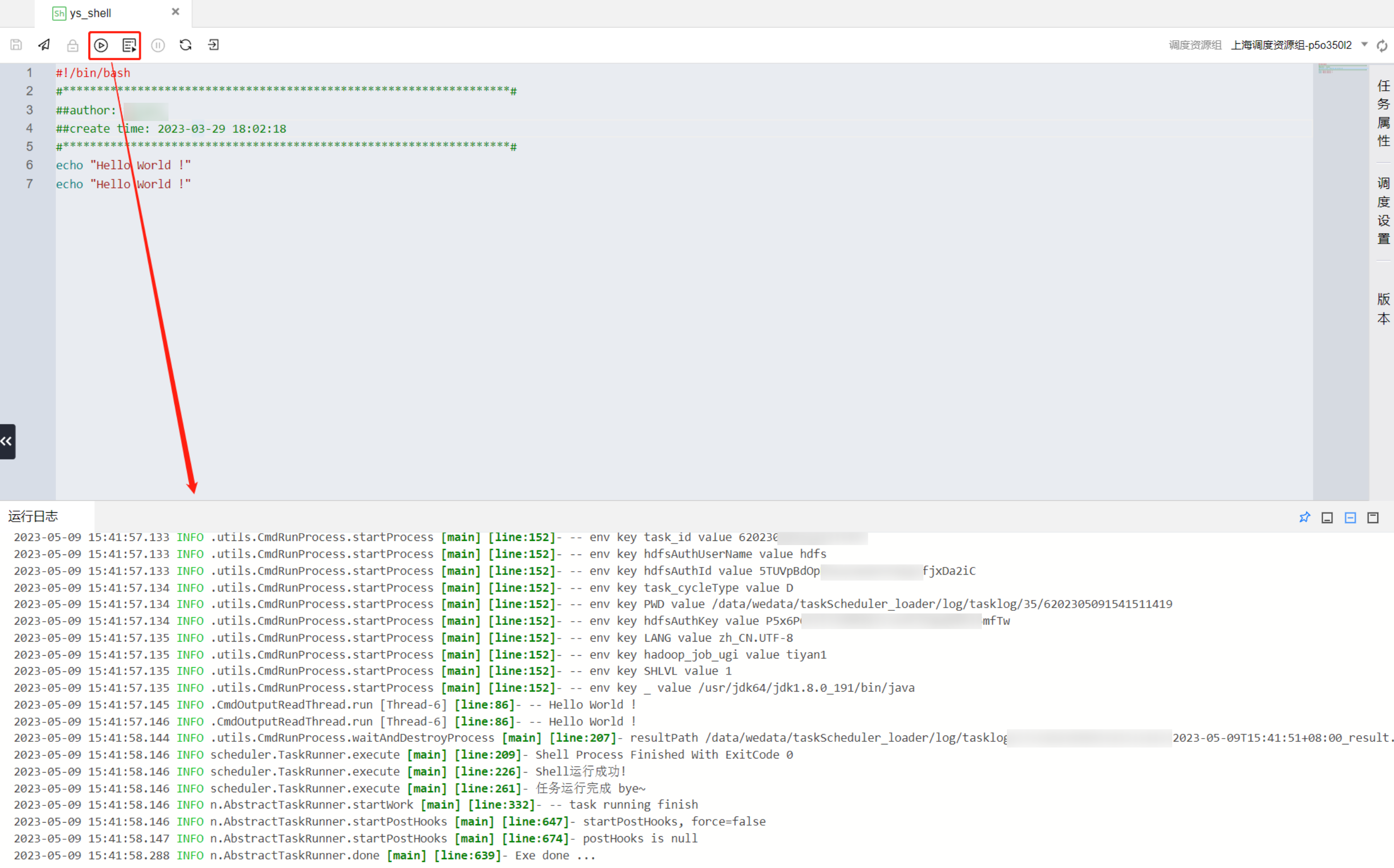
4. Execute the Run feature to test whether the computational task execution result meets expectations.
Submitting a Task Node
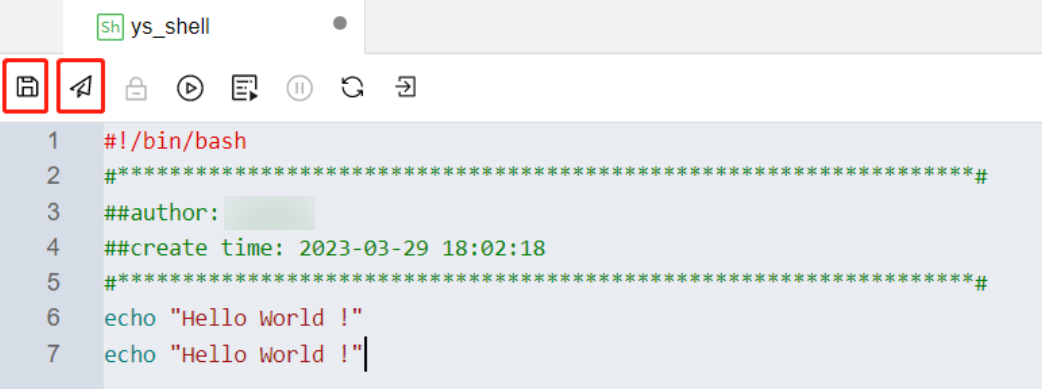
1. After configuring the computation code, task properties, scheduling policy, and computational resource, and ensuring the test task runs as expected, save and submit the compute task to complete the task node configuration.
2. Sequentially configure each computing task according to the steps. Then, based on Workflow Operation Steps, complete the orchestration configuration at the workflow level. You can then submit it for scheduling and running.